

SEPA Credit Transfer

SEPA or Single Euro Payments Area Credit Transfer is a payment system used to make euro bank transfers across Germany and other SEPA-supported countries. Instead of processing each vendor payment individually, you can generate a single SEPA Credit Transfer file in Zoho Books for multiple bills at once and submit it to your bank to process all the payments in one go.
Add Vendor Bank Details
Before generating a SEPA Credit Transfer file, ensure that you’ve added the vendor’s bank account details in Zoho Books. Here’s how:
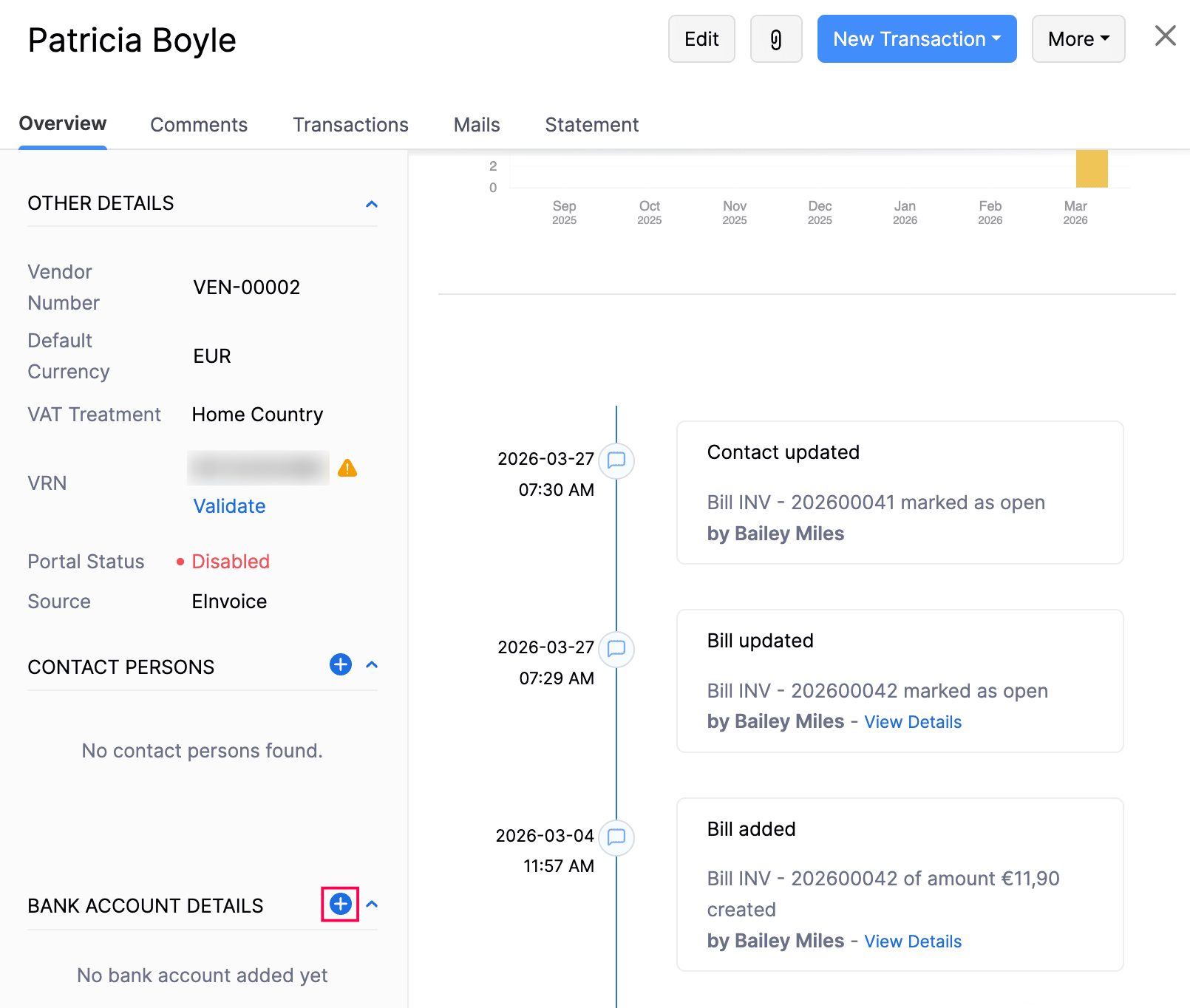
- Go to Purchases on the left sidebar and select Vendors.
- Select the vendor for whom you want to add bank details.
- In the Vendor Details page, go to the Overview tab.
- Click the Plus icon next to Bank Account Details.
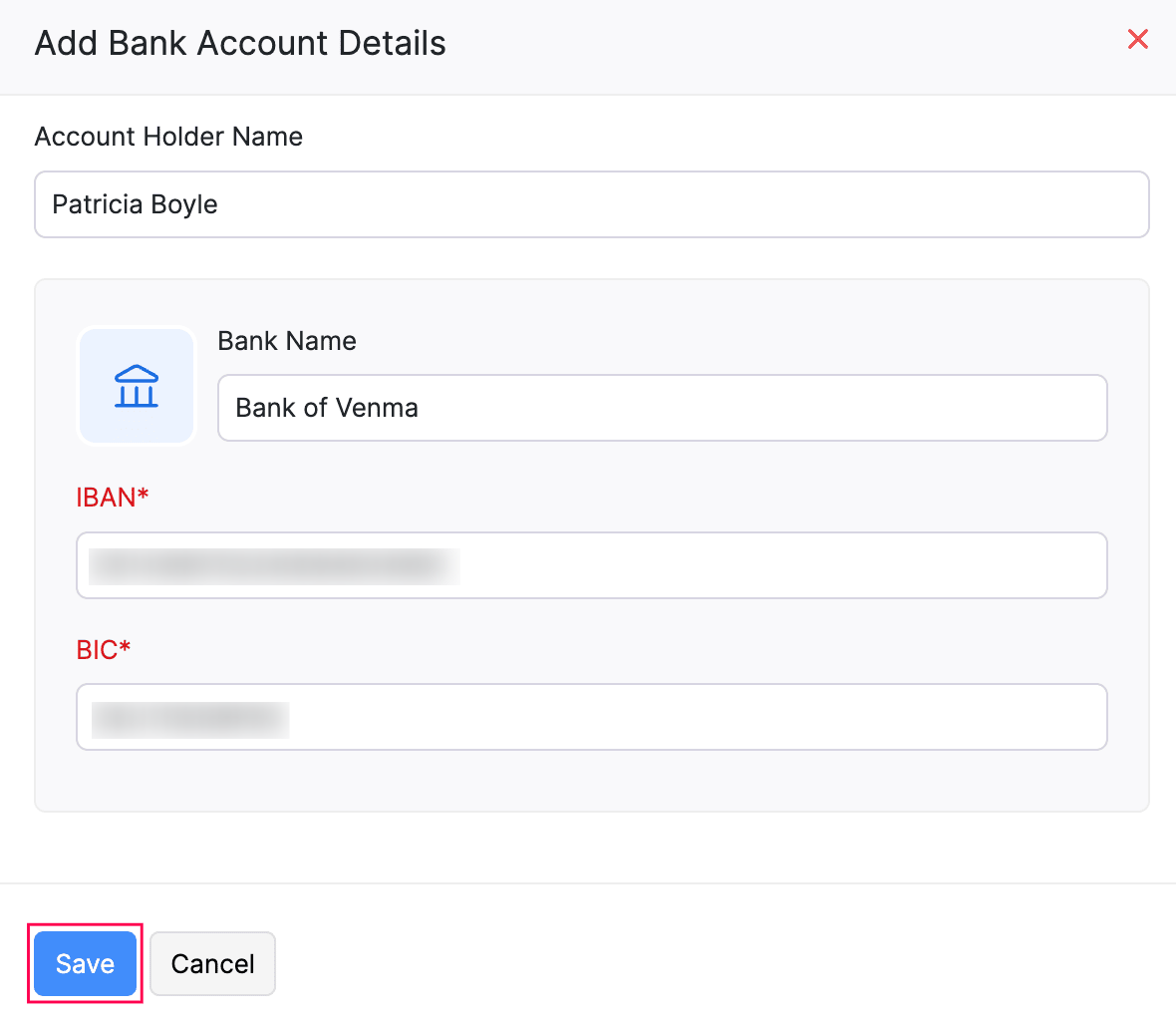
- In the Add Bank Account Details pop-up, fill in the following fields:
| Field | Description |
|---|---|
| Account Holder Name | Enter the name of the vendor as it appears in the bank account. |
| Bank Name | Enter the name of the bank where the account is held. |
| IBAN | Enter the International Bank Account Number used to identify the account for SEPA payments. |
| BIC | Enter the Bank Identifier Code used to identify the vendor’s bank during international or SEPA transfers. |
- Click Save.
Generate a SEPA Credit Transfer File
To generate a SEPA Credit Transfer file in Zoho Books:
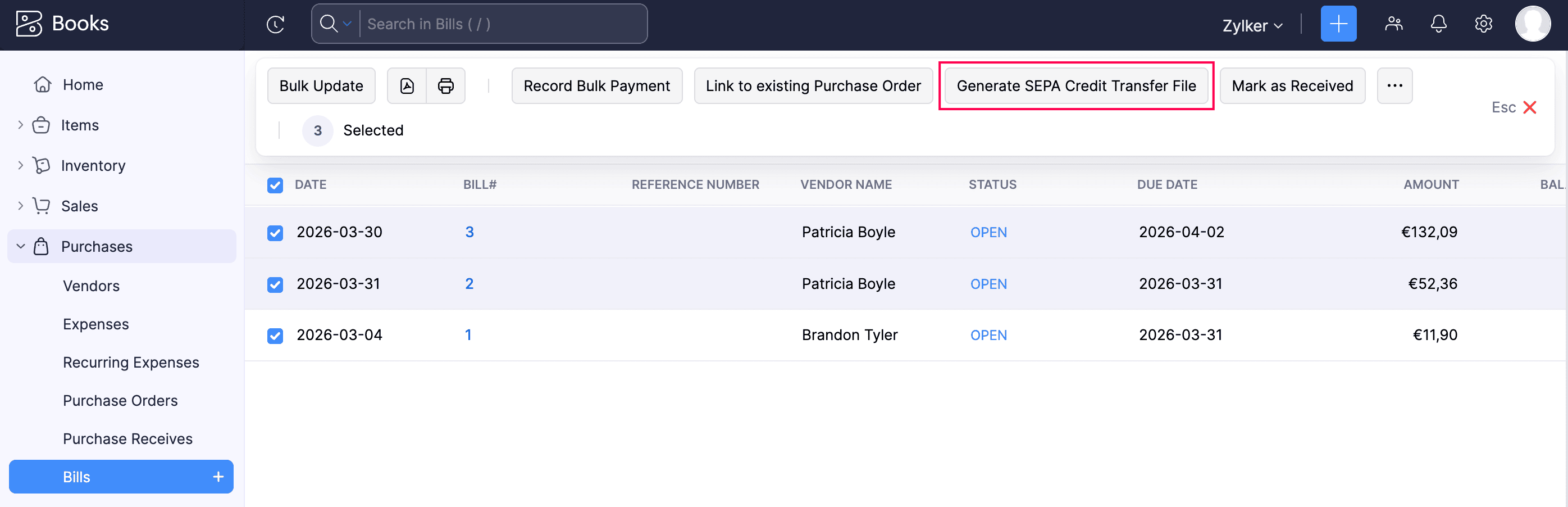
- Go to Purchases on the left sidebar and select Bills.
- Select the bills that you want to pay using a SEPA Credit Transfer file.
- Click Generate SEPA Credit Transfer File at the top of the page.
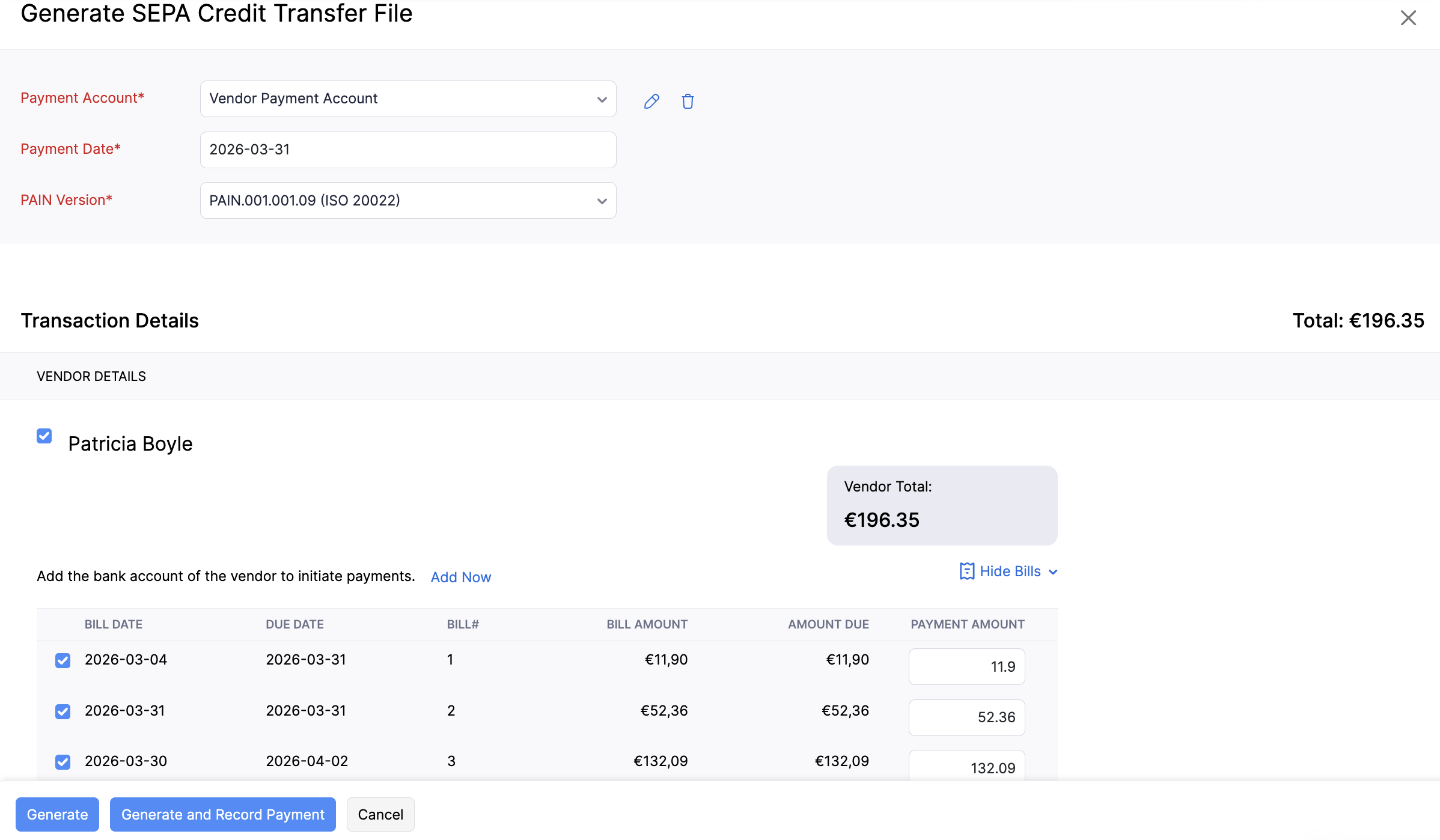
- In the Generate SEPA Credit Transfer File page, select the Payment Account from which the payment should be made.
- Select the Payment Date.
- Choose the PAIN Version compatible with your bank.
- In the Transaction Details section, review the selected vendors and bills.
- Select the bank account in the To Account field for each vendor.
- If a vendor’s bank account is not available, click + Add New and enter the required details.
- After entering all the required details, review the payment amounts for each bill.
- Click Generate and Record Payment to generate the file and record the payment simultaneously. (or)
- Click Generate if you want to generate only the SEPA Credit Transfer file. The payment for the selected bills will not be recorded automatically and you will have to record it manually.
Now, the generated SEPA Credit Transfer file can be uploaded to your bank portal to process the corresponding bill payments.
Export a Batch as a SEPA Credit Transfer File
If you’re using the Bill Pay add-on in Zoho Books, you can create and export approved batch payments as a SEPA Credit Transfer file and upload it to your bank portal to process multiple vendor payments at once.
Here’s how:
- Go to Purchases on the left sidebar.
- Click Batch Payments.
- Open the batch that you want to export.
- Click Export.
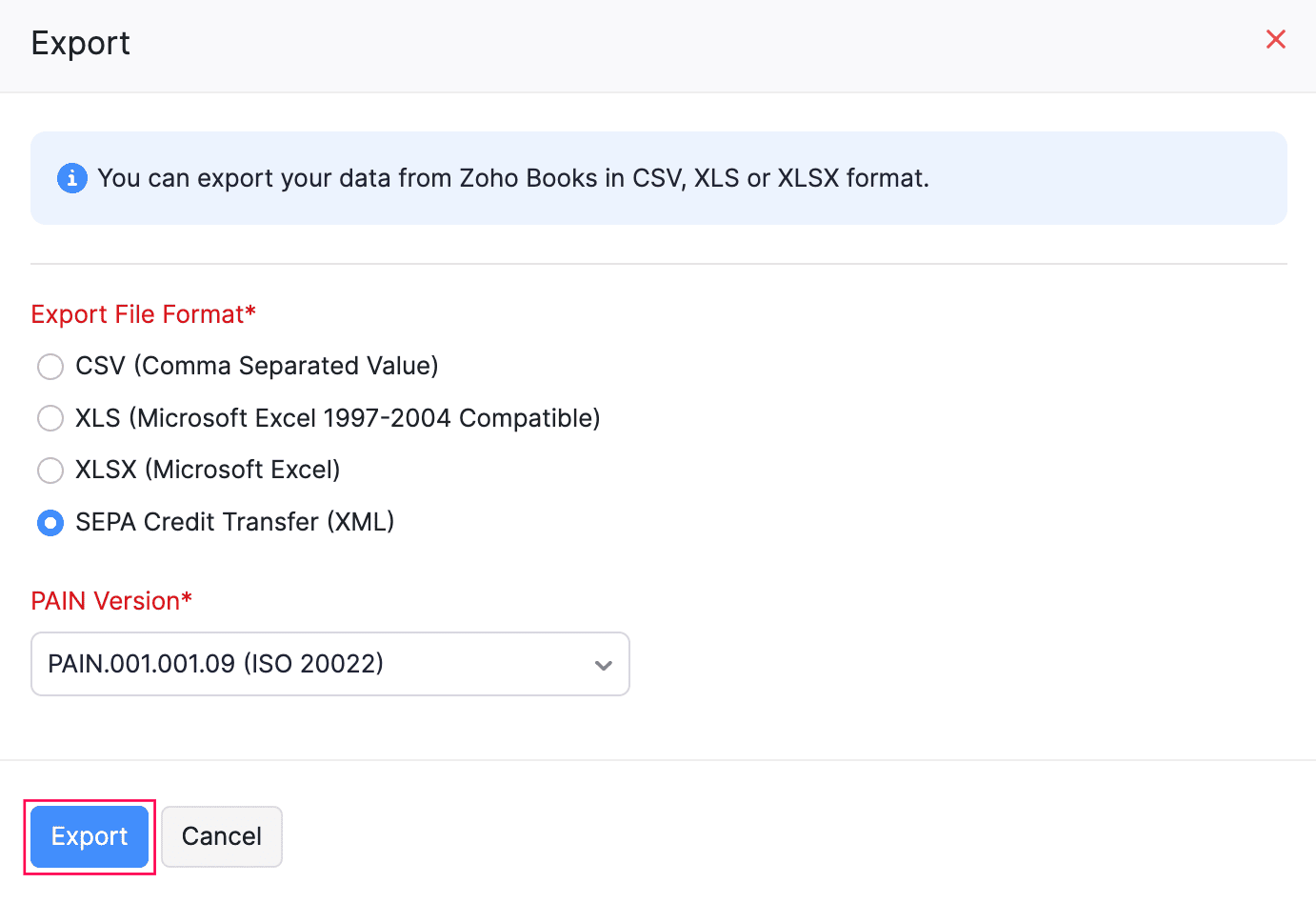
- In the Export pop-up that appears:
- Select SEPA Credit Transfer (XML) as the export file format.
- Choose the required PAIN Version.
- Click Export.
The file will be downloaded to your device. You can then upload it to your bank portal to process the payments for the bills included in the batch.
 Yes
Yes