Summary
Processing a sale involves the following:
Adding products to the cart
Accessing and adding customer information
Applying discounts
Taking payments
Issuing receipt
Adding products to the cart
There are two ways to add items to the cart:
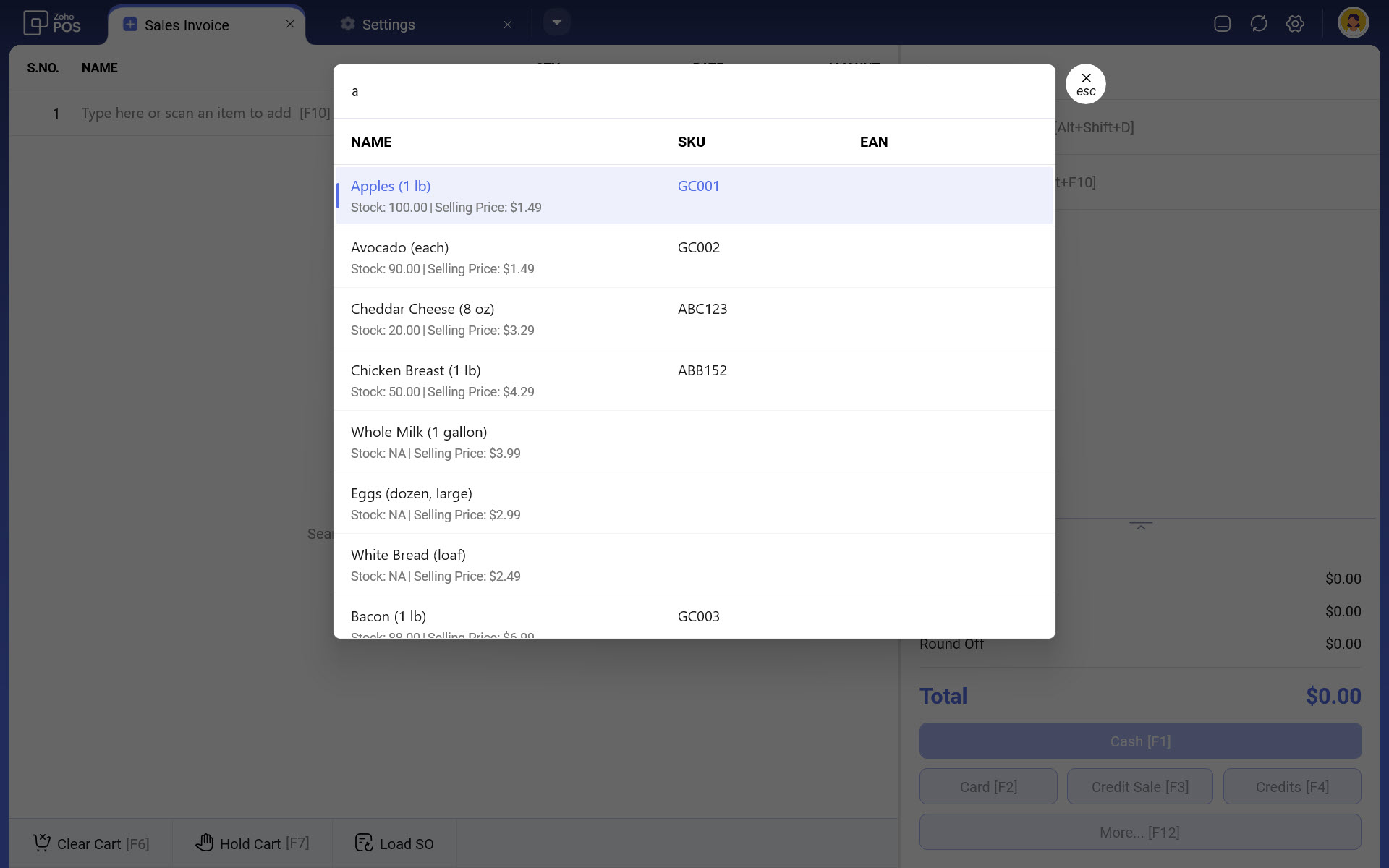
Using Search: The search bar at the top can be used to input the product name or code and select a desired item from the results. The keyboard shortcut to access the search is F10. By default, you can search using the product name.
Barcode scanner: If a barcode scanner is connected to your device, scan the barcode in the item to add it to the cart.
Modify the quantity of an item in the cart
To increase or decrease the quantity
In the POS App, select an item that has been added to the cart.
Select the Item and click the + and - buttons to increase or decrease the quantity.
Click Quantity and enter the value. This option can be used when the quantity of items being purchased is more and incrementing by one will be tedious.

Apply discount to an item
Discount can be applied to an item individually. It can either be a percentage or an amount.
To apply discount
In the POS App, select an item that has been added to the cart.
In the Discount field, enter the item discount value in either Percentage or Amount.

Click Ok.
Modify the price of an item
To modify price
Select an item that is added to the cart.
Enter the Price in the Rate field and click Ok.

Add customer information
While processing a sale, you can choose to add the information about the customer to the bill. You can choose to associate an existing customer or add a new one while billing.
To add a customer
Click Customer in the Zoho POS application.

Enter the name of the customer in the Search bar.
Select the appropriate name from the search results.The information about the customer will be displayed.
If there are no search results for the specified keyword, click Add as New Customer.

Enter the information and click Done.

Click the Edit icon to modify the information.
Click X icon to remove the customer.
Hold and Recall cart
At times, the cashier at the point of sale might have to stop processing the cart due to various reasons, temporarily. The customer wants to grab a few more items just before billing, or there might be some issues in processing the payment. In that case, the bill can be put on hold and can be recalled.
To hold and recall
Click Hold Cart button once the items are added to the cart.

Click Recall and select a cart in the List of held carts window.You can click the Delete icon to remove a bill completely.

Create a Delivery Invoice
In a retail store, customers might want to get the items delivered to their homes. The delivery type can be classified as in-store pickup or home delivery. In the case of in-store pickup, the customer might place the order over call and choose to pick up the items from the store. Whereas for home delivery, the cashier can carry out the payment transaction, get the address, and send it out for delivery at the expected date and time.
To create a delivery bill
Add the items to the cart.
Click Customer and add the necessary information.
Click Delivery Options button.

Select Door Delivery from the Fulfilment Type drop down list.
Click + Add Address in the Ship To section to add a delivery address.

Enter the required details and click Save. The Ship To address will be updated in the Cart
Process payment
Zoho POS supports three types of payment: Cash, Card and UPI. This lets you have a record of how the customer processed the payment to procure the items from your store.
To process payment
Select a suitable tender option.

Enter the required details and click Record Payment.

Click Proceed to print the invoice. You can also download the invoice as a .pdf file.
Click Done.
Create a credit sale
Credit sales can be generated when the amount is yet to be paid by the customer for buying the product. For example, customers can opt to pay the bill once the items are delivered to their house. In some cases, a store owner might allow regular customers to make payment at a later date. The amount to be payed will be credited as Outstanding amount.
To create a credit sale
Add the items to the cart.
Click Customer and add the necessary information.
CClick Credit Sale button.

Click Mark as Credit Sale from the popup.
Reprint invoice or Order
Invoices, and Orders generated using the Zoho POS application can be reprinted anytime.
To reprint
Click the drop-down and click Invoices or Orders in the Zoho POS application.

Select the Invoice or Order from the list.You can click Preview to view the invoice before printing.
Click Print.
