Transfer a domain to Zoho Domains
You can transfer domains registered with other providers (such as GoDaddy, Google Domains, Namecheap, and others) to Zoho Domains. Transfer requirements may vary based on the domain’s top-level domain (TLD) and the current registrar. Make sure to review and follow any registrar-specific transfer instructions before proceeding.
Note
Before you start the transfer process, make sure your domain is eligible for transfer. Learn more.
Steps to initiate the transfer:
- Log in to your Zoho Domains account.
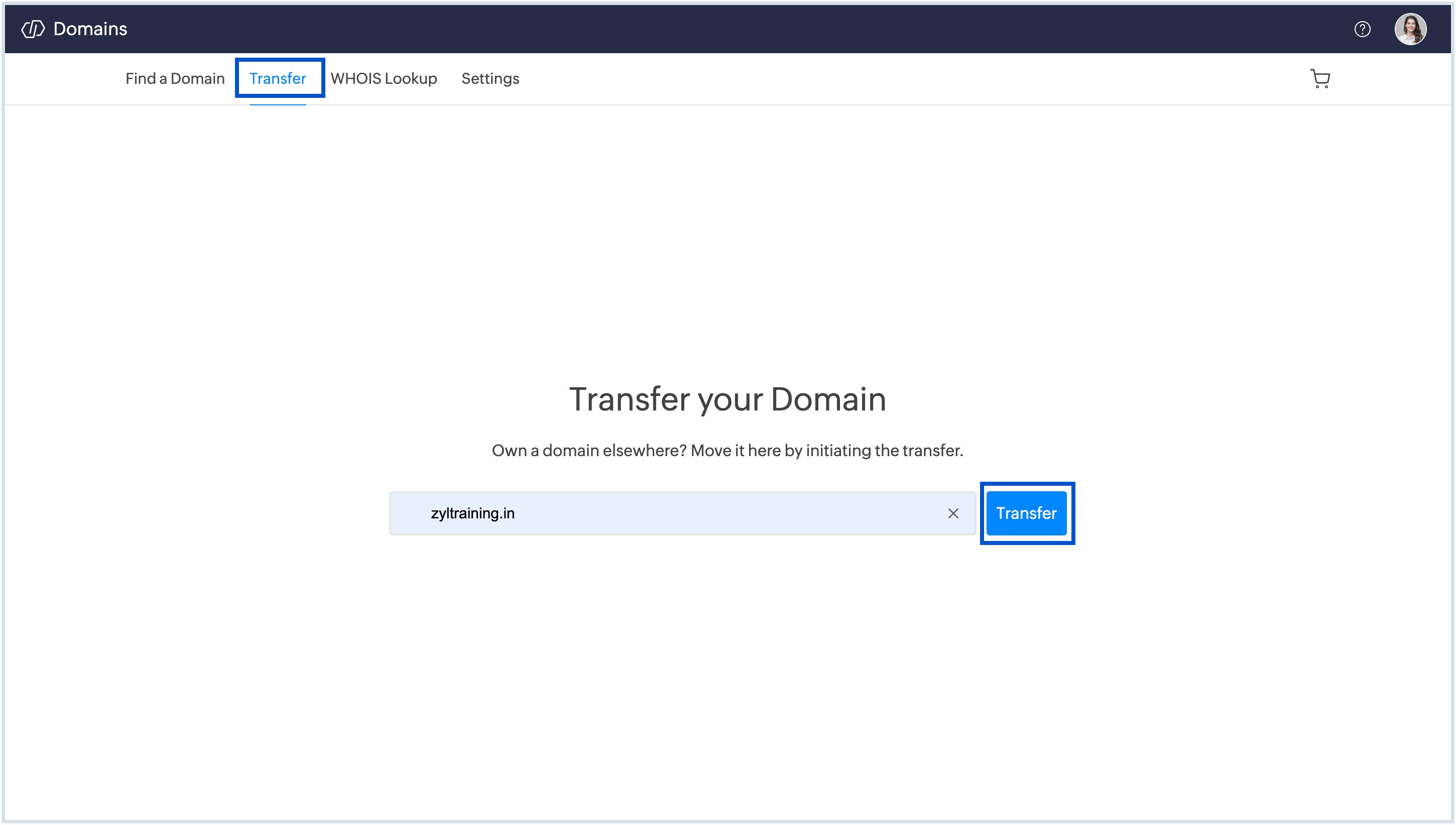
- Navigate to the Transfer tab, search for the domain you want to transfer, and click Transfer.
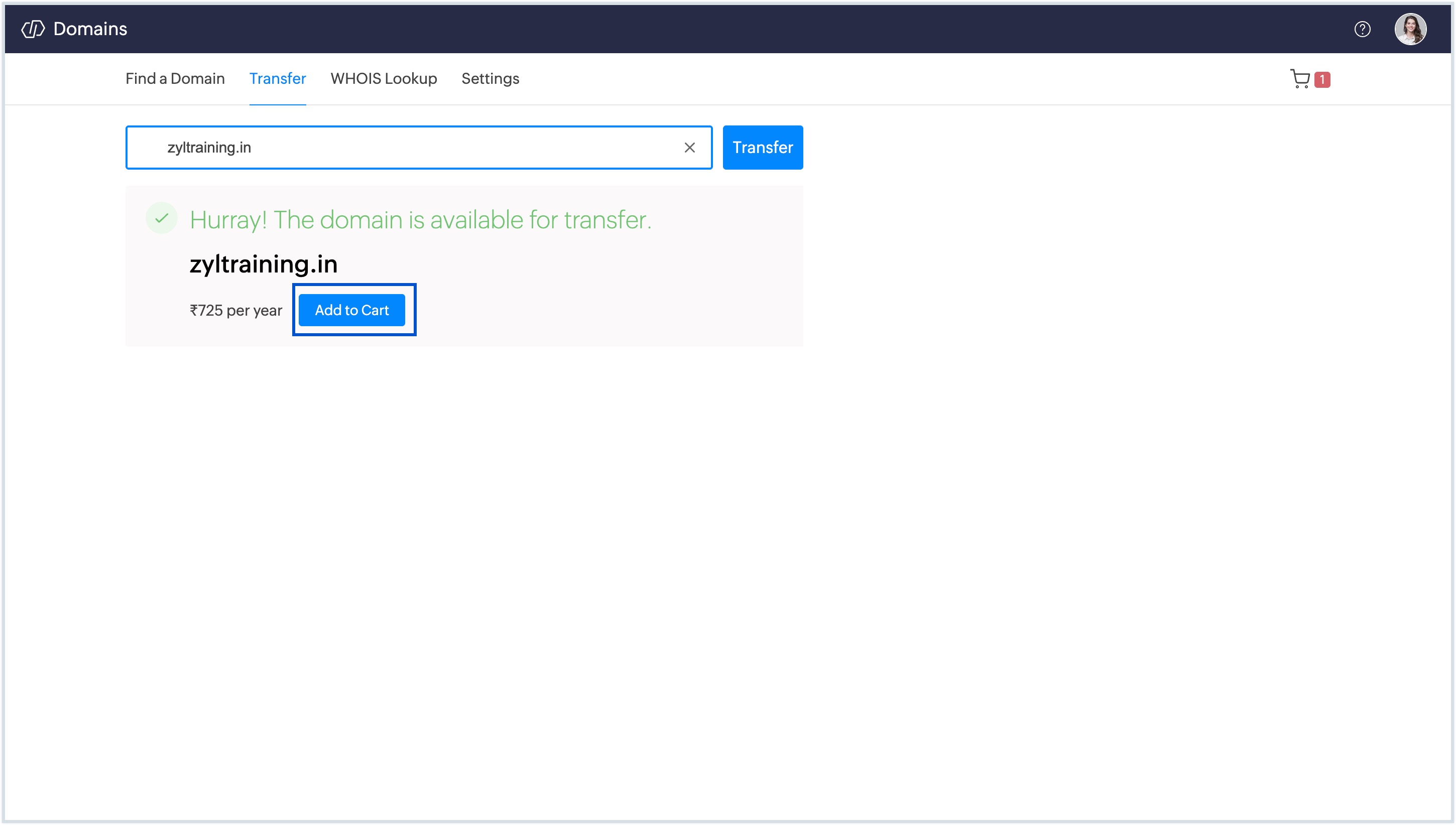
- If the domain is available for transfer, click Add to Cart. You can add multiple domains if needed.
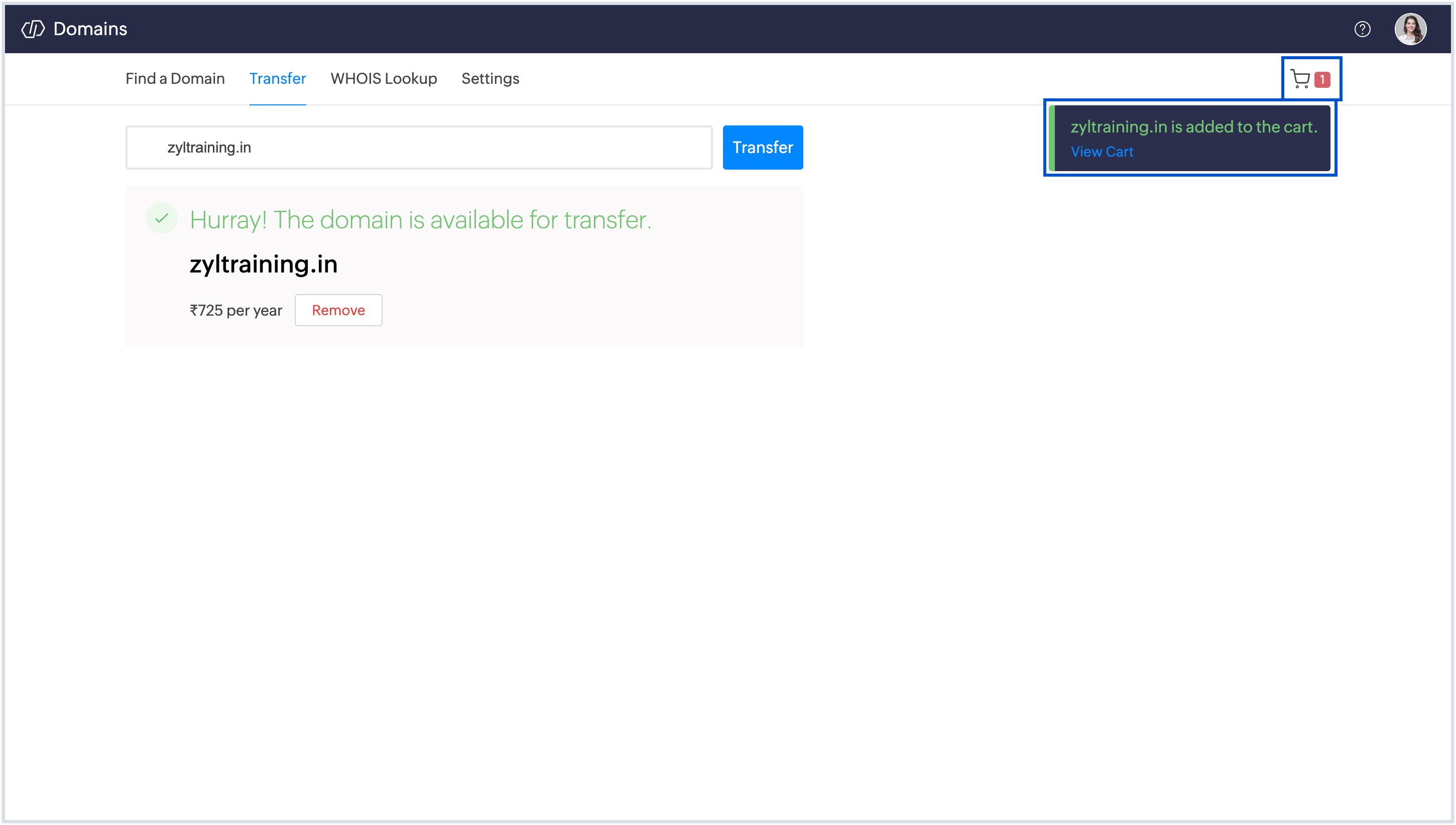
- Once the domain(s) are added to the cart, click the Cart icon in the top-right corner.
Enter the Authorization code/EPP code for each domain you are transferring.
Note
If you are unsure how to obtain the authorization code, contact your current domain registrar or refer to their official documentation.
- Use the Add more domains button to include additional domains, or remove any using the Remove button.
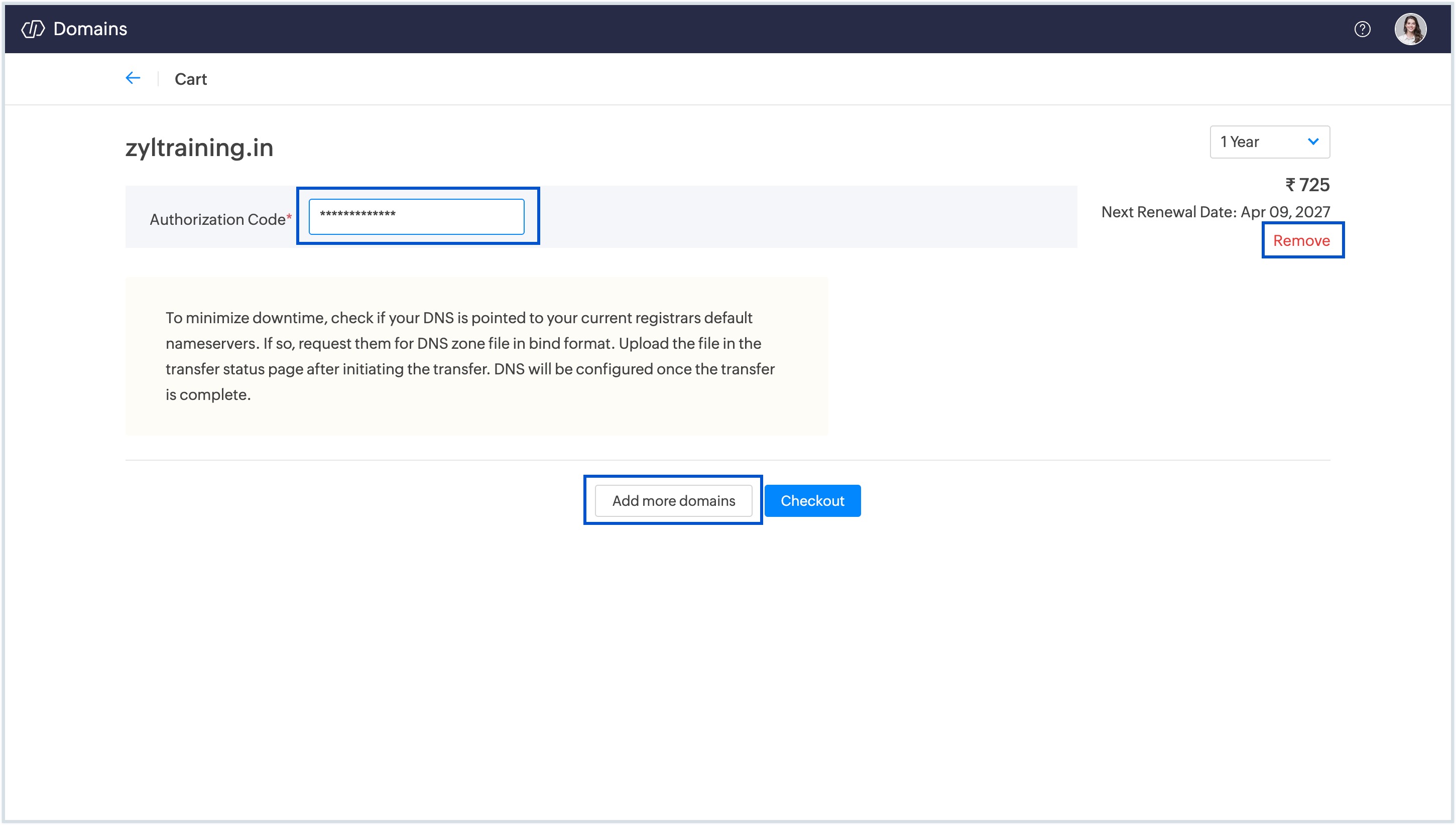
- Once all authorization codes are entered, click Checkout.
- On the Checkout page, provide your contact information, including your name, address, email address, phone number, etc. Make sure all of your information is accurate, as this is how we will contact you about the transfer process.
- Review your details and the pricing summary, then click Next. You will be redirected to a secure payment page.
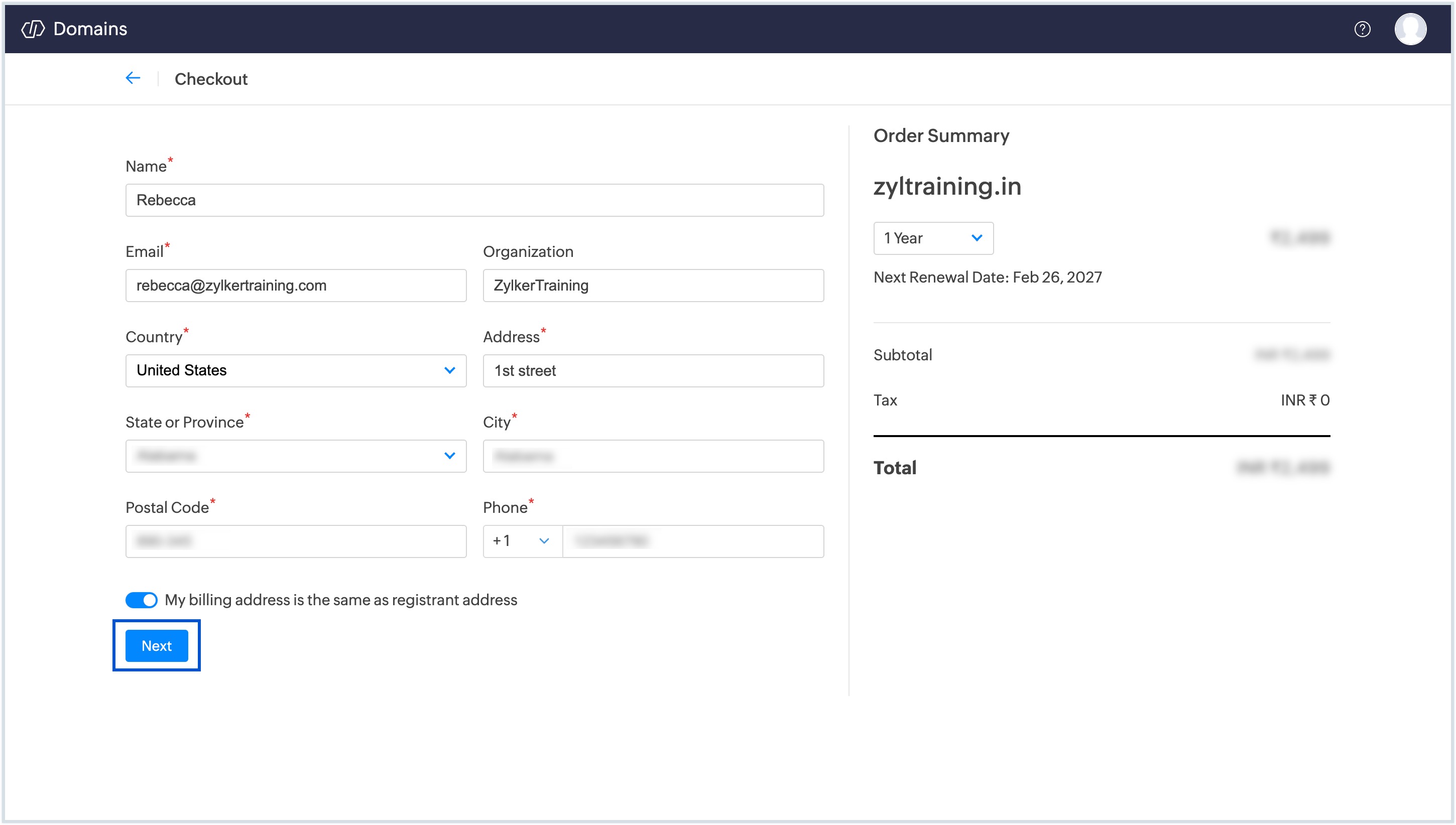
- A detailed summary of the pricing along with the total estimated amount payable will be shown. Proceed with the payment using any of the available methods based on your preference.
- Once the payment is successful, your transfer request is submitted to the domain registry.
The registry validates the authorization (EPP) code provided. After the authorization is validated, the registry notifies your current registrar that a transfer request has been initiated. The current registrar may approve the transfer immediately or allow it to complete automatically after the standard waiting period. The standard waiting period typically takes 5–7 days, depending on the current registrar and TLD policies. You will receive an email notification once the transfer is successfully completed.
You can view the transfer status of the domains you are transferring from the My Domains section. Click Manage Transfer next to the domain name for which you initiated the transfer to view the transfer status.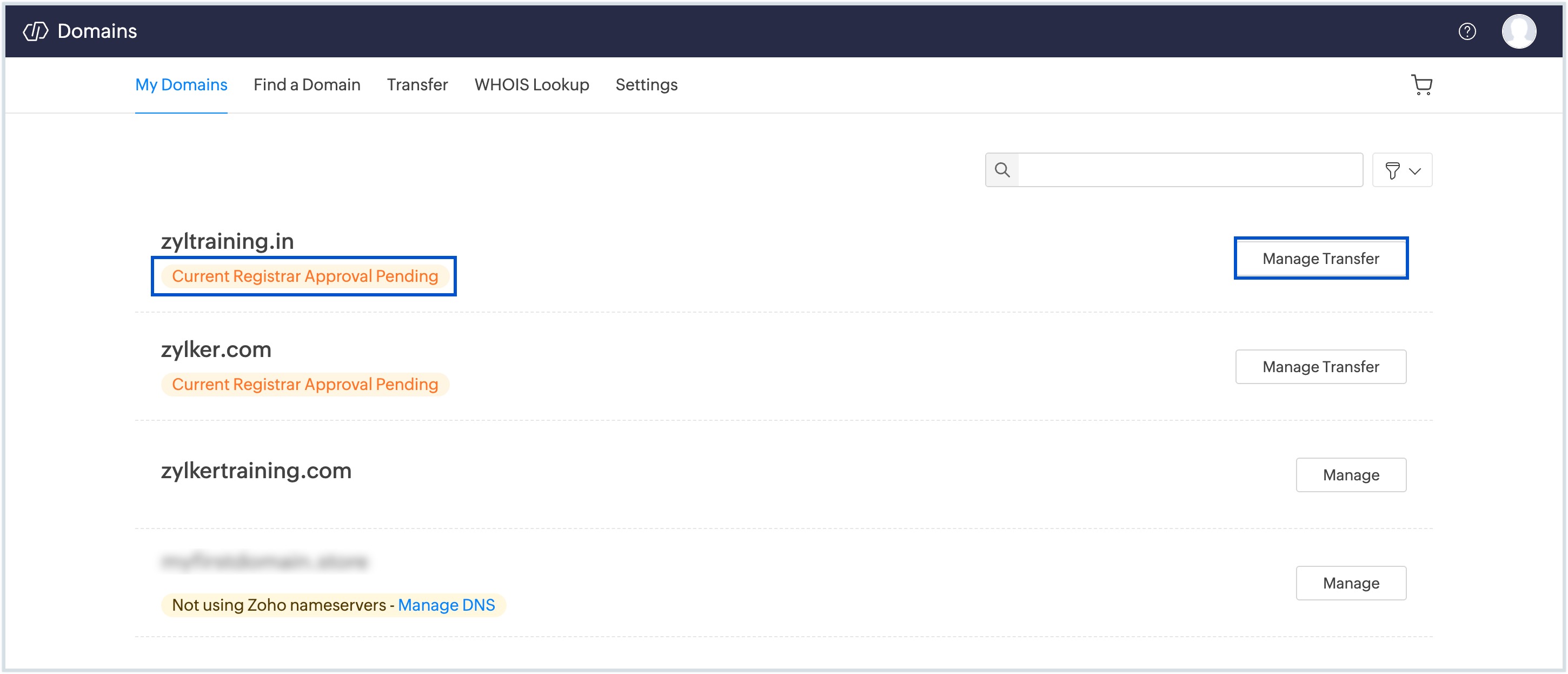
You can also view the DNS setup option selected during the transfer process. You can change your selection at any time before the transfer is completed.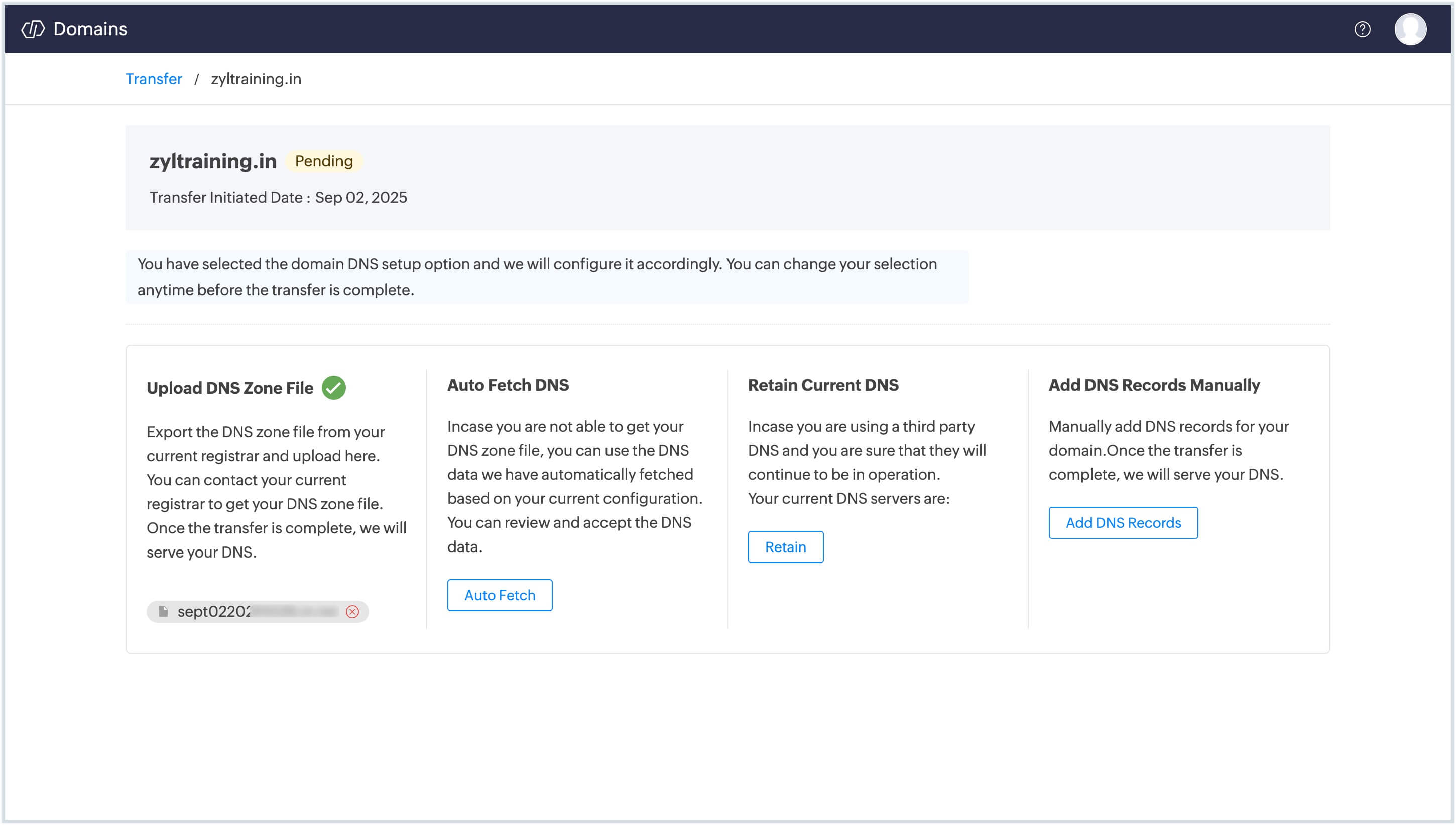
After the transfer, you can manage all DNS-related configurations directly from Zoho Domains. Log in to your Zoho Domains account > Manage > Manage DNS > DNS > Manage Records. Learn More.
Note
Please note that the current expiration date of your domain will be extended by the number of registration years added during the transfer.
Update DNS Settings
12. After submitting the transfer request, click View Transfer to track the transfer status and configure your DNS settings. You can choose one of the following options based on your requirement:
After selecting and configuring any of the above options, your domain-related services will continue functioning without interruption after the domain transfer.
Note
Please note that, during both DNS Zone File Import and Auto Fetch options, you cannot modify or manage DNS records until the domain transfer is fully completed.
Methods to configure DNS records in Zoho Domains during transfer
When transferring your domain to Zoho Domains, you can choose how your DNS records should be configured and served after the transfer completes. Zoho Domains provides multiple configuration methods to suit different DNS setups, each method serves a specific use case. Choose the option that best matches your existing DNS environment.
Upload DNS Zone File
If you have access to your domain's DNS zone file, Zoho Domains will use it to replicate and serve the same DNS configuration after the transfer is complete. This option allows you to migrate all existing DNS records exactly as they are by importing a DNS zone file from your current registrar.
Steps to follow:
- Export the DNS Zone file from your current registrar. To learn more about DNS zone files and how to export them, click here.
Supported formats include, .JSON, .CSV, .ZONE, and .TXT. - Initiate the domain transfer in Zoho Domains.
- Upload the Zone file during the domain transfer process in Zoho Domains.
- After the transfer is completed, Zoho Domains creates its default nameservers and begins serving DNS records based on the uploaded file. Learn More.
Using a zone file minimizes manual effort and reduces the risk of missing or incorrectly configured records.
Note
DNS records imported using this method become effective only if your domain is pointed to Zoho Domains’ default nameservers. If you continue using custom or third-party nameservers, the imported records will not be applied.
Auto Fetch DNS Records
Auto Fetch is designed for scenarios where a DNS Zone file cannot be obtained from the current registrar. Zoho Domains attempts to automatically retrieve the domain’s existing DNS configuration and presents the detected records for review. This method is suitable for domains with simple or standard DNS setups.
Steps to follow:
- Initiate the domain transfer in Zoho Domains.
- Select Auto Fetch DNS Records during the transfer process.
- Review the DNS records fetched by Zoho Domains.
- Confirm the records and proceed with the transfer.
This option simplifies DNS setup for domains with standard DNS configurations. However, it may not be suitable for domains with a large or complex set of DNS records. It is the responsibility of the domain owner to review carefully and ensure that all required records are correctly fetched and added.
Note
In some cases, complex DNS records may not be fetched accurately. If this happens, you may need to upload the Zone file or update the DNS records manually after the transfer is complete.
Retain Current DNS
If your domain is currently configured with a third-party DNS provider (such as Cloudflare, GoDaddy, Google Domains, Namecheap, or others ) and you want to continue using that provider, you can retain the existing DNS configuration during the transfer to Zoho Domains. In this setup, Zoho Domains does not host DNS records and only acts as the domain registrar, while all DNS resolution continues to be managed by your external DNS provider.
Steps to follow:
- Initiate the domain transfer in Zoho Domains.
- Select Retain Current DNS to continue using your existing DNS provider.
Once done, ensure you enter your external provider’s nameservers as custom nameservers in Zoho Domains. This ensures that Zoho, as the registrar, correctly delegates DNS authority to your third-party DNS provider. If the custom nameservers are not configured, the domain will not resolve correctly, which may result in website, email, or service disruptions.
Note
- Select this option only if your domain is actively using an external DNS provider and you have confirmed that the provider will continue serving DNS records during and after the domain transfer.
- Adding custom nameservers in Zoho Domains is mandatory when retaining an external DNS provider to avoid website, email, or service disruptions.
Add DNS Records Manually
Zoho Domains allows you to manually add the DNS records before the transfer is complete. We will automatically begin serving the uploaded DNS records on successful transfer.
Steps to follow:
- Once the transfer is initiated, select the option to add DNS records manually.
- Enter and save all required DNS records.
- After the transfer is completed, Zoho Domains begins serving the manually added DNS records.
Note
- Before choosing this option, ensure that your current (losing) registrar continues to support DNS services until the domain transfer is fully completed and operational. Manually added DNS records do not become active until the transfer is complete and DNS authority is established.
- DNS Nameservers in Zoho Domains can be updated at any time after the transfer. Learn more.