Transfer a domain between Zoho Domains accounts
If you want to move a domain from one Zoho Domains account to another, we provide an internal transfer process that keeps all DNS settings intact without disrupting your services. This internal transfer requires an approval link to be sent to the current domain owner. Once the owner approves the request, the domain will be transferred to the receiving Zoho Domains account. To begin the transfer, ensure that the domain is unlocked and that the authorization code is obtained from the current account.
Note
Before you start the transfer process, make sure your domain is eligible for transfer. Learn more.
To unlock the domain and obtain the authorization code in the (losing) Zoho Account :
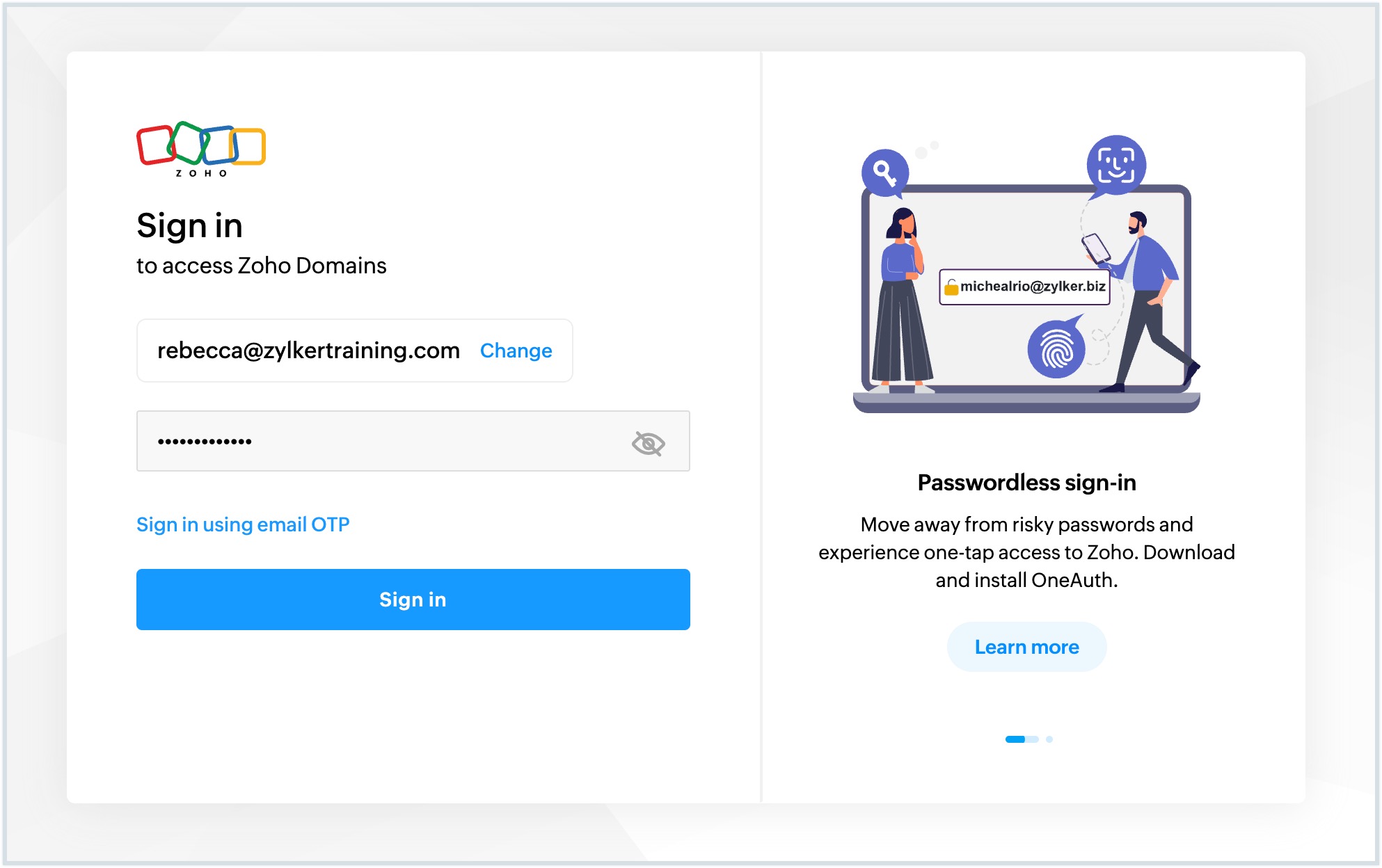
- Log in to the Zoho Domains account using the registered email address for the domain.
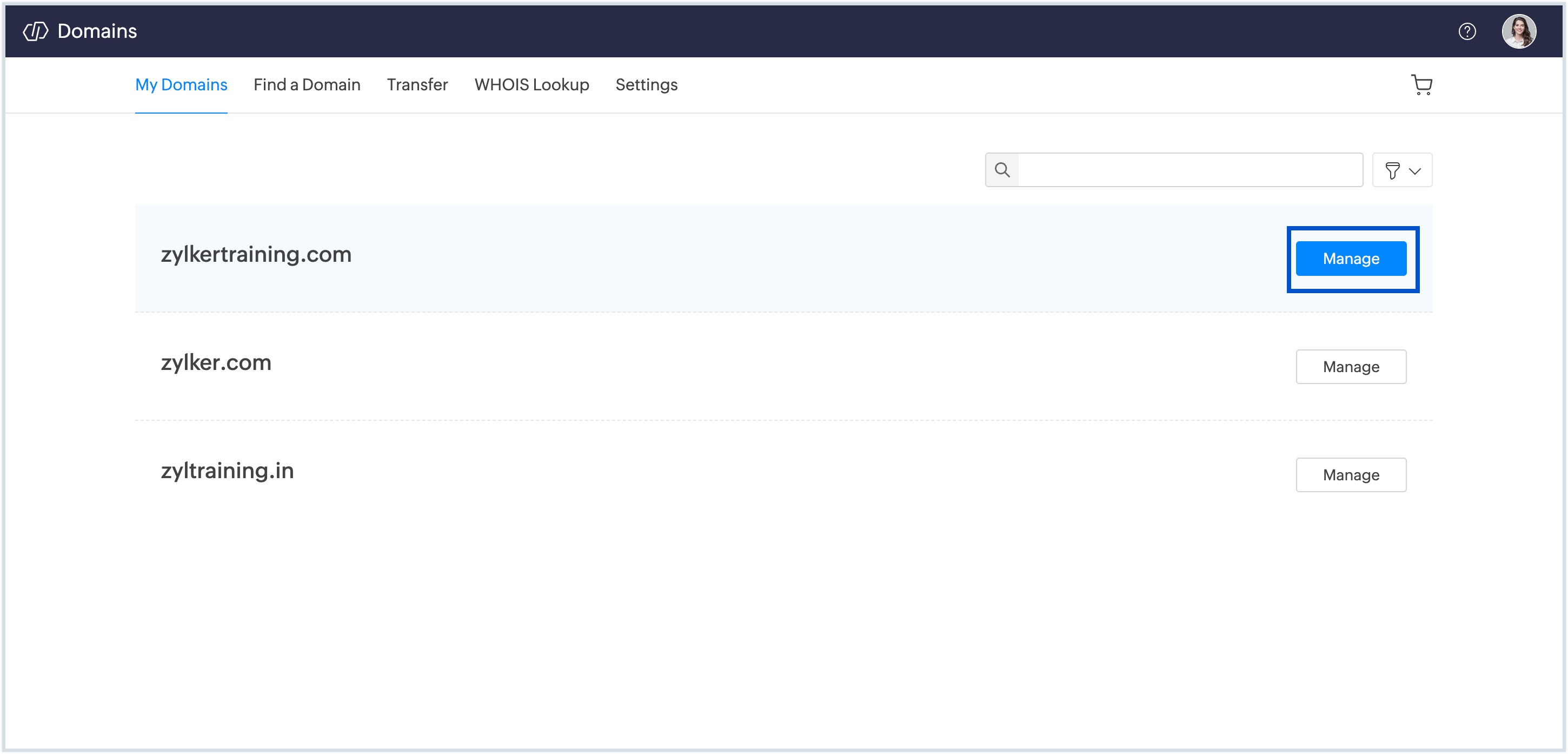
- Navigate to the My Domains tab and search for the domain you want to transfer.
- Next to your domain name, click Manage.
- In the domain management page, do the following steps to make your domain eligible for transfer:
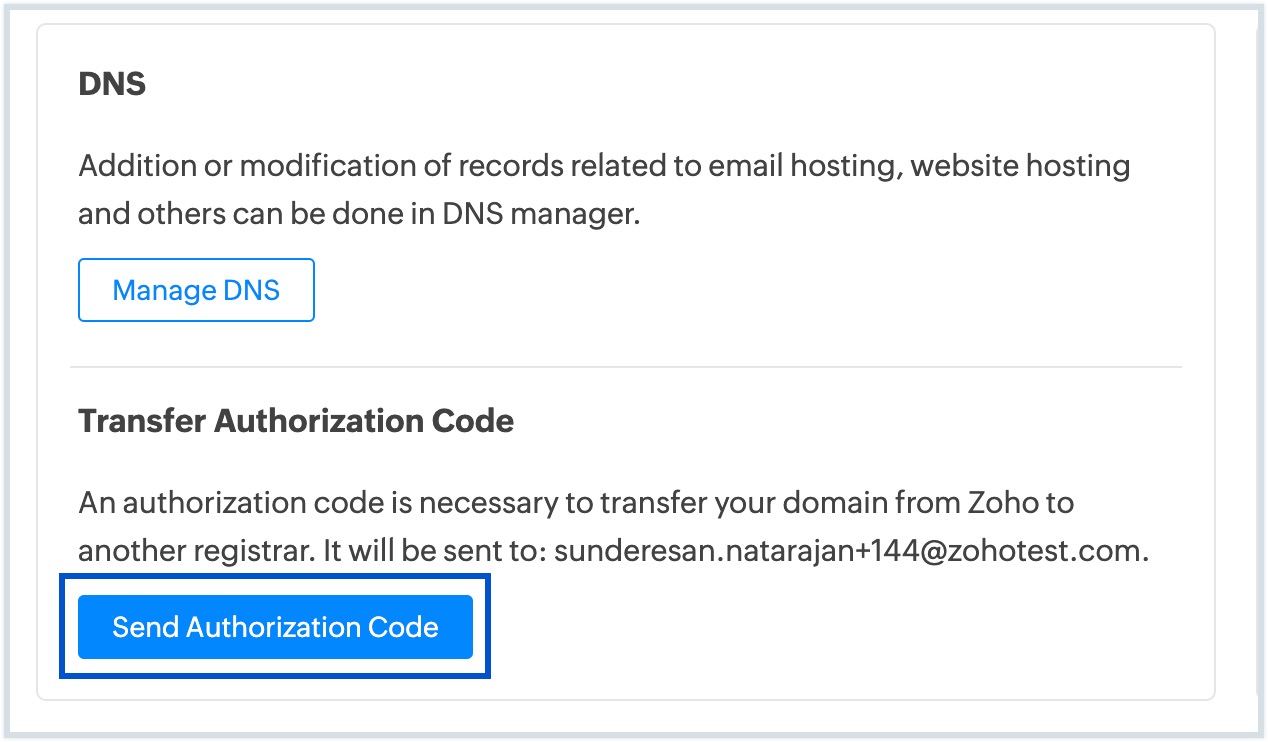
- Click the Send Authorization Code button. This is required for initiating the transfer. The auth code will be sent to the registered email address.
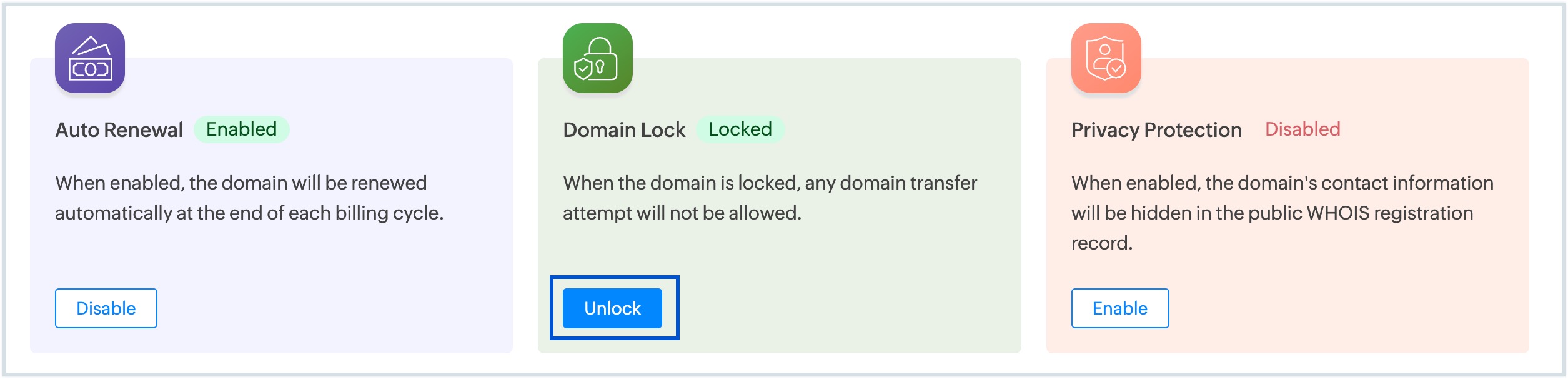
- Click Unlock in the domain management page.
- Click the Send Authorization Code button. This is required for initiating the transfer. The auth code will be sent to the registered email address.
Initiate transfer from the new (Receiving) Zoho Domains account:
- Log in to the Zoho Domains account that you want to transfer the domain into (the receiving account).
- Go to the Transfer tab and enter the domain name you wish to transfer.
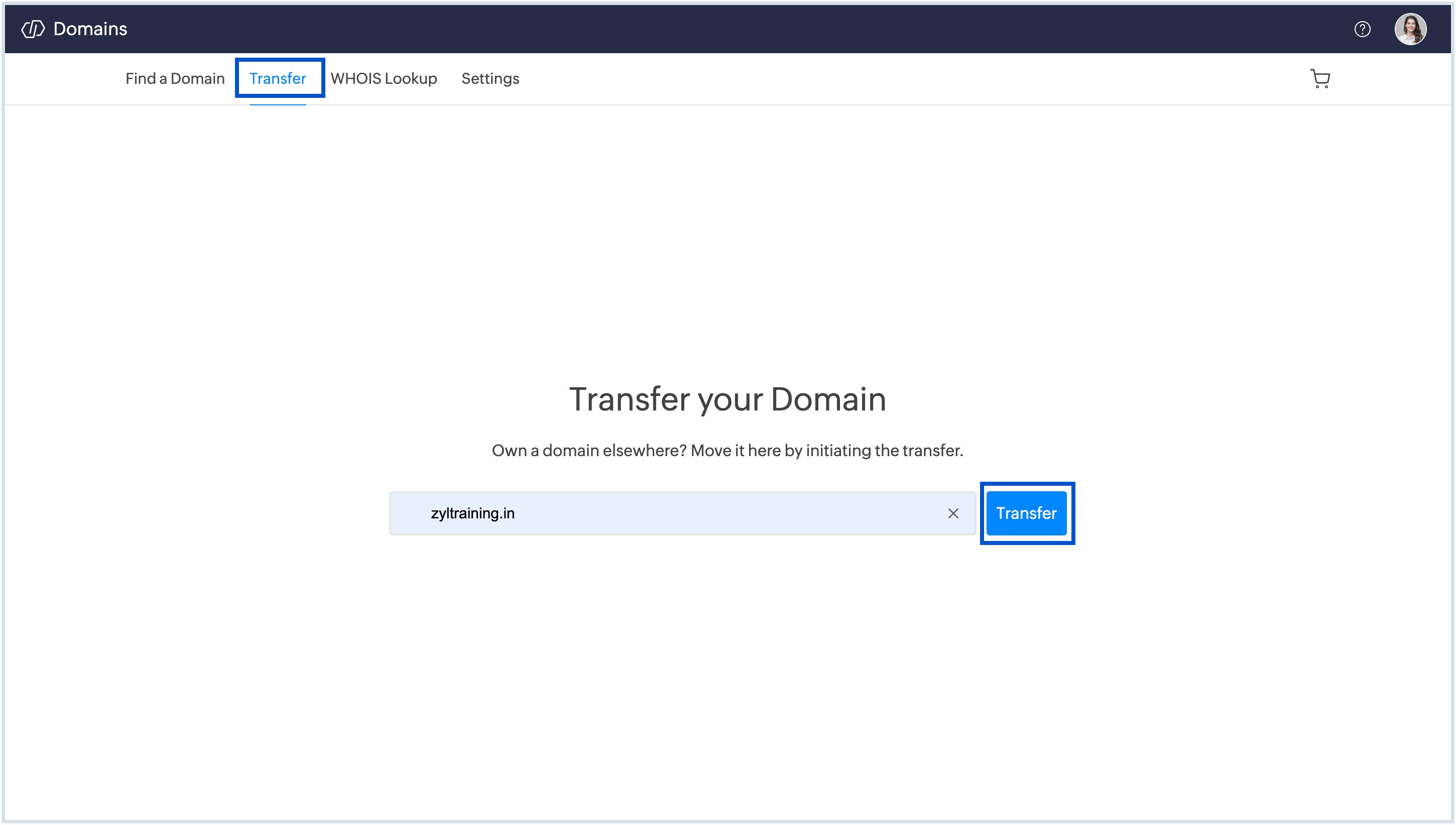
- Add the domain to the cart.
- Once the domains are added to your (receiving) Zoho Domains account cart, click the Cart icon in the top-right corner.
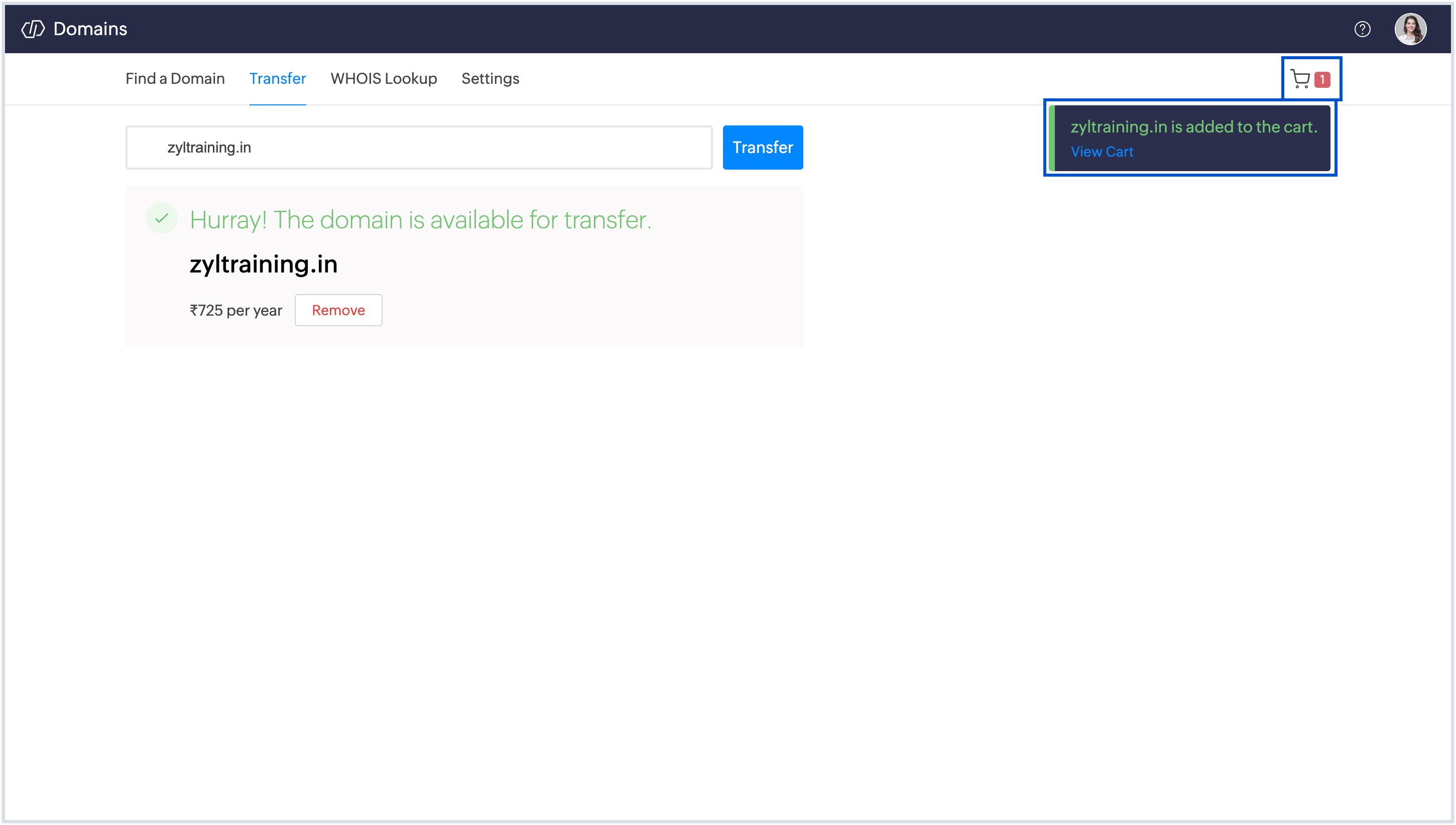
- Paste the Authorization Code that was sent to your registered email address, and click Checkout.
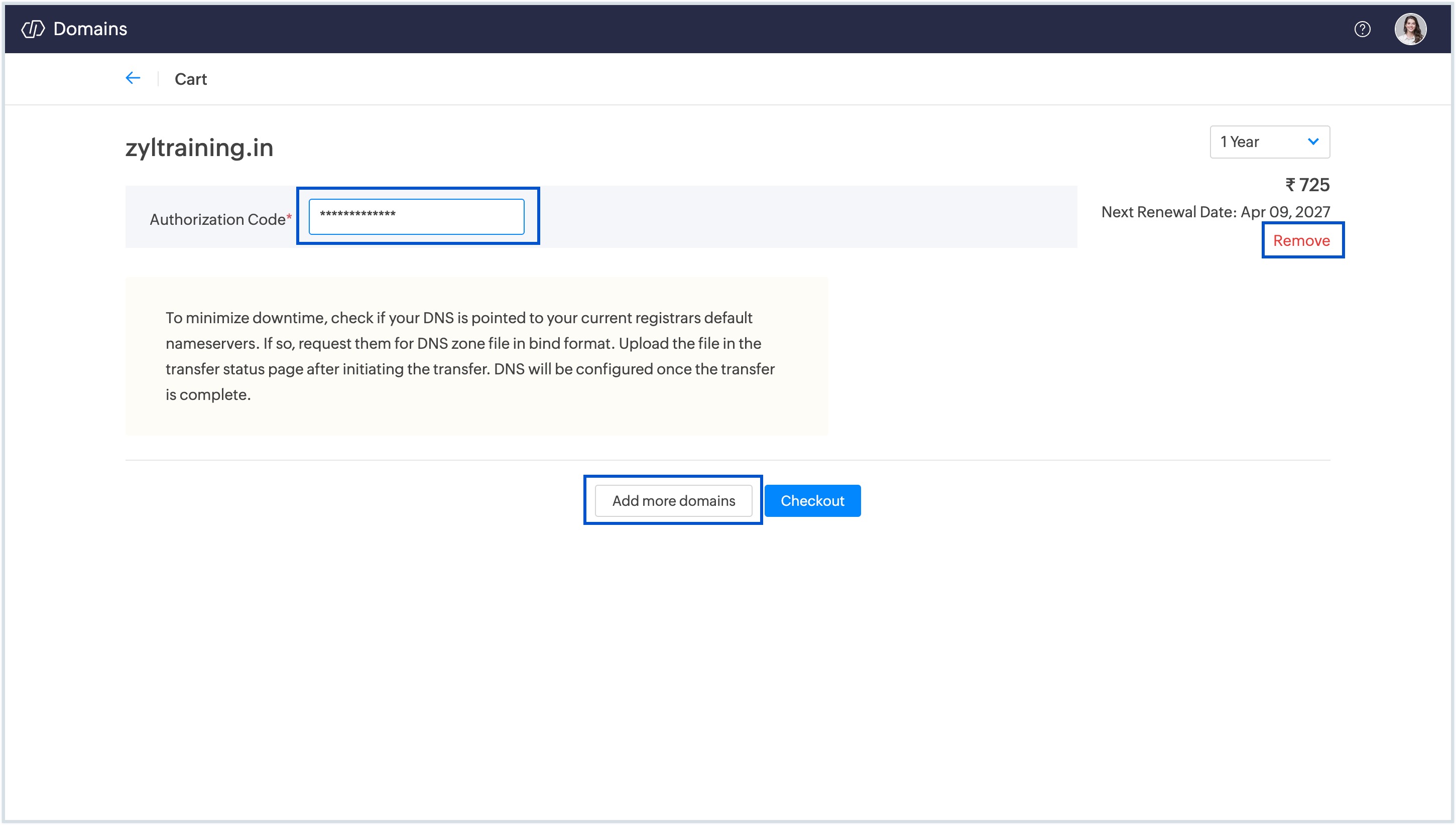
In the check out page, you will be prompted to set the registrant (domain owner) contact information. Fill in the details.
Note
- By default, the option to keep the billing address the same as the registrant address from the old account will be enabled. This means the current registrant information (name, email, address, etc.) will be copied as-is from the old account.
- If you want to update the registrant details, disable this toggle. You will then have the option to:
- Select an existing contact saved in the new account.
- Click Add Address to manually enter new registrant information.
- Once done, click Transfer to initiate the domain transfer.
After submitting the transfer request, the domain status will change to: Transfer Status - Authorization Pending, as shown in the below image.
Domain transfer approval
Depending on the contact settings, the following will occur:
- If you retain the existing contact info, the current (losing) account holder will receive an email with an approval link to authorize the transfer.
- If you update the contact info, then both the current and new account owners will receive emails to approve the transfer. Each account holders must approve the transfer using the links provided in the emails.
The transfer will only complete once the necessary approvals are received. Once the transfer is approved, the domain will appear in your new Zoho Domains account’s domain list. All existing DNS records will be automatically copied over. Transfers are usually completed within a few hours after approval.
Note
- When transferring a domain between Zoho Domains accounts, the domain’s current expiration date remains unchanged.
- The domain transfer is only possible between accounts that belong to the same data center. If the new account is associated with a different data center, the transfer cannot be completed. To check your current data center, log in to your My Account page.
- Depending on the data center your Zoho account belongs to, the approval emails will be sent from notifications@users.zohodomain.com, notifications@users.zohodomain.in, notifications@users.zohodomain.eu, or .com.au.
- Please check your spam/junk folder if you don’t receive the email within a few minutes.
- If you have any questions or need help at any stage, feel free to contact Zoho Domains Support at support@zohodomains.com.