Register a Domain
Zoho Domains lets you easily search for, register, and manage domain names. It supports a wide range of Top-Level Domains (TLDs) along with essential domain settings and configuration options to streamline the domain registration process.
Steps to register a domain
Follow the steps below to search for and register a domain using Zoho Domains:
- Log in to your Zoho Domains account. If you do not have a Zoho Domains account, click here to learn how to sign up.
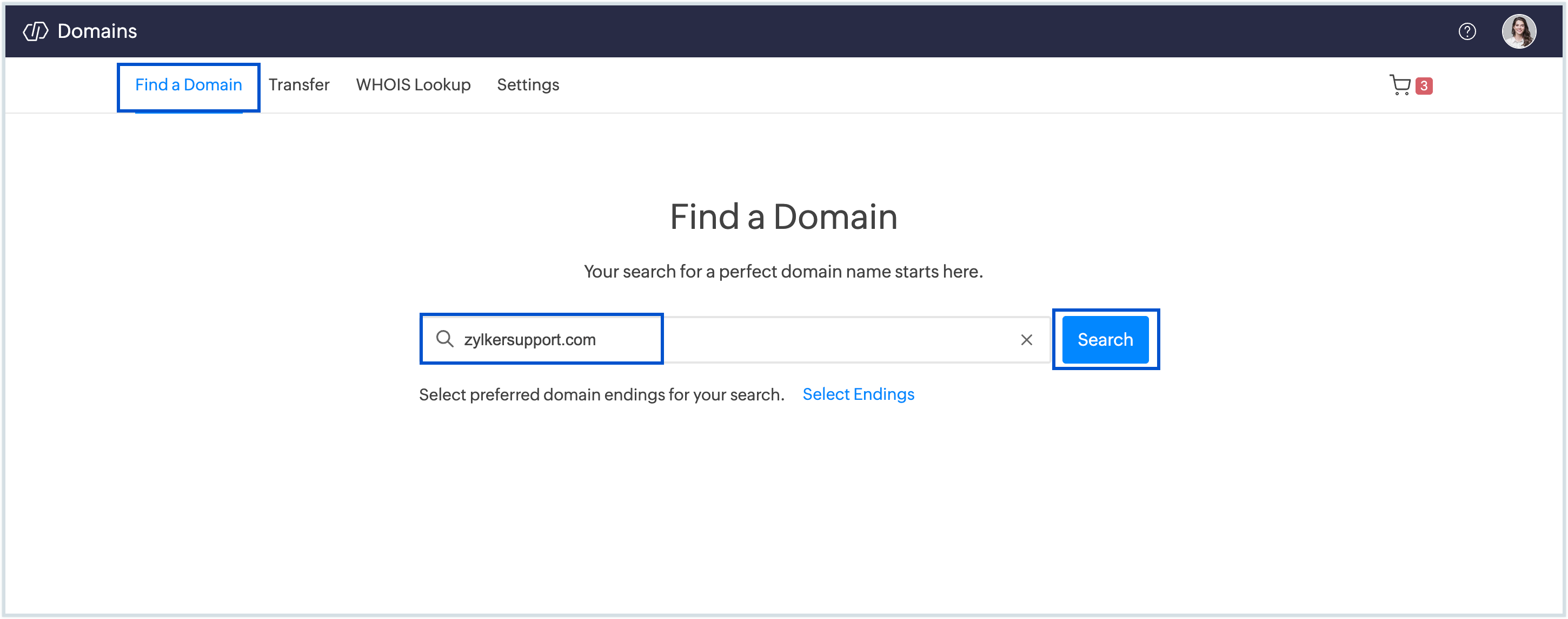
- Navigate to the Find a Domain page to begin the domain registration process.
- In the search bar, enter a fully qualified domain name (for example, zylker.com) or a keyword related to your business or brand, and then click Search.
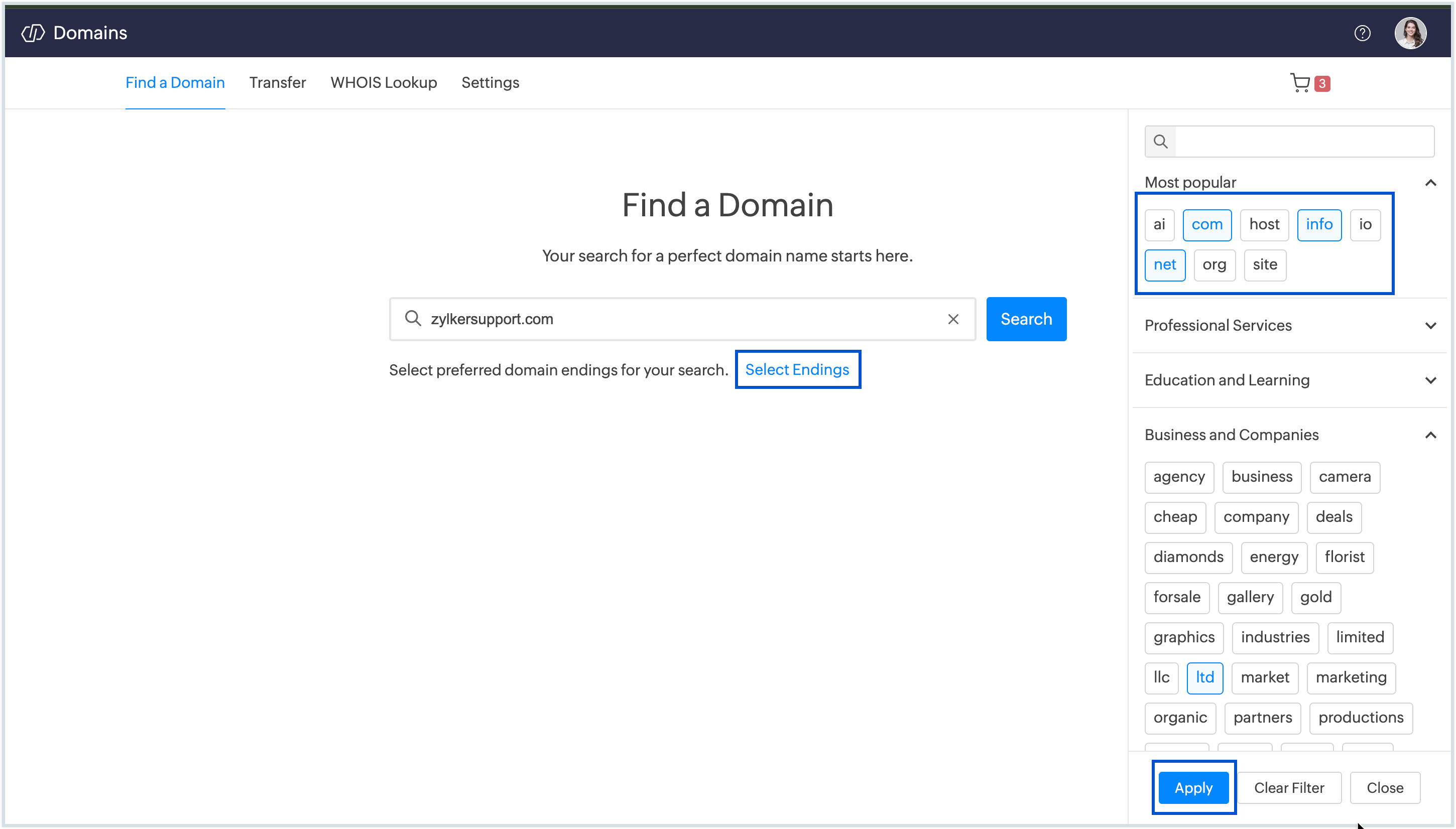
- To refine your search results, click Select Endings and choose the required Top-Level Domains (TLDs) such as .com, .org, .net, or industry-specific TLDs. You can select multiple domain endings and click Apply to filter the results.
On the Domain Results page, check the availability of the searched domain:
- If the domain is available, click Add to Cart to proceed.
- If the domain is unavailable, alternative available domain suggestions will be displayed.
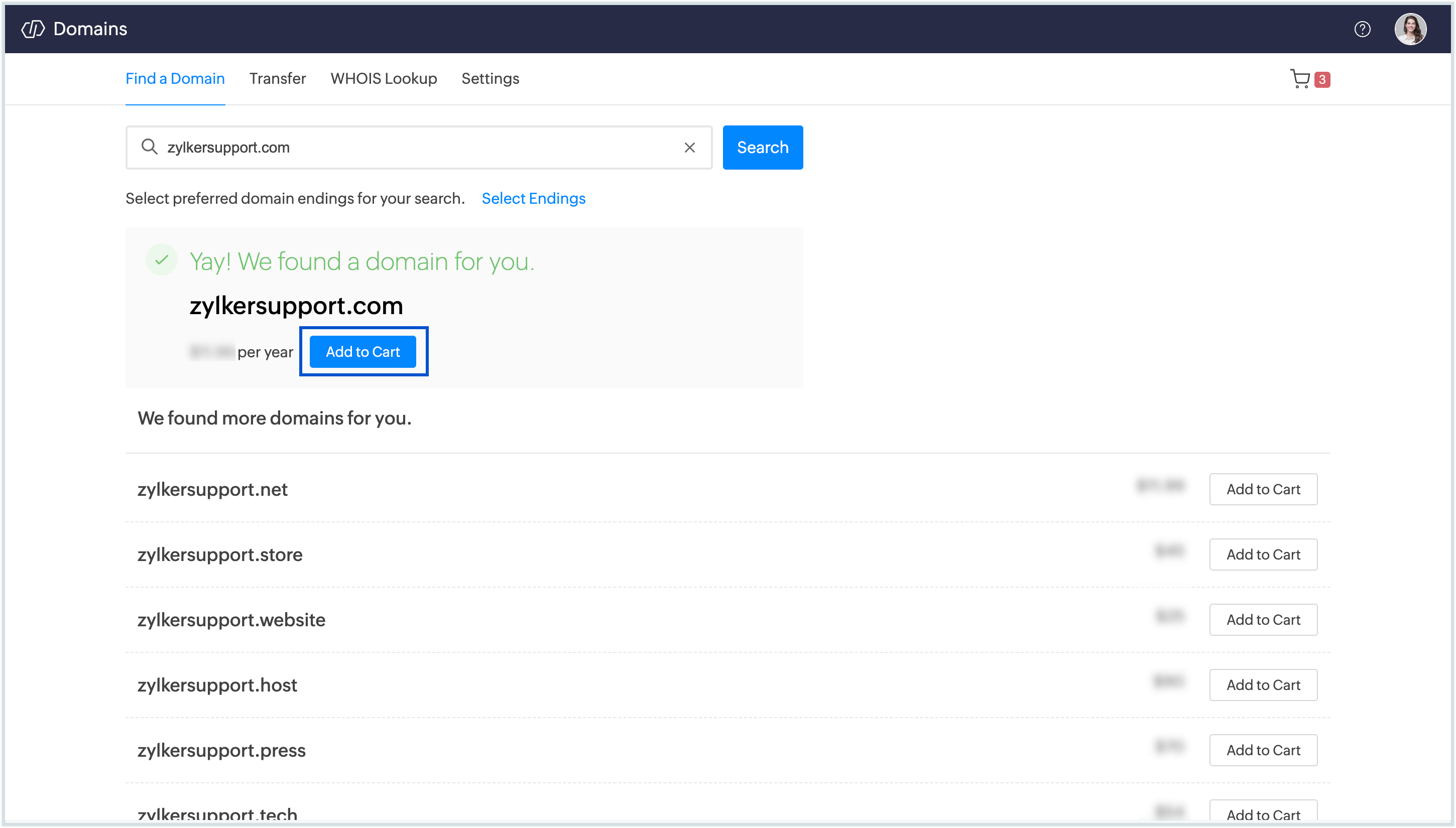
- You can add multiple domains to your cart by clicking Add to Cart next to each required domain.
- Click the Cart icon in the top-right corner to review the selected domains.
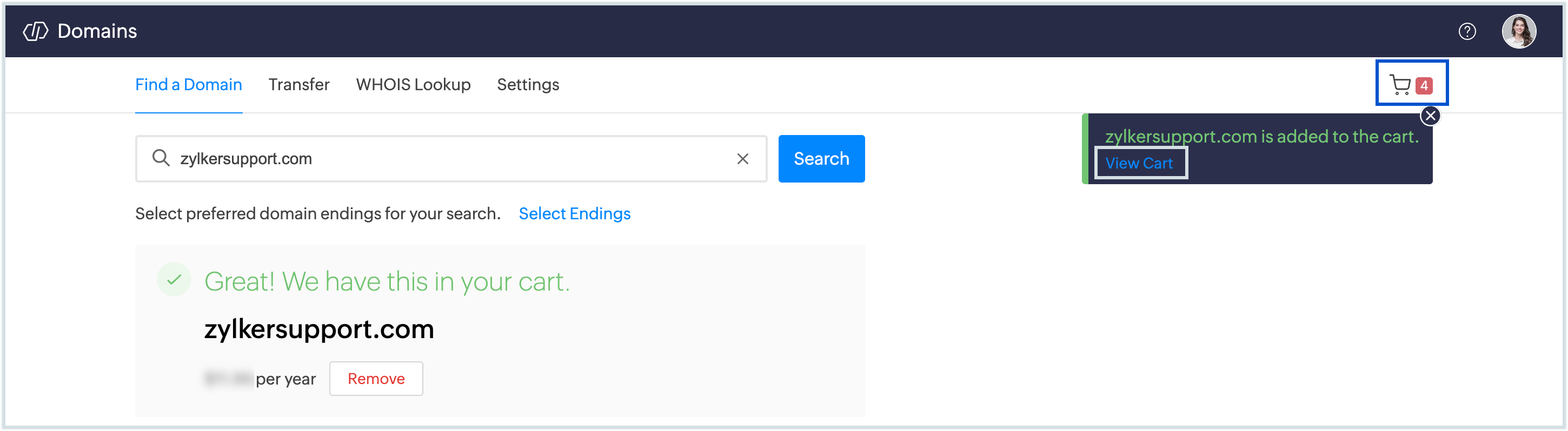
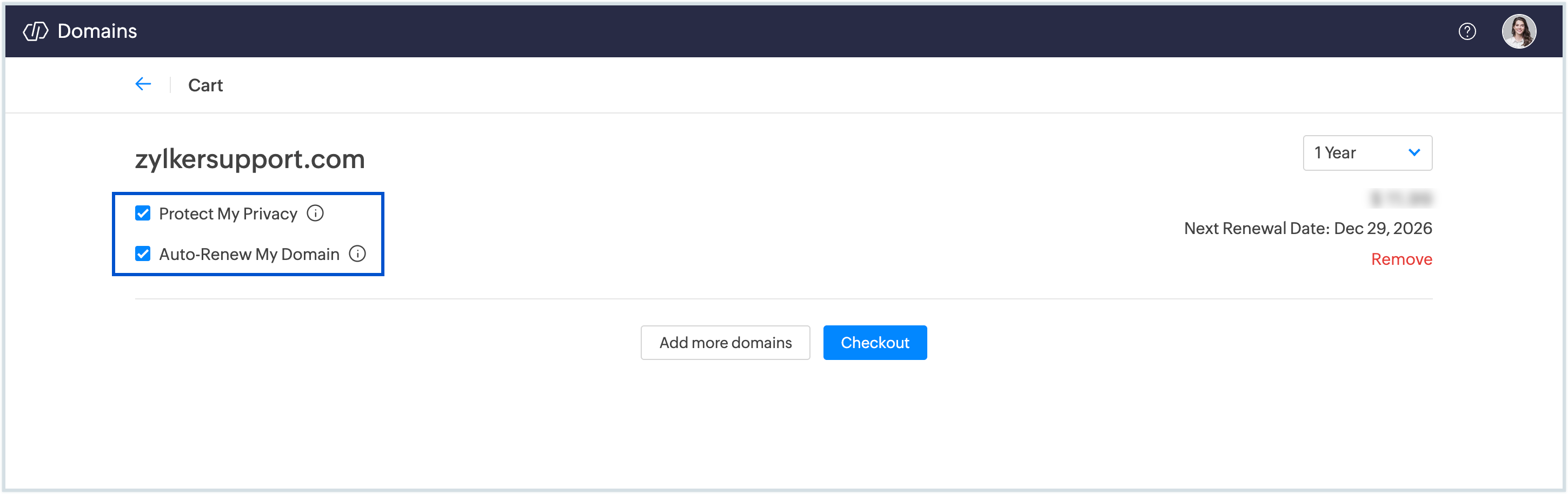
All selected domains will be listed in the cart. For each domain, the following options are enabled by default:
- Protect My Privacy, which hides registrant details from public WHOIS records.
- Auto-renew My Domain, which automatically renews the domain before expiration.
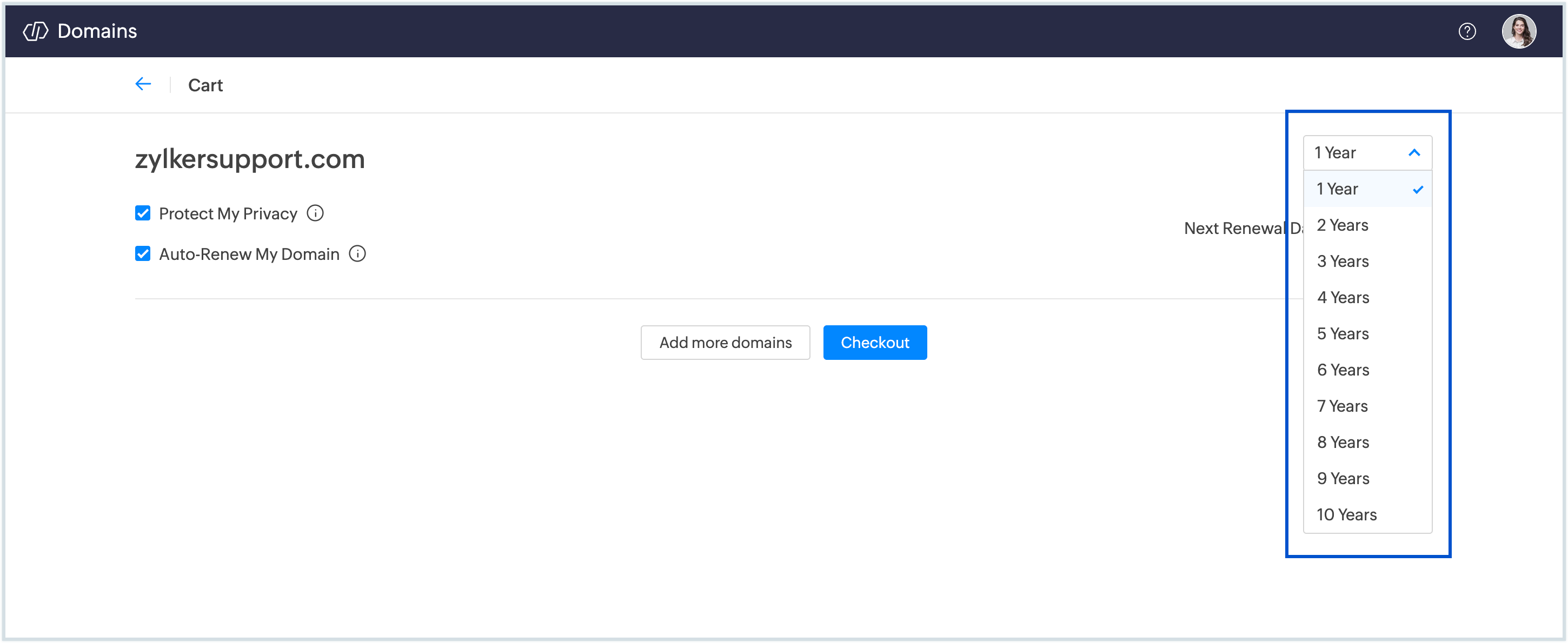
- By default, domains are registered for one year. Use the registration period drop-down to select a longer duration if required.
- The price for each domain, excluding applicable taxes, is displayed next to the domain name based on the selected duration.
- Use Add More Domains to include additional domains or Remove to delete any domain from the cart.
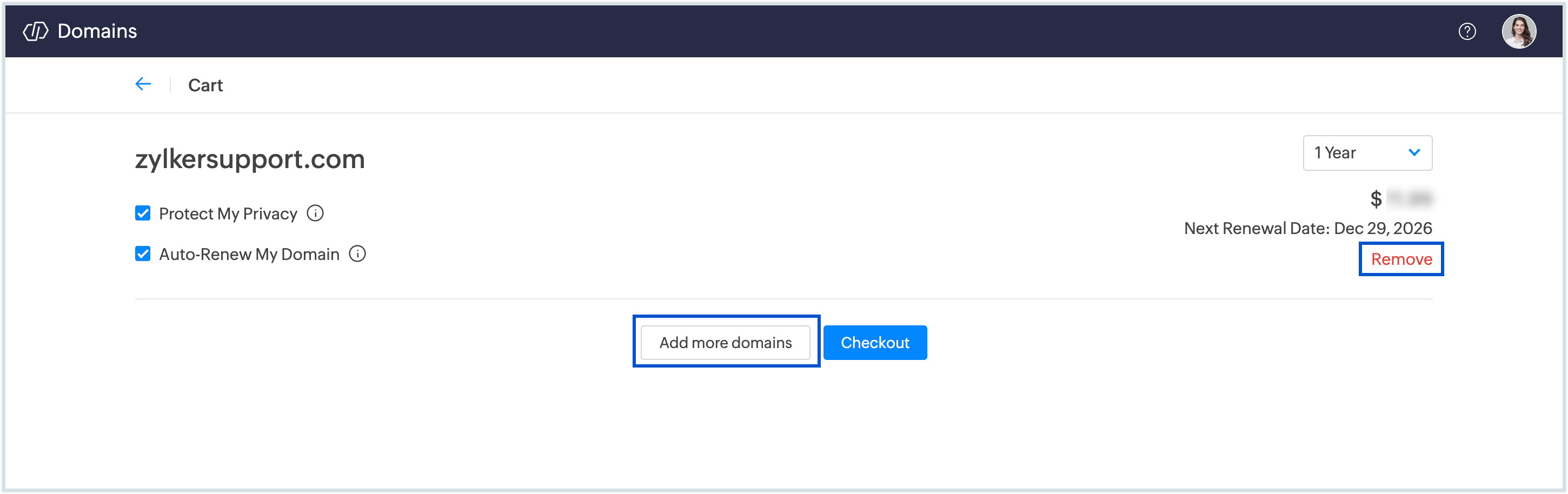
- Click Checkout once you have finalized the domain selection.
- On the Checkout page, review the pricing summary, including applicable taxes.
- Enter the Registrant Information, which will be associated with the ownership of the domain.
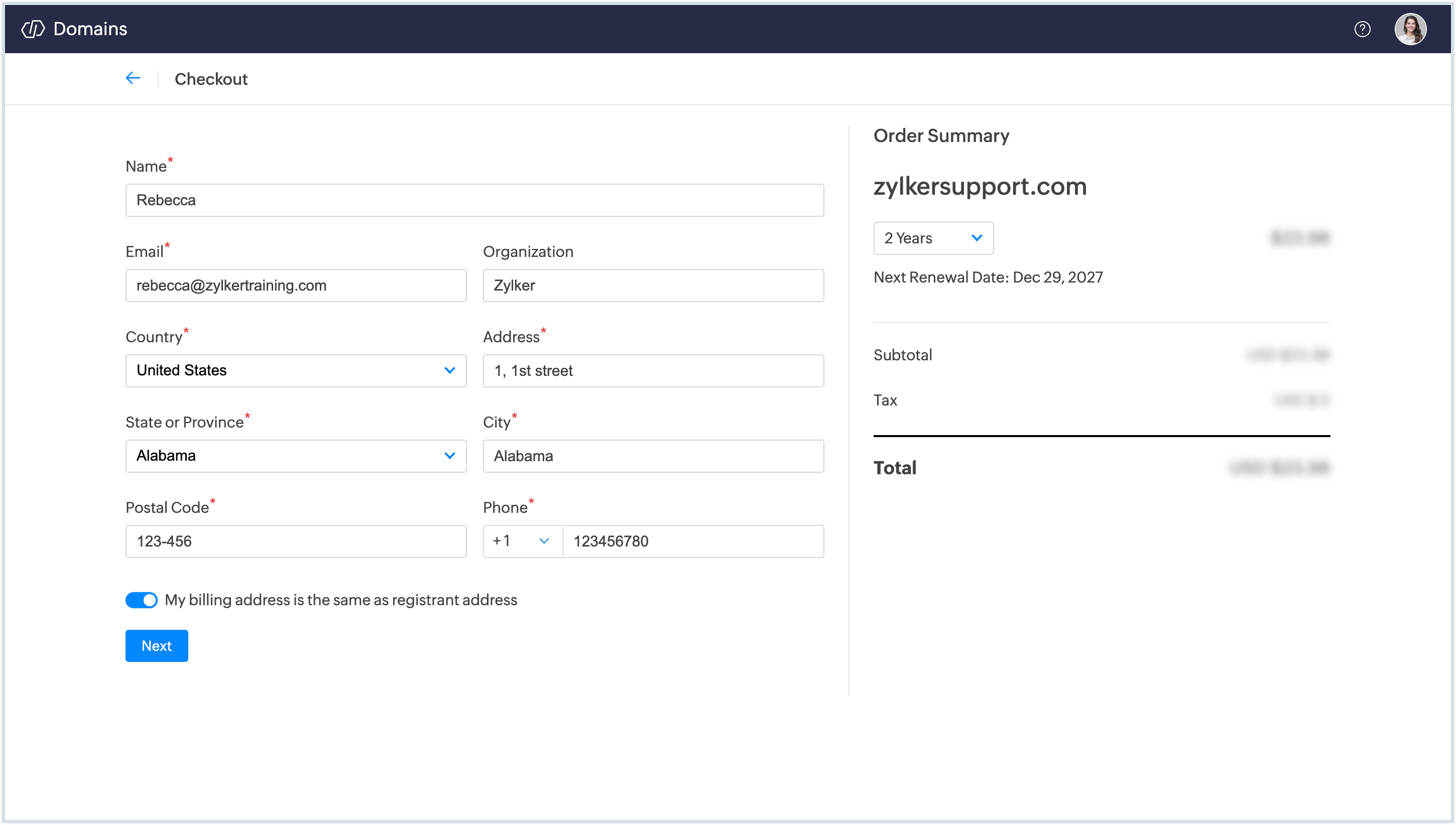
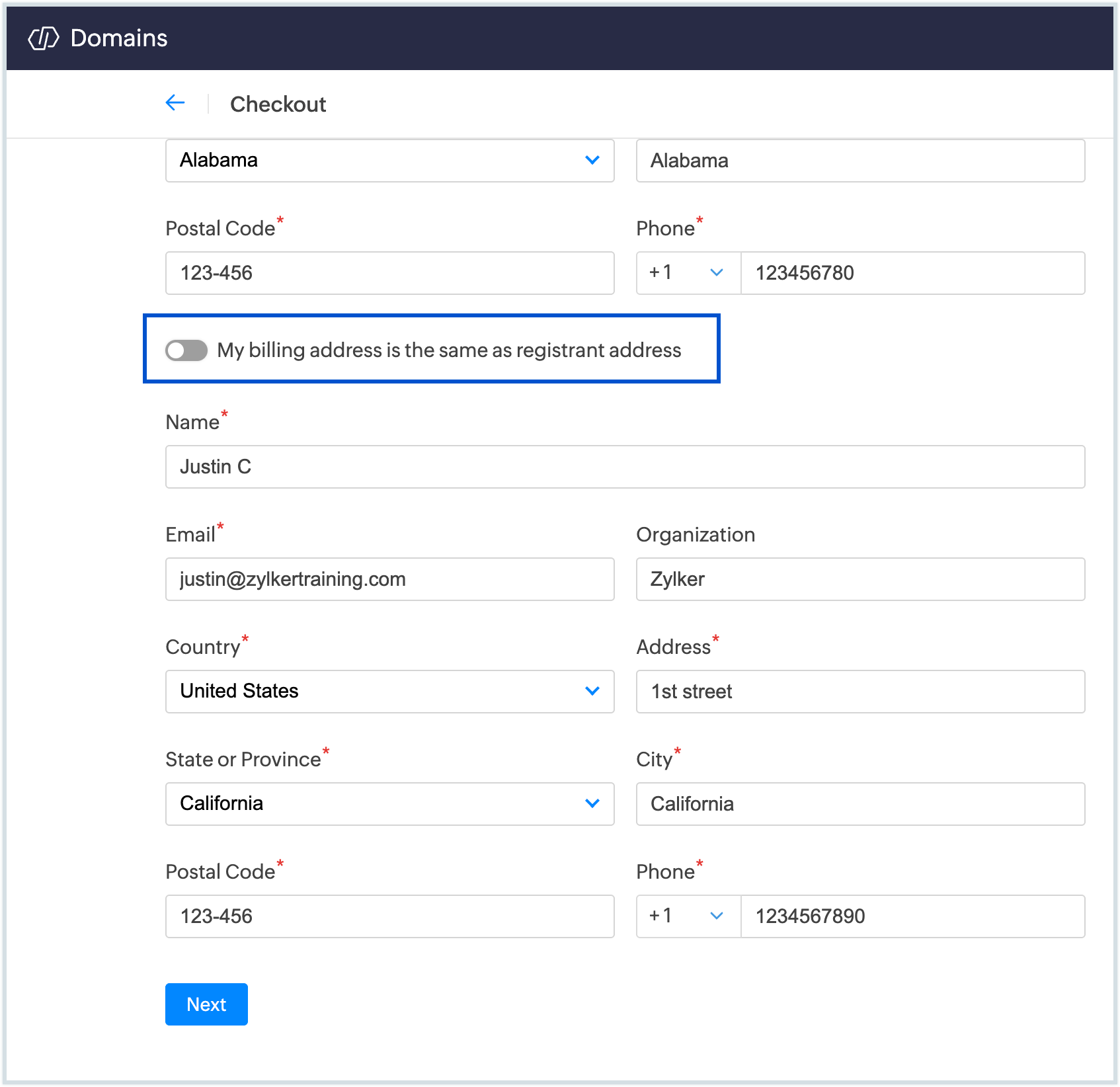
- By default, the Billing Contact is the same as the registrant. If required, Disable the option to enter separate billing details.
- If applicable, enter your Tax ID, and click Next. The system validates the Tax ID and calculates the tax amount, which is displayed in the total cost.
- Review the updated pricing summary and click Proceed to Payment.
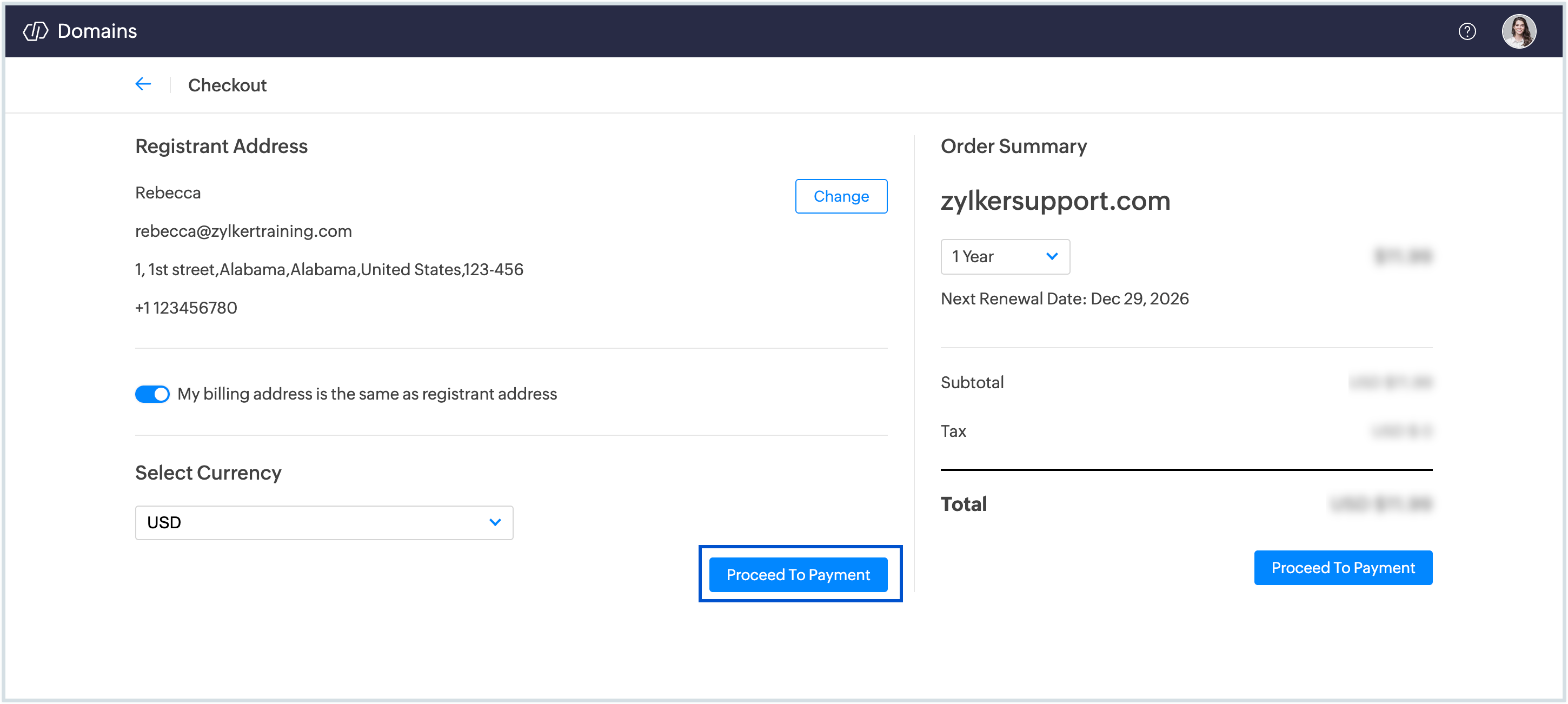
- On the Payment page, choose your preferred payment method. Zoho Domains supports multiple secure payment options, including credit/debit cards and PayPal.
- Confirm the payment to complete the domain registration.
After payment is confirmed, your domain will be officially registered. You’ll also receive an email confirmation with all the details of your new domains.