Manage domain
Once a domain is registered or transferred to Zoho Domains, it will be listed under My Domains in your account, where you can manage all domain-related settings.
To manage a domain, follow the below steps:
- Log in to the Zoho Domains account using the registered email address.
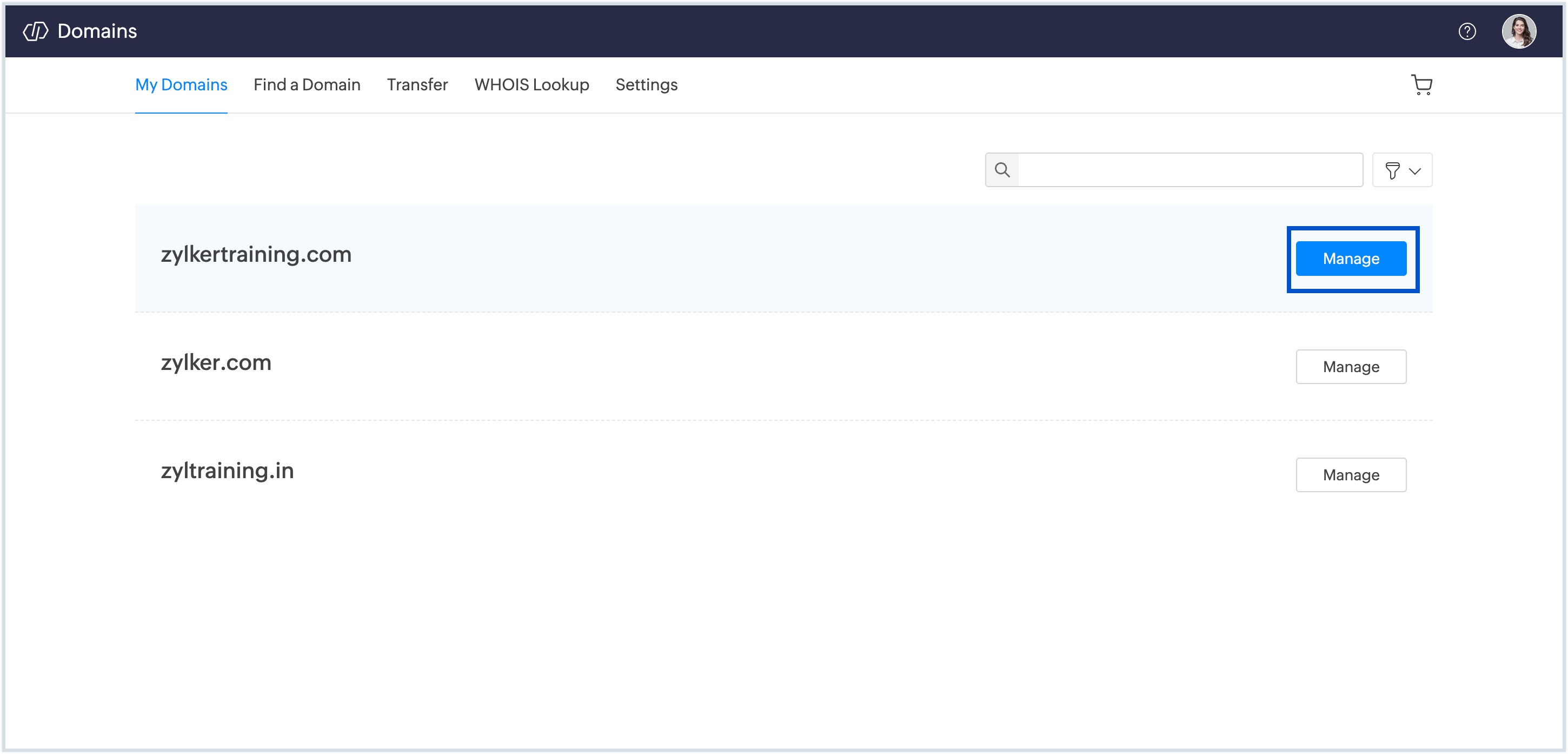
- Navigate to the My Domains section from the top pane.
- All domains registered under your account will be listed here.
- Click Manage next to the domain you want to manage.
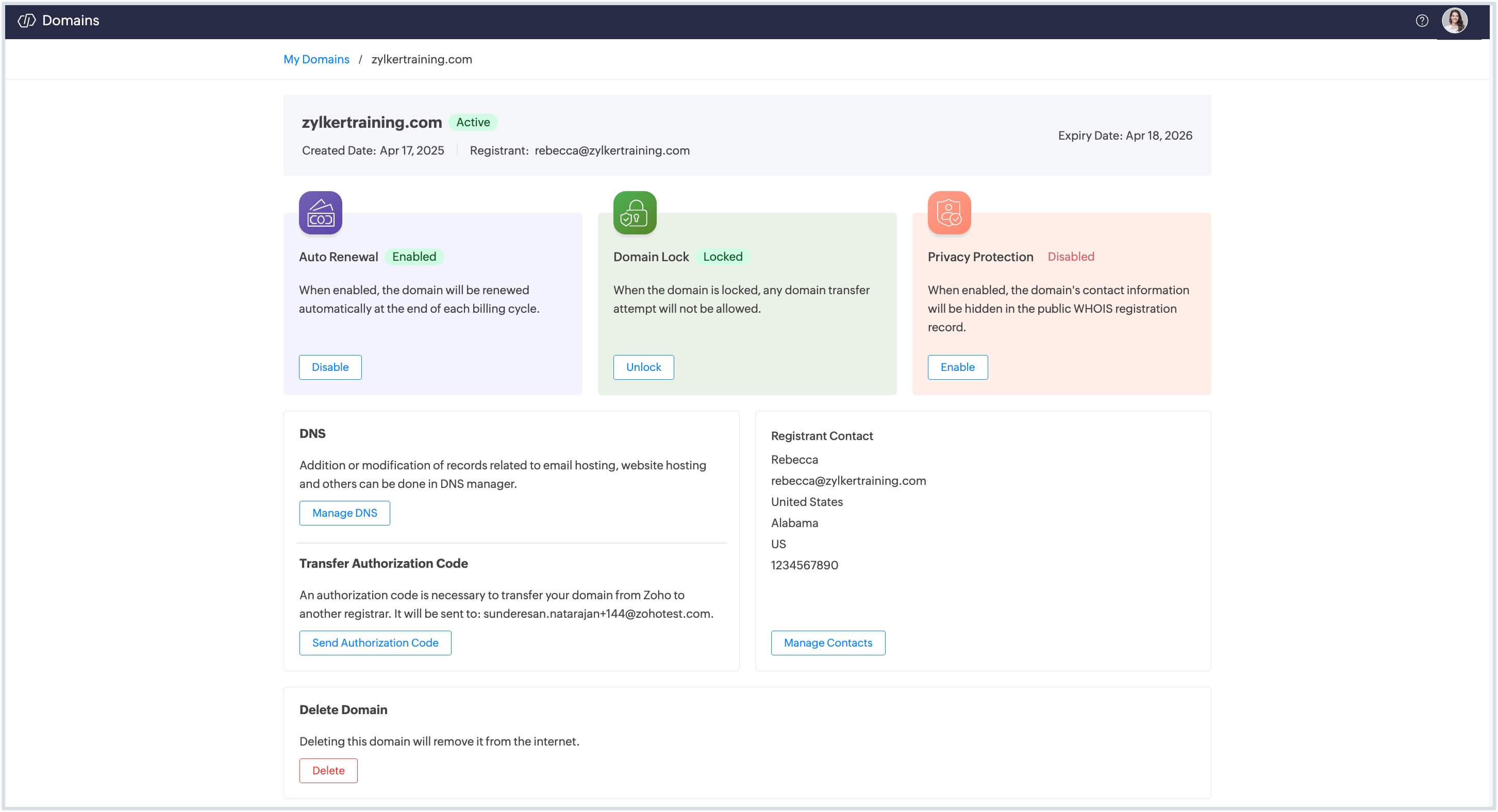
The following options will be available on the domain management page:
- Manage Auto Renewal : Enable or disable auto-renewal for your domain. When enabled, Zoho Domains automatically renews the domain before it expires.
- Domain Lock : Lock or unlock your domain to control transfer permissions. Domains are locked by default to protect against unauthorized transfers.
- Privacy Protection : Most gTLDs and ccTLDs support privacy protection to hide registrant contact details from public WHOIS records. Zoho Domains automatically redacts personal information by default. You can disable this option if you prefer your contact information to be publicly visible.
- Manage DNS : Manage your Nameservers, host records, DNSSEC, and Hostnames. DNS configuration is crucial for your domain's functionality.
- Manage Contacts : Manage all contacts associated with your domain by clicking this button.
- Get Authorization Code : This code is required if you wish to transfer your domain to another registrar. Click it to send verification code to the registrant's email address.
- Delete Domain : Cancel or remove your domain.