External ID - An Overview
We know that Zoho Vertical Solutions allows you to integrate third-party apps and manipulate data through APIs. While you integrate a third-party application, you may want to store the third-party reference IDs in Vertical Solution's records. To meet this need of storing an external value inside Vertical Solutions, we have introduced the External ID field.
What is an External ID field?
An External ID is a custom single line field in a module in Vertical Solutions that can hold a record's unique ID in an external system.
When can you use an External field?
When you integrate an application with Vertical Solutions, you can use the external field's value to create, update, or delete a record in Vertical Solutions instead of Vertical Solutions' record ID.
This is particularly useful when you deal with huge data where you can work with just one ID per record instead of two.
Integration and data sync - You can simply use the external ID to upsert records instead of the Vertical Solutions' record ID, and maintain data sync.
Search - When you have an external field, you can search for a record through its external ID instead of the record ID.
Creating an External Field
Go to Setup > Customization > Modules and Fields > Choose a module.
Create a single line field and provide a name.
Click the more options icon and select Edit Properties
In the Single Line Properties pop up, specify the field label, and check the Set External Field box.
Choose the field's visibility and the type of the external field.
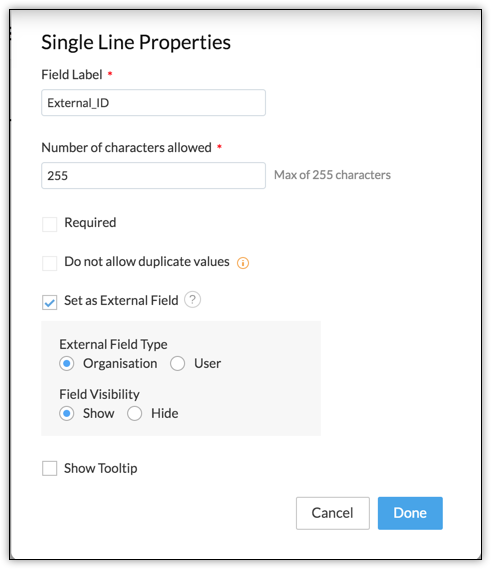
- Click Done. Click Save and Close in the module builder.
Types of External Fields
User-based External field
User-based external fields allow values to be stored with respect to each user. So, each user can make use of their corresponding external values(say contact1 and contact2) to manipulate Vertical Solutions records. When data sync happens between the external system and Vertical Solutions, these users can update the corresponding record with their respective external values(contact1 and contact2). For example, consider that two users have saved the same contact with different IDs c1 and c2, respectively in their external systems. When data sync happens with Vertical Solutions from these systems, there will be one contact in Vertical Solutions. But, the users can use their external contact Ids c1 and c2 to update the record in Vertical Solutions. Note that the external value for this type is unique to each user.
Org-based External field
In contrast to user-based external field, for org-based external fields, there is no association between the external ID stored and the user who configured it. Instead, all users can manipulate the Vertical Solutions records with that same external ID. Consider that you have a native ERP system to manage finances for your org. The employees(users) will deal with the same clients(leads or contacts). When you integrate this external system with Vertical Solutions, the lead/contact ID in the external system becomes the external field value in Vertical Solutions. Now this integration can use this external ID for any data sync and other actions with Vertical Solutions.
Mandatory Header in the API Requests
X-EXTERNAL: {module_API_name}.{external_field_API_name}
Possible Values for the Header
Simple Reference: {base_module_api_name}.{external_field_api_name}
Example: Contacts.External_Contact_ID.Associate an external field through a lookup field: {base_module_api_name}.{lookup_field_api_name}.{external_field_api_name}
Example: Contacts.Account_Name.External_ID.For a Product ID inside a line item: {inventory_module_api_name}.Product_Details.product.{product_external_field_api_name}
Example: Quotes.Product_Details.product.External_Product_ID.Polymorphic lookup: Events.What_Id->Accounts.External_Account_ID.
For a Price Book ID inside a line item: {inventory_module_api_name}.Product_Details.book.{price_book_external_field_api_name}
Example: Quotes.Product_Details.book.External_ID.For a lookup field in a Subform: {base_module_api_name}.{subform_api_name}.{subform_lookup_field_api_name}.{associated_module_external_field_api_name}
Example: Contacts.Subform_1.Deal_lookup.External_ID.
All the above cases are discussed in various sections of this topic.
You can create a single line field of the type "external" only through the UI.
You can add or update the value of an external field only via an API.
A module can have a maximum of 10 external fields.