In this lesson we will learn the following topics:
- Grouping content logically
- Adding and organizing categories, sub-categories, and sections
- Setting category visibility and display permission
- Setting article display style
Content is useful only if the readers can find it quickly. Grouping content improves article discoverability and accessibility.
Let's say a new customer wants information about changing themes. They are likely to look for it under topics like personalization or account settings. But if the article is not added under these folders, they will struggle to find the information amidst a huge list of articles.
Grouping content logically
Grouping content based on relevance to a central topic helps give structure to the database.
- Articles should be grouped logically: by product, service, issue type, relevance, or user journey stage.
- Clear naming and consistent structure make navigation intuitive and reduce the search time.
For example, all articles related to personal settings such as modifying themes, wallpapers, adding widgets, changing appearance should be grouped under one folder.

Similarly, content can also be grouped based on the type.
For example, FAQs should be placed under a single folder, while user manuals or product guides must be grouped separately under a folder with clear naming.
This keeps the knowledge base clean, organized, and removes duplication, which makes a significant impact on customer's experience.

Adding and organizing category, sub-category, and sections
In Zoho Desk, the KB follows a tree structure:
Category > Sections > Sub-sections > Sub-subsection > Articles.
A category is the top-level folder in the knowledge base, and it is linked to a department. A maximum of three hierarchies can be created under a category. Let's take a retail store as an example. A department named "Products" can have different categories in the KB such as "Home appliances," "Electronics," or "Entertainment," and each category should include articles related to the topic so that its easy for users to identify.
Categories can be added from: Knowledge Base module > Manage KB > Organize Category > New Category.
Categories can be added from: Knowledge Base module > Manage KB > Organize Category > New Category.

A category must be associated with a department, which is referred to as the primary department. Category can also be associated with secondary or other departments to ensure the agents can access the articles of that category from the other departments.
The categories are further divided into sections and subsections like large and small appliances where the relevant articles can be added for easy identification. Similarly, content can be divided into subsections to create logical grouping.

Positioning the categories, sections, and subsections in the correct order is important as it helps readers to understand the content structure and identify how each piece of content relates to the others. For example, placing the getting started section at the bottom is not logical and can leave readers confused. In Desk, it's easy to drag and drop sections or sub-sections to the right place even after you have created them.

Setting category visibility and display permission
While creating a category, you must set its visibility which will determine who can view and access the articles within. In the previous lesson - Planning of Knowledge Base, we learnt about defining the goals and audience which will let you decide the appropriate visibility that should be set for a category.
There category visibility can be set as:
None: This means the category is open to all and the articles will be accessible to all users irrespective of whether they sign in to the help center or not. Both registered and non-registered (non Zoho Desk users) users can view the articles. Common examples include "Brochures" or "Newsletters" that are readily accessible to the public. When the visibility is set as none, while adding articles, the writers can select to whom the it will be visible.
- Agents only
- Registered Users
- All users

Groups: A category that is accessible only to a group of users. For instance, Vendor Policies or Guidelines are specific to a set of employees. Articles under these categories need not be shown to the help center users or all employees. You must create a user group and add the desired Desk users to the group, then map that group with the relevant category.

Public: The category is accessible to all users irrespective of whether they are help center users or not. For instance, property listings can be viewed by everyone.

Agent: The category will be visible only to employees or Desk agents. It will not be available in the help centers.
Custom IP: Static IPs provide a stable connection and are commonly used for secured remote access and better network management. Help center articles that are exclusive and relevant only to users signing from specific IP addresses can be grouped under one category which should be made available only to selected IPs. You can include multiple IP addresses for each category.

The visibility of a category will eventually govern the permissions for the articles that are added underneath. We will learn more about it in the next lesson: Creating KB articles.
Setting article display style
KB articles can displayed in two formats:
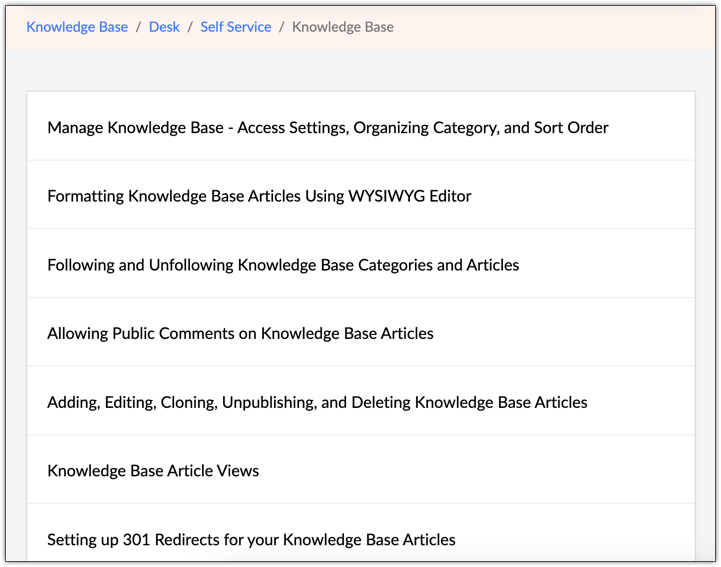
- List view: Articles will be listed down in an order that has been set during configuration such as created time, modified time or custom order.
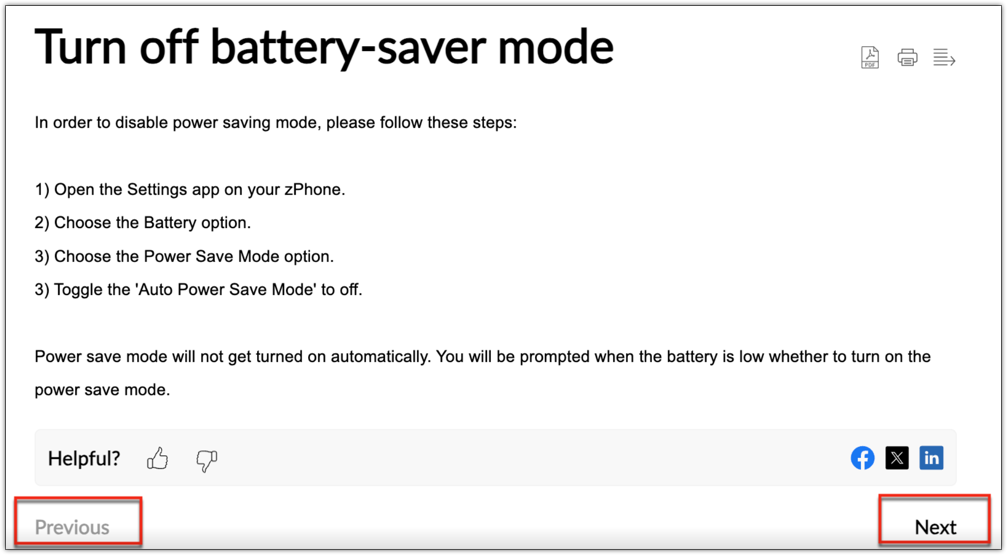
- Quick navigation: Articles can be arranged in a sequence to guide readers to the next article and helping them navigate to the previous article. It allows to set an orderly format of the reading material with navigation bars.