

Creating a New Project

If the Timesheets module is not available by default in the left sidebar, you’ll have to enable it in the Preferences. To do this:
- Go to Settings from the top-right corner of the page.
- Select General Preferences.
- Mark Timesheets under Select the modules you would like to enable.
- Click Save at the bottom of the page.
To create a new project:
- Go to the Timesheets module on the left sidebar and click + New Project.
- Enter a name for your project in the Project Name field.
- Add a description to the project (optional) and select the customer for whom the project is being created from the Customer Name dropdown
- Now select the Billing Method for the project from the types of billing methods available in the dropdown. * Fixed Cost of Projects * Based on Project Hours * Based on Task Hours * Based on Staff Hours * Based on Daily Rate
On selecting,
Fixed Cost for Projects
The option Fixed cost can be chosen if you would be having a fixed amount to which you will be sticking till the completion of the project.
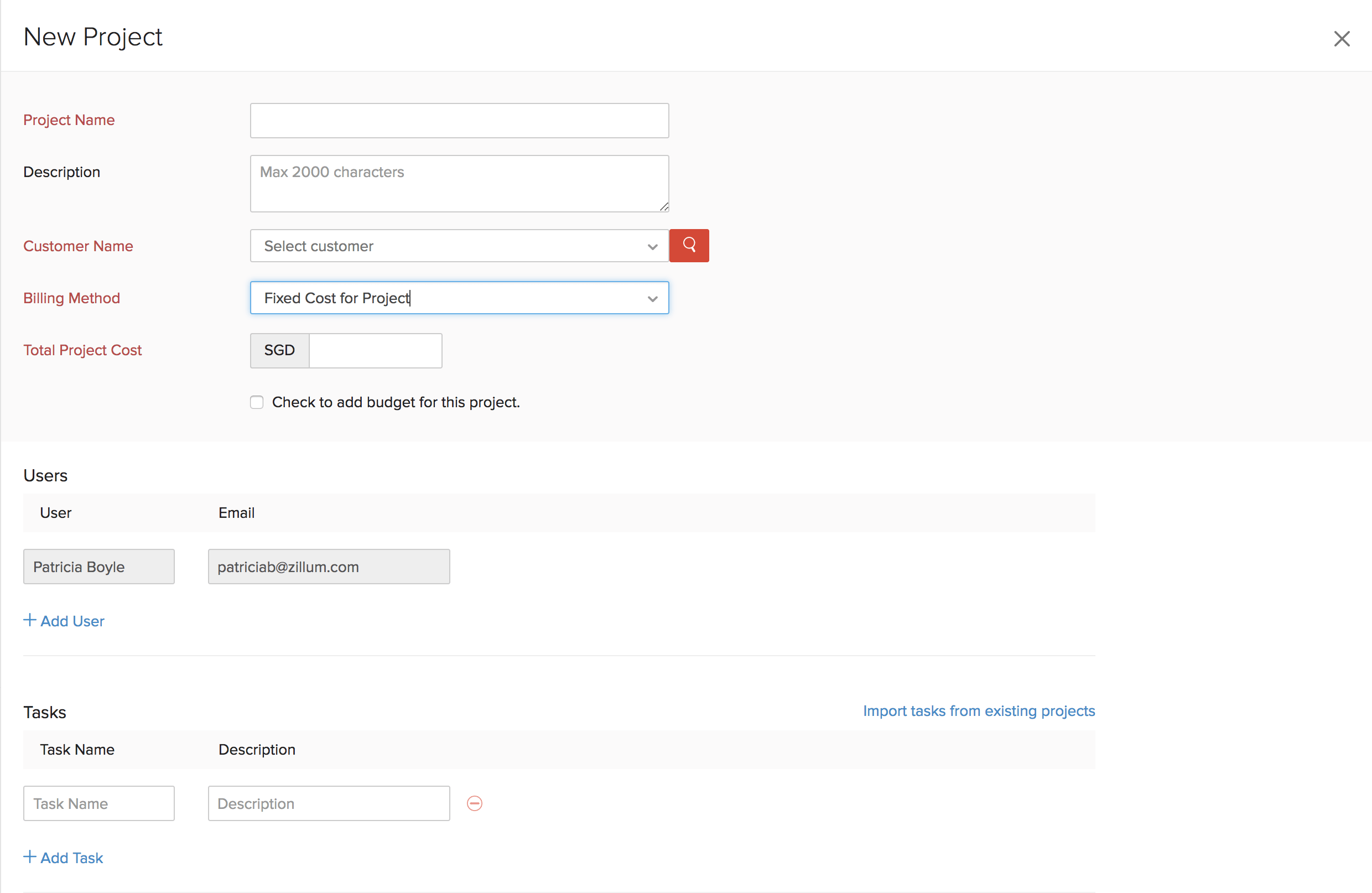
| Fields | Description |
|---|---|
| Total Project Cost | Enter the project cost for which you will be billing your customer. |
| Users | Select a user to work on the project. You can also add an extra user by clicking on Add User. |
| Tasks | Enter the Tasks that need to be done to complete the project. You can add more tasks by clicking on Add Task. Tasks can also be created later for the project. |
Based on Project Hours
You can choose this option if you would be billing your customer based on the hours you worked on that project.
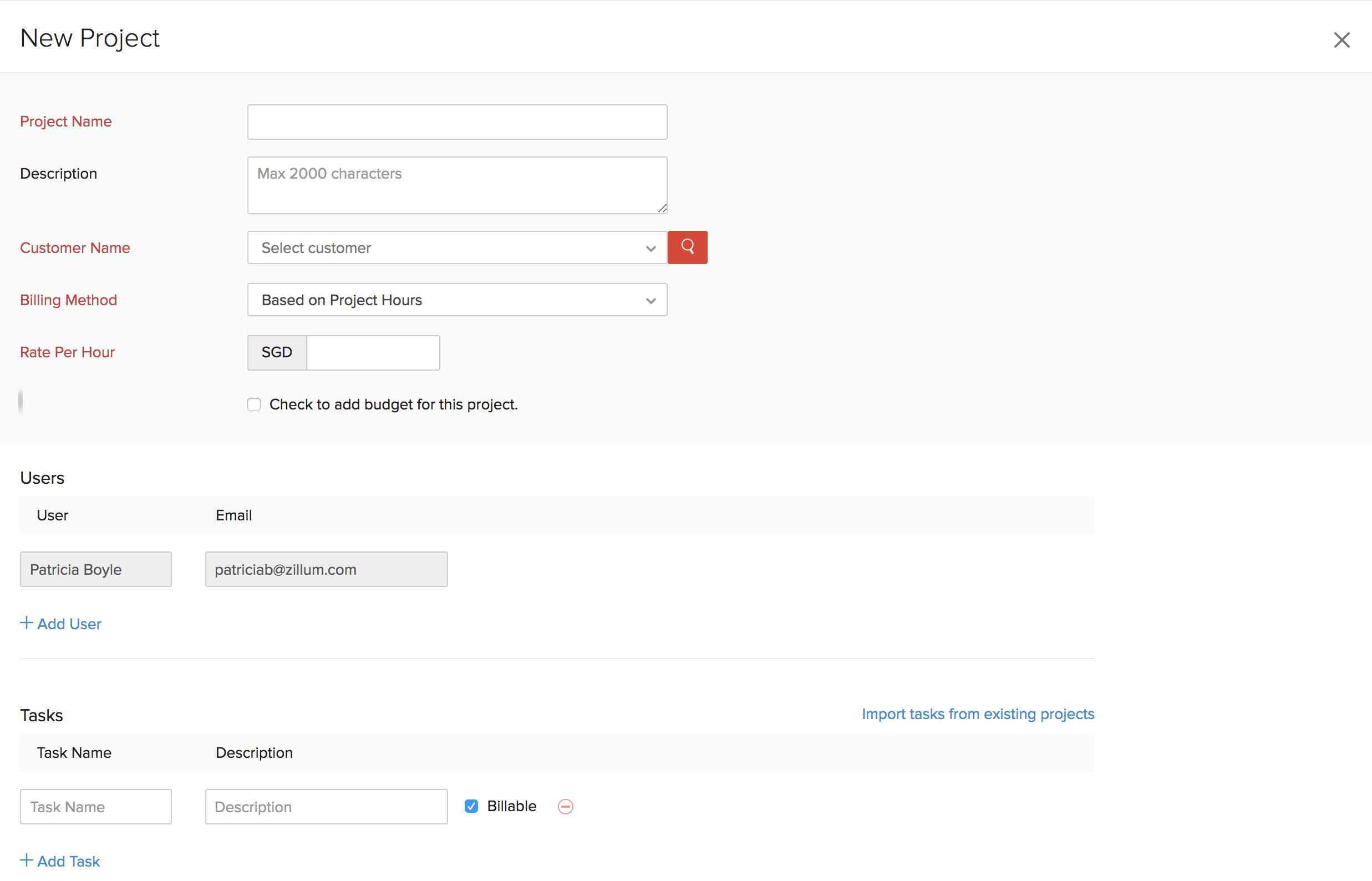
User and Task fields are the same as for the above section.
Rate per hour: Enter the rate that will be changed for an hour of work that goes into this project. At the completion of the project, you can charge your customer based on the number of hours logged for the project.
Based on Task Hours
If you would be billing your customer based on the hours you worked on each task, go for this option.
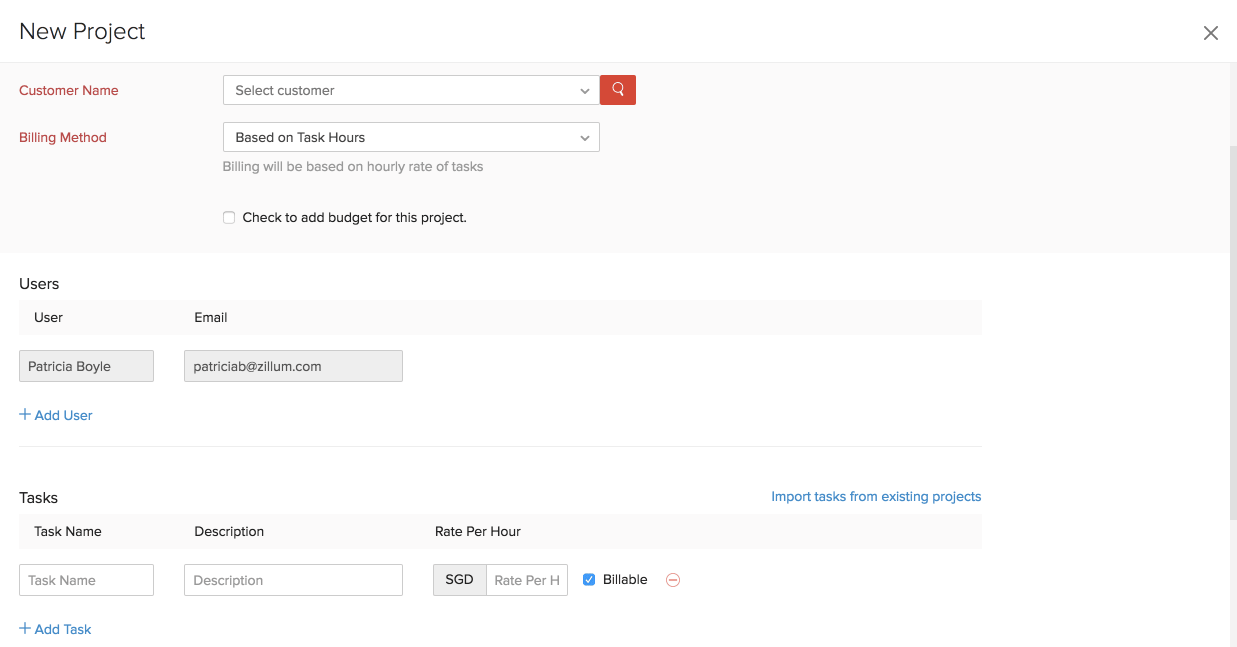
User field is same as for the above sections.
Tasks: enter the tasks and the rate that will be charged to finish that particular task. At completion of the project, you can charge your customer based on the tasks completed.
Based on Staff Hours
If you would be billing your customer based on the time your staffs worked, choose this option.
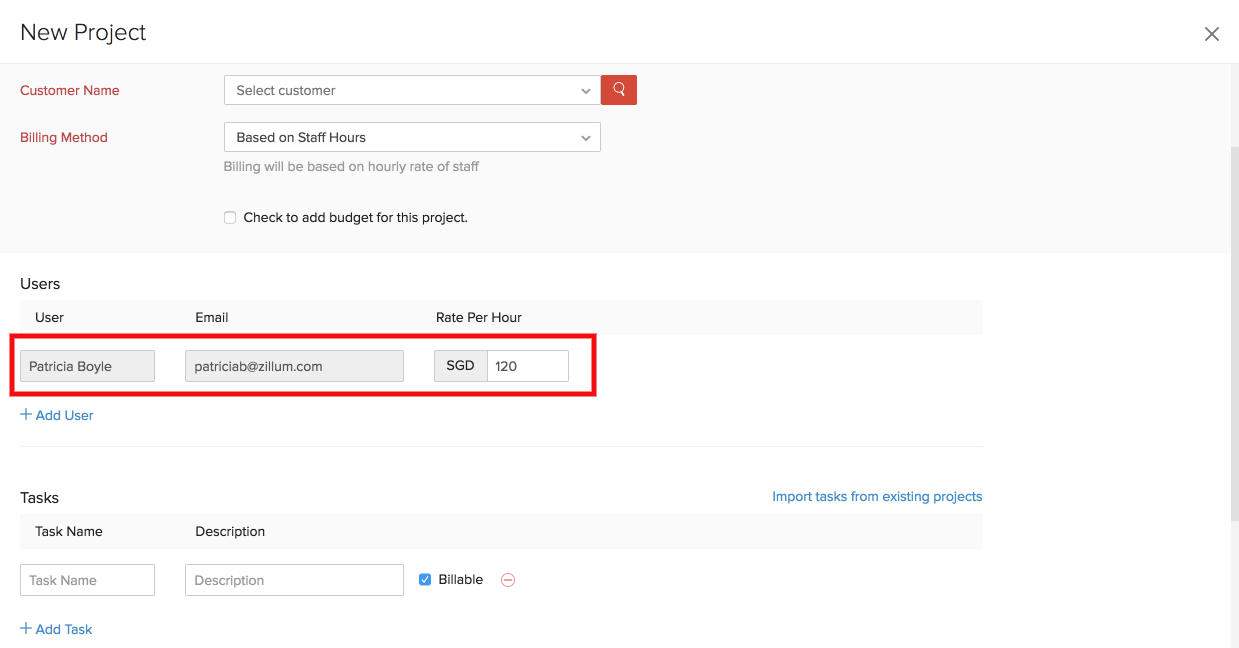
Task field is same as for sections (i) & (ii)
Users: Enter the rate that will be charged by the user for an hour of work. At the completion of the project, you can charge your customer based on the number of hours logged by users for the project.
| Fields | Description |
|---|---|
| Total Project Cost | This cannot be applied to projects with Billing Method as Fixed Project Cost. This will notify in the Project Summary report when the overall project cost is higher than the budgeted project cost. 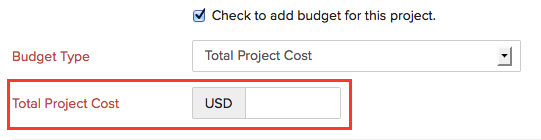 |
| Total Project Hours, Hours Per Task & Hours Per Staff | 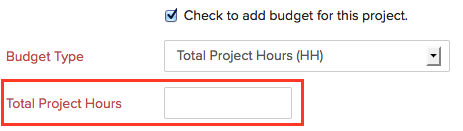 Total Project Hours  Hours Per Task  Hours Per Staff This will notify in the Project Summary report when the logged hours are higher than the budgeted hours. |
- This will be shown on the project dashboard. The reports can be seen from the Project Summary report under Reports > Projects and Timesheet.
Based on Daily Rate
This option lets you bill the project based on a daily rate instead of hourly rates. Time entries for daily rate projects are recorded in days (Full Day or Half Day) and the customer will be invoiced with the quantity shown in days.
Scenario: Charles, a project manager at a consulting firm, assigns consultants to client projects on a per-day basis. His clients expect invoices that reflect the number of days each consultant worked, not granular hourly breakdowns. Charles creates a project in Zoho Invoice with the Daily Rate billing method and selects Rate per User so each consultant has a different daily rate. His team logs time as Full Day or Half Day, and when Charles invoices the client, the quantity appears in days matching what the client expects.
Note:
- Once a project is created with the Daily Rate billing method, you cannot change it to Hourly Rate (or vice versa). Similarly, an Hourly Rate project cannot be converted to Daily Rate.
- Timesheets of Daily Rate projects cannot be invoiced together with timesheets of Hourly Rate projects.
When you select Daily as the billing method, you can choose one of three rate types:
- Rate per Project — The rate per day that applies to a project.
- Rate per Task — The rate per day that applies to each task.
- Rate per User — The rate per day that applies to each user.
Rate per Project (Daily)
- Select Rate per Project under the billing method.
- Enter the daily rate in the Rate Per Day field.
- Enter the number of hours that make up a working day in the Hours Per Day field (in HH:MM format).
| Fields | Description |
|---|---|
| Rate Per Day | The daily rate that will be charged for work on this project. |
| Hours Per Day | The number of hours that constitute one working day for this project. |
Rate per Task (Daily)
- Select Rate per Task under the billing method.
- Enter the number of hours that make up a working day in the Hours Per Day field.
- Under Project Tasks, enter the Task Name and the Rate Per Day for each task.
- Check the Billable checkbox to include the task cost in the invoice.
Rate per User (Daily)
- Select Rate per User under the billing method.
- Enter the number of hours that make up a working day in the Hours Per Day field.
- Under Users, enter the Rate Per Day for each user assigned to the project.
Insight:
- For Daily Rate projects, only one time entry is allowed per user per day. Time entries are logged as either a full day or half day. A full day equals the configured hours per day, and a half day equals half of that value.
- If you log hours less than or equal to half the configured Hours Per Day, it counts as a half day. Anything greater than that counts as a full day. For example, if Hours Per Day is set to 08:00 and you log 3 hours, it will be recorded as a half day. If you log 5 hours, it will be recorded as a full day.
- While invoicing Daily Rate projects, the quantity on the invoice will be shown in days (not hours). However, in the Dashboard and reports, logged time will still be displayed in hours.
At the completion of the project, you can charge your customers based on the number of days logged for the project.
Adding a Task to the Project
- Select the project that you created from the Projects window.
- Click More and select Add Task from the drop-down.
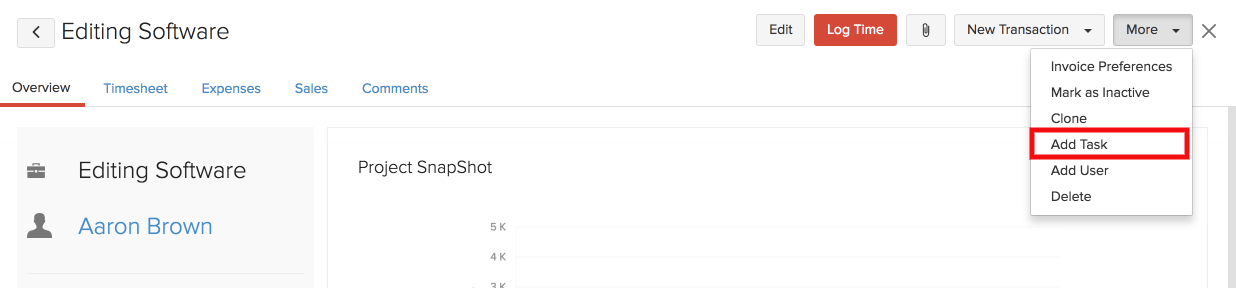
- Enter the Task Name, Rate Per Hour and Description. Click Save.
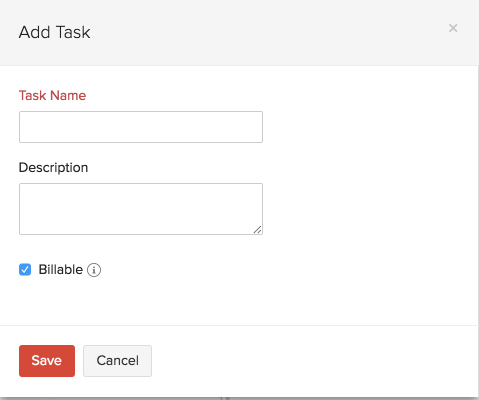
- This will be the form for adding a new task for projects with billing method as Based on Task Hours. For projects with other billing methods, only Task Name and Description will be available. Also, the option Billable is available with all billing methods except Fixed Cost for Project.
Adding a User to the Project
Imagine you have started working on a project and you have added more staffs but they do not have access to the project to log their time. In this case, you can add them as users to the project. To go about doing it, please follow the steps mentioned below:
If the user is already a part of the organization but not a part of the project,
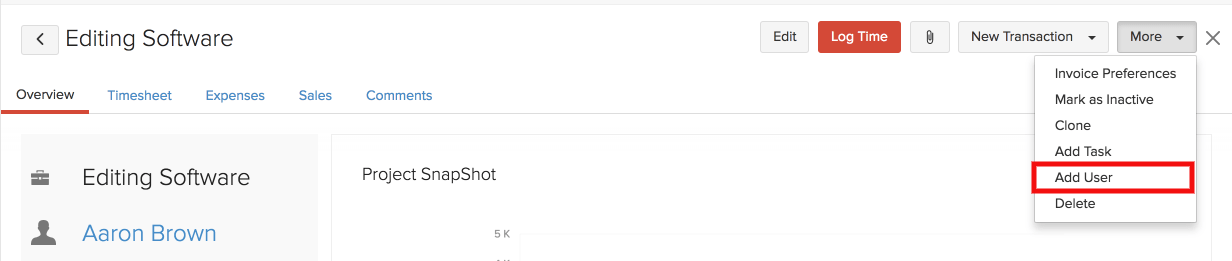
- Select the project.
- Click the More dropdown on the right corner and select Add User.
- Select the User and click the Add User button.
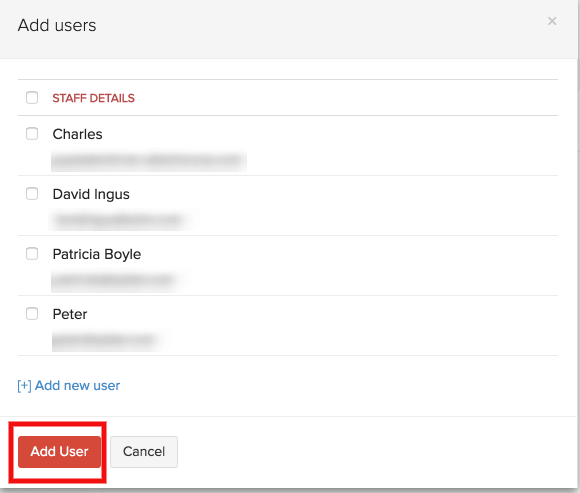
- If the user is not present in the org, then click the + Add new user option to invite the user into the organization as well as to the project.
Import and Export Projects,Tasks and Timesheet
Projects, tasks and timesheet entries can be transported from an external source to Zoho Invoice with the help of the importing option. Tasks belonging to other projects within Zoho Invoice can also be imported.
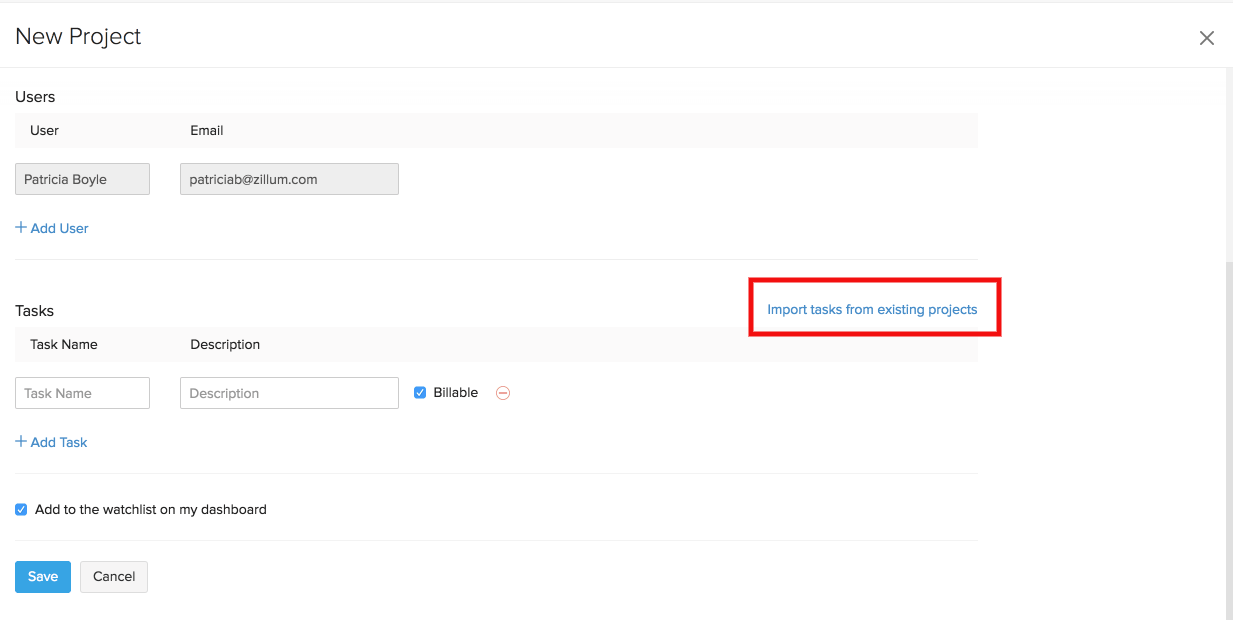
To import from an external source,
- Go to the Timesheet module on the left sidebar.
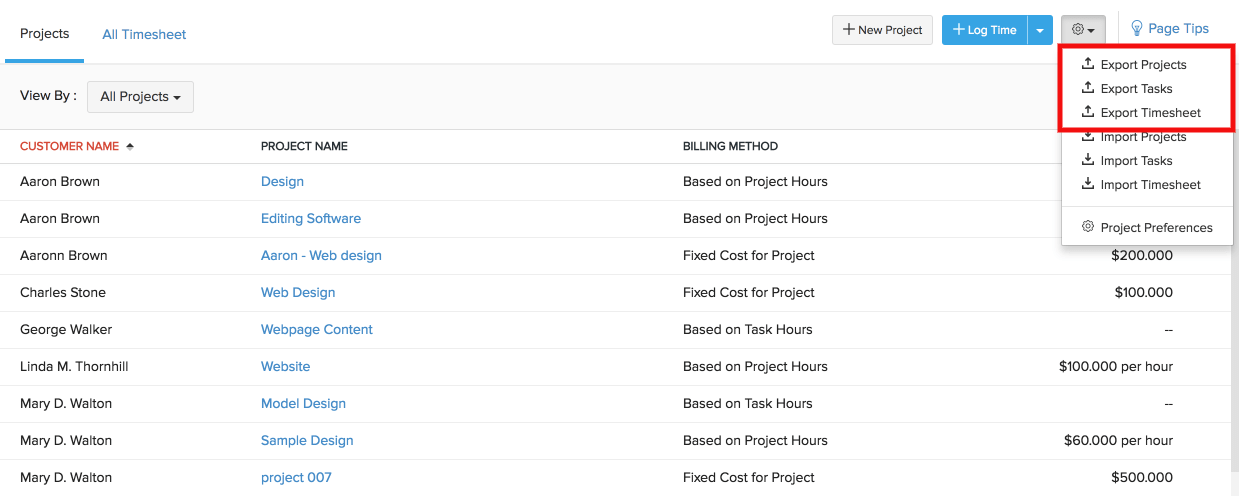
- Click the gear icon on the top right corner (beside + Log Time button) and choose the import option based on your requirement.
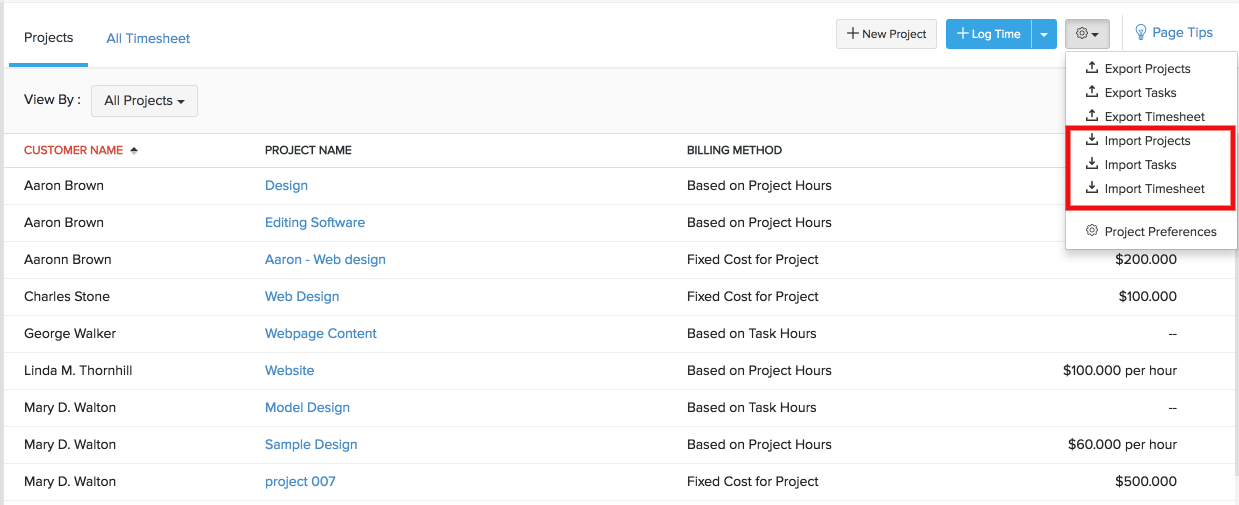
- Upload the file either in CSV/TSV/XLS format and match the fields in the file with the fields in Zoho Invoice.
- If there is any mismatch, the system would alert you with an error message. You can rectify the it in the file and upload it again.
- Hit the Import button when all your fields are ready to be imported.
Likewise, if you would like to export the data from the timesheets module, you can do so by clicking the same gear icon on the top right corner.
 Yes
Yes