


Enable Purchase Returns

Enable the Purchase Returns module to allow creating and managing returns for items purchased from vendors. Once enabled, you can initiate purchase returns for damaged, defective, or excess items, track vendor credits, create shipments and packages for returning goods, and record refunds from vendors
To enable the Purchase Returns module,
- Go to Settings in the top right corner.
- Navigate to Organization Settings.
- Click General under Setup and Configurations.
- Enable Purchase Returns under Select the modules you would like to enable.
- Click Save.
Create Purchase Return
Purchase Returns in Zoho Inventory help you record items returned to vendors after a purchase, enabling accurate inventory tracking, updated vendor balances, and reliable financial records.
To create a purchase return:
- Go to Purchase Returns under Purchases in the left sidebar.
- Click +New in the top right corner.
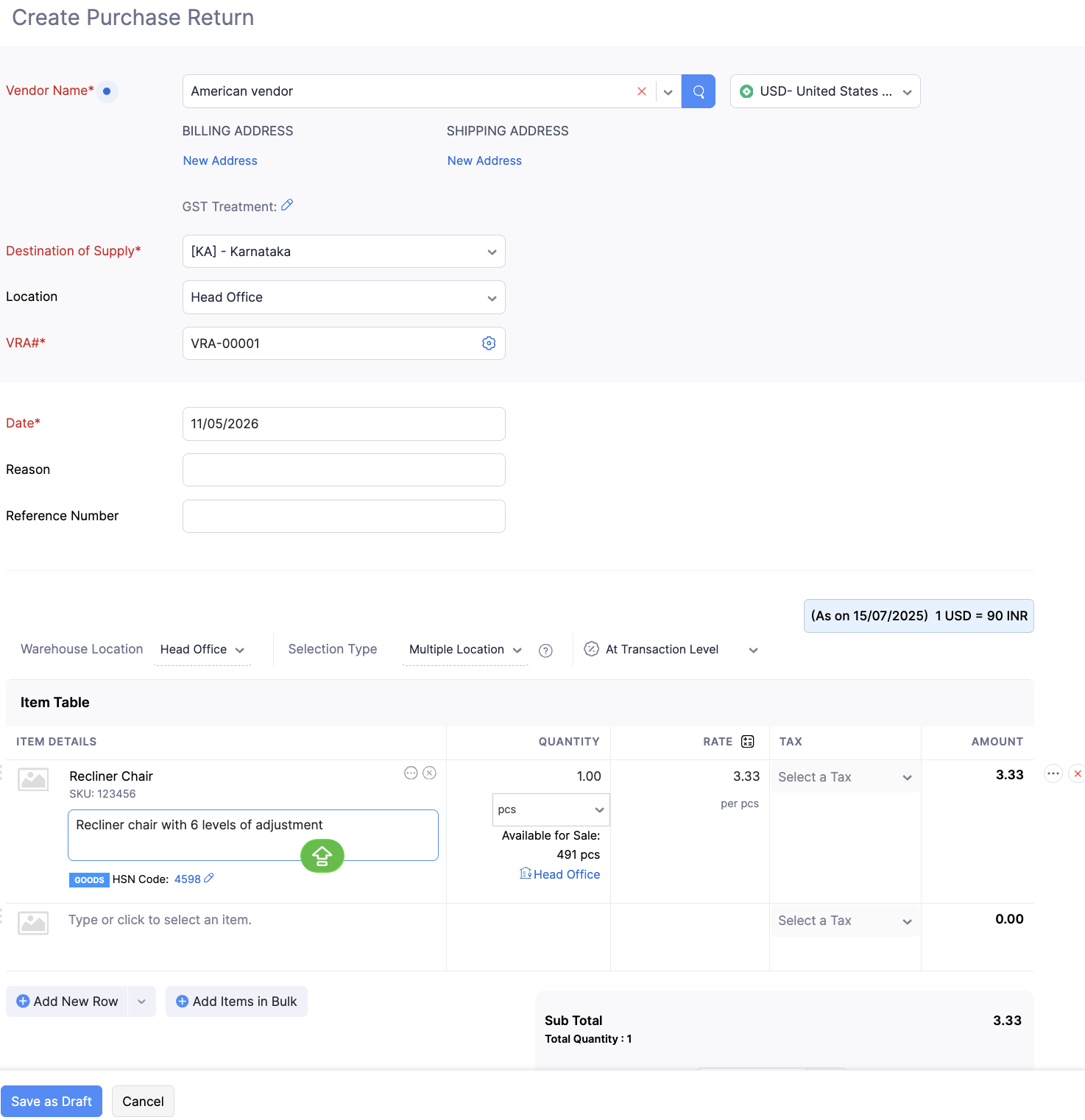
- Enter the required details,
| Field | Description |
|---|---|
| Vendor Name | Select the vendor from whom you are returning the purchase. |
| Location | Select the location where the purchase return is recorded. |
| VRA# | Automatically generated Purchase Return number. You can change your preference: * Click the Gear icon in the text box. * Choose one of the following options: * Continue auto-generating Purchase Return numbers – Purchase Return numbers will be generated automatically based on the configured prefix and starting number. * Enter Purchase Return numbers manually – Enter the Purchase Return number manually each time during Purchase Return creation. * Once done, click Save. |
| Date | Enter the date of the Purchase Return. |
| Reason | Provide the reason for returning the purchase. |
| Reference Number | Enter any related purchase or invoice number for reference. |
- Enter the items and its quantity that you wish to return to the selected vendor.
- To add more than one item, click +Add New Row.
- Click Save.
Note: Once you mark a purchase return as Confirmed, the committed stock of the items will be reduced.
Create Transactions From Purchase Returns
Create Transactions from Purchase Return allows you to generate related records such as picklists, packages, shipments, and vendor credits directly from a purchase return. This helps streamline return processing while keeping inventory and accounting data in sync.
Create Picklist
You can create a picklist from a confirmed purchase return to pick the returned items from bins before processing the return.
To create picklist,
- Go to Purchase Returns under Purchases in the left sidebar.
- Open a Confirmed purchase return transaction.
- In the details page, click the Create dropdown.
- Select Picklist. You will be redirected to the picklist creation page, where the relevant details are prepopulated automatically.
Create Package
You can create a package from a purchase return in Draft or Confirmed status to pack the items that are being returned to the vendor.
To do this,
- Go to Purchase Returns under Purchases in the left sidebar.
- Open a Confirmed purchase return transaction.
- In the details page, click the Create dropdown.
- Select Package. You will be redirected to the package creation page, with the relevant details prepopulated automatically.
Create Shipment
You can create a shipment from a purchase return in Draft or Confirmed status to ship the returned items back to the vendor.
To do this,
- Go to Purchase Returns under Purchases in the left sidebar.
- Open a Confirmed purchase return transaction.
- In the details page, click the Create dropdown.
- Select Shipment. You will be redirected to the shipment creation page, where the relevant details are prepopulated automatically.
Create Vendor Credits
You can create a vendor credit directly from a purchase return to account for the value of the returned items. This helps adjust the vendor’s payable balance and ensures your accounting records remain accurate. The vendor credit is automatically prepopulated with details from the purchase return, reducing manual entry and maintaining consistency between inventory and accounting records.
To create vendor credit,
- Go to Purchase Returns under Purchases in the left sidebar.
- Choose the confirmed status purchase return transaction.
- In the details page, click the Create dropdown.
- Select Vendor Credit. You will be re-directed to vendor credit creation page.
Create Purchase Return From Purchase Orders
You can create a purchase return from the purchase order module once the purchase order is in the Received status, indicating that the items have already been received. This is typically done when items need to be returned due to reasons such as damage, incorrect items, excess quantity, or quality issues.
To do this,
- Go to Purchase Order under Purchases in the left sidebar.
- Create a purchase order and mark it as Received status. [Or]
- Select the purchase order that is in Received status.
- In the purchase order details page, click More icon in the top.
- Select Create Purchase Return from the dropdown.
- You will be re-directed to purchase return creation page where the details are auto-populated.