


E-Rechnung - Übersicht

Einführung
Deutschland führt die verpflichtende elektronische Rechnungsstellung (E-Rechnung) für B2B-Transaktionen ein. Ab dem 1. Januar 2025 müssen alle deutschen Steuerpflichtigen in der Lage sein, E-Rechnungen von ihren Lieferanten zu empfangen, und alle deutschen Unternehmen müssen ab Januar 2028 in der Lage sein, E-Rechnungen auszustellen. Rechnungen, die ab Januar 2025 per E-Mail im PDF-Format gesendet oder empfangen werden, gelten nicht mehr als E-Rechnung.
Was ist eine E-Rechnung?
Eine E-Rechnung ist eine maschinenlesbare Rechnung, die von einem Lieferanten in einem strukturierten Datenformat ausgestellt wird, das eine automatische Verarbeitung ermöglicht. Der Käufer kann sie dann direkt in sein System importieren, anstatt die Details manuell einzugeben.
Wer ist verpflichtet, E-Rechnungen auszustellen?
Ab Januar 2025 müssen Unternehmen, die in Deutschland ansässig sind, sicherstellen, ob sie unter die verpflichtenden E-Rechnungsregeln fallen. Diese gelten für folgende Unternehmen:
- Unternehmen mit ihrem Sitz oder Ort der Geschäftsleitung in Deutschland.
- Unternehmen, deren Sitz sich in einem anderen Land befindet, aber in Deutschland tätig sind.
Wenn diese Bedingungen erfüllt sind und eine steuerpflichtige Lieferung in Deutschland an ein anderes im Land ansässiges Unternehmen erfolgt, muss eine E-Rechnung ausgestellt werden. Ausnahmen gelten für Rechnungen mit geringem Wert (brutto Rechnungsbetrag von nicht mehr als 250 EUR) und Fahrkarten, die als Rechnungen dienen.
Wichtige Punkte
- Ab Januar 2025 sind Steuerpflichtige verpflichtet, strukturierte E-Rechnungen zu akzeptieren. Es besteht jedoch keine Verpflichtung zur Ausstellung strukturierter E-Rechnungen, noch ist es erforderlich, die Zustimmung des Empfängers einzuholen, wenn Rechnungen bis zum 31. Dezember 2026 in Papierform oder in unstrukturiertem Format gesendet werden.
- Ab Januar 2027 sind Unternehmen mit einem Umsatz von über 800.000 € verpflichtet, strukturierte E-Rechnungen auszustellen. Unternehmen mit einem Umsatz von unter 800.000 € können weiterhin Rechnungen in Papier- oder unstrukturiertem elektronischen Format ausstellen, wenn der Empfänger zustimmt.
- Bis zum 31. Dezember 2027 können Rechnungen für Transaktionen, die 2026 und 2027 getätigt wurden, weiterhin im EDI-Format ausgestellt werden, wenn der Empfänger zustimmt.
- Ab Januar 2028 müssen alle deutschen Steuerpflichtigen für jede B2B-Transaktion eine E-Rechnung ausstellen.
Wie funktioniert die E-Rechnung in Zoho Books
PEPPOL (Pan-European Public Procurement Online) ist ein EU-Standard, der den Austausch elektronischer Dokumente wie Rechnungen, Gutschriften usw. erleichtert. Die Transaktionen, die Sie in Zoho Books erstellen, werden überprüft, ob die erforderlichen Felder eingegeben sind, und über PEPPOL gesendet. So funktioniert es:
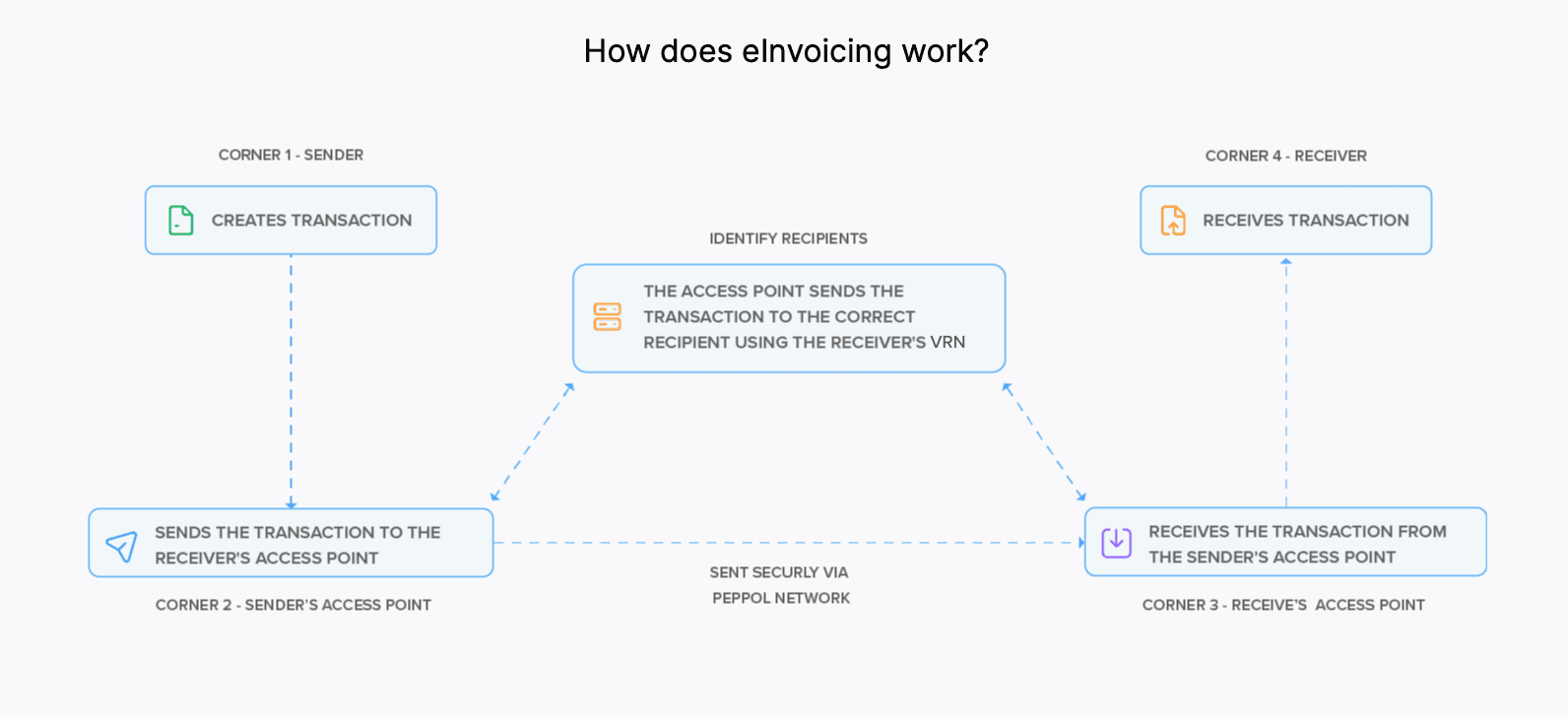
Wenn Sie eine Rechnung von Ihrer Organisation erstellen und senden, identifiziert der Zugangspunkt Ihrer Organisation die VRN des Empfängers und sendet die Transaktion über das PEPPOL-Netzwerk an den Zugangspunkt des Empfängers. Nach dem Empfang der Rechnung im Zugangspunkt des Empfängers wird die Rechnung in eine Rechnung in der Organisation des Empfängers umgewandelt.
E-Rechnungsstellung in Zoho Books einrichten
Die Einrichtung der E-Rechnungsstellung in Zoho Books ist ein einmaliger Prozess. Lassen Sie uns sehen, wie Sie die E-Rechnungsstellung in Zoho Books einrichten können.
Voraussetzungen: Sie können die E-Rechnungsstellung nur einrichten, wenn Sie Steuern in Ihrer Zoho Books-Organisation aktiviert haben.
So können Sie die E-Rechnungsstellung in Zoho Books aktivieren:
Gehen Sie zu Einstellungen.
Wählen Sie E-Rechnungsstellung unter Steuern & Compliance.
Klicken Sie auf E-Rechnungsstellung aktivieren.
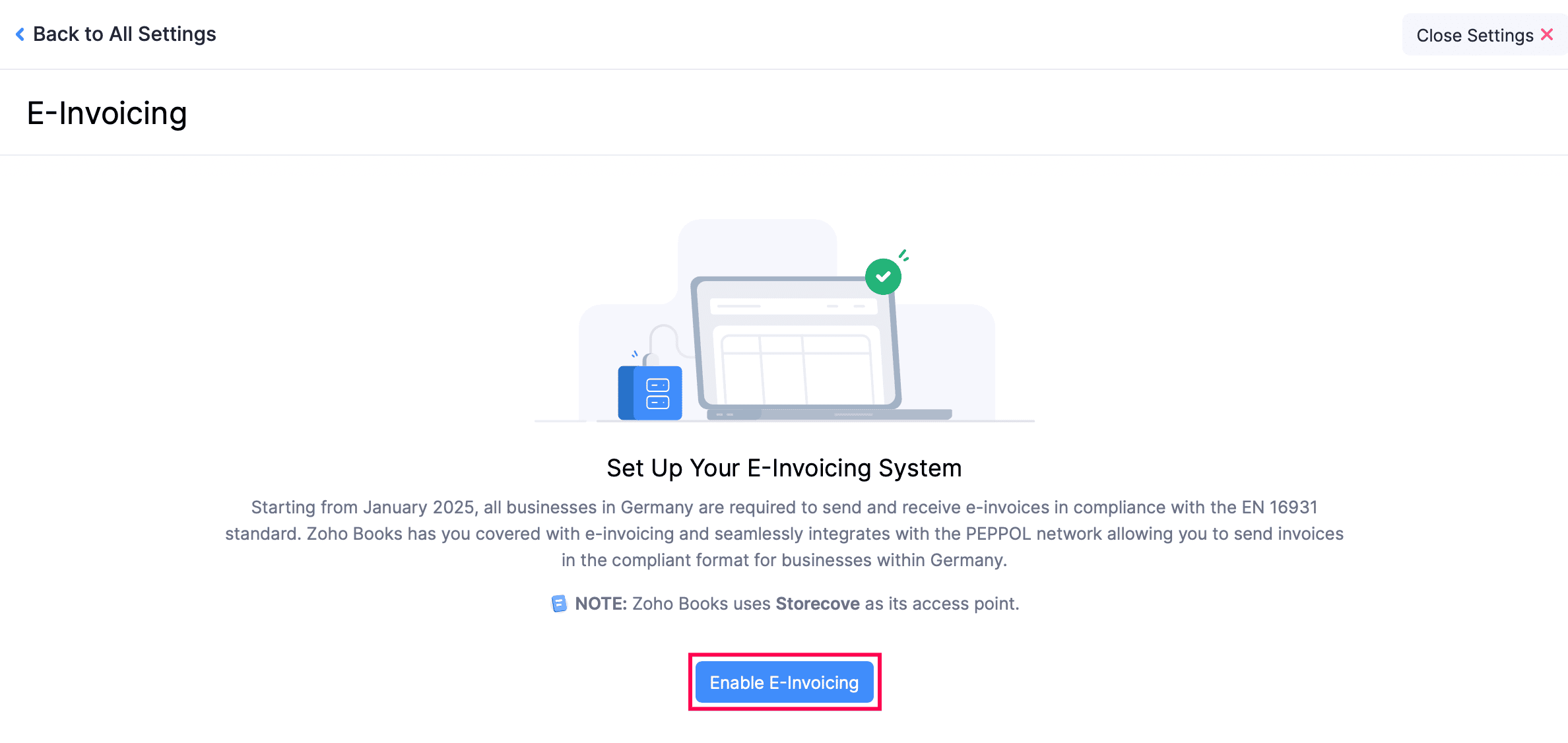
Geben Sie Ihre Handynummer ein.
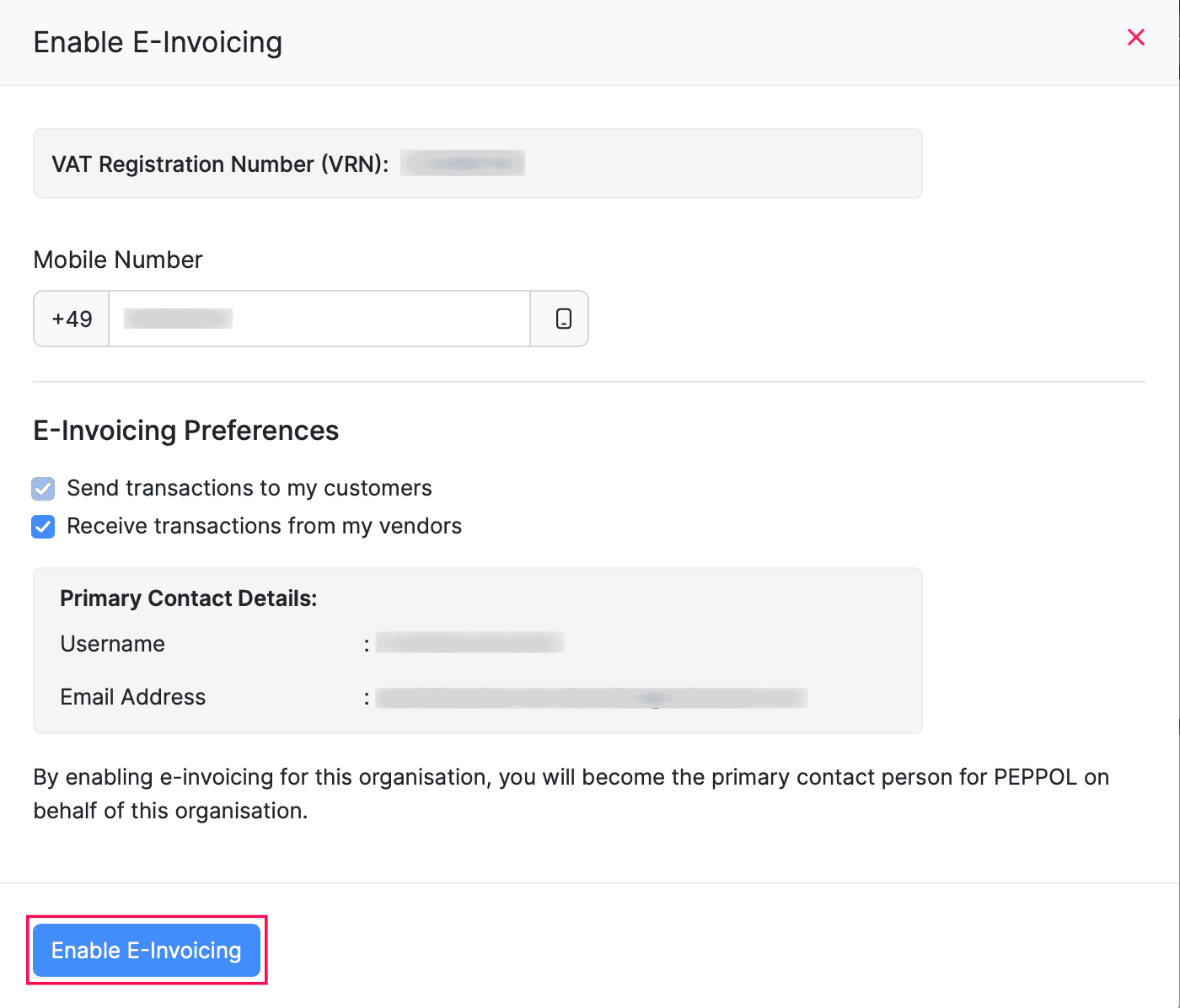
Das Kontrollkästchen Transaktionen an meine Kunden senden ist standardmäßig markiert. Sie können also Transaktionen an Ihre Kunden senden, sobald Sie die E-Rechnungsstellung aktivieren.
Aktivieren Sie das Kontrollkästchen Transaktionen von meinen Anbietern empfangen unter E-Rechnungsstellungseinstellungen, wenn Sie auch Transaktionen von Ihren Anbietern erhalten möchten.
Klicken Sie auf E-Rechnungsstellung aktivieren.
Lesen und akzeptieren Sie alle Bedingungen.
Klicken Sie auf E-Rechnungsstellung aktivieren.
Transaktionen über PEPPOL senden
Hinweis:
- Sie können E-Rechnungen nur an Kunden senden, deren Umsatzsteuer-Identifikationsnummer (VRN) in PEPPOL registriert ist. Um dies zu überprüfen, gehen Sie zur Details-Seite des Kunden und klicken Sie auf Status überprüfen neben dem Status der E-Rechnung.
- E-Rechnungen können nur für Kunden erstellt werden, deren USt-Behandlung Heimatland ist.
Um E-Rechnungen an einen Kunden über PEPPOL zu senden:
- Gehen Sie zu Verkäufe in der linken Seitenleiste und wählen Sie Rechnungen oder Gutschriften, je nach Vorliebe.
- Geben Sie die erforderlichen Details ein.
Hinweis: Wenn Sie eine Rechnung erstellen, können Sie den Zahlungsmodus Ihres Kunden angeben, wenn dies zur Einhaltung der Vorschriften zur E-Rechnungsstellung erforderlich ist. Die verfügbaren Optionen sind: Bargeld, Scheck, Banküberweisung und Sepa-Überweisung. Wenn Sie Sepa-Überweisung als bevorzugten Zahlungsmodus wählen, müssen Sie ein Bankkonto mit einer IBAN auswählen. Dies wird in der exportierten XML-Datei der E-Rechnungen erscheinen, hat jedoch keinen Einfluss darauf, wie Ihr Kunde Ihre Rechnungen bezahlt.
Klicken Sie auf Als Entwurf speichern.
Klicken Sie auf Send to Customer oben auf der Details-Seite des Kunden.
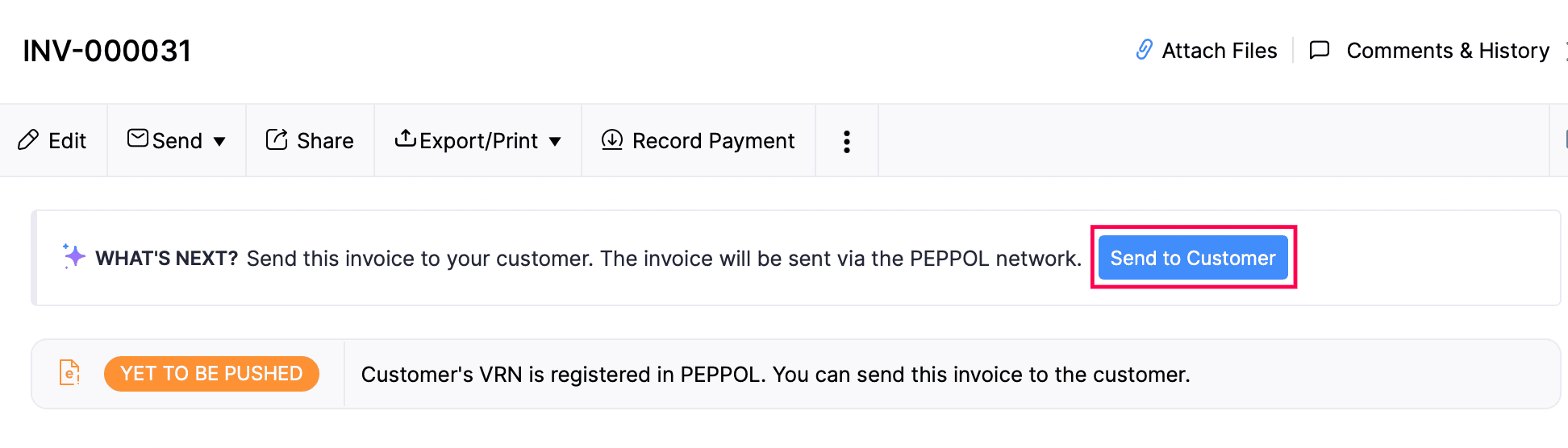
Die Rechnung wird an Ihren Kunden gesendet. Eine Rechnung oder Gutschrift wird für ihn erstellt, und eine Kopie der Rechnung wird ebenfalls als Anhang gesendet.
Hinweis: Sobald eine Rechnung über PEPPOL gesendet wurde, kann sie nicht bearbeitet oder gelöscht werden. Stattdessen können Sie sie stornieren oder korrigieren.
Status von Transaktionen in der E-Rechnung
Der Status jeder Transaktion wird auf der Übersichtsseite der Transaktion angezeigt. Die Status der Transaktionen in der E-Rechnung sind:
| Status | Beschreibung |
|---|---|
| Noch zu senden | Wenn Sie eine Transaktion erstellen und als Entwurf speichern, wird der Status der Transaktion auf Noch zu senden gesetzt. |
| Gesendet | Wenn Sie die Transaktion an Ihren Kunden senden und keine Fehler auftreten, wird der Status der Transaktion auf Gesendet geändert. |
| Fehlgeschlagen | Wenn es Fehler wie fehlende Felder in der Transaktion gibt, wird die E-Rechnung nicht gesendet und der Status wird auf Fehlgeschlagen geändert. Sie können die Fehler beheben und es erneut versuchen. |
| Akzeptiert | Wenn Ihr Kunde die Transaktion akzeptiert, wird der Status der Transaktion auf Akzeptiert geändert. |
| Abgelehnt | Wenn Ihr Kunde Ihre Transaktion ablehnt, wird der Status Ihrer Transaktion auf Abgelehnt geändert. |
Transaktionen akzeptieren oder ablehnen
Wenn eine Rechnung gesendet wird, wird sie als Rechnung empfangen, während eine Gutschrift als Gutschrift des Lieferanten empfangen wird.
So akzeptieren oder lehnen Sie Transaktionen ab:
Gehen Sie zu Bills oder Vendor Credits unter Purchases.
Wählen Sie die Transaktion aus und klicken Sie oben auf Accept oder Reject.
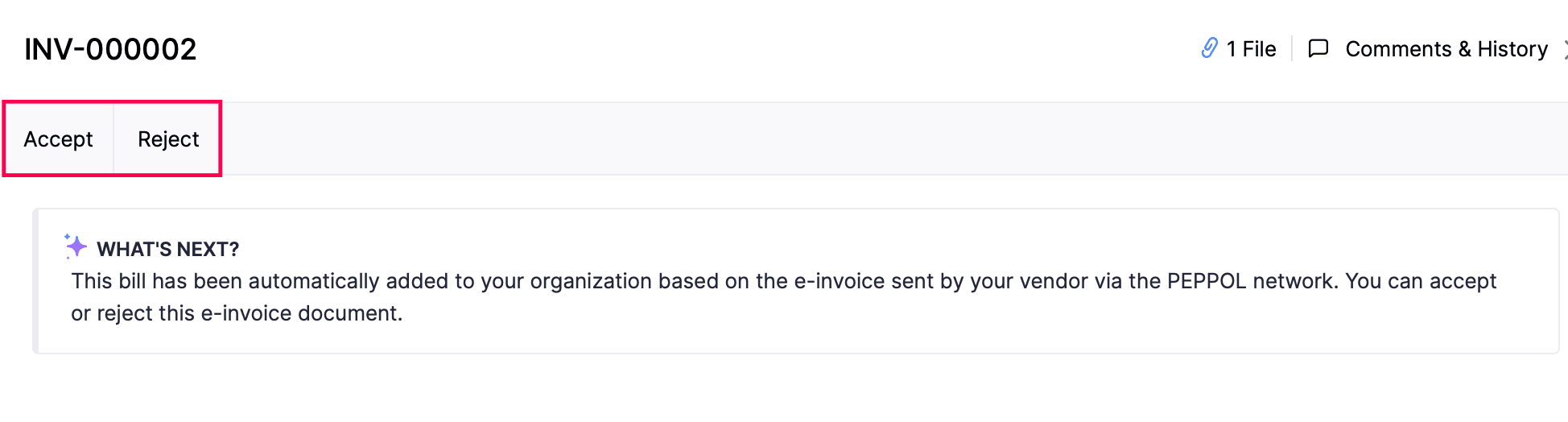
Der Status der Transaktion wird auf Akzeptiert oder Abgelehnt geändert.
Korrektur Rechnungen
Wenn Ihr Kunde Ihre Transaktion ablehnt, ändert sich der Status der Transaktion auf Abgelehnt. Sie können eine Korrekturrechnung dafür erstellen und sie erneut an den Kunden senden. So geht’s:
Gehen Sie zu Invoices unter Sales in der linken Seitenleiste.
Wählen Sie die abgelehnte Rechnung aus, für die Sie eine Korrekturrechnung erstellen möchten.
Klicken Sie auf das Mehr-Symbol und wählen Sie Create Correction Invoice.
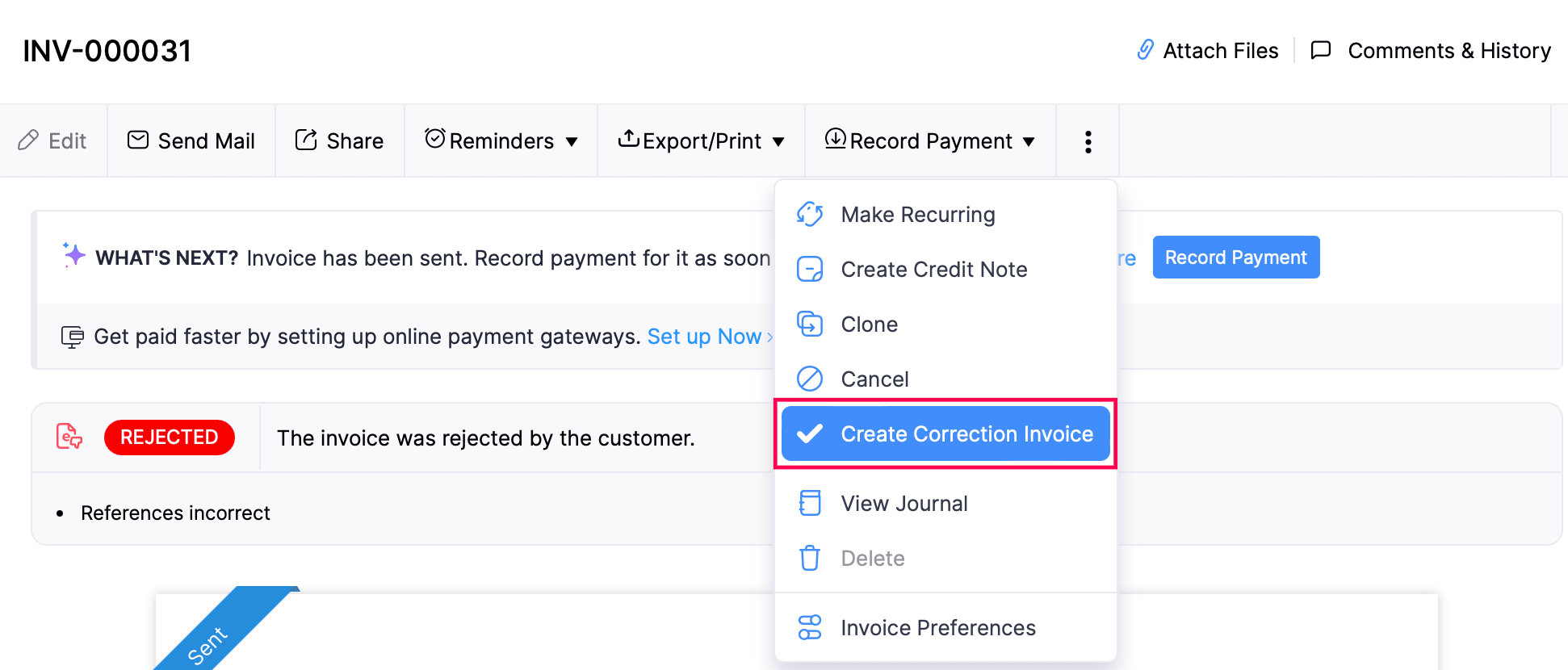
Nehmen Sie die erforderlichen Änderungen vor.
Klicken Sie auf Save as Draft.
Jetzt wird eine neue Rechnung mit den korrigierten Details erstellt. Die Rechnung, für die Sie eine Korrekturrechnung erstellt haben, wird in der Rechnungs-PDF als Vorherige Rechnung# angezeigt.
Rechnungen stornieren
Nachdem Sie eine Rechnung erstellt und über PEPPOL an Ihren Kunden gesendet haben, möchten Sie möglicherweise die Rechnung aus Gründen wie Bestellstornierung oder falschen Eingaben stornieren. So können Sie eine E-Rechnung stornieren:
Gehen Sie zu Invoices unter Sales in der linken Seitenleiste.
Wählen Sie die Rechnung aus, die Sie stornieren möchten.
Klicken Sie auf das Mehr-Symbol und wählen Sie Cancel.
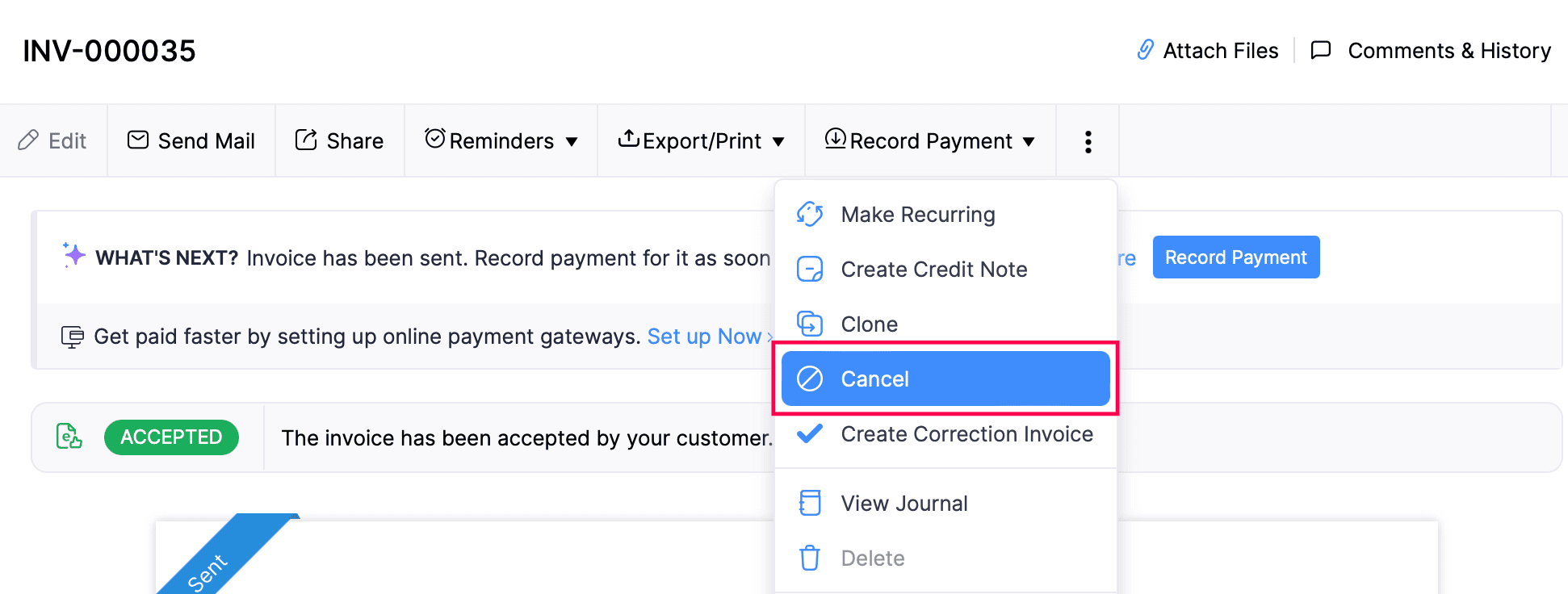 Eine Stornorechnung wird jetzt automatisch im Modul Gutschriften erstellt. Sie können die Stornorechnung zur Genehmigung an Ihren Kunden senden. Anschließend können Sie eine Korrekturrechnung für die stornierte Rechnung erstellen.
Hinweis: Sobald eine Rechnung storniert ist, kann die Aktion nicht rückgängig gemacht werden. Alle zugehörigen Transaktionen werden dissociiert und aus den Konten Ihrer Organisation ausgeschlossen und nicht in den Journals angezeigt.
E-Rechnungsstellung deaktivieren
Hinweis: Sobald Sie die E-Rechnungsstellung deaktivieren, können Sie keine Transaktionen mehr über PEPPOL senden.
So können Sie die E-Rechnungsstellung in Zoho Books deaktivieren:
Gehen Sie zu Einstellungen.
Wählen Sie E-Rechnungsstellung unter Steuern & Compliance.
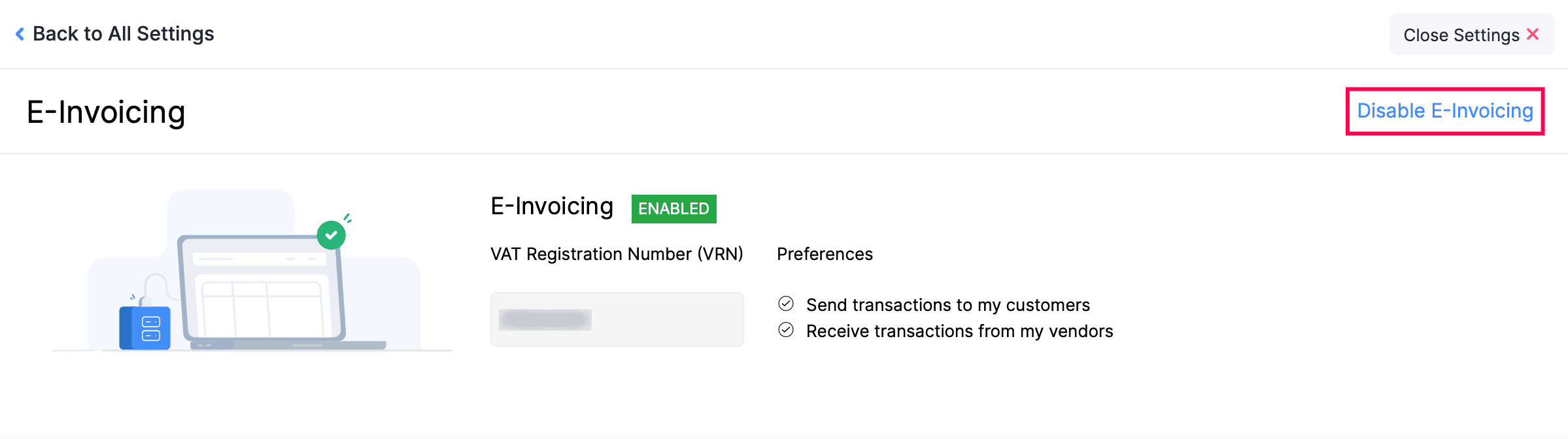
Klicken Sie oben rechts auf E-Rechnungsstellung deaktivieren.
Klicken Sie im Popup, das erscheint, auf Deaktivieren.
 Ja
Ja