Simplify information retrieval for sales reps
Objective: Simplify the information retrieval process for sales reps, so that they can spend time on what matters most: connecting with and selling to customers.
Note: You may notice visual differences between the video(s) and the current product UI. The configuration steps shown are still accurate and the video remains a useful guide for setting up and using this feature.
For critical information like paying customers from the same industry, sales reps have to switch tabs and filter records for every new lead. They'd rather be pitching offers and sharing valuable information with customers instead of spending all their time searching for details and navigating through the CRM. Let's create a kiosk that retrieves this data for your sales reps.
Configuration
Please note that we've added a picklist in the Accounts module to denote whether that account is using a paid edition of our product or the free edition.
In the Kiosk Studio, you can:
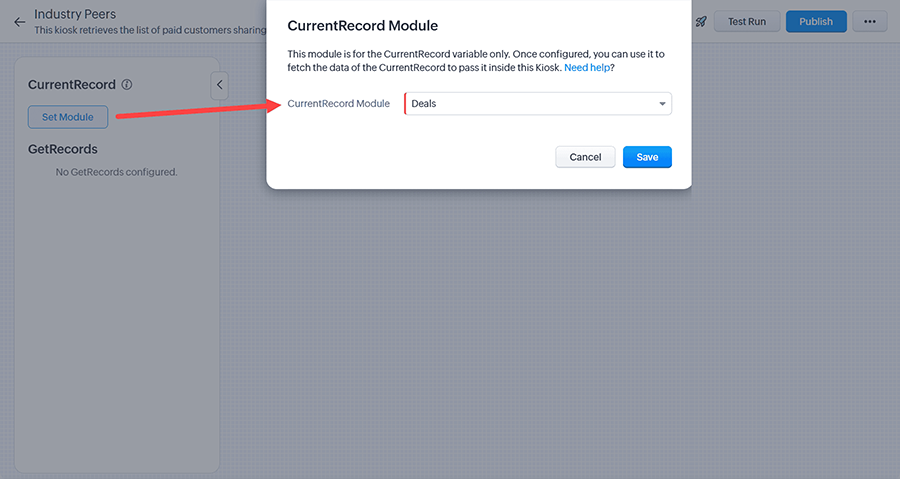
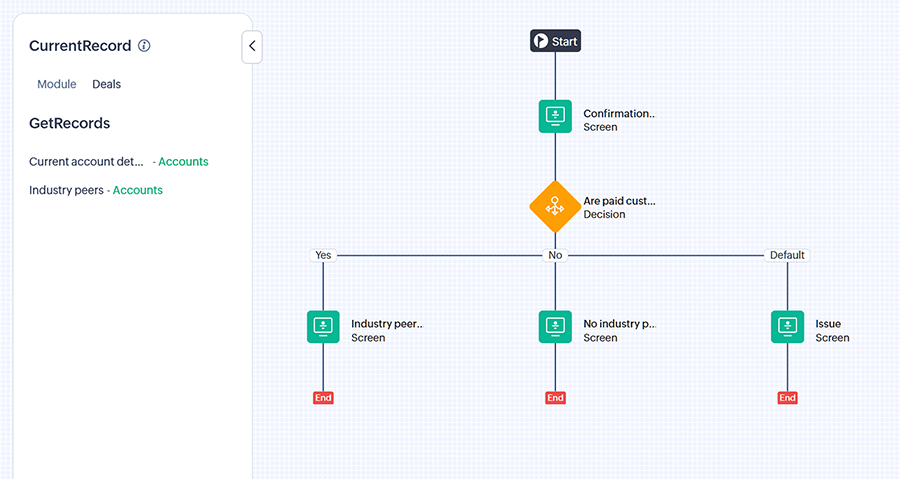
Set the CurrentRecord's module as Deals.
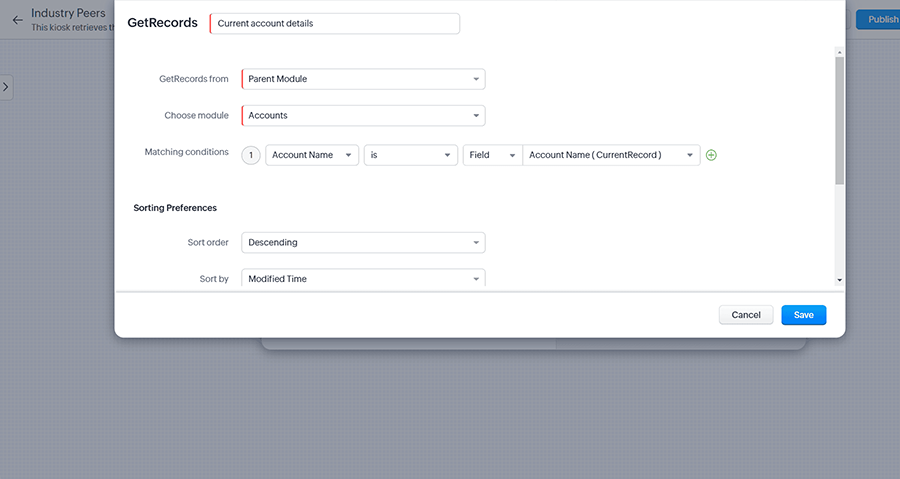
Add a screen to show the details related to the account associated with that deal.
- 1.Within that screen, use a GetRecords component to list important details of the account linked to that deal. This enables your sales rep to confirm the industry with the customer before proceeding.
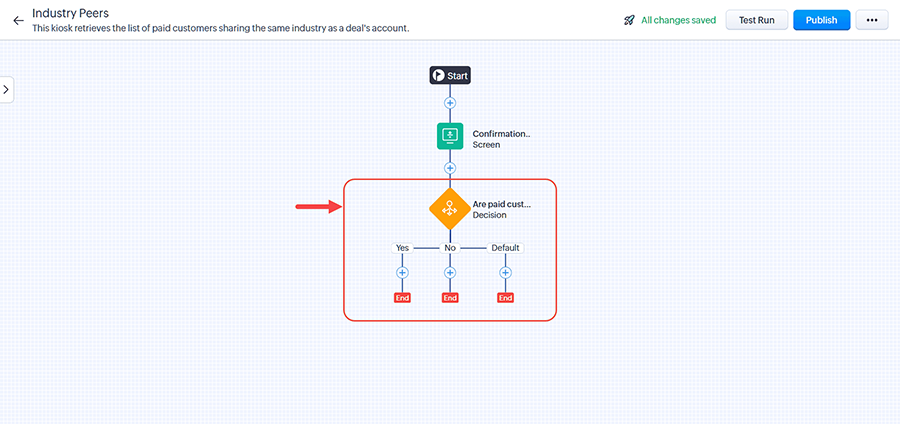
Sometimes, the industry field may be unfilled. Even if it is filled, there might not be any paid customers in that industry. To make sure we show the sales rep the right screen, we can use a decision component.
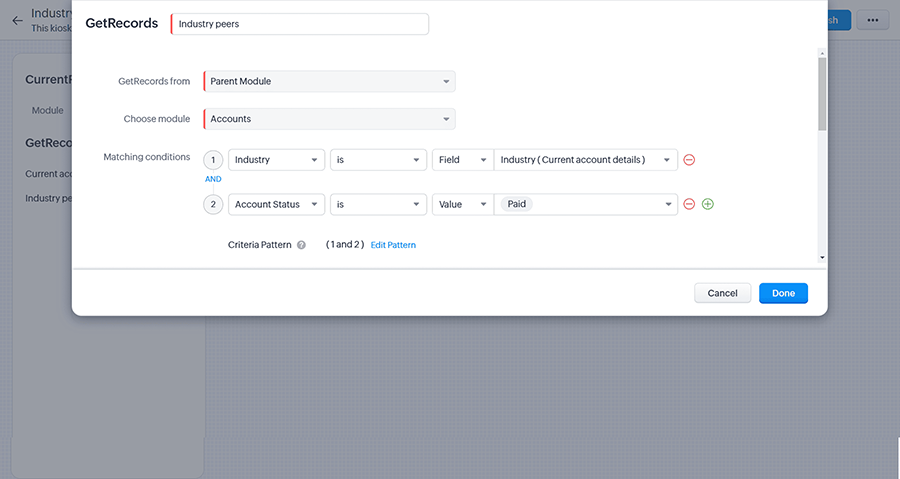
- 1.Within the decision component, add a new GetRecords component that retrieves accounts that are paid customers in the same industry.
- 2.Add a path (named "Yes") if paid customers are present and add a screen to display the list of paid customers.
- 3.Add a path (named "No") if paid customers are not present. Add a screen to notify your sales rep and educate them on how to handle this.
- 4.For the default path, add a screen saying that the kiosk did not work as expected and ask the sales rep to continue the conversation by highlighting other aspects of your product.
Publish the kiosk!
Where do I place this kiosk?
You can place your kiosk in multiple locations, as seen in the screenshot below:

We have two options that are suitable for this use case:
Custom button in the record detail page

Associate your kiosk with a custom button to access information when needed.
You can add a custom button to the deal's record detail page and associate this kiosk to it to reduce the clutter on the record detail page. When necessary, your sales reps can access this information with the click of a button.
On the record detail page itself

Add your kiosk to the record detail page itself for immediate visibility.
If this is a frequently asked question, you can consider adding it directly to the deal's record detail page. You can eliminate a click by placing your kiosk here, but this will take up valuable screen space. Consider the importance of this information and how frequently it is accessed by your sales reps. Then, you can decide where the kiosk needs to be placed.
Next steps
Try implementing this kiosk for your sales reps and see if it helps them. You can tweak and extend this kiosk based on their feedback. We haven't added actions to this kiosk, as it's for viewing data. You can try adding actions to this kiosk in a sandbox environment and test it out. If useful, you can deploy it to the production environment.