Functions IDE
The Functions IDE gives you an immersive coding experience with its new look and features. This new IDE comes with an enhanced code editor, executing the function without affecting the deployed places, review, and revision history features, multiple themes, etc., that make coding and debugging a breeze.
Keyboard shortcuts help you perform quick actions, while the console and error panel allows for easy debugging in case of errors.
Components of the Functions IDE
1. Code Editor
Develop code easily with the all-new editor. It offers syntax highlighter and smart auto-completion of code in Deluge.
With this editor, you can specify the function's name, return type, category, and arguments with their data types in the code inside the editor itself. This allows for easy identification of the arguments the function takes, the category(package name), etc. You can modify these details any time inside the code or in the Information and Arguments section discussed in the following section.
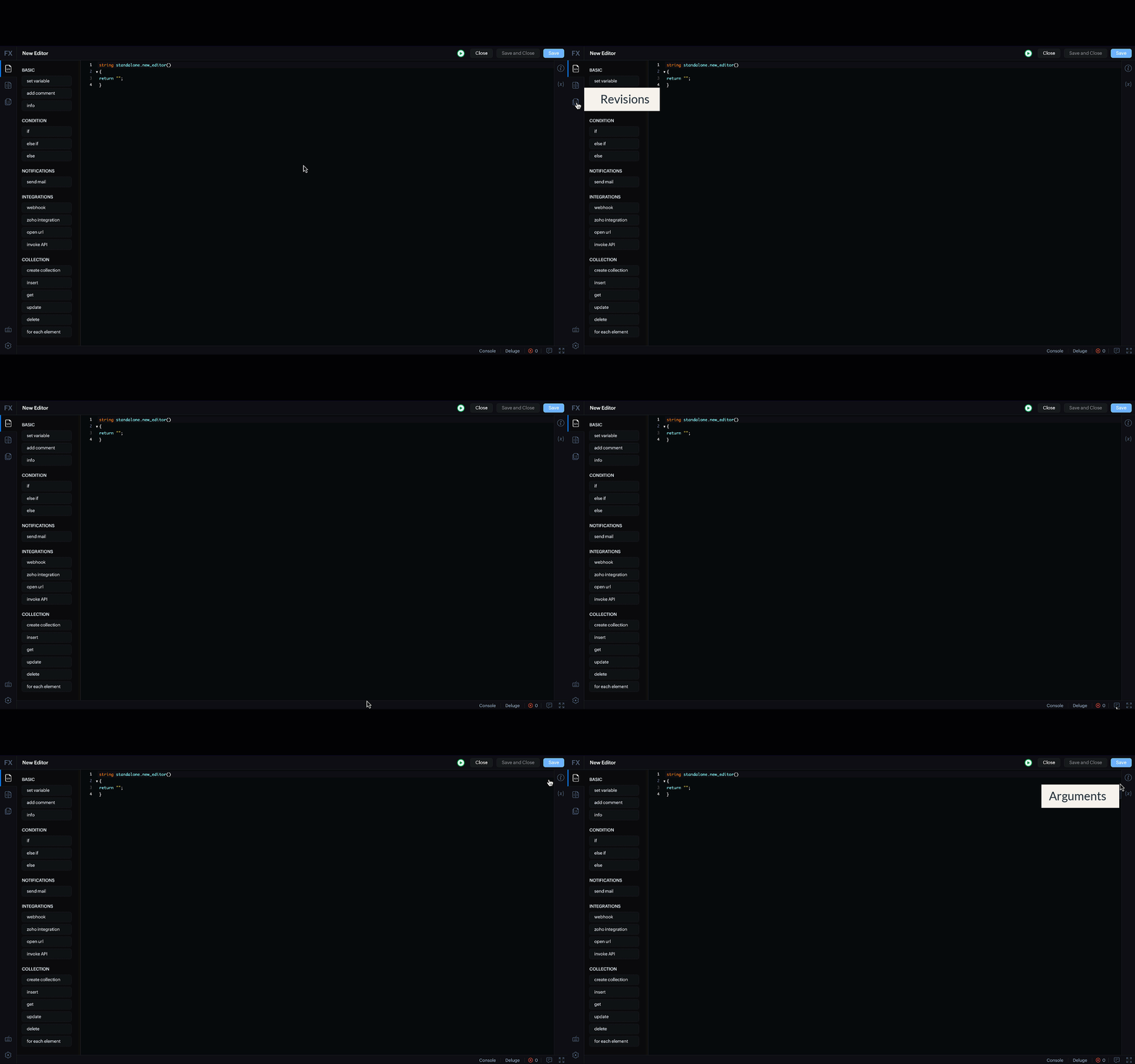
On the left, you can see various statements that you can drag-and-drop in your code. The various categories of these statements are Basic, Condition, Notifications, Integrations, Collection.
a. Information
The Information section is available on the right side of the editor. This section displays the information about the function such as the function's name, API name, Category(standalone, button, etc), and Return type. You can also edit the function name, display name and the description here.
The allowed return types of functions are string, int, float, bool, and date.
The Help section gives you quick access you to the Deluge Help documentation.

b. Arguments
Easily add arguments to your function as you are coding it using the Arguments section on the right side of the editor.
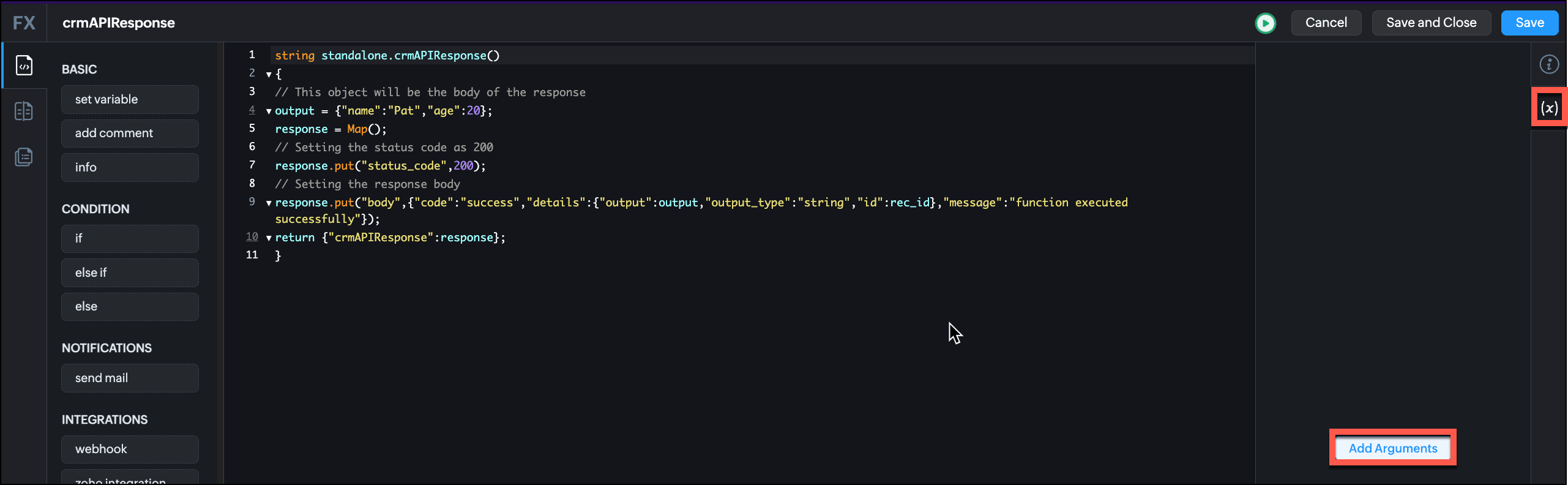
When you click Add Arguments, the function arguments pop-up opens. Add an argument name and choose its data type. Use the + icon to add more arguments to your function and click Save.

Functions with merge fields in arguments
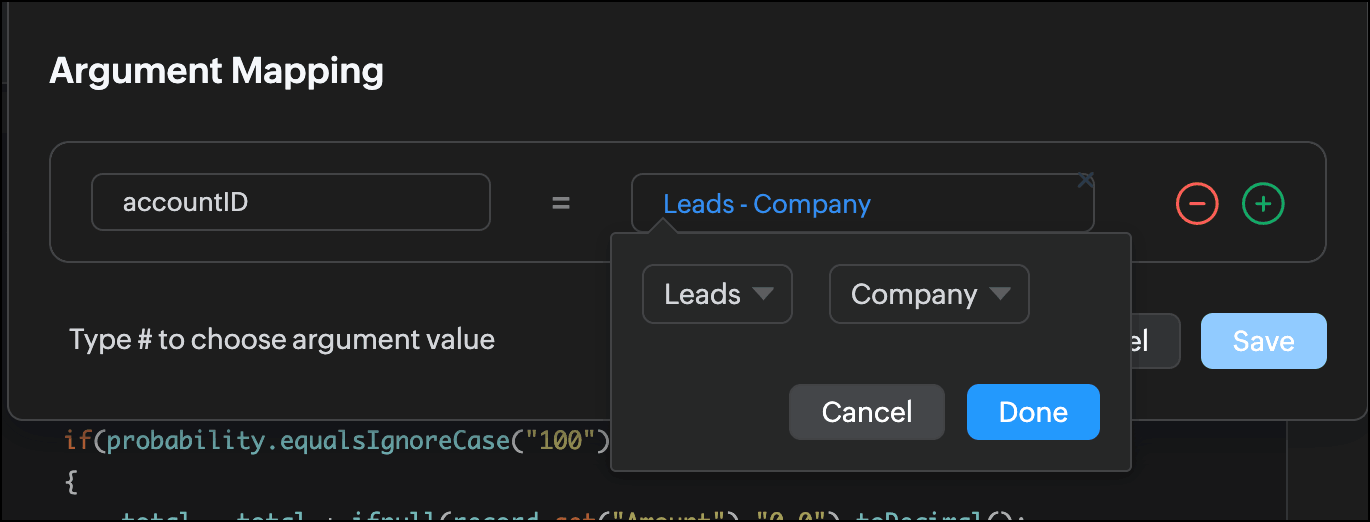
Consider that you have a function associated to a button. This function also uses merge fields in its arguments. When you access the function from the button, the arguments section in the editor will have the arguments in the format <module> - <merge field>.
The following image shows the arguments section of a function associated with a button and edited from there.

2. Review
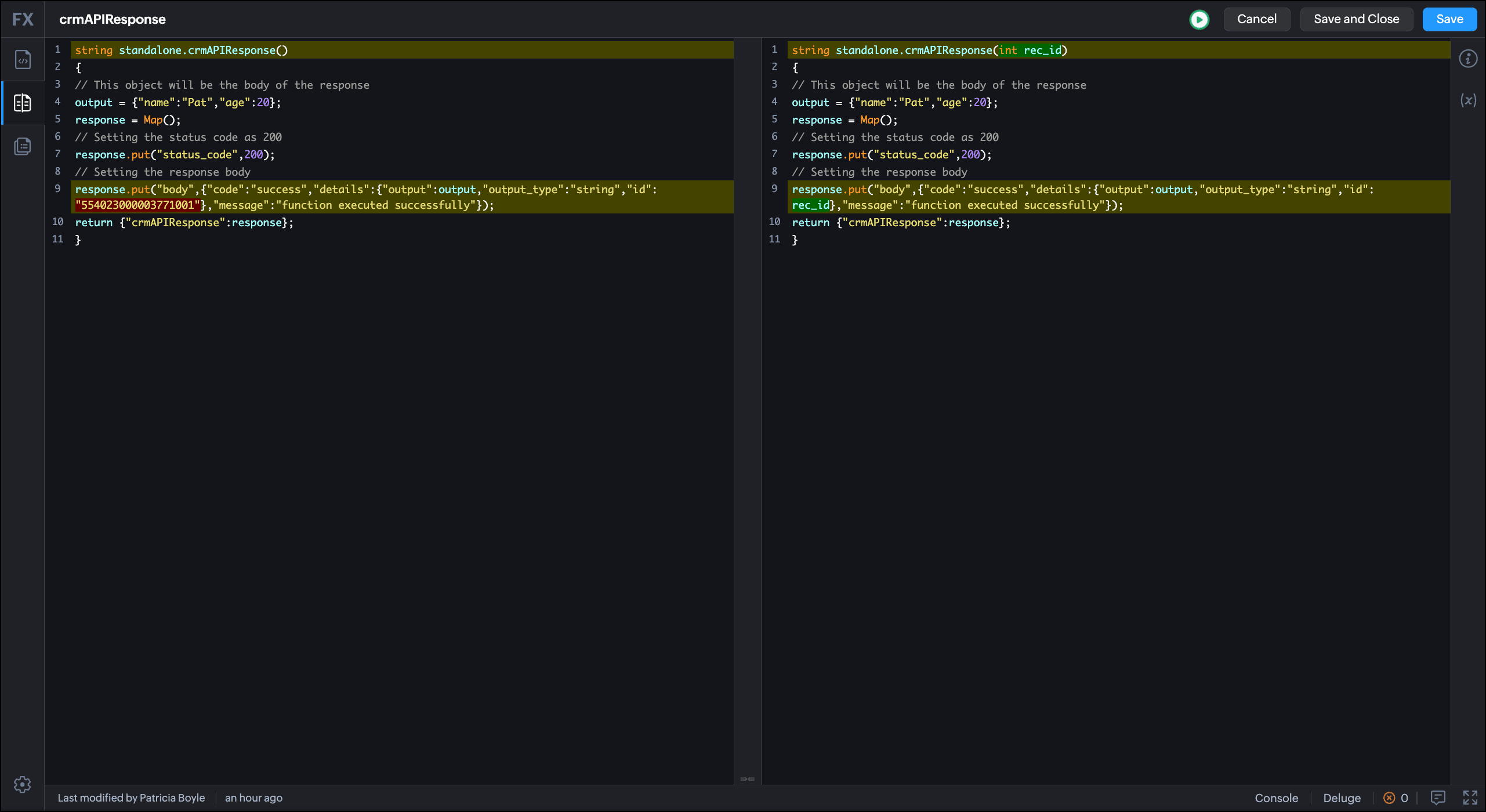
Code Review is an integral part of development, and reviewing becomes easier when you know what changes you have made to your code.
The Review component on the left bar of the editor provides a diff-editor and highlights the differences between the current code and the last-saved one. This also helps you to resolve any conflicts.
3. Revisions
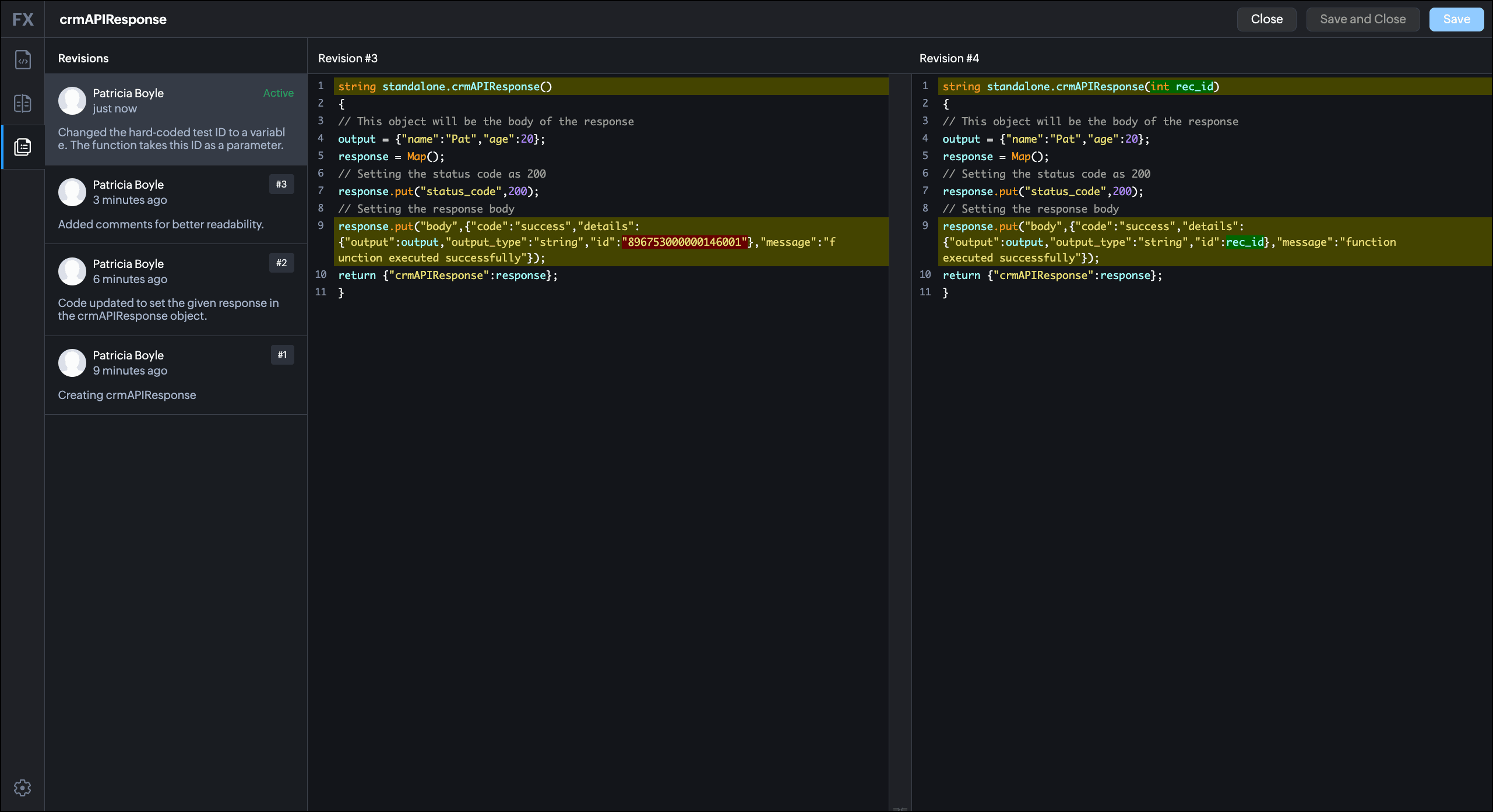
This component lists the last 30 saved versions of the function. Here, you can
- Track the history of the code changes along with changelog information.
- Use any archived revision of the script by clicking the Use this revision option at the top-right of the Revision section.
4. Test Run
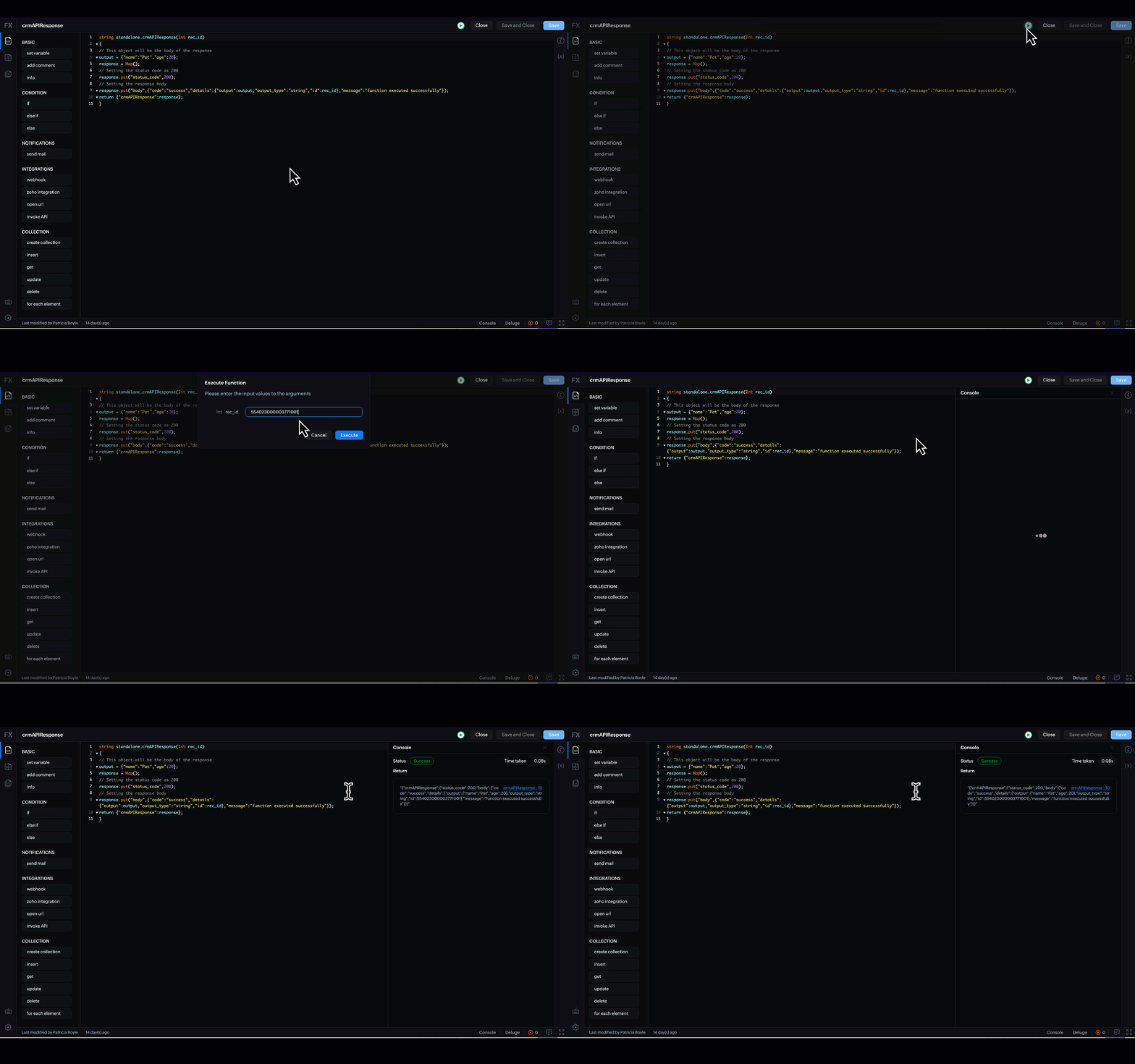
The Run button at the top executes your function and allows you to test it on the fly. This button does not change the function at the deployed places as run simply executes but does not save the code. The response or the errors will be displayed in the console.
Note
- Run executes your function but does not save it.
- Only saved versions of code are available under the Revisions component.
5. Console and error panel
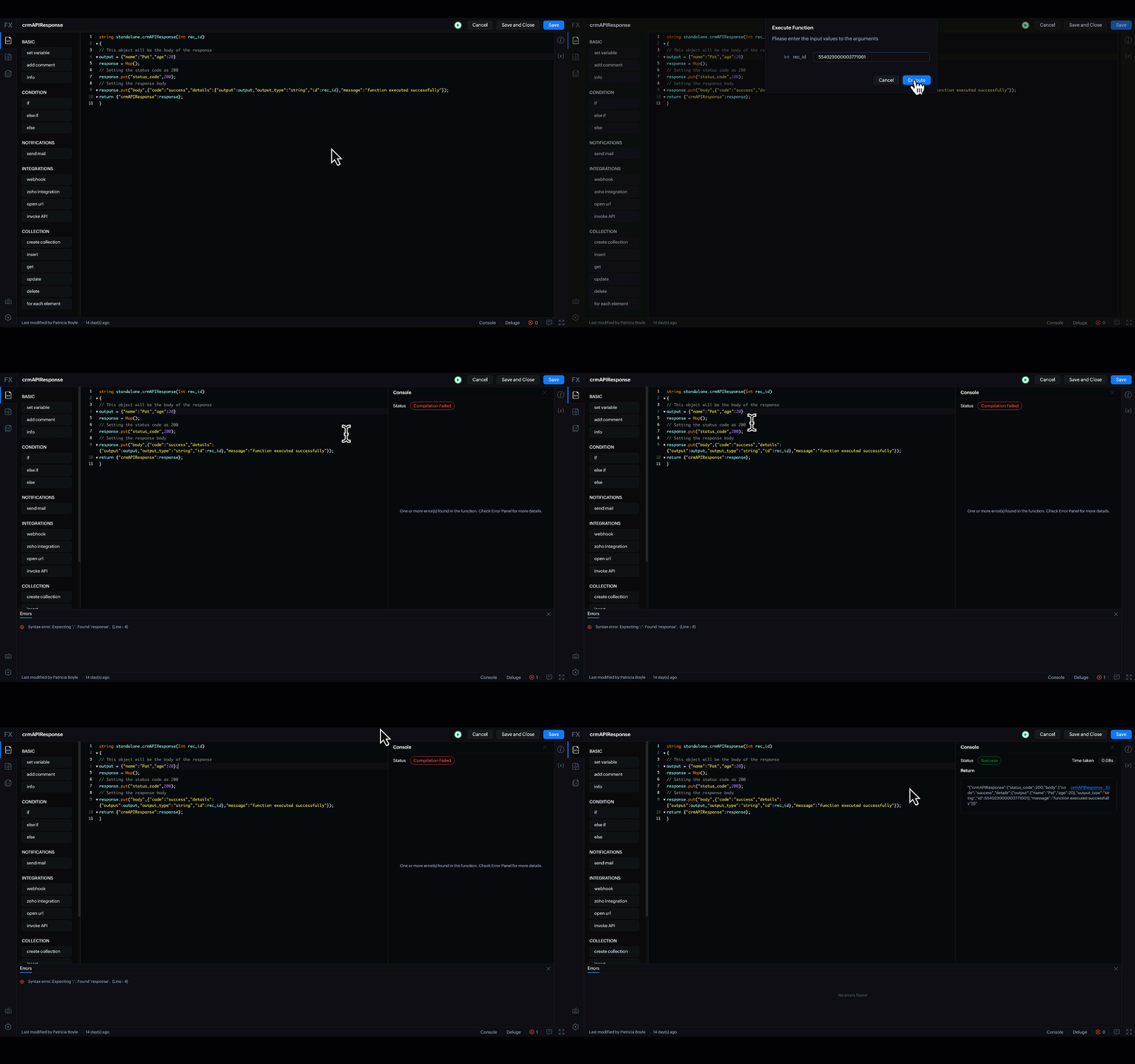
The Console option at the bottom bar of the editor gives you the runtime(execution) information. The error panel gives you the errors in code, if any. You can use these details to process the response further or fix the bugs.
Error panel
6. Feedback
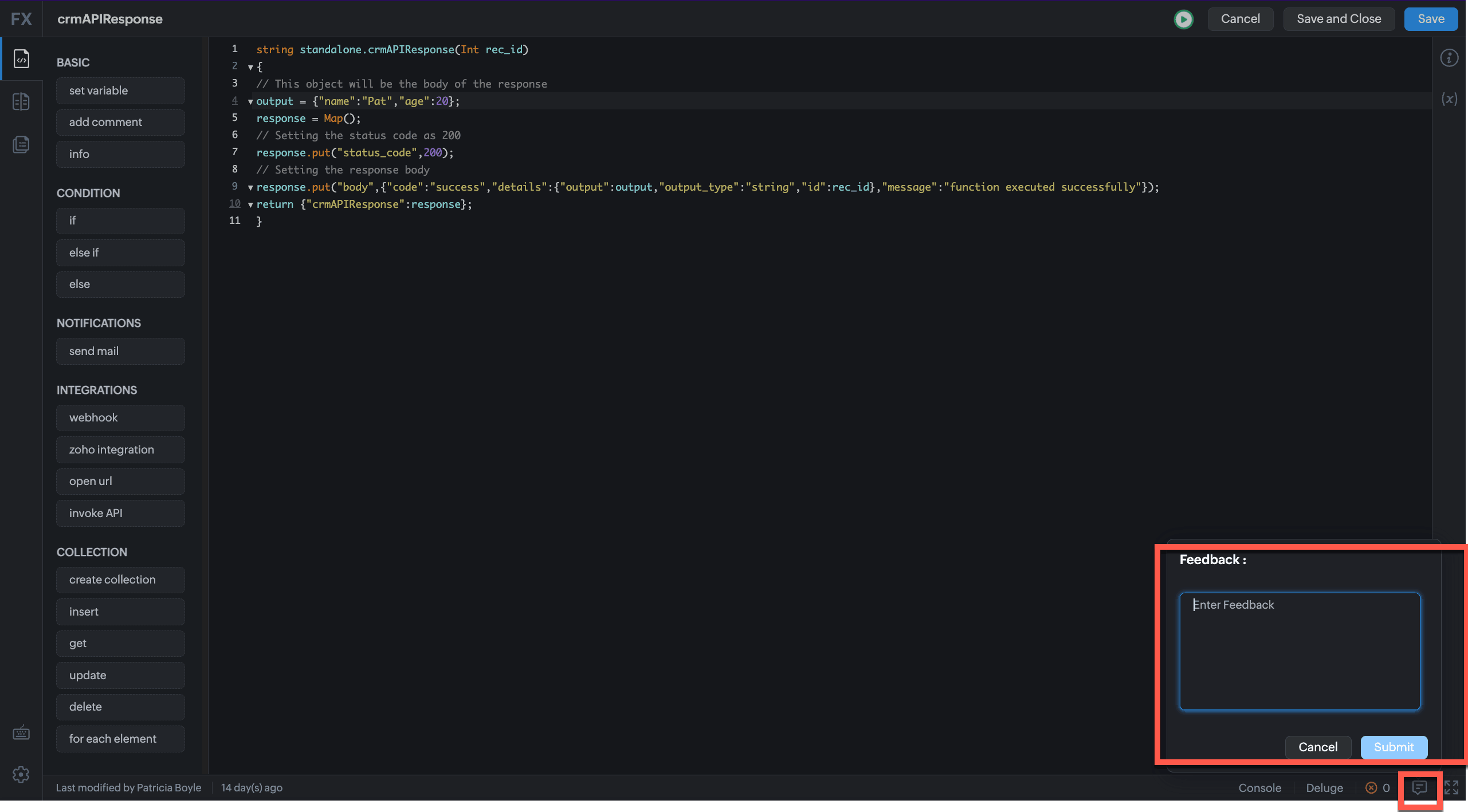
Let us know your suggestions or difficulties right away from the in-built Feedback section. Click the Comment/Chat box at the bottom bar and type your message. Click Submit to submit your feedback.
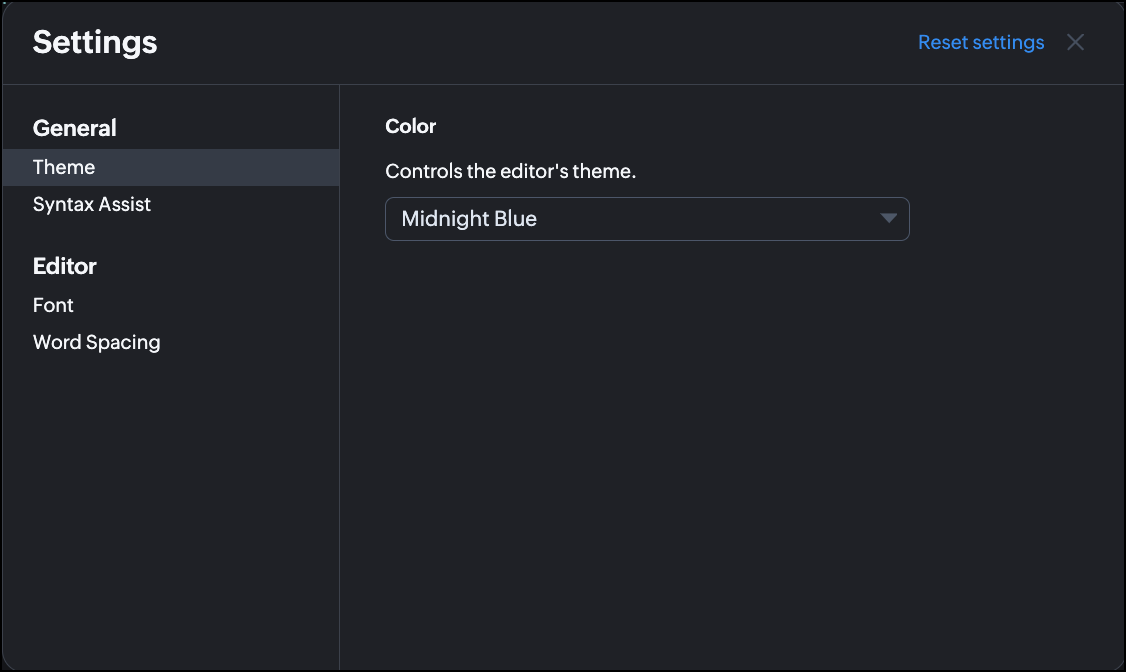
7. Settings
What's an IDE without a touch of personalization, right? Click the Settings gear icon at the bottom of the left pane. The Settings pop up opens.
- Theme - Choose between Light and Dark theme to make your coding experience easier on your eyes.
- Syntax Assist - This option assists with the Deluge syntax when you use the drag-and-drop statements. For more details on Deluge's syntax assist, go here.
- Font - Customize the font size and font weight for the editor here.
- Word Spacing - This option allows you to toggle line wrap on and off.
Execution in the Old editor vs the New Editor
Old Editor
In the old editor, the only way to execute the function was to save and then execute. This meant that the code at all associated places like buttons, workflows etc, got updated, too.
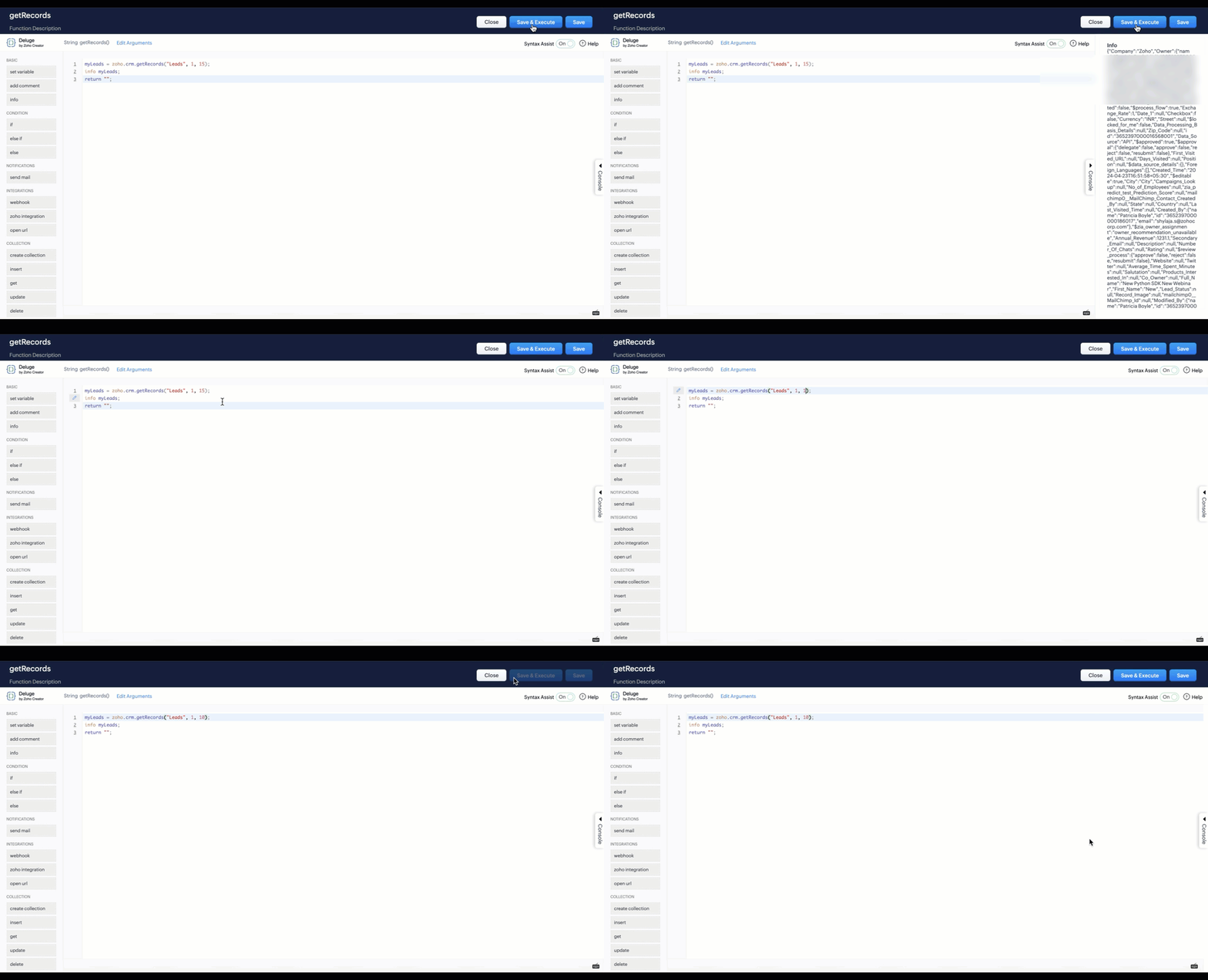
New Editor
To avoid affecting the deployed code and test the code on the fly, the new editor has the Save and Run functions separately, giving you an enriched coding experience. The Run button executes the code without saving it, while the Save and Save and Close buttons save the code and add that version to the revision history.