Run Creator APIs in Postman
Table of Contents
- Key benefits
- See how to get started
- Steps to run Creator APIs in Postman
- Keep your collection updated to latest version
Zoho Creator provides a public API collection in Postman with preconfigured API requests. The collection has a ready-to-use boiler plate setup including endpoints, parameters, and authorization setup. You only need to supply your account-specific data (such as app details) to get started with Creator REST APIs in minutes. You can fork this collection into your own Postman workspace, customize requests, and execute APIs quickly.
The collection includes all Zoho Creator REST APIs and will be updated for any future API changes, so you can pull updates whenever Creator releases changes in the API.
Key benefits
Using the Zoho Creator Postman collection you can:
- Instantly access all Creator REST APIs
- Execute API requests with minimal effort
- Keep your collection updated with future API changes
See how to get started
The video below demonstrates how to fork our collection in Postman and begin executing the APIs.
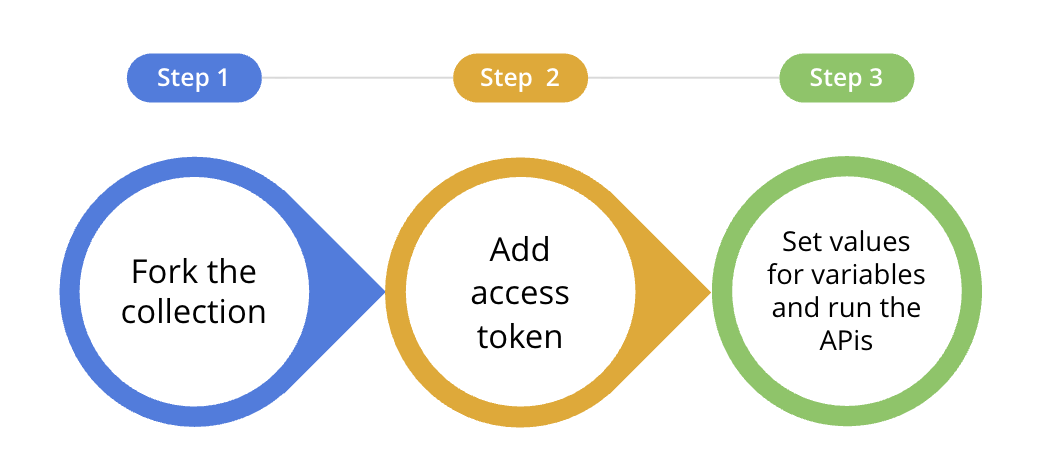
Steps to run Creator APIs in Postman
1. Fork the collection
Forking creates a copy of the Zoho Creator Postman collection in your workspace that remains connected to the original collection. This allows to customize the API request in your workspace as you prefer and as well as sync the APIs when updates are made in the original collection.
- Sign in to your Postman account and access the Zoho Creator's workspace. Alternatively, you can search for Zoho Creator and click the Zoho Creator workspace.

- Click the View more actions icon
 and select Fork.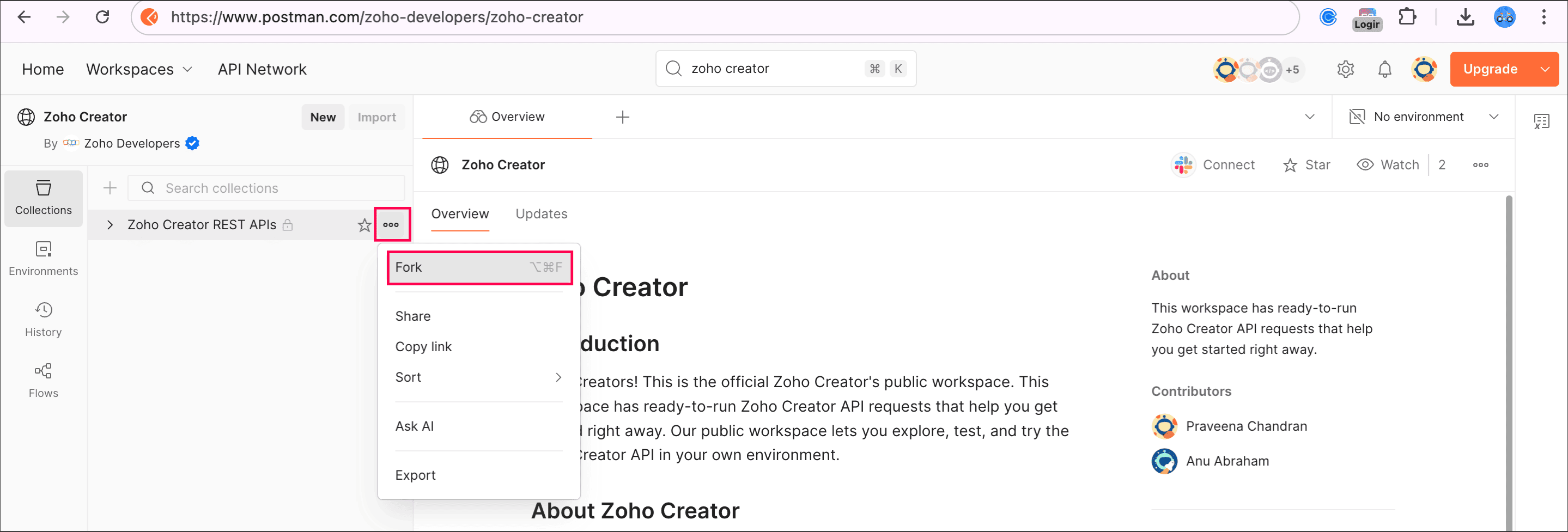
- In the Create Fork window, select the following:
- Fork label: Specify a name for the collection you're forking.
- Workspace: Choose the workspace in which the fork must be created.
- Environments to fork: (optional) Select an environment if required.
- Notifications: Enable the Watch original collection. This will notify you when the collection is updated by the Zoho Creator team.
- Click Fork Collection.
The collection will be created in your workspace.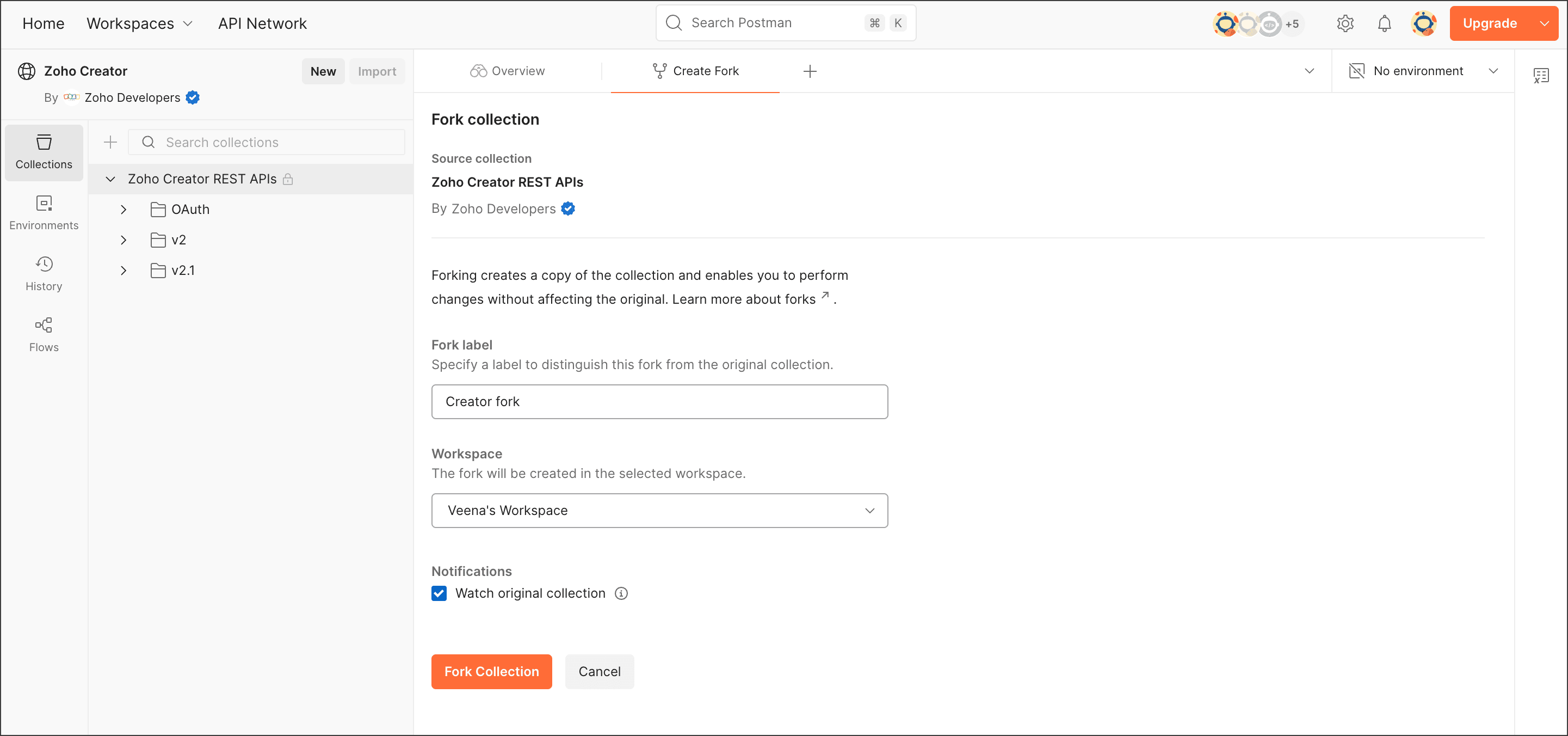
2. Generate access token
To authenticate your API calls, you need to generate an access token.
- Using OAuth APIs - You can get the access token by following the steps.
- Register a client
- Request the authorization code
- Generate access token
Add the obtained access token to the token in Authorization tab.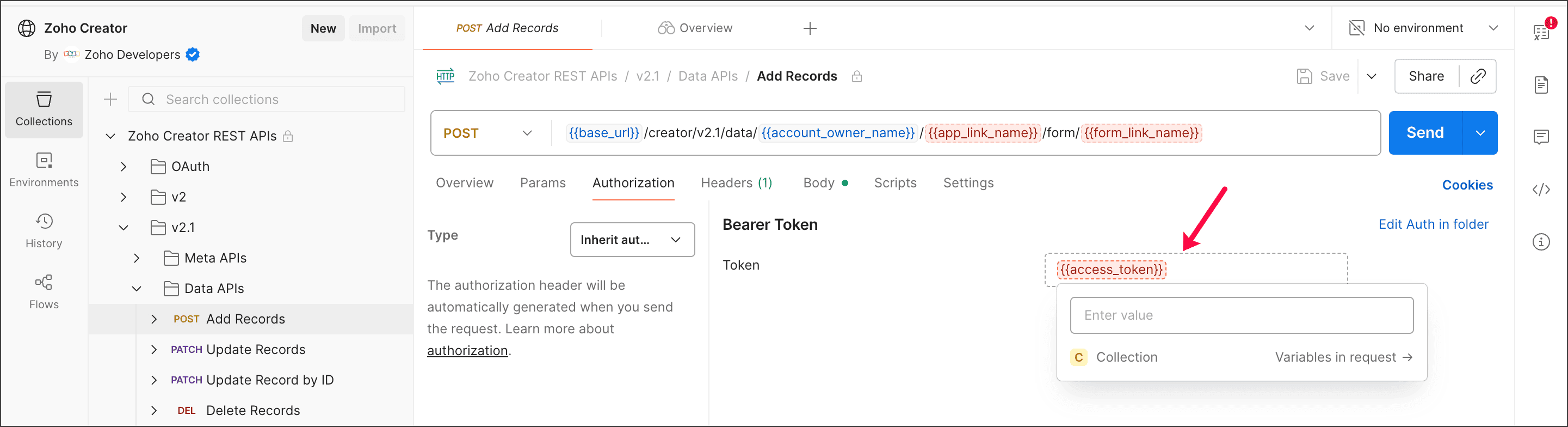
- Quick setup - This allows you to get the access token in a few clicks without going through the usual process of obtaining a token. This method is suitable for those who want to tryout the API quickly rather than doing an elaborate testing.
- Enter value for the base_url variable in the required API. Click the Quick Setup option that will appear in the Authorization tab.
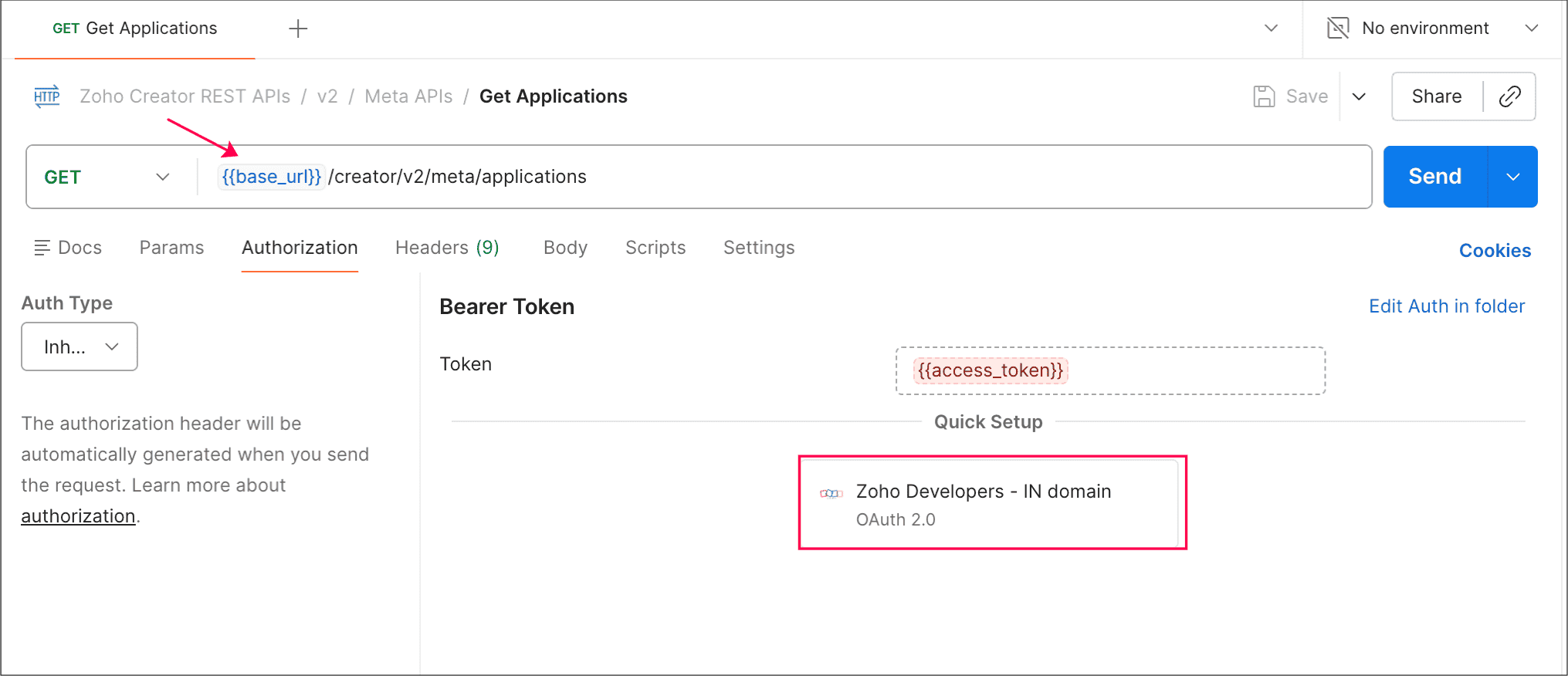
- Click Authorize under the Quick set-up pane. You'll be redirected to sign in to your Zoho Creator account. After you sign in, you'll be asked to allow certain permissions to Postman.
Click Accept. You'll be redirected back to Postman.
Note: Along with Zoho Creator, you'll see Zoho CRM permissions as well. This is because the quick setup is common for all Zoho products in Postman's Zoho Developers profile.The generated access token will be added to the current API request.
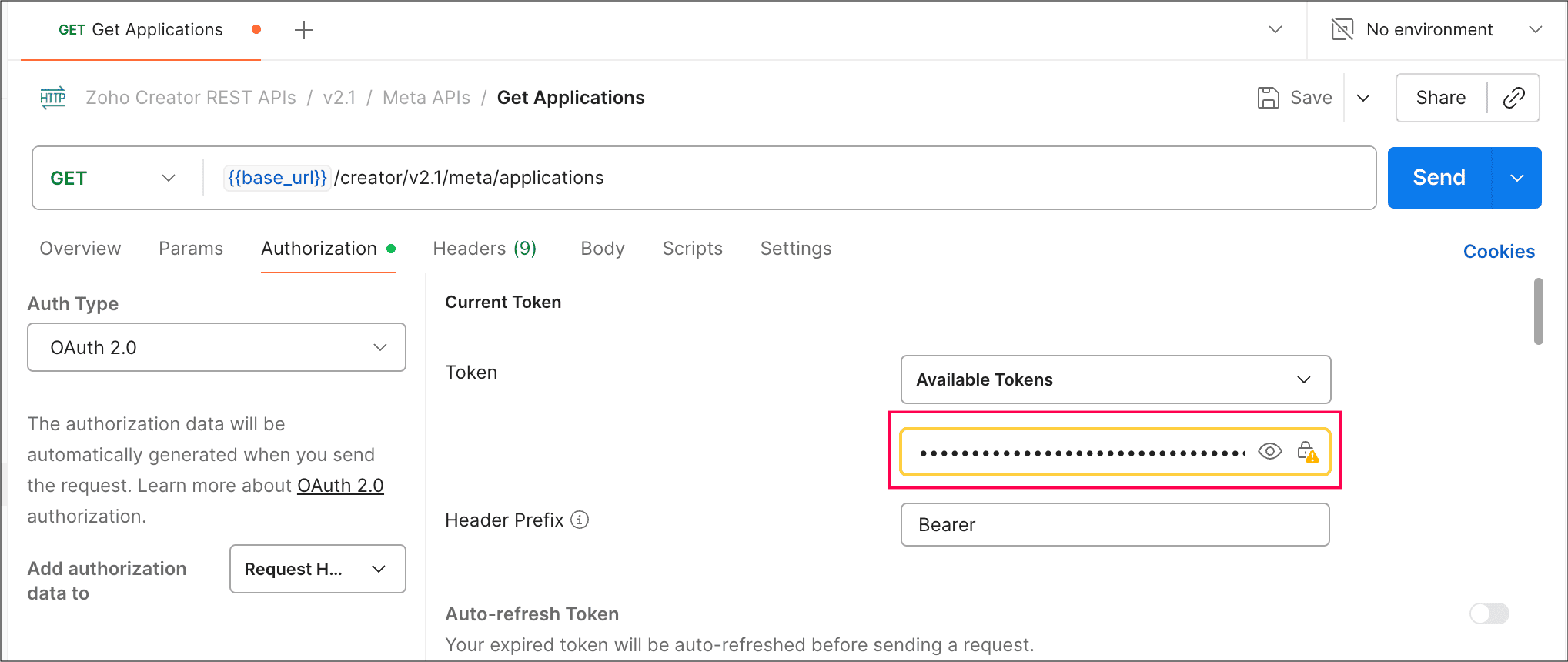
- Enter value for the base_url variable in the required API. Click the Quick Setup option that will appear in the Authorization tab.
3. Set values for variables and run the API
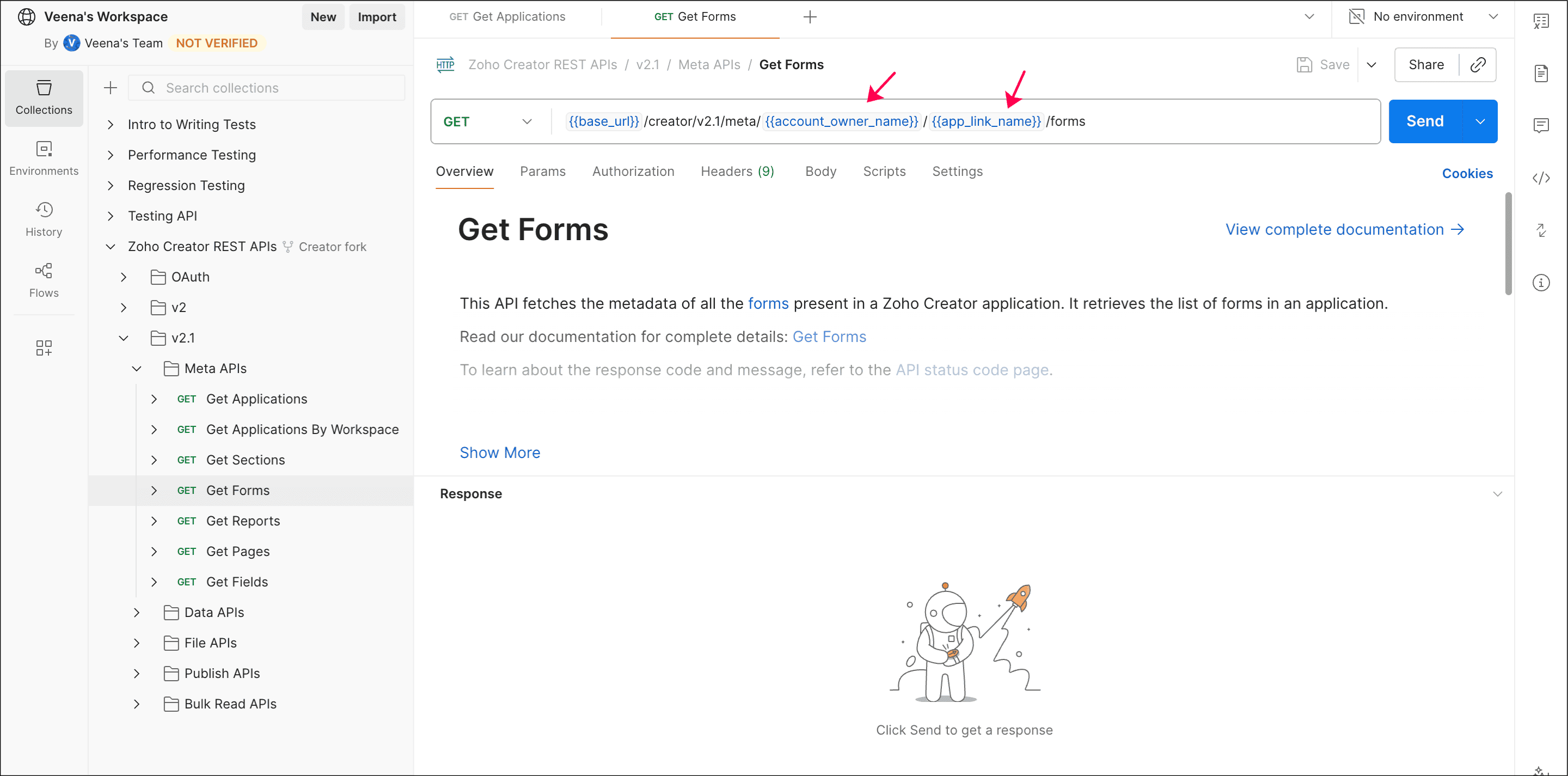
API requests are pre-configured to use variables to dynamically pass values such as account_owner_name, app_link_name, record_link_name and more. Before sending an API request, provide values for the variables and then execute the API. Once a value is assigned to a variable, it will be applied to all API requests that use that variable.
- Go to the required API request and hover over the request URL. Add values for the variables in the request. For example: account_owner_name, app_link_name.
- Click Send to execute the API. The response can be viewed in the Response section at the bottom.
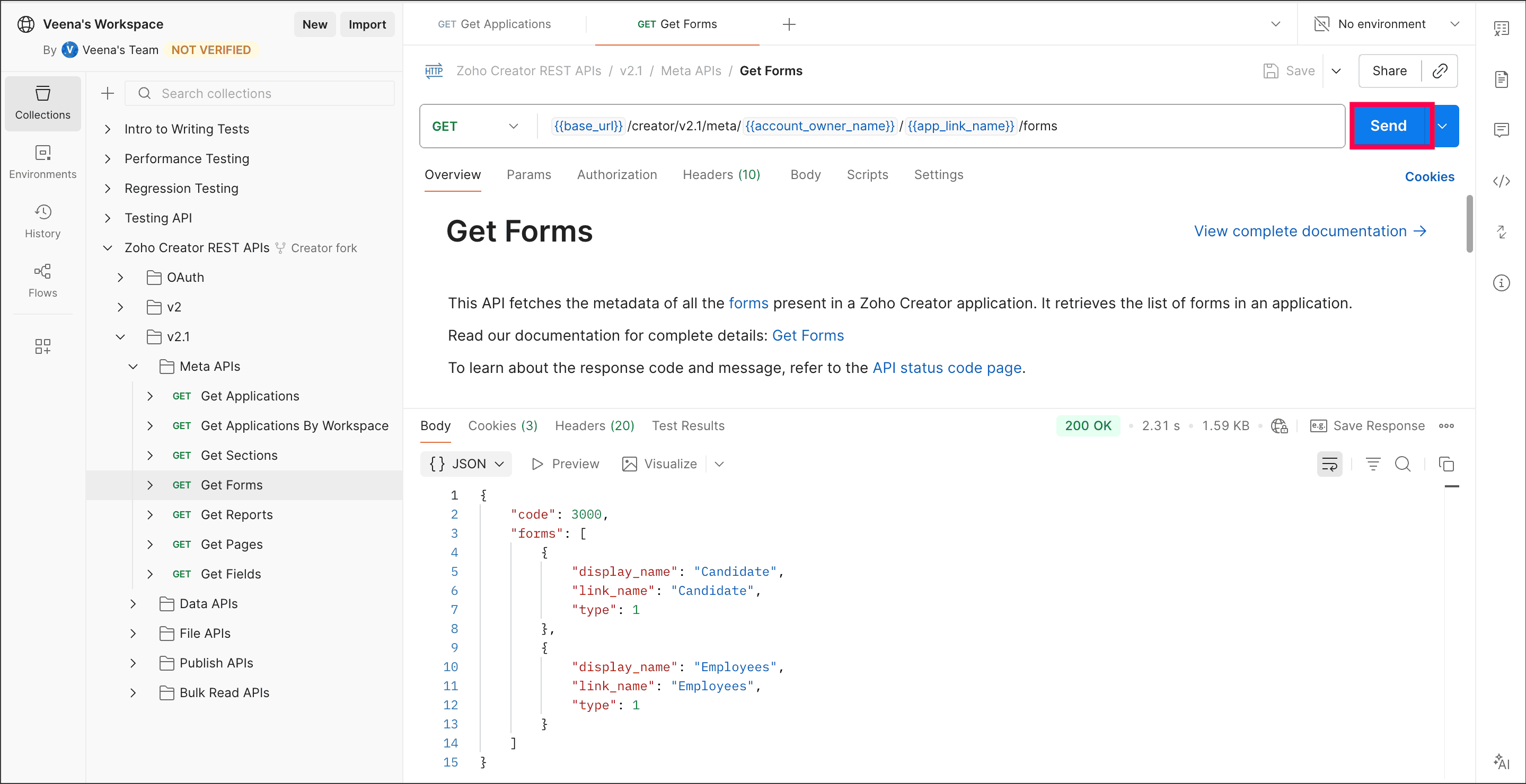
You can also use the right-side pane to view all the variables in the collection and add values to them.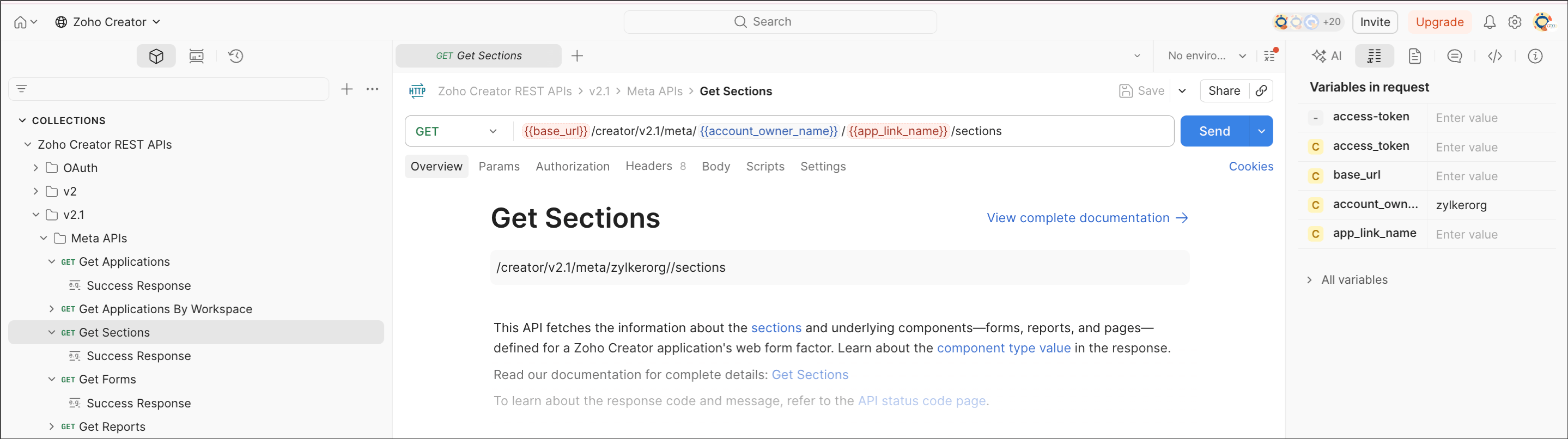
Keep your collection updated to latest version
This collection is updated whenever there are any changes in the APIs. Postman will notify you (if Watch original collection option is enabled while forking the collection) when there are changes made to the original collection. You can apply those changes to the forked collection by pulling th changes in your workspace. This lets you keep your APIs up to date.
Steps to update changes
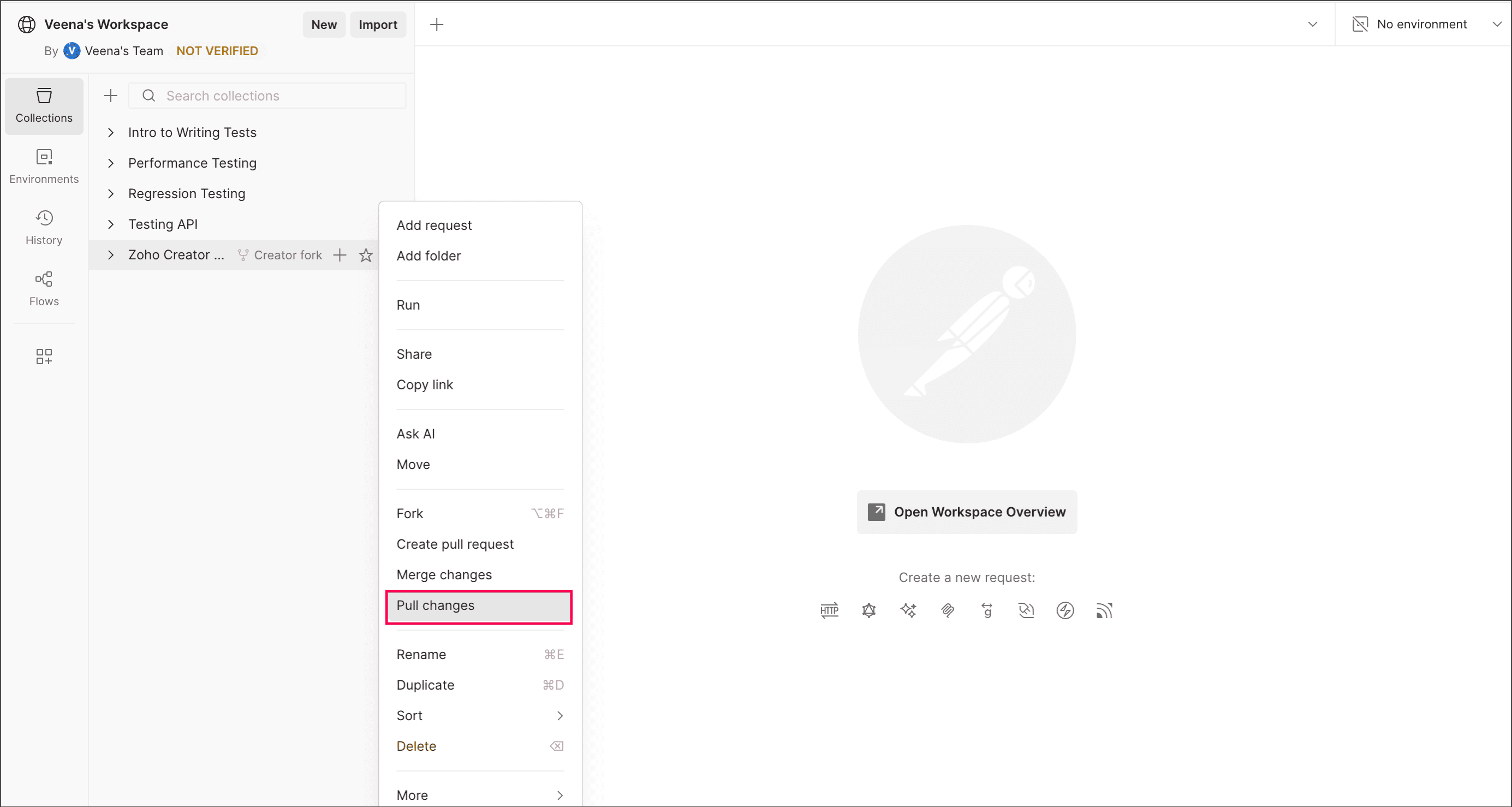
- Click the View more actions icon in the forked collection and choose Pull changes.
Check the changes and click the Pull Changes button to update them in your fork.
Note: Changes will only appear when updates are made to the original collection.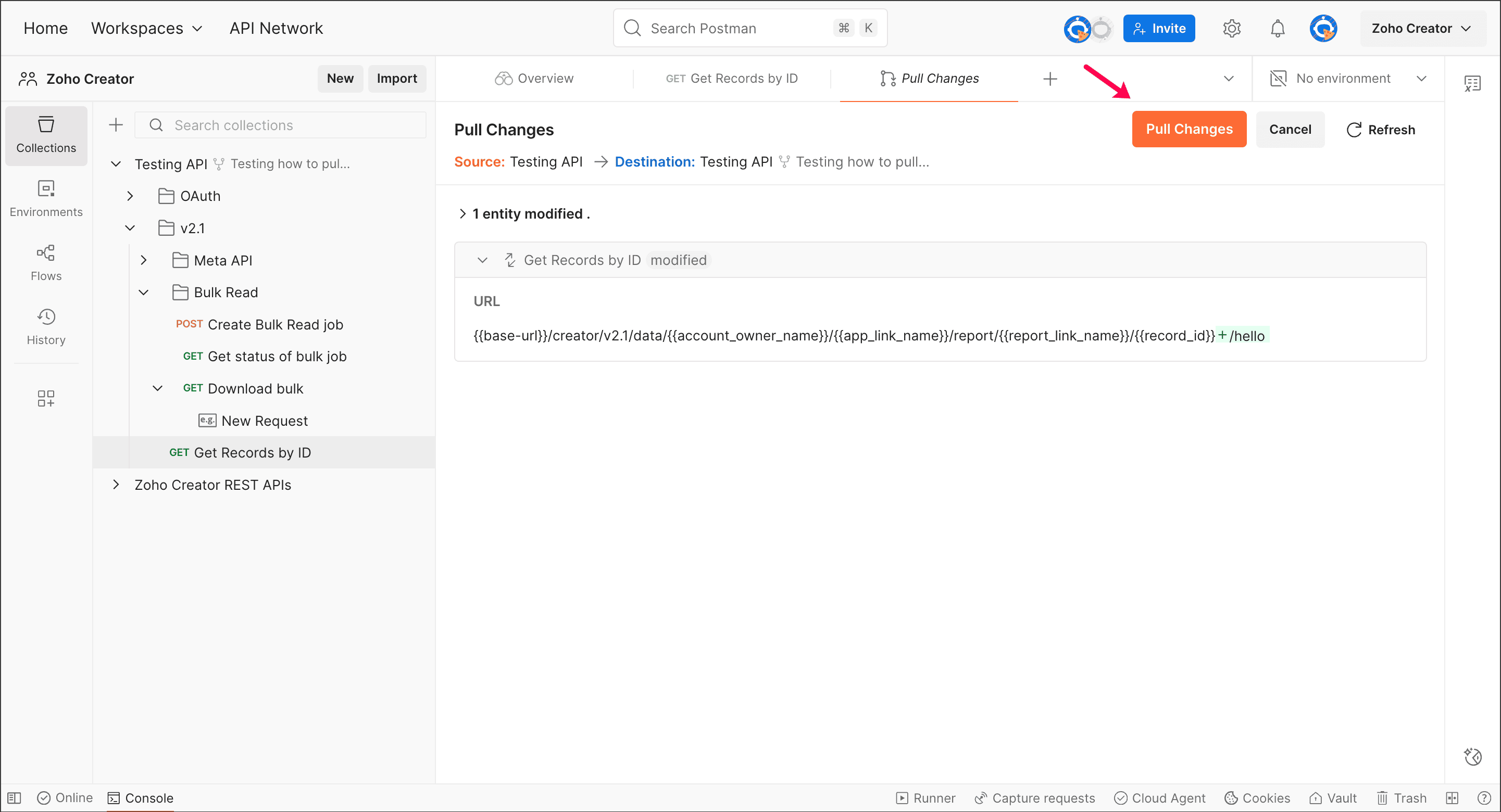
The forked collection will be updated with the latest changes.