



Preview & Publish

Publishing your changes is the final step in customizing your online store. The Theme Editor allows you to preview your changes in real time, and then save them as a draft or publish them live to your store. You can preview your changes across both desktop and mobile before publishing, and navigate through your pages to check every detail.
Switching Between Desktop and Mobile
The desktop and mobile icons in the toolbar switch the canvas between a full-width desktop view and a 430 px mobile view.
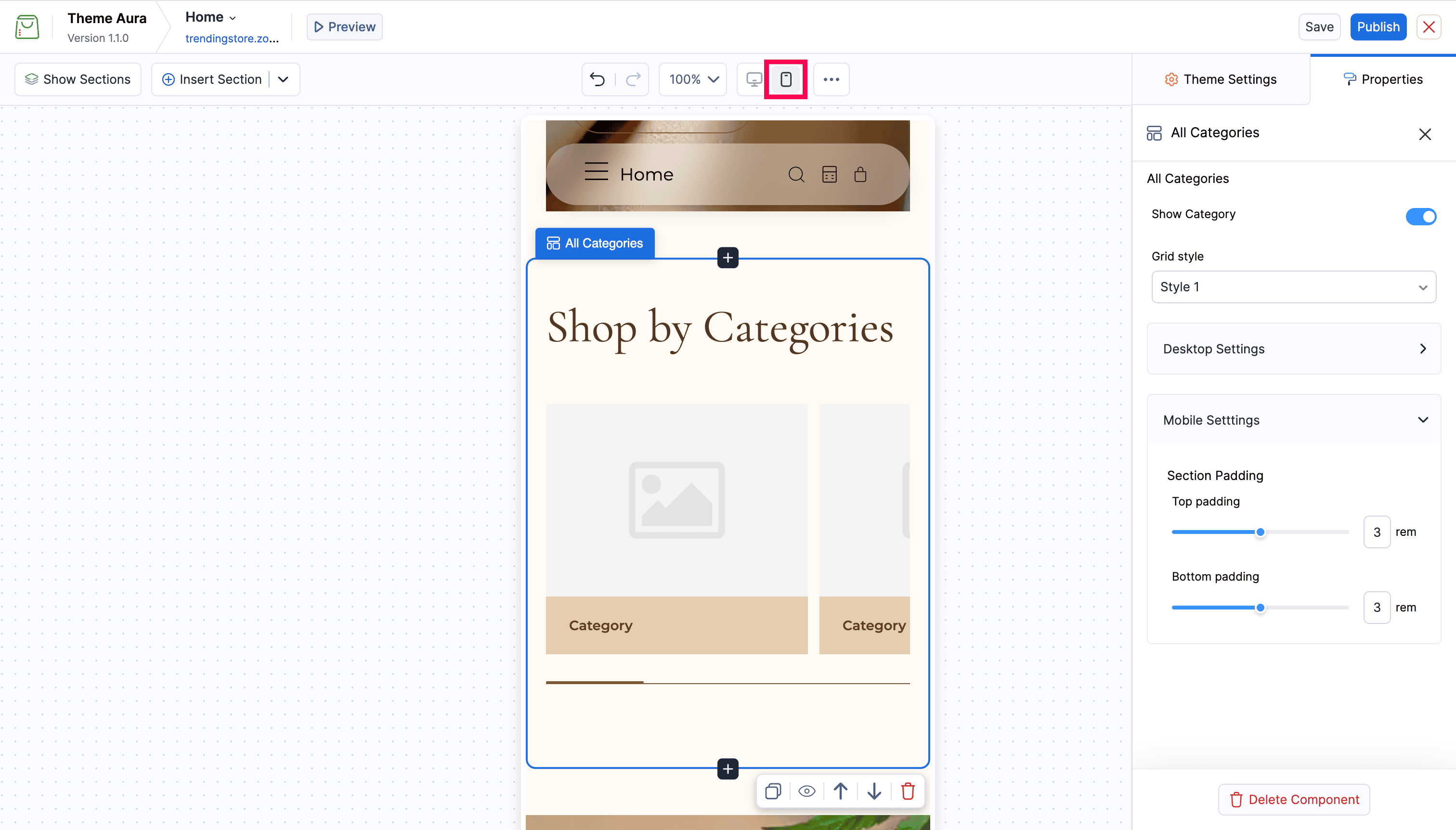
Use this at any time while editing to check how your layout looks on smaller screens. The mobile icon is highlighted when mobile view is active.
Preview Mode
Preview mode hides all editing controls and shows your online store as a visitor would see it.
Click the Preview button in the top bar to enter preview mode.
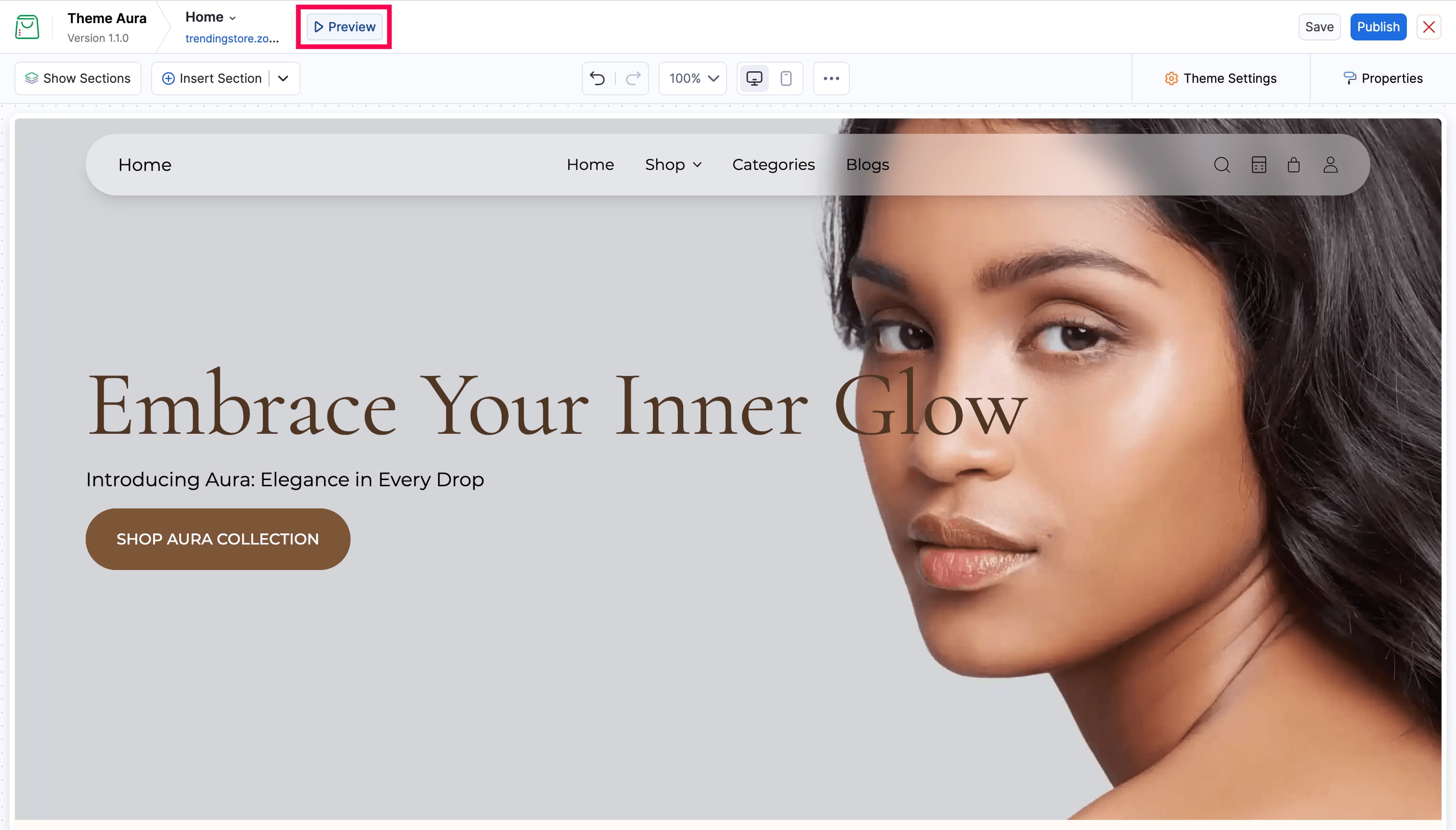
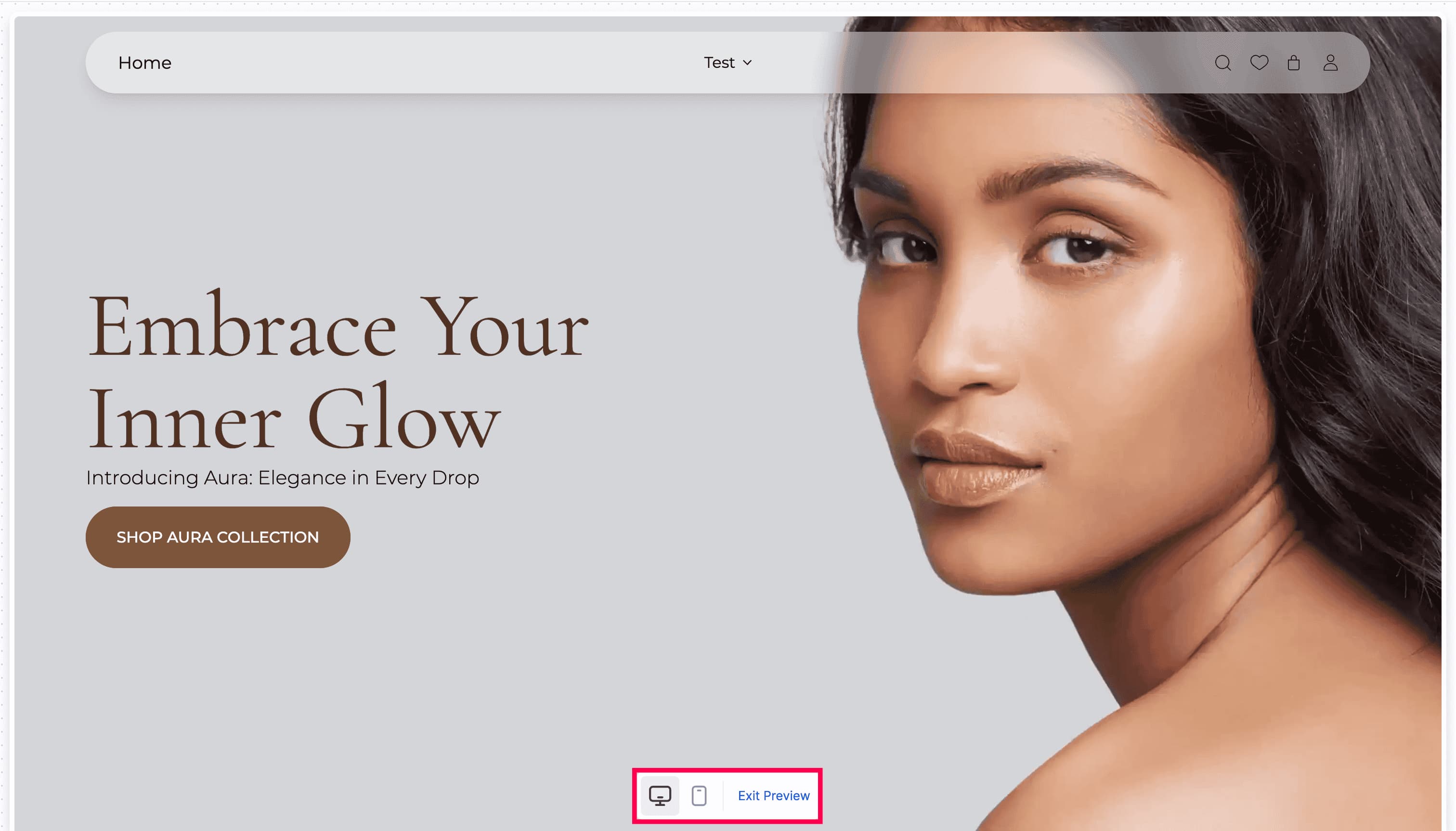
While in preview mode:
- Clicking links navigates between pages. Internal links load the target page in the canvas so you can browse your whole store.
- External links are blocked. Clicking a link that leads outside your store shows a notification instead of opening it.
- A device switcher (desktop / mobile icons) appears at the bottom center so you can switch views without leaving preview mode.
- Click Exit Preview at the bottom to return to editing.
Undo and Redo
The theme editor tracks changes per session. You can use the undo and redo buttons in the toolbar to step back or forward through your changes.
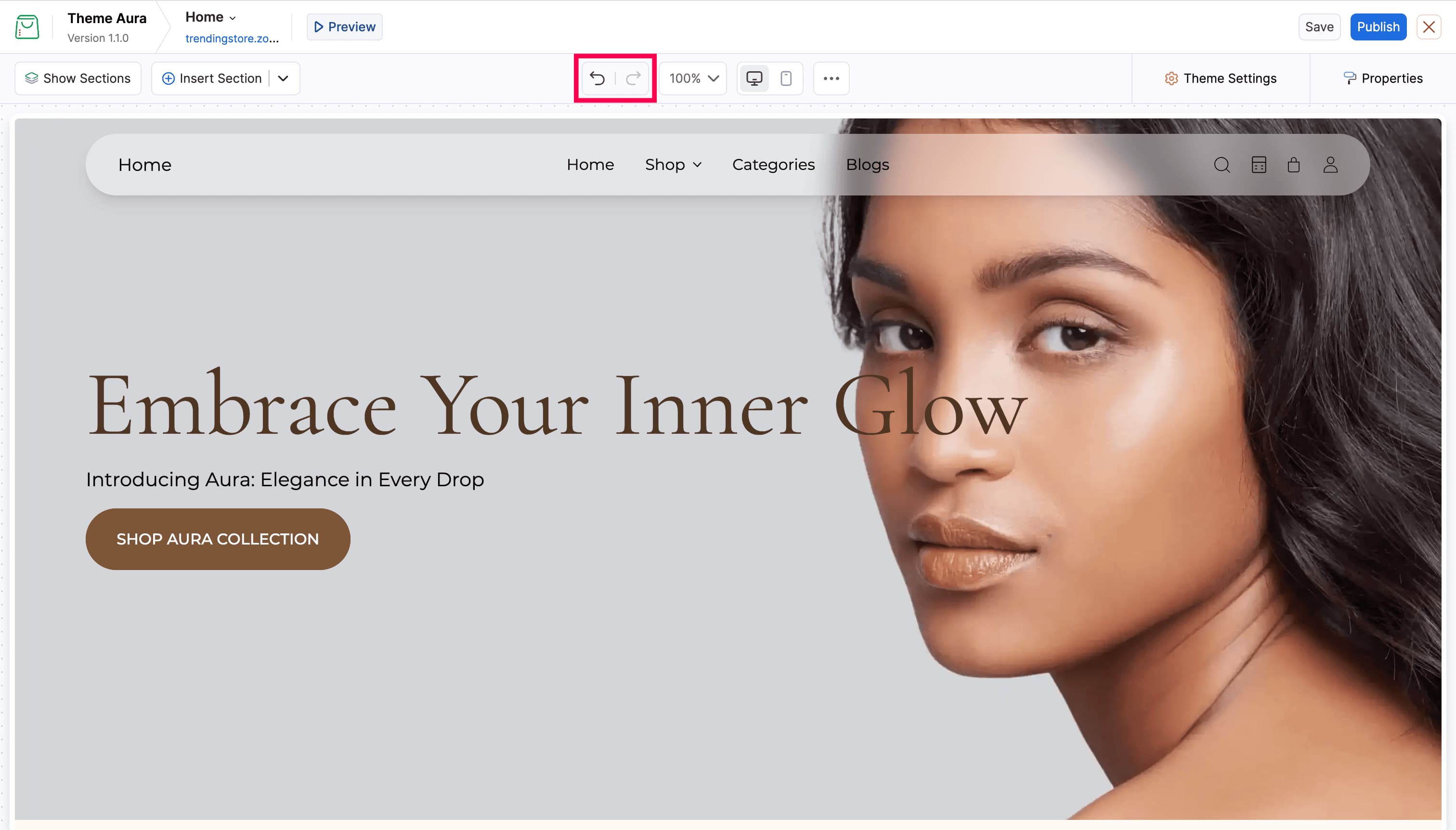
Shortcut keys are also available:
| Action | Keyboard shortcut |
|---|---|
| Undo | Cmd+Z (Mac) / Ctrl+Z (Windows) |
| Redo | Cmd+Shift+Z (Mac) / Ctrl+Y (Windows) |
Undo and redo history is reset when you navigate to a different page.
Saving as Draft
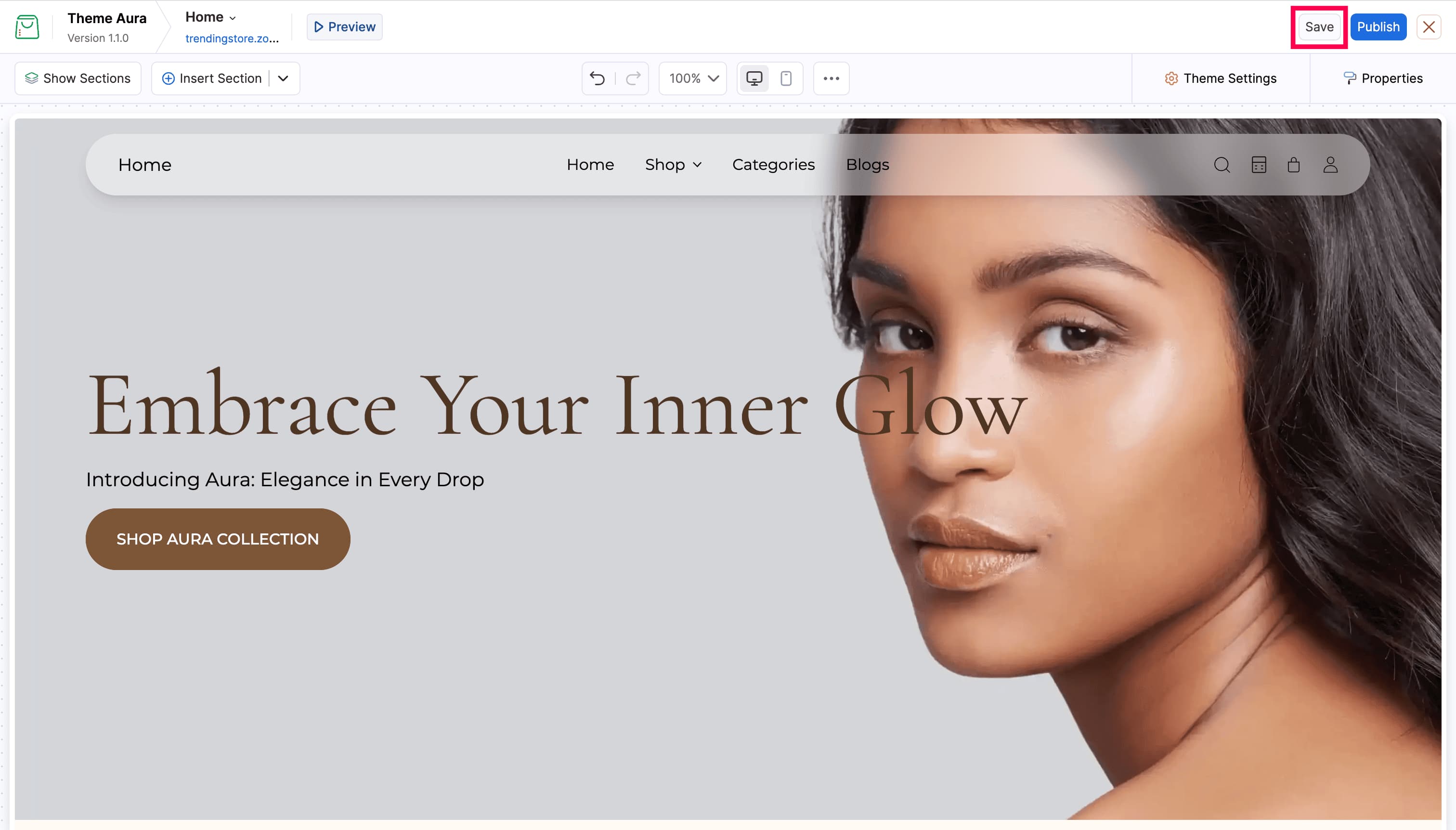
Click Save in the top bar to save your changes without publishing them to your live store. Use this to work across multiple sessions before going live.
Publishing
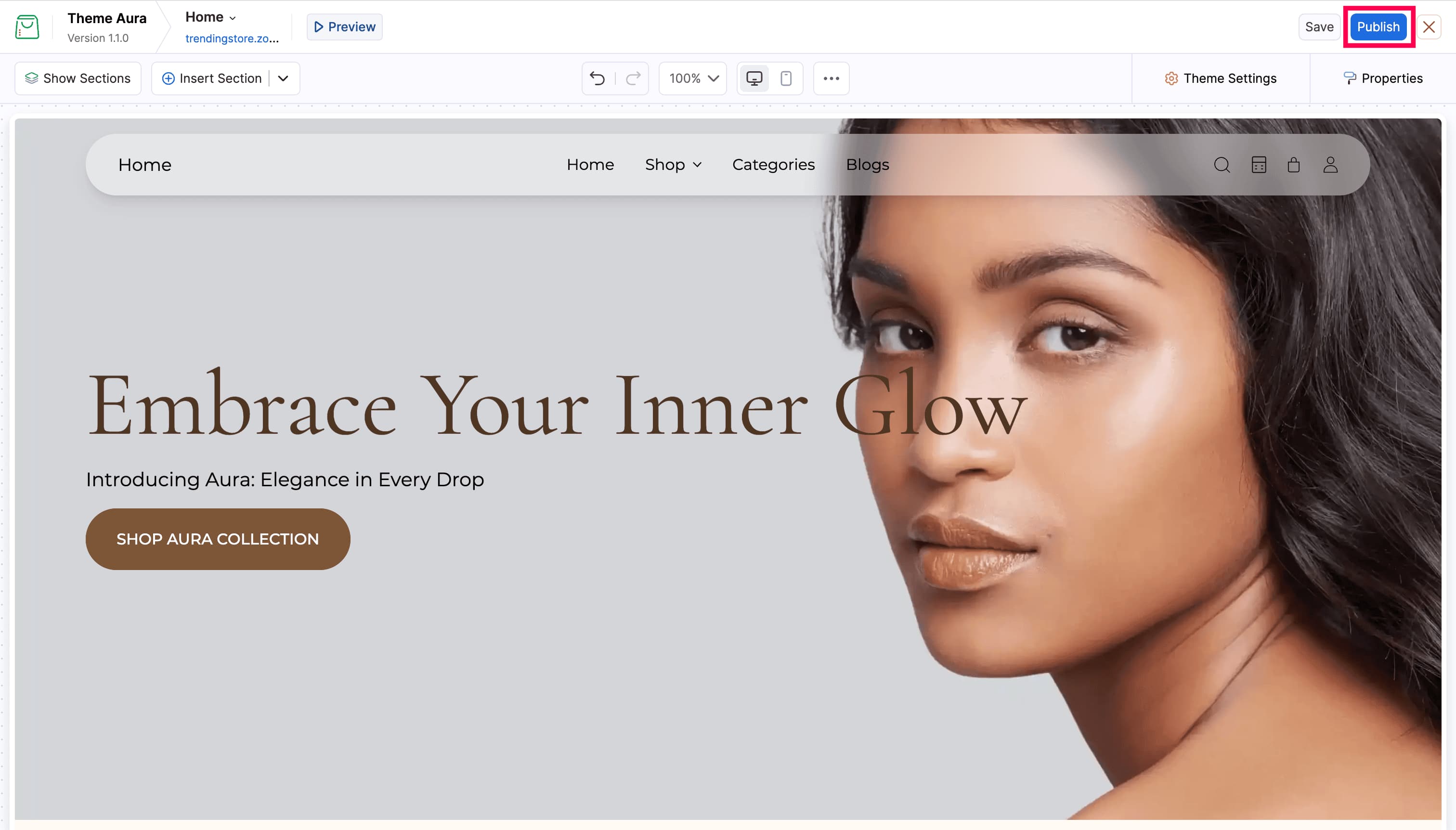
Click Publish in the top bar to save and immediately apply your changes to the live online store so visitors can see them.
Note: Click Save frequently while working, and only click Publish when you are satisfied with all your changes.