



Overview

The new Zoho Commerce theme editor allows users to customize their store’s look and feel directly from within Zoho Commerce - no code required. New interactive features make it easy to add, remove, and rearrange sections and blocks on your online store. You can also edit content, apply global theme styles, and preview your changes in real time.
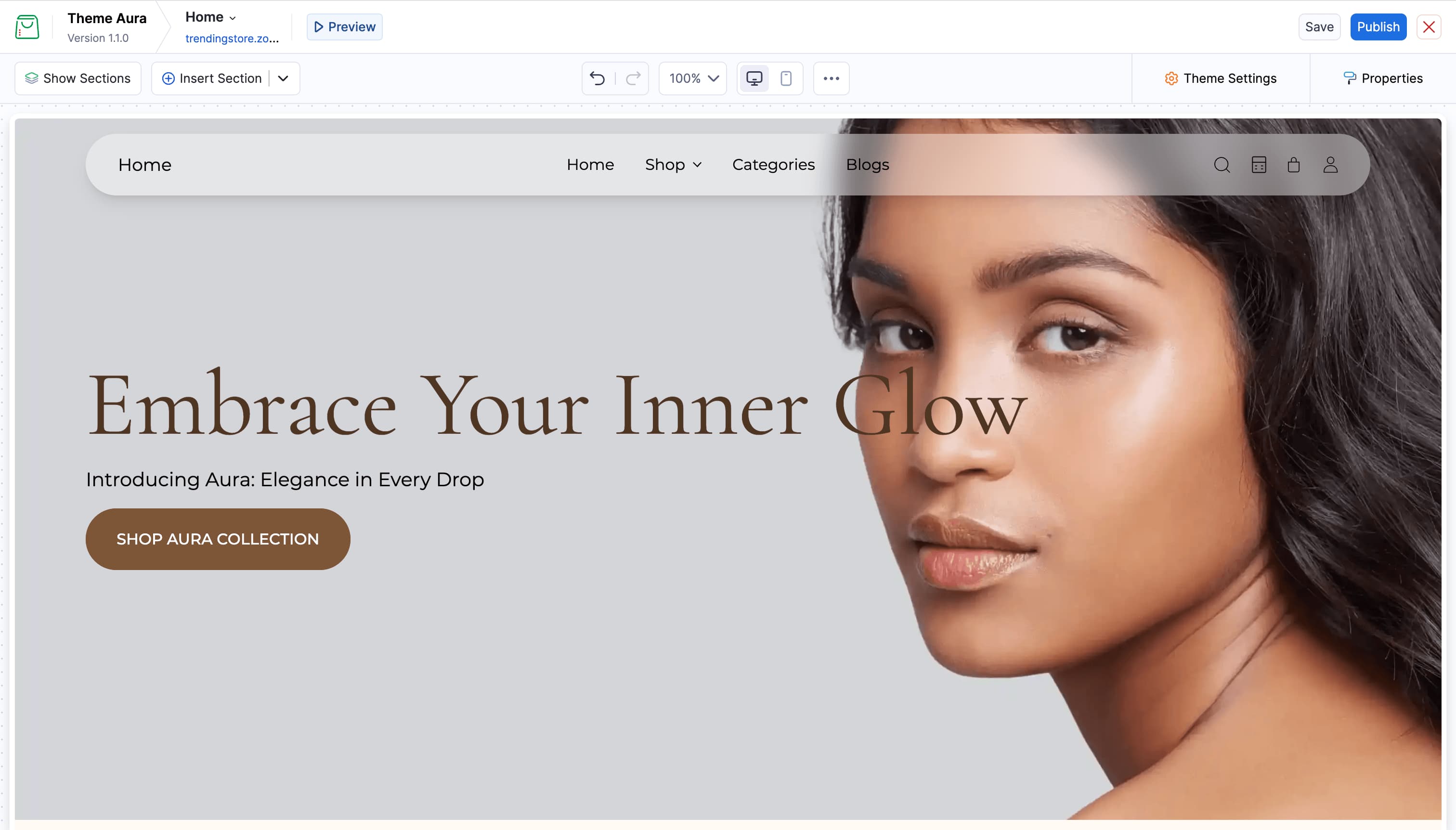
Feature Highlights
- Add and rearrange sections - Build your pages by inserting pre-designed sections like banners, product grids, collections, and more. Drag them into the order you want.
- Edit section content - Click any element on the page to open its settings. Change text, images, colors, and layout options instantly.
- Manage blocks - Within a section, add, reorder, or remove individual content blocks such as headings, buttons, and images.
- Customize theme style - Apply global theme settings like brand colors and fonts that update across the entire storefront at once.
- Switch between pages - Edit any page in your store - home, product, collection, cart, and more - without leaving the theme editor.
- Preview your changes - Toggle a live preview to see exactly how your storefront looks on desktop and mobile before saving.
- Undo and redo - Step back through your changes freely. The theme editor keeps up to 25 steps of history per session.
Editor Panels at a Glance
| Area | What it does |
|---|---|
| Top bar | Switch pages, save your changes, or exit the themeeditor |
| Toolbar | Zoom, device preview, undo/redo, and panel toggles |
| Canvas (center) | Live preview of your online store - click any element to select it |
| Sections list | Layer view of all sections and blocks on the current page |
| Properties panel (right) | Settings for the selected section or block |
| Theme Settings (right) | Global style options that affect the whole store |
Quick Start
- Navigate to the Online Store module and click Customize to enter the theme editor.
- Read Editor Interface to learn about the four main areas of the theme editor.
- Follow Working with Sections to add or rearrange your page layout.
- Use Working with Blocks to edit content inside sections.
- Apply global styles in Theme Settings.
- Preview and publish your changes using Preview & Publish.