



Working with Blocks

Blocks are individual content elements that live inside sections. A banner section might contain a heading block, a sub-heading block, and a button block. You can add, reorder, edit, and remove blocks independently without affecting the rest of the section.
Viewing Blocks
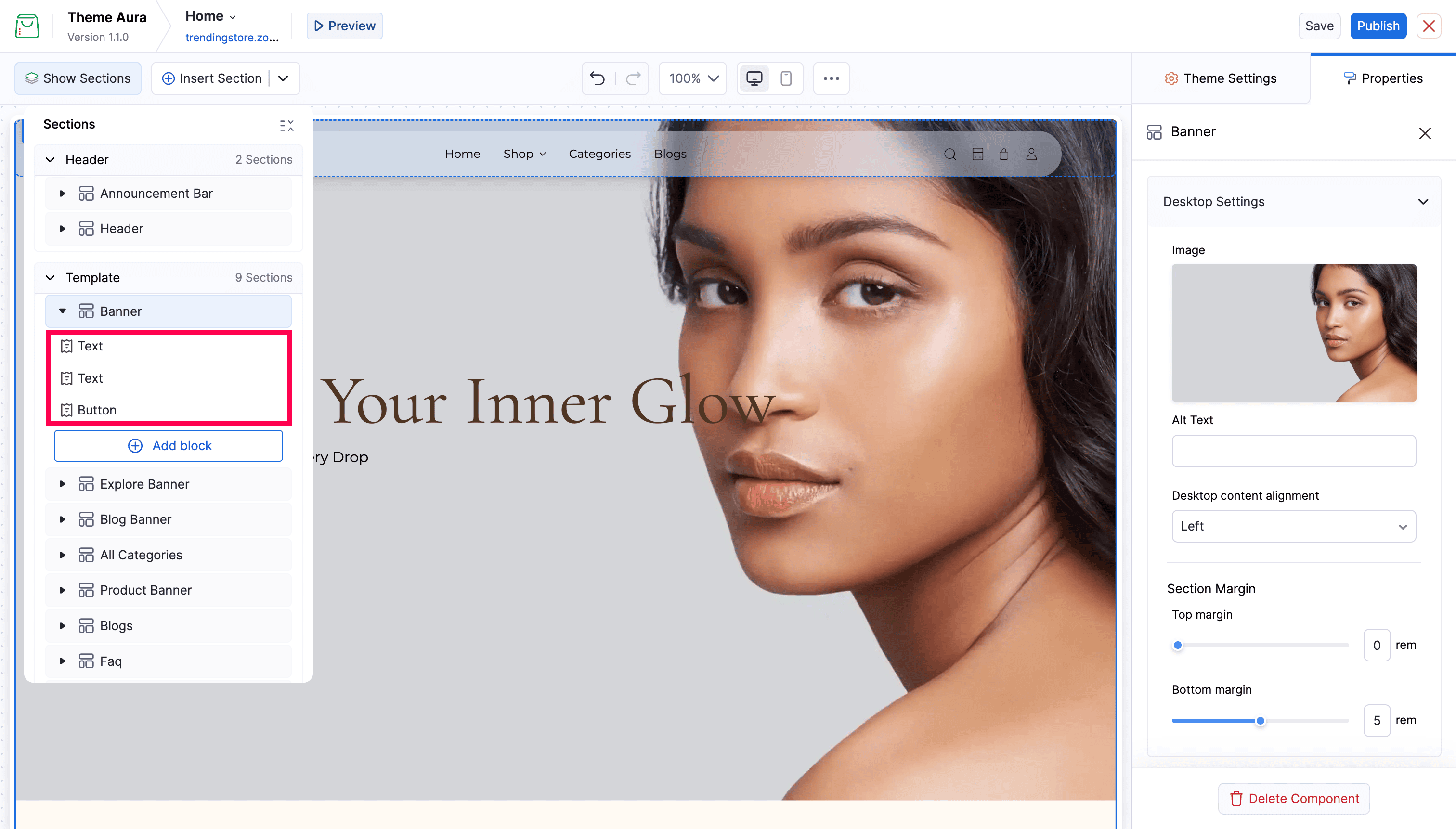
Open the Show Sections panel. Click the expand arrow next to any section to see its blocks listed underneath.
Selecting a Block
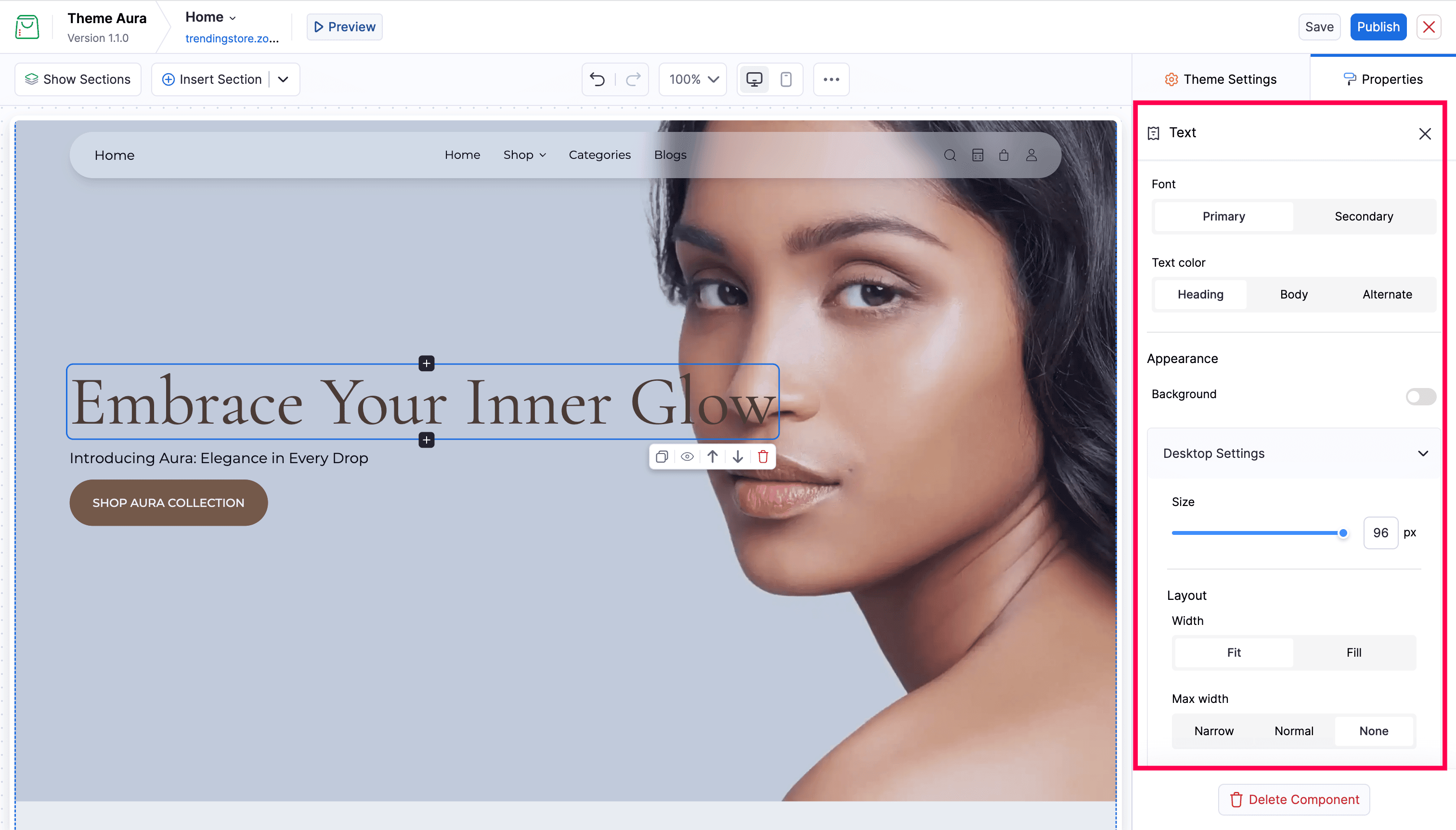
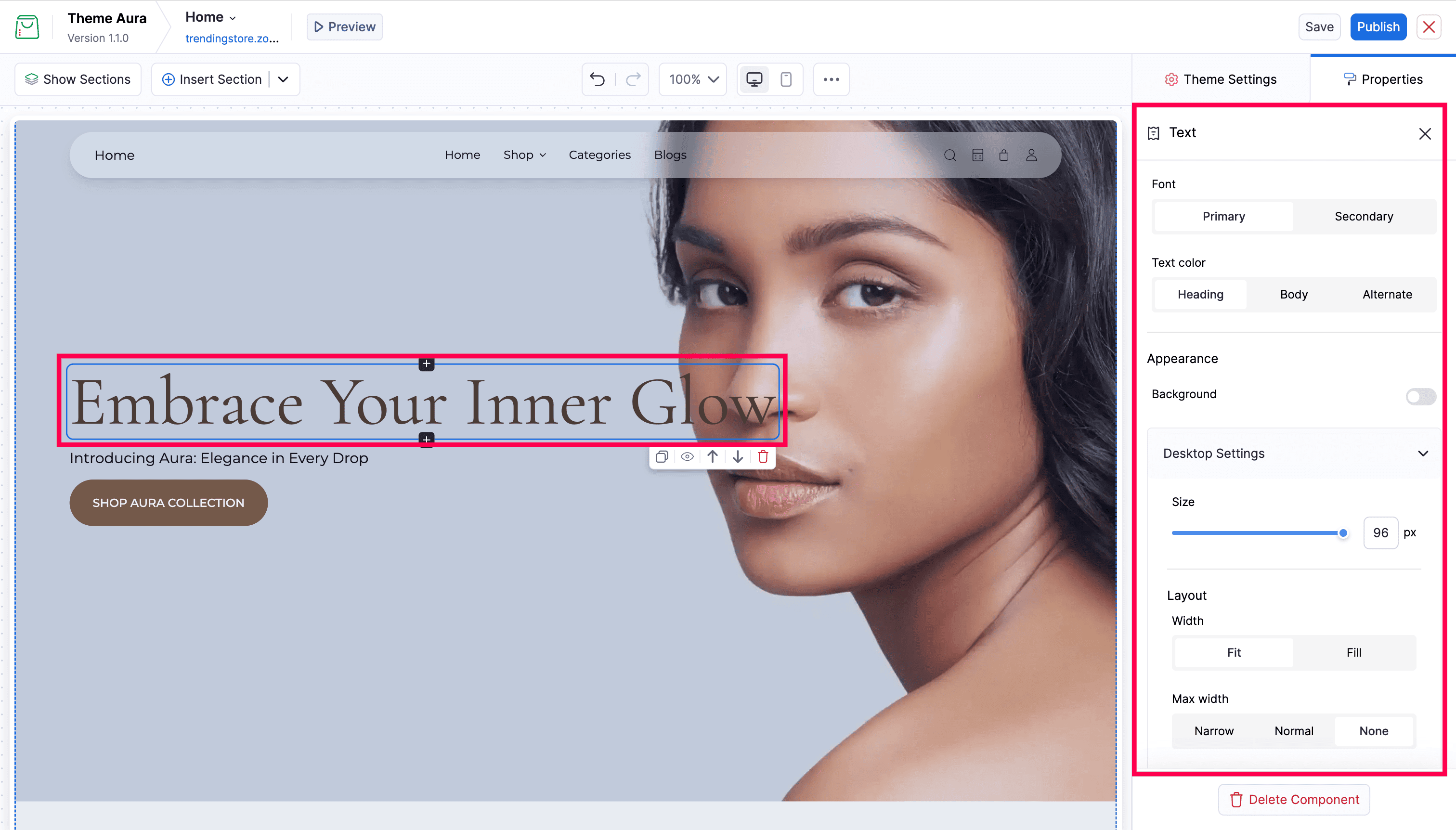
Click any block element directly in the canvas. The block highlights and the Properties panel on the right updates to show that block’s settings.
You can also click the block’s name in the Sections List to view the properties.
Adding a Block
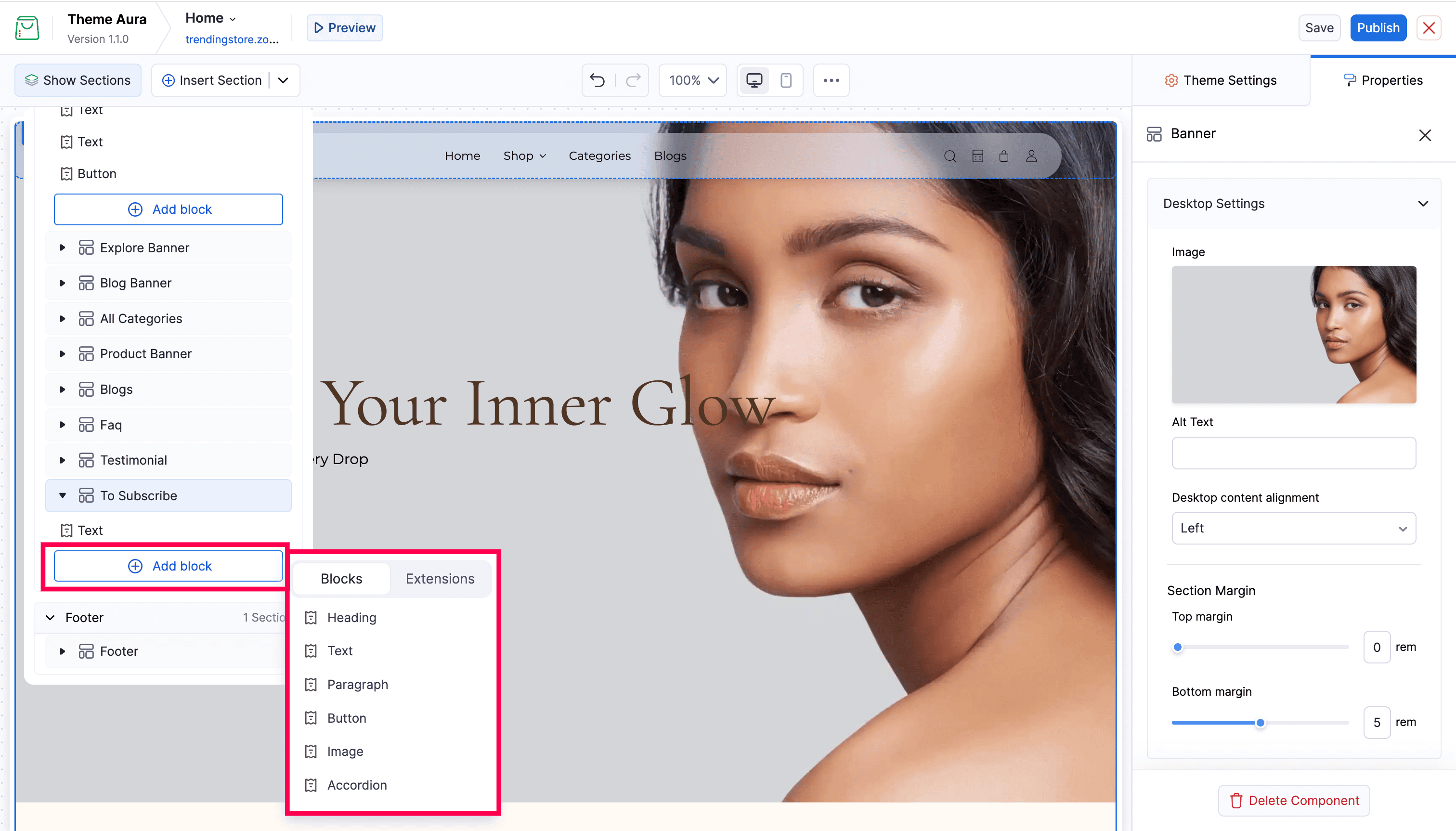
Expand a section in the Sections List and click Add block at the bottom of the section’s block list. A picker appears with two tabs:
- Blocks - Lists the built-in block types that the section supports.
- Extensions - Lists any extension-based blocks available from installed extensions.
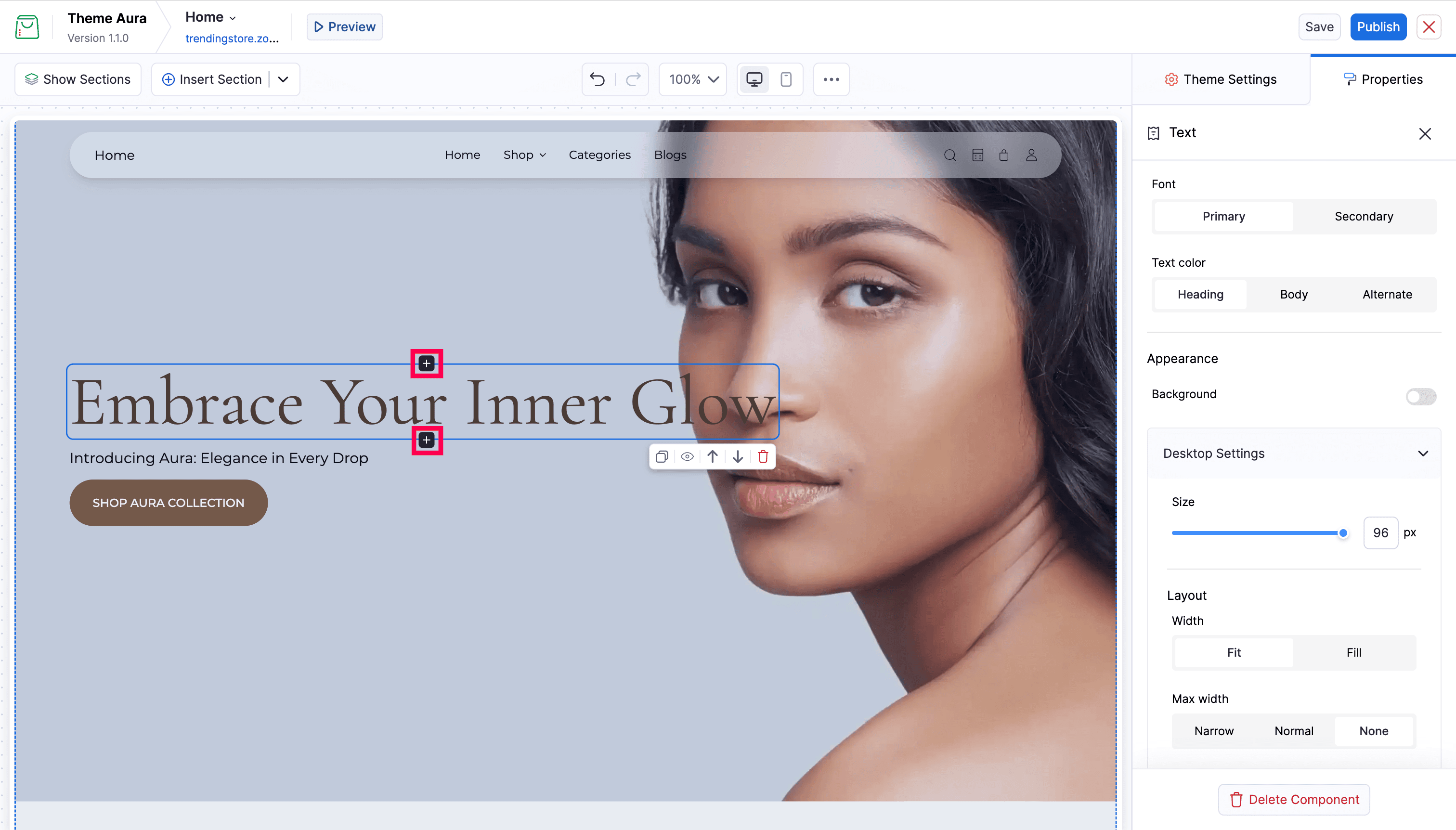
Note: You can also add a block to the section by clicking the + button that appears at the top or bottom of a selected block on the canvas. This inserts a new block immediately above or below the selected block.
Editing Block Settings
With a block selected, use the Properties panel on the right to edit its content and appearance. Changes apply in real time on the canvas. Ensure to save your changes to keep them.
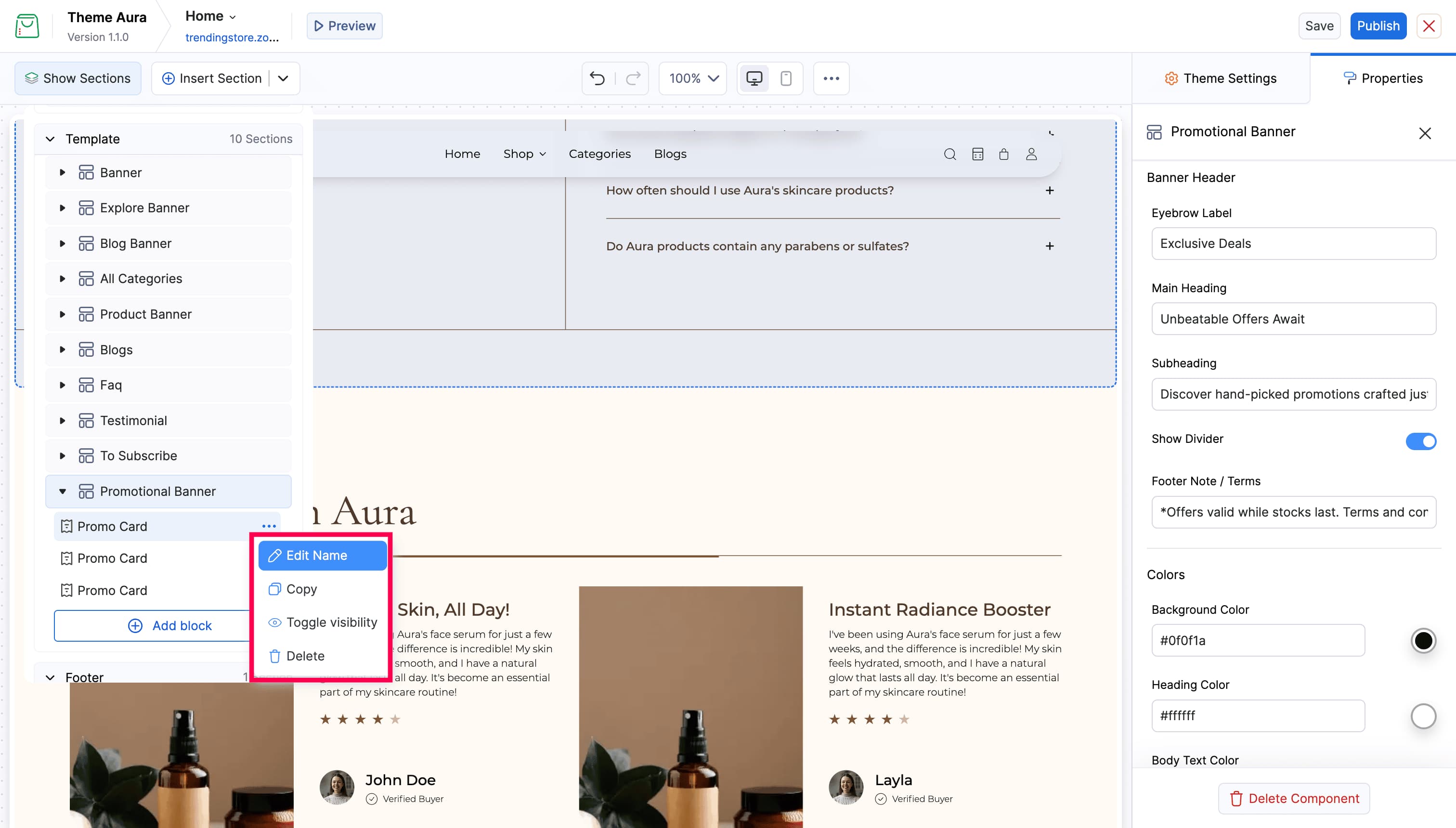
Block Actions (context menu)
Click the More Options icon on any block row in the Sections List to access:
| Options | Description |
|---|---|
| Edit Name | Rename the block (editor-only label, not shown on online store) |
| Copy | Duplicate the block, inserted directly below the original |
| Toggle visibility | Hide or show the block without deleting it |
| Delete | Remove the block permanently |
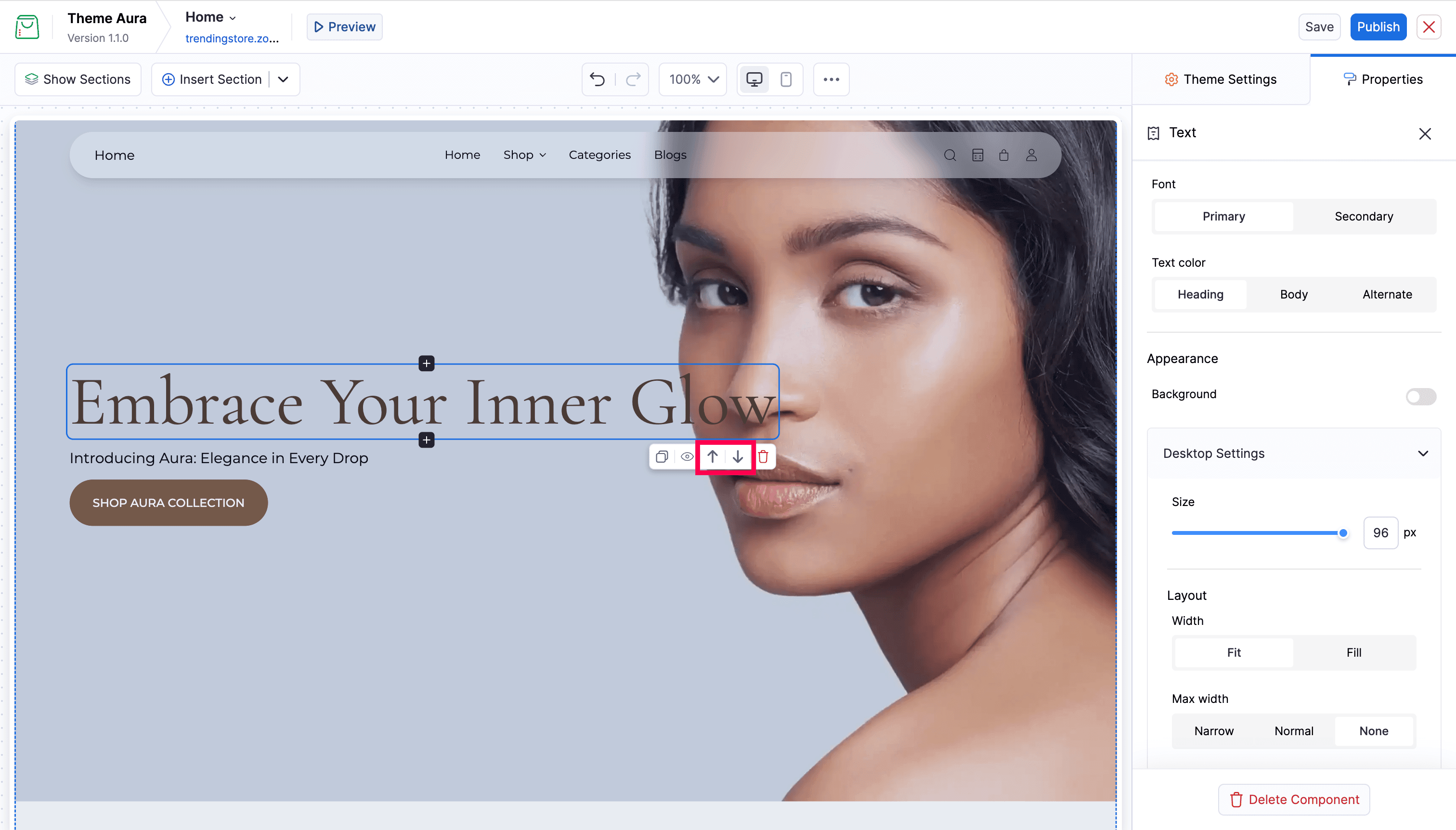
Reordering Blocks
Select a block on the canvas, and an action toolbar appears below the selected block. Use the arrow up and arrow down buttons in the toolbar to move the block up or down within its section.
Nested Blocks
Some block types can contain other blocks. An Accordion block, for example, holds Accordion Row blocks, each of which can contain text blocks for the question and answer. Expand parent blocks in the Sections List to see and manage their children - all the same actions apply at every level.