
Quotes

The Quotes module lists all quote requests submitted by customers through your online store. Once a customer raises a request for quote, it appears in this module where you can review and send back a quote. The customer’s decision to accept or reject the quote is then updated directly in the module, keeping your sales process organized and transparent.
Note: Ensure that Quote Requests is enabled in the Online Store Preferences to receive quote requests from customers.
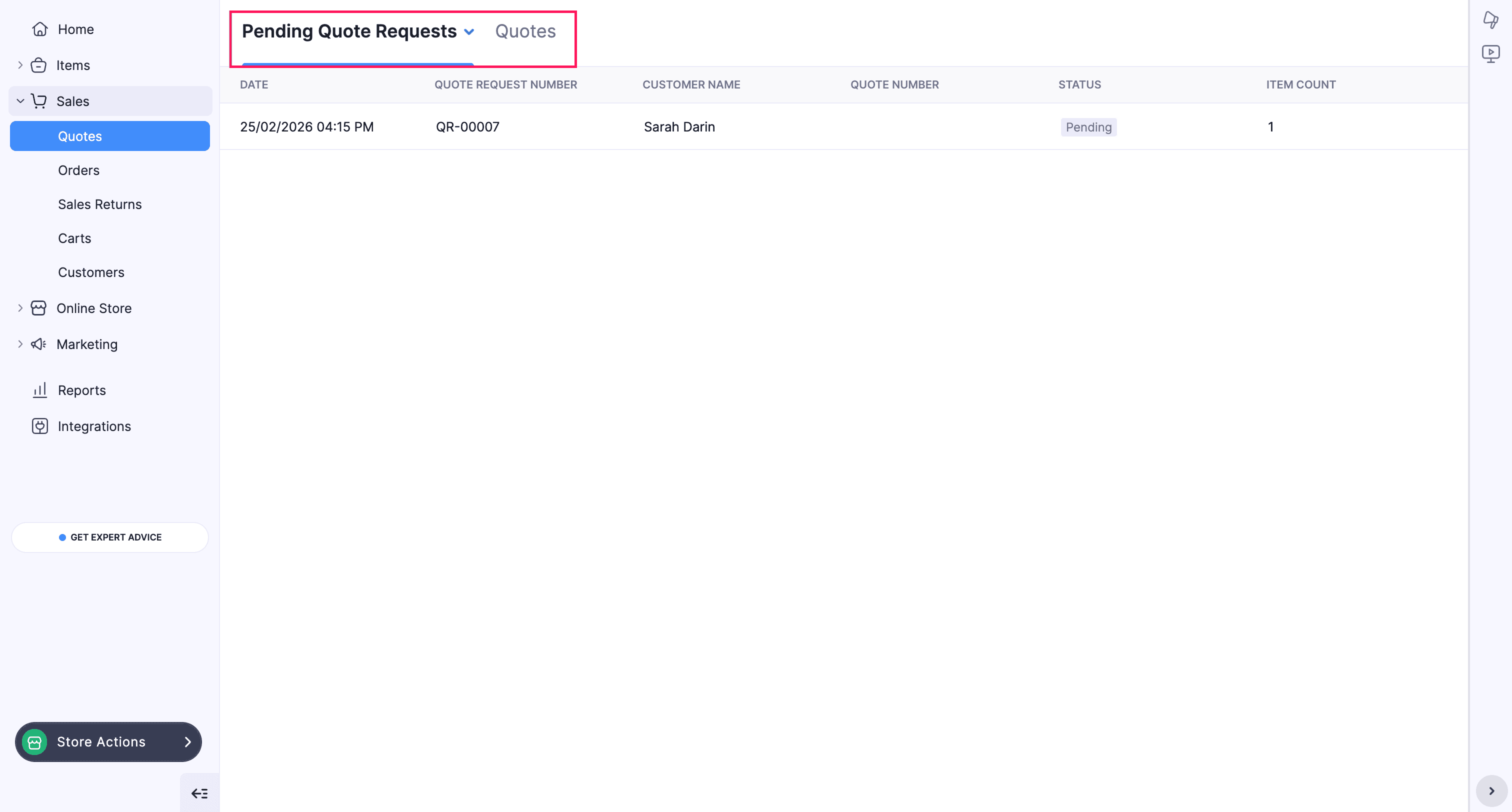
The Quotes landing page lists two tabs: the Pending Quote Requests and Quotes.
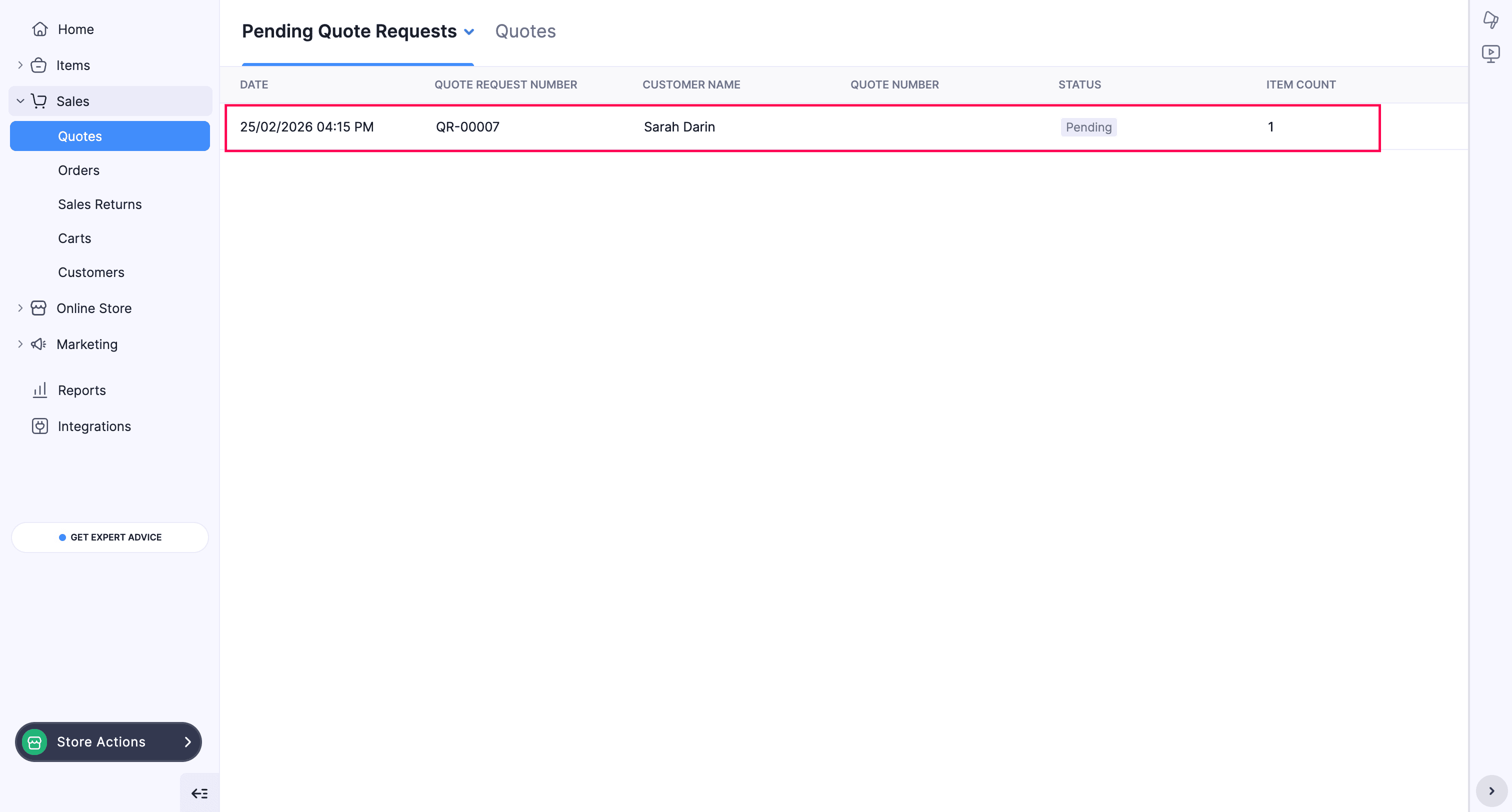
- Pending Quote Requests - This tab lists all the quote requests received from customers that are yet to be reviewed.
- Quotes - This tab lists all the quotes that are sent to the customers.
Quote Requests
The Quote Request feature allows customers to request a custom quote for items in your online store. Once submitted, each request appears in the Pending Quote Requests tab, where you can review and respond with a suitable quote.
Scenario: Patricia, a wholesale supplier sells industrial equipment in bulk. Brandon, a retailer visiting their online store is interested in purchasing a large quantity of items but wants a discounted price based on the order volume. Instead of paying the listed price, the retailer submits a quote request through the online store. Patricia reviews the request, evaluates the quantity, and responds with a customized quote offering a bulk discount. Brandon accepts the quote, which is then converted into a sales order and fulfilled.
To review a quote request,
- Select the pending quote request.
- In the Quote Request details page, the item and customer details will be listed.
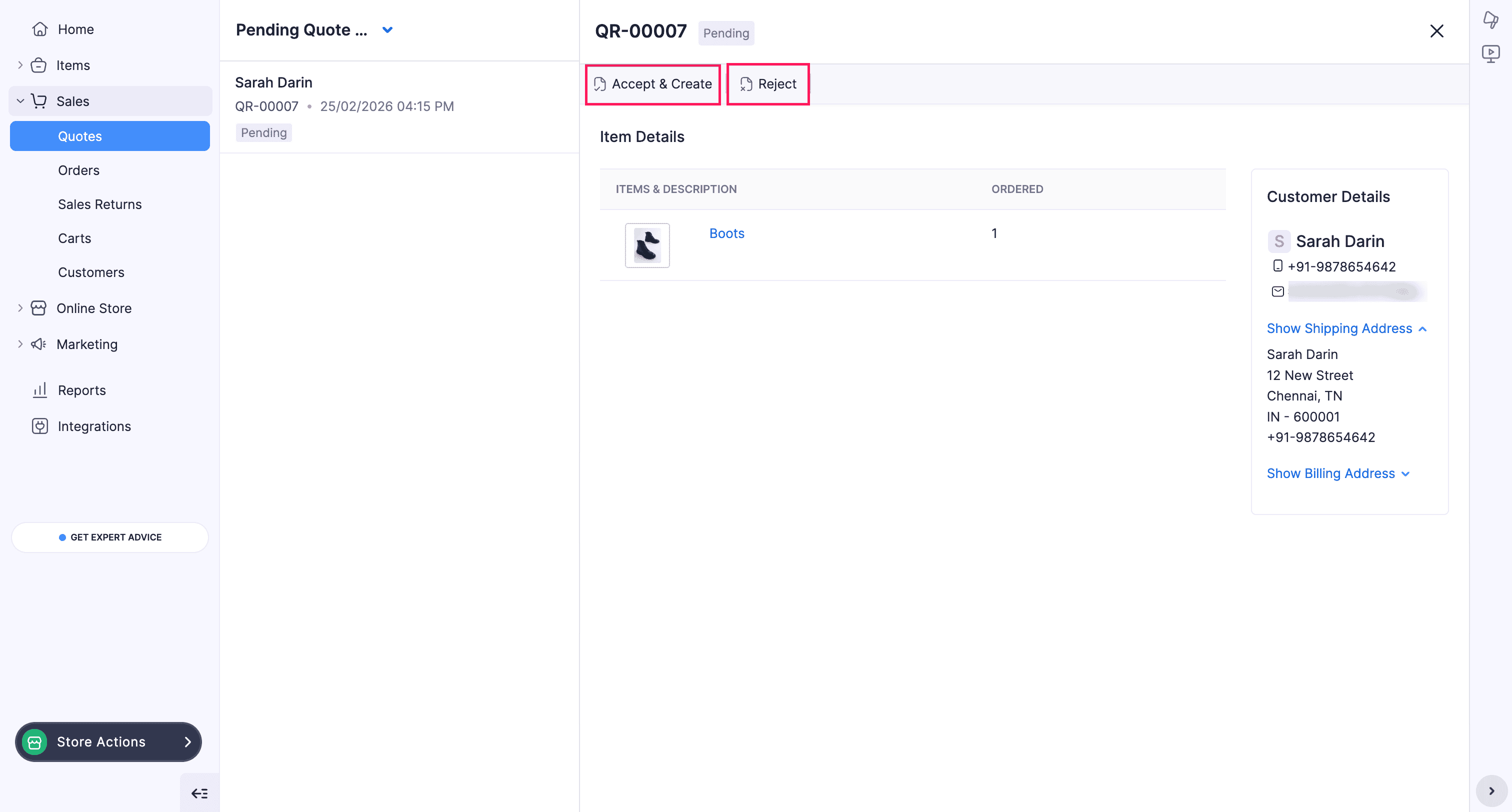
- Click Accept & Create to create a quote for the received quote request.
(Or)
Click Reject to reject the quote request.
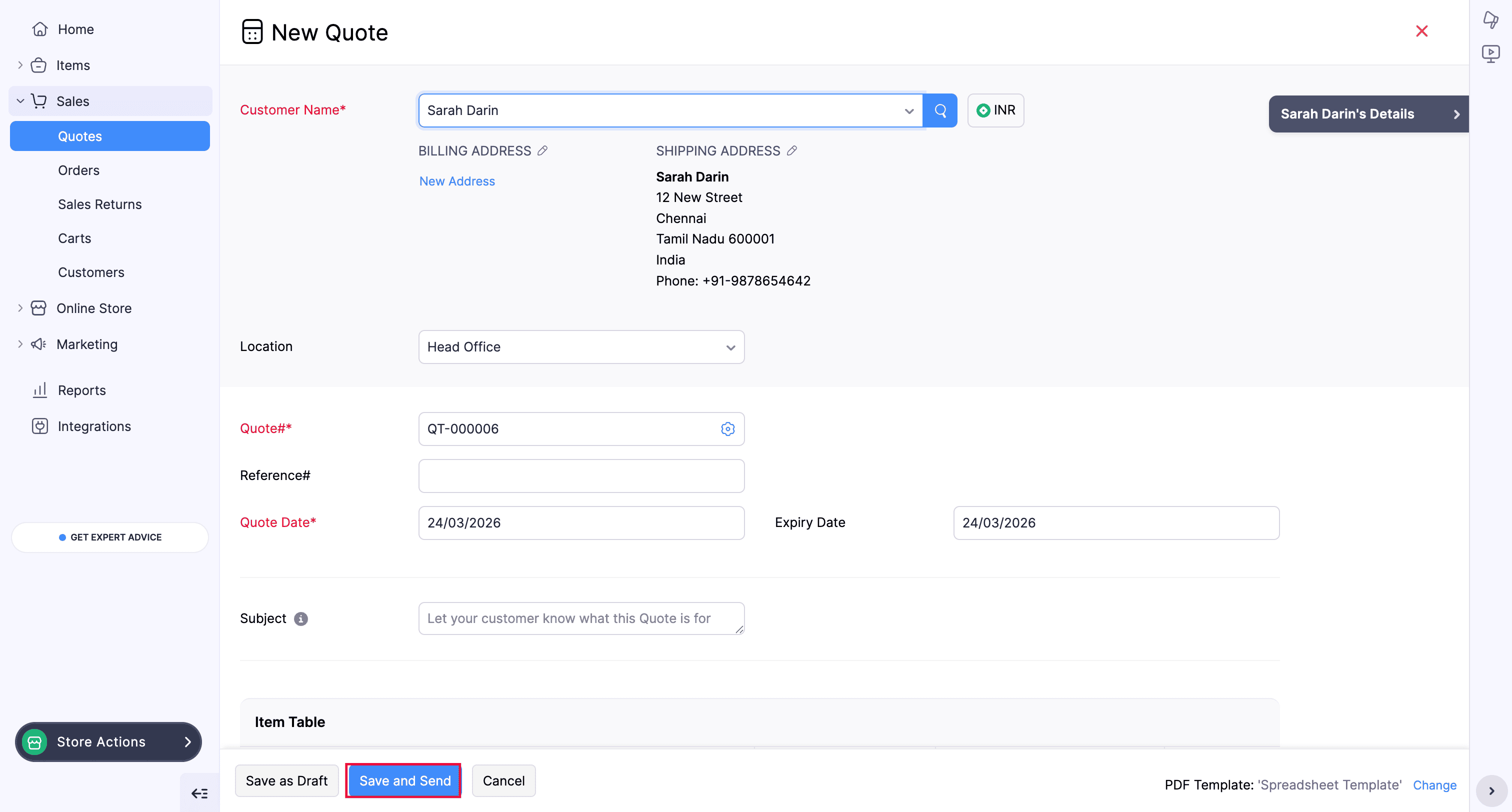
- Once you accept to create a quote, you will be redirected to the New Quote page.
- In the New Quote page, enter the Rate for the items in the Item Table.
- Click Save and Send.
- Click Send.
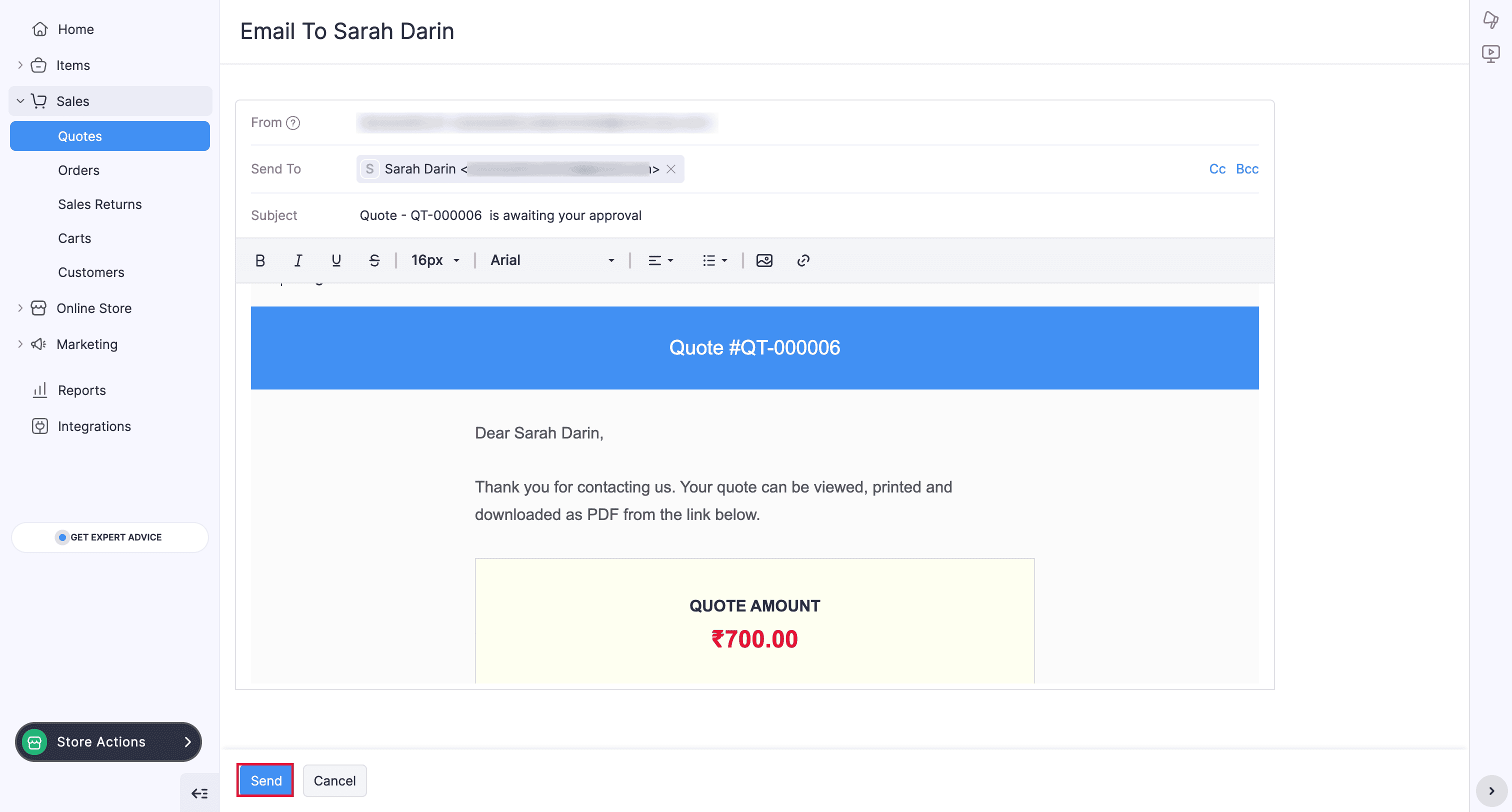
The quote will be sent to the customer to the provided email address.
Quotes
The Quotes tab in Zoho Commerce is where you manage all quotes sent to customers in response to their quote requests. Once a quote is sent, customers can accept or reject it, and their response is instantly reflected in the tab, helping you track and manage every quote efficiently.
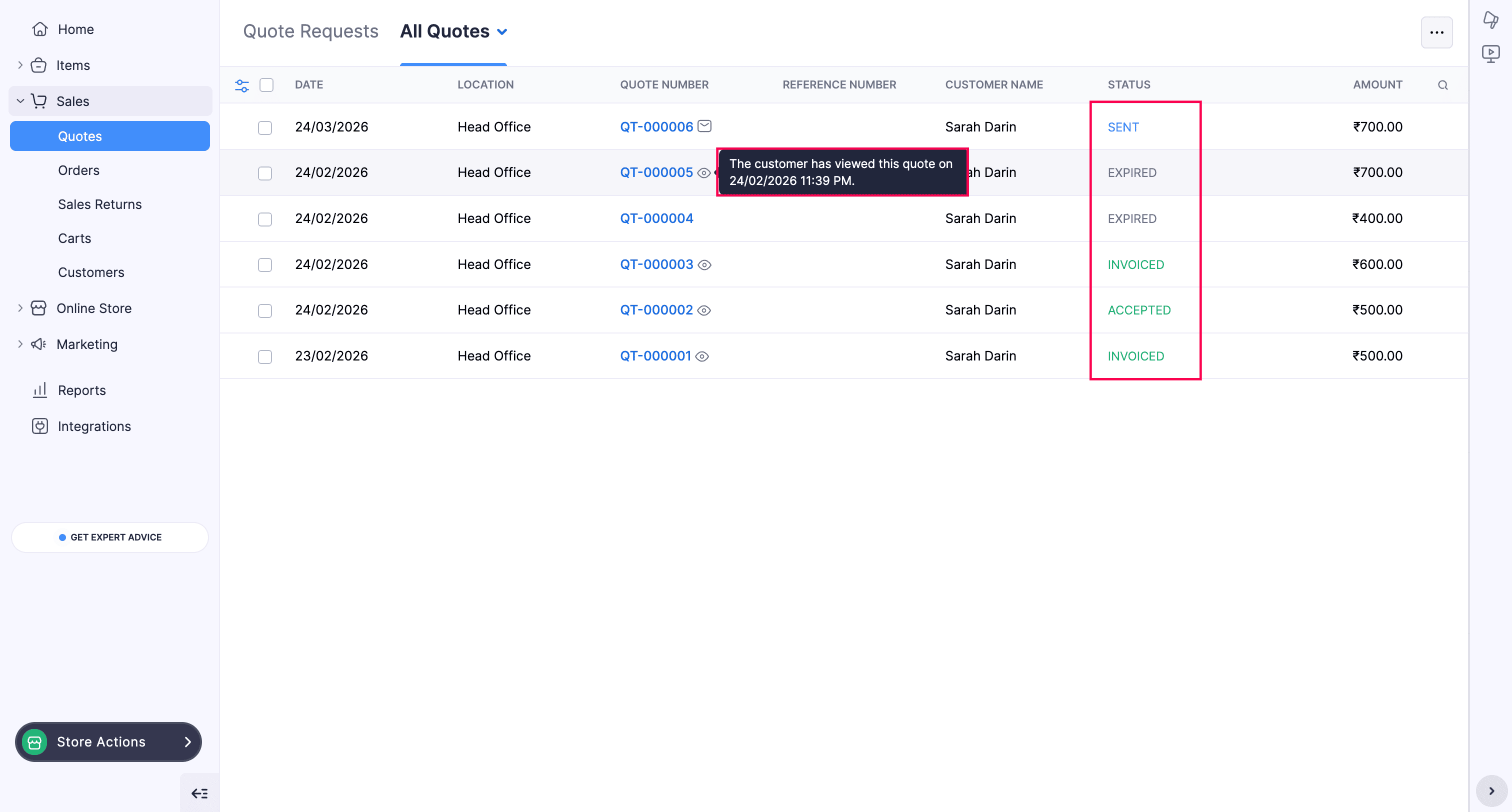
- Once the quote is viewed by the customers, it will be updated with an eye icon next to the Quote Number.
- Hover over the eye icon to view the details such as the date and time when the customer has viewed the quote.
- The status of the quote is also updated as Accepted or Declined.
Convert Quote to Sales Order
Zoho Commerce allows you to convert an accepted quote into a sales order with just a few clicks. All the details from the quote are automatically populated in the sales order, saving you time and ensuring accuracy.
To convert a quote to sales order,
- Select the accepted quote.
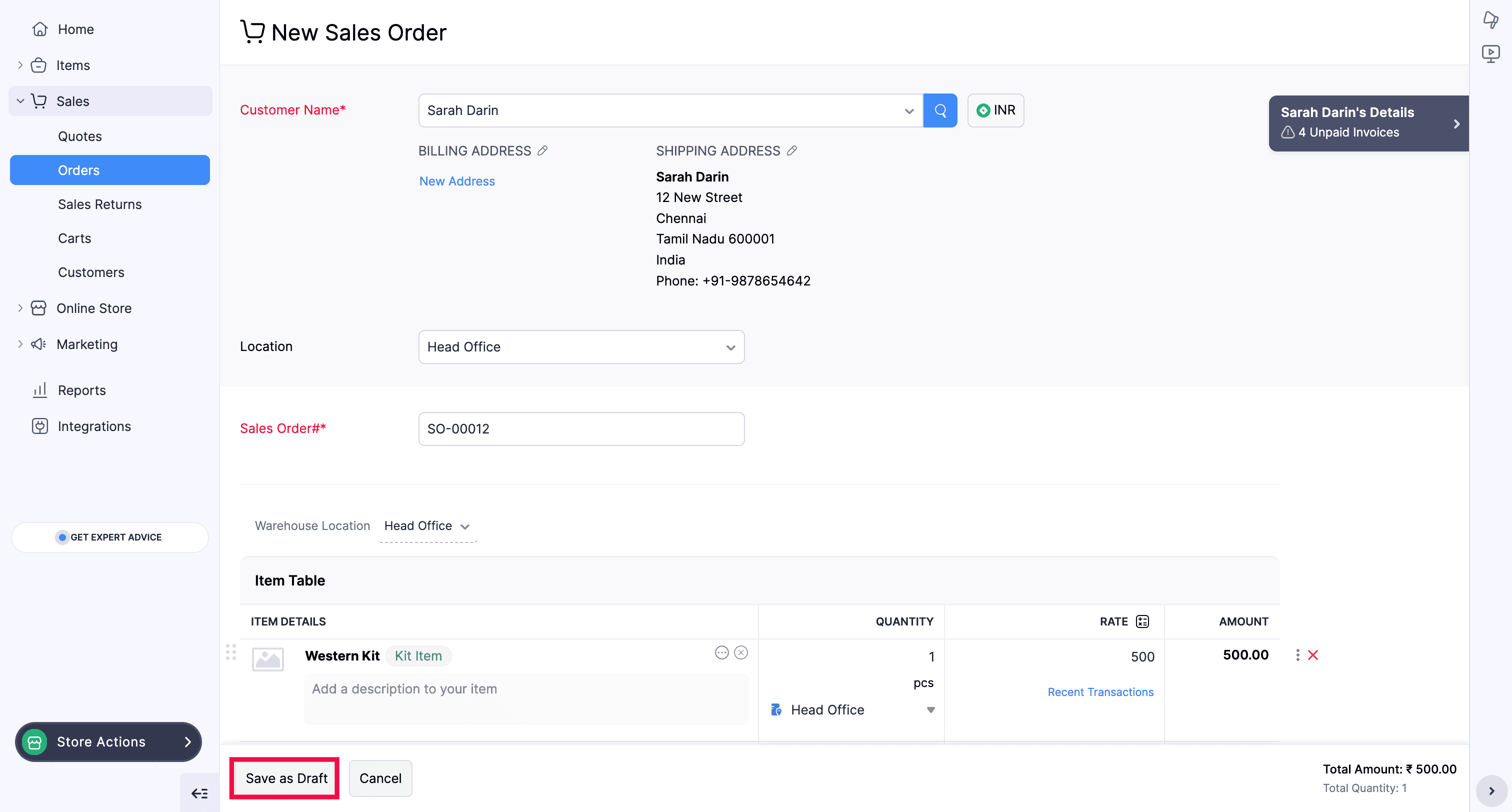
- In the Quote details page, click Convert to Sales Order. You will be directed to the New Sales Order page.
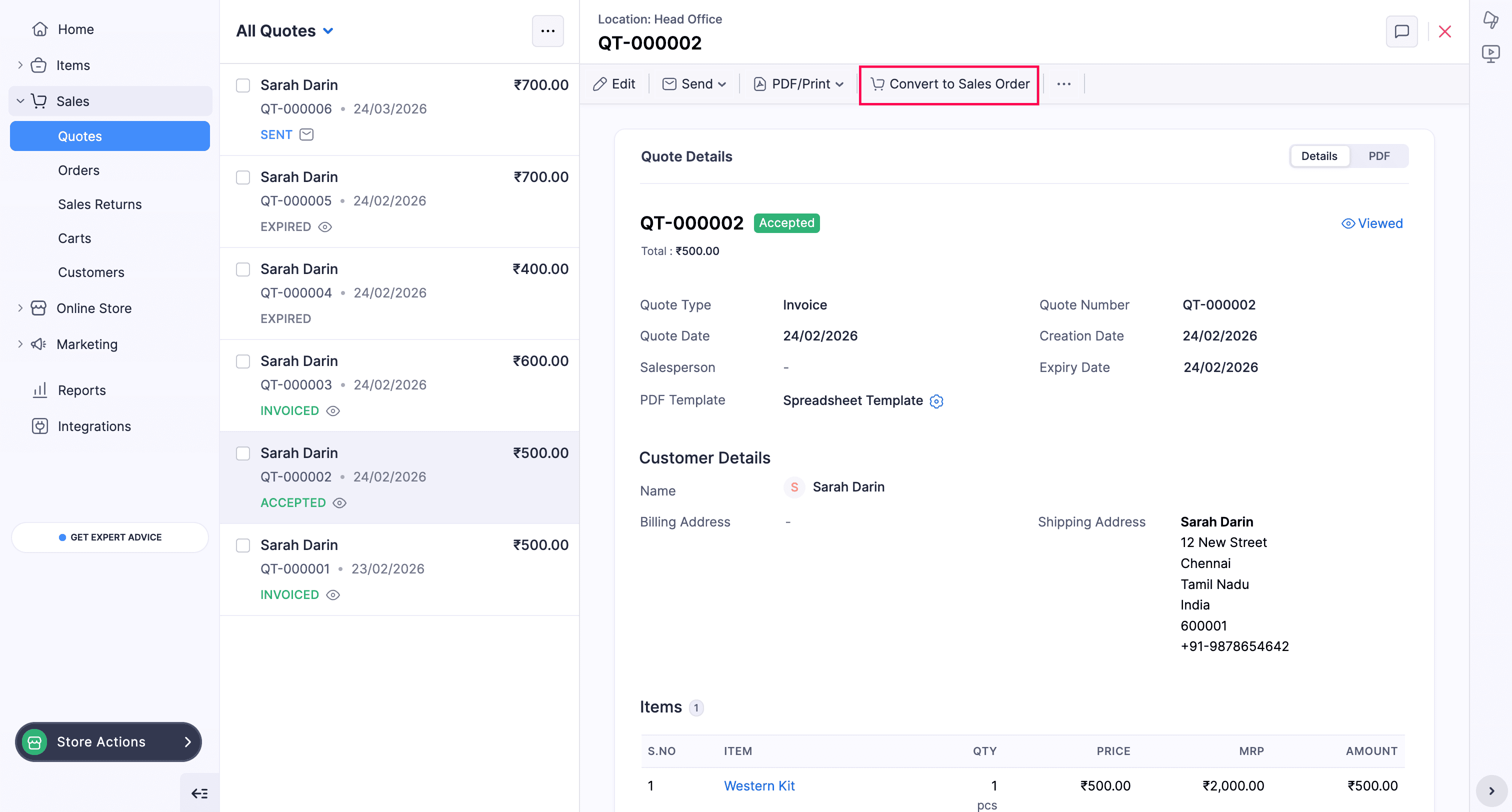
- In the New Sales Order page, click Save as Draft to save the sales order in draft state.
Other Actions
There are a few other actions that can be performed on a quote, such as
Edit a Quote
In certain cases, the expired quotes can be edited to extend the expiration date and send a revised quote again to the customer.
Note: Accepted quotes cannot be edited.
- Navigate to the Quotes module.
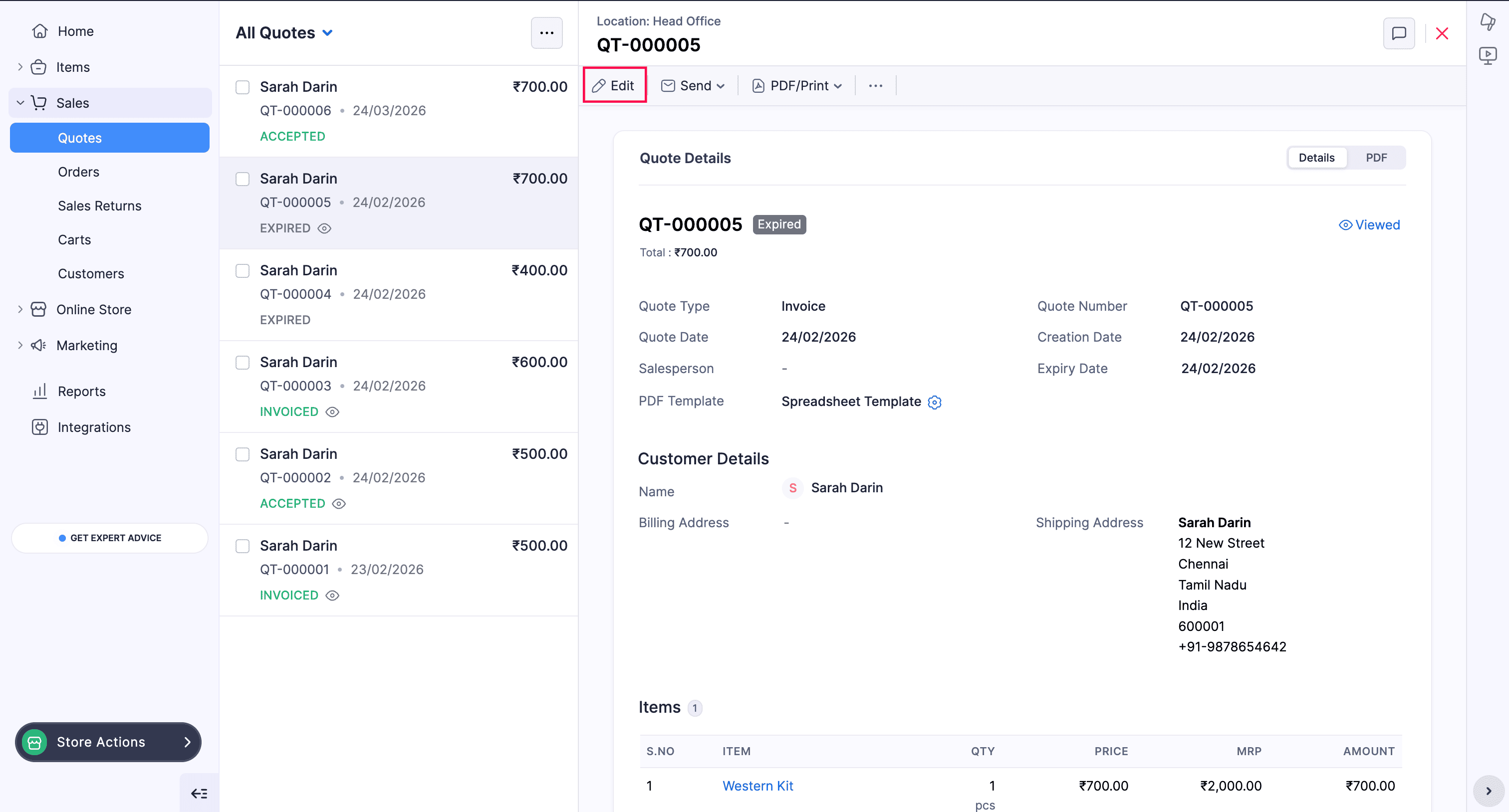
- Click the Quotes tab and select the expired quote.
- In the Quote details page, click Edit to edit the quote.
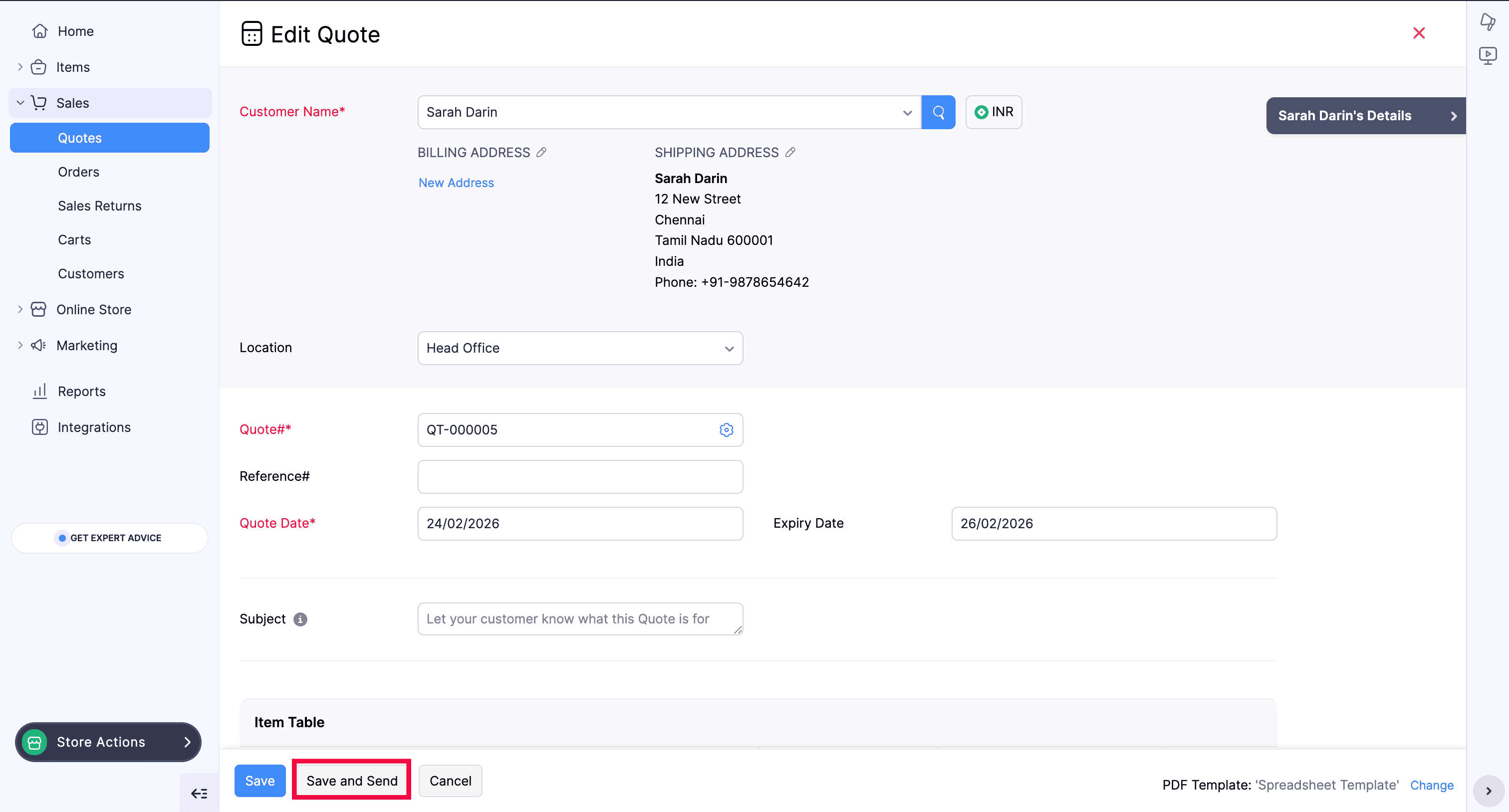
- In the Edit Quote page, make the necessary changes and click Save and Send to sent the revised quote to the customer.
Print a Quote
You can either download the quote in PDF or print the quote. To download a quote,
- Navigate to the Quotes module.
- Click the Quotes tab and select the required quote.
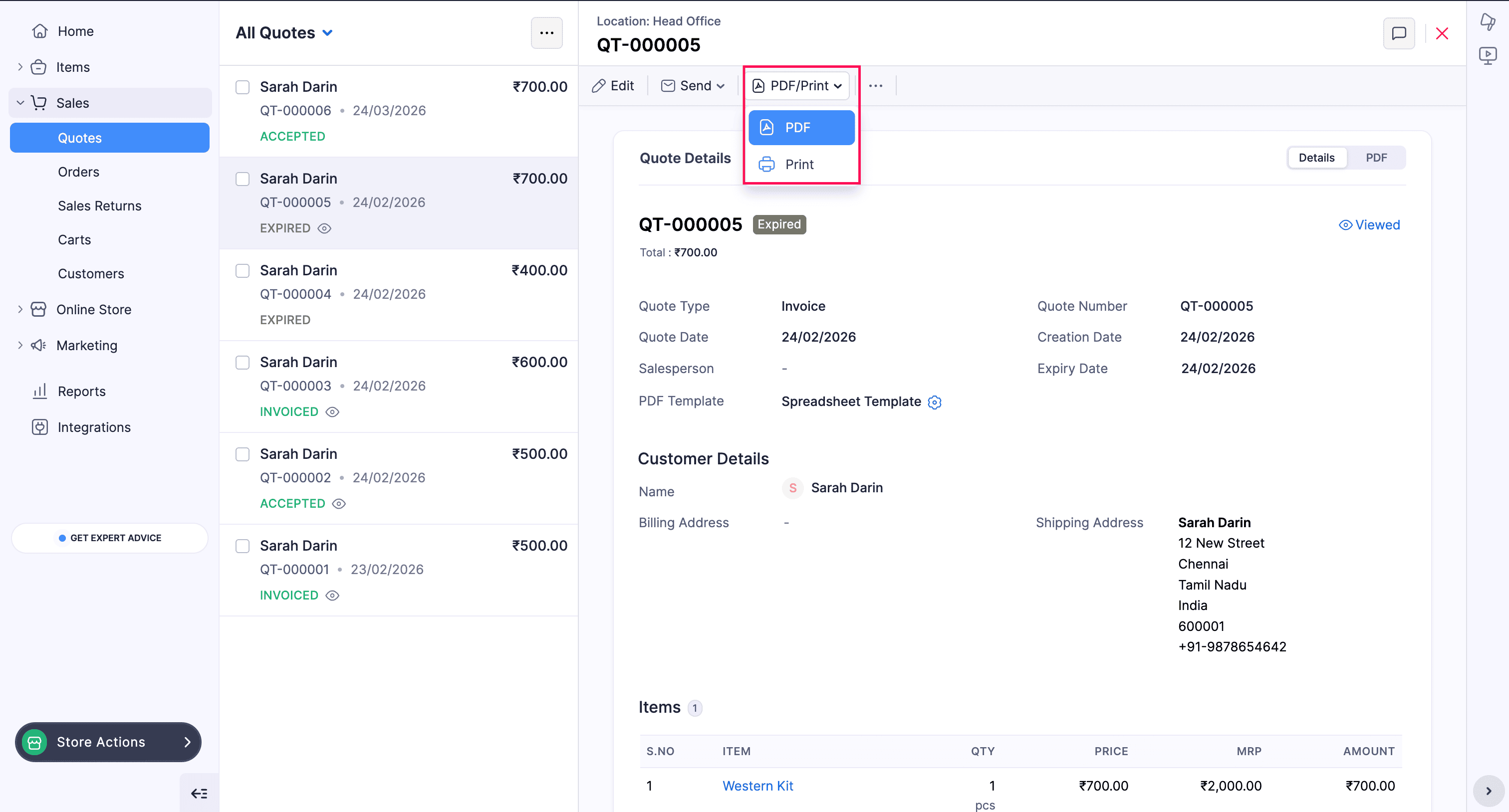
- In the Quote details page, select PDF from the PDF/Print dropdown.
(Or)
Select Print from the PDF/Print dropdown to print the quote.
The quote will be downloaded in PDF or printed based on the selection.
Mark as Declined
To decline a quote,
- Navigate to the Quotes module.
- Click the Quotes tab and select the required quote.
- In the Quote details page, select Mark as Declined from the more options list.
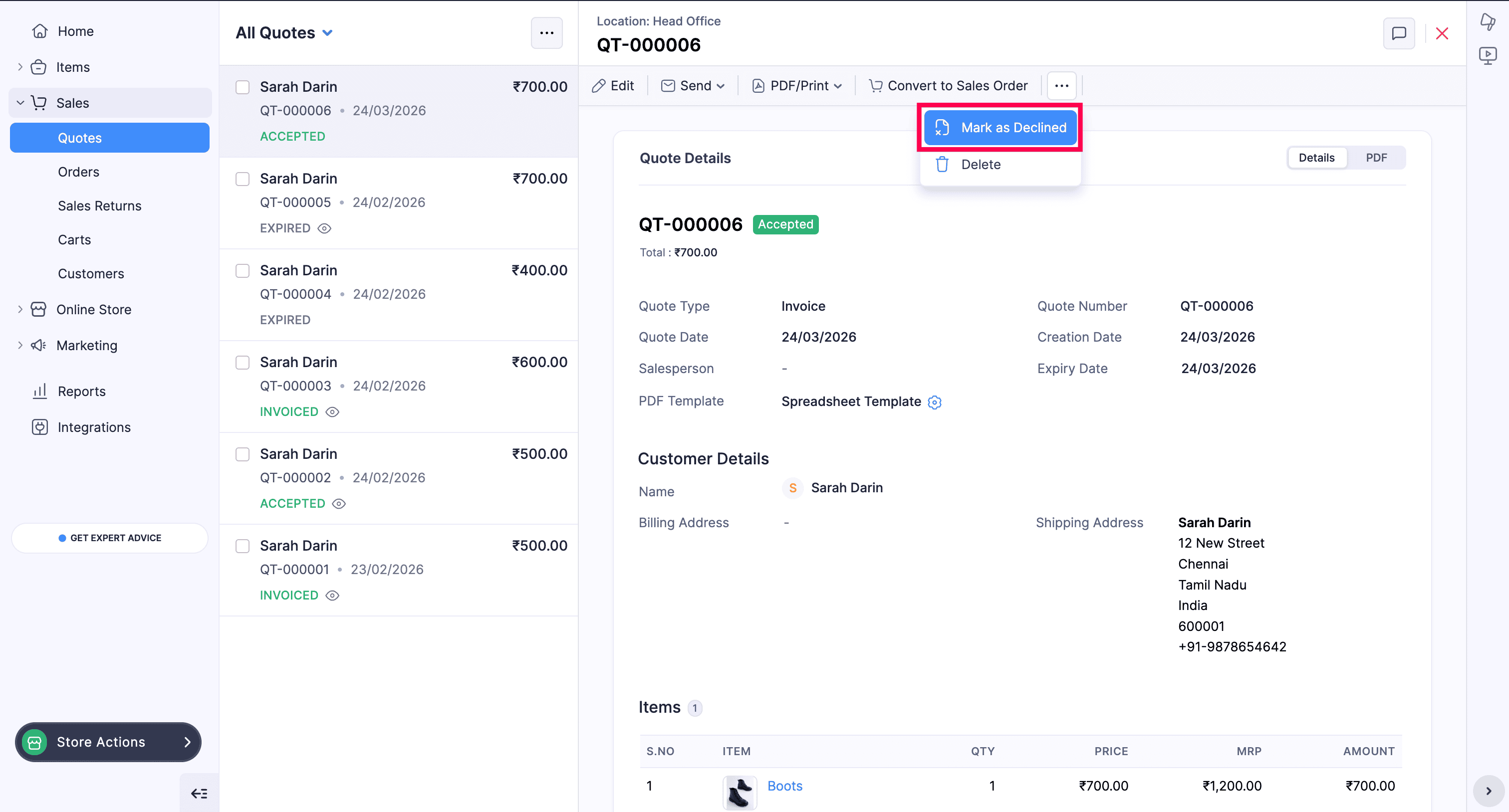
The quote will be marked as declined.
Delete a Quote
To delete a quote permanently,
- Navigate to the Quotes module.
- Click the Quotes tab and select the required quote.
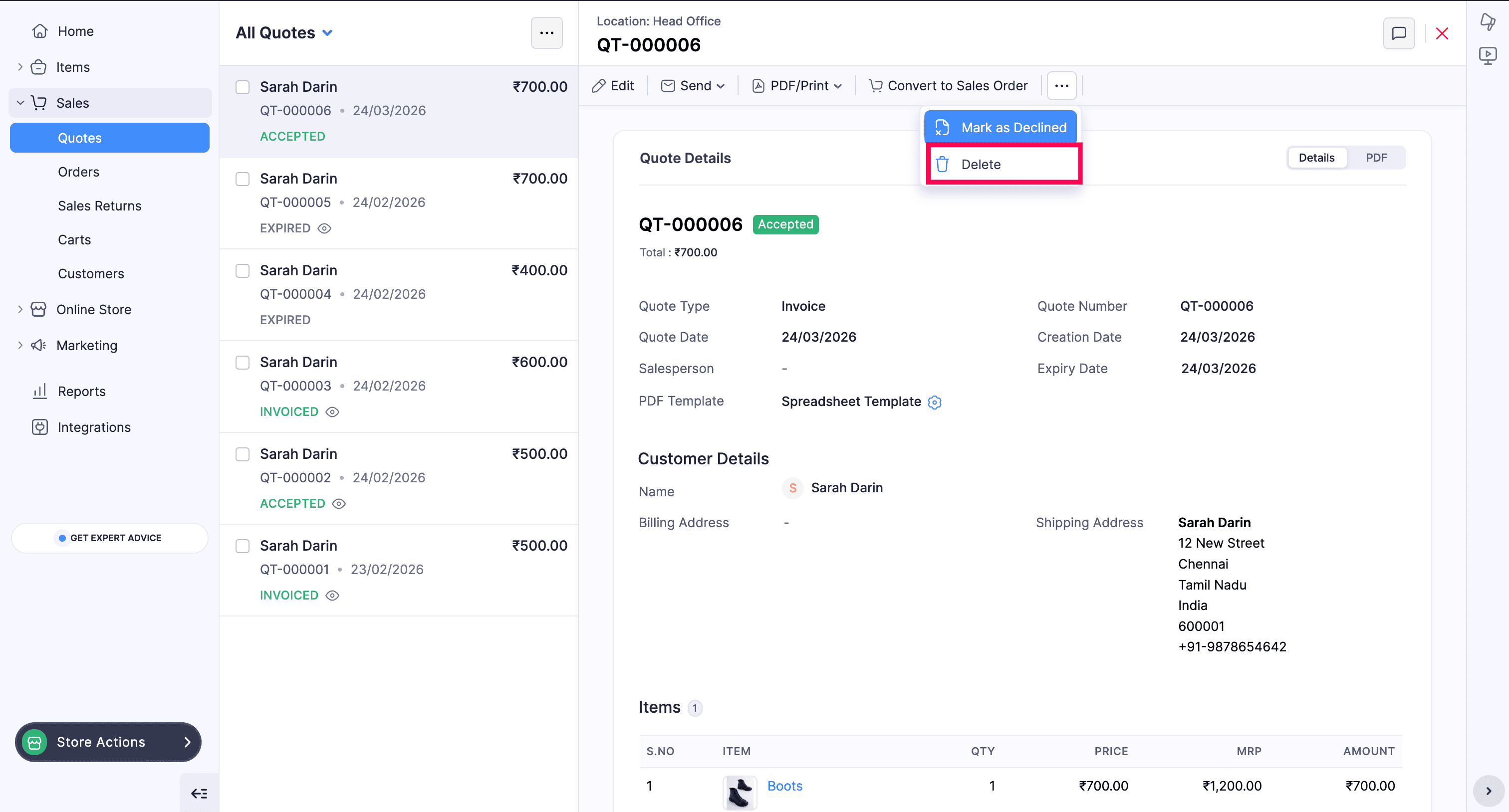
- In the Quote details page, select Delete from the more options list.
- In the confirmation popup, click OK to delete the quote.
The quote will be deleted permanently and you will not be able to retrieve it.
Add Comments
To add comments to a quote,
- Navigate to the Quotes module.
- Click the Quotes tab and select the required quote.
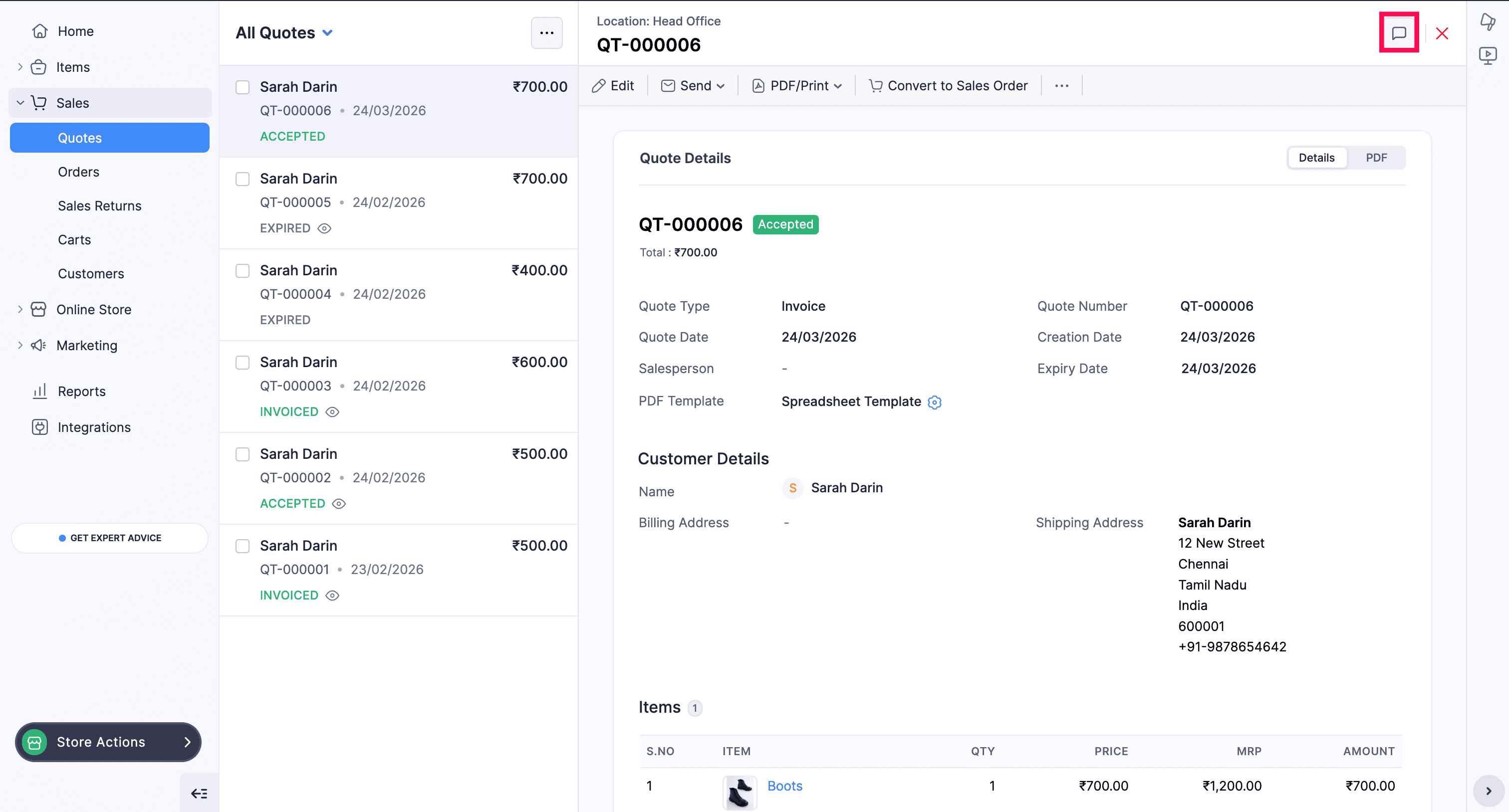
- In the Quote details page, click the Comments icon in the top right corner.
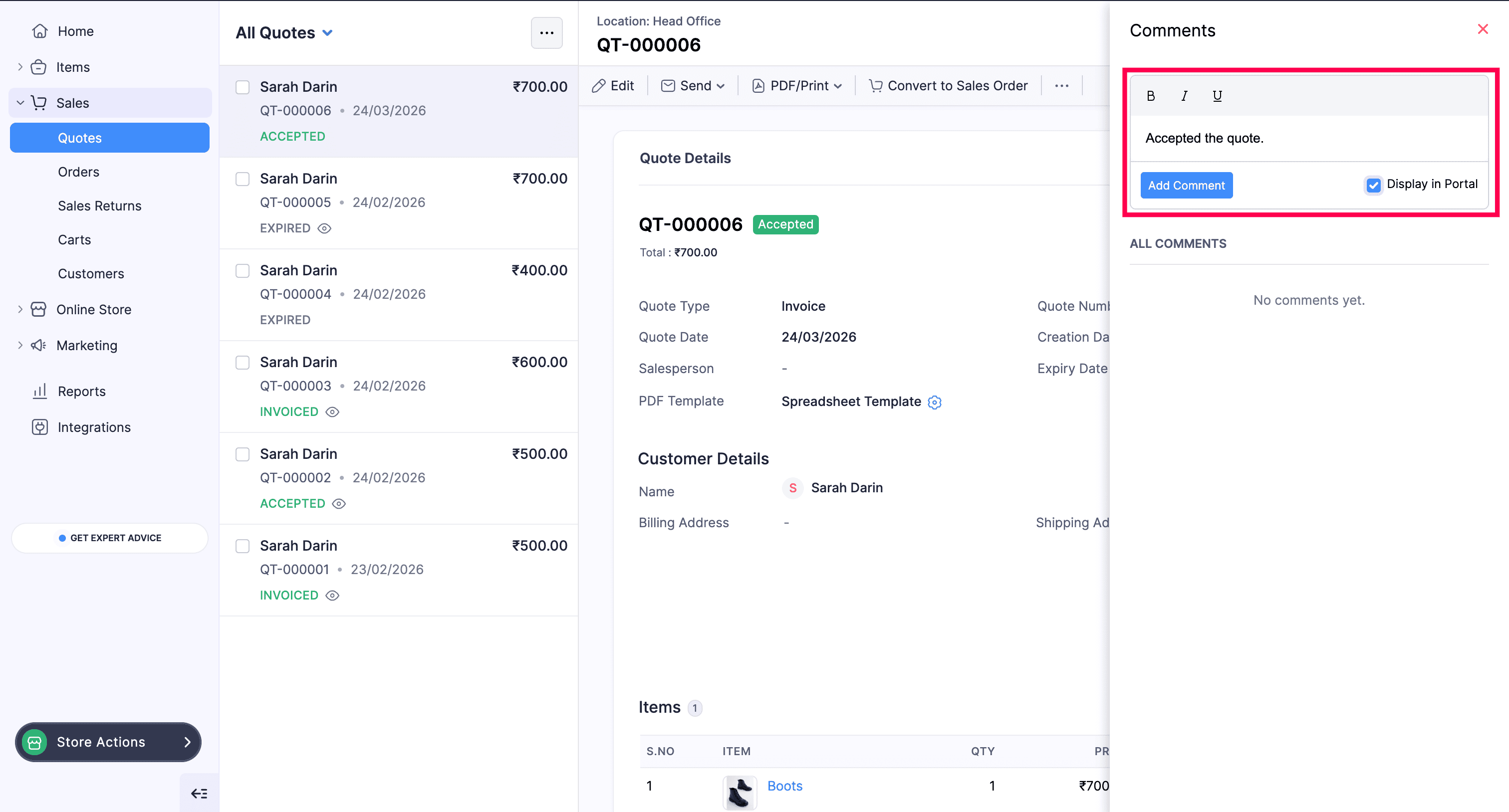
- In the Comments pane displayed on the right side, enter the comment for the quote.
- Check Display in Portal to display the comment in the customer portal
- Click Add Comment.
The comment will be added to the quote and will be reflected in the customer portal.
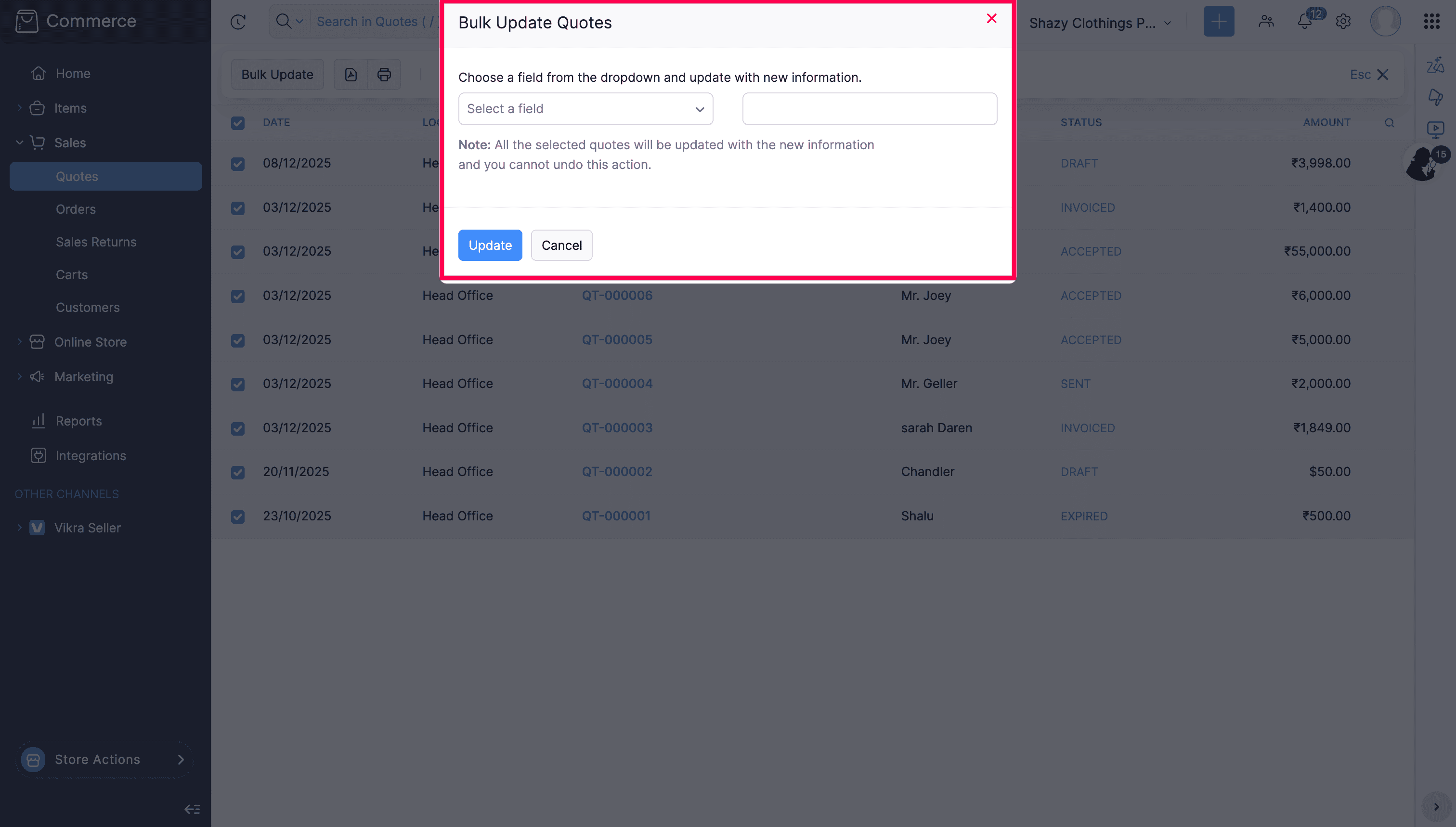
Bulk Update
To bulk update the quotes,
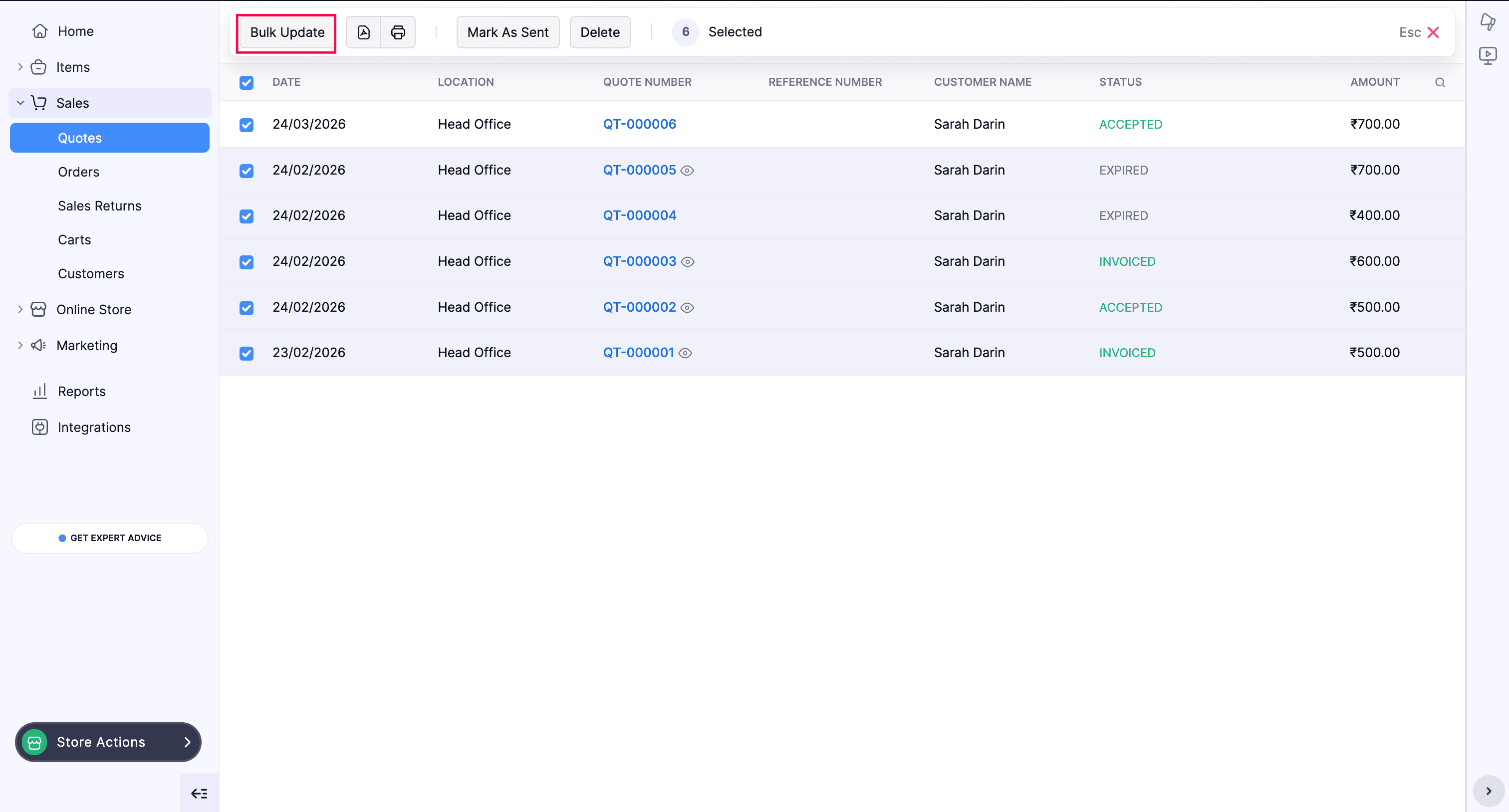
- Navigate to the Quotes module and click the Quotes tab.
- Enable the checkbox in the header to select all the listed quotes.
- Click Bulk Update to update the quotes in bulk.
- In the Bulk Update Quotes popup, Select a field that you want to update from the dropdown and enter the value to be updated in the chosen field.
- Click Update to update the field value for all the selected quotes.