



Set Up MCP Server for Zoho Commerce

Introduction
Note: You can explore Zoho MCP to extend your capabilities. If you face any challenges, email us at support@zohomcp.com or support@zohocommerce.com for assistance.
MCP (Model Context Protocol) is an open protocol that defines how various apps communicate with Large Language Models (LLMs). It provides AI models with clear instructions and context, allowing you to run your desired workflow on your preferred LLM.
You can use MCP when you want to:
- Connect your business applications directly to AI models (for example, ChatGPT, Claude, and more).
- Automate complex workflows and execute tasks without manual intervention.
- Build and instruct AI agents to interact with your Zoho Commerce or third-party apps.
How Zoho Commerce MCP Works
Zoho Commerce MCP connects your Zoho Commerce organization to AI models using the Model Context Protocol (MCP). This protocol defines how AI agents can interact with business applications and data sources in a structured way.
Any AI model or agent can use the official Zoho Commerce MCP to access your data and perform certain actions, such as:
- Manage your shipping zones and pickup locations: Configure shipping zones and pickup locations with prompts like:
- Enable free shipping on all orders above ₹999 starting today
- Add a new pickup location at our Amsterdam warehouse with the address “123 Warehouse Street, Amsterdam, Netherlands”
- Update the operating hours of our New York pickup location to 9 AM - 6 PM on weekdays and 10 AM - 4 PM on weekends
- List all shipping zones along with their associated shipping methods and rates
- Create and manage coupons: Create, activate, deactivate, and track coupon usage instantly. For example:
- Create a coupon SUMMER15 for 15% off valid until April 30, 2026
- List all active coupons with their usage limit and expiry date
- Mark the coupon WINTER20 as inactive starting from tomorrow
- Update SUMMER15 to increase the discount from 15% to 20%
- Products’ Search Engine Optimization: Keep your product pages search-engine optimised without navigating through the app. Try asking:
- Update the SEO title of Wireless Headset to “Best Wireless Headset Under ₹2500 | Buy Online”
- Add an SEO meta description to all products in the Electronics category that are missing one
- Update the SEO keyword for Blue Denim Jacket to “denim jacket for men, casual jeans jacket”
- List all products that have an SEO title containing the word “smartphone”
These are just a few examples of the actions you can perform through Zoho Commerce MCP. You can also create custom workflows by combining multiple actions, and instructing the AI to execute them in a specific order. For example: For all products in the Summer Collection, update the SEO description to include the phrase ‘best summer wear’, and if any product is missing an SEO title, set it to the product name followed by ’ | Buy Online’.
Note: Ensure that you get approval from the admin of your organization before you perform any actions through the MCP server. Add or delete MCP tools only when required.
Next Steps
Connect to MCP Clients via Zoho MCP
Zoho MCP is a centralized hub that lets you connect your Zoho apps and third-party tools to any AI clients that support MCP. Once connected, your AI client can access your store data, run workflows, and fetch insights on your behalf.
If you want to connect your Zoho Commerce organization to other MCP clients (for example, ChatGPT, Cursor, and more) via Zoho MCP, you must first configure your MCP Server. You can configure it for Zoho Commerce alone, or combine it with other Zoho apps and third-party connectors. Once done, you can connect it to your preferred MCP Client, and start using it.
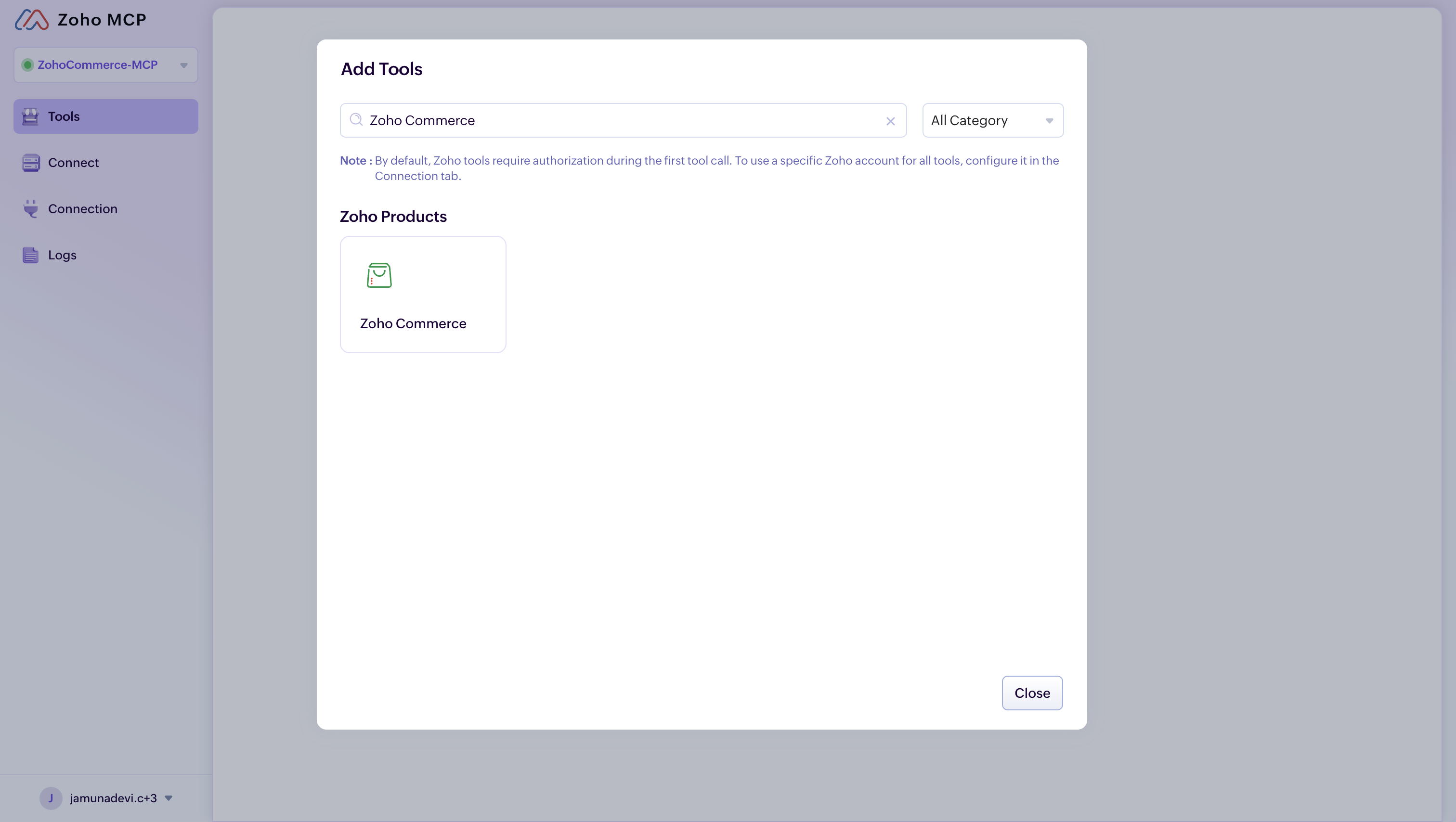
Connect Zoho Commerce With Claude Connectors
Zoho Commerce is available as a default connector in Claude, making it the easiest way to get started. To connect your Zoho Commerce organization with Claude:
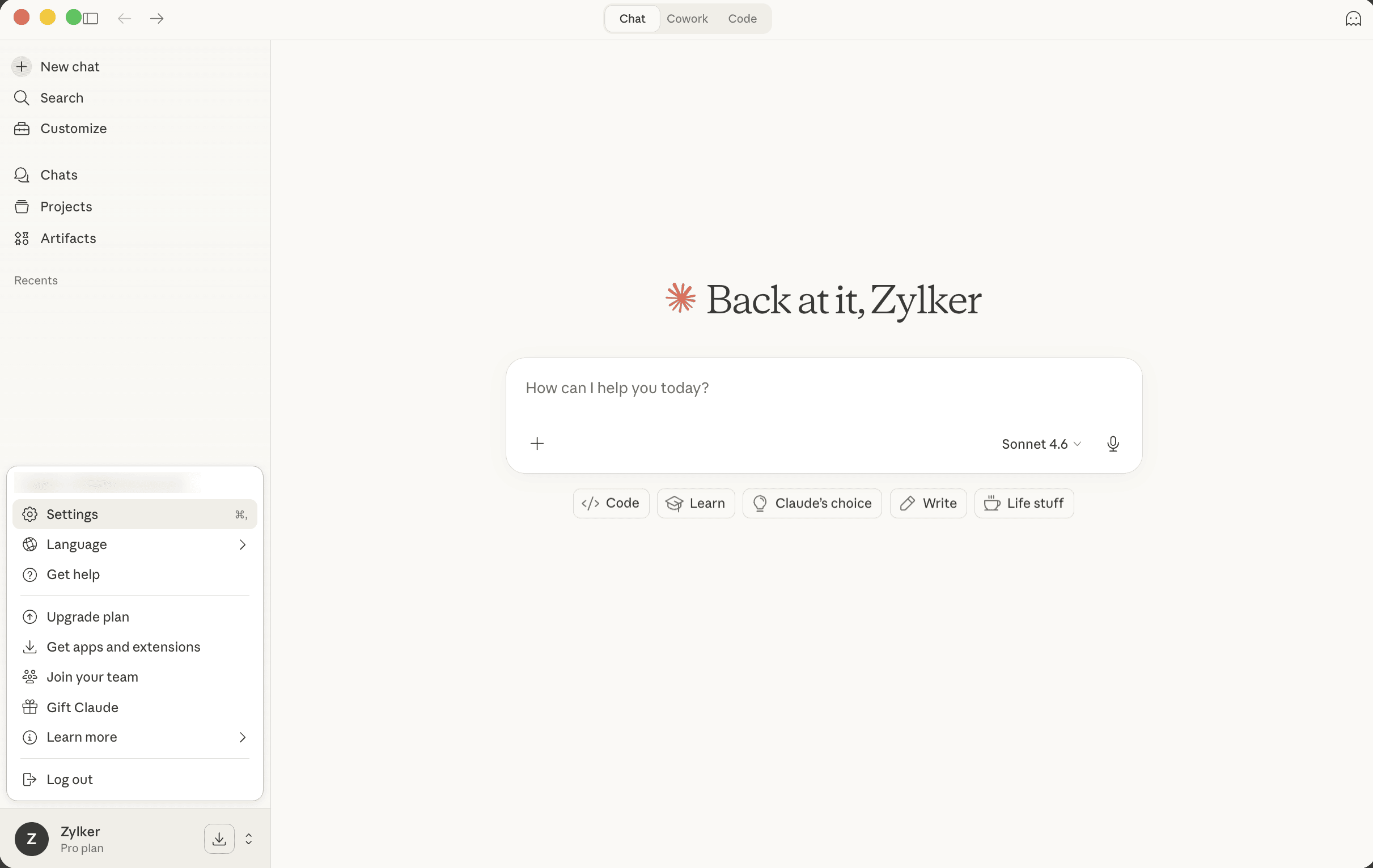
- Log into your Claude account.
- Click your profile in the bottom left corner, and select Settings from the dropdown.
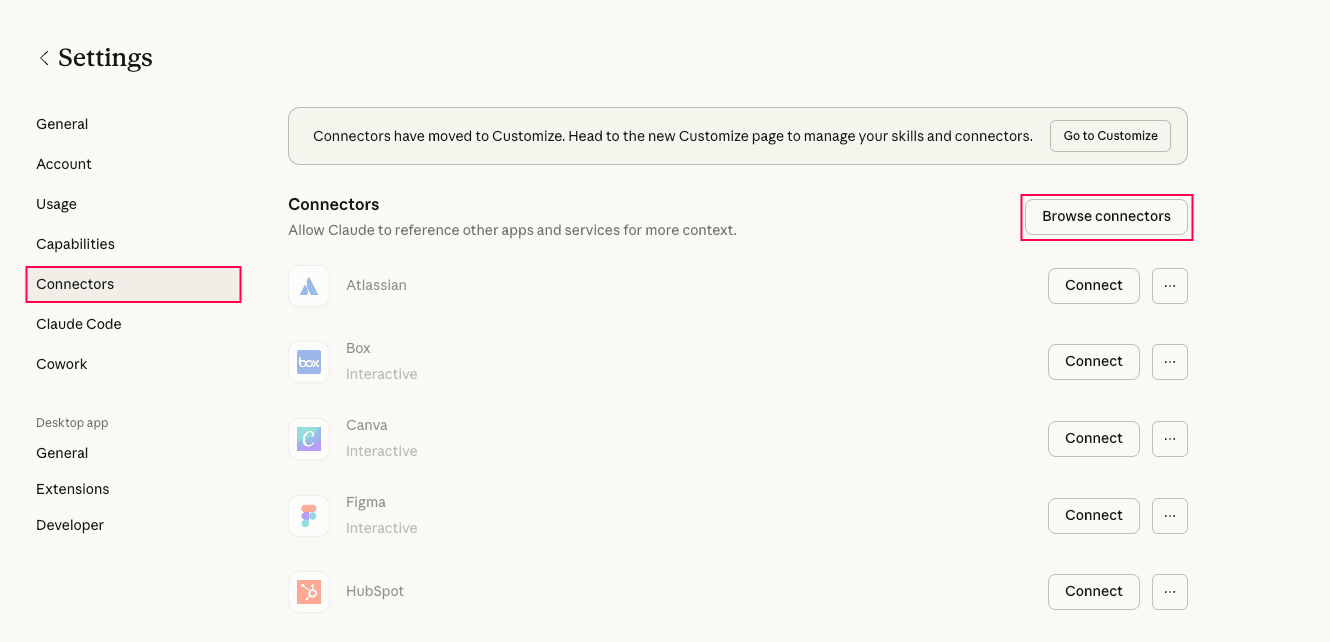
- Select Connectors on the left sidebar.
- Click Browse connectors next to Connectors.
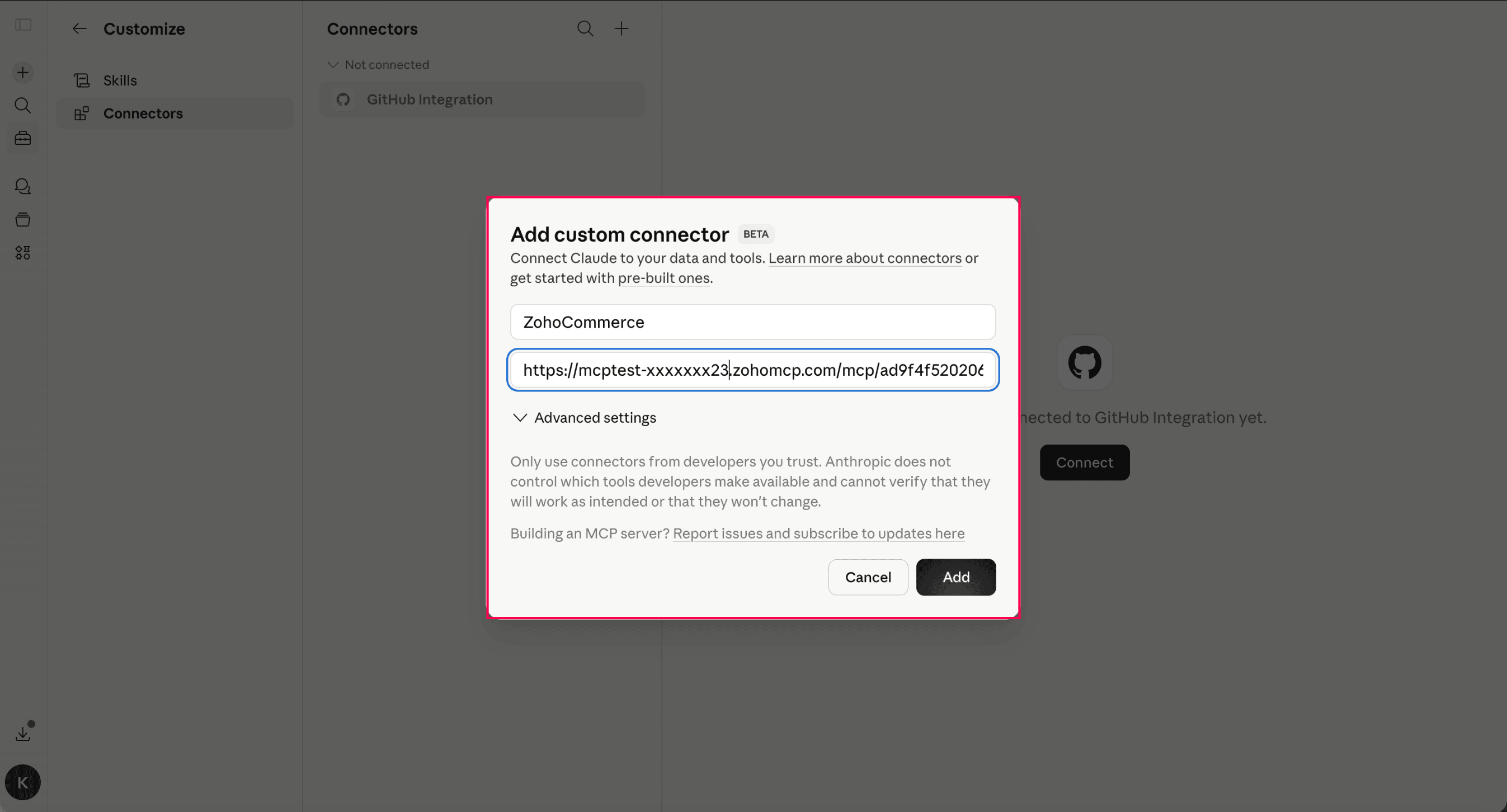
- In the Connectors page, click Add custom connector.
- In the Add custom connector dialog box, enter the Connector’s Name as Zoho Commerce and the Zoho MCP Server URL. You can find the Zoho MCP Server URL in your Zoho MCP account under the MCP Servers section.
- Click Add to save the custom connector.
Your Zoho Commerce organization will be connected to Claude. To start using it:
- Open a new chat in Claude.
- Click the + icon on the chat toolbar, select Connectors, and ensure the toggle next to Zoho Commerce is enabled.
You can provide the details of your organization (like Organization Name and Organization ID), and enter prompts to start using MCP.