



Integrate Zoho Commerce With AfterShip

AfterShip is a third-party shipment tracking service which integrates with Zoho Commerce to fetch and update the real-time status of your shipments from the respective carriers. This serves as an alternative to the manual method of tracking shipments for medium to large businesses that ship thousands of orders each day.
Benefits of integrating with AfterShip
- Supports tracking of over 400+ international couriers worldwide.
- Fetches and updates the status of the shipment in Zoho Commerce in real-time.
How it works
Once you enable real-time tracking on your transaction, AfterShip transmits the tracking ID to the appropriate shipping carrier, receives the status of the shipment, and updates it in Zoho Commerce.
Setting up the integration
Sign in to your Zoho Commerce account.
Go to Settings > Integrations > Shipping.
Zoho Commerce provides two ways to integrate with AfterShip:
Use our readily available account
Note: To comply with the new SCC regulations, this option is not available for customers in the European Union.
- If you don’t have an account with AfterShip, you can use our readily available account to track your shipments.
- Click the Activate Now button to establish the integration instantly. This method does not require you to sign up or verify accounts.
- The tracking charges will be included as part of the Zoho Commerce subscription plan.
Note: Zoho Commerce only shares the tracking ID, carrier name and shipper account number (for selective carriers) with AfterShip. In this case, you will receive all the shipment related emails through Zoho Commerce and not AfterShip. This will help safeguard the personally identifiable information of your clients.
Connect your AfterShip account
Already with AfterShip? It just takes a couple more steps to get started.
- Click the Connect my AfterShip account button.
- Paste the API key in this space and proceed to connect.
- You can generate the API key by following the procedure as stated in this link.
Note: If you choose to integrate your AfterShip account, the charges incurred will be settled by you as a direct payment to AfterShip.
Benefits:
- You can view the list of shipments that are marked for tracking in your AfterShip account.
Warning: Zoho Commerce shares yours and your customers’ contact information, the shipment details as well as your shipper account number (for selective carries) with AfterShip. In this case, both you and your customer will receive all shipment related updates directly from AfterShip. Duly note that Zoho Commerce is not responsible for any information shared post integrating with AfterShip.
Tracking a Shipment
Note: You can only track manual shipments using this integration.
To track a shipment in Zoho Commerce:
- Open a confirmed sales order.
- Select Ship and navigate to Ship Manually. A Shipment Details popup will open.
- Check the option Track this shipment in real-time?. Once done, the AfterShip supported professional carriers will appear.
- Find and select a carrier and enter the Tracking ID provided by the selected shipping carrier.
- Fill the necessary details and hit Save.
Viewing the Shipment Status
To view the status of a tracked shipment:
- Open the sales order with tracked shipment.
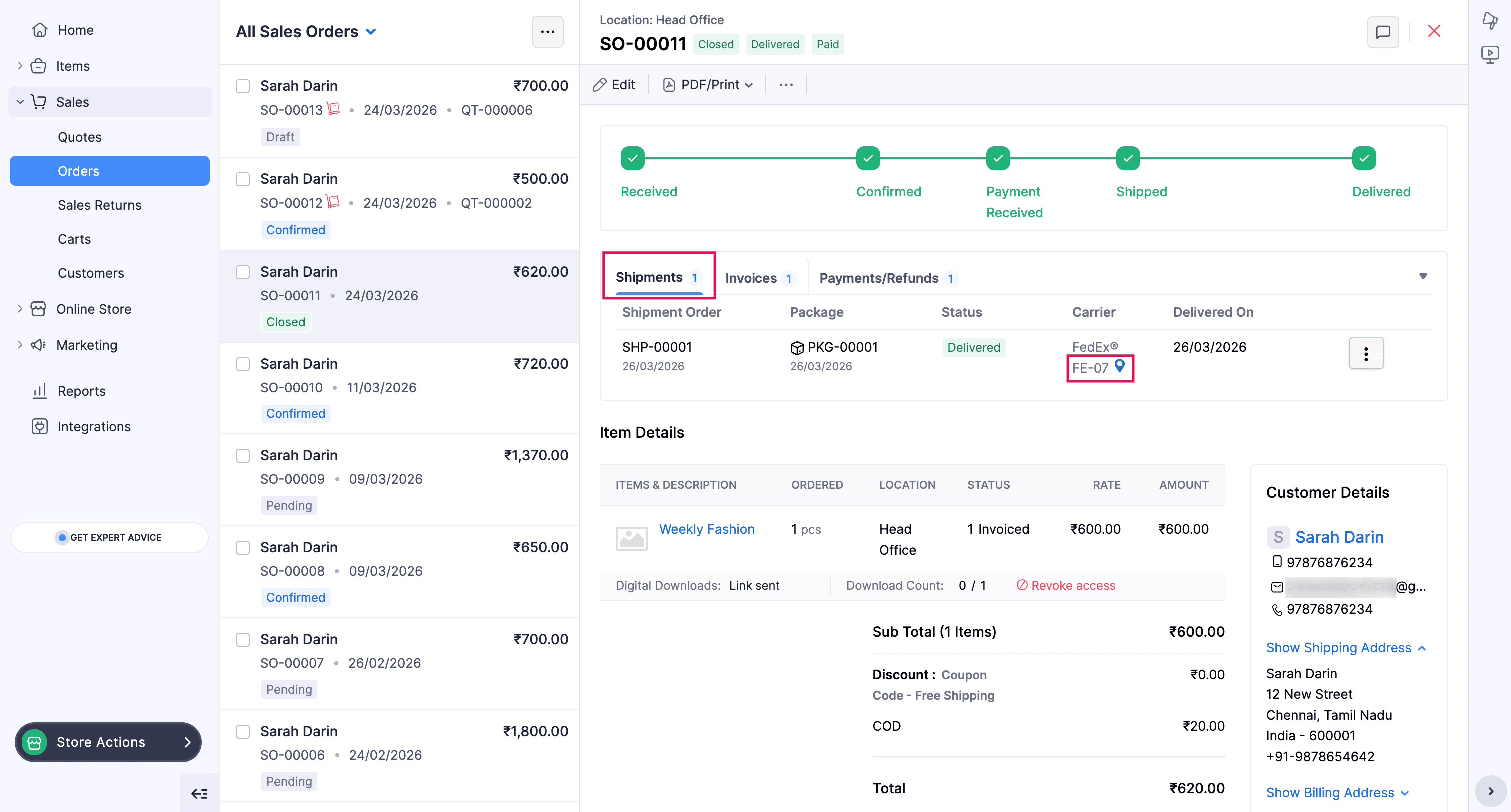
- Click the Shipments tab to view the shipment details.
- Click the tracking number under the Carrier to view the shipment status.
- In the right side pane, you can view the status and the timeline of the shipment.
- You can also click the Tracking Number to view the status of your shipment directly on the carrier’s website.
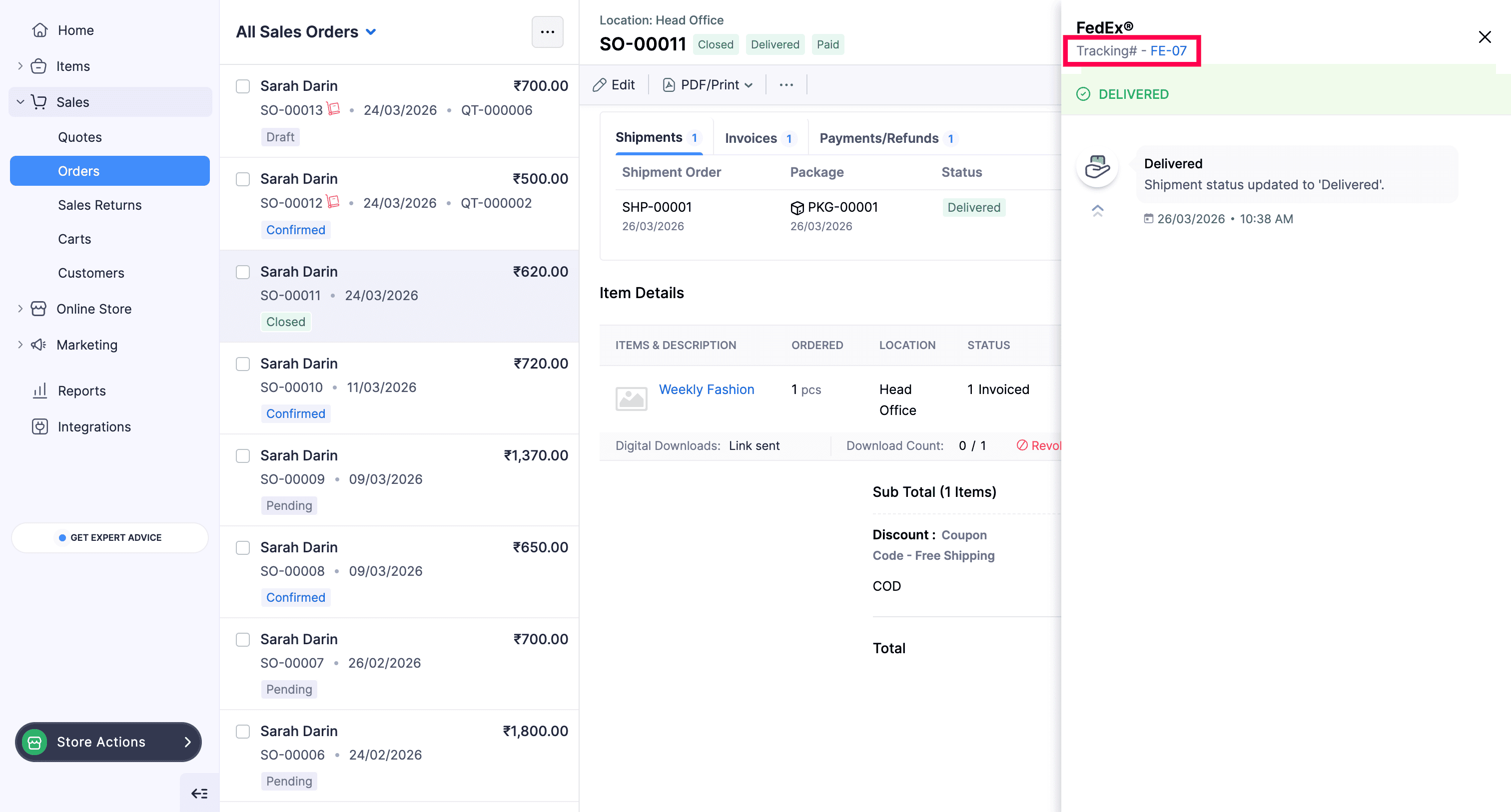
Note: When the shipment is delivered, AfterShip automatically marks the status as Delivered in Zoho Commerce. If the status is not updated due to some unexpected reasons, you can manually mark it as Delivered.
Updating the AfterShip Tracking Details
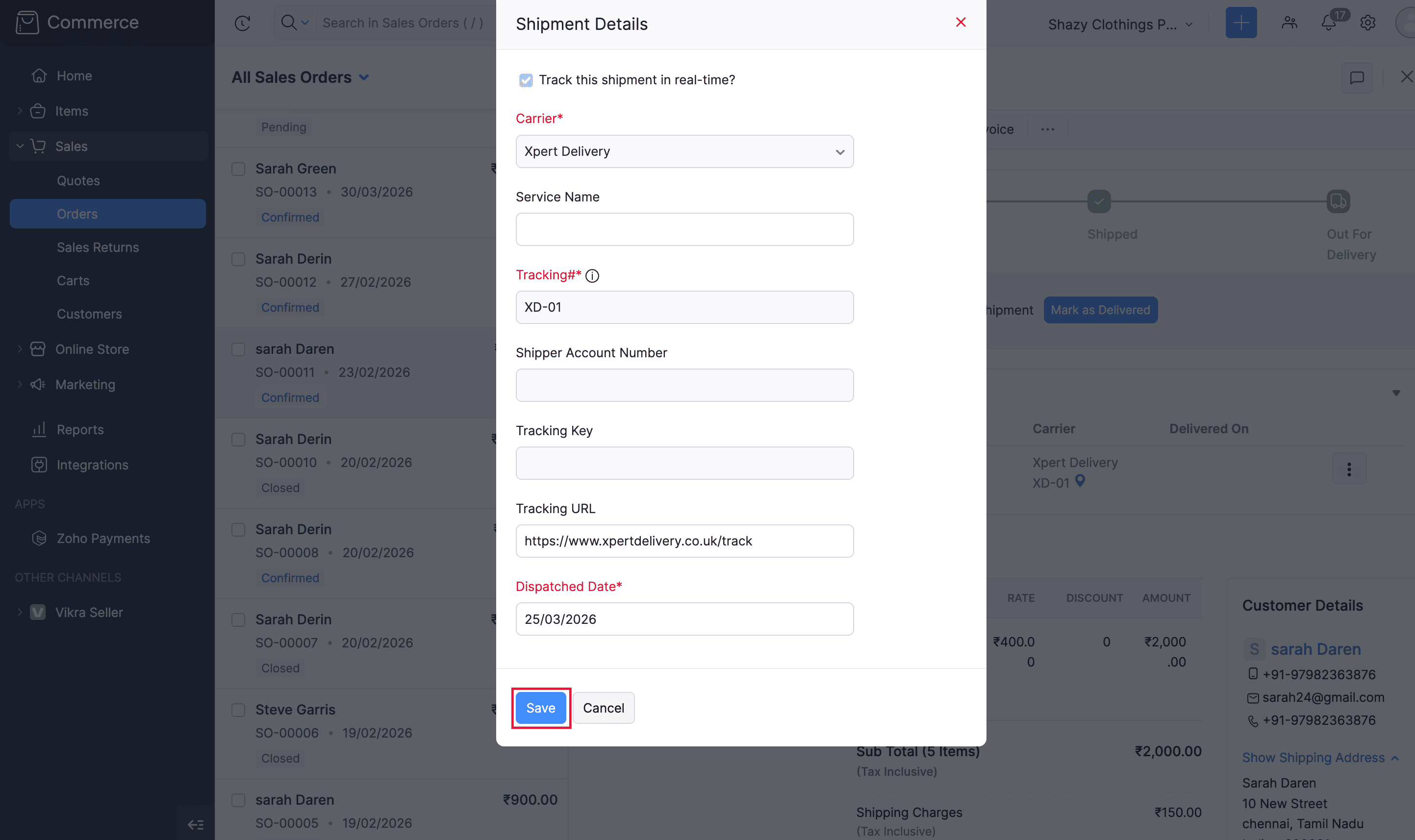
You can update the AfterShip tracking details such as Service Name, Tracking URL, and Dispatched Date for your shipped packages in Zoho Commerce.
To edit the tracking details:
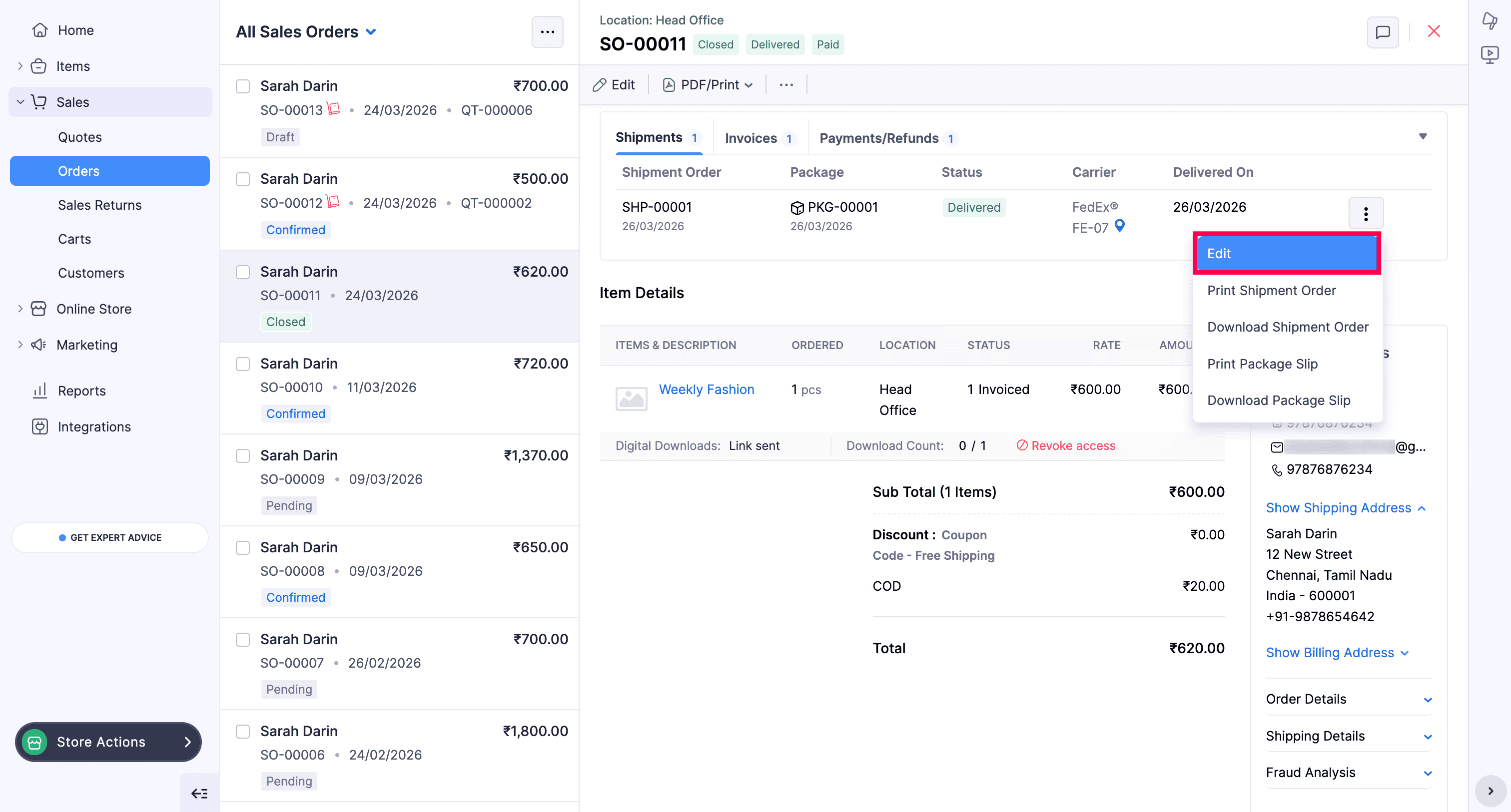
- Open a sales order with tracked shipment.
- Select Edit from the More Options against the shipment details.
- In the Shipment Details popup, update the tracking details and click Save.
Insight: The changes made will be saved in your AfterShip account on top of the existing tracking details. If needed, you can remove the previous tracking information from your AfterShip account directly. This is not required if you are using the common AfterShip account.
Deactivating the integration
To deactivate this integration,
- Go to Settings > Integrations > Shipping.
- Under AfterShip, click the Deactivate button.