



Activity

Activity reports provide insights into the various activities and interactions that occur within your online store. Use these reports to monitor communication with customers, track user actions, and evaluate the performance of your messaging campaigns. This section consists of six reports:
SMS Notifications
This report gives you a complete history of SMS notifications sent from your online store. It helps you track communication with customers, monitor delivery status, and review the performance of your SMS campaigns and transactional messages.
Note: This report will be available only when you have integrated SMS communication in your store.
Here’s how you can view this report:
- Click Reports on the left sidebar.
- Select SMS Notifications under Activity.
| Fields | Description |
|---|---|
| Date | Date when the SMS notification was sent. |
| Contact Name | Name of the contact or customer. |
| Sent To | Phone number to which the SMS was sent. |
| Notification Type | Type of SMS notification (e.g., Payment Thank-you, Payment Reminder, Invoice Details). |
| Message | Text content of the SMS notification sent. |
| Message Units | Number of message units consumed by the SMS. |
| Status | Delivery status of the SMS (e.g., Delivered, Pending, Failed). |
| Subject | Subject or subject line of the notification. |
Use this report to review SMS communication history and troubleshoot delivery issues.
WhatsApp Notifications
This report gives you a complete history of WhatsApp notifications sent from your online store. It helps you track customer communication through WhatsApp, monitor delivery status, and review the performance of your WhatsApp campaigns and transactional messages.
Note: This report will be available only when you have integrated WhatsApp communication in your store.
Here’s how you can view this report:
- Click Reports on the left sidebar.
- Select WhatsApp Notifications under Activity.
| Fields | Description |
|---|---|
| Date | Date and time when the WhatsApp notification was sent. |
| Contact Name | Name of the contact or customer. |
| Recipient Name | Name of the recipient who received the WhatsApp message. |
| Mobile Number | Phone number of the recipient. |
| Notification Type | Type of WhatsApp notification (e.g., Sales Order placed, Customer). |
| Message | Text content of the WhatsApp notification sent. |
| Attachment | File or attachment name included in the WhatsApp message, if any. |
| Status | Delivery status of the WhatsApp message (e.g., Read, Failed). |
| Failure Reason | Reason for message delivery failure, if applicable. |
Use this report to review WhatsApp communication history and monitor message delivery status.
IM Credits Usage
This report gives you an overview of the instant messaging credits consumed in your store. It helps you track IM credit usage and monitor your messaging communication activity.
Note: This report will be available only when you have integrated WhatsApp communication in your store.
Here’s how you can view this report:
- Click Reports on the left sidebar.
- Select IM Credits Usage under Activity.
| Fields | Description |
|---|---|
| Date | Date when the IM credits were consumed or transaction occurred. |
| Transaction Type | Type of IM transaction (e.g., credit, credit renewal, debit). |
| Transaction Amount | Number of IM credits used or added in the transaction. |
| Balance Amount | Remaining IM credit balance after the transaction. |
| Reason | Reason for the IM credit transaction. |
Use this report to monitor your IM credit consumption and plan your messaging budget accordingly.
Activity Logs & Audit Trail
An activity log is a detailed record that captures all the activities carried out within your organization during a specific period of time. In short, it provides details on the when, what, where, and who of an action performed.
- When- The date and time the action took place.
- What - Description of the action performed, such as creating a shipment.
- Where - Module where the action occurred.
- Who - The user who performed the action.
Activity Logs help you to oversee the actions that are performed in Zoho Commerce and give you a chance to review those actions.They allow you to monitor user actions and serve as a useful audit trail, especially in cases of unusual or potentially fraudulent activity.
In Activity Logs
- View Activity Log Report
- Customize Activity Log Report
- Export and Print Report
- View History of Changes with Audit Trails
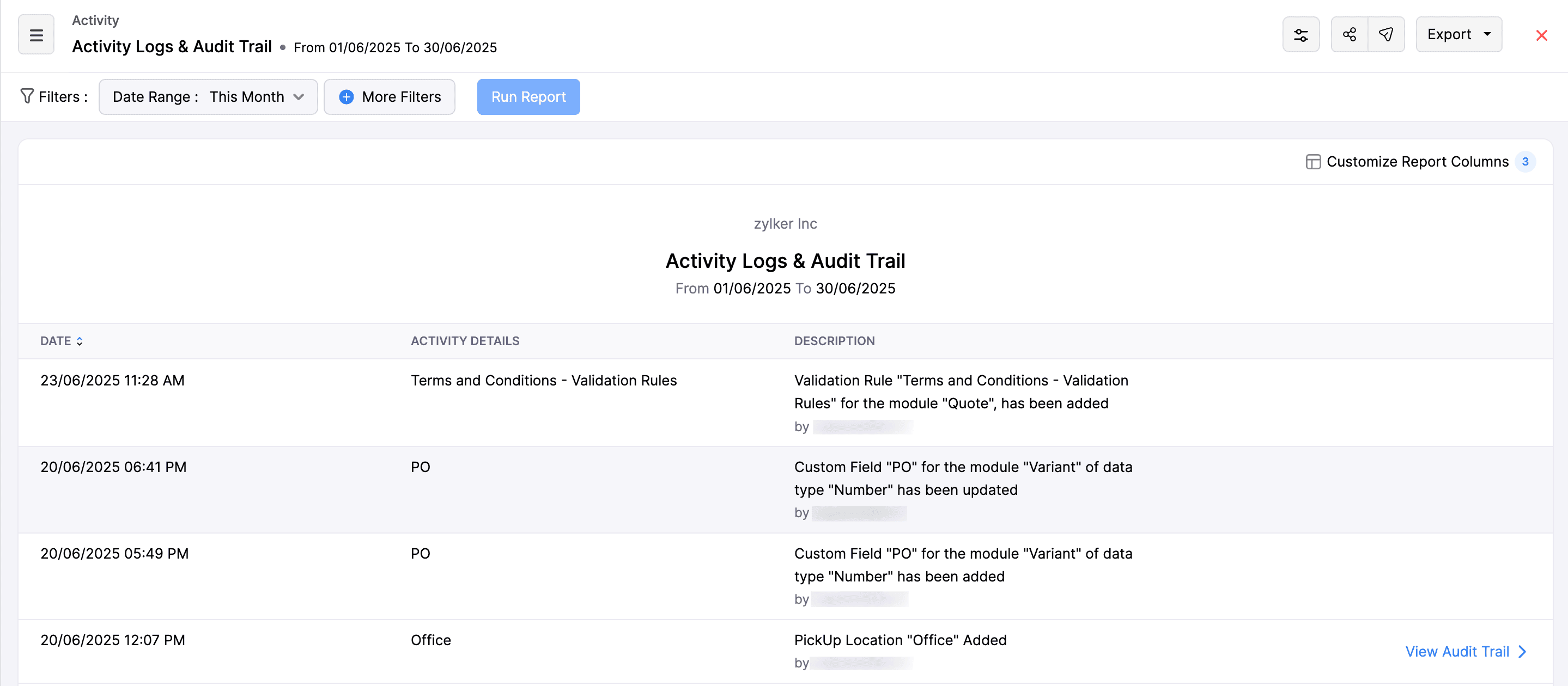
View the Activity Logs & Audit Trails Report
To view the Activity Logs and Audit Trails report:
- Log in to your Zoho Commerce organization.
- Click Reports on the left side bar.
- Navigate to Activity under Report Category.
- Click Activity Logs & Audit Trail .
Customize Activity Logs & Audit Trail Report
You can customize the Activity Logs and Audit Trail report using different filters. Here’s how:
- Log in to your Zoho Commerce organization.
- Click Reports on the left side bar.
- Navigate to Activity under Report Category.
- Click Activity Logs & Audit Trail .
- Click the Customize Report icon in the top right corner of the page.

- You can customize the report based on:
- Date Range: Select the time for which you want to view the activity logs.
- Advance Filters: You can use these additional parameters to filter the activity logs further:
- Activity Details: Filters the report based on the type of activity performed, such as updates to specific modules like Items, Invoices, or other modules.
- User: Allows you to filter the activity log by the user who performed the action.
- Customer Name: Lets you narrow down the report to actions related to a specific customer.
- Operation Type: Choose the type of action performed:create, update, or delete.
- Display only the updates made to PII fields: Filters the log to show only changes made to Personally Identifiable Information (PII).
- Click + Add More for adding more advance filters.
- Click Run Report.
Export and Print Report
To export the Activity Logs and Audit Trail report:
- Log in to your Zoho Commerce organization.
- Click Reports on the left side bar.
- Navigate to Activity under Report Category.
- Click Activity Logs & Audit Trail. Click Export in the top right corner of the page.
- Under EXPORT AS, select the file format in which you want to export the report.
- In the pop-up that appears:
- Enter the export file name.
- If you want to add a password to the export file, check I want to protect this file with a password and enter the Password.
To print the Activity Logs and Audit Trail report:
- Log in to your Zoho Commerce organization.
- Click Reports on the left side bar.
- Navigate to Activity under Report Category.
- Click Export in the top right corner of the page.
- Click Activity Logs & Audit Trail .
- Click Print under PRINT.
- Click Print again in the top right corner of the pop-up that appears.

View History of Changes With Audit Trails
Audit Trails lets you view and track the history of changes made to any transaction. With every change, a new version of the transaction gets created. You will be able to compare the versions to view exactly by whom and when a change was made. To view the audit trail:
- Log in to your Zoho Commerce organization.
- Click Reports on the left side bar.
- Navigate to Activity under *Report Category.
- Click Activity Logs & Audit Trail .
- Click Customize Report in the top right corner of the page.
- Click the View Audit Trail > in the bottom right corner of the activity that you’d like to check.
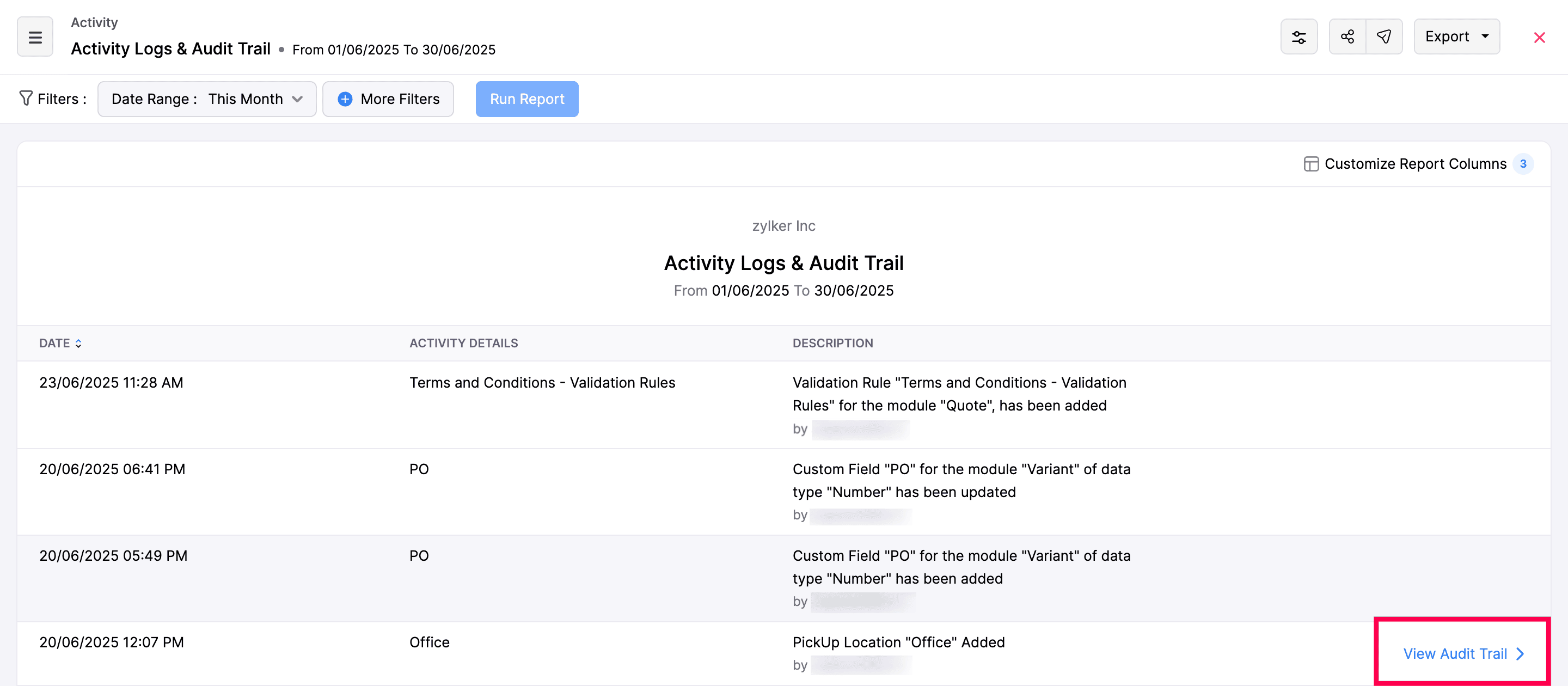
- This will fetch the current version of the transaction along with a list of all the previous versions on the right.
Note: A new version of a transaction will be created when changes are made to the transaction.
To find out what has changed between two versions of a transaction, you can choose to compare them. This can be done with ease:
- Click Compare in the top right corner.
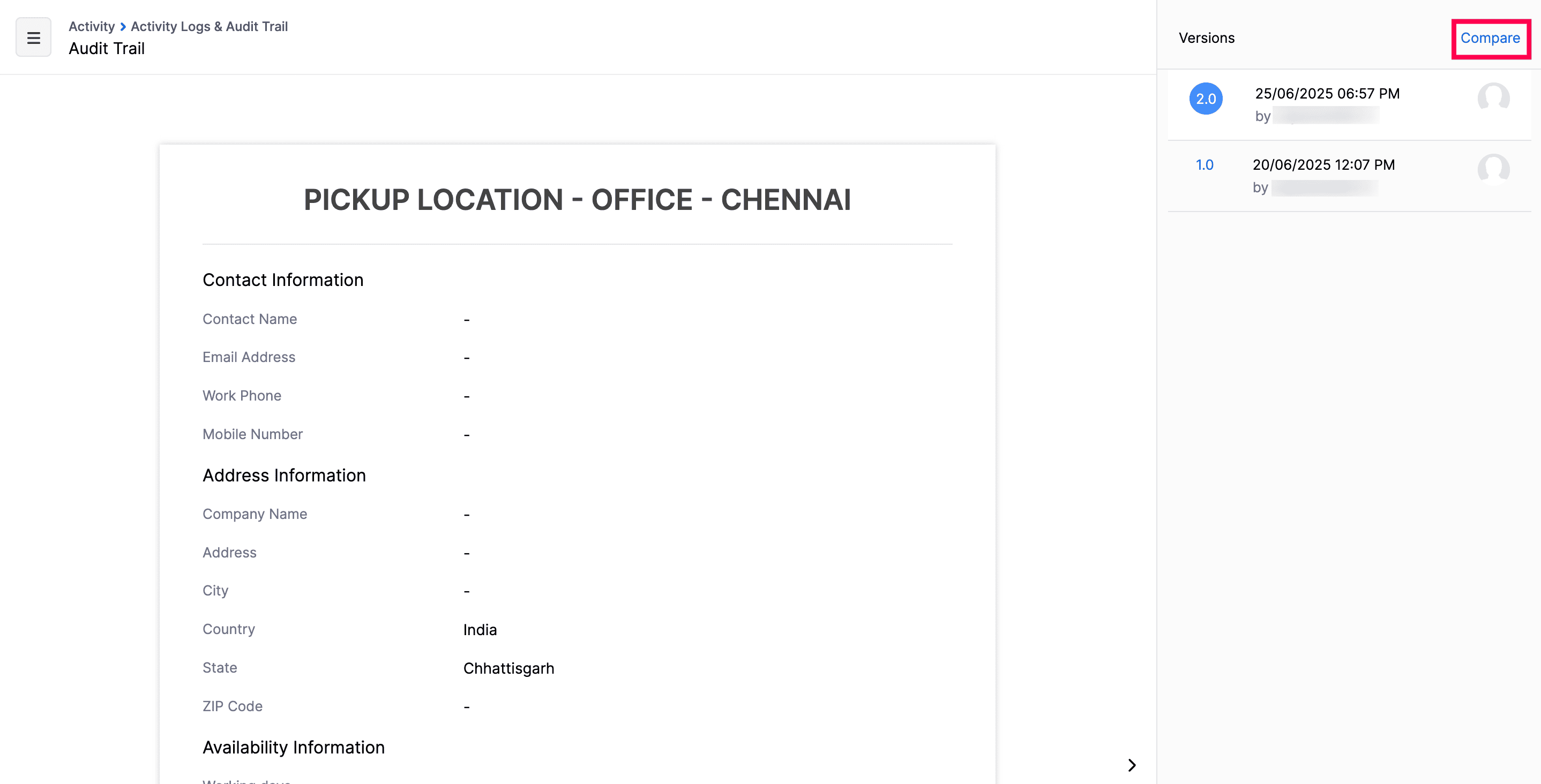
- Select any two versions of the transaction that you’d like to compare.
- Click Compare.
The two versions are listed side by side. You will be able to view the differences in the values highlighted in two different colors.
- Yellow - Data has been edited/modified.
- Green - Data has been added newly.

Portal Activities
This report gives you a detailed view of all activities performed in the portal, including quote updates and status changes. It helps you track customer interactions and understand how portal requests are progressing.
Here’s how you can view this report:
- Click Reports on the left sidebar.
- Select Portal Activities under Activity.
| Fields | Description |
|---|---|
| Date | Date and time when the portal activity was recorded. |
| Activity Details | Unique identifier or reference of the related quote or transaction. |
| Description | Description of the action performed, such as adding comments or changing the quote status. |
Use this report to monitor portal activity and review updates made by customers in the customer portal.
API Usage
This report gives you an overview of your API usage and consumption. It helps you monitor the number of API calls made, track usage by users and IP addresses, and manage your API quota effectively.
Here’s how you can view this report:
- Click Reports on the left sidebar.
- Select API Usage under Activity.
| Fields | Description |
|---|---|
| Total API Calls | Total number of API calls allocated to your account. |
| Used API Calls | Number of API calls that have been used. |
| Remaining API Calls | Number of API calls still available for use. |
| Users | User accounts from which API calls were made. |
| IP Addresses | IP addresses used to make API calls. |
| Total Count | Total count of API calls by user or IP address. |
Use this report to monitor your API consumption and ensure optimal usage of your API quota.