n8n Integration with Zoho Cliq

n8n is a powerful open-source workflow automation tool that lets you connect various apps and services through a visual workflow builder. Its intuitive visual editor and drag-and-drop interface make building complex workflows accessible to everyone.
The core functionality of n8n is to create workflows and integrations with various applications. It offers customizable triggers, actions, and logic, along with features such as self-hosting, error handling, and scheduling. With its visual interface, n8n enables both technical and non-technical users to create complex automations effortlessly.
With n8n's integration with Zoho Cliq, you can orchestrate workflows that interact with Cliq to collaborate through messages in channels, threads, and user chats. You can also perform channel operations, such as adding a bot to a channel, fetching channel information, managing channel members, and retrieving team details.
Users can create custom workflows by defining triggers and actions to automate various business processes.
Triggers

Triggers define how and when a workflow starts. A workflow is executed when a trigger event occurs, and any configured conditions are satisfied. n8n supports multiple trigger types to accommodate manual execution, scheduled automation, and event-driven workflows.
Trigger manually
Starts the workflow when a user manually executes it from the n8n interface. This trigger is commonly used for testing, debugging, and one-time executions.On app event
Starts the workflow when a defined event occurs in a connected third-party application, enabling real-time, event-based automation.On a schedule
Starts the workflow at configured time intervals, such as hourly or daily, or on a custom schedule, making it suitable for recurring tasks.On Webhook call
Starts the workflow when an HTTP request is received at a specified endpoint, allowing external systems to invoke workflows programmatically.On form submission
Starts the workflow when a form generated in n8n is submitted, with the submitted data passed directly into the workflow.When executed by another workflow
Starts the workflow when it is invoked by another workflow, enabling modular, reusable workflow design.On chat message
Starts the workflow when a user sends a message in a supported chat platform, enabling conversational and command-based automations.Other trigger types
Additional triggers are available for system and infrastructure events such as workflow errors, file system changes, incoming emails, and server-sent events.
Actions
Actions are operations that represent specific tasks within a workflow. You can use actions to manipulate data, perform operations on external systems, and trigger events in other systems as part of your workflows.
When you select an action, n8n automatically inserts a new node into your workflow, with the action operation chosen already configured in that node.
Each action performs a specific task in Zoho Cliq, such as sending messages, managing users or channels, or retrieving data.
Actions are categorised by the Zoho Cliq modules they affect, including messages, users, channels, and teams.

Message Actions
Post message to channel | Sends a message to a specified Zoho Cliq channel |
Post message to channel as bot | Sends a message to a channel on behalf of a configured Cliq bot |
Post message to chat | Sends a message to a one-to-one or group chat |
Post message to user chat | Sends a direct message to a specific user |
Create a thread | Creates a new message thread within a channel or chat |
Update thread state | Updates the state of an existing thread, such as resolving or reopening it |
Pin message | Pins a message in a channel or chat for quick access |
User Actions
Retrieve user data | Fetches details of a Zoho Cliq user |
Add user status | Adds a custom status for a user |
Set user status | Updates the status of a user |
Channel Actions
Add bot to channel | Adds a bot to a specified channel |
Archive channel | Archives a channel to restrict further activity |
Create channel | Creates a new Zoho Cliq channel |
Delete channel | Deletes an existing channel |
Fetch channel | Retrieves details of a specific channel |
Unarchive channel | Restores an archived channel to active state |
Update channel | Updates channel properties such as name or description |
Add channel members | Adds one or more users to a channel |
Remove channel member | Removes a user from a channel |
Team Actions
Fetch team | Retrieves details of a Zoho Cliq team |
Setting up n8n Integration
Setting up n8n integration with Zoho Calendar involves the following steps:
Installing Nodes in n8n
To integrate with n8n, start by installing the required node. Follow these steps to install the node:
Log in to your n8n account.
Click Create Workflow in the top-right corner of the home page.Select the + icon (Add First Step), then search for and select Zoho Cliq from the options in the right pane.
Click Install Node next to Zoho Cliq. The package will be successfully installed.

To view the installed node:
Scroll down to the bottom-left corner of the home page and click the More Options icon.
Select Settings from the list that appears.
Click Community Nodes in the left pane to display the installed nodes.
Note: To delete a particular node, click the More Options icon and select Uninstall Package.
Creating a Credential
To create a Zoho Cliq OAuth2 credential in n8n:
Log in to your n8n account.
From the home page, open the menu in the top-right corner of the Overview section and select Create Credential.
In the Add New Credential dialogue, choose Zoho Cliq OAuth2 API from the list of available applications and click Continue.
You will be redirected to the Connection page in n8n. Keep this page open, as you will need the OAuth Redirect URL provided here.

Generating Client ID and Client Secret
Open the Zoho API Console in a new browser tab.
Select Server-based Applications from the list of client types.

On the Create New Client page, enter a Client Name of your choice, such as "Connection," "Project," or any custom name.
Enter the Homepage URL from which the Connection will be initiated.
In the Authorized Redirect URIs field, paste the OAuth Redirect URL copied from the n8n Connection page.
Click Create to generate the Client ID and Client Secret.

Configuring Data Centre Settings (Optional)
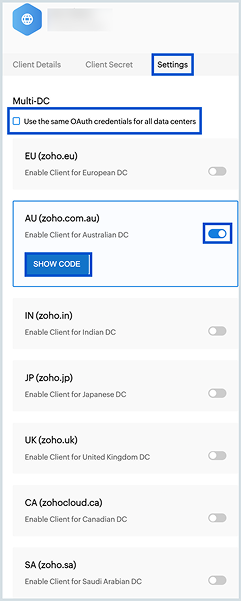
After the client is created, navigate to the Settings tab in the API Console.
To use the same OAuth credentials across all Zoho data centres, enable the Use the same OAuth credentials for all data centres option.
Alternatively, you can enable specific data centres individually. When a specific data centre is selected, the Show Code option becomes available to generate a Client Secret particular to that data centre.
Completing the Connection in n8n
Return to the n8n Connection page.
Select the appropriate Authorization URL and Access Token URL from the available drop-down options.
Enter the generated Client ID and Client Secret in the respective fields.
Click Connect My Account to complete authentication.
Click Accept when prompted. The connection will be established.
The credential is ready to be used in Zoho Cliq workflows within n8n.
Creating a Workflow
Once the connection is successfully authenticated, the next step is to create a workflow in n8n.
To create a new workflow, follow these steps:
Click Create Workflow at the top-right corner of the n8n home page.
Alternatively, click the plus (+) icon at the top-right corner and select Workflow.
Click Add first step, then search for and select Zoho Cliq in the search panel on the right.
All supported Zoho Cliq operations are listed under Actions.
Choosing a Trigger
Before adding actions to a workflow, you must configure it with a trigger. The trigger defines how and when the workflow is initiated.
To add a trigger, select the appropriate trigger type based on your automation needs. n8n supports various trigger options, including manual execution, scheduled triggers, app events, webhooks, and chat-based triggers.
For comprehensive information on each trigger type and its behavior, refer to the Triggers section of this document.
Once you have configured and tested the trigger, you can proceed to add Zoho Cliq actions to establish the workflow logic.
Building an Action
After selecting Zoho Cliq, you can configure an action within the workflow.
Choose the required action from the list displayed in the right pane.
In the configuration window, fill in the mandatory fields based on the selected action.
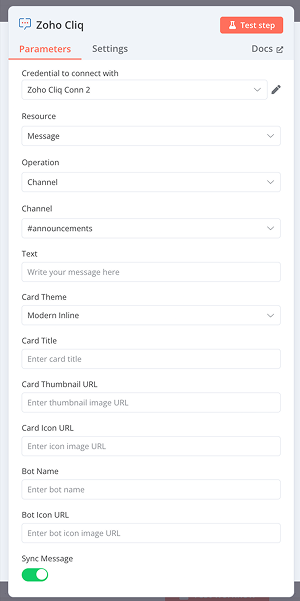
Example: Post Message to Channel
When configuring the Post message to channel action, the following fields are required:
Channel: The channel where the message should be posted
Text: The content of the message
Card theme: The visual theme applied to the message card
Bot name: The bot identity used to post the message
Bot icon URL: The icon displayed for the bot
Sync message: Enables retrieval of the sent message details
Head back to canvas and switch the toggle button to activate the workflow.

Once configured, the message is posted to the selected channel and the execution output is displayed. After the action is executed, the response data can be viewed in one of the following formats: Table, JSON and Schema
After creating the workflow, use the Test Workflow option to verify the flow of events and ensure the workflow executes as expected.

Let’s walk through an example workflow that uses n8n triggers and Zoho Cliq actions to address a real-world business use case.
Example use case :
Automating downtime/uptime alerts via n8n integration with Zoho Cliq
Create an n8n workflow that utilises a Webhook trigger to receive service downtime events from Pingdom. First, connect Zoho Cliq with n8n by creating and authorizing OAuth credentials through the Zoho API Console.
Next, configure a "Post Message to Channel as Bot" action to send downtime alerts to a specified Zoho Cliq channel. Once you have set everything up, activate the workflow and use the Production Webhook URL to receive real-time events.
Additionally, set up a Pingdom uptime check and integrate it with n8n using a Webhook. This will ensure that you automatically receive server downtime alert notifications in Zoho Cliq whenever an outage occurs.
Best Practices
Create credentials with least-privilege OAuth scopes to ensure secure, controlled access to Zoho Cliq resources.
Design workflows with clear triggers and minimize actions, eliminate unnecessary executions and avoid excess API usage.
Format messages clearly and strictly limit notifications to prevent channel clutter and reduce notification fatigue.
Implement robust error handling and actively log workflow issues to monitor failures and ensure reliable message delivery.