Zia for Calendar
Zia for Calendar is an AI integration in Zoho Calendar designed to streamline event creation through intelligent assistance. It operates within the Zoho Calendar interface and applies AI-driven capabilities to help users create events quickly and efficiently with natural language processing.
Note
- The Zia for Mail in Zoho Mail feature can be enabled for the entire organization only by the Super Administrator/ Administrators of the organization. To know how to enable it, refer to this help guide.
- This feature is available only to the organization users who have subscribed to one of our paid plans.
- If this feature is not available for your organization, please reach out to our support team to have it enabled.
Note
While using the AI features mentioned below, your organization's data and event related content may be shared to an external third party based on the features selected during configuration:
- Create events with natural language - Natural language given by users will be shared.
- AI-powered event title suggestions - Contextual Calendar event titles will be shared to the AI provider.
- AI-powered event description generation - Brief of the Calendar event being created will be shared to the AI provider.
The liability for data shared to any external third party thus lies with the organization's administrator since the configuration of these AI providers is done from the Admin Console.
Prerequisites
Before using Zia for Calendar, ensure the following requirements are met:
Administrator Configuration:
- The Calendar Preferences under Zia for Mail must be configured by your Super Admin or Administrator in the Zoho Mail Admin Console for them to appear in your Calendar UI.
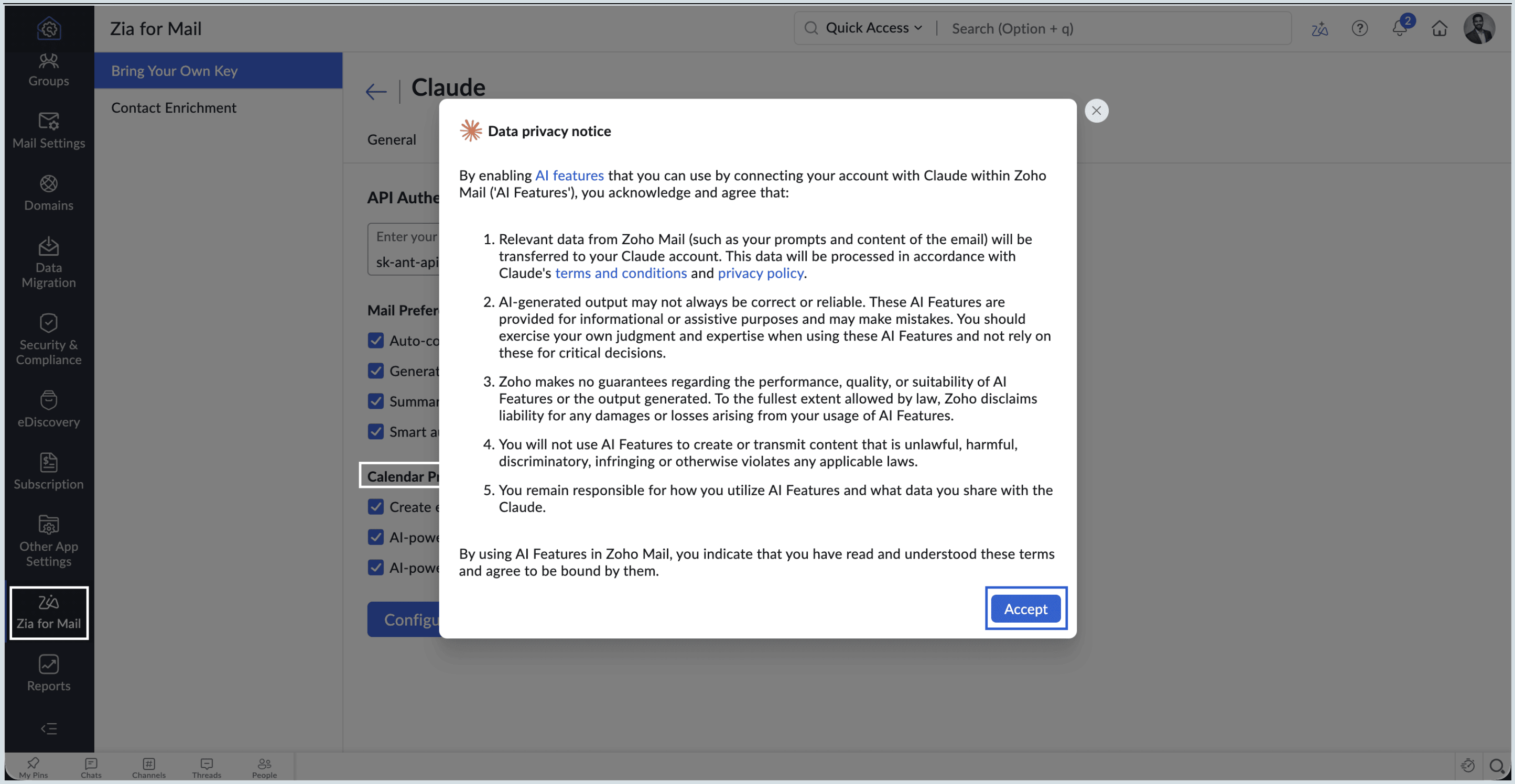
- Refer to our help page to learn how to configure third party AI integrations in the Zoho Mail Admin Console for Zoho Calendar.
Using Zia in Zoho Calendar
With Zia enabled for your organization by your administrator, you can create events using simple prompts, receive smart contextual title suggestions based on your input, and generate detailed event descriptions by providing simple prompts. Zia works seamlessly in the background to reduce manual effort and ensure your calendar title and description are informative and well structured.
Note
The number of generations and suggestions available depends on the limits associated with your subscription plan for the respective AI integration.
Create events using Zia (Smart Add)
Zia helps you to create events by typing everyday language, eliminating the need to fill in individual fields manually.
Steps to create Events using Smart Add
- Log in to Zoho Calendar.
- Click the Smart Add button or use the quick-add shortcut.
- Type your event description. Example prompts include:
- "Meeting with John tomorrow at 3 PM"
- "Lunch with marketing team next Friday at noon"
- "Review session every Monday at 10 AM for 1 hour"
- "Conference call with clients on December 25 at 2 PM"
- "Team stand-up daily at 9:30 AM for 15 minutes"
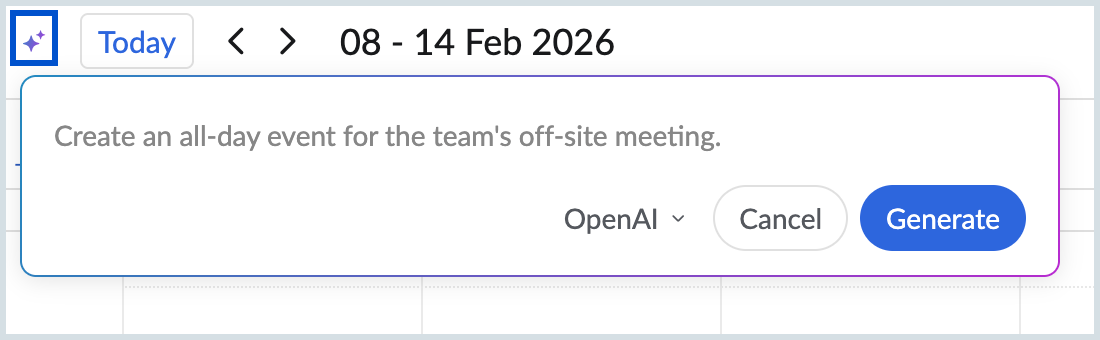
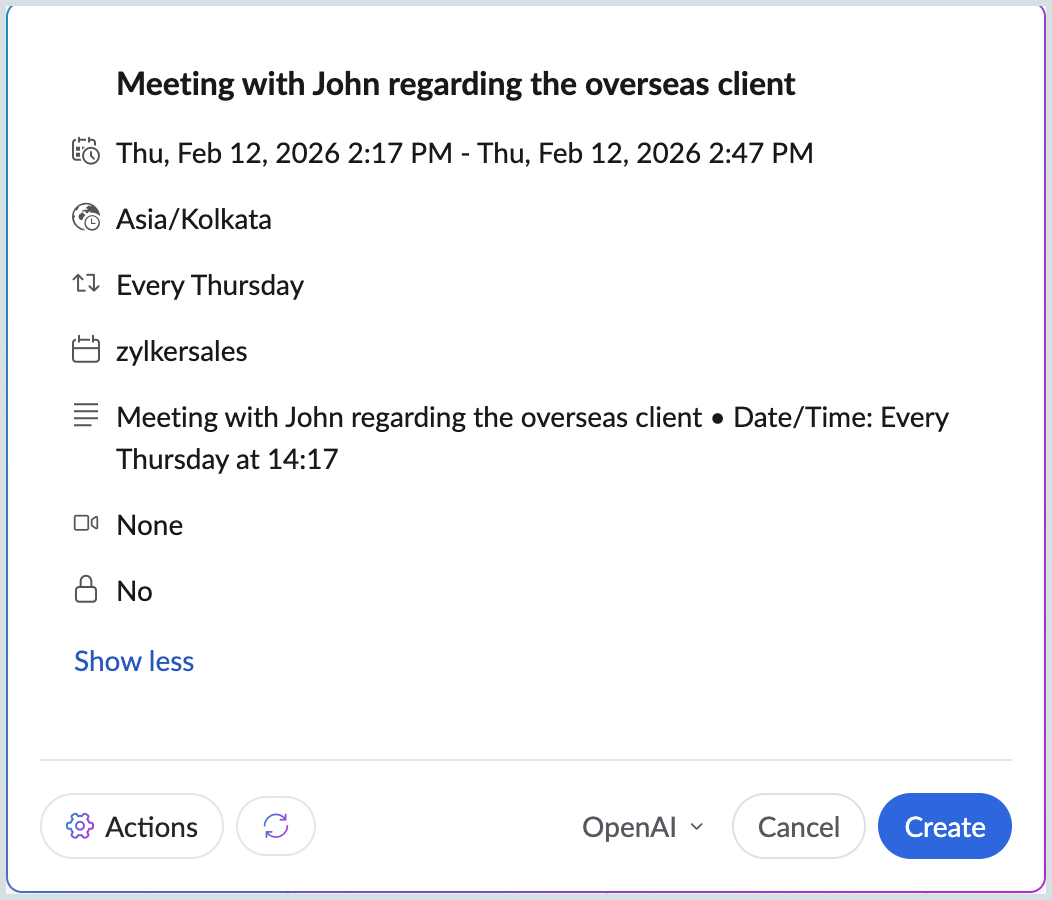
Zia automatically identifies and extracts the following details from the given prompt:
- Event title – Main subject of the event
- Date – Specific or relative dates (for example, tomorrow, next week)
- Time – Start time in multiple formats
- Duration – Event length, if specified
- Recurrence – Patterns such as daily, weekly, or custom intervals
- Participants – User names mentioned in the input (must be a valid user(s) within your organization)
Note
If an end time is not specified, the default event duration configured in Event Settings is applied from the start time.
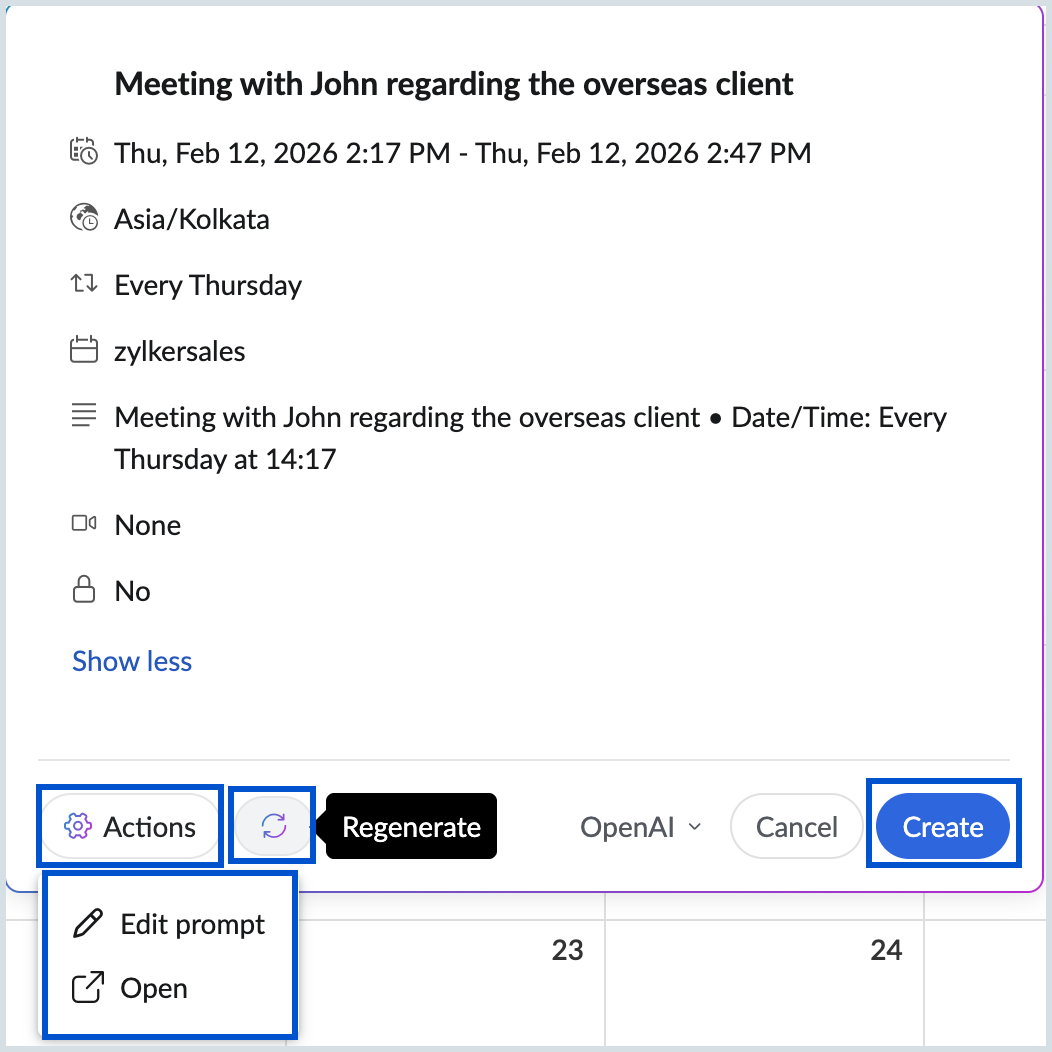
- Review the event details in the preview window.
- Click the Actions button to choose one of the following options:
- Edit Prompt – Modify the original input
- Open – Open the event for manual adjustments
- Click Regenerate to refine the suggestions shown in the preview.
- You can also Switch AI models using the drop-down next to Cancel, if available.
- Click Create to add the event to your calendar.
Note
The AI model selection drop-down is visible only if additional AI models are configured for your account through the Zoho Mail Admin Console.
Event title suggestions using Zia
Zia provides smart, contextual event title suggestions based on what you type, your calendar history, and commonly used meeting patterns.
Steps to use event title suggestions:
- Log in to Zoho Calendar.
- Click New Event.
- Type Event Title and enter a minimum of 10 characters to enable the Generate smart suggestions icon.
- Select your preferred AI model from the drop-down menu.
- Click Generate smart suggestions.
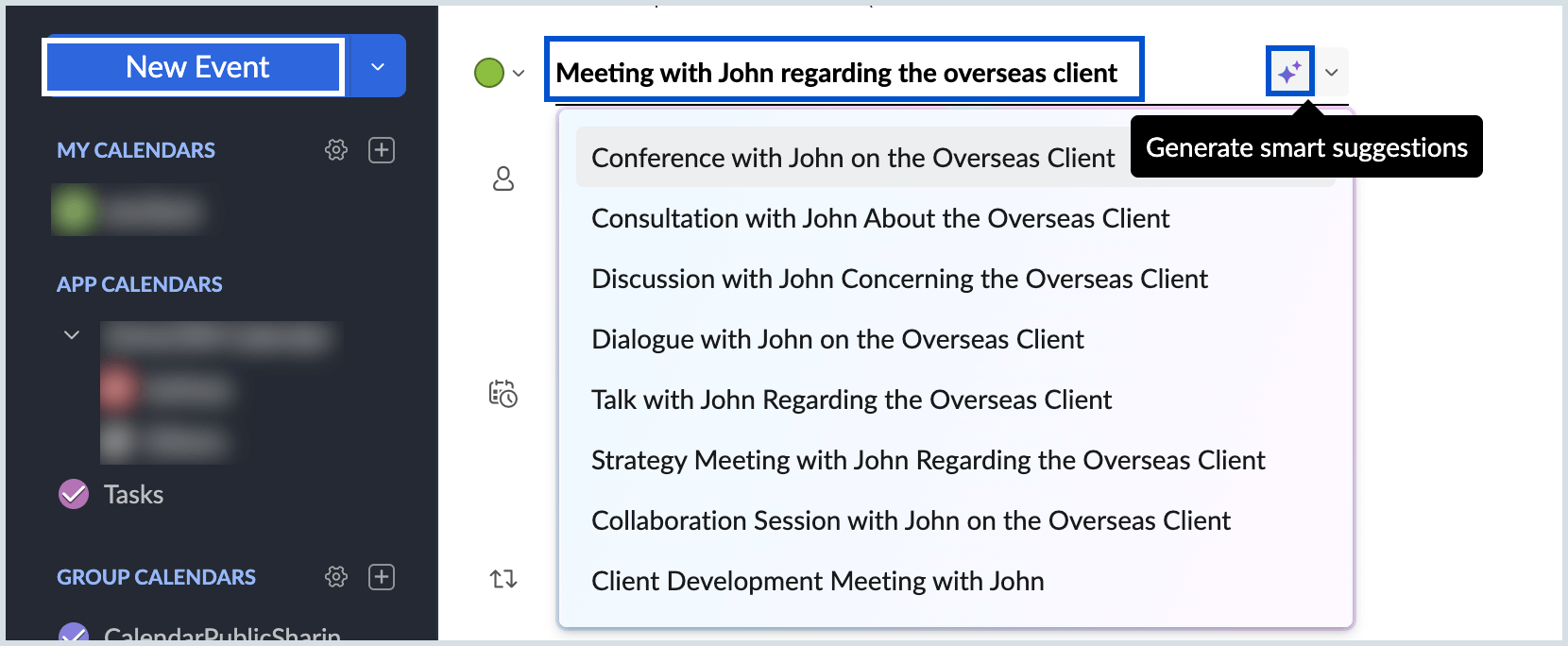
- Review the suggestions displayed below the Title field.
- Click a suggestion to auto-fill the event title.
Event description generation by Zia
Zia can generate comprehensive event descriptions using minimal context, helping you create clear and structured descriptions without extensive manual effort.
Steps to generate event descriptions:
- Log in to Zoho Calendar.
- Click New Event.
- Enter basic event details such as title, date, and time.
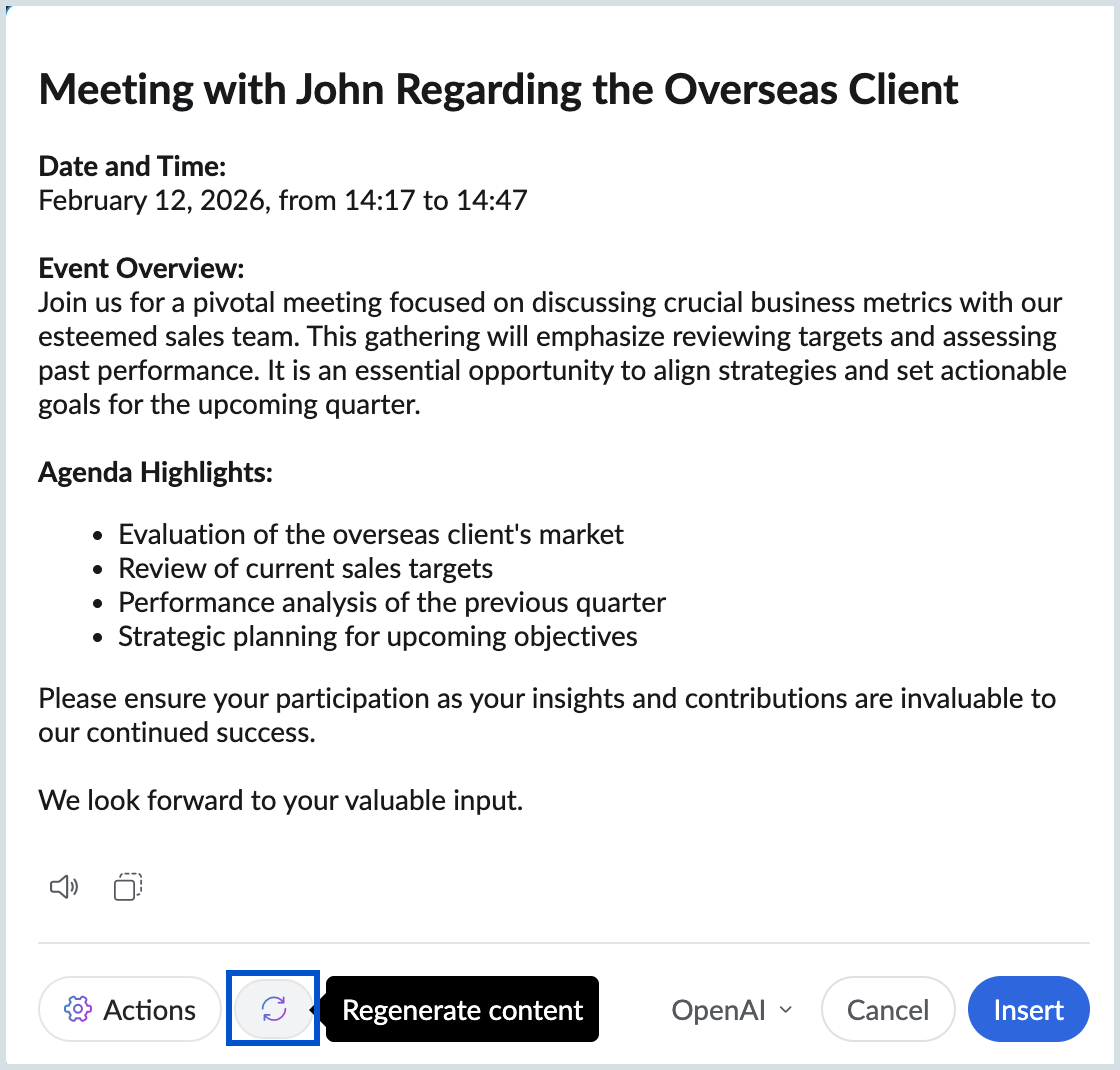
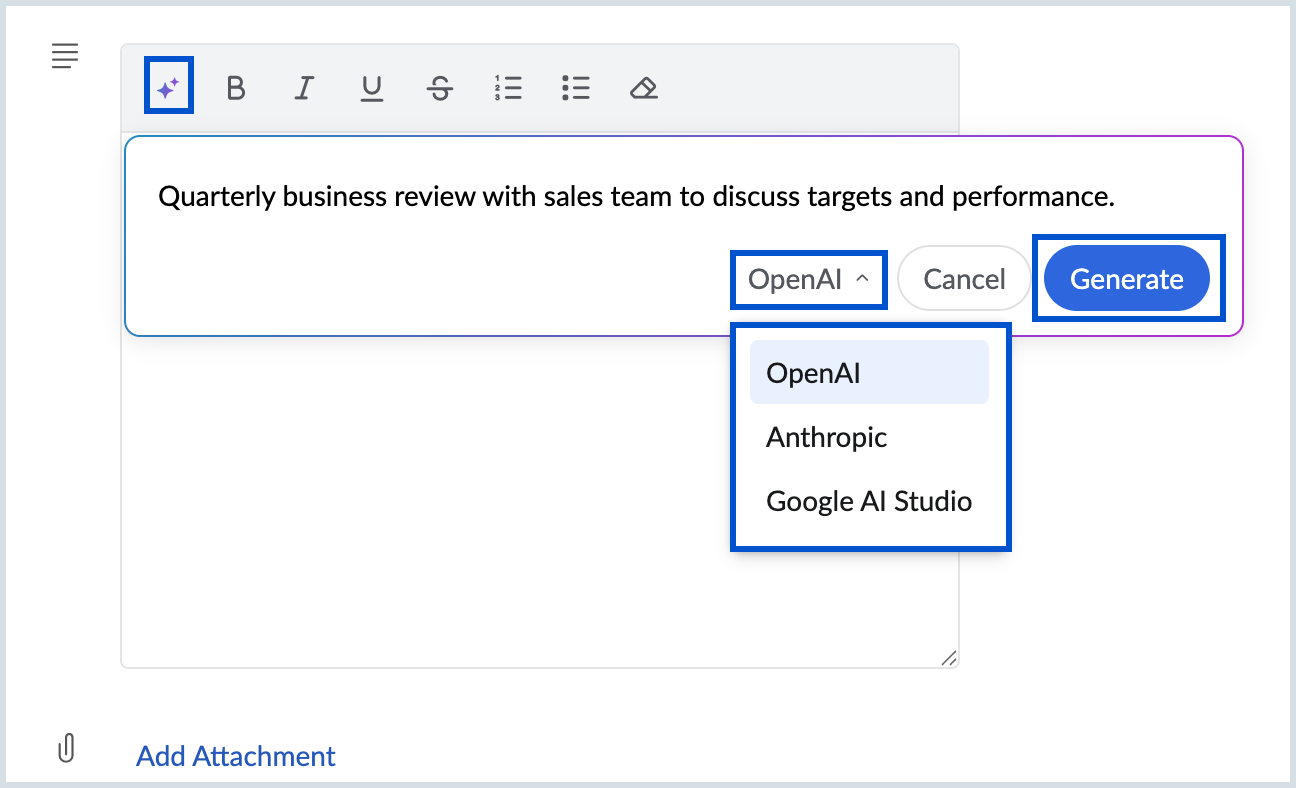
- In the Description field, click the Generate content icon.
- Now, provide a brief context, for example:
- "Quarterly business review with sales team to discuss targets and performance"
- "Training session for new CRM system covering features and best practices"
- "Client meeting to present project timeline and deliverables"
- Select your preferred AI model from the drop-down menu.
- Click Generate.
Note
The AI model selection drop-down is visible only if additional AI models are configured for your account through the Zoho Mail Admin Console.
Edit generated descriptions
After the description is generated, click Insert to add it to the Description field. 
You can further refine the content using the following options:
- Edit Prompt – Modify the input context
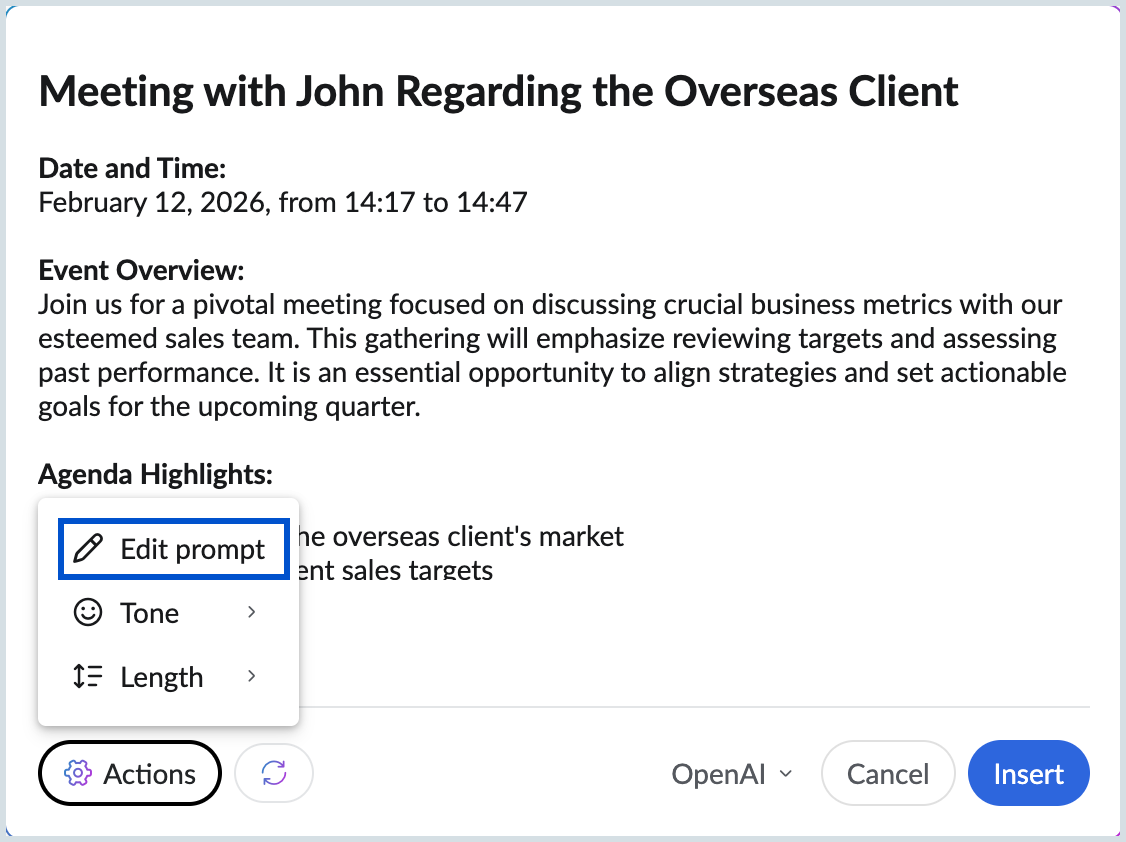
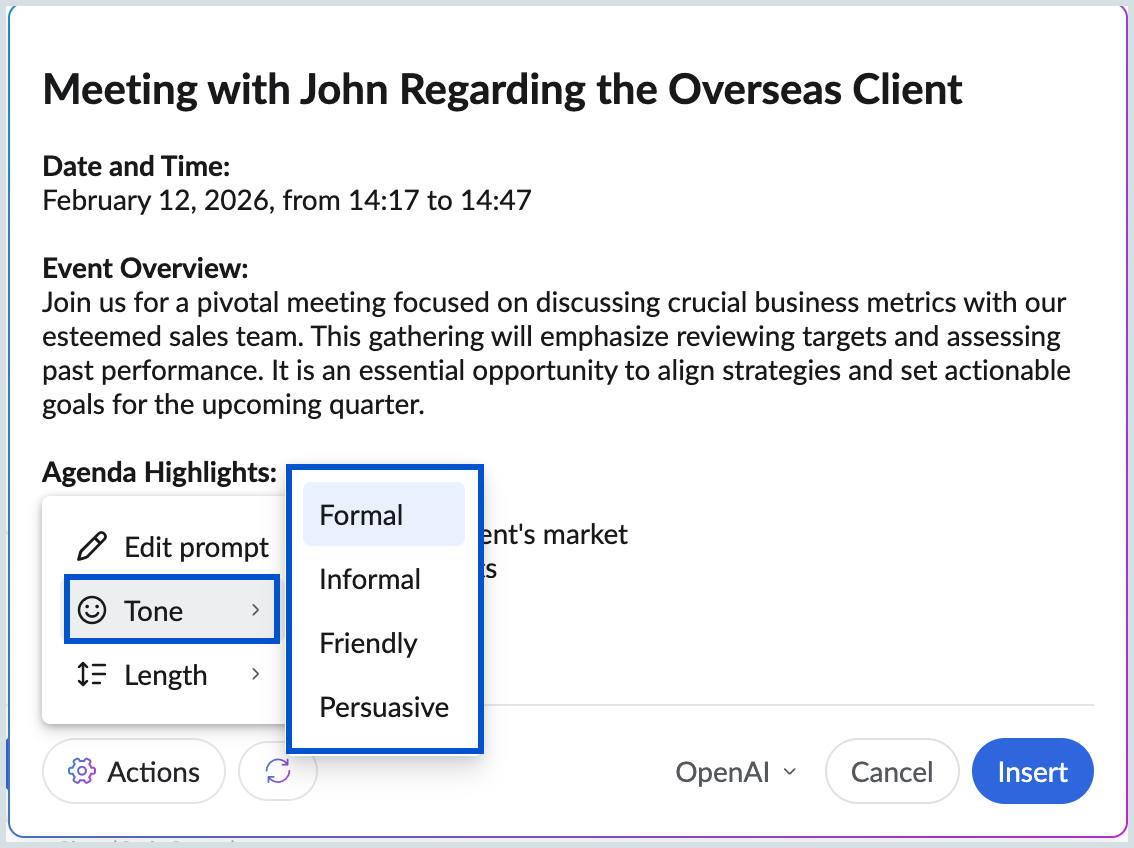
- Tone – Adjust tone (Formal, Informal, Friendly, Professional)
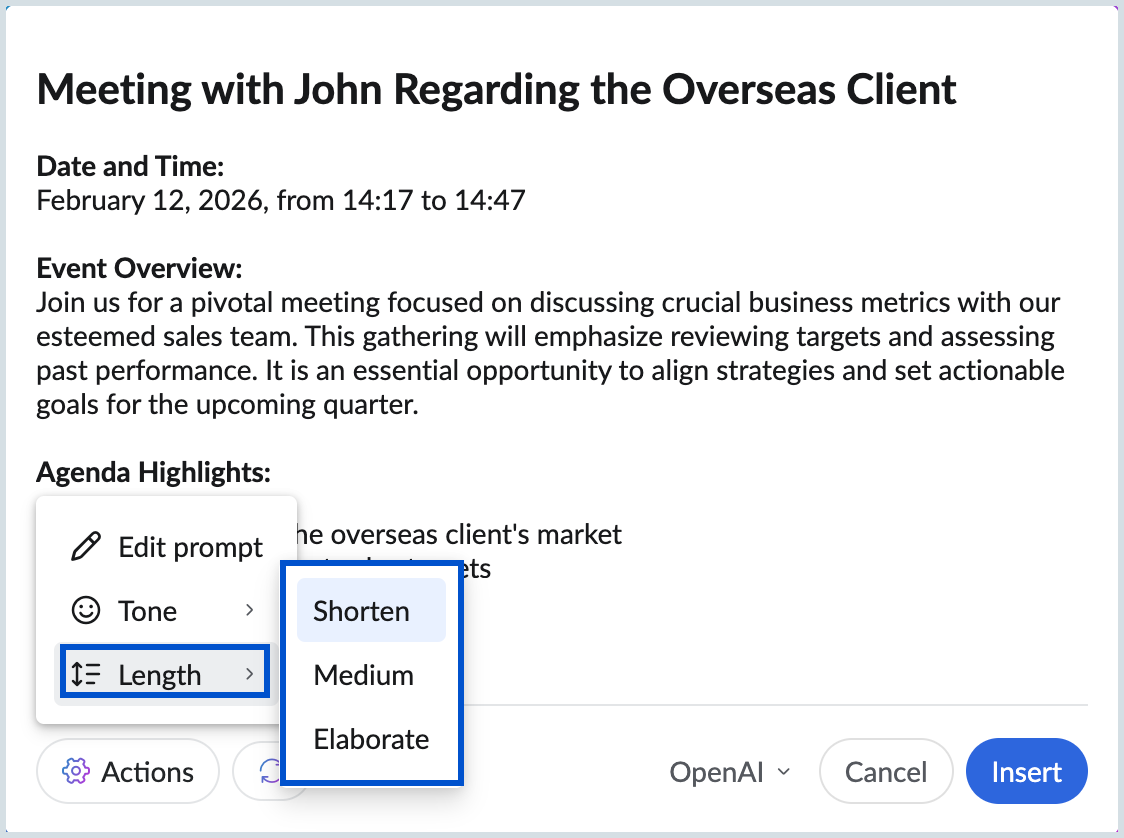
- Length – To generate short, medium, or elaborate version
- Regenerate – Create a new version of the description