Appointment Booking using Zoho Calendar
Appointment booking in Zoho Calendar lets you create a personalized booking page that others can use to schedule time with you. Your availability is automatically derived only from the calendars selected in the Booking Page Setup.
You can customize booking duration, available hours, limits, and branding, and share the booking link publicly or within your organization. The booking page can also be embedded on your website or blog.
Note
- The Appointment Booking feature is currently being rolled out in phases. To have it enabled for your organization, please contact our support team for assistance.
- The number of Appointment Booking links that can be created varies based on your subscription plan. Free users can create up to 1 booking link, while paid users can create a maximum of 10 booking links.
Steps to create an Appointment Booking page
- Log in to Zoho Calendar.
- Click the Appointment Booking icon in the right pane, next to the Settings icon.
- Click + Create booking page at the top of the panel to open the Booking Page Setup view. This page includes fields and options to define your booking preferences.

- The Preview on the right displays your current availability, helping you set booking slots accordingly.
- Fill in the following sections to create an appointment link:
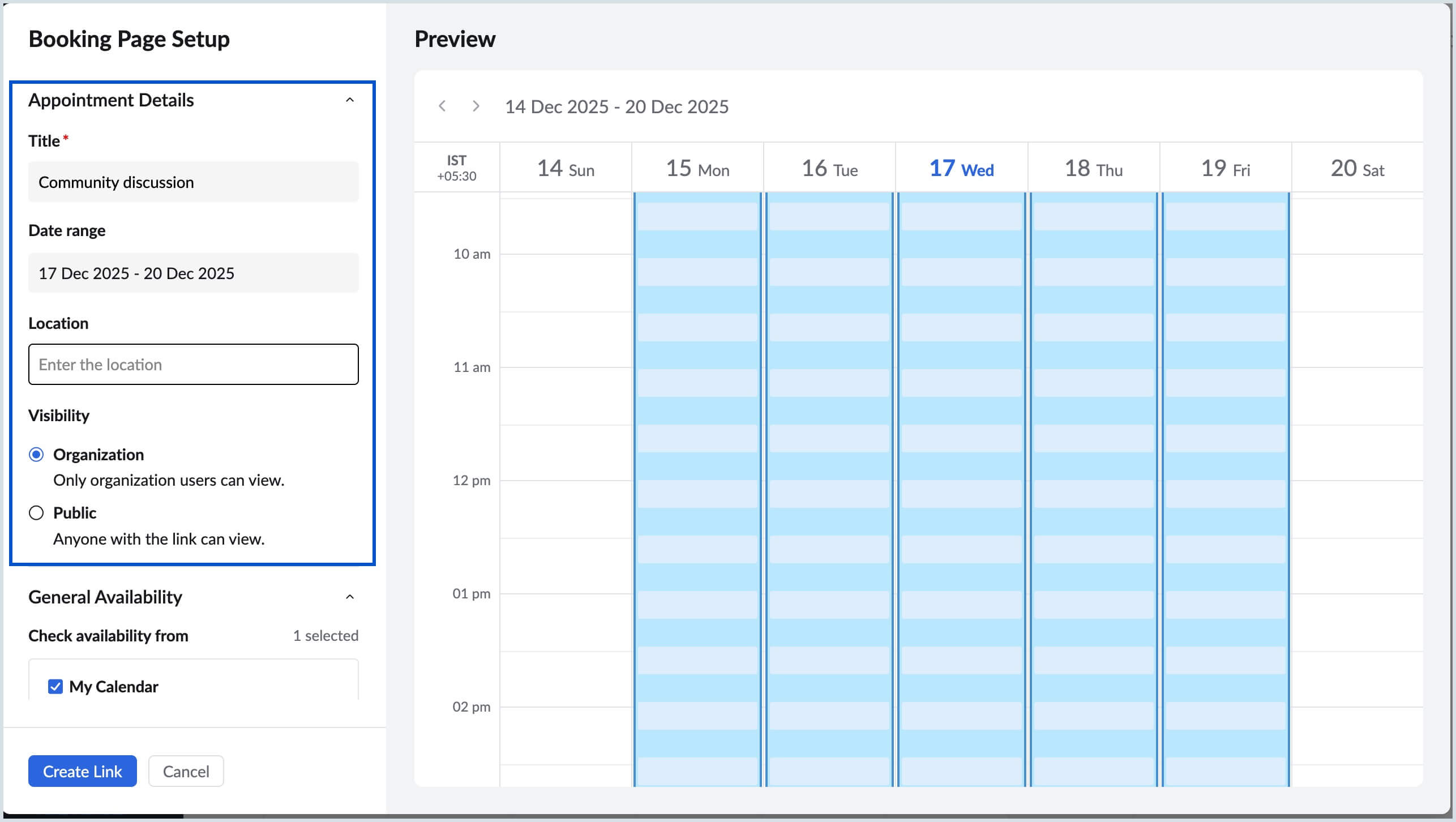
Appointment Details
- Title – Enter a title for the booking page. This will appear on your public or organization link.
- Date range – Select the start and end dates for which the booking page should remain active.
- Location – Add a meeting location (optional).
- Visibility – Choose who can access the booking page:
- Organization – Only users within your organization can book an appointment.
- Public – Anyone with the link can access and book an appointment.
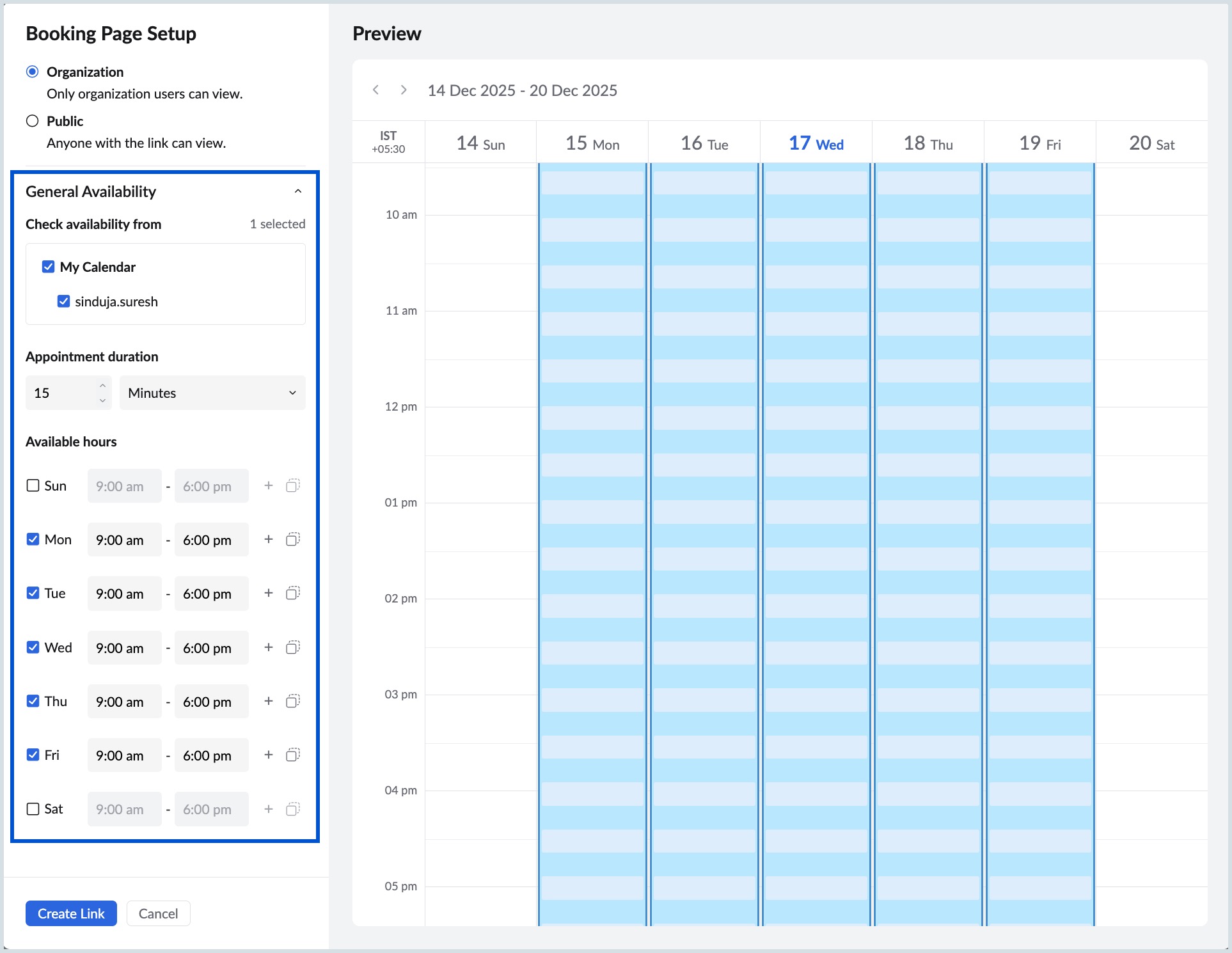
General Availability
- Check availability from – To check your availability, select the check boxes to choose your preferred Calendar listed under My Calendar.
- Appointment duration – Set the length of each appointment slot using the increment/decrement option.
- Available hours – Specify the days and time ranges during which appointments can be booked.
- Click the + Add slot icon to add additional time ranges for the same day when slots are not consecutive.
- Use the Delete icon to remove any additional slot created for a day.
- To reuse an existing time range, click the Copy slot icon, select the days you want to copy the slot to, and click Apply.
Note
An appointment slot will not be available for booking if you already have an event scheduled in any of your calendars under My Calendars.
Booking Limits
- Buffer interval – Choose how much time should be kept between consecutive bookings.
- Maximum bookings per day – Set the maximum number of appointments that can be booked in a single day. This limit is determined by your Appointment Duration and Buffer Interval you have configured.
For example, if your available hours are from 9:00 AM to 7:00 PM, with an appointment duration of 30 minutes and a buffer interval of 15 minutes, Zoho Calendar generates 13 appointment slots for that day. Any value from 1 to 13 can be selected as the daily booking limit.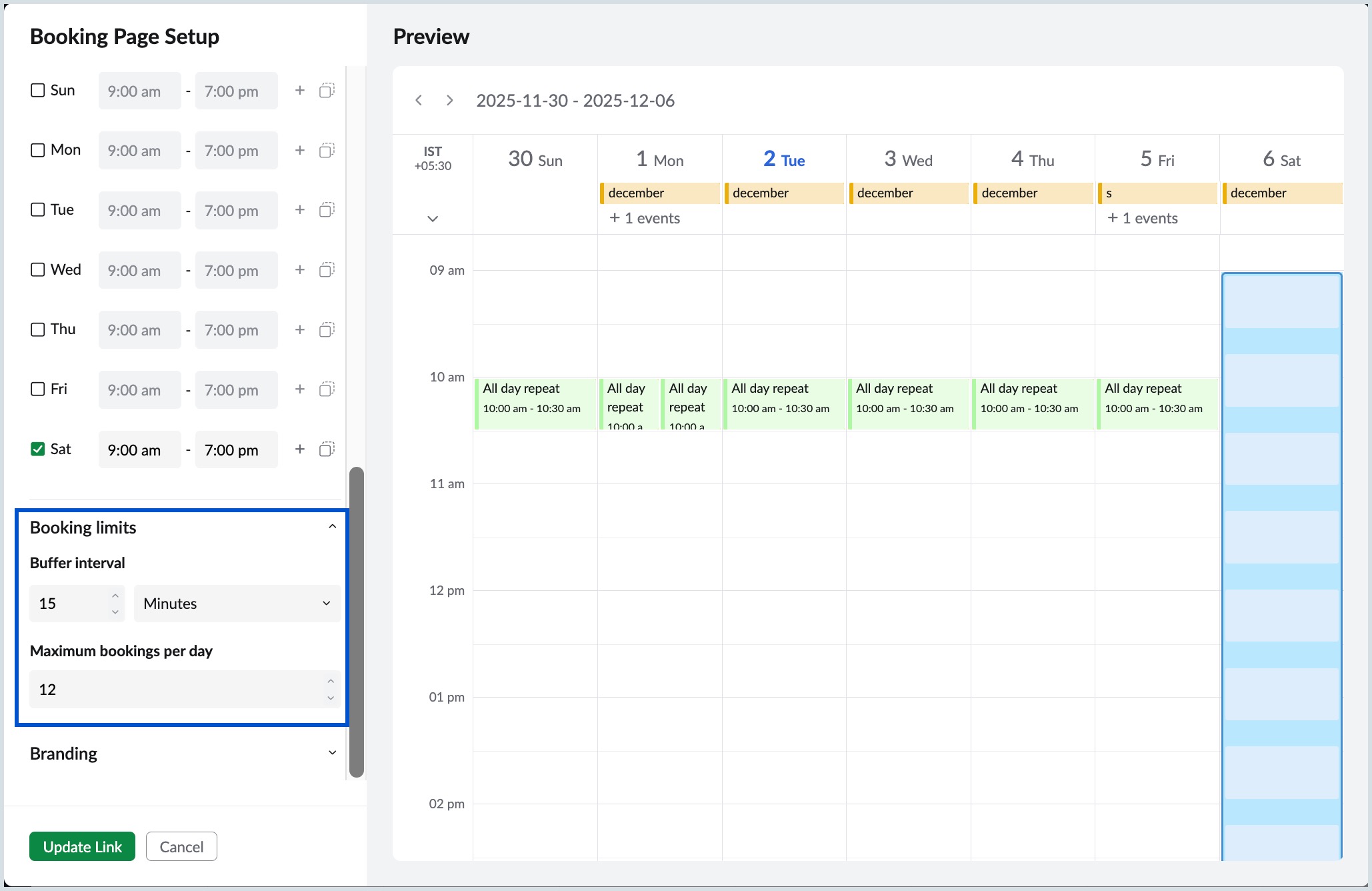
Branding (Optional)
- Logo – Upload a logo to display on the booking page.
- Company Name – Enter your company name to display it in the page header.
6. Once all required fields are filled, Click Create Link at the bottom of the Booking Page Setup.
Manage your Booking Page
This section walks you through how you can view, share, edit, and update your booking page details.
Major actions can be performed directly from the Appointment Booking panel, including:
- Copy link to clipboard
- Open booking page
- Edit
- Share link
- Duplicate booking
- Delete

Share Booking Page Links
- Select the booking page you want to share from the Appointment Booking panel.
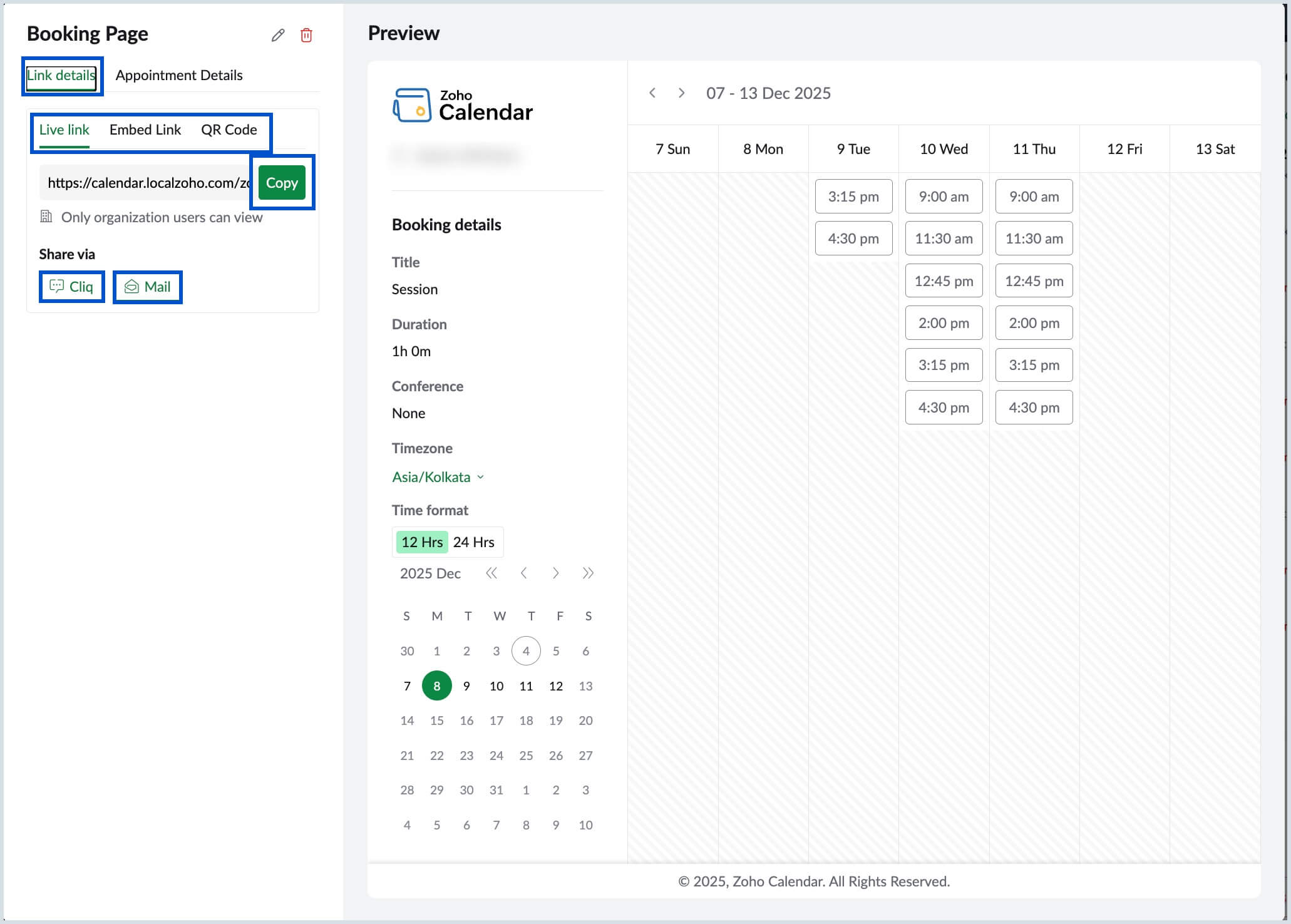
- You can use the Link Details tab to access the Live Link, Embed Link, and QR Code.
Link types overview
Option | Description | Actions Available |
Live Link | Direct URL to your booking page. | Click Copy to copy the link. Share via Cliq or Mail. |
Embed Link | Code snippet to embed your booking page in a website or blog. | Click Copy to copy the embed code. |
QR Code | Scannable code that directs users to your booking page. | Share via Cliq or Mail, or click Download to save the QR code. |
Edit and Delete Appointment Details
Edit Appointment Details
Access the Appointment Details tab and click the Edit icon. After updating the necessary fields, select Update Link to apply the changes.
Delete a Booking Page
To remove a booking page, click the Delete icon located next to the Edit option on the Booking Page, and confirm the deletion.
Cancel Appointment (Host)
As a host, you can cancel a scheduled appointment directly from your calendar.
- Select the appointment you want to cancel from the calendar grid.
- Click the Cancel appointment button.
- In the Send Event DeleteNotification pop-up, choose the preferred option and click Confirm.
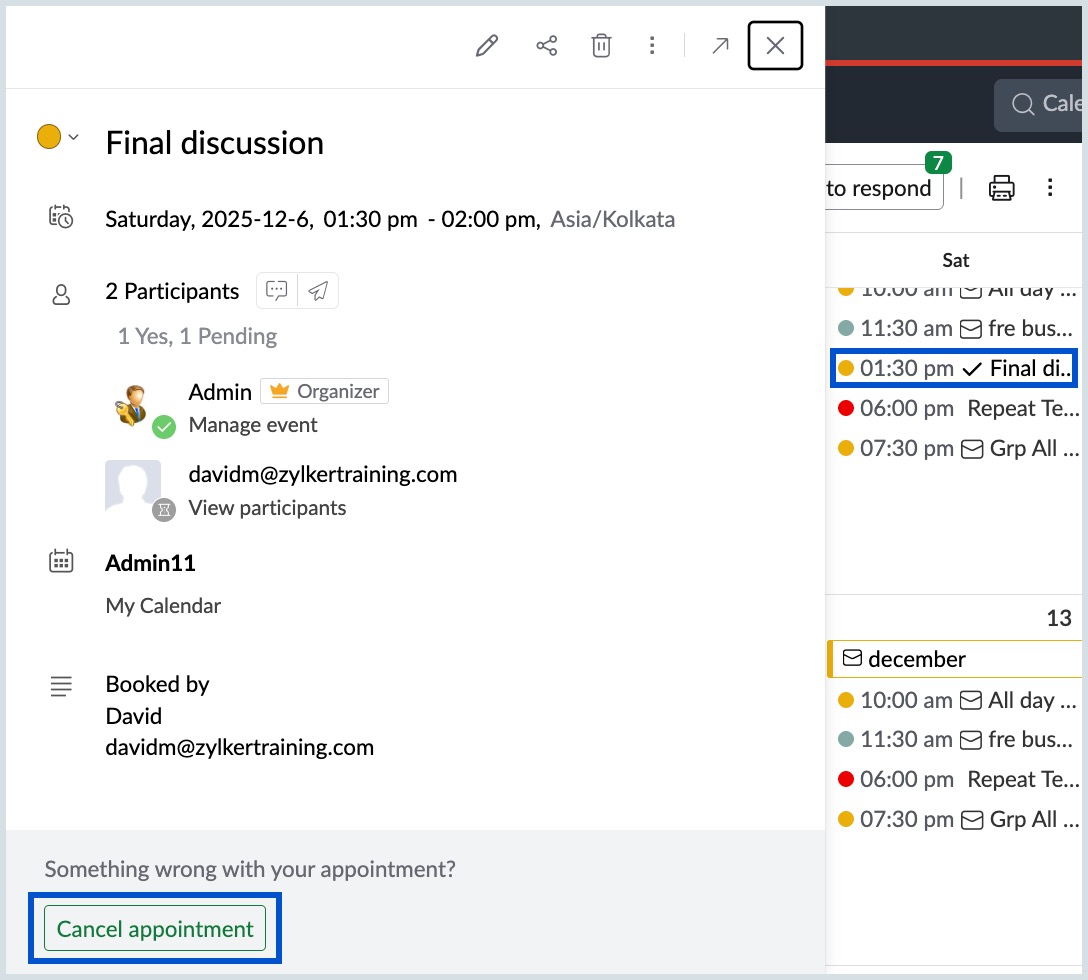
Once cancelled, the appointment is removed from both your calendar and the requester’s calendar, and notifications are sent based on your selection.
Book and Cancel Appointment (Requester)
Book Appointment
- Access the booking link shared with you by the host.
- Select a preferred date and time from the available slots.
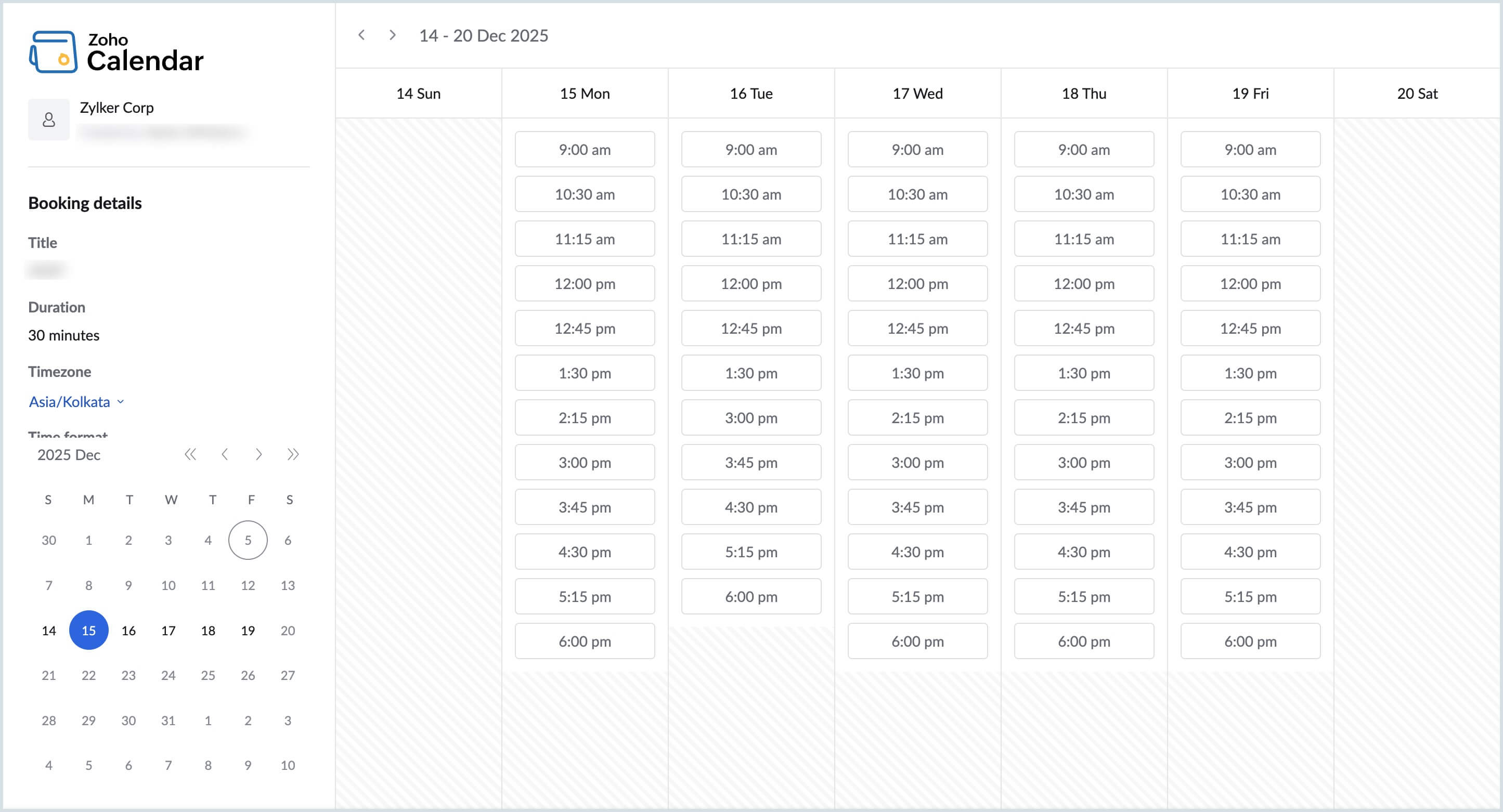
- Enter your details, such as your Name and Email address, in the Schedule Appointment pop-up.
- If you are booking an appointment through a Public Link:
- Click Send OTP.
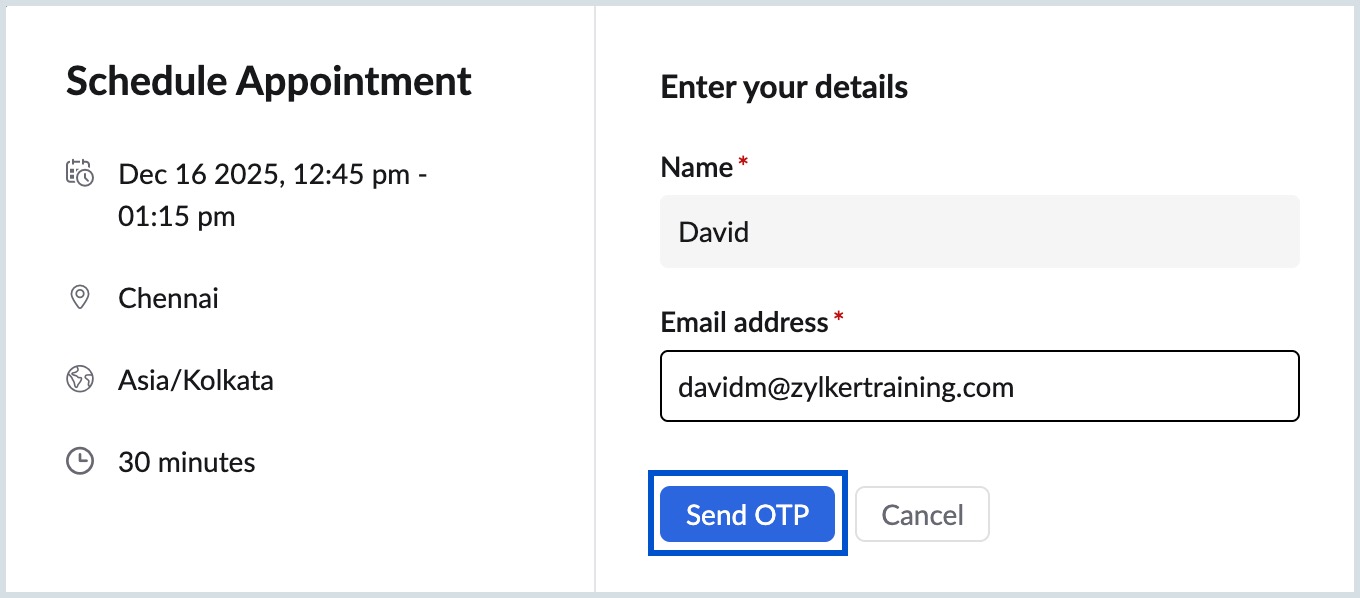
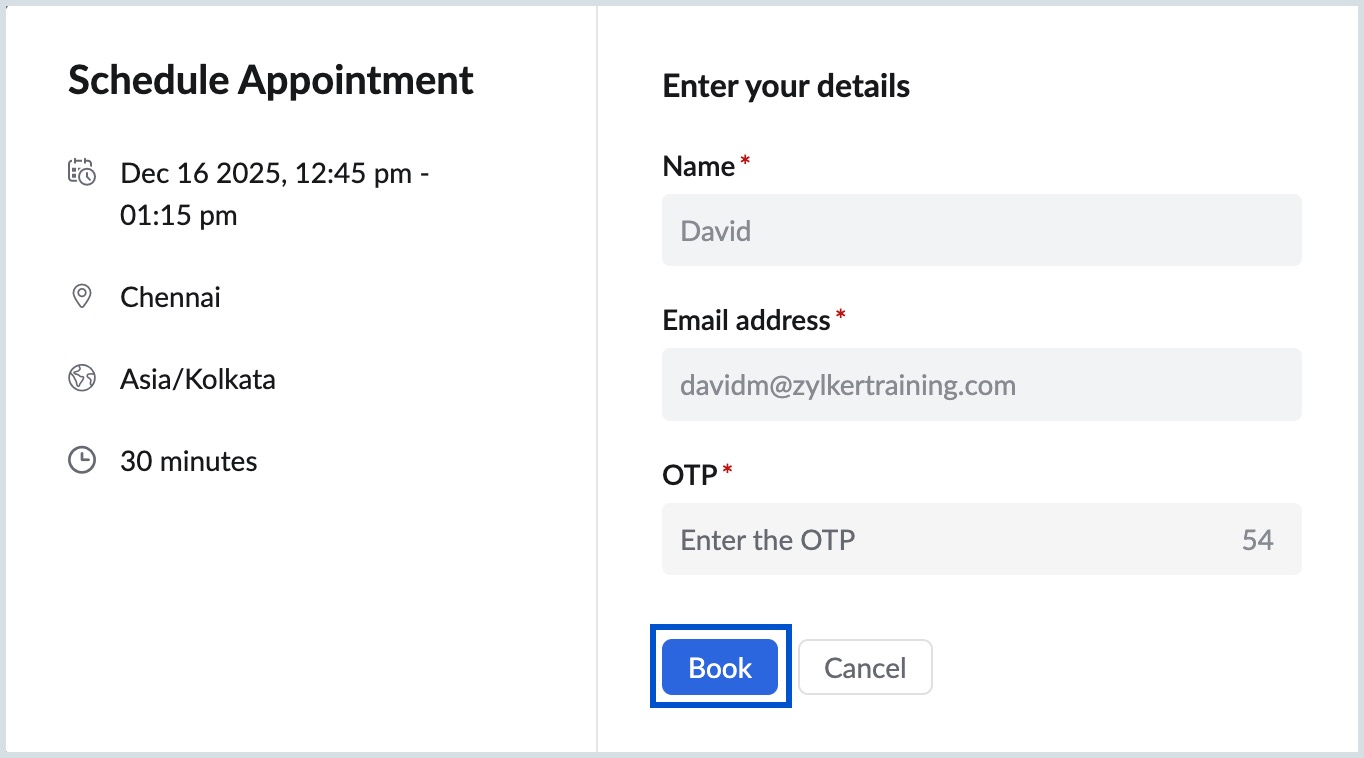
- An OTP will be sent to your registered email address.
- Enter the OTP and click Book. The appointment will be booked once the OTP is verified.
- Click Send OTP.
- If you are booking an appointment through an Internal (Organization-Only) Link:
- OTP verification is not required.
- Click Book to schedule the appointment directly.
- A booking confirmationemail will be sent to both you and the host.
- The confirmed appointment is automatically added to your calendar as well as the host’s calendar.
Cancel Appointment
As a requester, you can cancel a booked appointment directly from the confirmation email you received after booking.
- Open the appointment confirmation email that you received after booking.
- Scroll to the bottom of the email.
- Click the Cancel appointment button.
After cancellation, the appointment is automatically removed from both your calendar and the host’s calendar, and the host is notified.