


Customer Portal Preferences

You can configure your customer portal preferences, including its name and URL. Here’s how to access them:
- Go to Settings.
- Navigate to Organization Settings and select Customer Portal under Setup & Configurations.
General
Here, you can customize the following options:
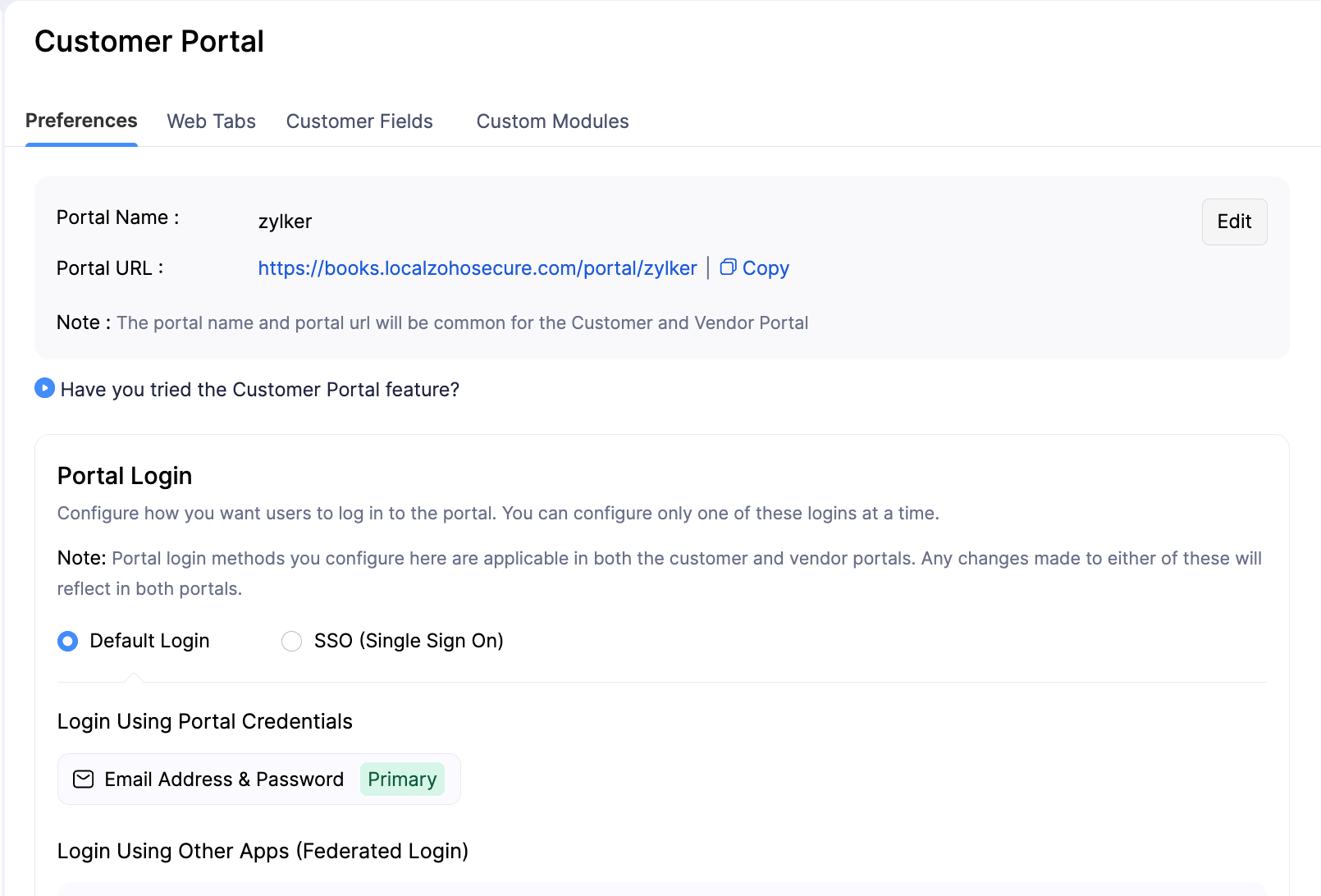
Portal Name
The portal name is unique to your organization and it is used in the URL of the customer portal. This is auto-generated by default. However, you can change the portal name by clicking Edit.
**Pro Tip:**If you have a website with your own domain, you can let customers access the portal with this domain by mapping custom domains in Zoho Books.
Send me an email notification for every activity that takes place in the portal
Enable this option to get notified when a customer accepts a quote, comments on a quote, views an invoice for the first time, or performs any other activity in the customer portal.
Send an email notification to my customer when I comment on transactions
Enable this option to notify customers through their email address when you comment on any of their transactions.
Allow customer to edit their information in the portal
Enable this option to let customers edit their details such as personal details, billing and shipping addresses, and card details.
Allow customers to forward documents from portal
Enable this option to let customers email their invoices and quotes to other people. When your customers send it to them, they’ll automatically be added as contact persons for that customer in Zoho Books.
Enable customer review for my services
Enable this option to let your customers write reviews about your business.
Allow customers to view Sales Orders
Enable this option to let customers view their sales orders directly from the Customer Portal. They can download the PDF, forward, or print the sales order.
Allow customers to view projects and timesheets
Enable this option to let customers view their projects and timesheet directly from the customer portal. They can view the tasks, time entries (and their status), and also add comments to their projects.
Banner Message
You can enter a message to be displayed to your customers on the homepage of the customer portal.
Web Tabs
Web Tabs are similar to browser tabs, but accessible within the Customer Portal. You can embed any external web page or application that provides an embed URL directly inside the portal, so your customers can access additional information without leaving it.
To create a web tab for the Customer Portal:
- Go to Settings.
- Select Customer Portal under Setup & Configurations.
- Click the Web Tabs tab.
- Click + New Web Tab.
- Enter the web tab name and the URL of the external page.
- To include dynamic values in the URL, click Insert Placeholders and select the values you need.
- To verify that requests to your external app came from Zoho Books for the right organization and customer, enable JWT Authentication and configure the Secret Key and Token Validity.
- Click Save.
The web tab will appear in your customers’ portal view.
Notes:
- The web tabs you create here appear only in the Customer Portal. To create web tabs visible to your organization’s users in Zoho Books, go to Settings and select Web Tabs under Customization. Learn more about Web Tabs.
- If you’re building the server integration for your Customer Portal web tab, see JWT Authentication for payload claims, server-side validation steps, the token refresh flow, and code samples in Node.js, Python, Java, PHP, and Go.
Secure Public Links
When you share sales transactions like invoices, quotes, or retainer invoices using public links via email, SMS, or WhatsApp, anyone with the link can view the transaction details. To protect your customers’ PII, you can enable Secure Public Links as an additional layer of security.
To enable Secure Public Links:
- Go to Settings.
- Navigate to Organization Settings and select Customer Portal under Setup & Configurations.
- Scroll down to Secure Public Links.
- Check the Enable identity verification to view invoices and estimates option.
- Click Save.
Once enabled, customers must verify their email address or mobile number before they can view or download sales transactions shared through public links. This verification makes sure only the intended recipient can access the document, making it especially useful when you’re sharing transactions without using the customer portal.
Note: Verification is required only for documents shared via public links, not for documents accessed through the customer portal. Without verification, your customers will still be able to:
- Make payments for invoices.
- Accept or reject quotes, if you’ve enabled this option in Quote Preferences.
 Yes
Yes