

How do I sync tax information from Contacts in Zoho CRM to Customers in Zoho Books?

The Zoho CRM Contacts module does not have dedicated fields to record tax information. Therefore, you must first create custom fields in Zoho CRM to record the tax details relevant to the contacts you want to sync as customers in Zoho Books. Here’s how:
- Log in to your Zoho CRM account.
- Go to Setup.
- Select Modules and Fields under Customisation.
- From the Modules tab, select the Accounts or Contacts module that you want to sync with Zoho Books.
- In the next page, click Standard under the Layouts tab.
- Drag and drop the Single Line field from the New Fields pane, then rename it to Tax Treatment.
- Drag and drop another Single Line field from the New Fields pane, then rename it to Tax Registration Number.
Note:Make sure to name the custom fields the same as the corresponding tax fields in Zoho Books.
- Click Save.
Now, you can map the custom fields you created to record tax information to the corresponding tax fields in Zoho Books. Here’s how:
- Go to Settings.
- Select Zoho Apps under Integrations*.*
- In the Zoho Apps page, click Show Details next to Zoho CRM.
- In the Connect Zoho CRM page, navigate to the Configure Modules to Be Synced section, and click Edit for the module you’ve synced.
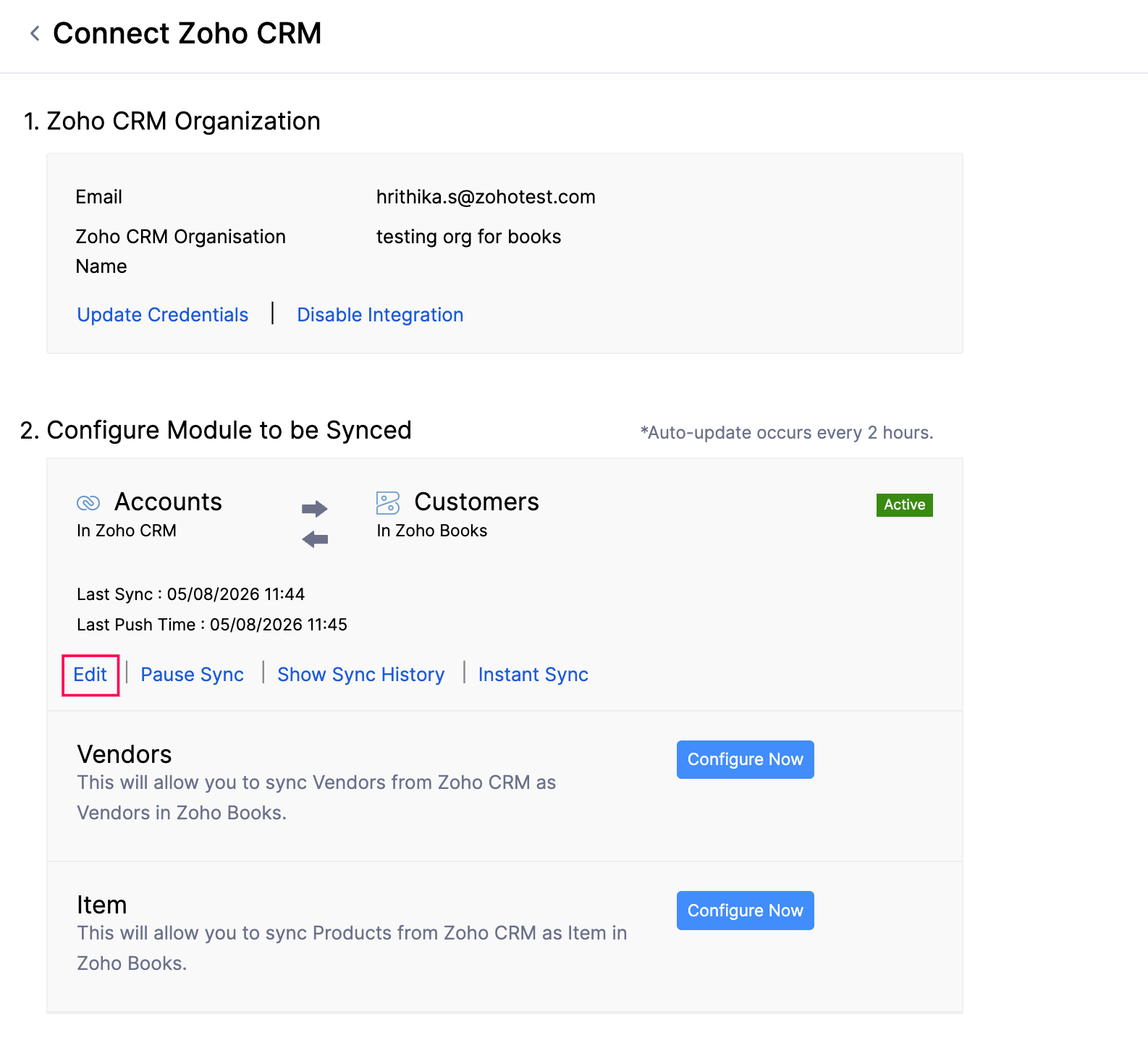
- In the Connect - Accounts/Contacts in Zoho CRM page, navigate to the Map Fields section.
- Click the dropdown next to the Tax Registration Number and Tax Treatment fields in Zoho Books, and select the corresponding custom fields you created in Zoho CRM to map them.
- Click Save and Sync.
The tax information from the Zoho CRM Contacts module will now be synced with the Customers module in Zoho Books.
 Yes
Yes