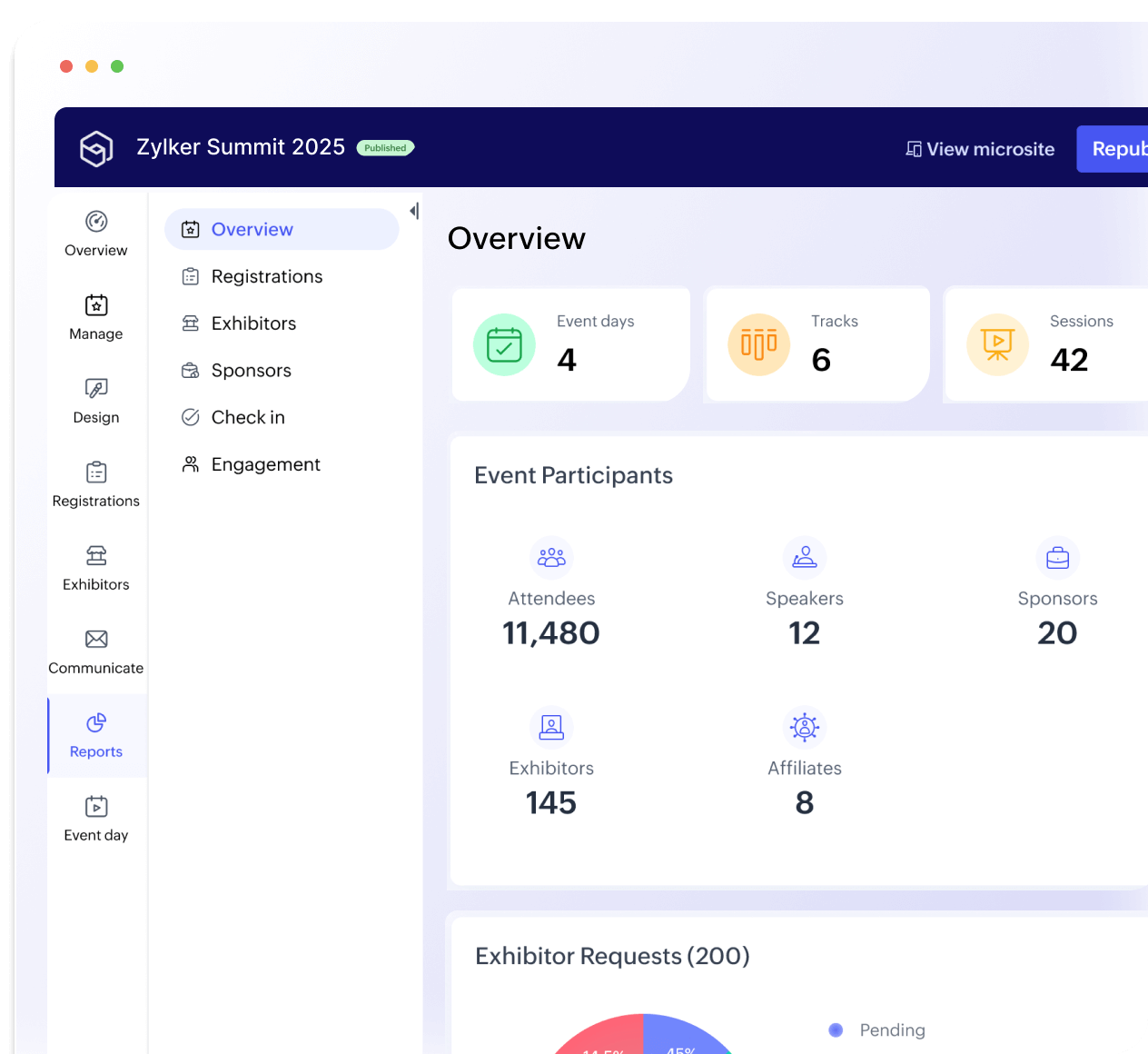
Here's a step-by-step guide on how to set up event registration that's smooth, efficient, and designed to deliver a great attendee experience.
Step 1: Build an event website that works as a registration hub
Your event website is the anchor of your registration flow. It's where potential attendees come to learn about the agenda, decide which speaker sessions they can attend, and eventually act by signing up for them. However, for many organizers, the biggest struggle is setting up an event website that's both functional and flexible without requiring coding skills.
Your website should be:
- Clear: Focus on the event's value (what's in it for attendees).
- Fast: No slow-loading pages or cluttered navigation.
- Conversion-focused: Registration buttons visible and obvious.
Zoho Backstage's event website builder helps address this problem. It lets you:
- Choose from pre-built themes and templates.
- Create mobile-friendly and multilingual websites.
- Personalize your registration buttons and call-to-action points.
- Automatically sync all registration information with your dashboard.
And the best part? You can do all of this without any coding!
Pro tip: Keep the registration button above the fold and repeat it on every page section. This can reduce drop-offs.
Step 2: Design an event registration form that converts
Here's the truth: the registration form is where most attendees drop off. Long, detailed forms may sound great from a data collection perspective, but they are tiresome to prospects who want a quick and easy registration process. They could also be confusing and may collect unnecessary data that's not exactly used by your teams.
A great event registration form should be:
- Simple: Ask only what you need. Every unnecessary field increases drop-offs.
- Clear: Label fields properly. Avoid industry jargon.
- Mobile-optimized: Most event registrations happen on mobile devices. Hence, test your forms on smaller screens.
- Logical: Organize fields by flow: attendee info >> ticket type >>payment >>confirmation.
Essential fields for your form
- Full name
- Email address
- Contact number
- Organization and designation (if applicable)
- Ticket type/category
- Dietary or accessibility requirements
- Payment details and link to the payment website or gateway (if paid event)
Optional but useful add-ons
- Session preferences (helps with planning capacity)
- Consent for marketing communications
- Referral or coupon code fields
Sample Registration Form Template
| Field Name | Type | Example / Notes |
|---|
| Full Name | Text | Jane Smith |
| Email | Email | jane@company.com |
| Contact Number | Number | +1 234 567 8901 |
| Ticket Type | Dropdown | Regular / VIP / Early Bird |
| Company / Organization | Text | ABC Events |
| Sessions Interested In | Checkbox | Workshop A, Panel B |
| Payment Option | Dropdown | Card / PayPal / Bank Transfer |
| Comments / Requests | Text Area | Any special needs |
Keep it short. The ideal registration form takes under two minutes to complete.
Step 3: Use templates to save time and stay consistent
If you organize multiple events a year, you already know how repetitive form creation can get. You have to rewrite the same fields, test formats, and set up payment options. It all eats into your time.
That's where registration form templates make life easier. Templates standardize your form design and fields while allowing small edits for each event.
Benefits of using form templates
- Consistency: Branding, tone, and format remain uniform across events.
- Efficiency: Easy to duplicate, modify, and publish quickly.
- Accuracy: Reduces the risk of missing critical fields or compliance clauses.
- Scalability: Ideal for multi-event or recurring series.
Step 4: Simplify payments and ticketing
The next big challenge after form setup is payments. A good registration system doesn't just collect attendee details; it also handles payments securely. A frictionless payment and ticketing experience builds trust. If attendees encounter errors, unclear pricing, or failed transactions, they're likely to abandon registration entirely.
Here's what your payment process should include:
- Multiple payment options: Credit/debit cards, PayPal, Stripe, or bank transfer.
- Dynamic ticket pricing: Early bird, group, and VIP options.
- Instant confirmation: Once paid, attendees should get receipts immediately.
- Refund policies: Clear and transparent.
Zoho Backstage simplifies ticketing and payments by offering:
- A 0% commission on ticket sales (you keep 100% of revenue).
- Custom forms and ticket types for different audience segments.
- Built-in approval workflows to prevent duplicate registrations.
- Automated confirmation emails and downloadable receipts.
Step 5: Automate confirmations and reminders
Imagine registering for an event and hearing nothing back for days. The uncertainty can make attendees question whether their registration even went through.
Instant confirmations are key. They:
- Reassure attendees that their spot is secured.
- Provide event details immediately (location, timing, ticket type).
- Reduce support tickets and follow-up emails.
Automated confirmations in tools like Zoho Backstage are customizable. You can:
- Personalize confirmation emails with attendee names.
- Include calendar invites and QR-coded badges.
- Add links to modify or cancel registration.
You can also schedule reminder emails or SMS before the event to keep attendees informed and engaged.
Pro tip: Reminder emails sent 48 hours before an event can have a higher open rate than emails sent a week prior.
Step 6: Manage attendee data and communication seamlessly
For event planners, data isn't just numbers; it's insight. Knowing who registered, how they paid, and what sessions they prefer helps you plan better and personalize experiences.
In Zoho Backstage, every registration automatically updates your event dashboard. You can:
- View attendee lists in real time.
- Filter data by ticket type, payment status, or company.
- Export attendee data for analytics or sponsor reporting.
- Send targeted emails or notifications from the same interface.
This eliminates the need for juggling between Excel sheets, payment tools, and email systems.
Step 7: Prioritize accessibility and mobile-friendliness
Your registration process should be inclusive and accessible to all, on any device.
Accessibility Essentials
- High contrast text and readable fonts.
- Labels for every input field (for screen readers).
- Avoid form auto-submits on tab changes.
Mobile Optimization
Most event registrations now happen on smartphones. So, make sure your form layouts are responsive. You should make sure of these things:
- Fields should stack properly.
- Buttons should be thumb-sized.
- Payment forms should load fast, even on slower networks.
Zoho Backstage automatically creates mobile-optimized registration forms and event pages, so you don't need to code separately for each device type.
Step 8: Leverage data for better future events
Registration data is more than just numbers; it's a goldmine for future planning.
Track metrics like:
- Conversion rate (visitors vs. completed registrations)
- Drop-off points (where users abandon forms)
- Ticket category popularity
- Time taken to register
- Source of registrations (email, social, referral links)
Zoho Backstage offers real-time event analytics to help you spot trends, predict demand, and fine-tune marketing efforts for your next event.
Example: If analytics show that most users drop off at the payment step, you can test new payment gateways or simplify pricing tiers next time.
Step 9: Test everything before you launch
Before you open registration to the public, do a complete test run.
Checklist before launch:
- Test all form fields and error messages.
- Verify payment workflows and currency settings.
- Review automated emails for typos and broken links.
- Preview forms on desktop, tablet, and mobile.
- Double-check integrations (CRM, analytics, or check-in apps).
With Zoho Backstage, you can even simulate attendee flows, like preview forms, test ticket purchases, and ensure confirmations trigger properly.
Step 10: Streamline check-in and badge printing
Registration doesn't end when the form closes. The real test comes when attendees arrive.
A good event registration system should connect directly to your check-in process. Zoho Backstage's check-in and badging tools let you:
- Scan QR codes for instant entry.
- Register walk-ins without delay.
- Print branded badges on-site.
- Track attendance in real time.
This creates a smooth transition from online to on-site experience, and ensures your first in-person impression is just as strong as your digital one.