


Merchant Category Codes
Merchant Category Codes (MCCs) are standardized four-digit codes that card networks assign to merchants based on the type of goods or services they sell. Every card transaction is tagged with an MCC that identifies the merchant’s business type, such as airlines, restaurants, or hotels.
In Zoho Expense, admins can restrict specific MCCs to flag card expenses that fall under those merchant categories. When a card expense with a restricted MCC is submitted in an expense report, Zoho Expense raises a Merchant Verification violation. This lets the approver review the flagged expense before approving the report.
Notes:
- This feature is currently in early access. Contact support@zohoexpense.com to enable it for your organisation.
- This feature is available only on plans that support policy audits.
- Merchant category code restrictions apply only to card expenses fetched through Direct Feed Integration(DFI) and Real-Time Feeds(RTF). They do not apply to manually created expenses.
Scenario: Patricia Boyle, the finance admin at Zylker, wants to prevent card expenses at gambling and entertainment merchants. She enables Merchant Verification in her organisation’s policy audit settings and restricts the MCCs for those merchant categories. When an employee submits an expense report with a card expense that has a restricted MCC, the approver sees a Merchant Verification Failed warning. The approver reviews the flagged expense and decides whether to approve or reject the report.
Enable Merchant Verification
To use merchant category codes, you must first enable the Merchant Verification audit in the policy that applies to your employees. After you enable this audit, the Merchant Category Codes tab becomes available under Categories.
Prerequisite: You must be an Admin, or your role must have the necessary permissions to enable audits and manage merchant category codes.
To enable Merchant Verification:
- Click Admin View.
- Go to Settings on the left sidebar.
(OR)
Click Settings in the top right corner of the page. - Navigate to Organisation Settings.
- Click Policies under Setup & Configurations.
- Click the Audit tab.
- Click the policy for which you want to enable Merchant Verification.
- Navigate to the Audit tab.
- Select the checkbox next to Merchant Verification.
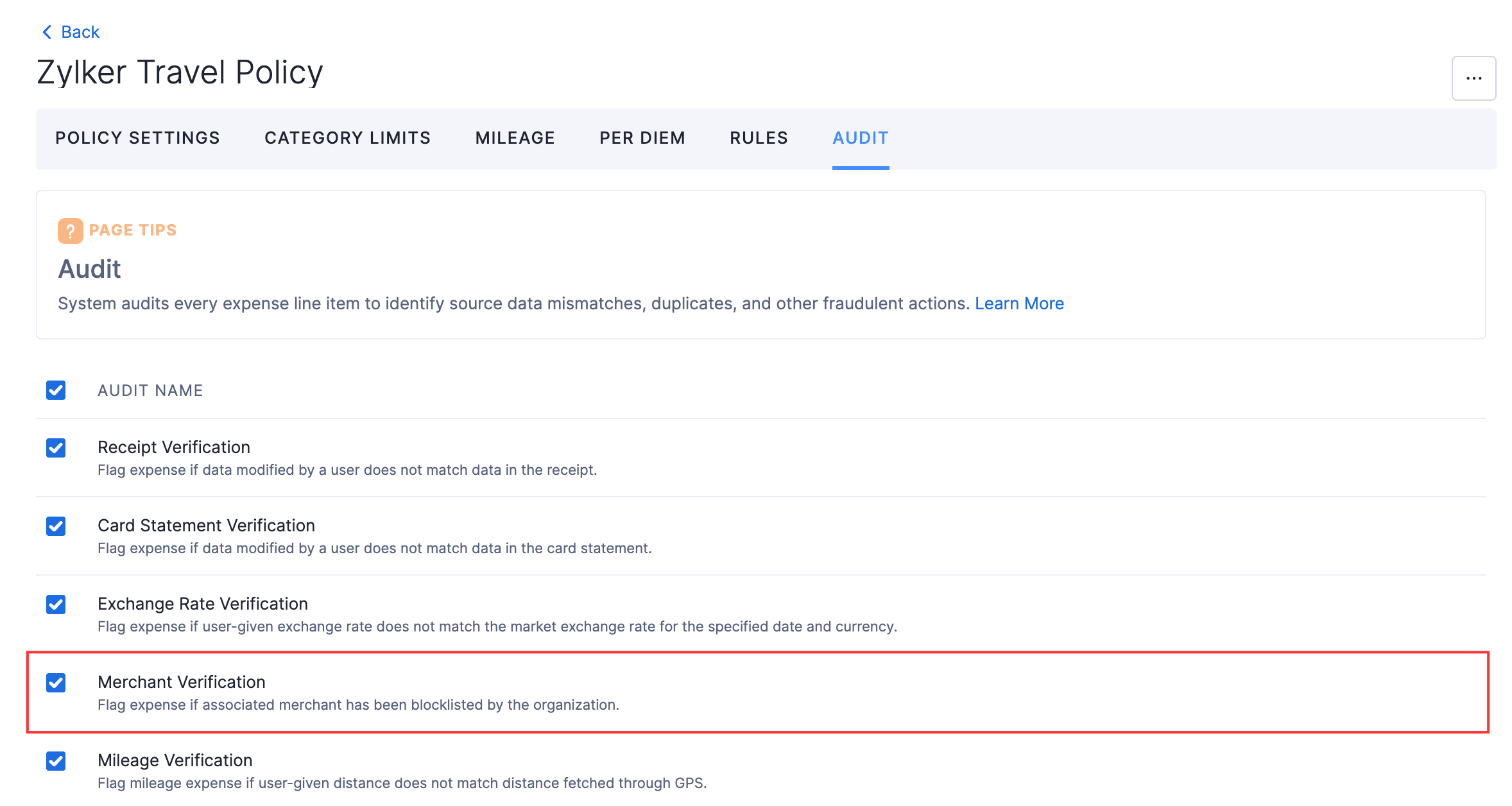
- Click Save.
After you enable Merchant Verification, you can restrict specific merchant category codes to flag card expenses that fall under those categories.
View Merchant Category Codes
After you enable Merchant Verification, the Merchant Category Codes tab appears under Categories. This tab lists all MCCs along with their mapped expense type and category.
To view merchant category codes:
- Click Admin View.
- Go to Settings on the left sidebar.
(OR)
Click Settings in the top right corner of the page. - Navigate to Module Settings.
- Click Categories under General.
- Click the Merchant Category Codes tab.
The list displays the following columns:
| Column | Description |
|---|---|
| Merchant Code | The four-digit MCC assigned by the card network. |
| Expense Type | The expense type mapped to this MCC (for example, Air Travel, Food, Taxi). |
| Category | The expense category mapped to this MCC (for example, Meals and Entertainment, Automobile Expense). |
You can use the Expense Type and Category filters at the top of the list to narrow down the MCCs displayed.
Restrict a Merchant Category Code
Restricting an MCC flags any card expense that falls under that merchant code. When an employee submits an expense report with a card expense that has a restricted MCC, Zoho Expense raises a Merchant Verification warning violation for the approver.
To restrict an MCC:
- Click Admin View.
- Go to Settings on the left sidebar.
(OR)
Click Settings in the top right corner of the page. - Navigate to Module Settings.
- Click Categories under General.
- Click the Merchant Category Codes tab.
- Select the checkbox next to the MCC you want to restrict. You can select multiple MCCs. You can also hover over the required MCC, click the More icon, and select Mark as Restricted.
- Click Mark as Restricted at the top.
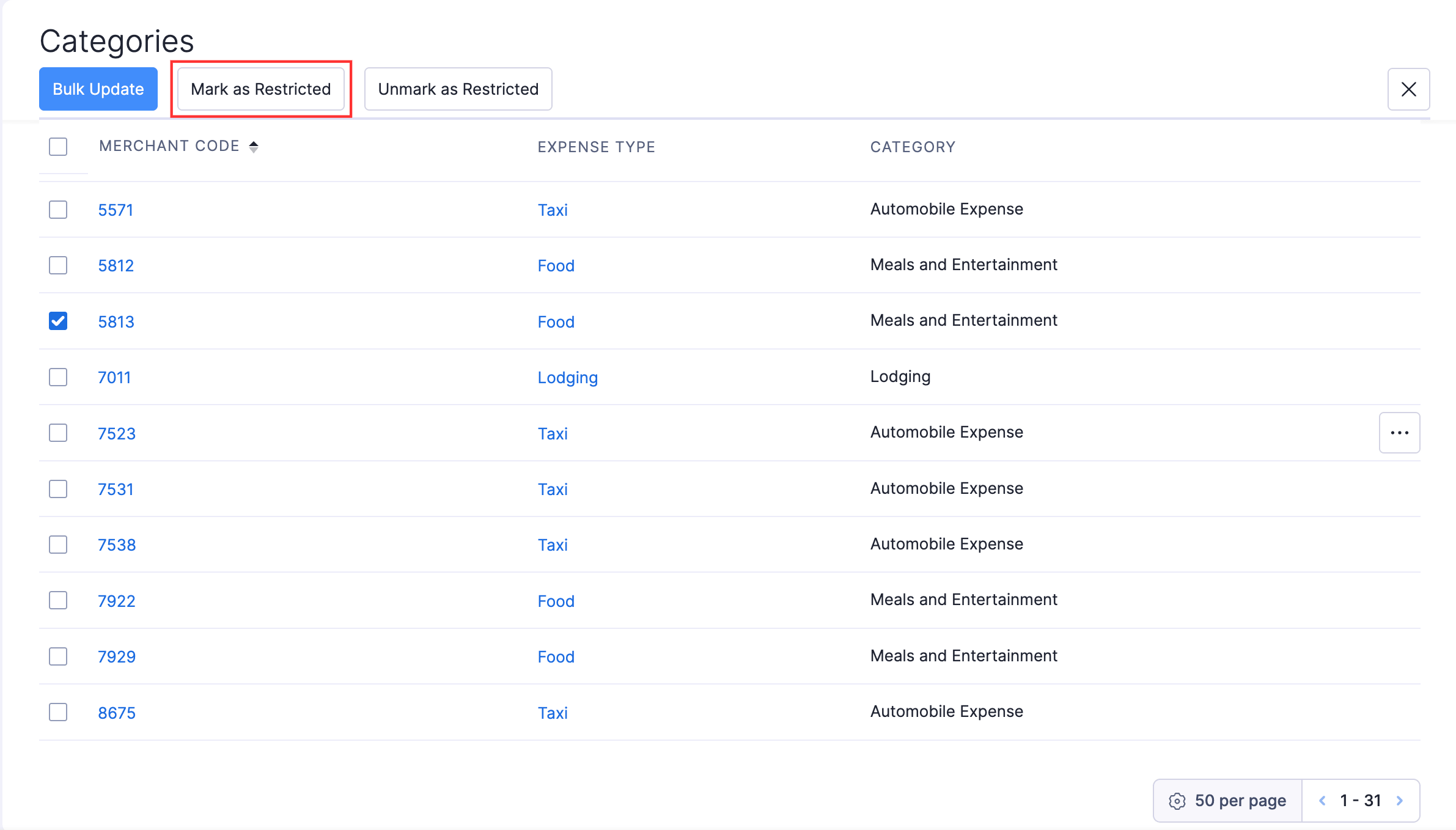
The selected MCCs are now restricted. A Restricted icon appears next to each restricted merchant code.
View MCC Violations
When an employee submits an expense report that contains card expenses with restricted MCCs, Zoho Expense raises a Merchant Verification warning violation. This warning appears to the approver in the expense report under the Warning Violations section.
The approver can:
- Click View to see the details of the violated expense, including the specific audit checks that failed.
- Click Update to modify the expense details if needed.
Note: Merchant Verification violations are warning-level alerts. The approver can still approve the expense report after reviewing the flagged expenses.
Unrestrict a Merchant Category Code
If you no longer want a specific MCC to trigger audit violations, you can unrestrict it. Card expenses with unrestricted MCCs do not raise Merchant Verification warnings.
To unrestrict an MCC:
- Click Admin View.
- Go to Settings on the left sidebar.
(OR)
Click Settings in the top right corner of the page. - Navigate to Module Settings.
- Click Categories under General.
- Click the Merchant Category Codes tab.
- Select the checkbox next to the restricted MCC you want to unrestrict. You can select multiple MCCs. You can also hover over the required MCC, click the More icon, and select Unmark as Restricted.
- Click Unmark as Restricted at the top.
The Restricted icon is removed from the selected MCCs. Card expenses under those codes no longer trigger Merchant Verification violations.
Edit a Merchant Category Code
You can update the expense type and expense category mapped to an MCC. This lets you make sure card transactions are categorised correctly in your organisation.
To edit an MCC:
- Click Admin View.
- Go to Settings on the left sidebar.
(OR)
Click Settings in the top right corner of the page. - Navigate to Module Settings.
- Click Categories under General.
- Click the Merchant Category Codes tab.
- Click the MCC number you want to edit.
- Make the necessary changes and click Save.
Disable Merchant Verification
If you no longer want to flag card expenses with restricted MCCs, you can disable the Merchant Verification audit for a policy. Disabling this audit removes the Merchant Category Codes tab from Categories in your settings.
To disable Merchant Verification:
- Click Admin View.
- Go to Settings on the left sidebar.
(OR)
Click Settings in the top right corner of the page. - Navigate to Organisation Settings.
- Click Policies under Setup & Configurations.
- Click the Audit tab.
- Click the policy for which you want to disable Merchant Verification.
- Navigate to the Audit tab.
- Uncheck the checkbox next to Merchant Verification.
- Click Save.