

Manual Revenue Recognition

Manual Revenue Recognition allows you to decide when and how much revenue you recognize for services that have not yet been provided. Unlike rule-based revenue recognition, which follows predefined rules, manual revenue recognition is useful for complex or unpredictable service delivery scenarios.
Why Use Manual Revenue Recognition
There are business scenarios involving complex transactions where rule-based automated revenue recognition cannot be applied. Manual revenue recognition is helpful in the following cases:
- Subscriptions with uncertain service periods: When the service start date is unknown, use manual revenue recognition because automatic revenue recognition requires a defined service period.
- Milestone-based projects: When revenue is recognized only after specific project milestones are completed, use manual revenue recognition to align recognition with each milestone, such as in construction projects.
Scenario: Patricia manages a boutique consulting firm that signs a six-month digital transformation contract for $60,000. The project is divided into four milestones: Discovery, Design, Build, and Delivery, each with a different rate and completion date. Because each phase takes an unpredictable amount of time, a recognition rule with fixed frequency would not align with actual delivery. Patricia sets the item to Manual Revenue Recognition in Zoho Books. As each milestone is completed, she recognizes the corresponding revenue directly from the invoice, keeping her revenue reporting accurate and aligned with completed services.
Associate Manual Revenue Recognition With Items
You can set the recognition preference to manual for items. Transactions created using this item will use manual revenue recognition by default.
To associate manual revenue recognition with an item:
- Go to Items on the left sidebar and select Items.
- Click + New to create an item, or select an existing item and click the Edit icon.
- Select Manual from the Revenue Preference dropdown.
- Click Save.
You can now create transactions using this item and manually recognize revenue based on your business needs.
Associate Manual Revenue Recognition in Transactions
You can also set manual revenue recognition at the line-item level for invoices and credit notes, even if the item itself is not configured for manual recognition by default.
To associate manual revenue recognition with an invoice line item:
- Go to Sales on the left sidebar and select Invoices.
- Click + New to create a transaction, or select an existing one and click Edit.
- Click the More icon next to the required line item, and select Show Additional Information.
- Click Revenue Recognition below the line item.
- Select Manual from the Revenue Preference dropdown.
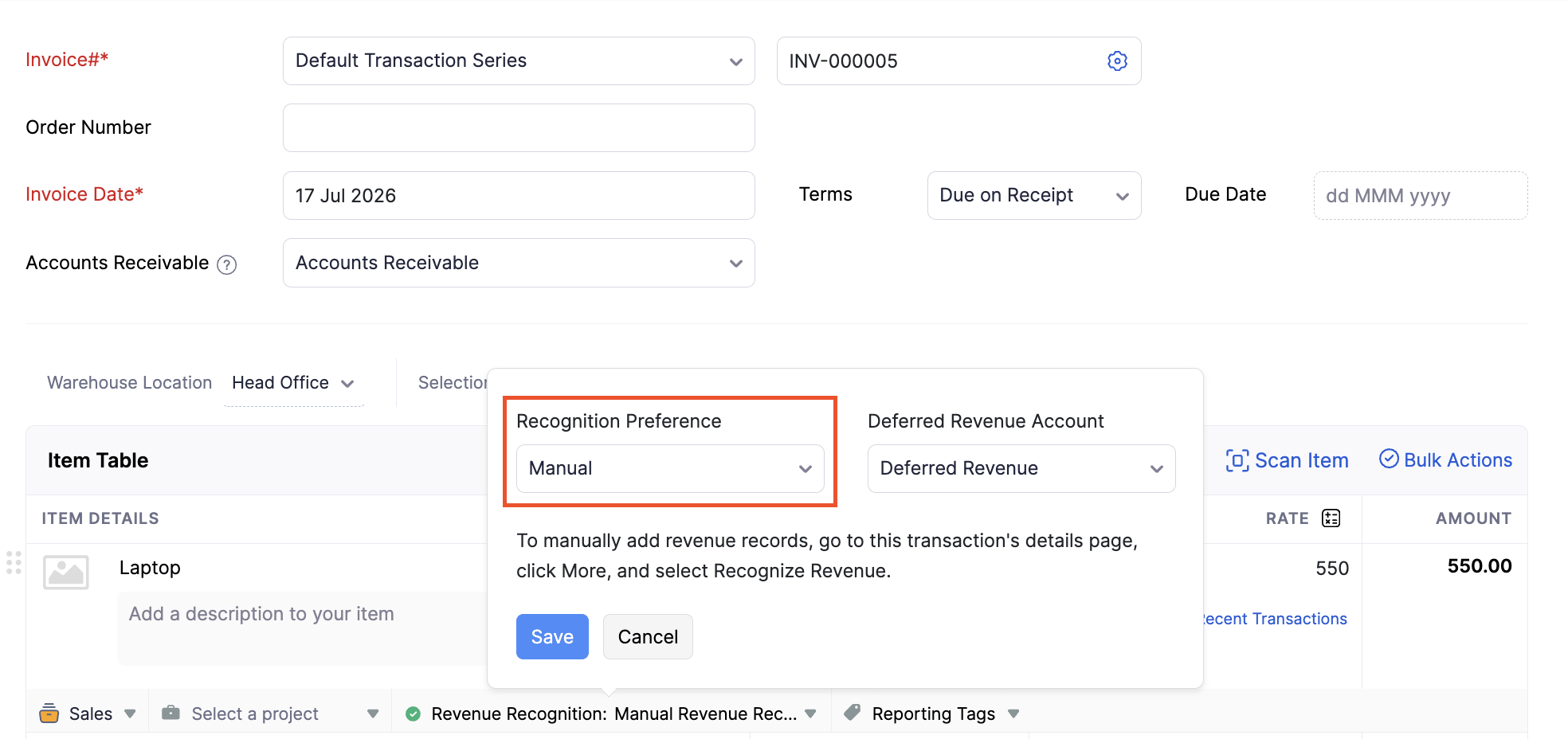
- Click Save.
- Fill in the remaining transaction details and click Save and Send.
Similarly, you can associate manual revenue recognition with a credit note line item.
Recognize Revenue Manually
Once you create a transaction with manual revenue recognition, you can recognize revenue in full or in parts at any time, based on your business needs.
To recognize revenue manually:
- Go to Sales on the left sidebar and select Invoices.
- Select the invoice for which you want to recognize revenue.
- Click More at the top of the Details page and select Recognize Revenue.
- In the pop-up, select the Line Item, Date, and Recognition Type.
- Enter the Recognized Amount or Percentage you want to recognize based on the type selected from the table below:
| Recognition Type | Description |
|---|---|
| Fixed Amount | Enter the amount of revenue to recognize. |
| Percentage of Item Amount | Enter the percentage of the line item’s amount to recognize. |
| Percentage of Remaining Amount | Enter the percentage of the remaining deferred amount to recognize. |
- Click + Add New to add another revenue recognition entry for the same line item.
- Click Save.
You can click the Delete icon to delete recognized revenue.
You can later view the details of the revenue recognized for each line item in the Revenue Recognition Details tab of the transaction.
 Yes
Yes