Unattended Devices: Search, Filter, Sort, Customize, Recent and Favorites
The Devices page within Unattended Access provides robust tools to help you efficiently find, organize, and view your remote computers.Features like Filtering, Sorting, Searching, Column Customization, Recent and Favourites work together to make device management faster and more intuitive.
Filtering in the Devices Page
The Filter function allows you to quickly narrow down your device list based on specific criteria, saving time when looking for targeted computers or groups.
Available Filters: Currently, you can filter devices based on
Platform (e.g., Windows, Mac, Linux) and
Status (e.g., Online, Offline).
How to Apply Filters:
Navigate to Unattended Access.
Click the Filter icon.
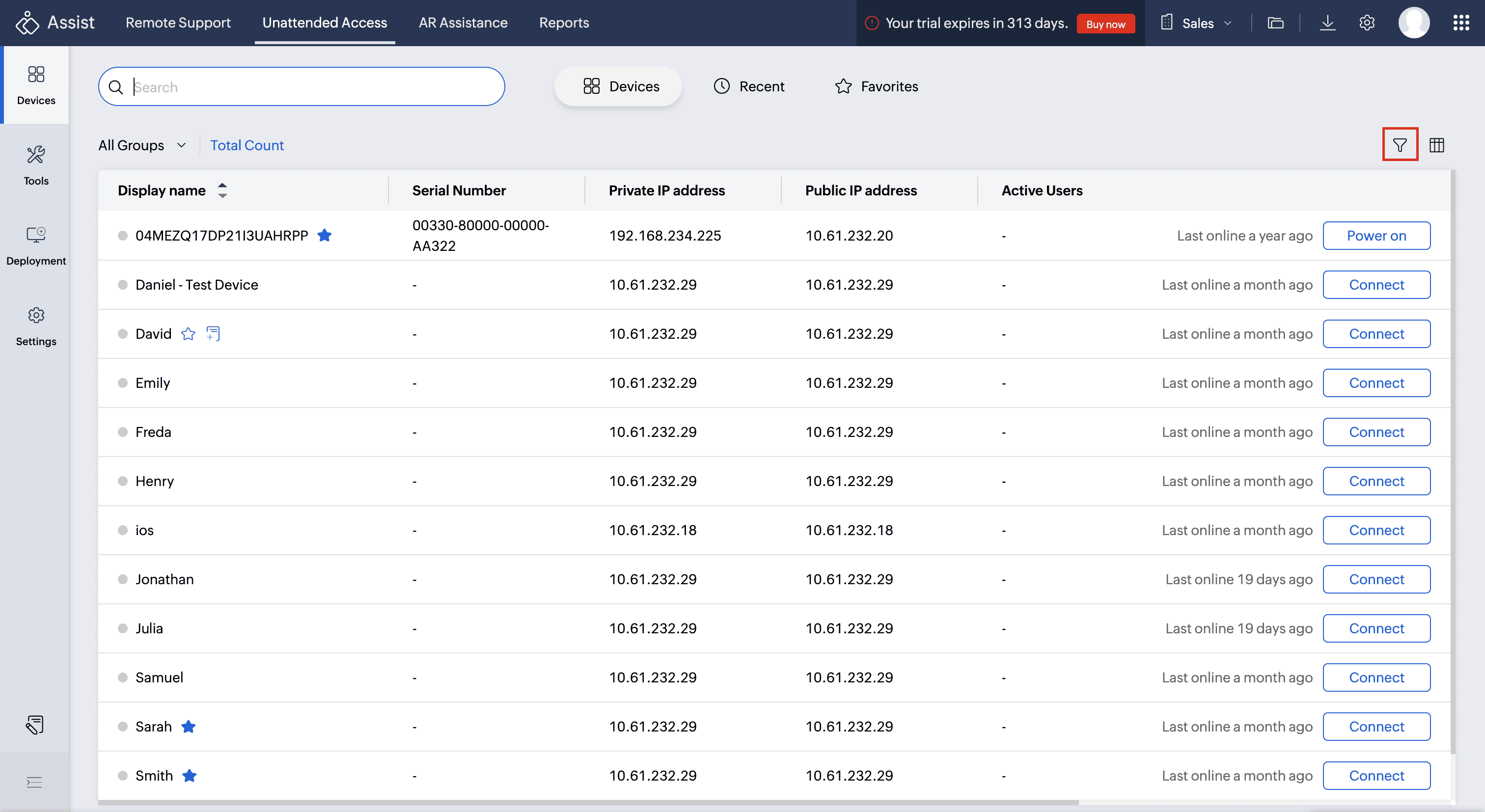
Select the criteria you want to apply.
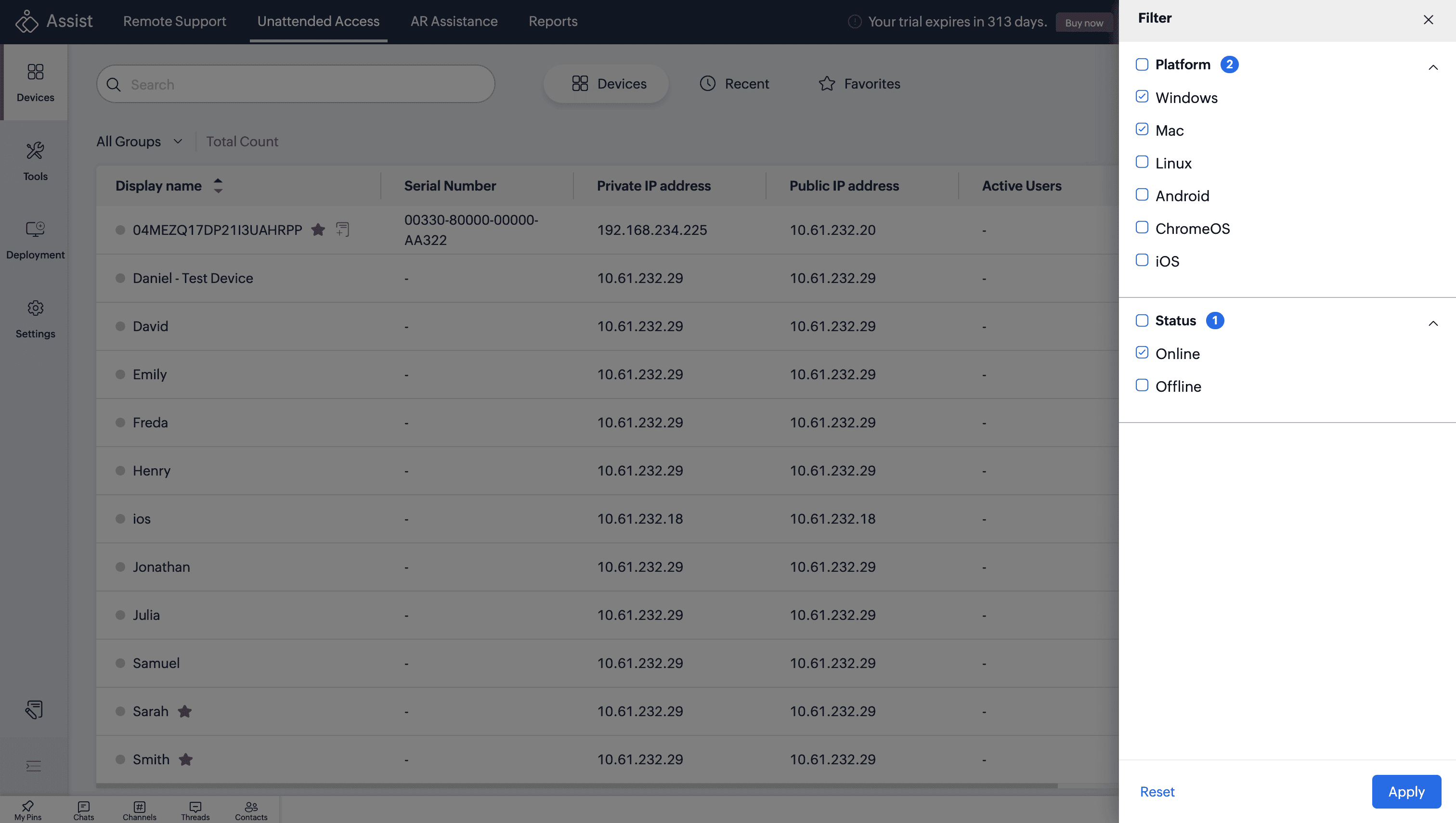
You can easily modify or remove active filters directly from the filter bar displayed above the device table, or reset them by unchecking the selected options.
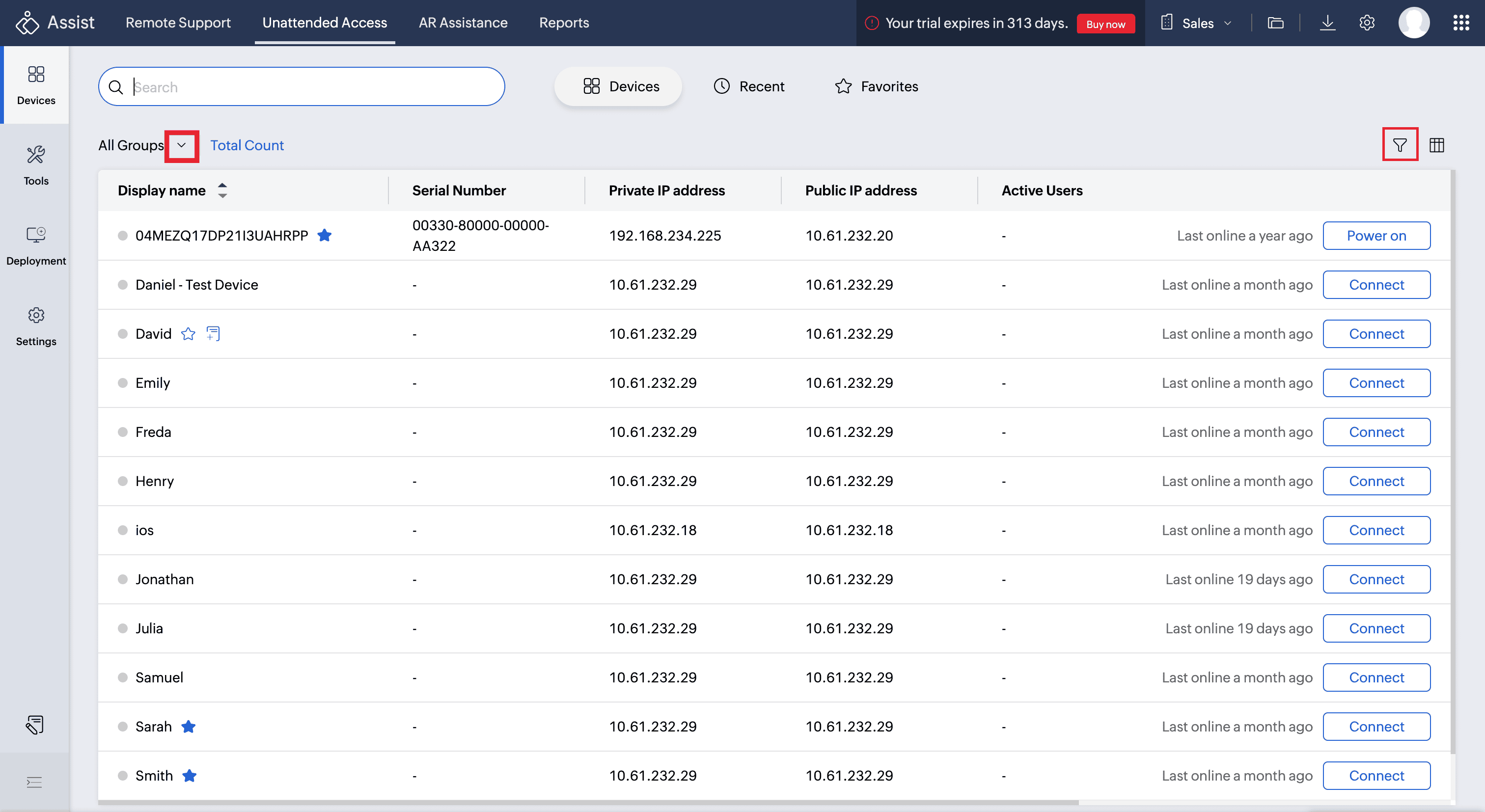
Filtering Devices by Groups
By default, devices configured across all groups are displayed in the device view. To view devices from a specific group, click the drop-down menu and select the group you want to access. You can choose to view all configured devices or narrow the list to a single group based on your needs.
Sorting in the Devices Page
The Sort function helps you organize your devices in a specific order (either ascending or descending). Sorting is supported for specific columns, including
Display Name,
Device Name,
Public IP Address, and
Private IP Address.
Click any supported column header to toggle between sort orders.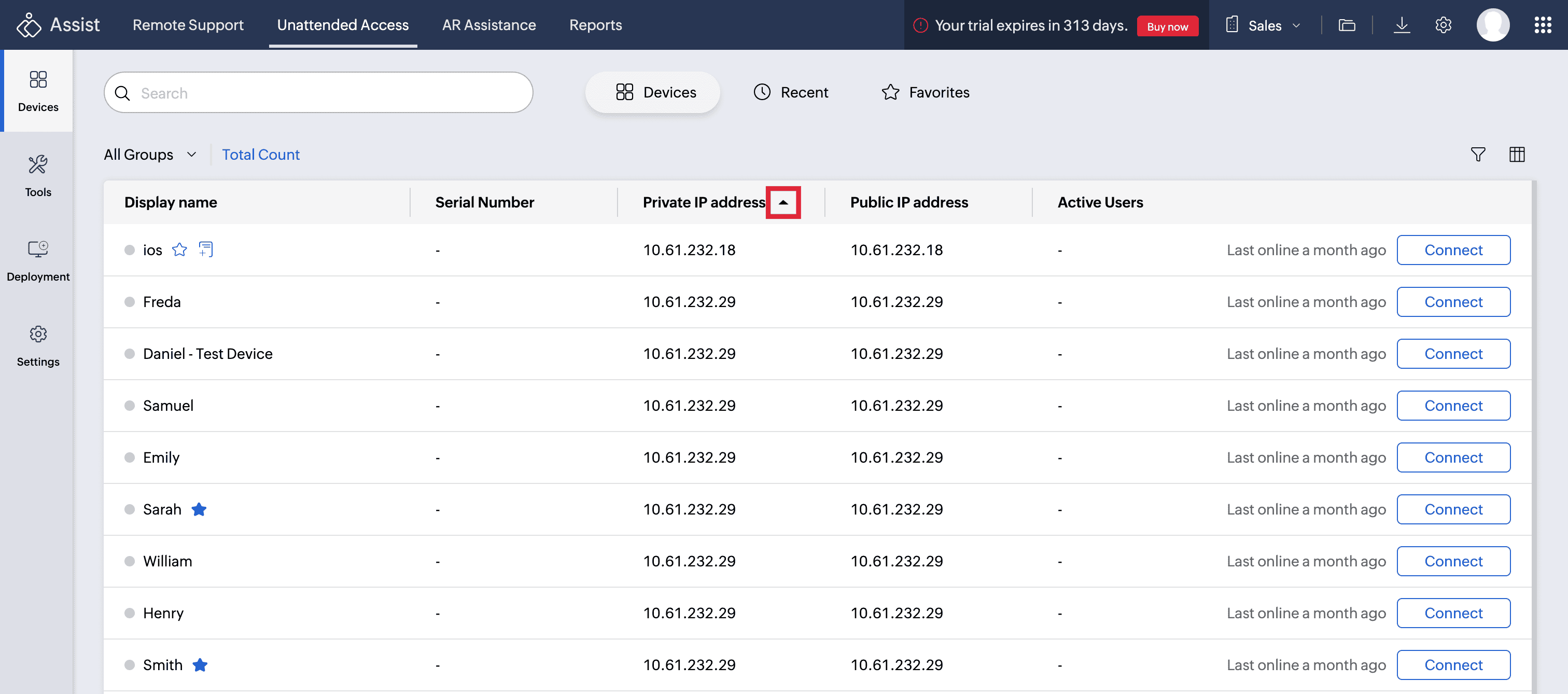
Searching in the Devices Page
The Search function is designed to help you quickly identify computers for easy access. Click the Search bar as shown in the below image.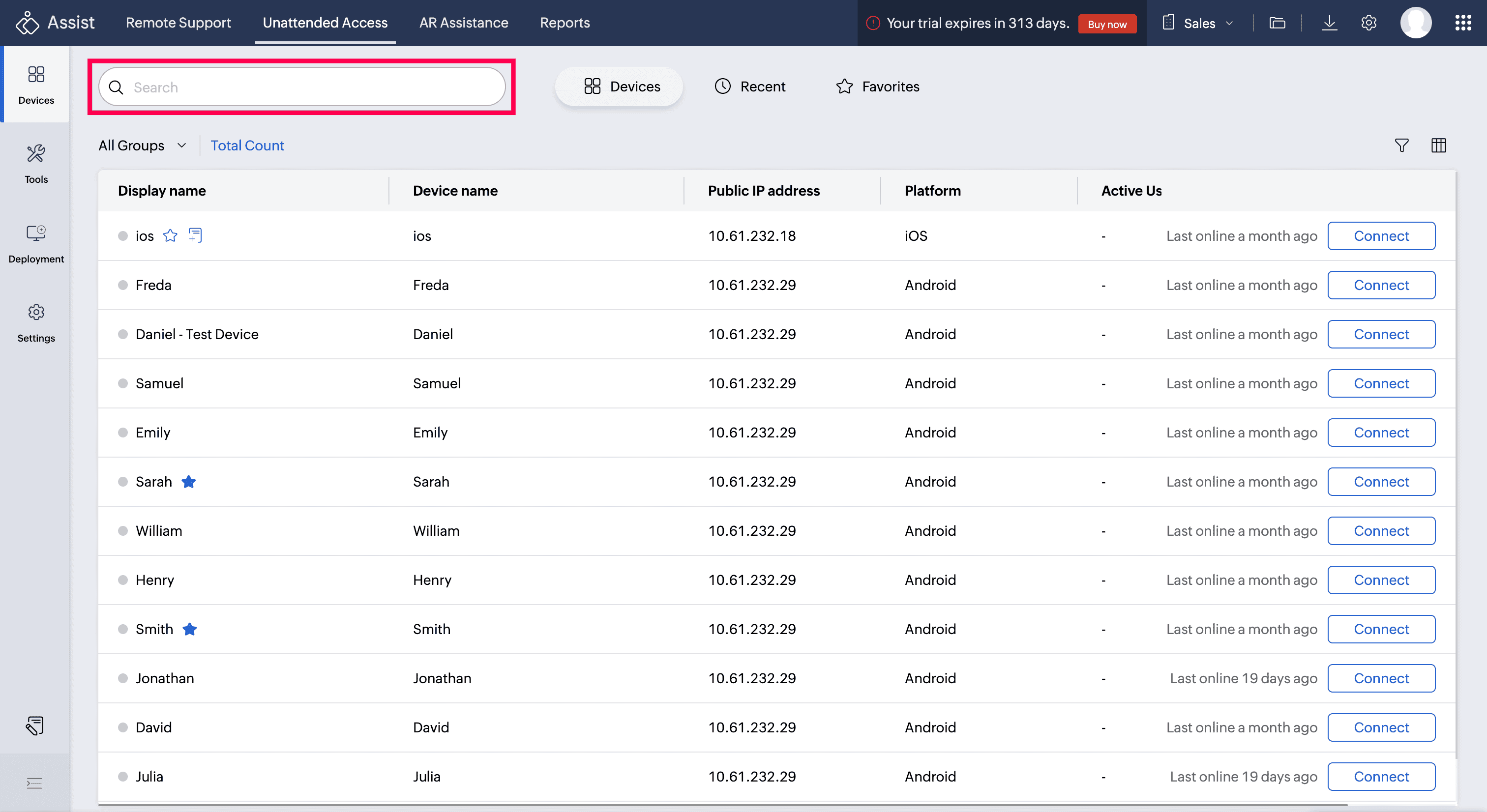
Searchable Fields/Columns: You can search across several key columns, including:
Display Name,
Device Name,
Public IP Address,
Private IP Address,
Active Users, and
Serial Number (only complete serial numbers can be searched; partial searches are not supported.
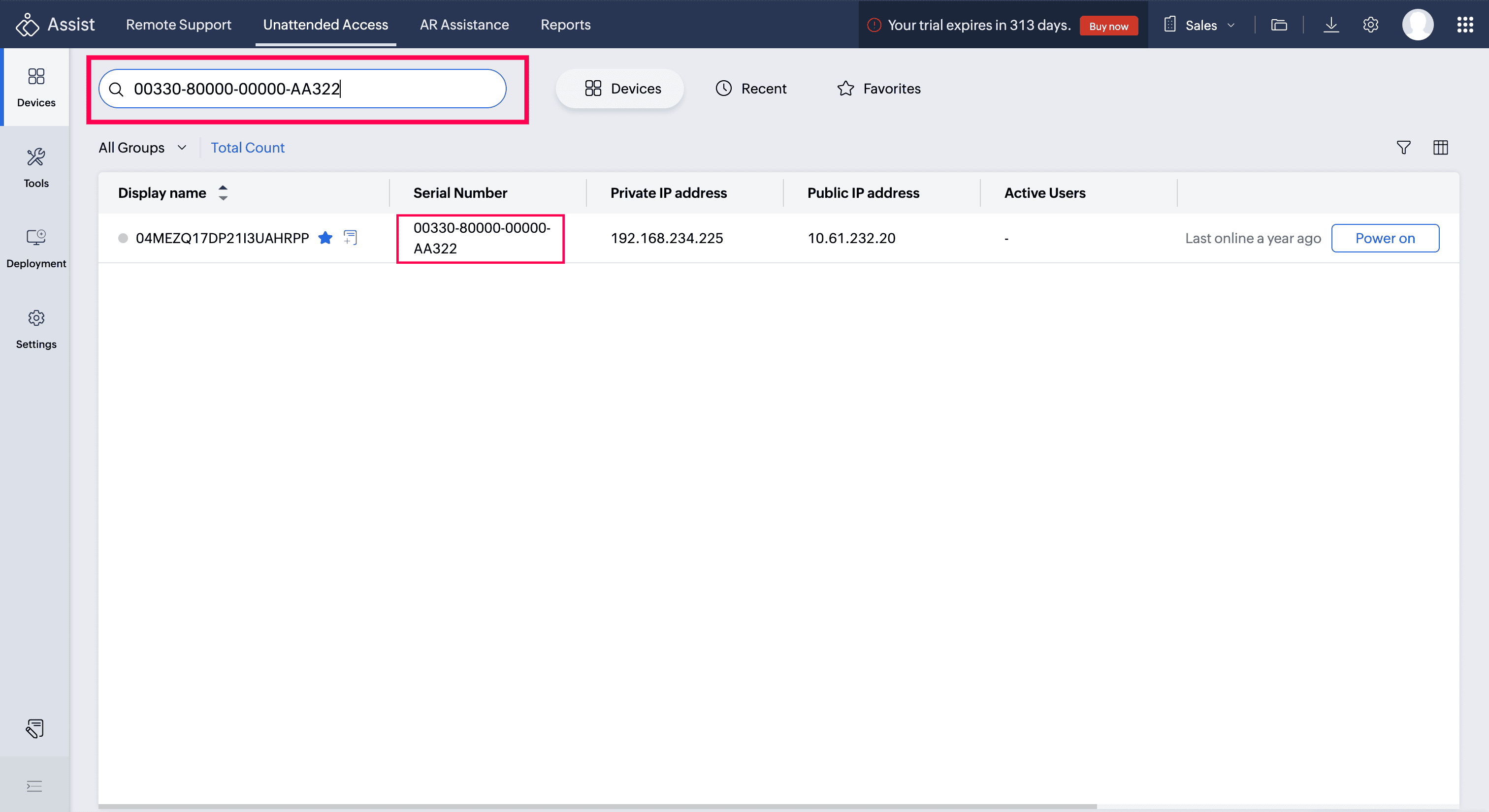
You can combine your search query with active filters and sorting options to refine your device list. 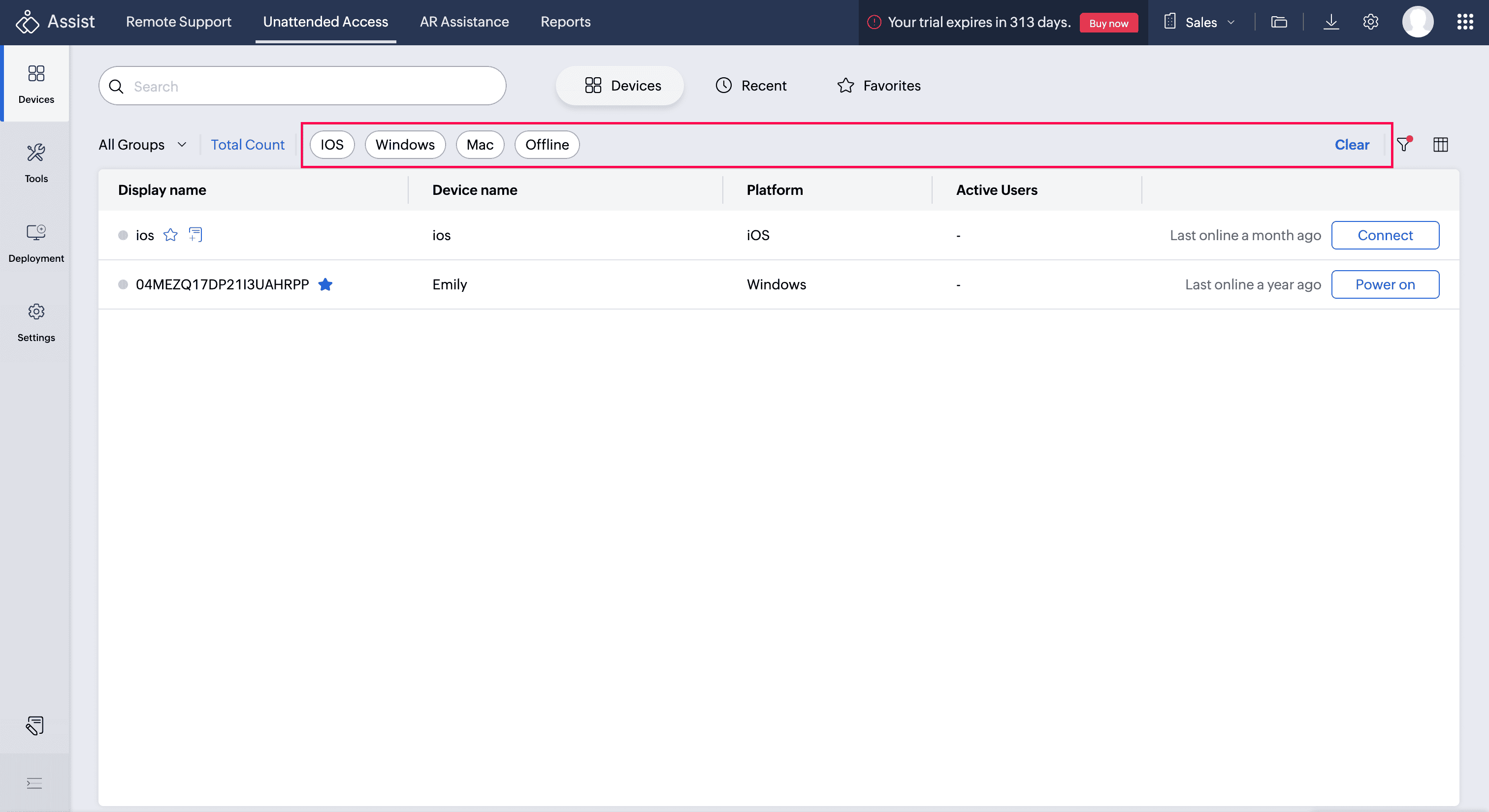
Column Chooser and Column Resizer
The Column Chooser and Column Resizer enable you to tailor the Devices table for maximum readability and a user-friendly experience.
Column Chooser
Column chooser allows you to customize which columns appear in the Devices table.
Click the column chooser icon
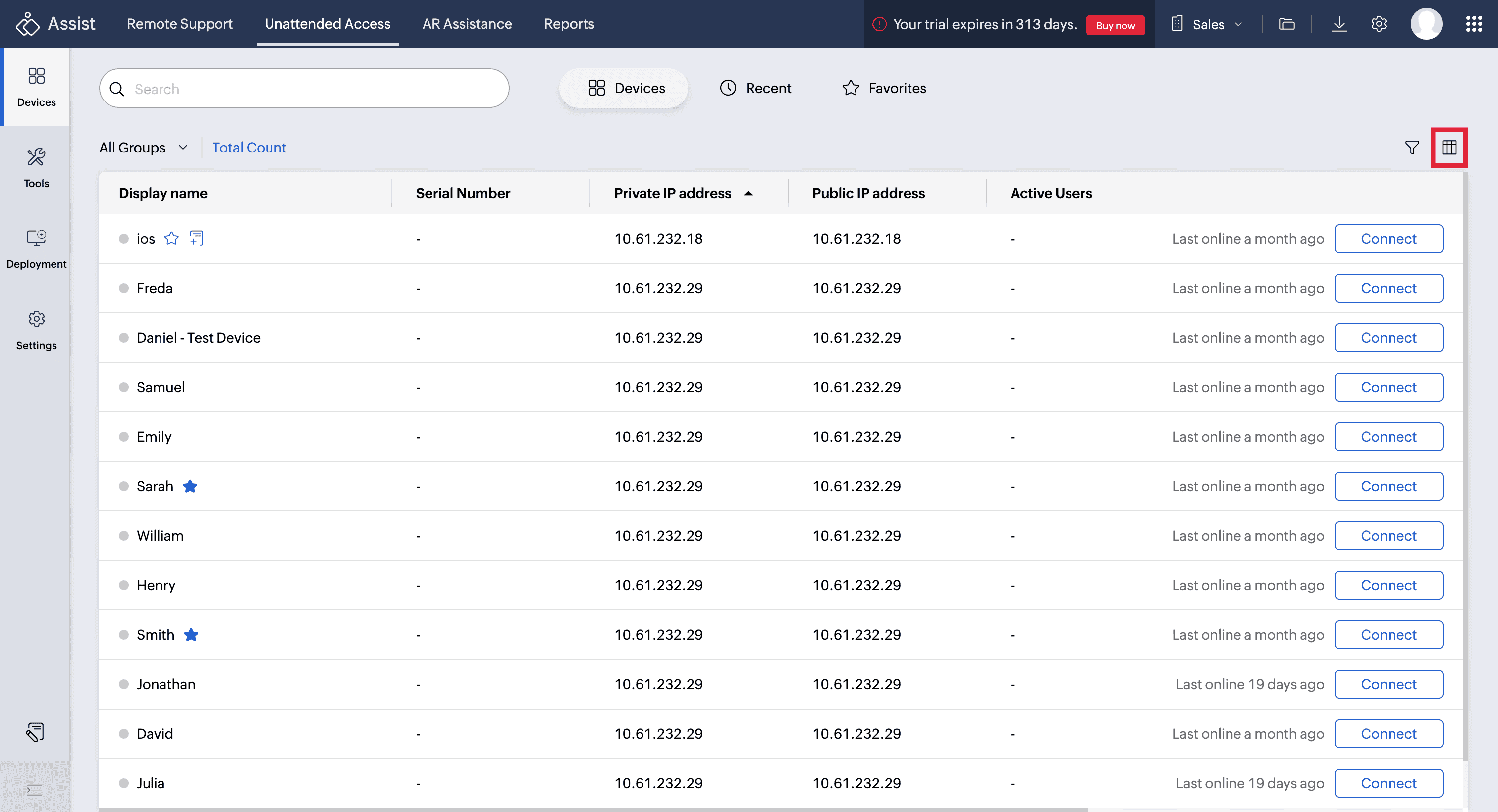
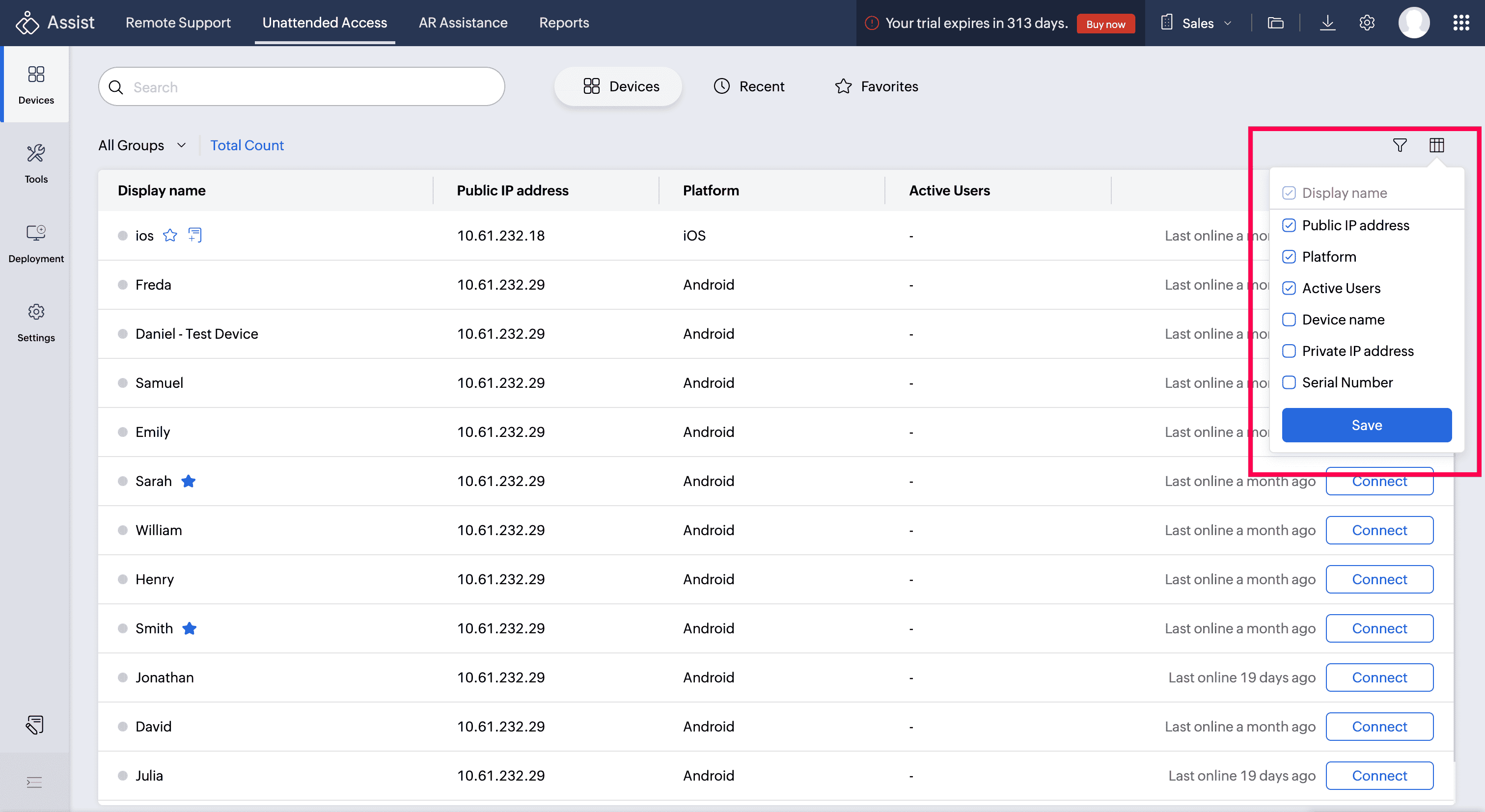
Select or deselect columns using the checkboxes.
Drag and drop to rearrange column order.
Click Save to apply your preferences and update the table view.
Notes :
The Display Name column is fixed and mandatory; it cannot be unselected, moved, or rearranged.
Columns marked as disabled within the column chooser drop menu are also mandatory.
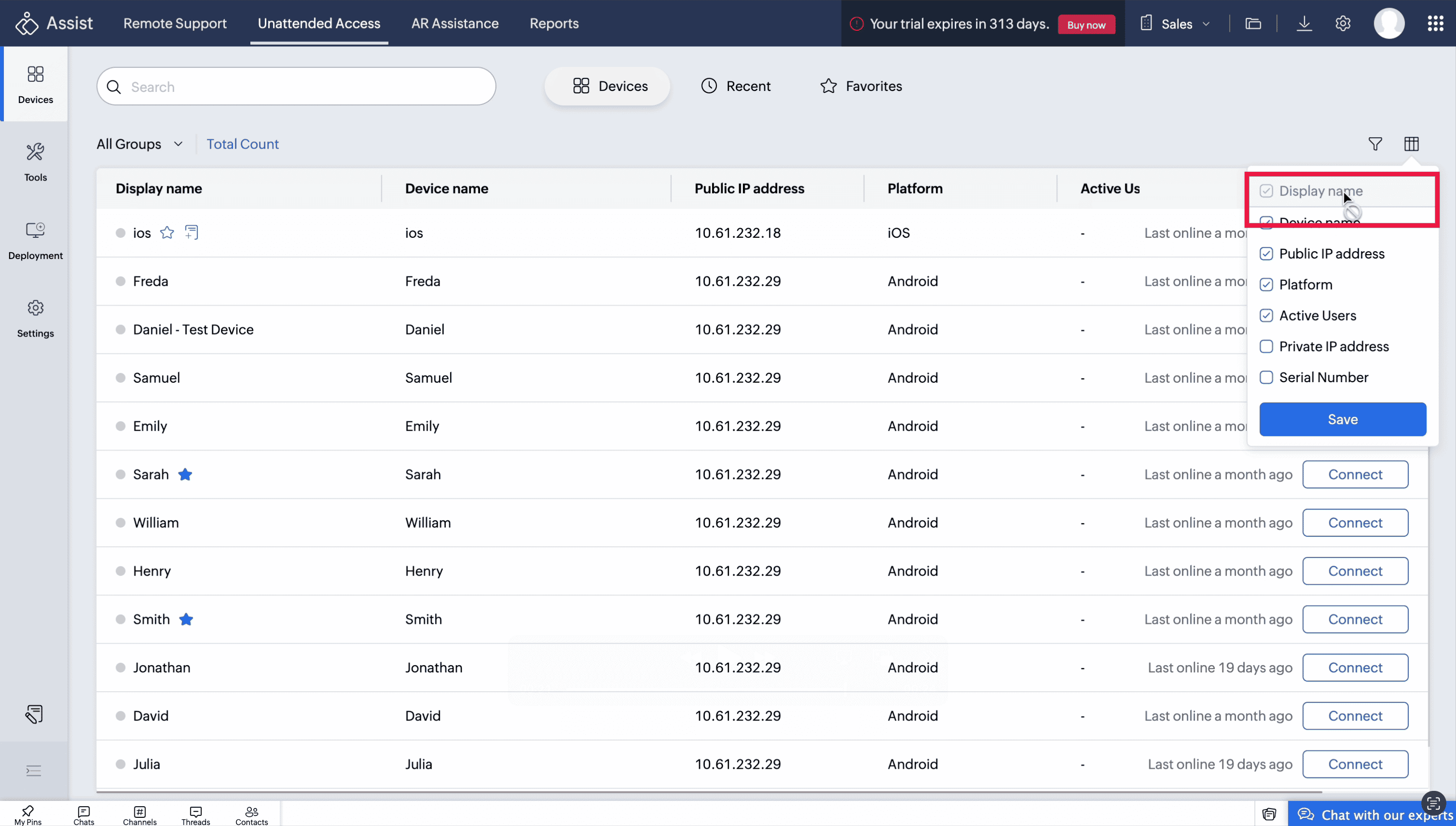
The Recent tab maintains its own column preferences, while the Devices and Favourite tab shares the same configuration.
Search only applies to visible columns. If a column is hidden/unselected in the column chooser, its value will not appear in search results.
Example: If the Public IP column is hidden, searching by IP will not return results even if the IP exists.
Column Resizer
The Column Resizer allows you to adjust the width of any column to improve visibility and readability within the table.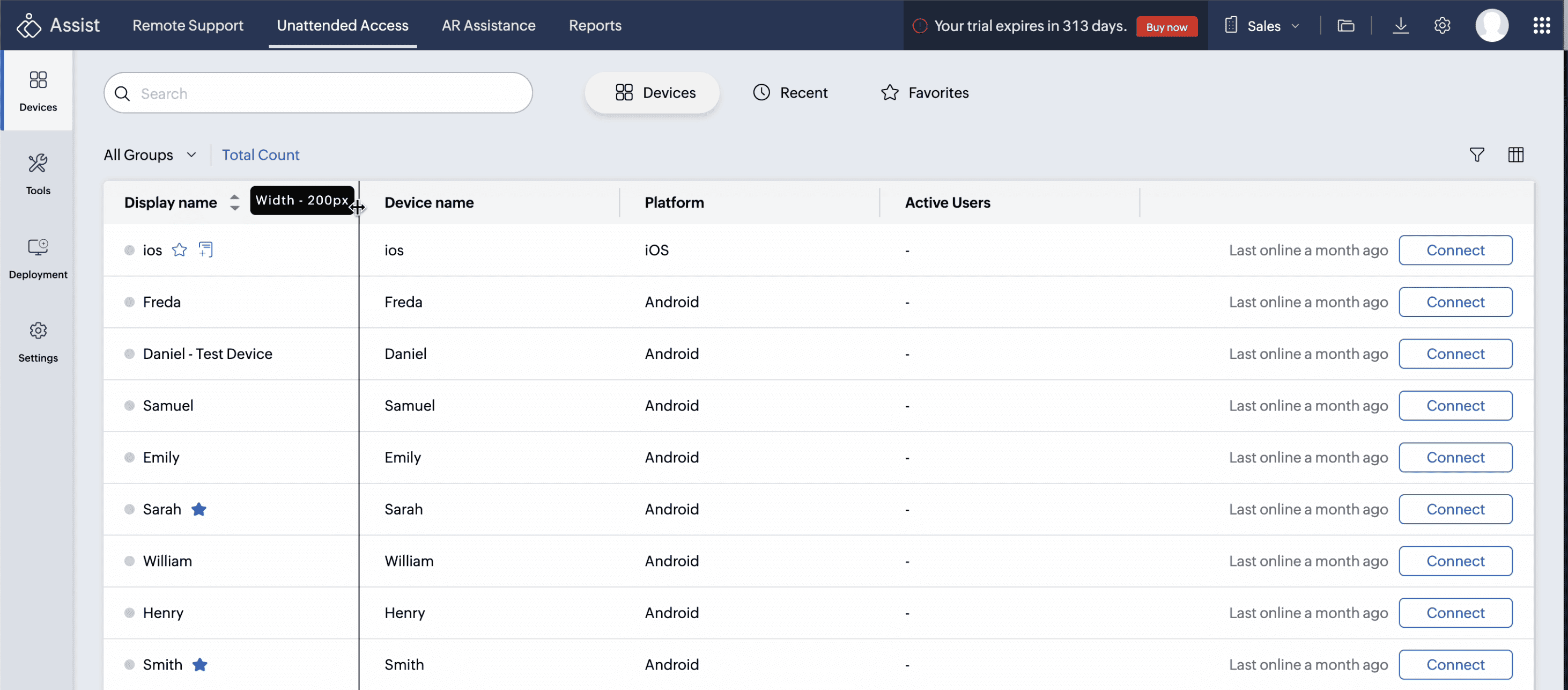
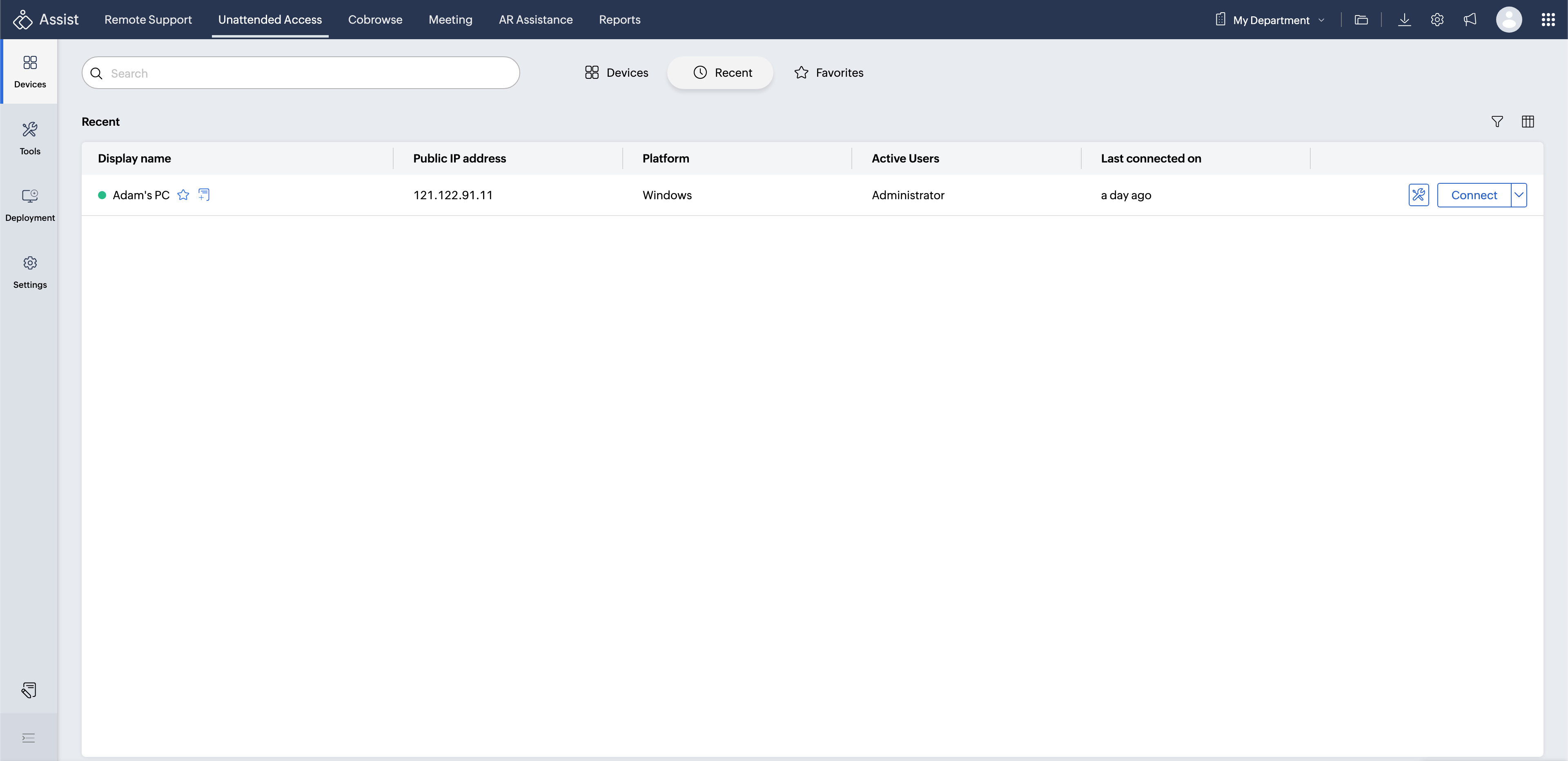
Recent
The Recent section provides quick access to devices that you—or other technicians from your organization interacted with most recently. This view helps you return to recently accessed machines without searching the full device list.
The Recent tab maintains its own column preferences, independent of the Devices and Favorites tabs.
Any actions you perform here (sorting, filtering, resizing) apply only to the Recent view.
Favorites
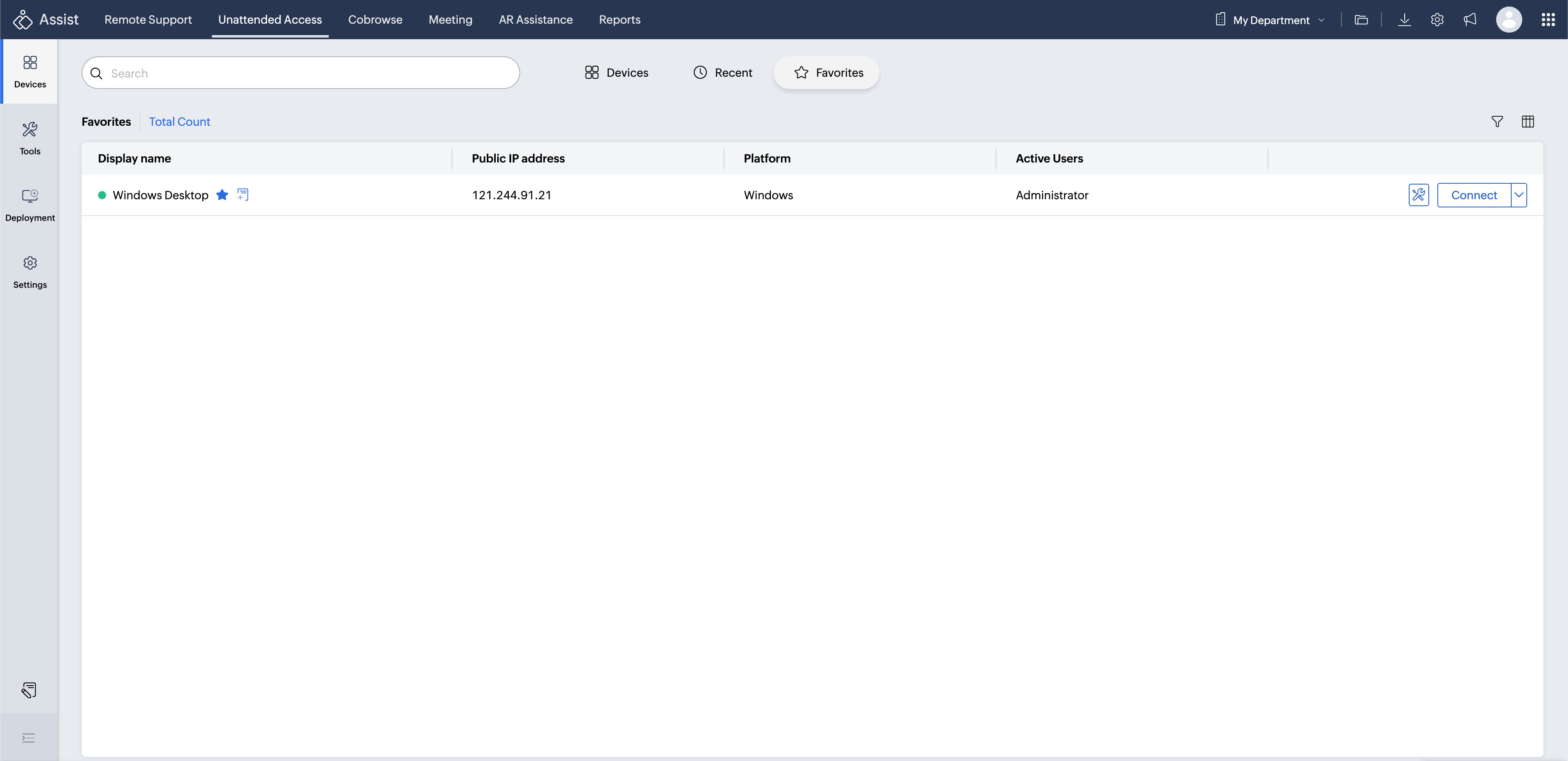
The Favorites section lets you pin frequently accessed devices for quicker access.
Favorites and Devices tabs share the same column configuration.
Marking or unmarking a device as a favorite updates this section instantly.
Ideal for technicians who manage a fixed set of machines regularly.