How to Access Unattended Devices
Zoho Assist allows technicians to remotely access and manage unattended devices. Once the Zoho Assist Unattended Agent is deployed/configured on a remote device, you can initiate an unattended access session by following the steps below.
Go to assist.zoho.com.
Log in to your Zoho Assist account.
Navigate to the Unattended Access tab in the top menu.
Locate the unattended device and click Connect or Connect As, depending on the available options.
By default, for online and active devices, click Connect to start the session.
For Windows and Linux devices with multiple active users, click Connect As and select the required user account from the drop-down list.
Icon Color | Status | Description |
Green | Online / Active | Device is online, in an active session, or running the mobile app. |
Grey | Offline | Device is offline or the mobile app is not active. |
Black | Deleted | Device has been removed from the Unattended Access list. |
Red | Blocked | Access to the device is blocked by the end user. |
Connection Actions
For Online / Active Devices
Connect
Connects directly to the device.
For mobile devices, online macOS devices, and devices without active logged-in users.Connect As
Allows the technician to select which active user session to join.
For Windows and Linux devices with multiple active users.Join
Allows the technician to join an ongoing unattended session in the unattended device.
For Offline Devices
Power On
Enabled when the device (Windows, macOS, or Linux) is on the same LAN, and Wake-on-LAN (WoL) is enabled in settings. Allows the technician to power on the device remotely.Power On (Disabled)
When Wake-on-LAN is not enabled, or the device is iOS, Android, or ChromeOS (these platforms do not support WoL).
For Blocked Devices
No action buttons are displayed.
The technician cannot initiate or join a session.
If Session Confirmation is enabled in the settings, the customer must approve each time a technician attempts to connect to an unattended device.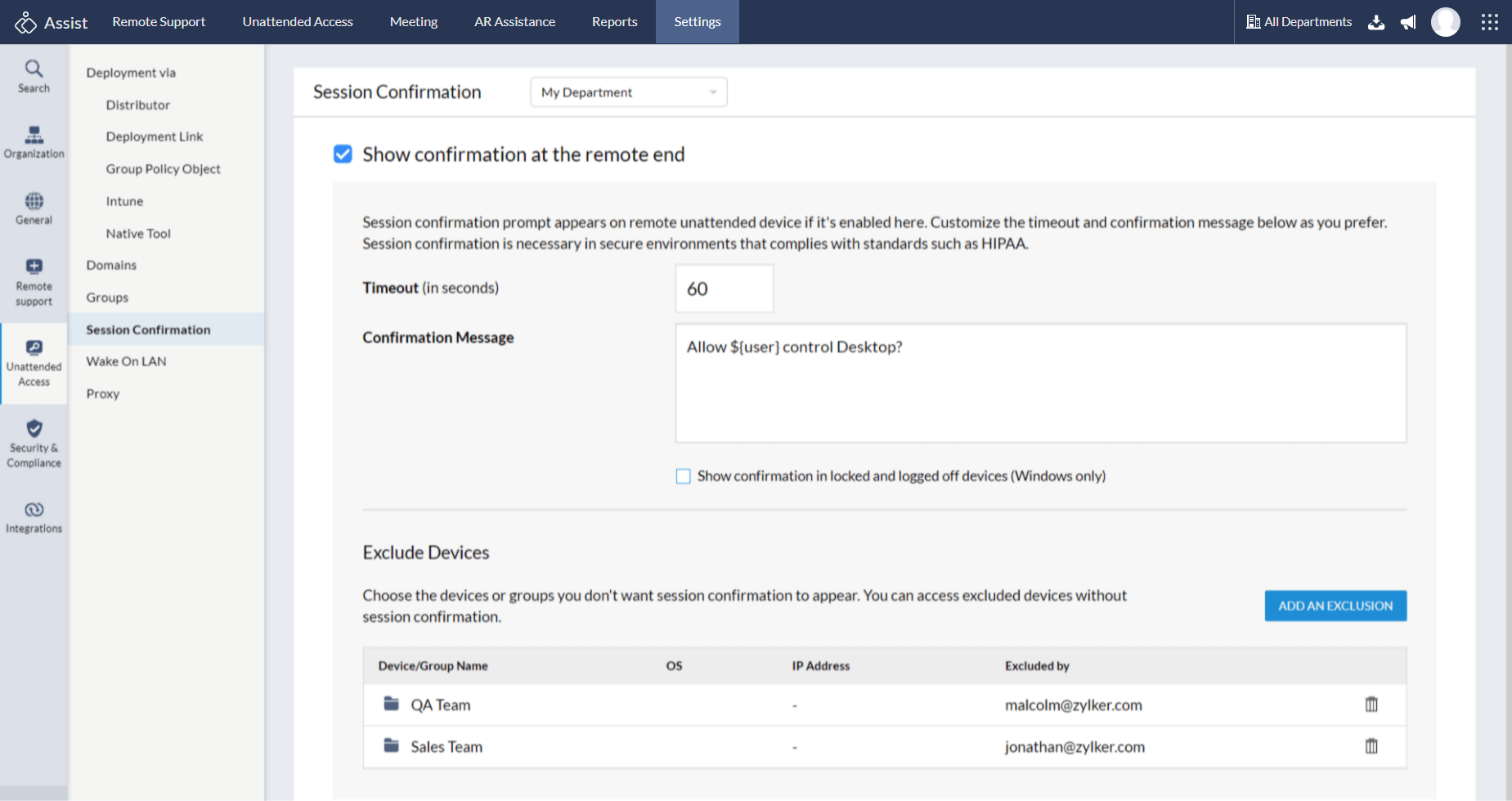
If the customer accepts, the remote session starts immediately.
If the customer declines, the technician is notified and the connection attempt ends.
Note: If the customer does not respond, the session request will automatically time out after the configured duration.