Install Unattended Access using Installer
This method is used when the technician has physical access to the device or can share the downloaded installer file.
Log in to your Zoho Assist account on the device that needs to be configured for unattended access.
Navigate to the Unattended Access tab.
Select Deployment from the left panel and choose Manage Devices.
Click +Add in the top-right corner of the page.
Download the installer: Choose the appropriate installer based on the remote device's operating system.
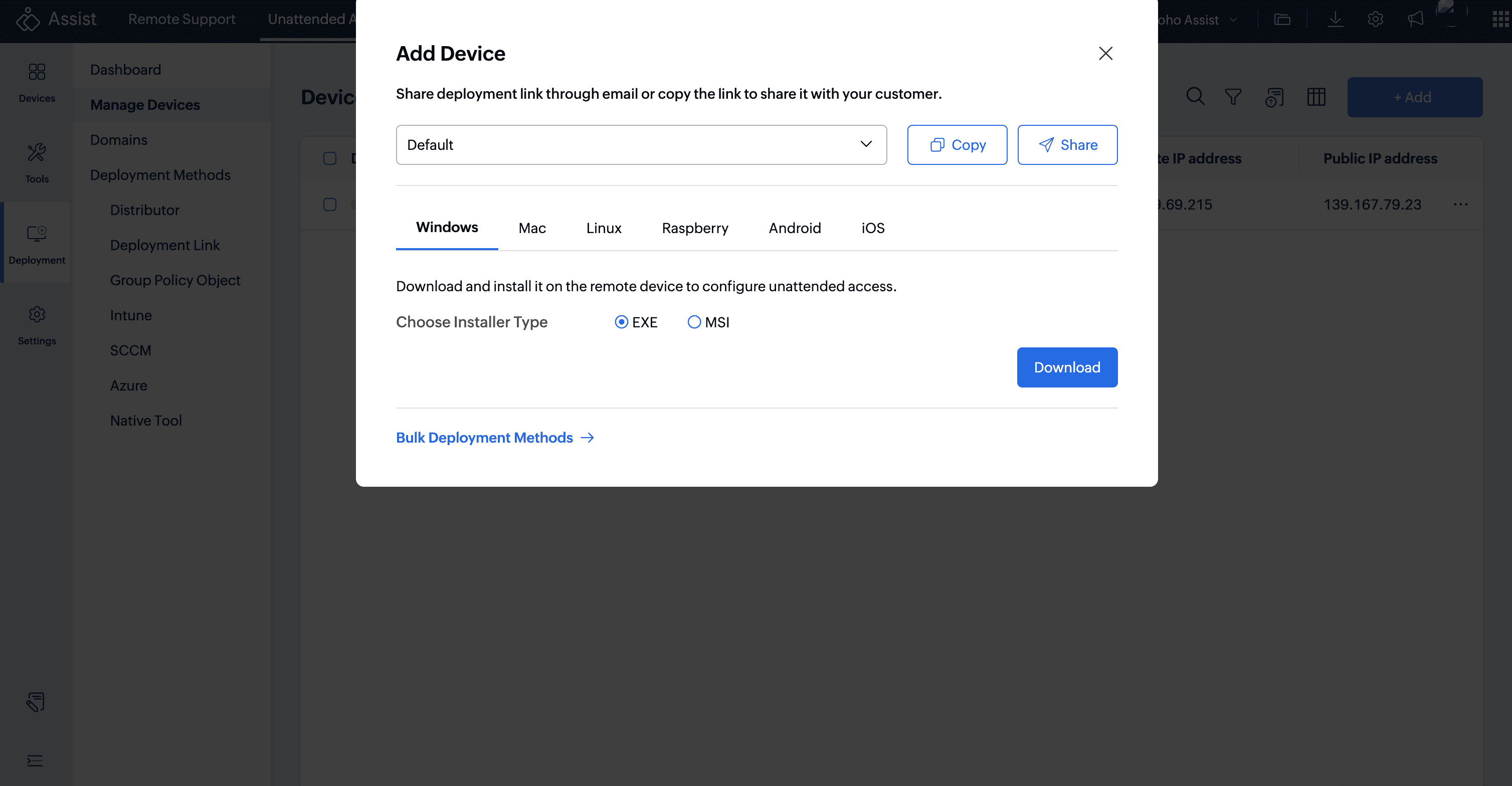
Alternatively, you can download the latest installer directly from the Downloads page:
Click the Download icon (usually found in the top-right corner).
Under the For customer (Unattended Access) category, navigate to Desktop Apps.
Click the appropriate operating system (Windows, Mac, or Linux) based on the remote device's OS.

Once the download is complete, run the file on the remote device to install the Unattended Access agent.
Note:
Please ensure you always use the latest version of the Zoho Assist Unattended Installer for enhanced performance, security patches, fixes, and access to the newest features. Using an older version, especially one over a year old, may result in compatibility issues or limitations.
To get our latest version, navigate to the Downloads section as described above.