Installing Zoho Assist Customer app via Intune - iOS
Microsoft Intune provides a streamlined method for deploying the Zoho Assist Customer app to iOS devices. This guide covers the essential steps, from enrolling devices to distributing the app with necessary configurations.
Requirements
- Access to Microsoft Intune
- Apple MDM Push Certificate for device management
- Apple ID for certificate creation and enrollment
Deployment
1. Enrolling your device
- Log into your Microsoft Intune account.
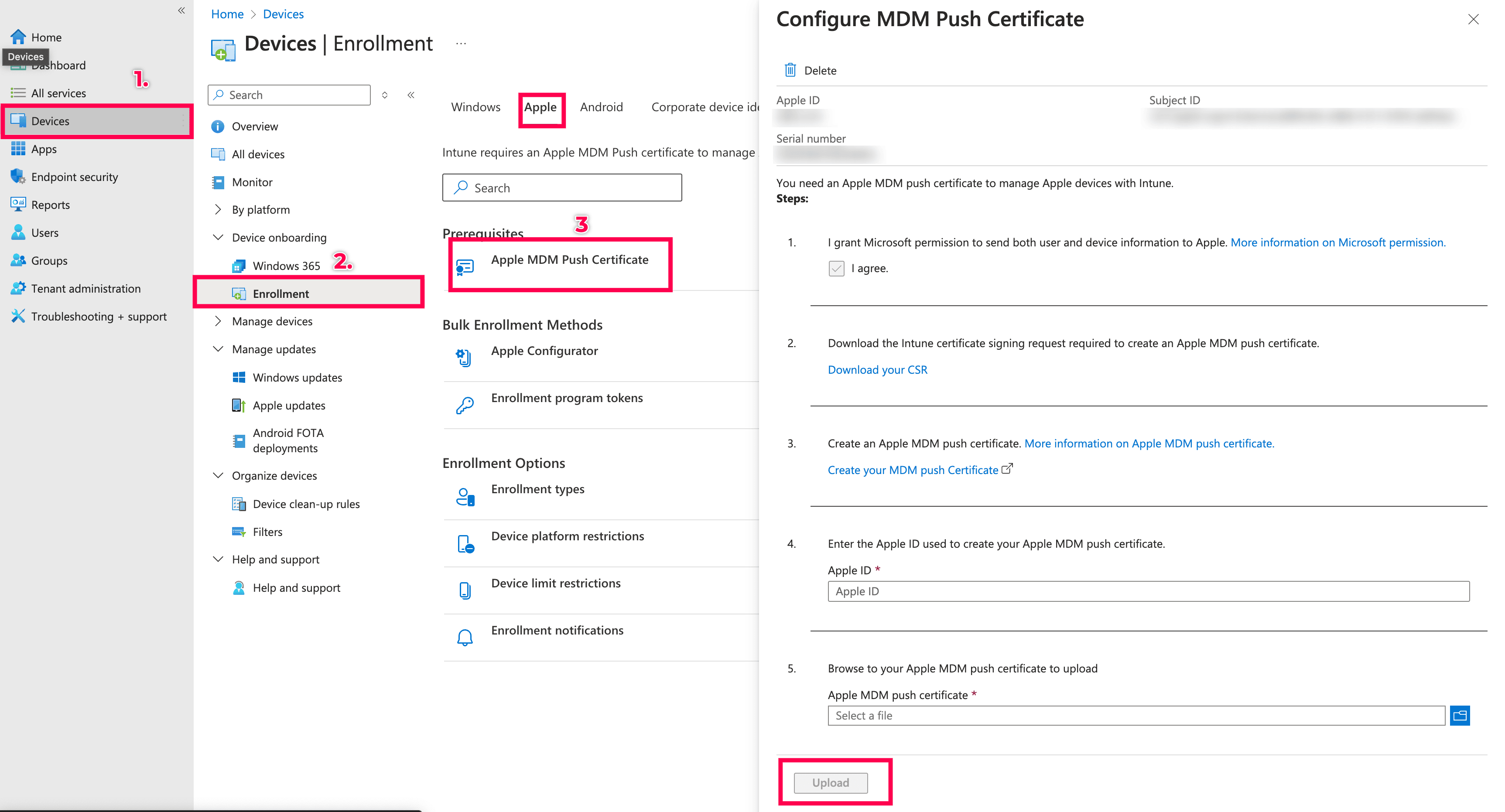
Navigate to Devices > Device Onboarding > Enrollment > Apple > Apple MDM Push Certificate and select the necessary permission to send both user and device information to Apple, enter the Apple ID, choose the Apple MDM Push Certificate, and click Upload to configure the MDM Push Certificate and complete the enrollment process.
2. Add the app for distribution
Go to Apps > All apps and tap + Add.
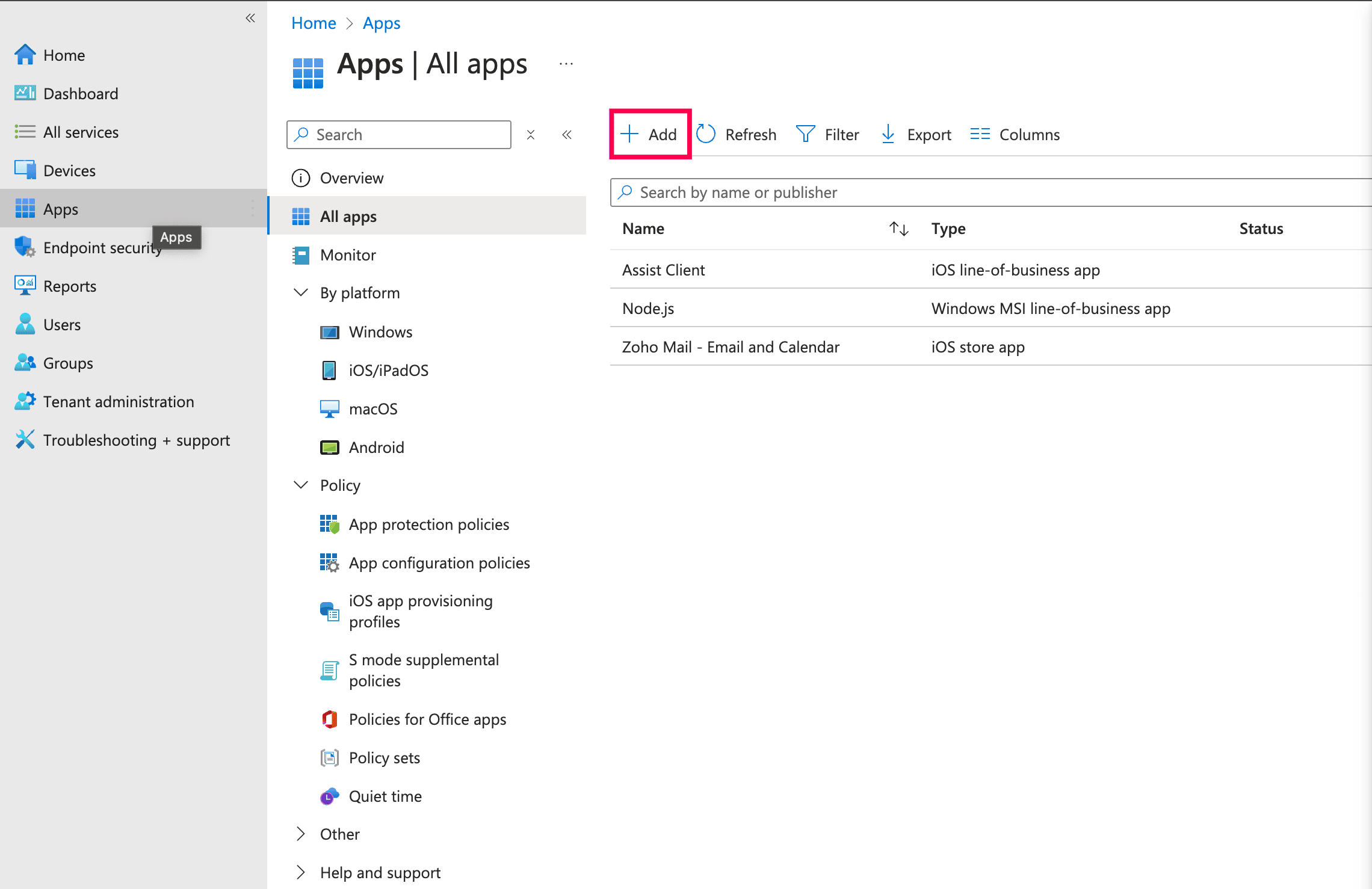
- Select the Zoho Assist Customer app from the App Store.
- Follow the steps as directed to complete the app addition process.
3. Configure the app
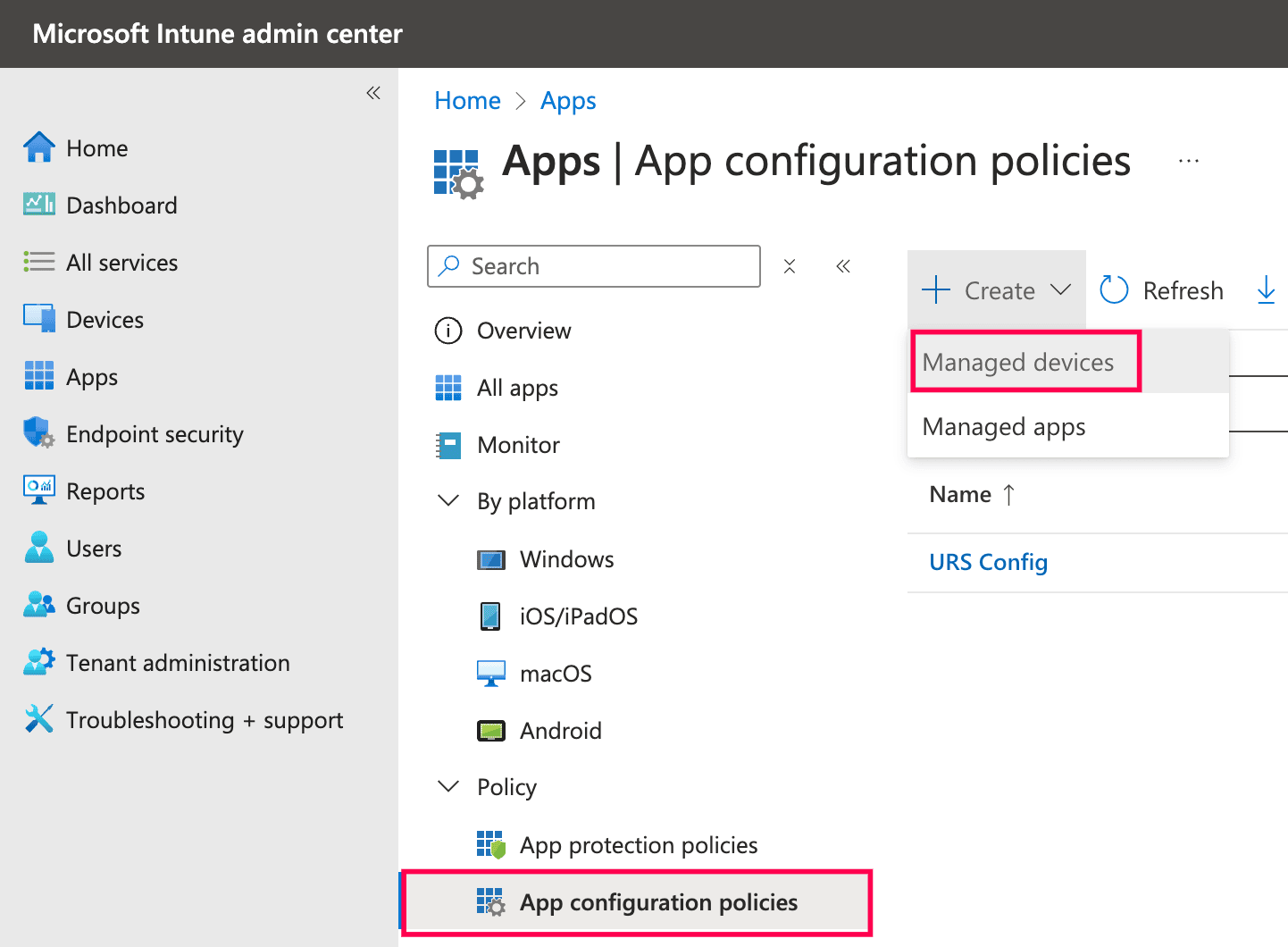
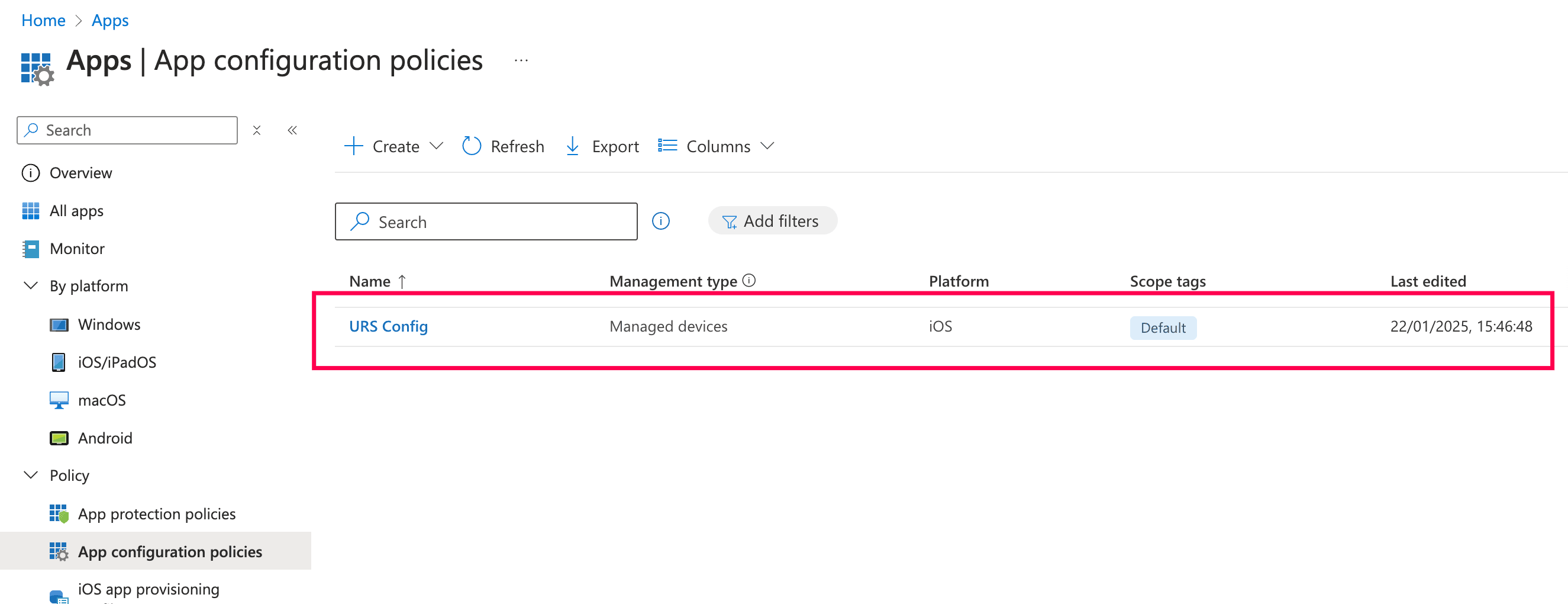
- Navigate to Apps > App Configuration Policies and click +Create.
Choose Managed devices as the assignment type.
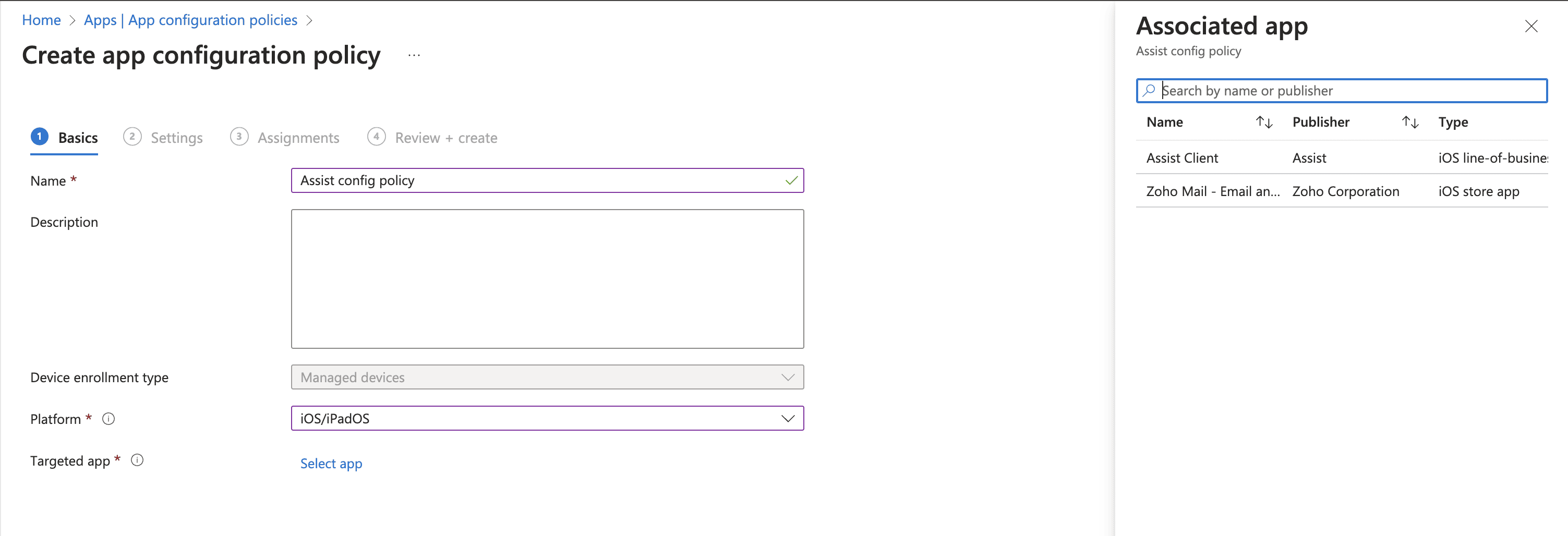
Enter a policy name, select the platform (iOS), and choose the app enrolled.
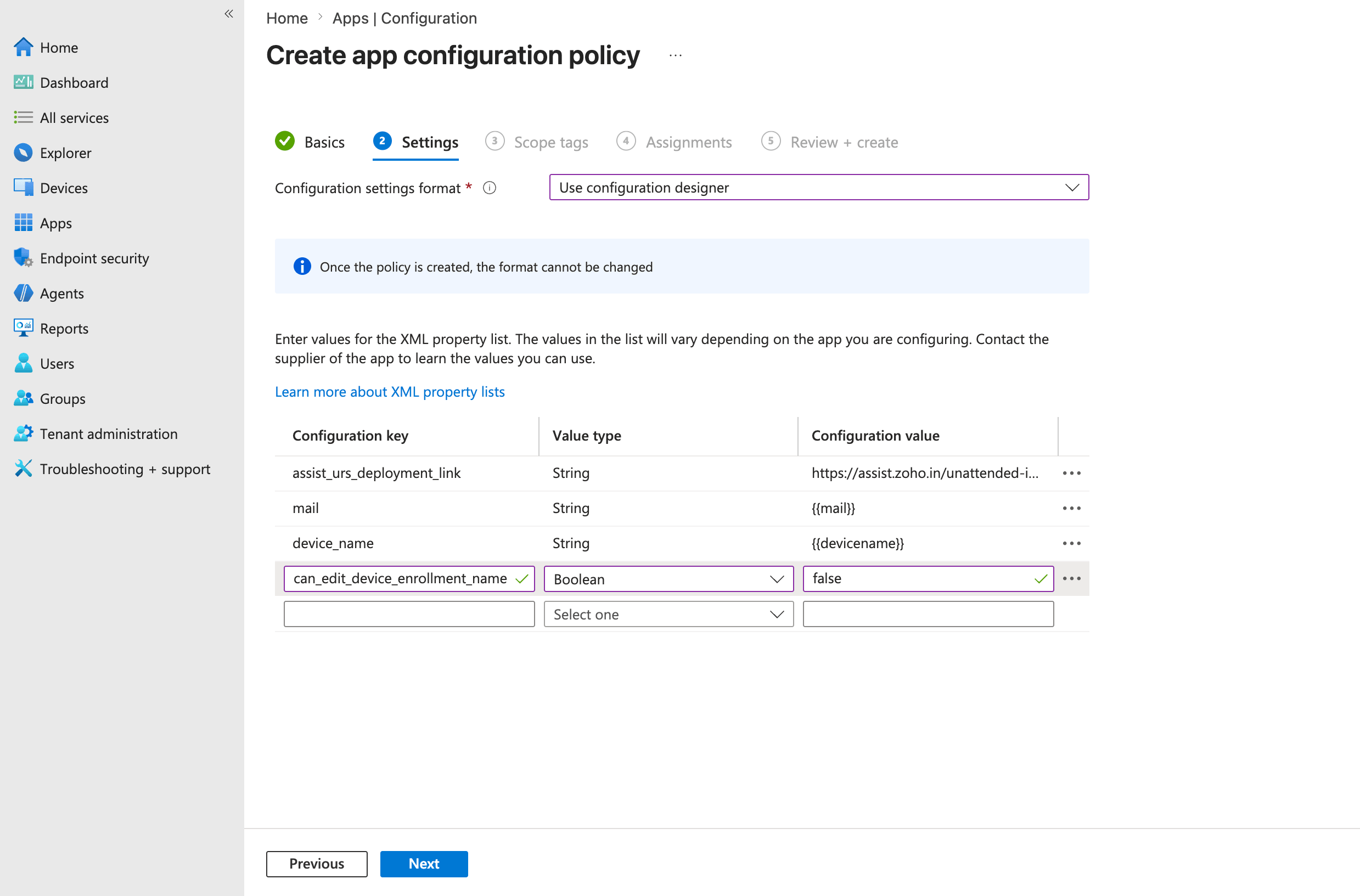
Add the required configuration key, value, and select the value type as string from the dropdown menu.
Key
Value
Value Type
assist_urs_deployment_link
<deployment link>
String
mail
{{mail}}
String
device_name
{{devicename}}
String
can_edit_device_enrollment_name
FALSE
Boolean
For assist_urs_deployment_link, set the value type as string and enter the deployment link as the value.
For mail, set the value type as string and enter "{{mail}}" as the value, which automatically fetches the enrolled user's email address and maps it to the device.
For device_name, set the value type as string and enter "{{devicename}}" as the value, which fetches the device name and maps it as the device name during enrollment.
For can_edit_device_enrollment_name, enter the value as FALSE to proceed with enrollment using the configured device name. Enter the value as TRUE to allow users to rename the device during enrollment.
Note: For the complete list of supported dynamic variables available in Intune, refer to Tokens used in the property list.
Assign the configuration policy to the required devices/groups.
4. Configure Device Features for Notification Permission
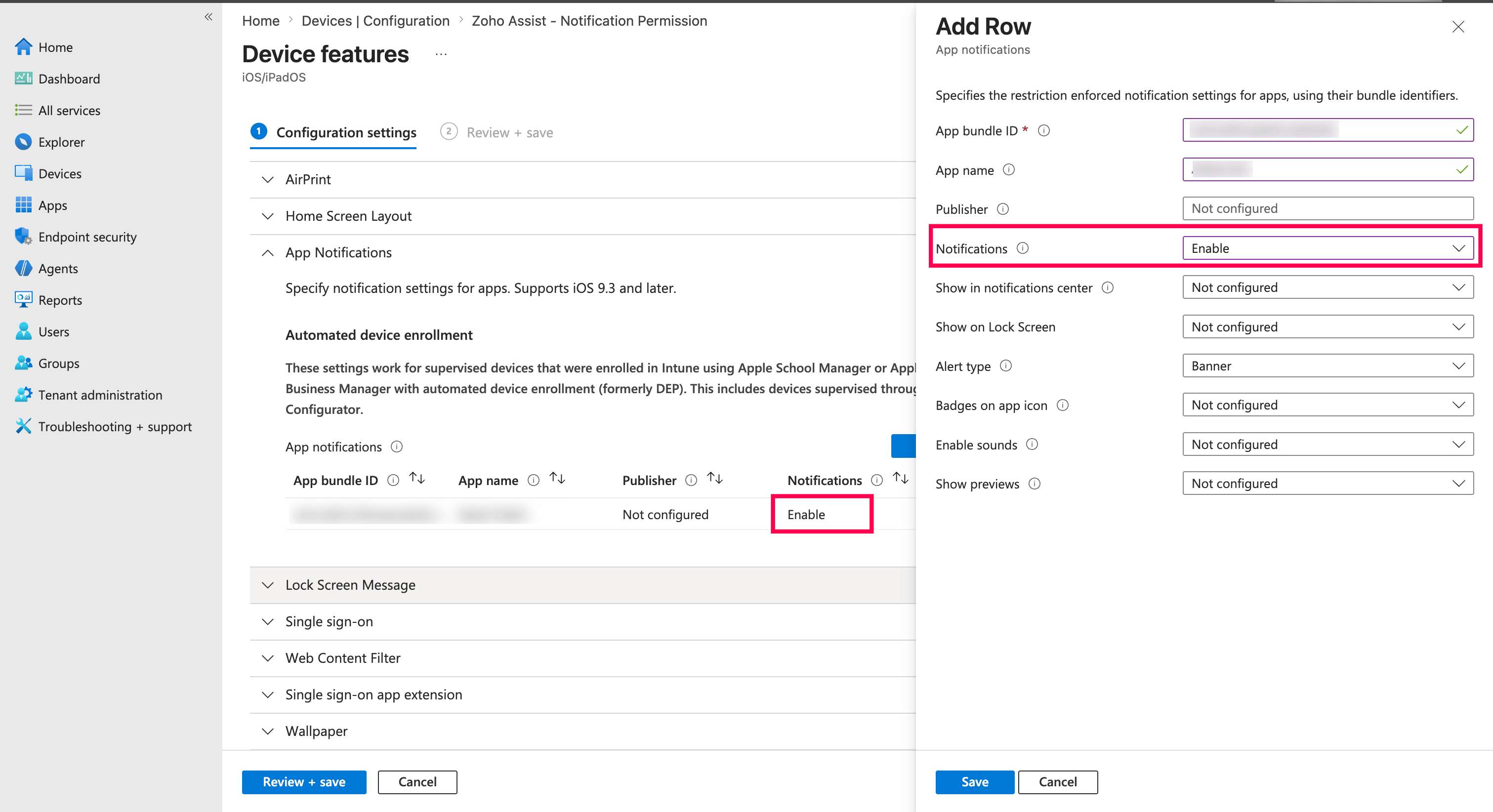
To pre-grant push notification permission so that users are not prompted with an allow/deny alert, configure a Device Features policy in Intune.
Navigate to Devices > Configuration > Create policy, select iOS/iPadOS as the platform, and choose Device features as the profile type. Under App Notifications, click Add to add a new row.
Choose the Zoho Assist Customer app and set " Notifications" settings to Enable and add configure the settings.
- Click Save, assign the policy to the required devices or groups, and click Review + Save to apply the configuration.
5. Distribute the App
- Download the Company Portal app from the App Store on the target iOS device.
- Sign in and follow the in-app steps to install the management profile.
- Once the installation is complete, navigate to the Devices tab and tap Refresh or Check Status.
- The assigned app will automatically download and install on the device after some time.