Installing Zoho Assist Customer App via Microsoft Intune (Android)
Microsoft Intune provides a streamlined way to deploy the Zoho Assist Customer app to Android devices. This guide covers the complete process, including device enrollment, app deployment, managed app configuration, and Samsung Knox OEMConfig settings required for unattended remote control.
Prerequisites
Before you begin, ensure the following requirements are met:
- Access to the Microsoft Intune Admin Center
- Android Enterprise configured in Intune
- A Managed Google Play account linked to Intune
- Samsung Knox Service Plugin (for Samsung device-specific configurations)
Deployment
1. Enroll Devices
- Sign in to the Microsoft Intune Admin Center.
- Navigate to Devices > Android > Android enrollment.
- Select Managed Google Play and complete the setup to link your Managed Google Play account with Intune.
- Choose an enrollment method based on your organization's requirements:
- Corporate-owned devices
- Personally owned devices (BYOD)
- Corporate-owned work profile devices
2. Add the Zoho Assist Customer App
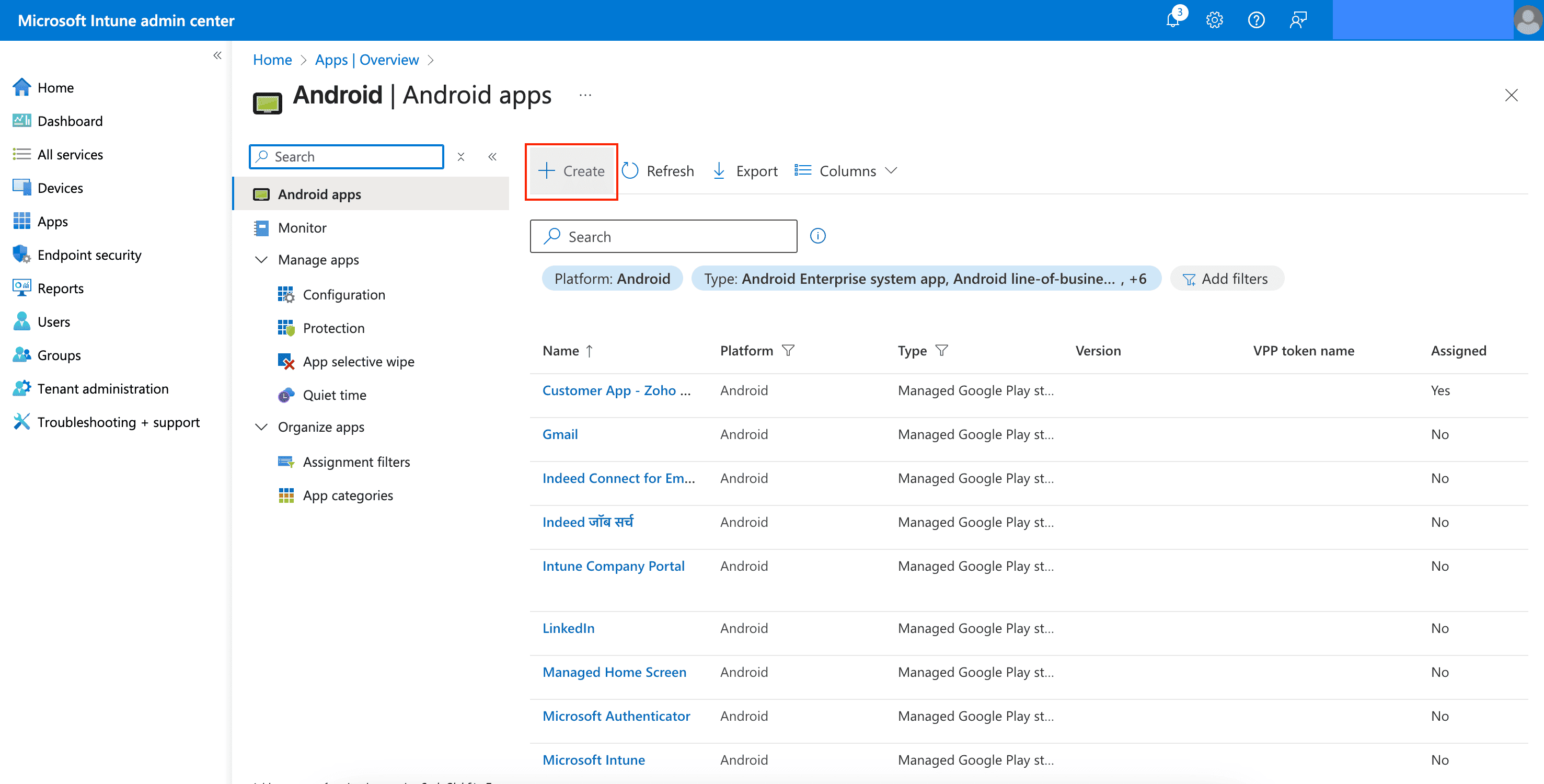
- Navigate to Apps > All apps and click +Create.
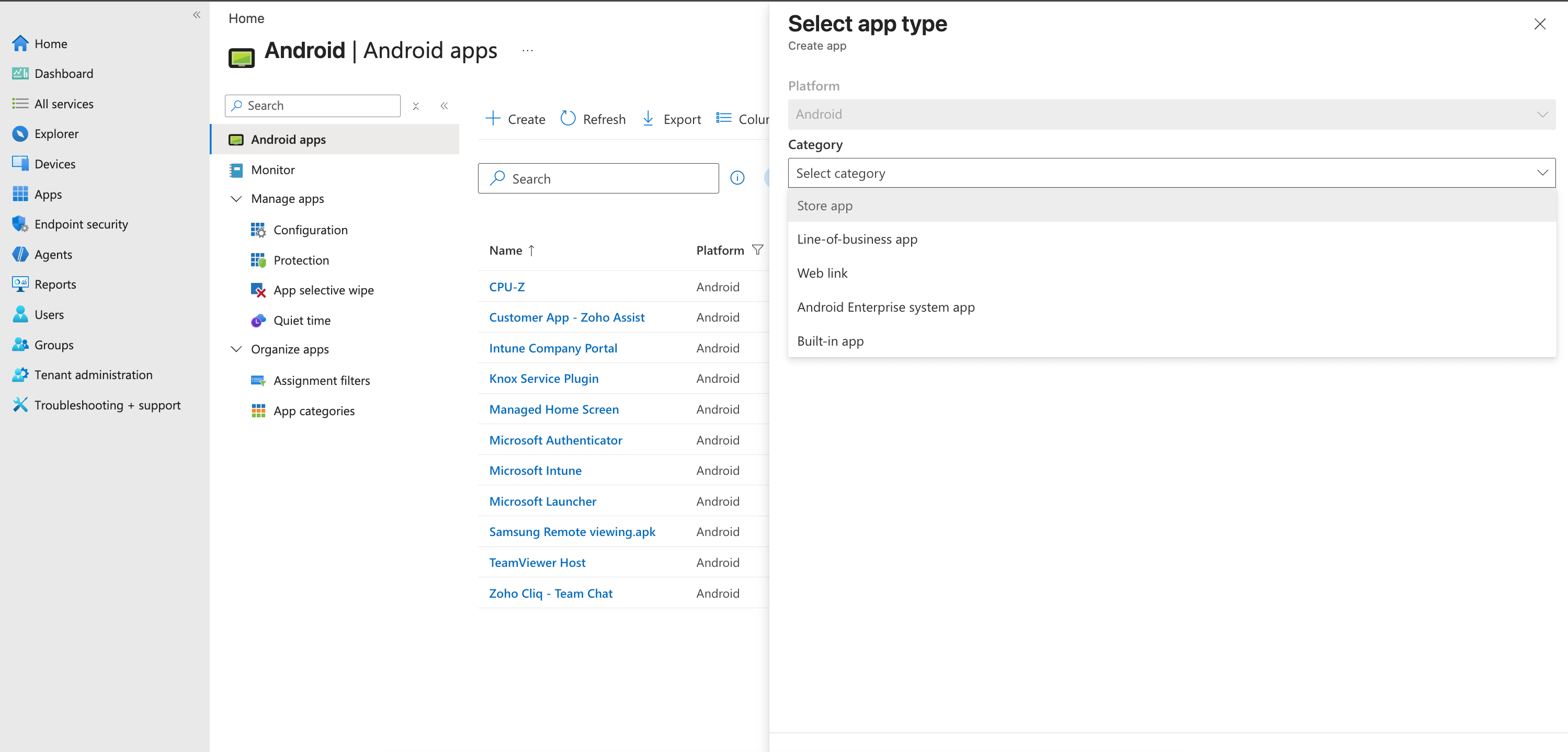
- Under Category, choose Store app.
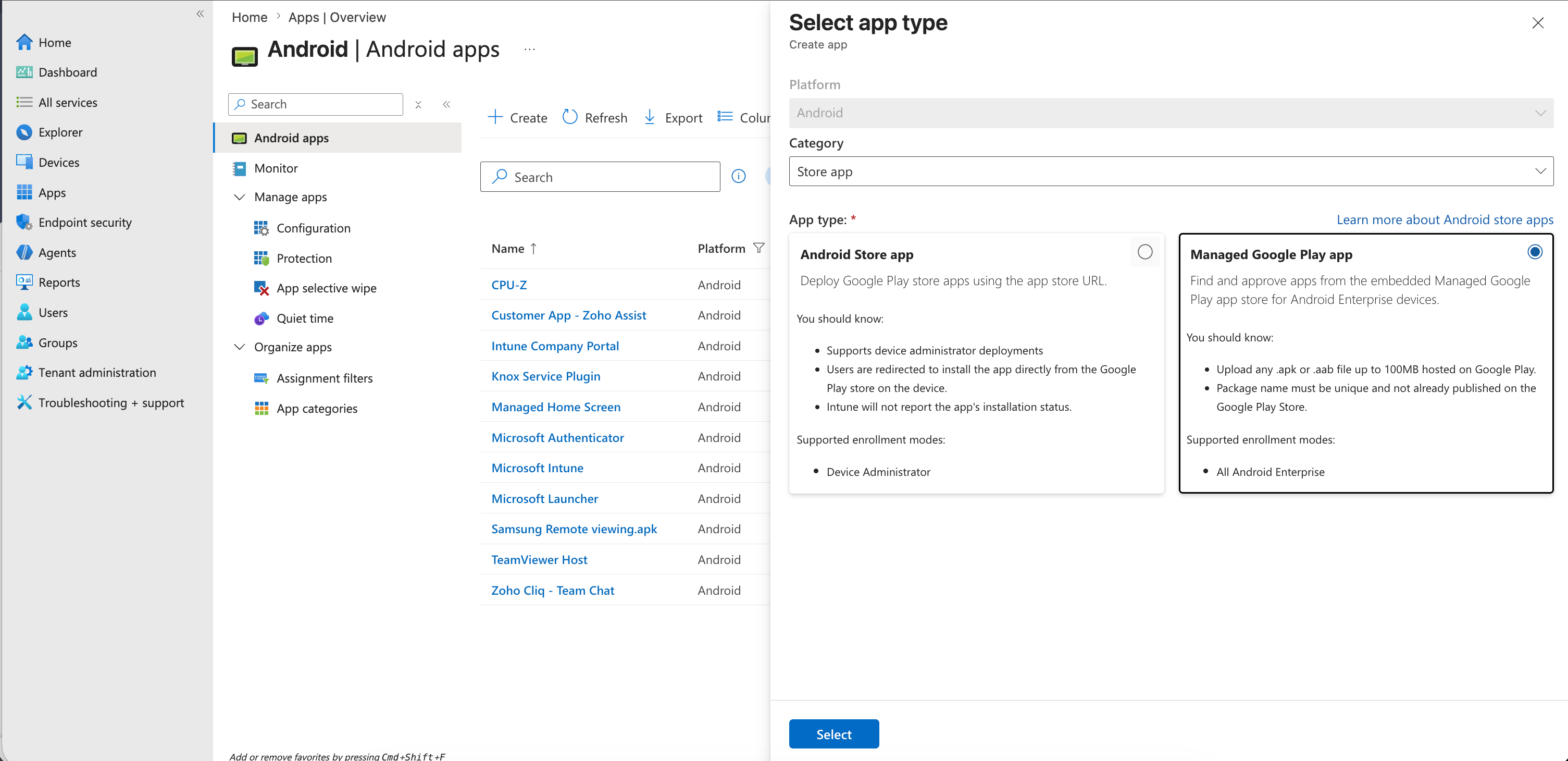
- For App type, select Managed Google Play app and click Select.
- Search for Zoho Assist Customer and click Select.
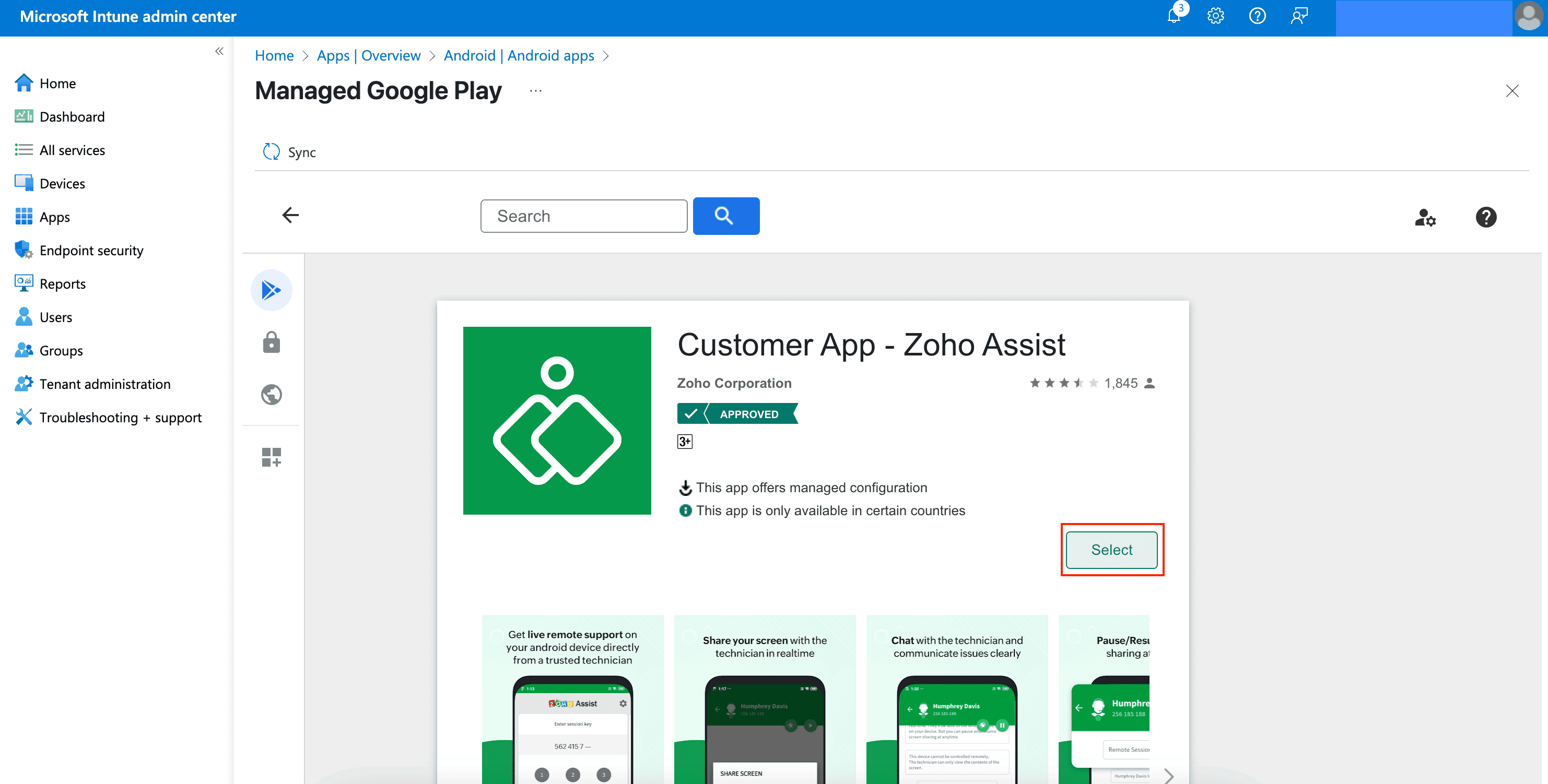
- Click Sync to import the application into Intune.
The app is now available for assignment and configuration.
3. Configure the App
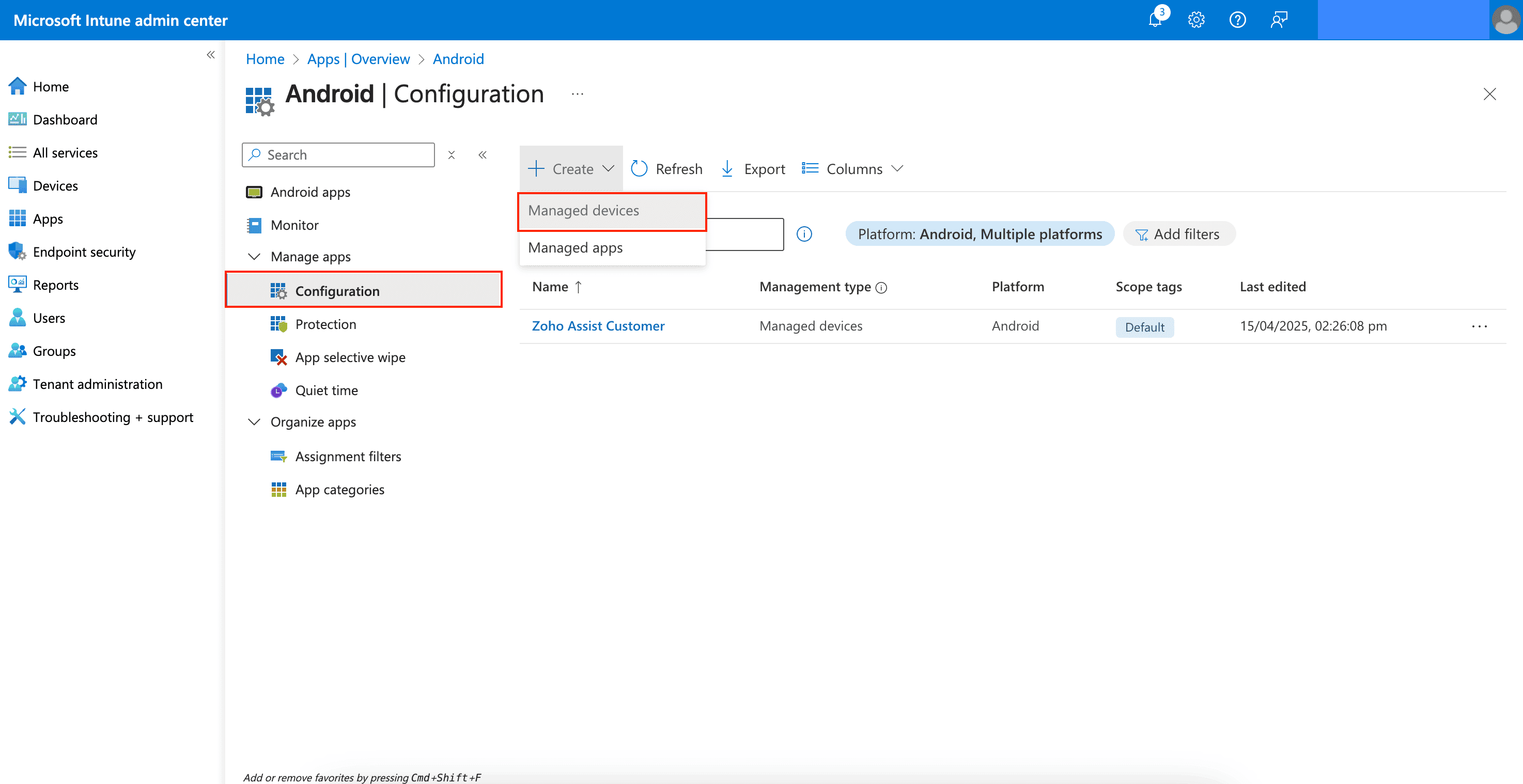
- Navigate to Apps > Configuration and click +Create.
- Select Managed devices as the assignment type.
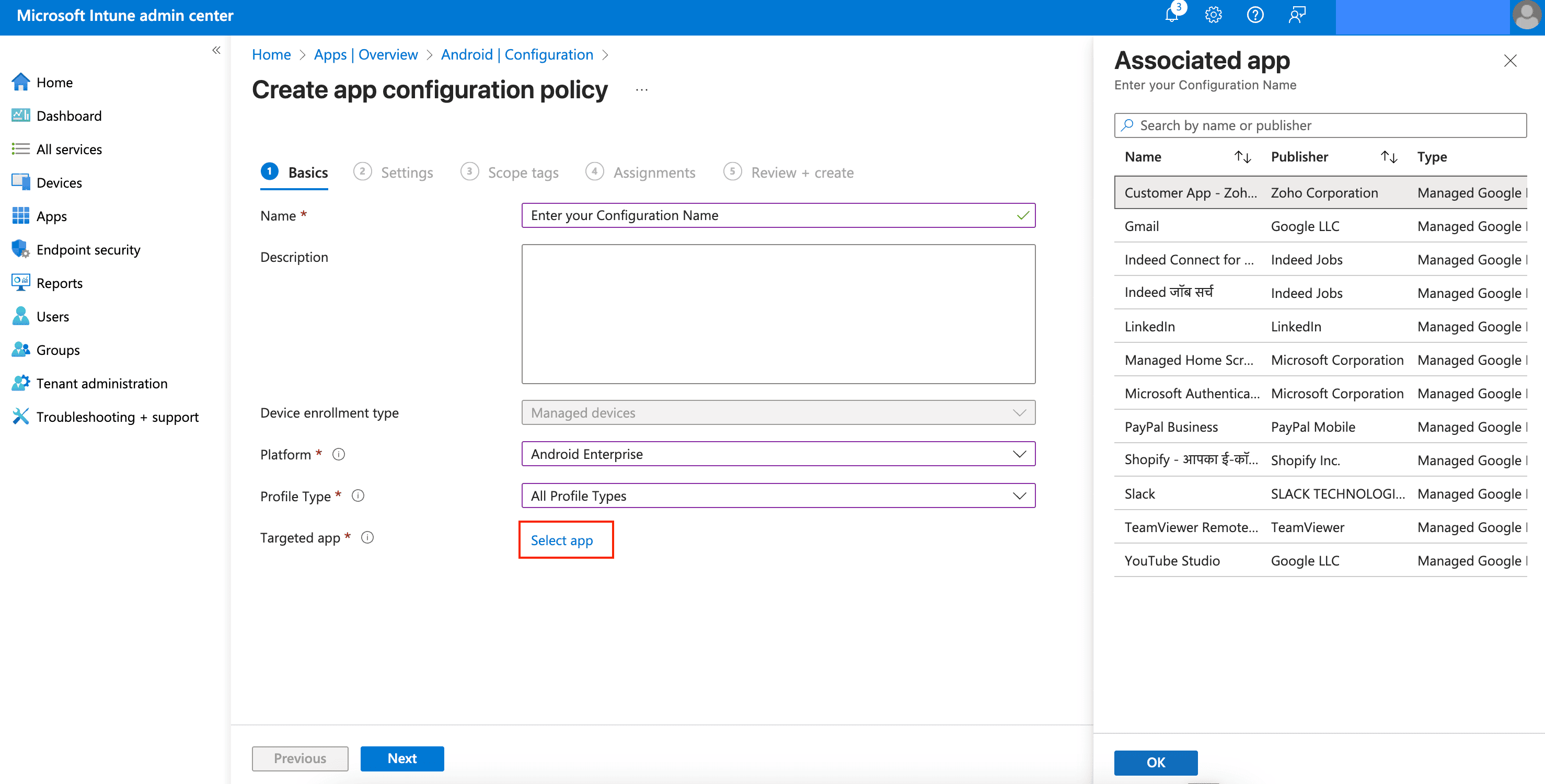
- Enter a policy name.
- Choose
- Platform: Android Enterprise
- Profile Type: Work Profile or Device Owner (based on your deployment model)
- Click Select app and choose Zoho Assist Customer in the Targeted app.
3a. Configure App Permissions
To grant notification permissions automatically:
- Under Permissions, click +Add.
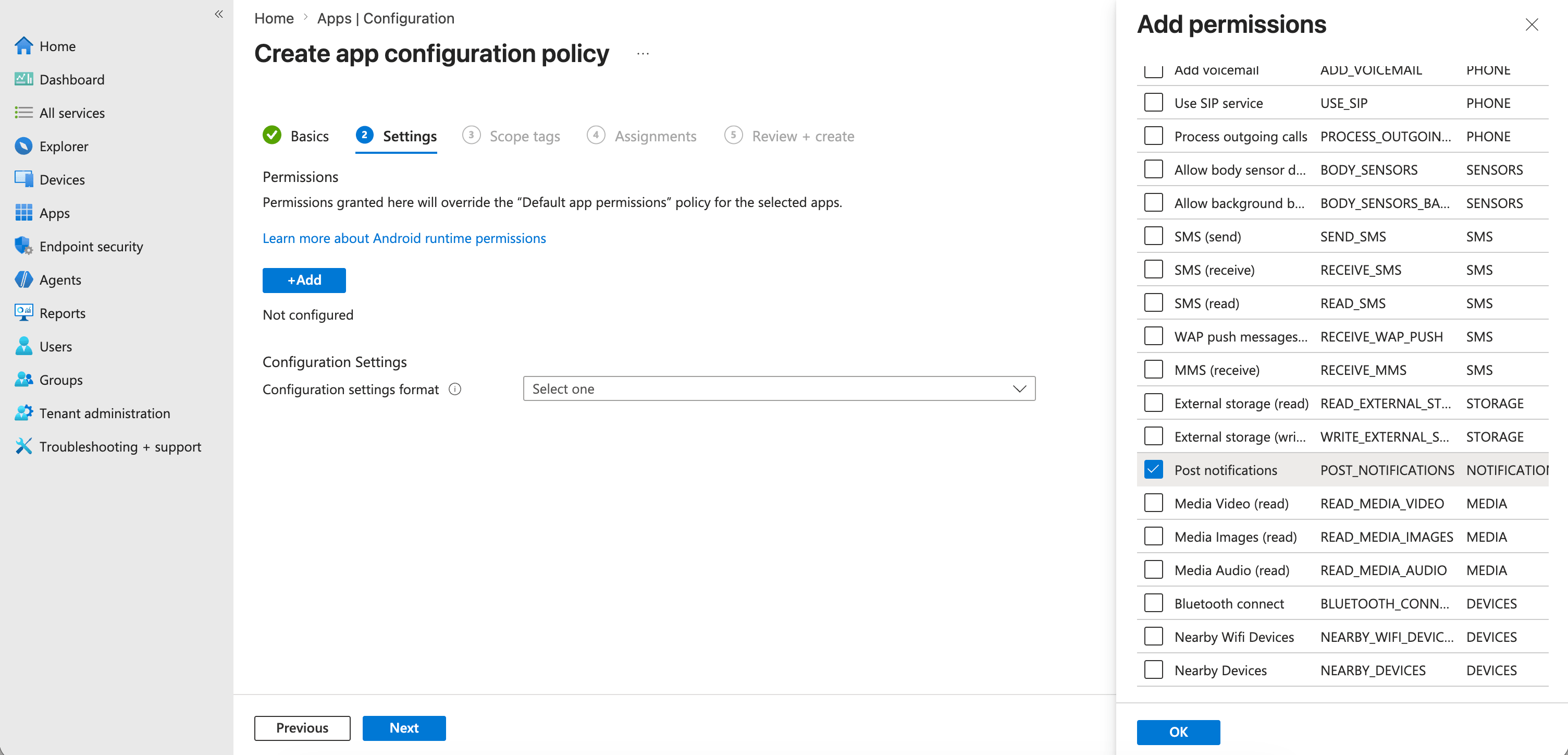
- Select Post Notifications and set Permission state to Auto Grant.
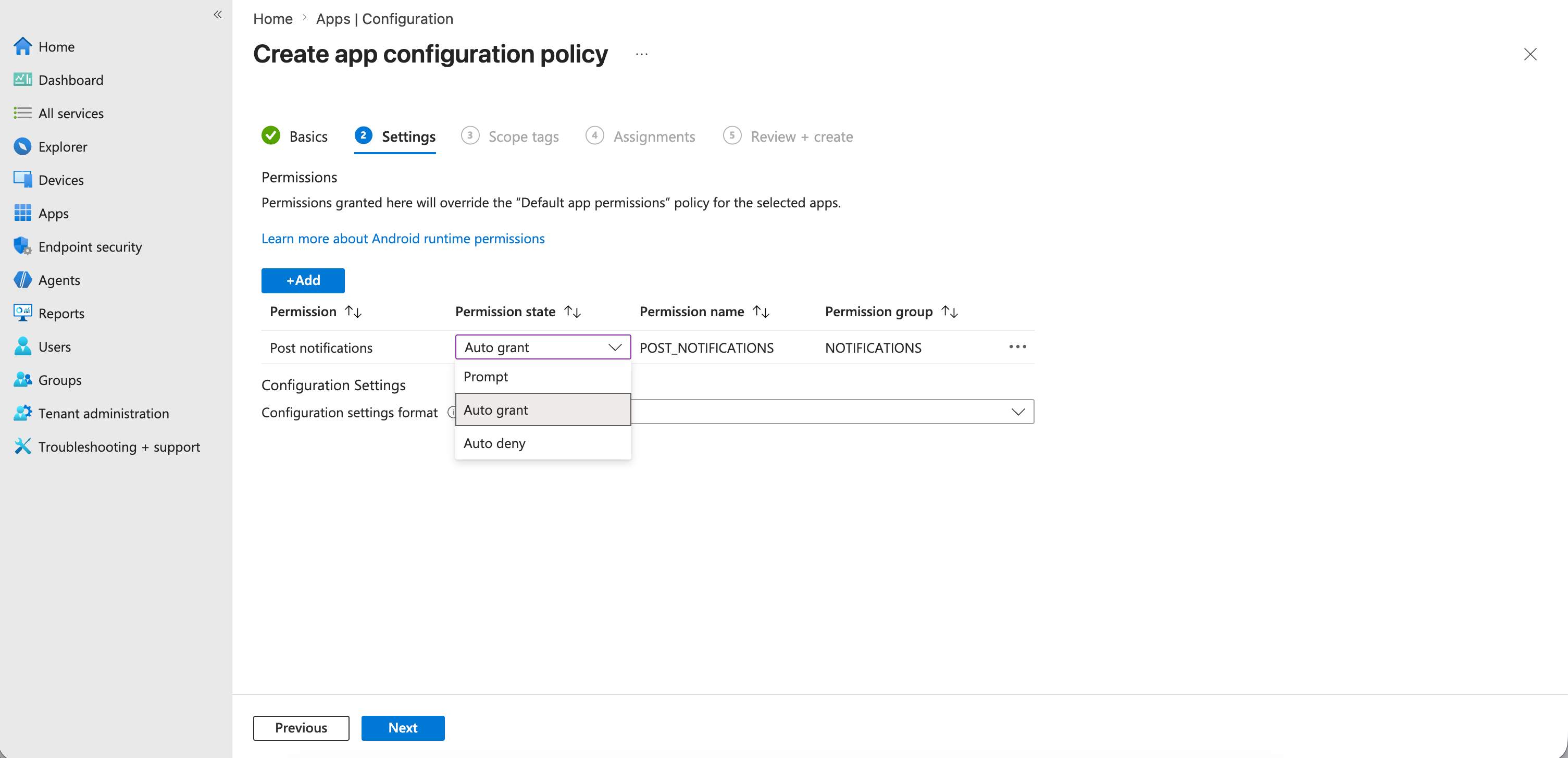
This prevents users from receiving the Android notification permission prompt during enrollment.
3b. Configure Managed App Settings
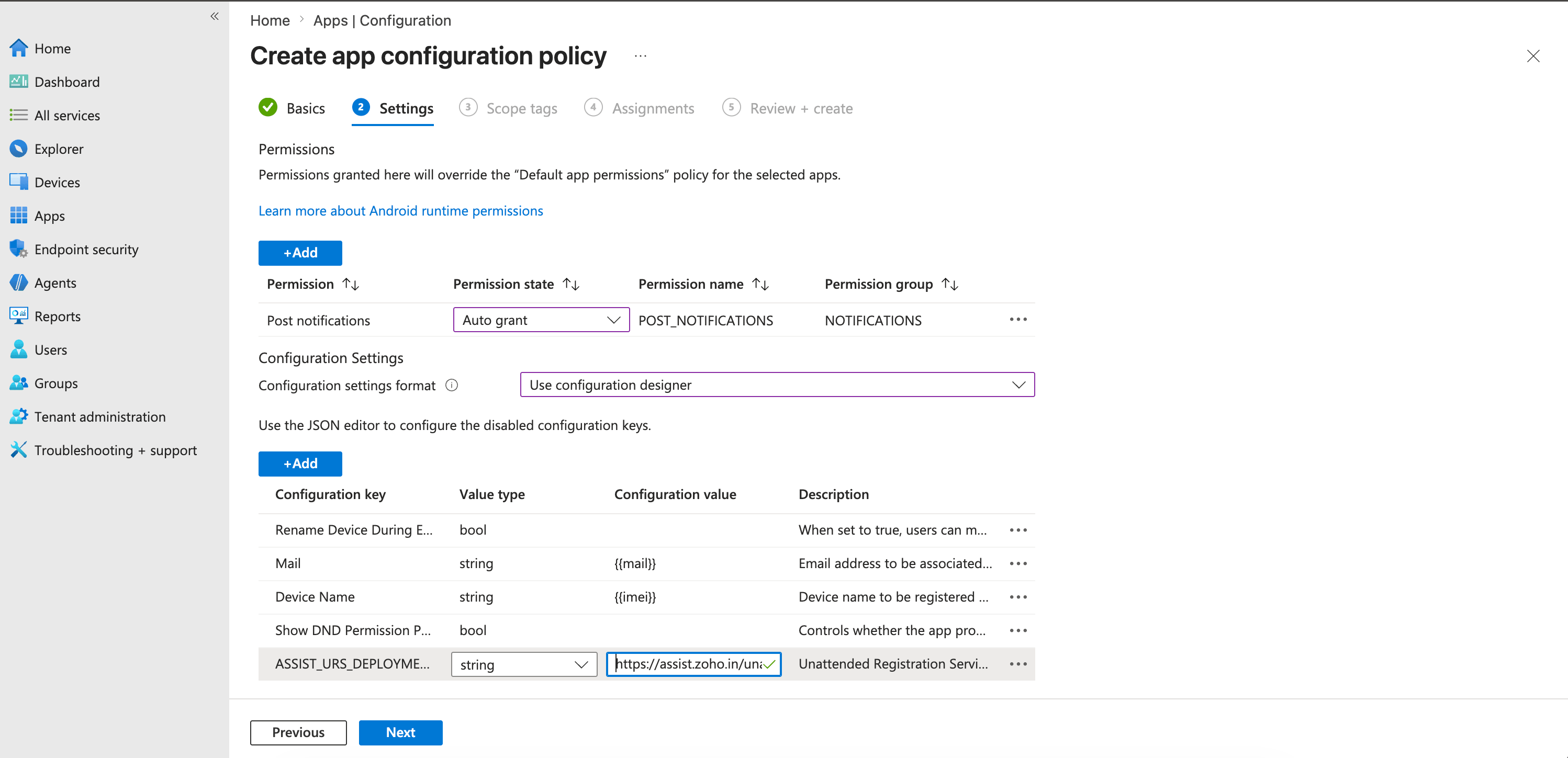
Under Configuration settings, click +Add and configure the following keys:
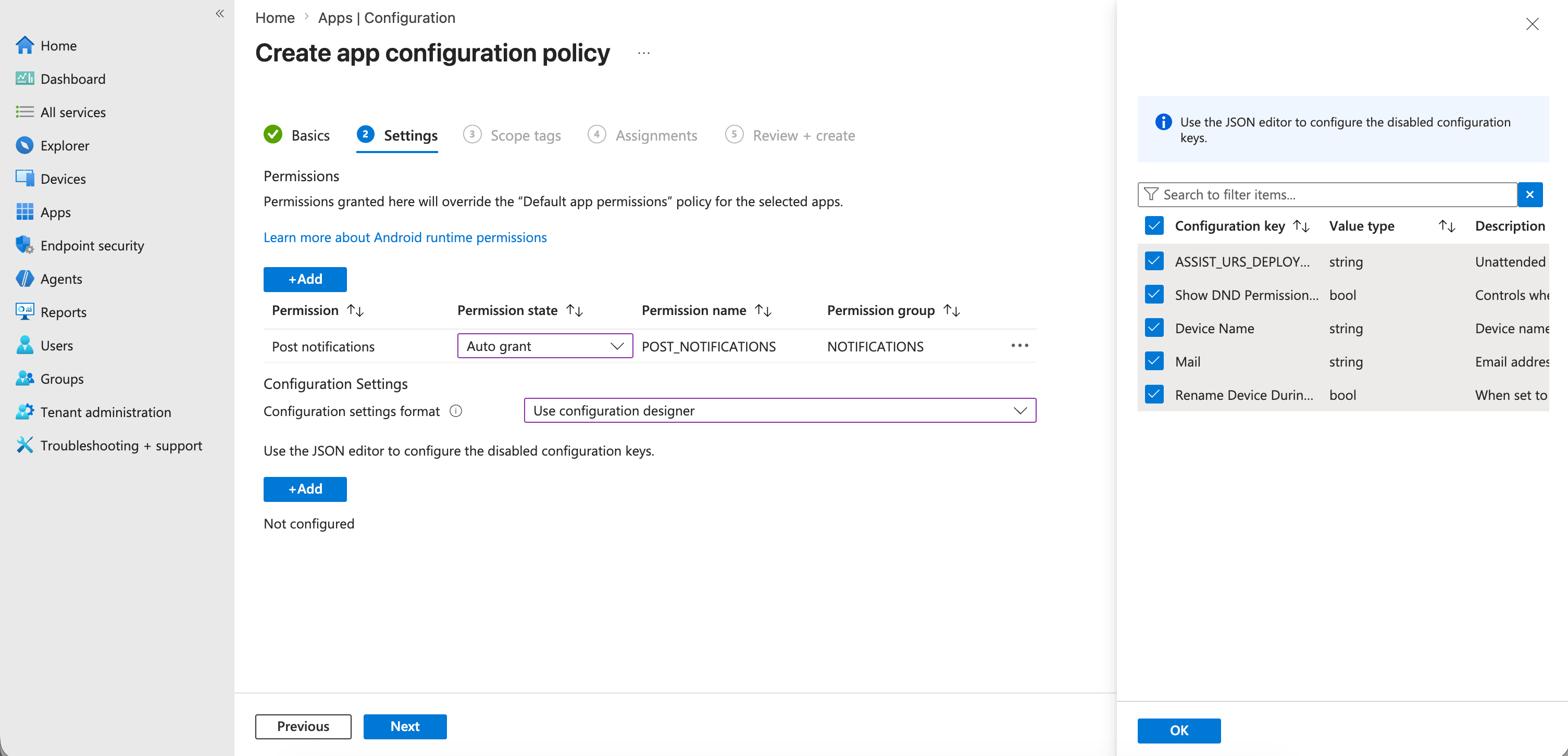
| Configuration Key | Value Type | Configuration Value |
|---|---|---|
| ASSIST_URS_DEPLOYMENT_LINK | String | <Deployment Link> |
| Show DND Permission Pop-up | Boolean | false (default) |
| String | {{mail}} | |
| Device Name | String | {{devicename}} |
| Rename Device During Enrollment | Boolean | false (default) |
- For "ASSIST_URS_DEPLOYMENT_LINK", set the value type to string and enter the deployment link.
- For "Show DND Permission Pop-up", the default value type is bool and the default value is false. If you wish to show the DND permission pop-up to the user, change the value to true and manually enable the DND setting through the appropriate OEM-specific configuration in your MDM.
- For "Mail", set the value type as string and enter "{{mail}}" as the value, which automatically fetches the enrolled user's email address and maps it to the device.
- For "Device Name", set the value type as string and enter "{{devicename}}" as the value, which fetches the device name and maps it during enrollment.
- For "Rename Device During Enrollment", enter the value as FALSE to proceed with enrollment using the configured device name. Enter the value as TRUE to allow users to rename the device during enrollment.
Note: Intune supports several dynamic variables (tokens) for app configuration. Refer to Microsoft's documentation on supported Intune tokens. Variable formats may vary across MDM solutions.
Assign the App configuration policy to the required user or device groups.
Configure Remote Control & "Appear on Top" Permissions
- For Fully Managed Devices
- For Work Profile (Private Devices)
Configure Remote Control and "Appear on Top" Permissions for fully managed devices
To enable unattended remote control without requiring user interaction, configure Samsung Knox Service Plugin (OEMConfig) policies to pre-grant the necessary permissions.
Note: Ensure that the Zoho Assist Customer App is installed on the device before configuring the remote control permissions.
Create an OEMConfig Profile
- Navigate to Devices > Configuration > Create > New Policy
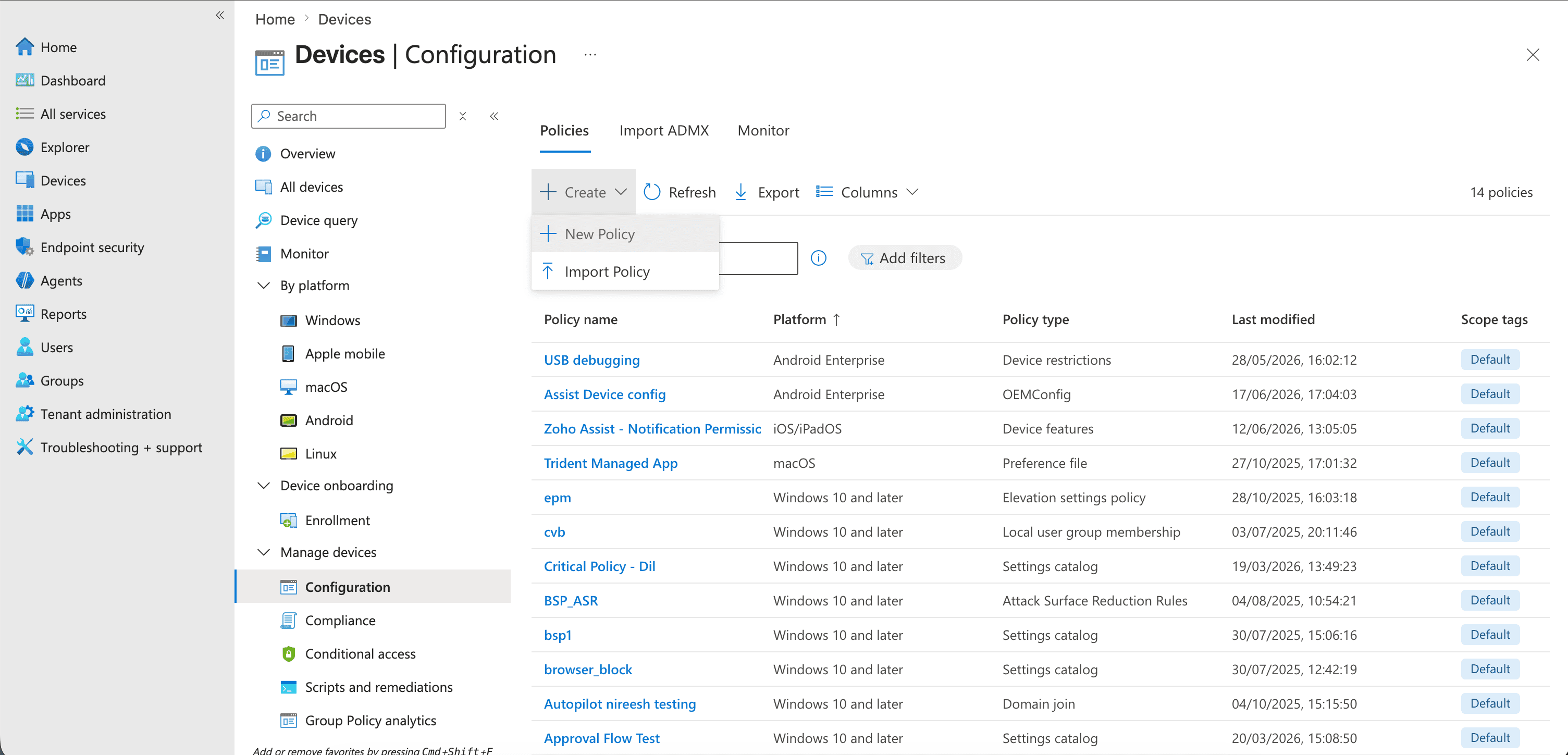
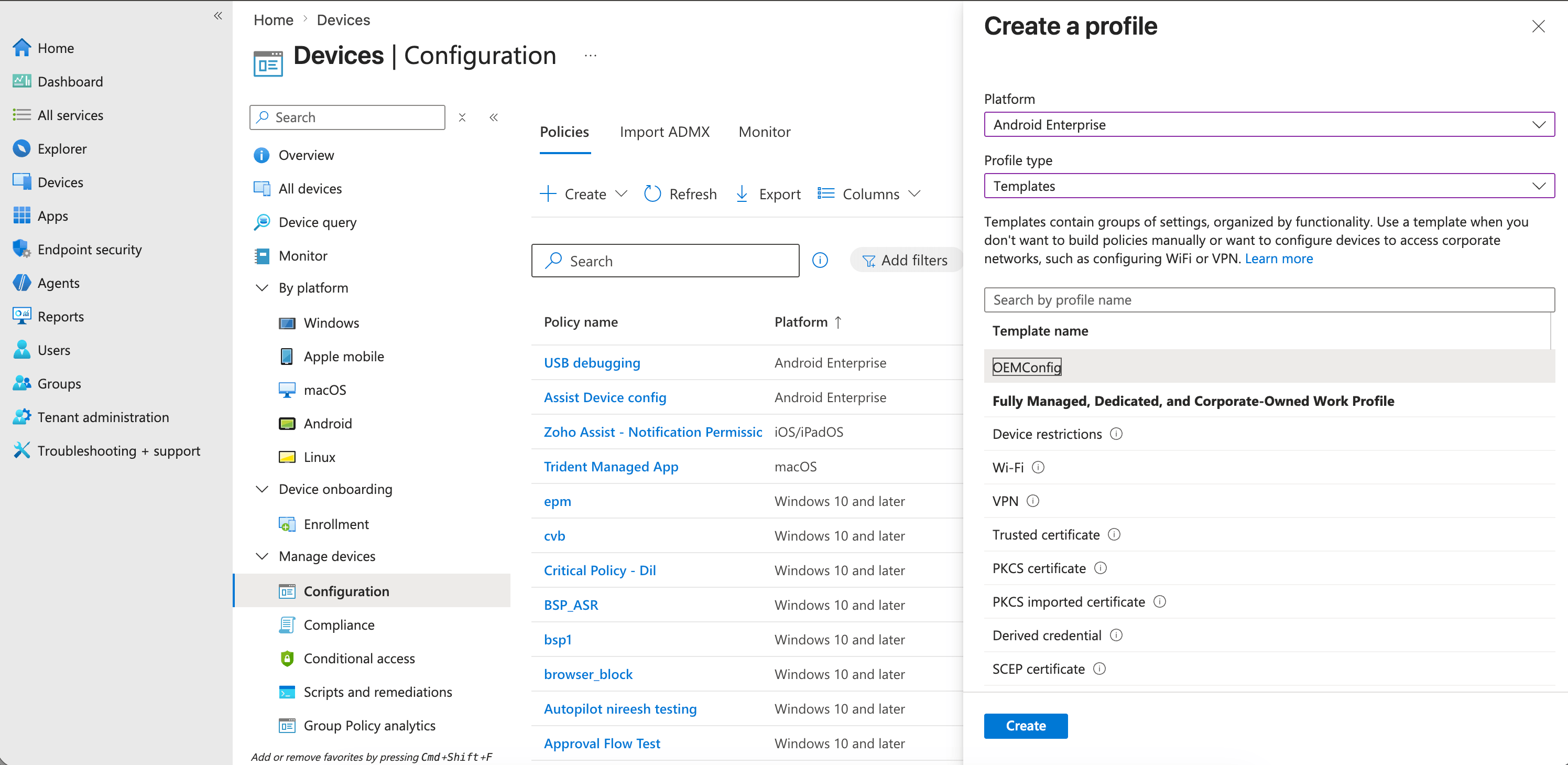
- Configure the policy:
- Platform: Android Enterprise
- Profile Type: Templates
- Template: OEMConfig
- Click Create.
- Enter a profile name.
- Click Select an OEMConfig app.
- Select Knox Service Plugin and click Next.
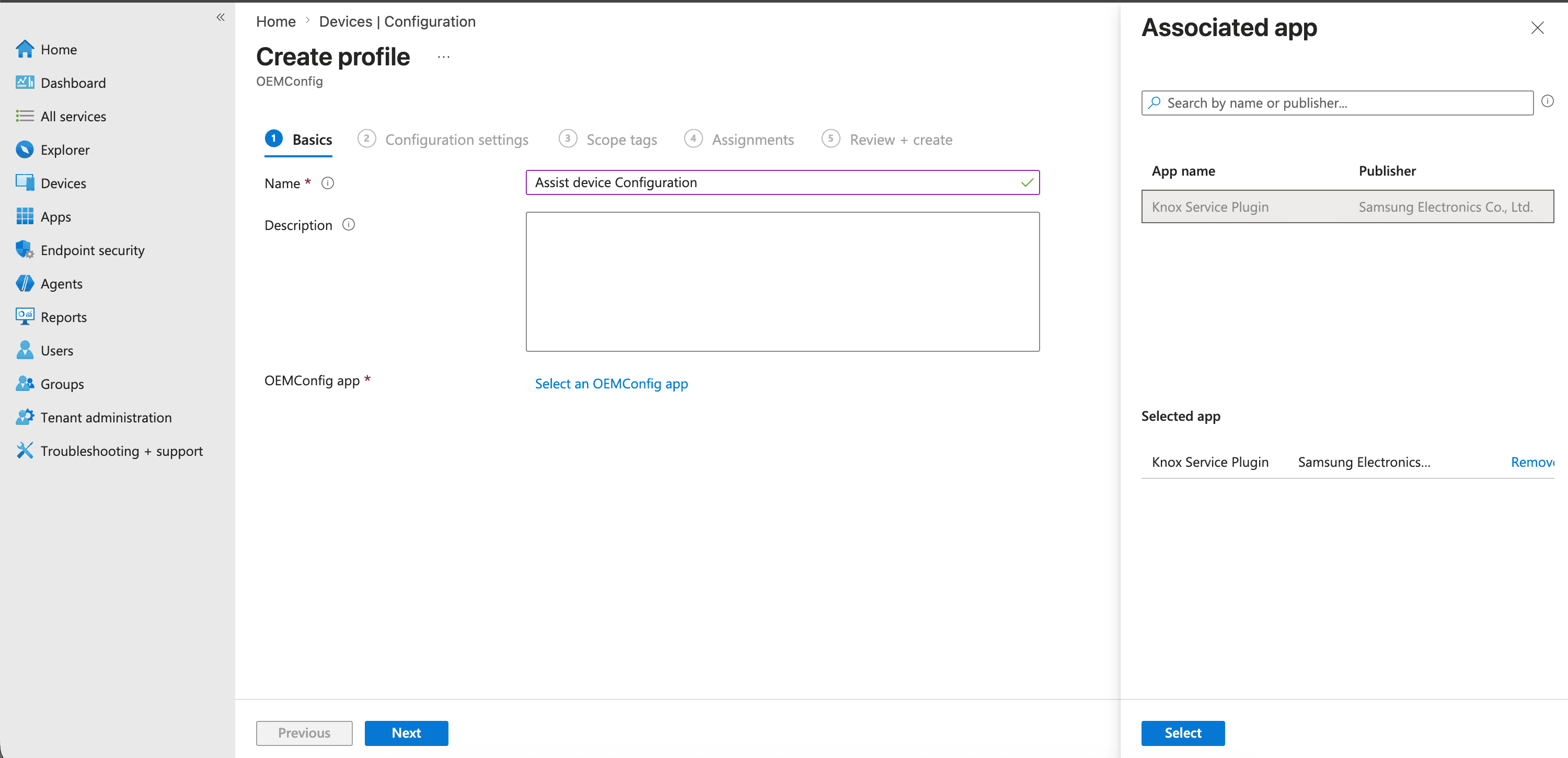
Configure Knox Service Plugin Settings
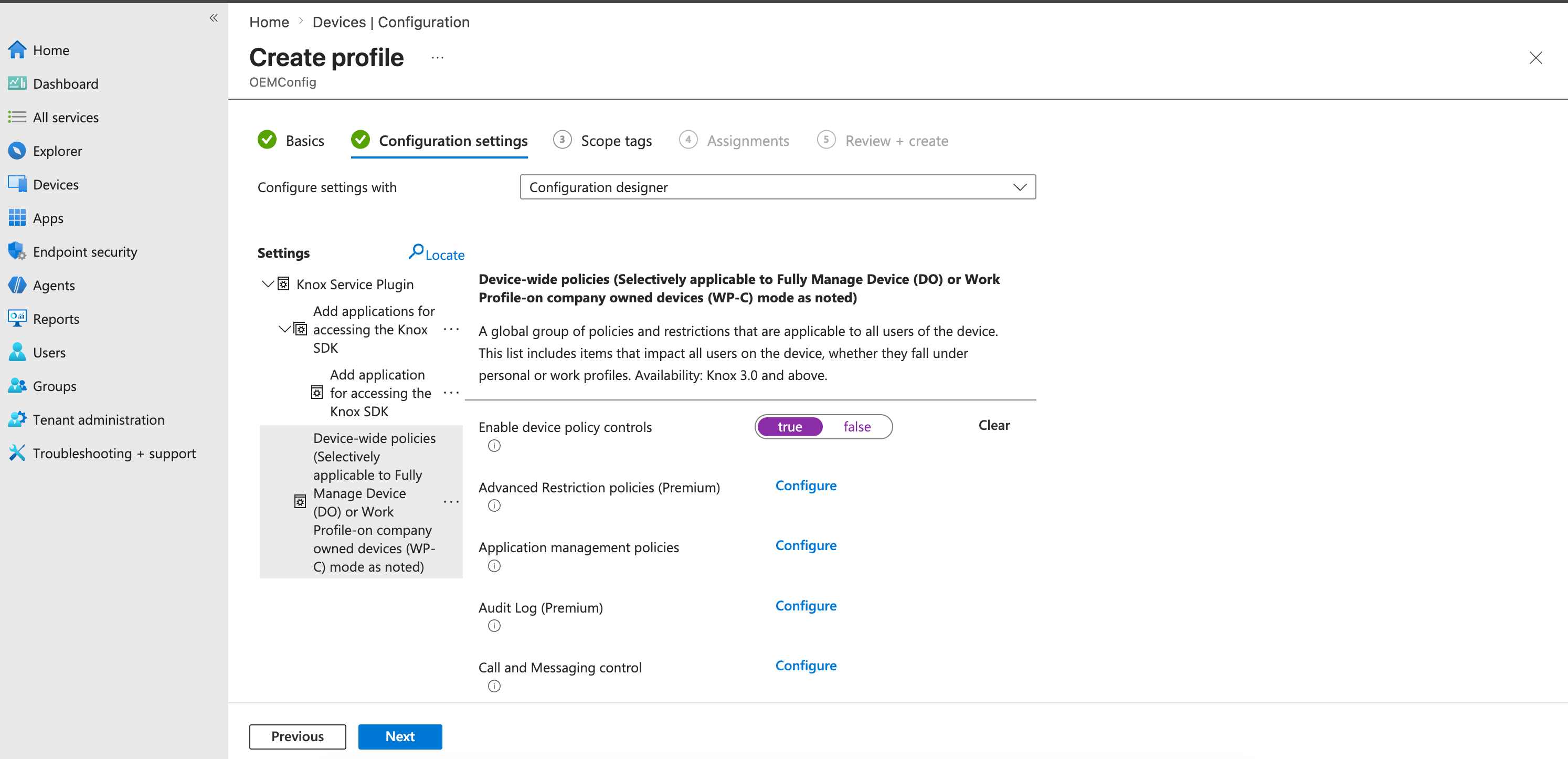
1. Enable Device-Wide Policies
Under Configuration settings, click Configure next to:
- Device-wide policies (Selectively applicable to Fully Managed Device (DO) or Work Profile on company-owned devices (WP-C) mode as noted)
- Set - Enable device policy controls to True and click Next.
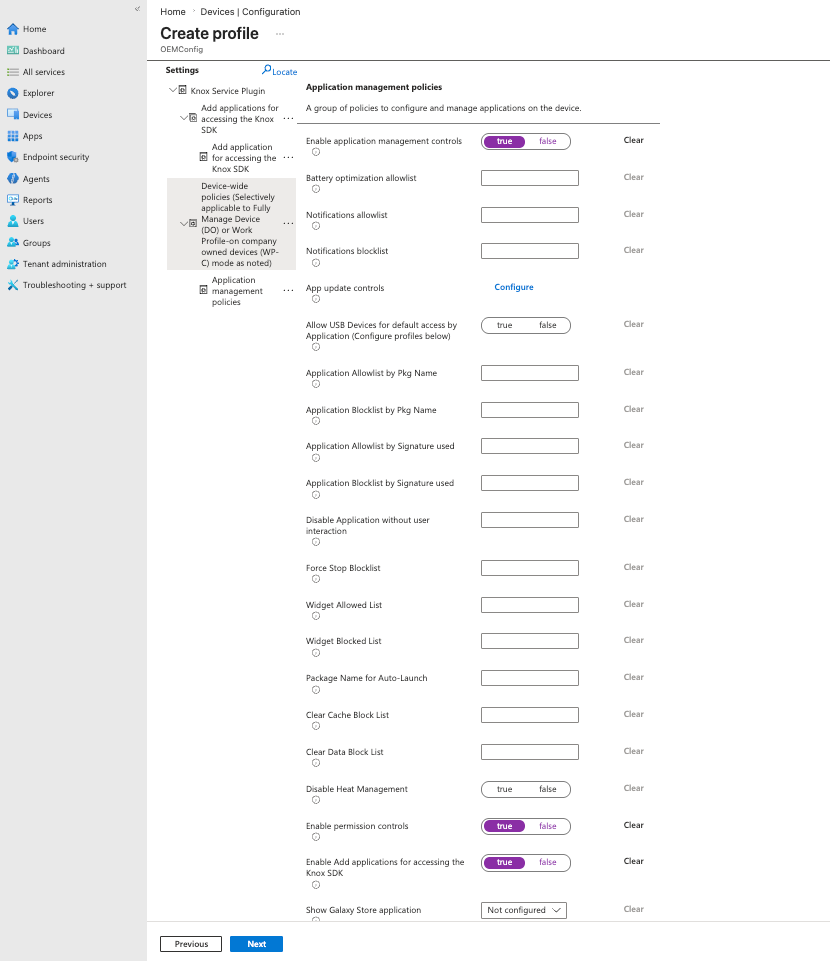
2. Enable Application Management Policies
- Click Configure next to Application management policies.
- Configure the following settings and click Next.
| Setting | Value |
|---|---|
| Enable application management controls | True |
| Enable Add applications for accessing the Knox SDK | True |
| Enable permission controls | True |
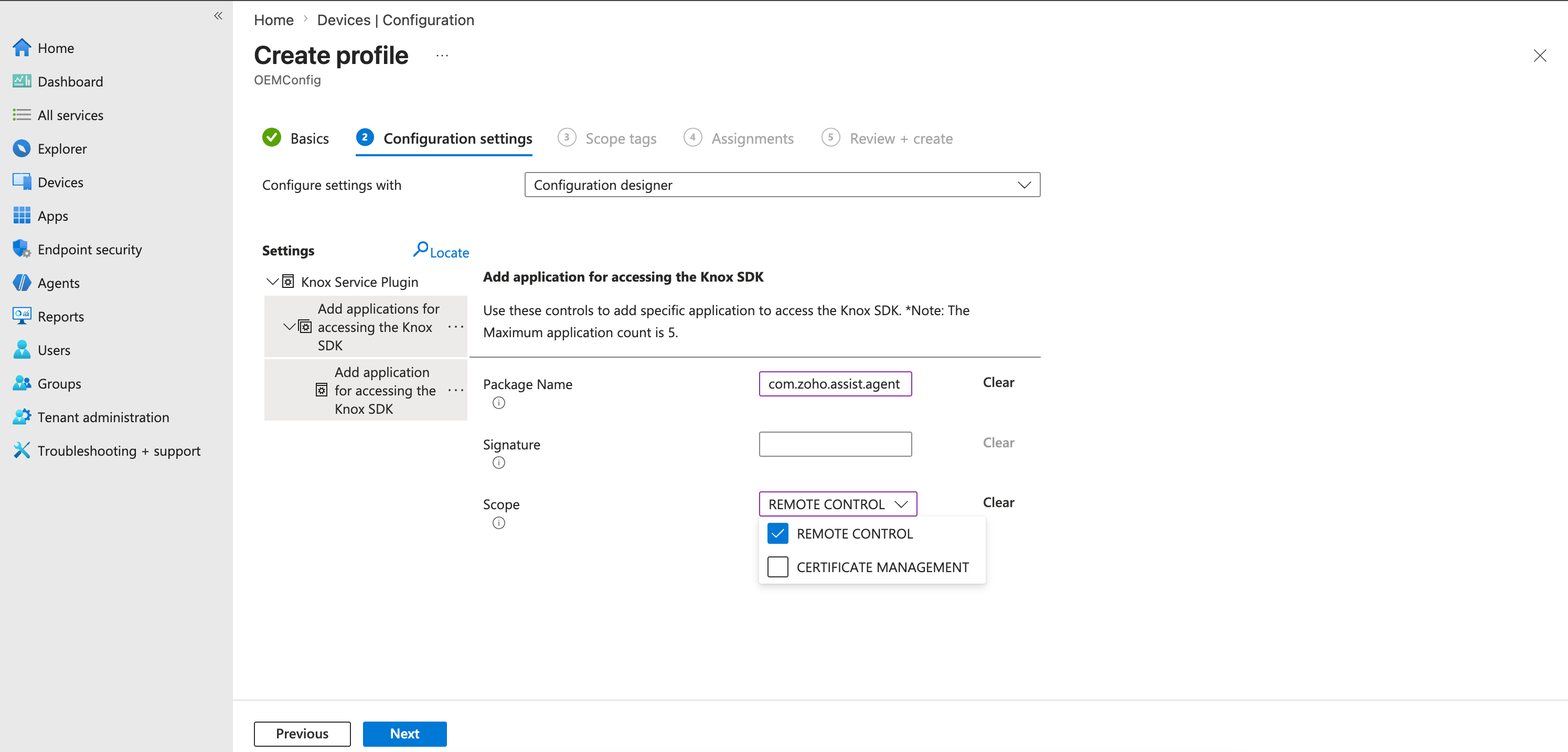
3. Add Zoho Assist as a Knox SDK Application
- Click Configure next to Add applications for accessing the Knox SDK.
- In the left pane, click the three-dot menu beside Add applications for accessing the Knox SDK and select Add setting.
- Configure the following values and click Next.
| Setting | Value |
|---|---|
| Package Name | com.zoho.assist.agent |
| Scope | REMOTE CONTROL |
4. Configure Permission Controls
- In the left pane, click the three-dot menu beside Permission Controls and select Add setting.
- Configure the following values and click Next.
| Setting | Value |
|---|---|
| Permission Policy | Appear on top |
| Package Name | com.zoho.assist.agent |
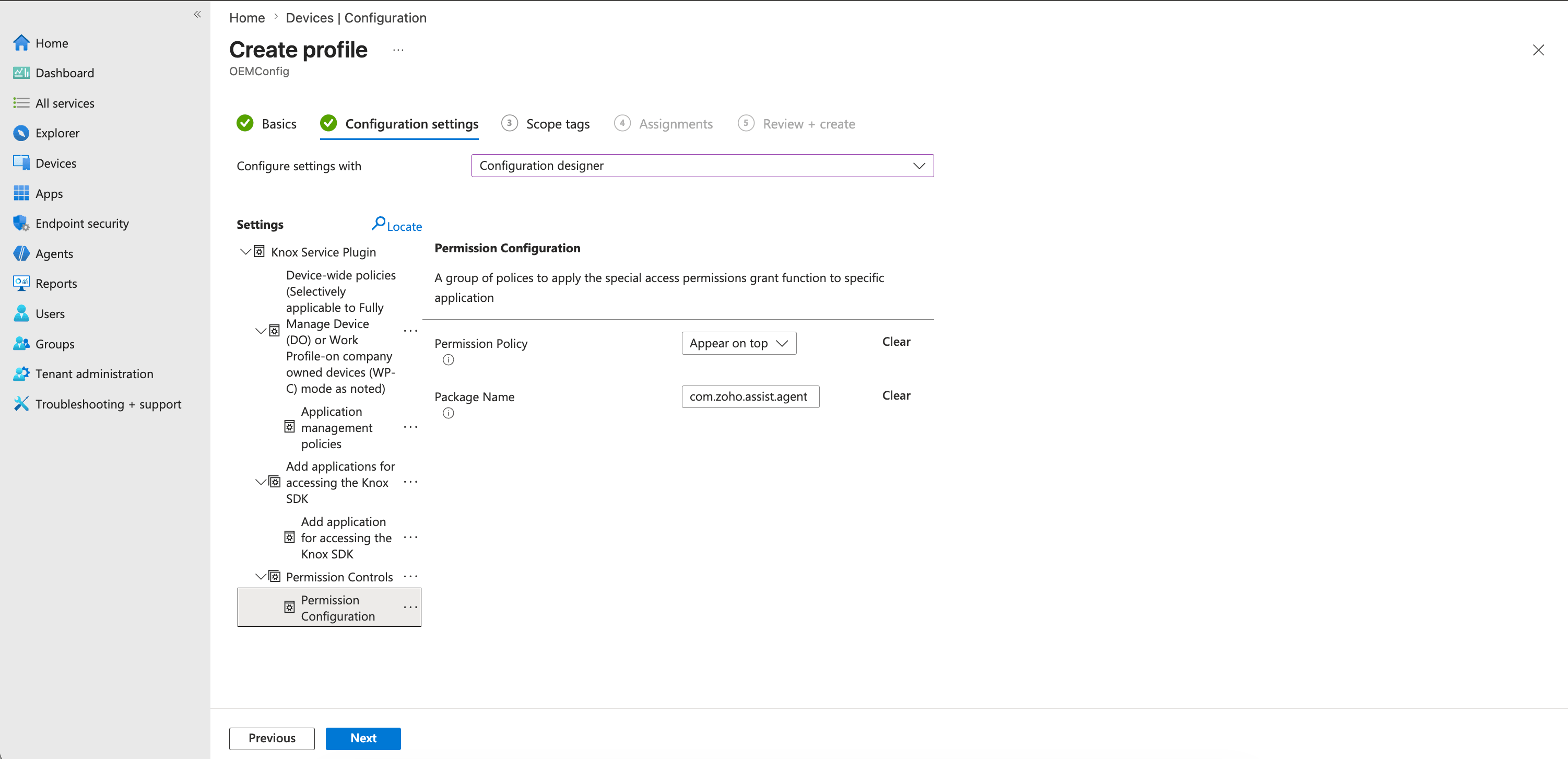
This automatically grants the Android Display over other apps (Appear on top) permission, eliminating the need for user interaction.
Save and Deploy the OEMConfig Policy
- Click Review + Save.
- Assign the policy to the required device groups.
- Complete the wizard to deploy the configuration.
After the policy is applied, supported Samsung Knox devices automatically grant the required permissions to Zoho Assist, enabling unattended remote control sessions without prompting users for overlay access.
Apply Using a JSON Configuration File (Optional)
If your MDM environment supports importing OEMConfig settings through JSON, you can apply the same configuration by uploading a JSON policy file.
- Upload the appropriate Knox Service Plugin JSON configuration file.
- Assign the configuration to the required device groups.
- Deploy the policy.
The uploaded JSON configuration applies the same settings described above without requiring manual configuration through the Intune interface.
JSON FILE
{
"kind": "androidenterprise#managedConfiguration",
"productId": "app:com.samsung.android.knox.kpu",
"managedProperty": [
{
"key": "schemaVersion",
"valueString": "45.0.0"
},
{
"key": "profileId",
"valueString": ""
},
{
"key": "transactionTs",
"valueString": ""
},
{
"key": "kpePartnerLicenseKey",
"valueString": ""
},
{
"key": "profileName",
"valueString": "Assist Remote Control"
},
{
"key": "verboseMode",
"valueBool": false
},
{
"key": "doPolicies",
"valueBundle": {
"managedProperty": [
{
"key": "doPoliciesIsControlled",
"valueBool": true
},
{
"key": "doAppMgmt",
"valueBundle": {
"managedProperty": [
{
"key": "doAppMgmtIsControlled",
"valueBool": true
},
{
"key": "doAppMgmtBatteryWhitelist",
"valueString": "com.zoho.assist.agent"
},
{
"key": "doAppMgmtAutoLaunchApp",
"valueString": "com.zoho.assist.agent/DialogActivity"
},
{
"key": "doAppMgmtIsPermissionControlled",
"valueBool": true
},
{
"key": "doAppMgmtAddApplicationsToAccessSdkControlled",
"valueBool": true
}
]
}
}
]
}
},
{
"key": "profileAppMgmtAddApplicationsToAccessSdk",
"valueBundleArray": [
{
"managedProperty": [
{
"key": "profileAppMgmtAddPackageNameToAccessSdk",
"valueString": "com.zoho.assist.agent"
},
{
"key": "profileAppMgmtAddScopeToAccessSdk",
"valueStringArray": [
"authorization_remote_control"
]
}
]
}
]
},
{
"key": "profilePermissionControl",
"valueBundleArray": [
{
"managedProperty": [
{
"key": "profileSpecialAccessPermission",
"valueStringArray": [
"Appear on top",
"24"
]
},
{
"key": "profileSpecialAccessComponentName",
"valueString": "com.zoho.assist.agent"
}
]
}
]
}
]
}
Configure Remote Control for work profile (private devices)
To enable unattended remote control without requiring user interaction, configure Samsung Knox Service Plugin (OEMConfig) policies to pre-grant the necessary permissions.
Note: Ensure that the Zoho Assist Customer App is installed on the device before configuring the remote control permissions.
Create an OEMConfig Profile
- Navigate to Devices > Configuration > Create > New Policy
- Configure the policy:
- Platform: Android Enterprise
- Profile Type: Templates
- Template: OEMConfig
- Click Create.
- Enter a profile name.
- Click Select an OEMConfig app.
- Select Knox Service Plugin and click Next.
Configure Knox Service Plugin Settings
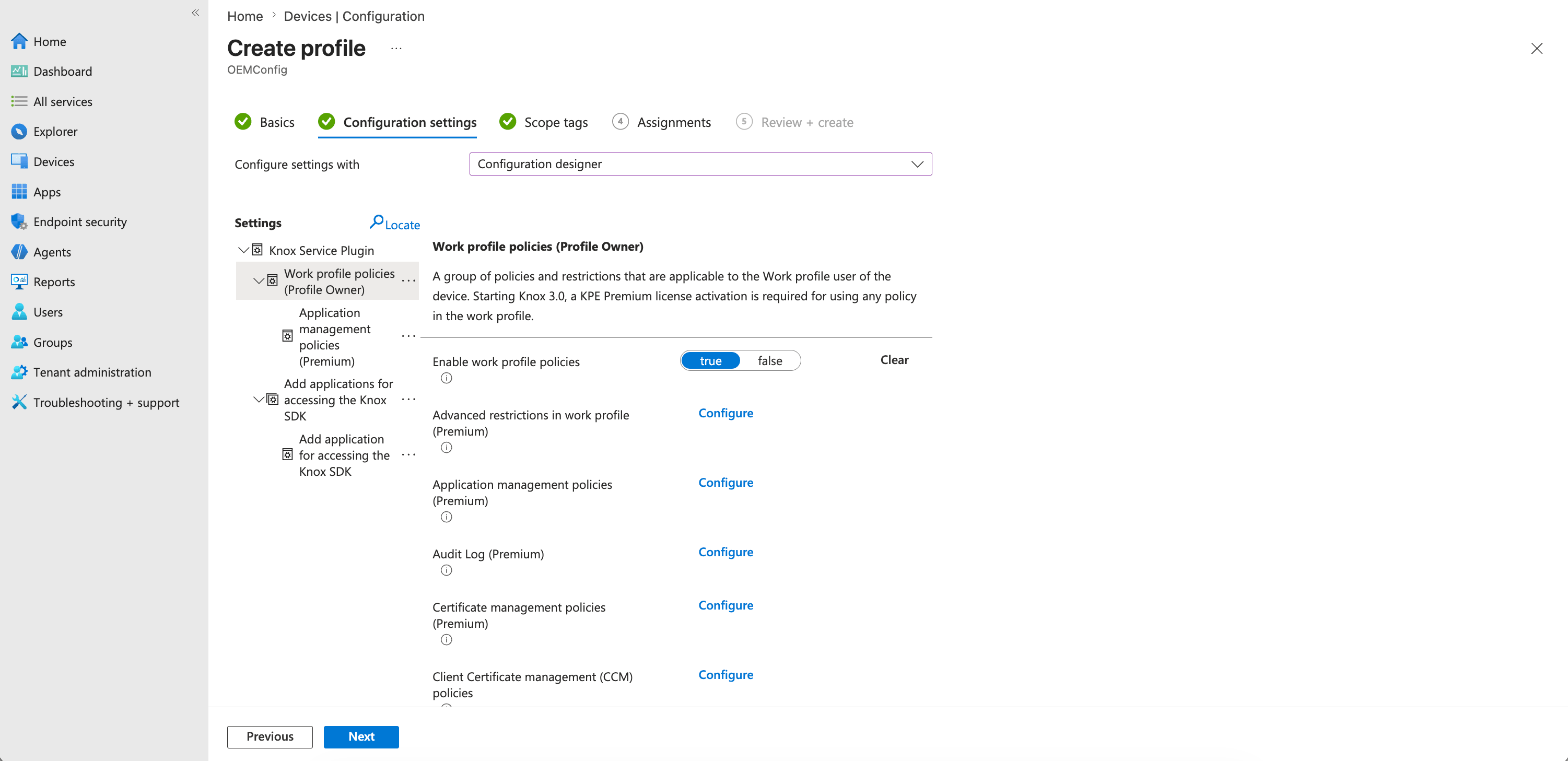
1. Enable Work Profile Policies
Under Configuration settings, click Configure next to:
- Work profile policies (Profile Owner)
- Set - Enable work profile policy to True and click Next.
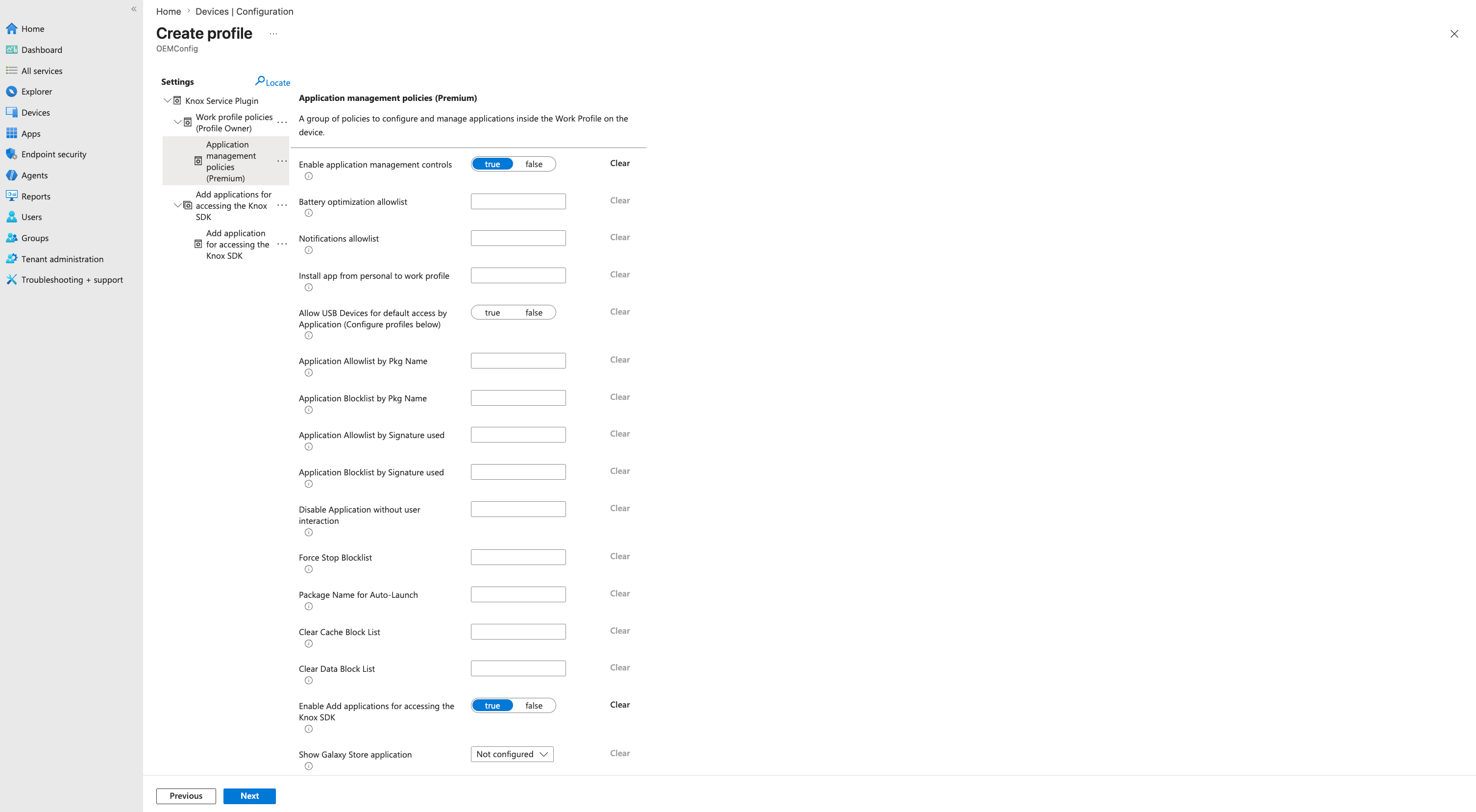
2. Enable Application Management Policies
- Click Configure next to Application management policies (premium)
- Configure the following settings and click Next.
| Setting | Value |
|---|---|
| Enable application management controls | True |
| Enable Add applications for accessing the Knox SDK | True |
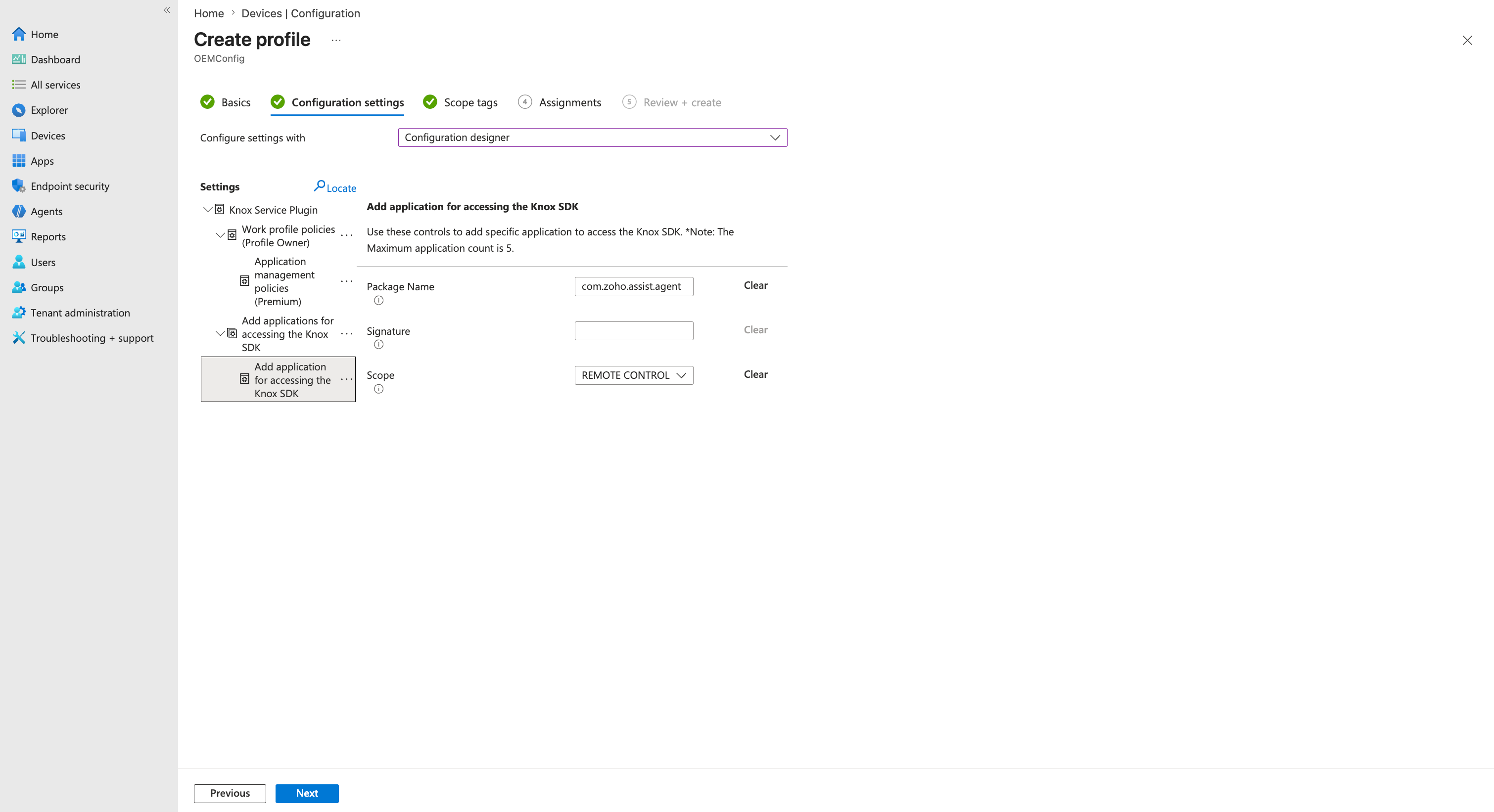
3. Add Zoho Assist as a Knox SDK Application
- Click Configure next to Add applications for accessing the Knox SDK.
- In the left pane, click the three-dot menu beside Add applications for accessing the Knox SDK and select Add setting.
- Configure the following values and click Next.
| Setting | Value |
|---|---|
| Package Name | com.zoho.assist.agent |
| Scope | REMOTE CONTROL |
4. Configure Permission Controls
In work profile mode, permission controls cannot be configured remotely via Knox policies. The Display over other apps (Appear on top) permission must be granted manually for Zoho Assist Customer App by the device user.
Save and Deploy the OEMConfig Policy
- Click Review + Save.
- Assign the policy to the required device groups.
- Complete the wizard to deploy the configuration.
After the policy is applied, supported Samsung Knox devices automatically grant the required permissions to Zoho Assist, enabling unattended remote control sessions without prompting users for overlay access.
Apply Using a JSON Configuration File (Optional)
If your MDM environment supports importing OEMConfig settings through JSON, you can apply the same configuration by uploading a JSON policy file.
- Upload the appropriate Knox Service Plugin JSON configuration file.
- Assign the configuration to the required device groups.
- Deploy the policy.
The uploaded JSON configuration applies the same settings described above without requiring manual configuration through the Intune interface.
JSON FILE
{
"kind": "androidenterprise#managedConfiguration",
"productId": "app:com.samsung.android.knox.kpu",
"managedProperty": [
{
"key": "schemaVersion",
"valueString": "45.0.0"
},
{
"key": "profileId",
"valueString": ""
},
{
"key": "transactionTs",
"valueString": ""
},
{
"key": "kpePartnerLicenseKey",
"valueString": ""
},
{
"key": "profileName",
"valueString": "Assist Remote Control - Work Profile"
},
{
"key": "verboseMode",
"valueBool": true
},
{
"key": "poPolicies",
"valueBundle": {
"managedProperty": [
{
"key": "poPoliciesIsControlled",
"valueBool": true
},
{
"key": "poAppMgmt",
"valueBundle": {
"managedProperty": [
{
"key": "poAppMgmtIsControlled",
"valueBool": true
},
{
"key": "poAppMgmtAddApplicationsToAccessSdkControlled",
"valueBool": true
}
]
}
}
]
}
Distribute the App
- Ensure the Company Portal app is installed on the targeted Android device via Google Play Store.
- Sign in and follow the instructions to register the device with Intune.
- Once registration is complete, the Zoho Assist Customer app will be pushed to the device automatically.
- The app will be installed silently (if the device is corporate-owned) or require user approval to complete installation (in BYOD mode).
- After installation, the device is automatically enrolled in Zoho Assist using the configured deployment link and settings.