Troubleshooting Wake on LAN Issues
Use this guide to identify and resolve issues when you are unable to wake a remote computer using the Wake on LAN feature in Zoho Assist.
Basic Requirements
Wake on LAN allows you to power on a remote computer that is in sleep, hibernate, or shutdown state. Ensure the following prerequisites are met:
- The remote computer is connected to a wired (Ethernet) network. (Wake on LAN is not supported over Wi-Fi.)
- The remote computer is connected to a power source.
- At least one computer with the unattended access agent is online within the same network.
BIOS Configuration
Wake on LAN is typically disabled by default in BIOS settings and must be enabled on each target machine.
To enable Wake on LAN in BIOS:
- Restart the computer.
- During the POST (Power-On Self-Test), press F1, INS, or DEL to enter BIOS.
- Navigate to Power Management.
- Locate Wake on LAN/WLAN.
- Set the option to LAN (or LAN/WLAN, if available).
- Save the changes and exit BIOS.
Note:
BIOS interfaces may vary by manufacturer. Refer to your system's documentation if the options differ.
Enabling Wake on LAN in Zoho Assist
In addition to BIOS configuration, Wake on LAN must also be enabled from within Zoho Assist.
To enable:
- Go to Settings > Unattended Access > Wake on LAN.
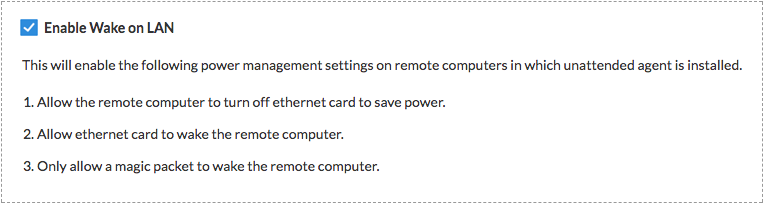
- Enable Wake on LAN to enable the power management settings on remote computers.
- Once enabled, click the power icon next to the target remote computer you want to wake up.
Note:
- Wake on LAN can be enabled only when the target computer is online.
If the computer was offline during configuration, bring it online and re-enable the setting. - Wake on LAN is currently supported only on Windows devices.