How to configure your Firewall for Zoho Assist
If Zoho Assist is unable to connect or is being blocked on your network, your firewall or proxy settings may be restricting access. Ensure the following configurations are in place to allow Zoho Assist to function properly:
Exclude the required domains from your firewall and proxy settings.
Allow the necessary ports in your firewall settings.
Allow Zoho Assist application through the firewall.
Include the executable files or exclude the relevant directories from your firewall.
Domains
Exclude TCP and WebSocket protocols for the following domains from your firewall and proxy settings:
*.zoho.com
*.zoho.eu
*.zoho.in
*.zoho.com.au
*.zoho.com.cn
*.zoho.jp
*.zoho.uk
*.zoho.sa
*.zohocloud.ca
downloads.zohocdn.com.cn
downloads.zohocdn.com
*.zohoassist.com
*.zohoassist.com.cn
*.zohomeeting.com
*.zohomeeting.com.cn
*.zohocdn.com
*.zohocdn.com.cn
Note: Instead of manually excluding all the above domains, Zoho Assist provides an alternate option. All IP addresses of the global gateway network are mapped to three domain names - gateway.zohoassist.com, *.zohocdn.com, and *.zohocdn.com.cn. Resolving these domain names alone allows you to automate IP whitelisting and ensure your firewall rules are kept up to date.
Ports
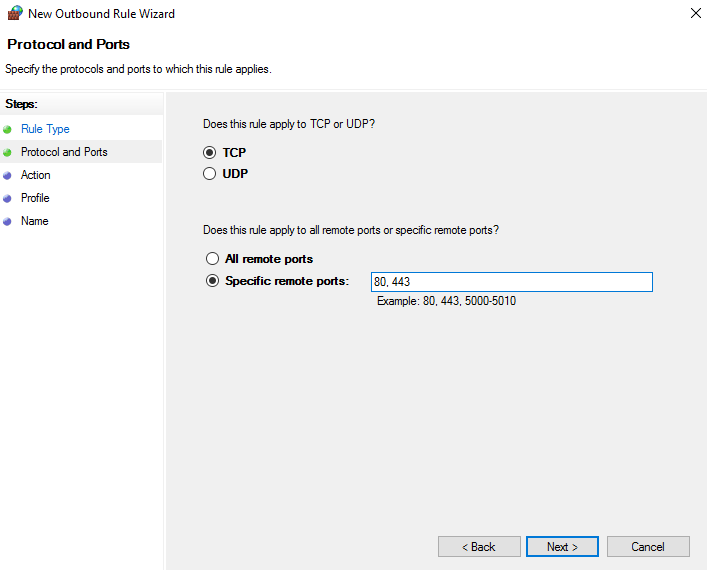
Ports 80 and 443 must be allowed in your firewall settings for Zoho Assist to establish connections.
To allow ports in the firewall on Windows:
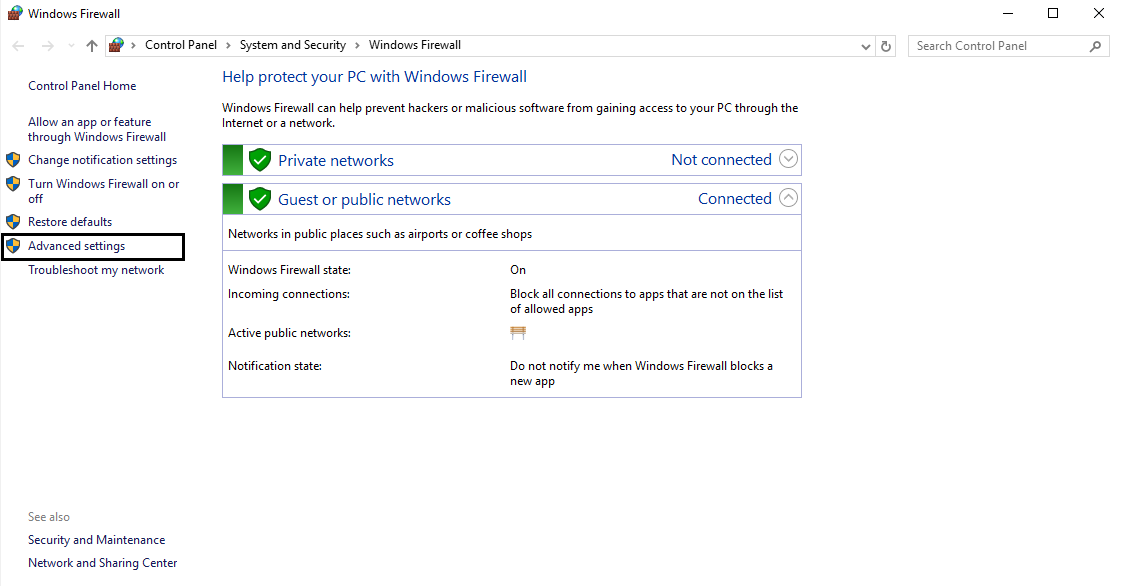
Open Windows Firewall from the search bar.
Click Advanced Settings.
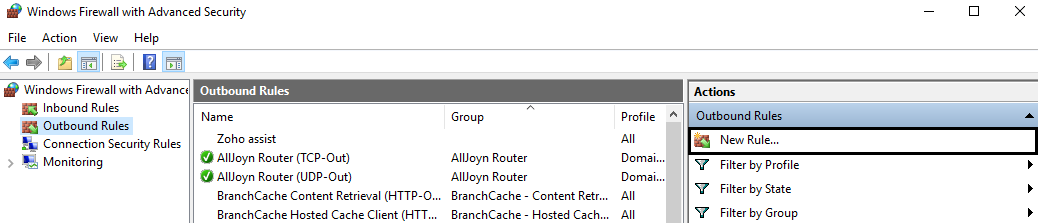
Select Outbound Rules and click New Rule from the right pane.
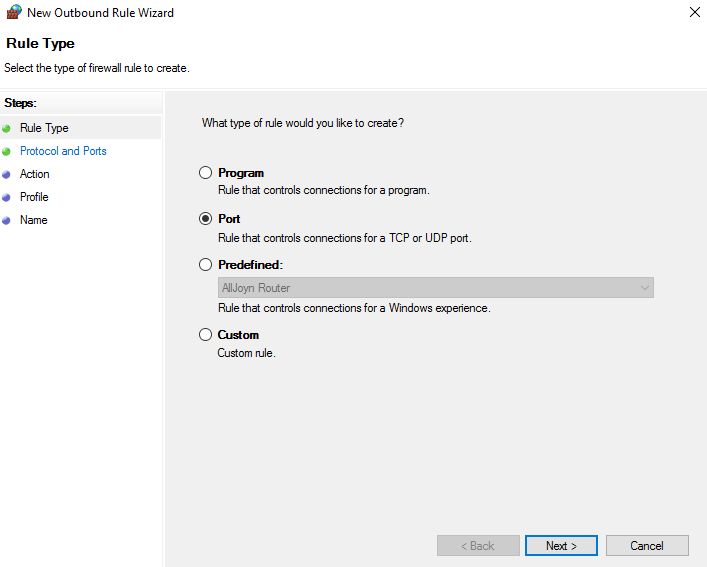
Select Port and click Next.
Enter 80 and 443 as the specific remote ports.
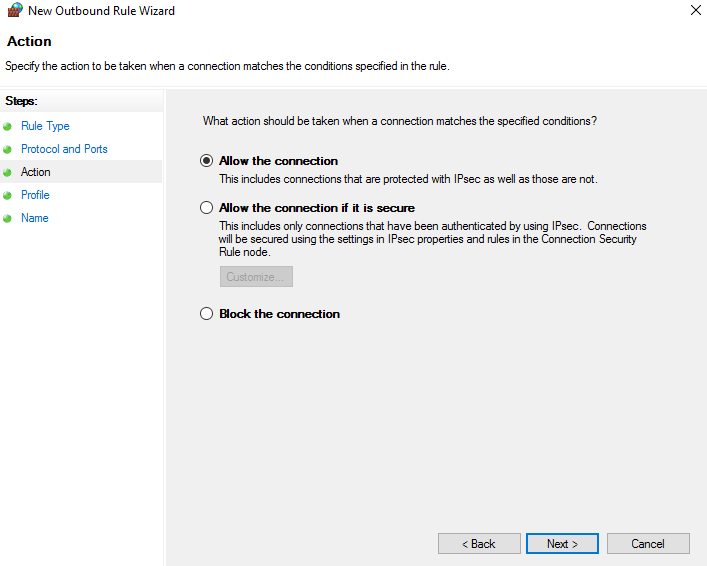
Select Allow the connection and click Next.
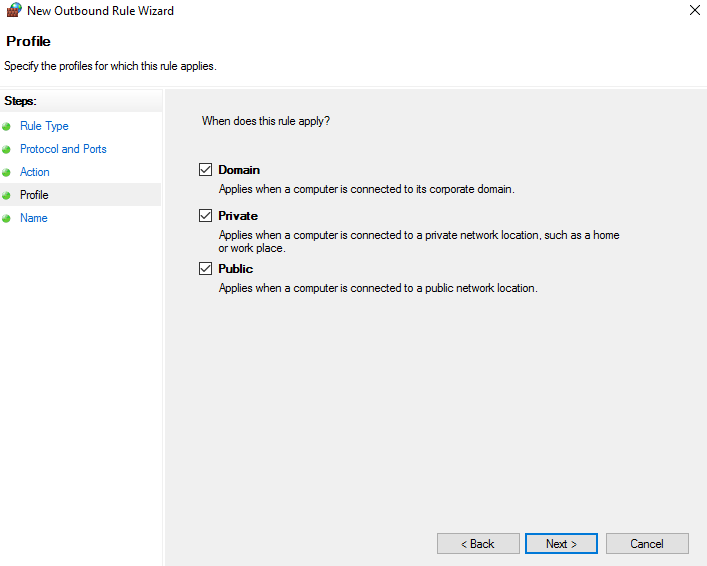
Select all checkboxes and click Next.
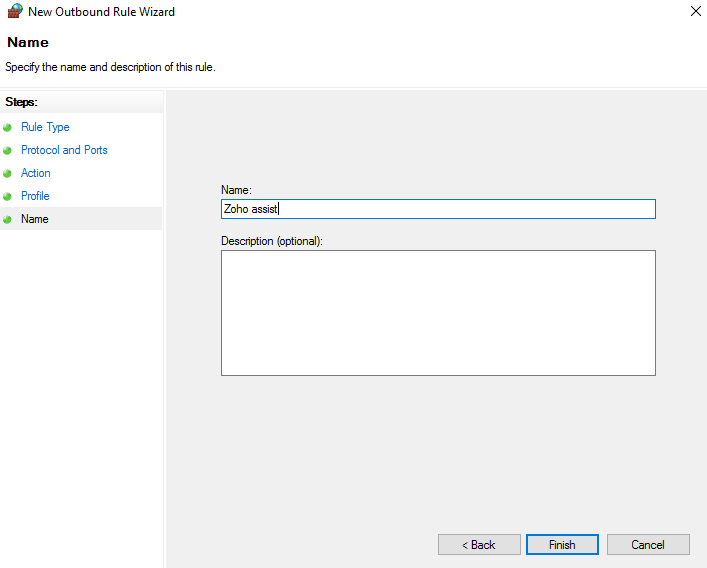
Enter a name for the rule and click Finish.
Applications
To allow Zoho Assist through the Windows firewall:
Note: This applies only to Remote Support and Unattended Access. It is not applicable to Cobrowse, as Cobrowse runs through the browser and does not require firewall exceptions for desktop applications.
If Windows displays a security alert blocking Zoho Assist, follow the steps below: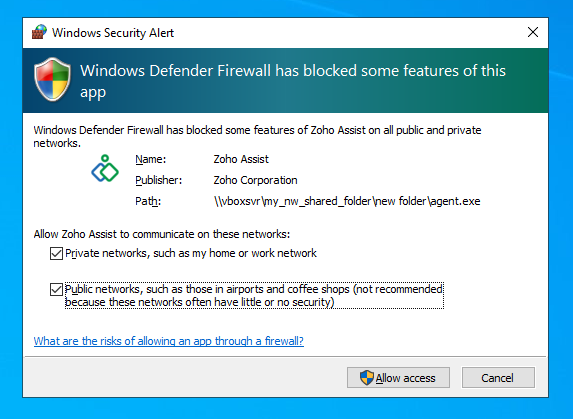
Open Windows Security from the search bar.
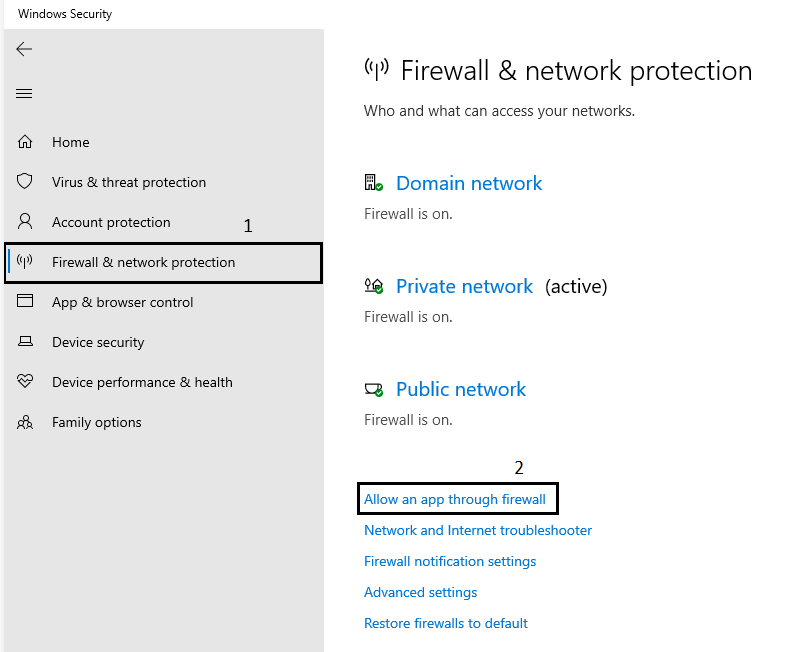
Click Firewall & network protection.
Click Allow an app through the firewall.
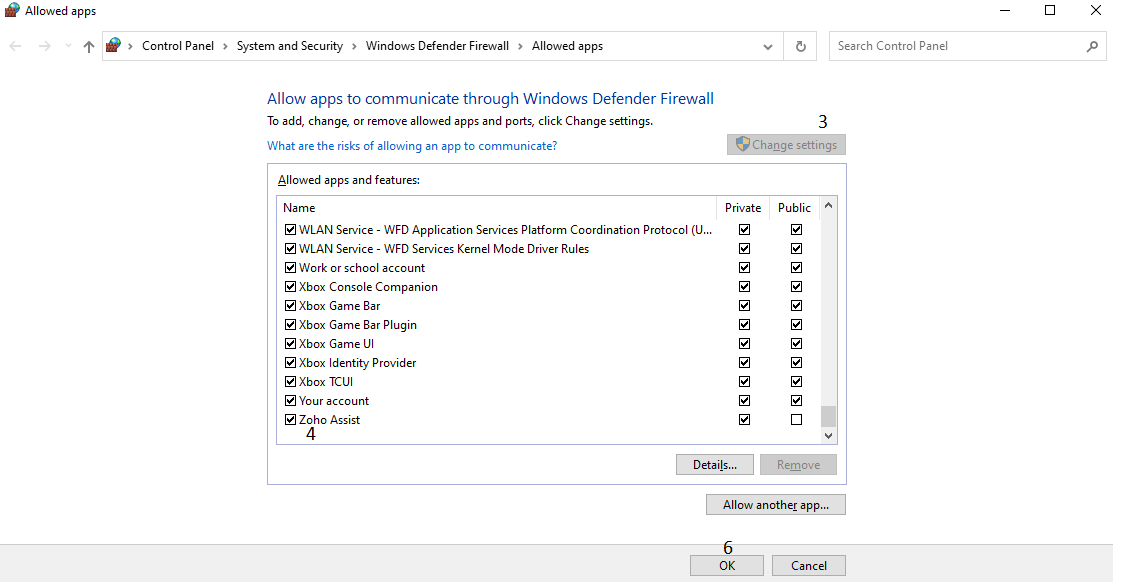
Click Change Settings.
Locate and select Zoho Assist from the list.
Click OK.
Executable Files
Configure your firewall and antivirus settings to allow the following executable files:
agent.exe
agent_ui.exe
ZMAgent.exe
ViewerUI.exe
NativeViewer.exe
ZAFileTransfer.exe
ZA_Upgrader.exe
ZA_Connect.exe
Connect.exe
CustomerPlugin.exe
CustomerPluginApp.exe
ZAService.exe
ZohoURSService.exe
ZohoTray.exe
ZohoURS.exe
CustomerPlugin_V2.exe
Connect_V2.exe
ZA_Access_V2.exe
Directories
Alternatively, exclude the following directories from your firewall instead of listing individual executable files:
32-bit OS:
%localappdata%/zohomeeting/
%programfiles%/ZohoMeeting
64-bit OS:
%localappdata%/zohomeeting/
%programfiles(x86)%/ZohoMeeting