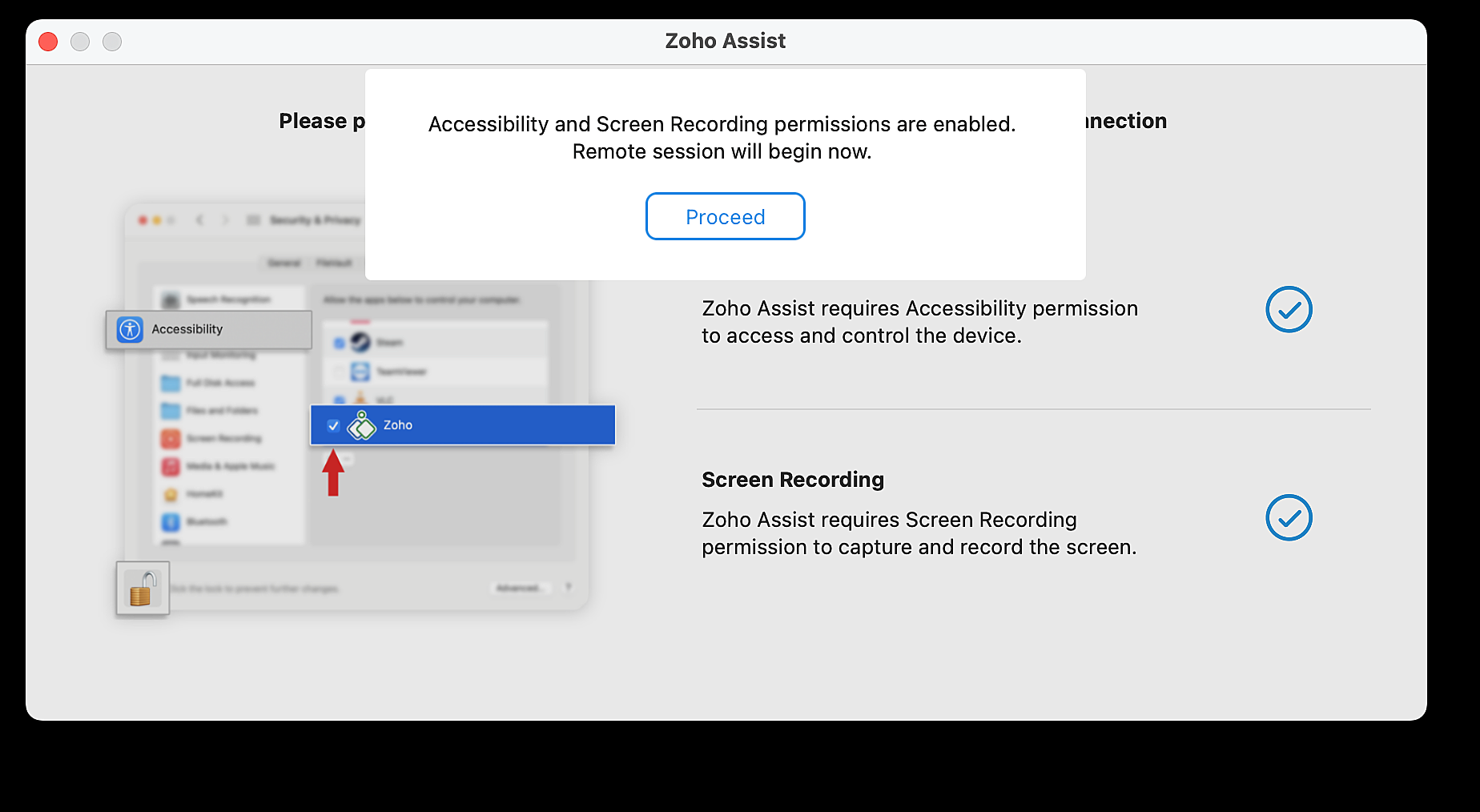
Configuring Mac Permissions to Access and Control Remote Devices
Mac devices running macOS 10.14 and above include privacy restrictions that prevent applications from automatically accessing system-level controls. As a result, Zoho Assist requires specific permissions to view and control Mac devices during Remote Support and Unattended Access sessions.
For bulk deployment and MDM-based configuration, refer to Configure Mac Permissions using MDM to Control a Remote Mac Device.
The following permissions are required:
- Accessibility Permission - Required to remotely control the device using keyboard and mouse input.
- Screen Recording Permission - Required to capture and share the remote screen during sessions.
Configure Permissions
When initiating a remote session, click Proceed in the Zoho Assist permission dialog.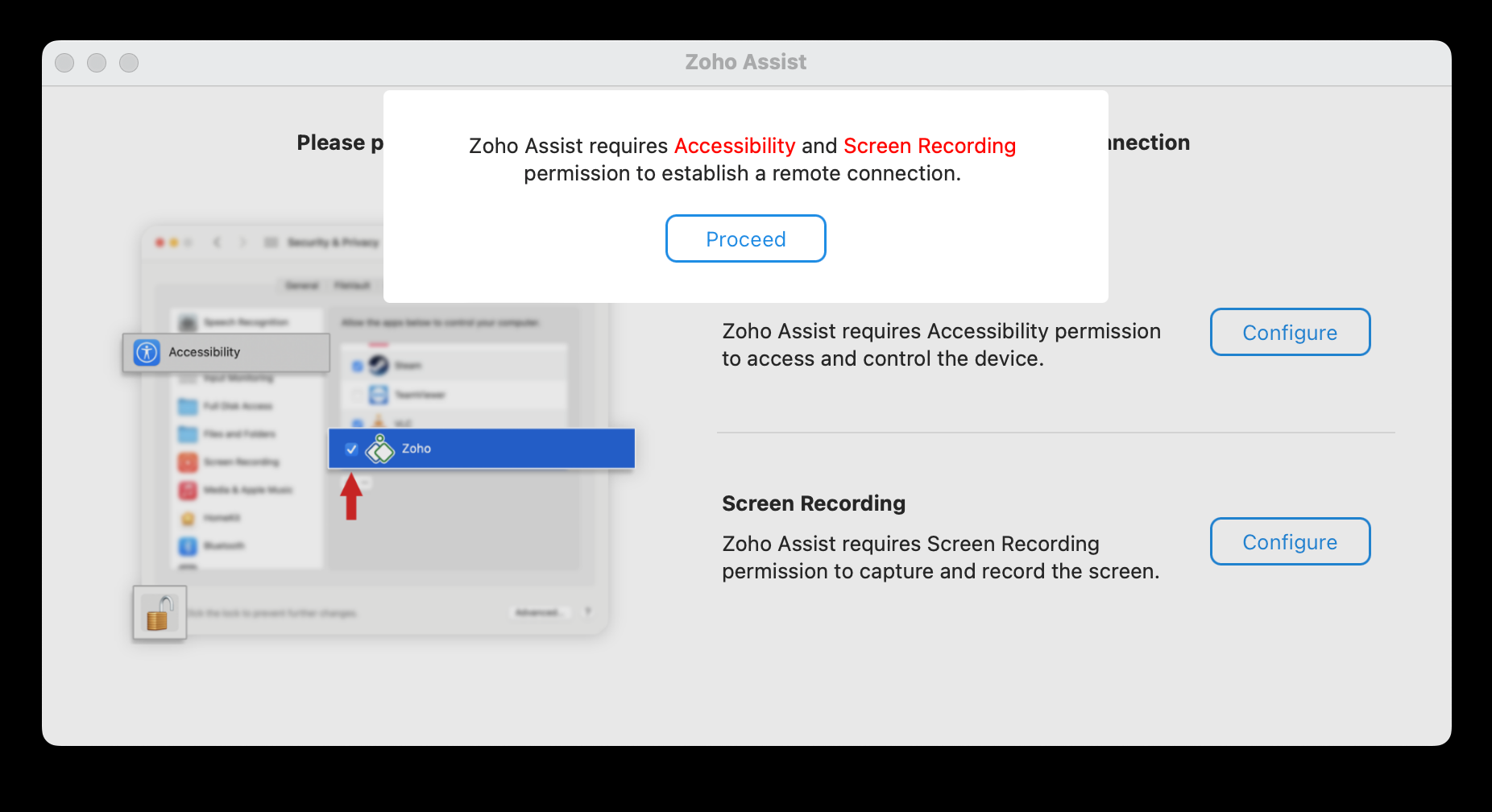
Accessibility permission:
- Click Configure beside Accessibility.
- Click Open System Settings in the prompt.
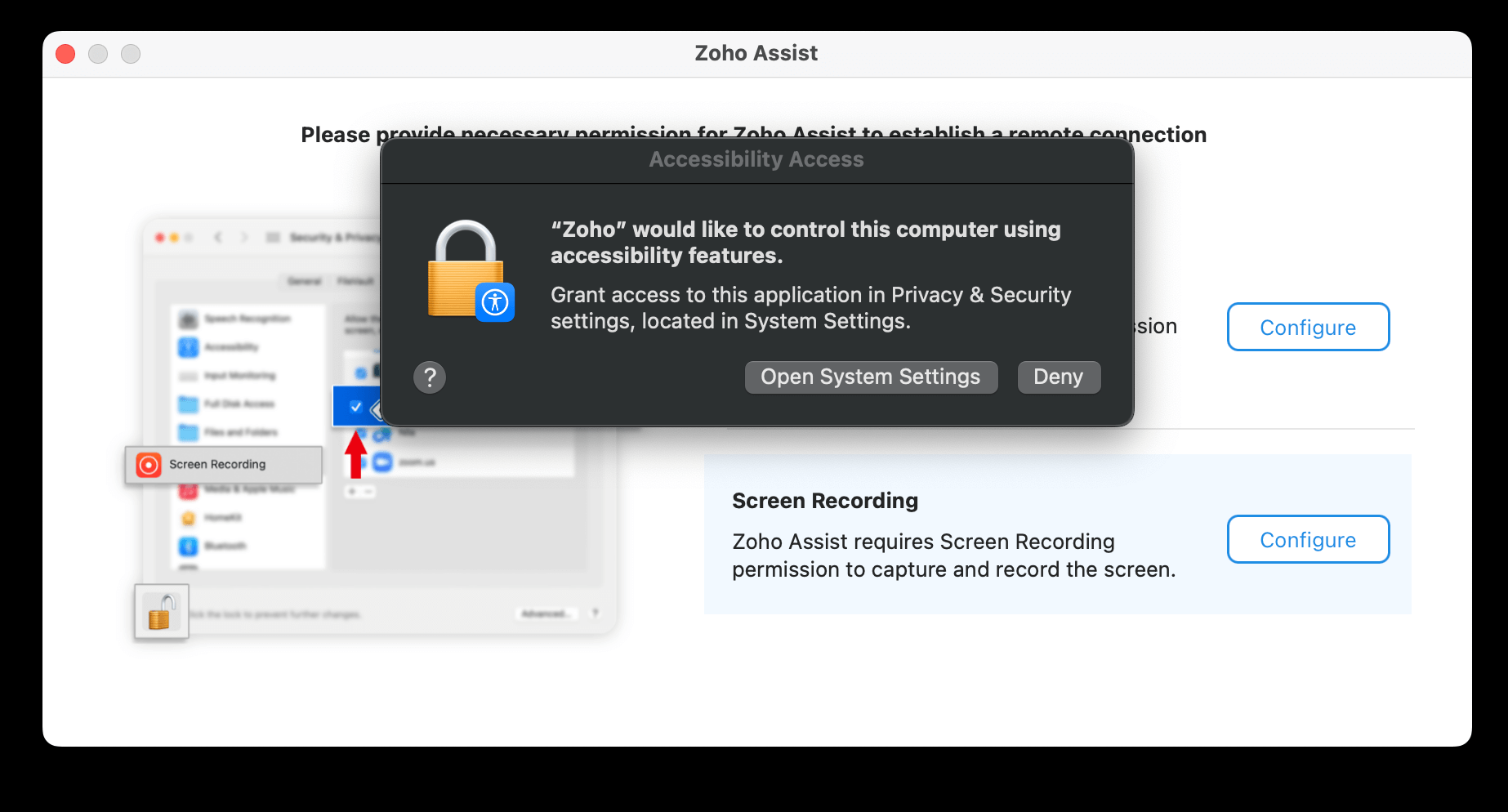
- Navigate to Privacy & Security > Accessibility.
- Enable the toggle beside Zoho.
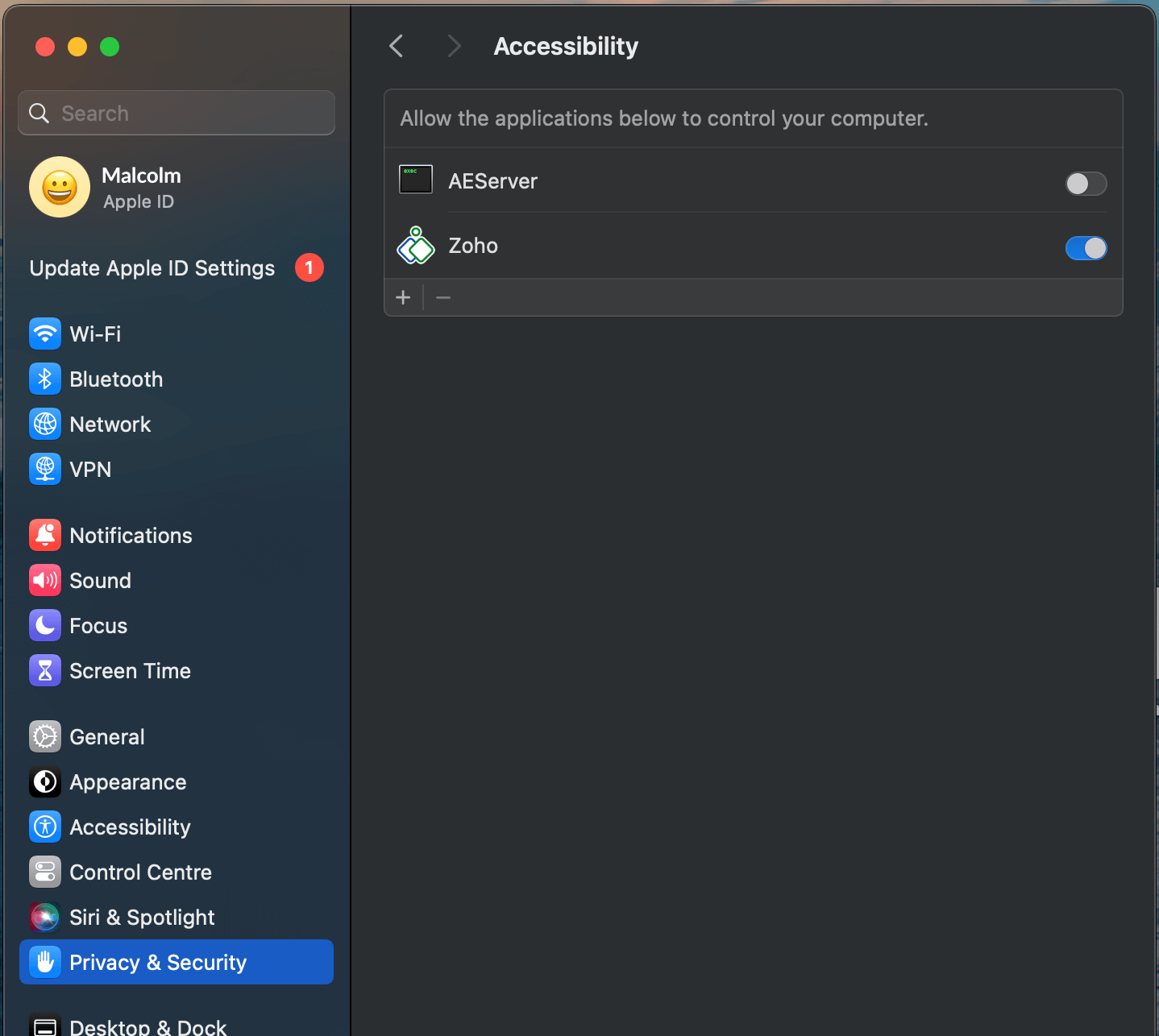
- You may be prompted to enter administrator credentials.
- If Zoho is not listed:
- Click the + icon below the pane.
- Navigate to "Macintosh HD/Users/<User Name>/Library/Application Support/ZohoMeetingNative/"
- Add Zoho.app manually.
Screen Recording Permission
- Click Configure beside Screen Recording.
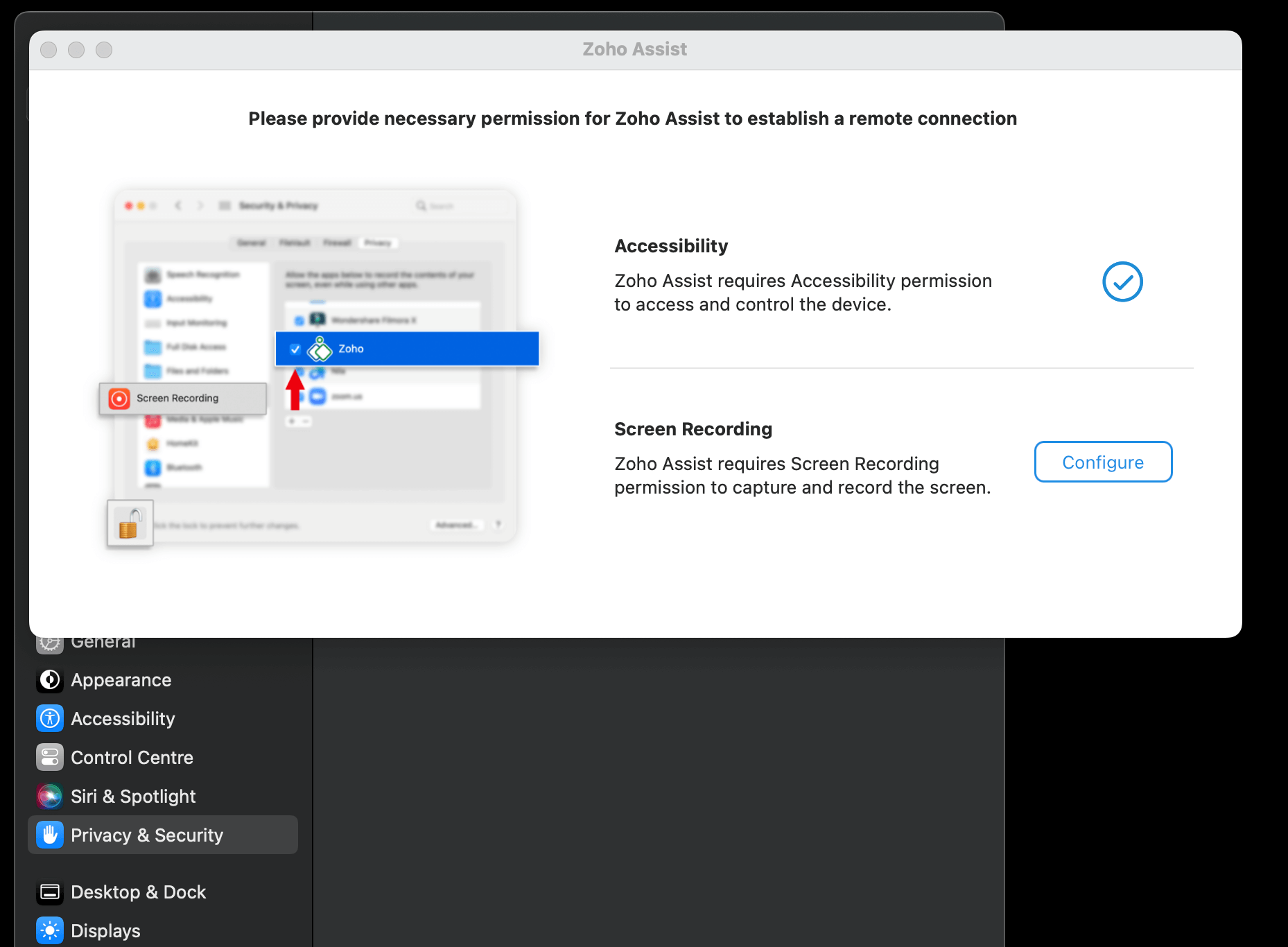
- Click Open System Settings in the prompt.
- Navigate to Privacy & Security >Screen Recording.
- Enable the toggle beside Zoho.
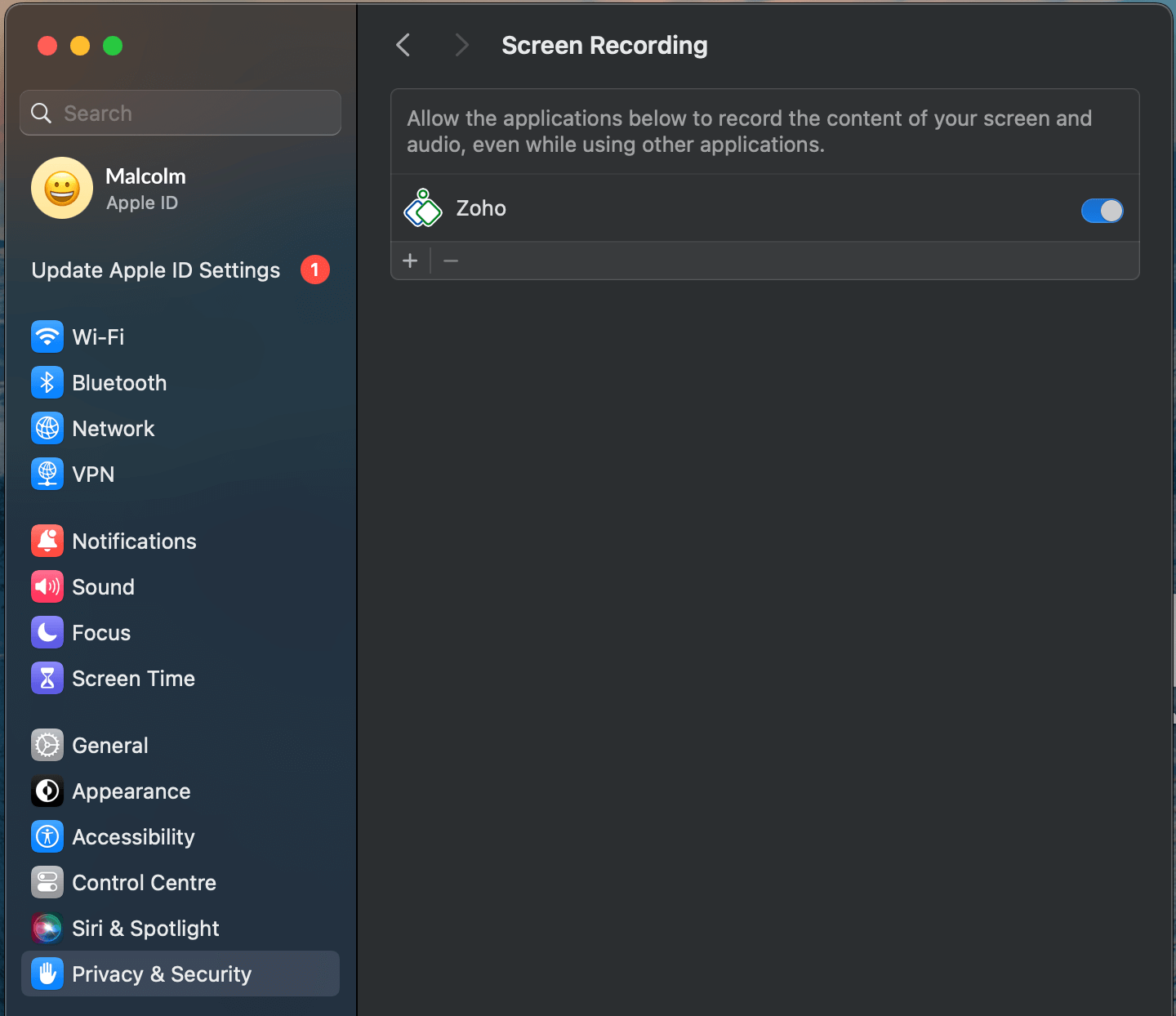
- You may be prompted to enter administrator credentials.
Once both permissions are enabled, click Proceed. The technician will now have remote access and control over the Mac device. These permissions remain enabled for future sessions.