Script Repository
The Script Repository in Zoho Assist is a centralized library where admins can upload, organize, and manage scripts. These scripts can be executed directly on remote devices during active support sessions, enabling faster and more consistent troubleshooting and system management. Scripts are organized by categories and assigned to departments, giving technicians structured access to the right scripts for their workflows.
Adding a Script
- Log in to your Zoho Assist account.
- Click the Files icon in the top menu bar and navigate to Script Repository from the left panel.
- Click Add Script.
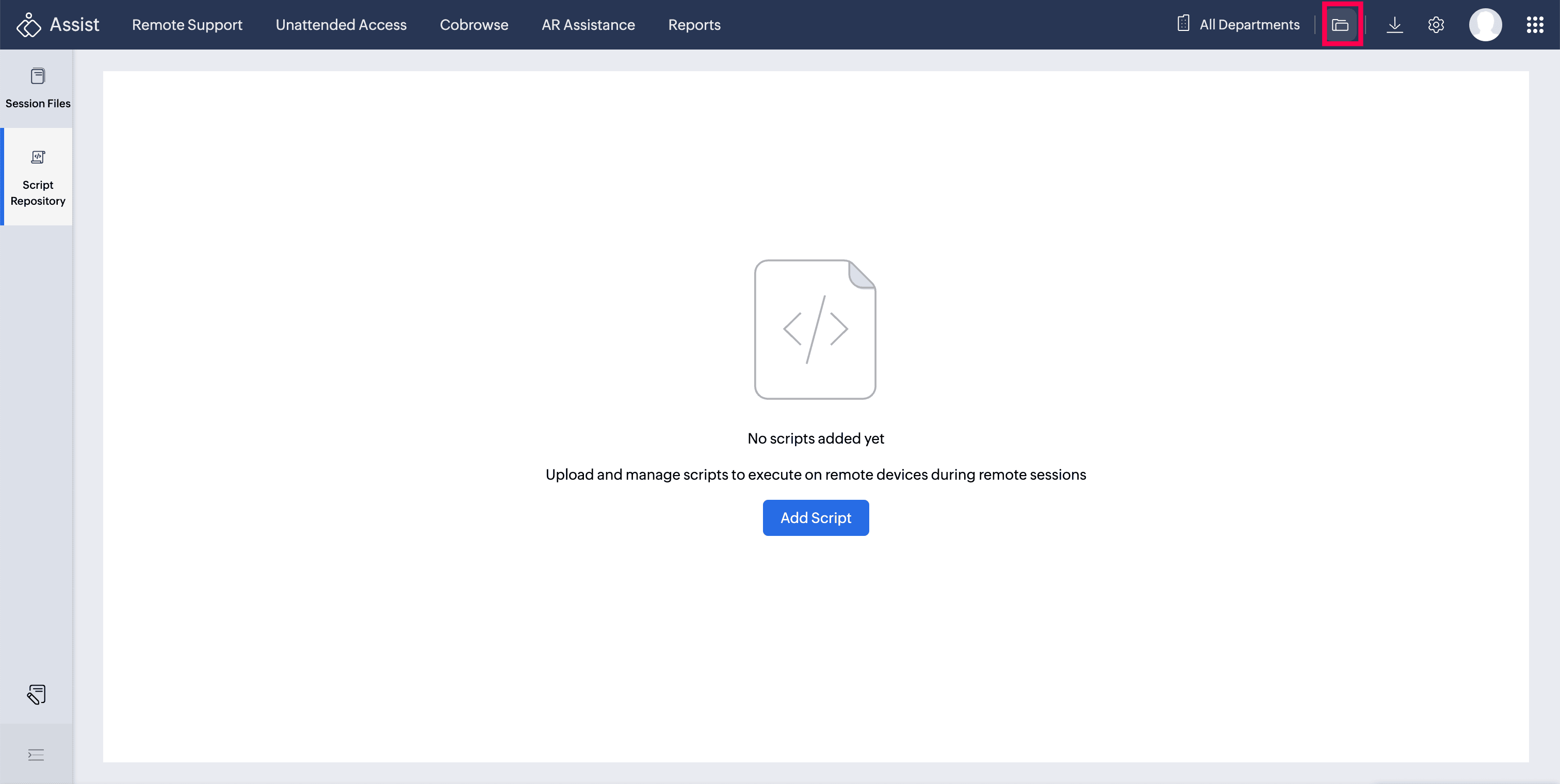
- Enter the Script Name and Description.
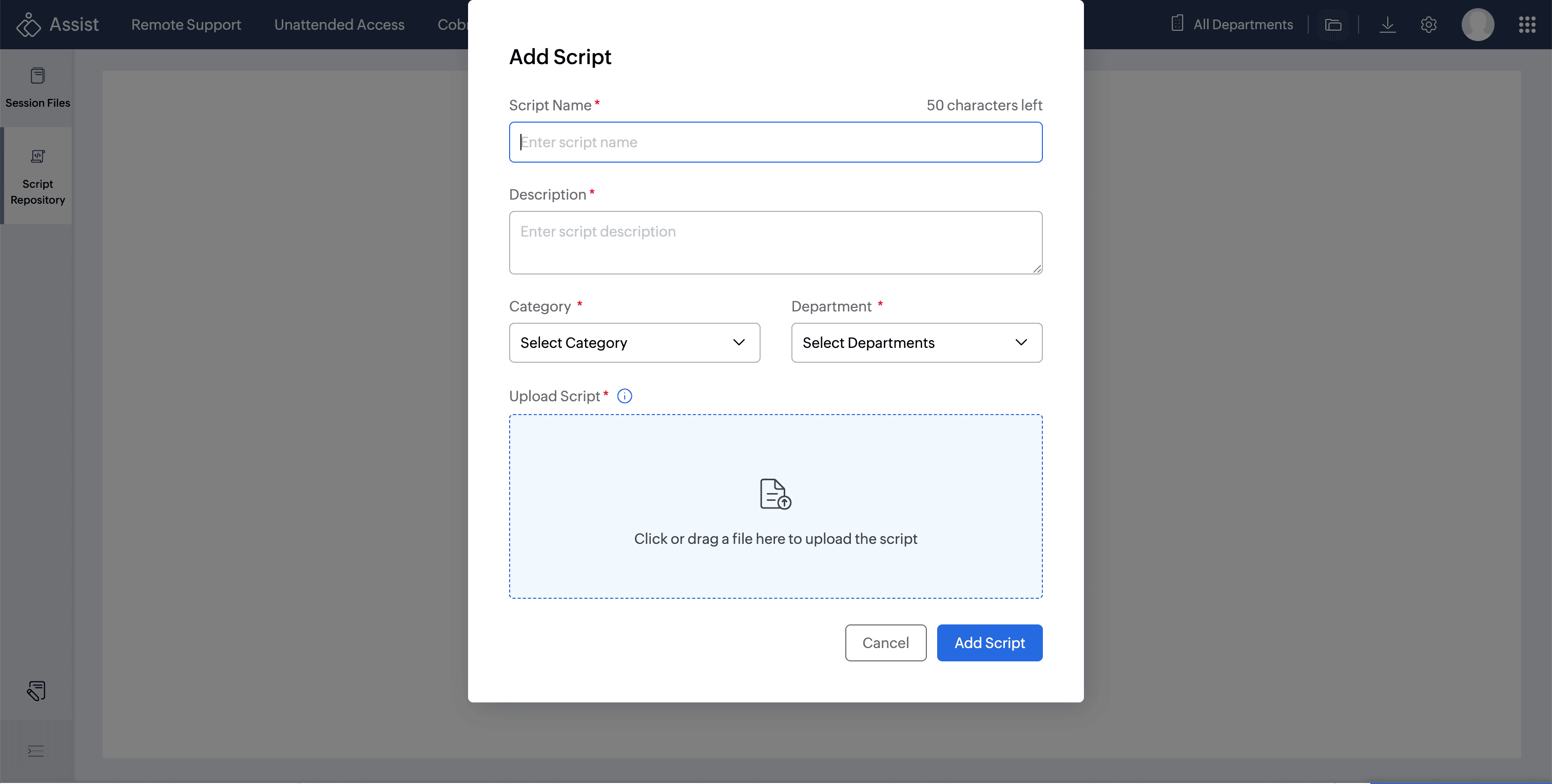
- Choose a Category from the dropdown. You can select an existing category or create a new one to organize the script.
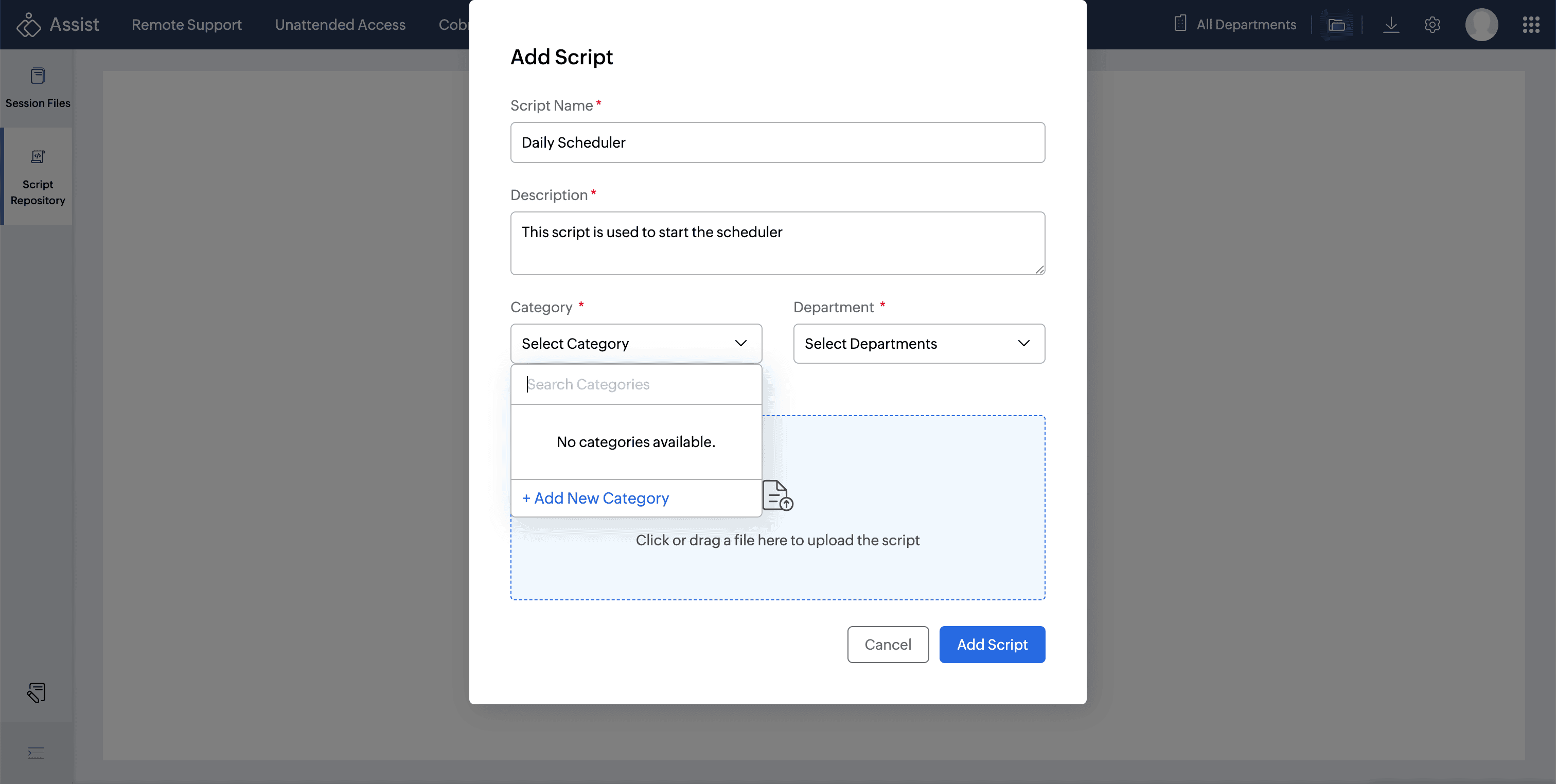
Click the Department dropdown, select the department(s) that should have access to the script, and click Apply.
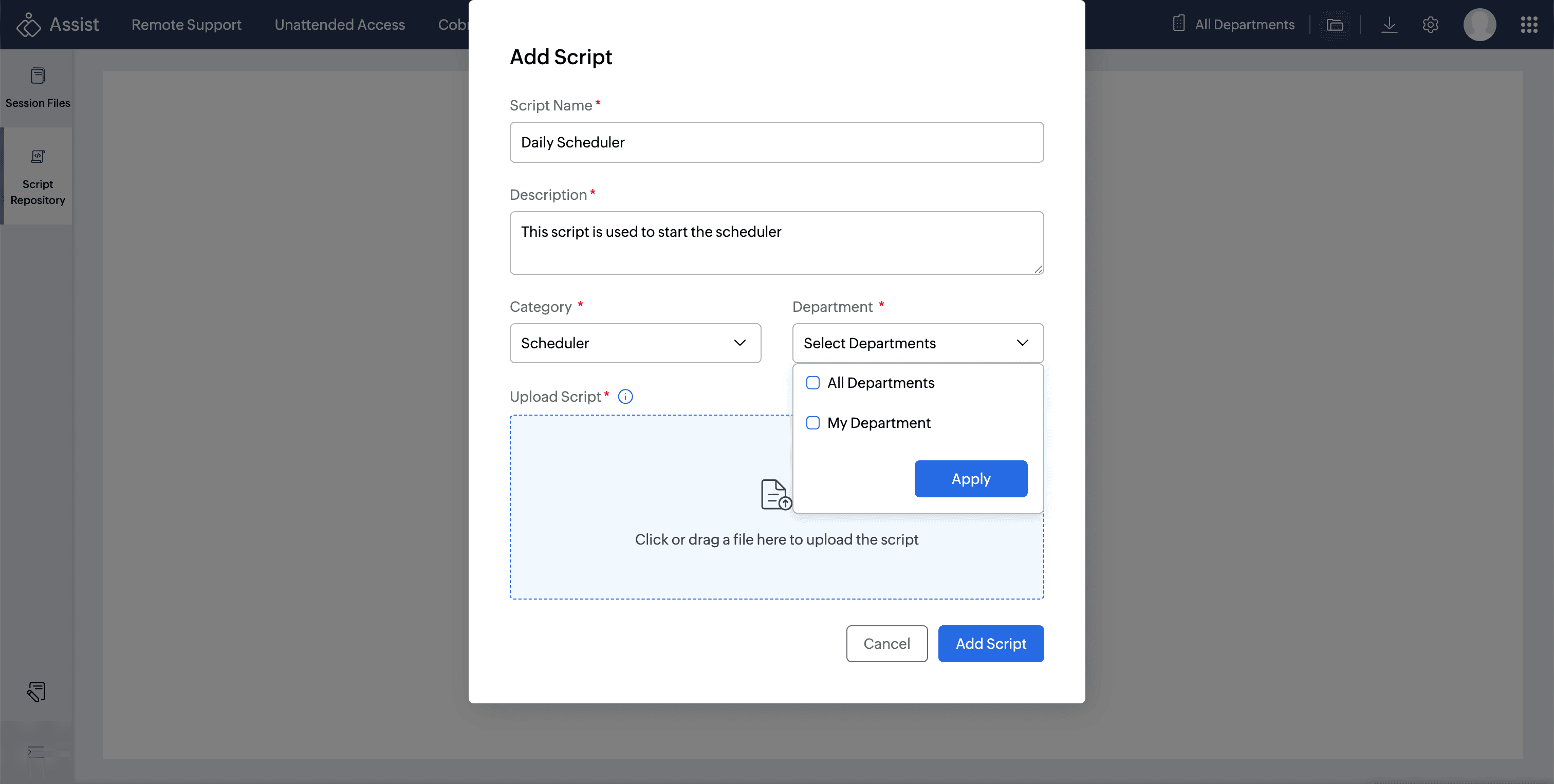 Note: Ensure the correct department is assigned when adding scripts so that the relevant technicians can access them.
- Upload the script file by clicking the upload area or dragging and dropping a file onto it. Supported file types:
.ps1,.sh,.bat,.cmd, and.vbs. - Click Add Script.
Once added, the script will appear in the repository. 
Managing Scripts
Click the three-dot menu (...) beside any script to access the following actions:
- Edit - Modify the script's name, description, category, or department, or replace the uploaded file.
- Download -Download the script file to your local machine.
- Delete - Permanently remove the script from the repository.

Searching for Scripts
Use the Search bar at the top right of the Script Repository to find a specific script by name. The list updates in real time as you type. 
Filtering Scripts
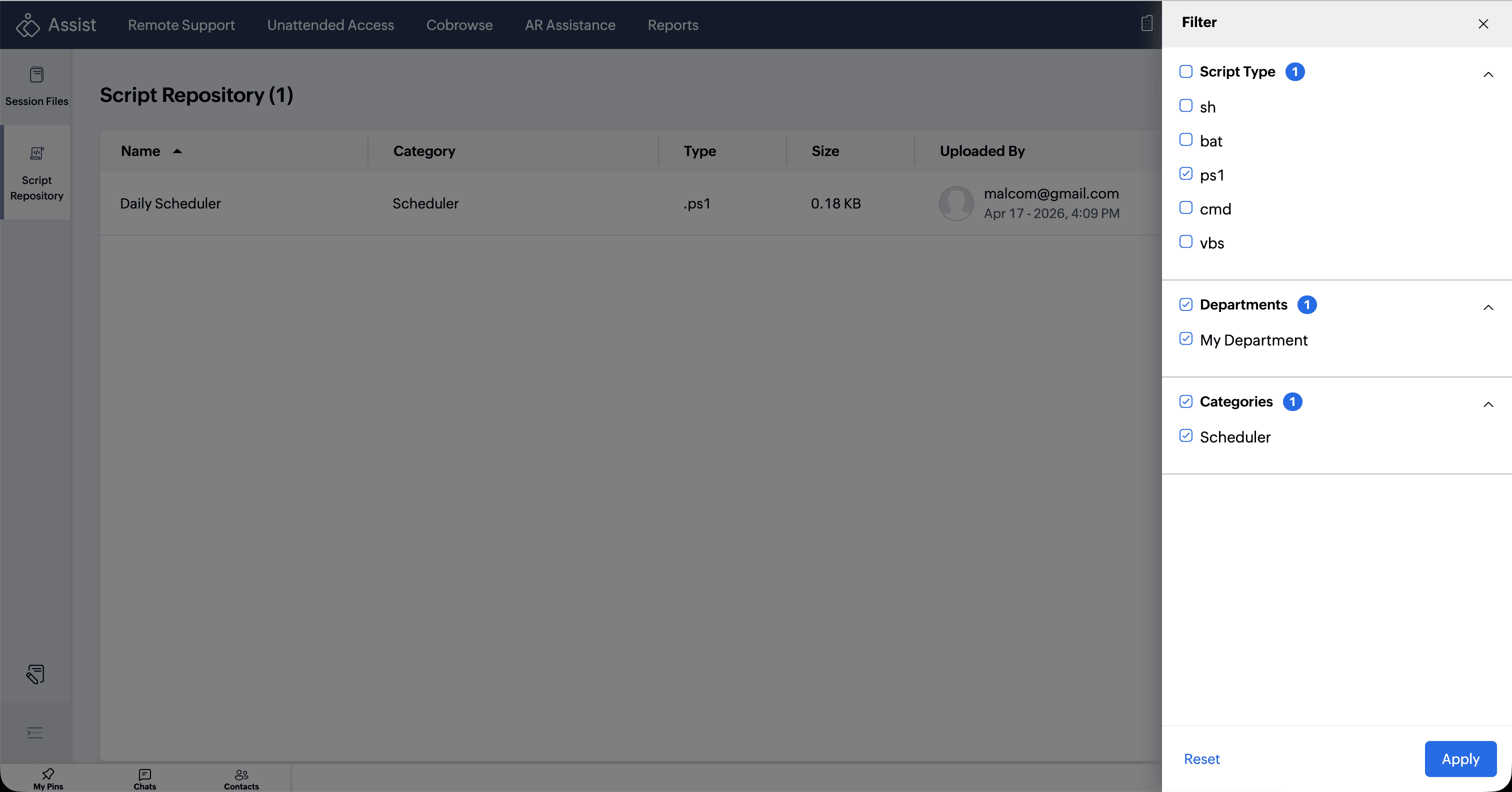
Click the Filter icon at the top right of the Script Repository to open the filter panel. You can narrow down the script list using the following filters:
- Script Type — Filter by file type:
.sh,.bat,.ps1,.cmd, or.vbs. - Departments — Filter by department assignment.
- Categories — Filter by the category assigned to the script.
Column Chooser
Click the Column Chooser icon at the top right of the Script Repository to choose which columns are displayed in the list view. The available columns are Name (mandatory), Category, Type, Size, Uploaded By, and Department. Select or deselect columns as needed and click Save to apply your preferences. 
Executing Scripts During a Remote Session
Scripts stored in the repository can be run directly on a remote device during an active support session, allowing technicians to automate tasks without manually transferring files.
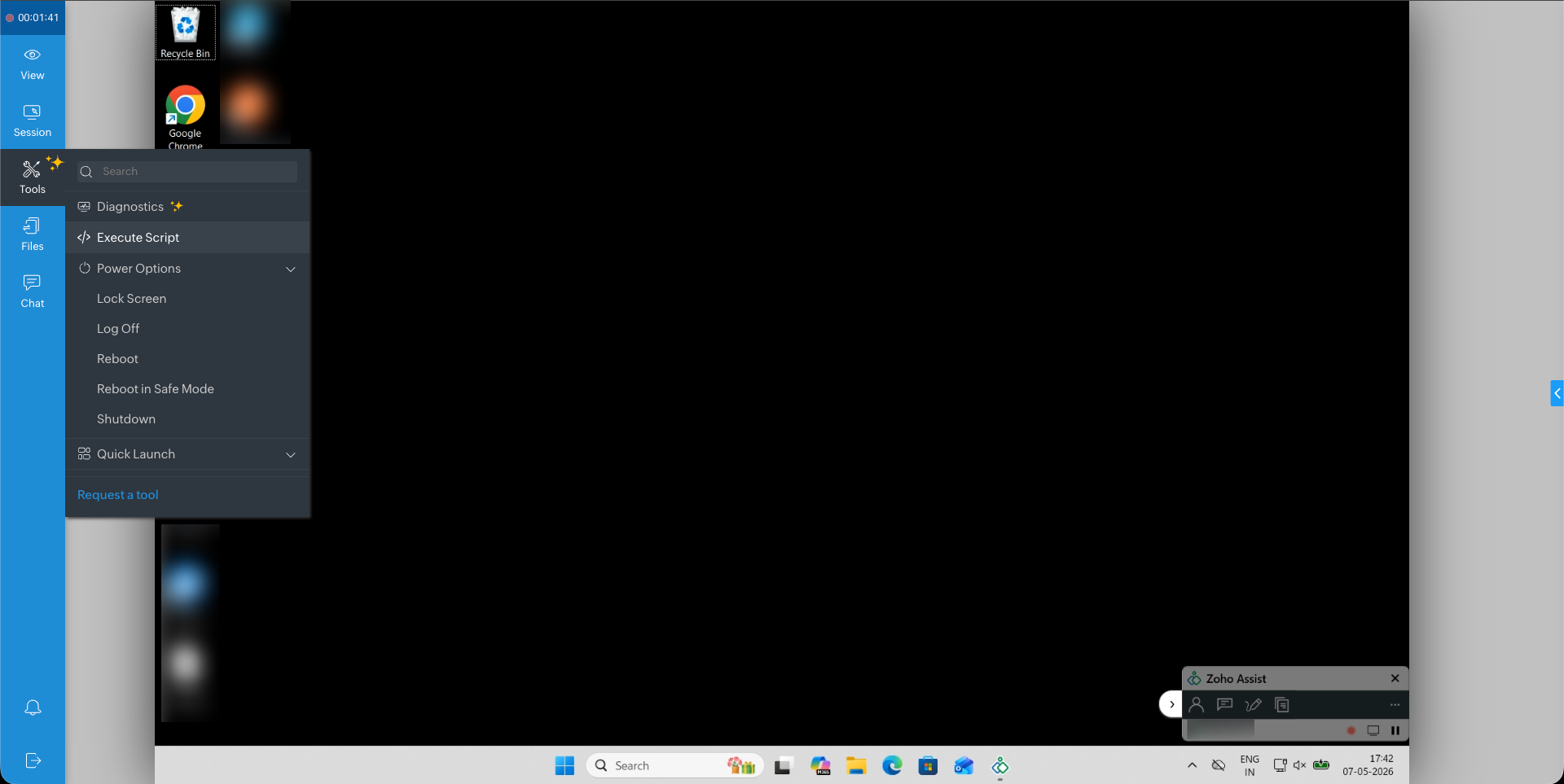
- During an active session, click Tools in the left panel and select Execute Script.
- The Execute Script dialog lists all scripts available to you from the Script Repository. Each script displays its name, category, and file type.
- Click Execute next to the desired script.
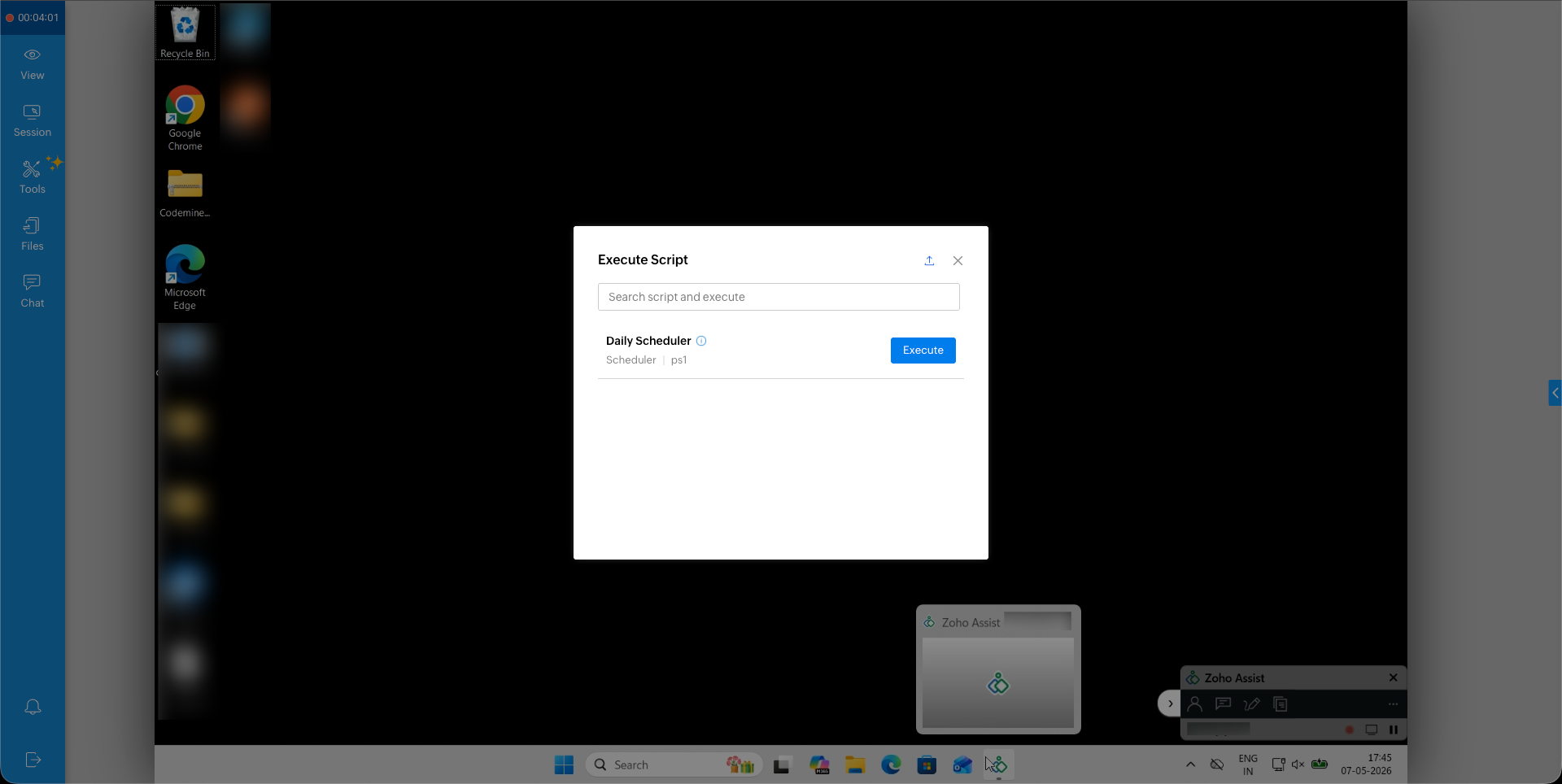
Alternatively, you can upload a script ad-hoc directly by clicking the Upload icon in the dialog's title bar and selecting the script file. The uploaded script will appear in the dialog for immediate execution. Learn more 
A success notification will confirm that the script was executed successfully.