File Manager
The File Manager in Zoho Assist allows technicians to access and manage files efficiently on a remote device during a remote support session or even without connecting to the unattended device. It helps organize files on the remote device and enables seamless file transfer between the technician's device and the remote customer's device.
Note: This feature is supported on Windows, Linux, and macOS (version 12 and above).
Key Benefits
Provides quick access to files during troubleshooting
Simplifies file sharing between the technician and the remote device
Eliminates the need for external file transfer tools
Improves overall support efficiency
How to Access File Manager
You can access the File Manager through any of the following methods:
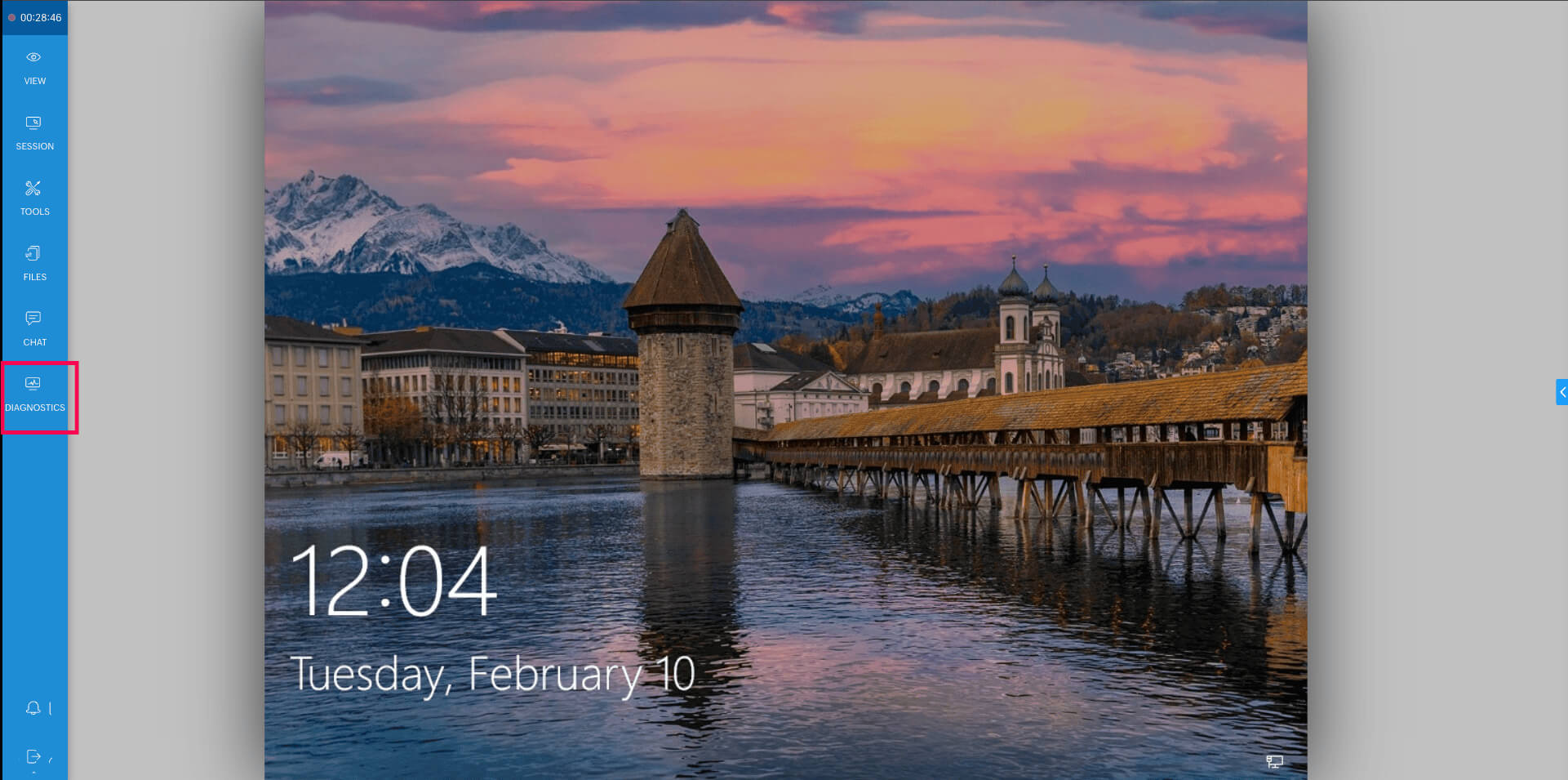
During an Active Session - Click Tools > Diagnostics from the session toolbar and select File Manager.
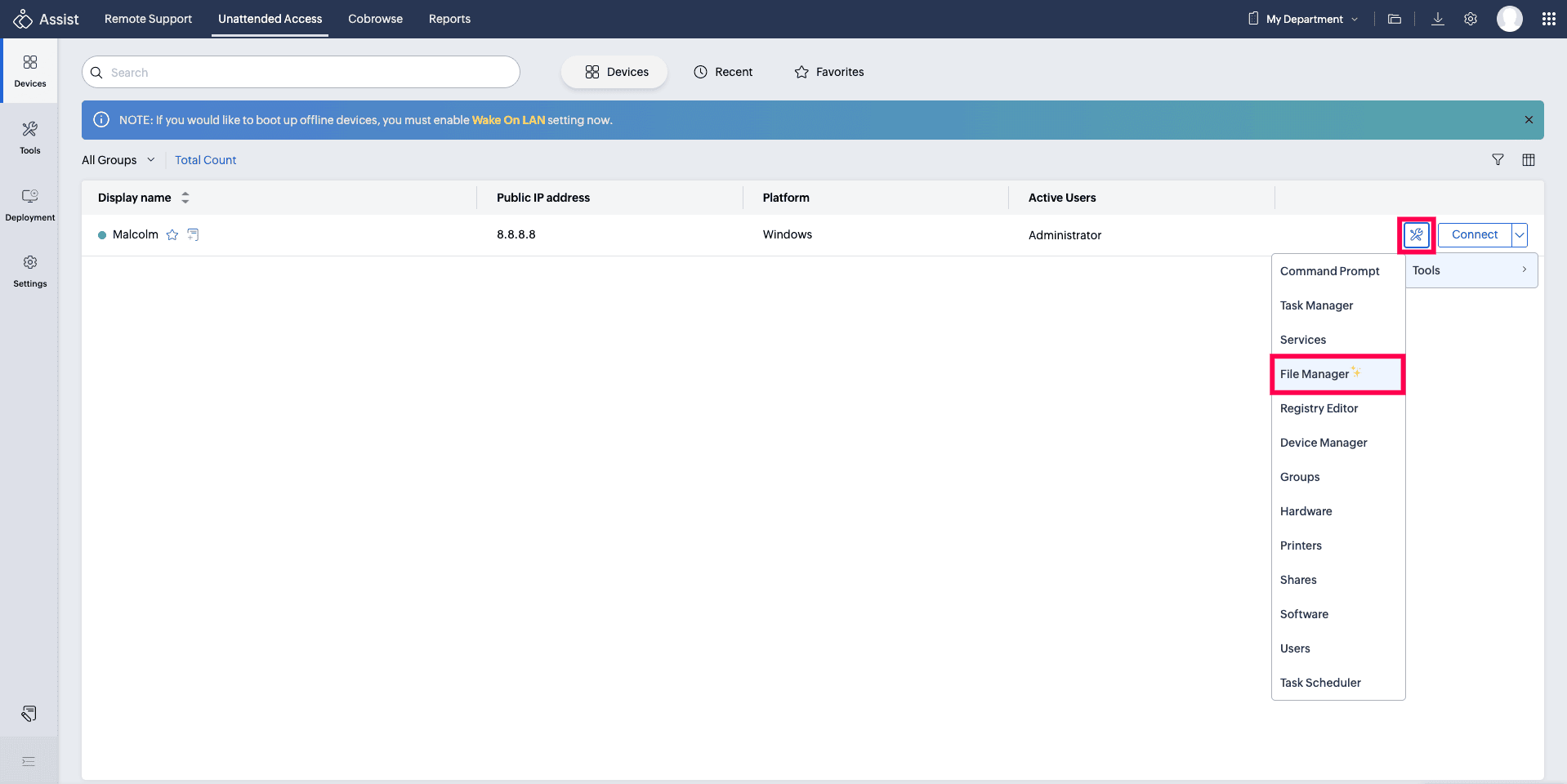
From Unattended Access - Go to Unattended Access and locate the required device. Click the Tools icon next to the device. Select File Manager.
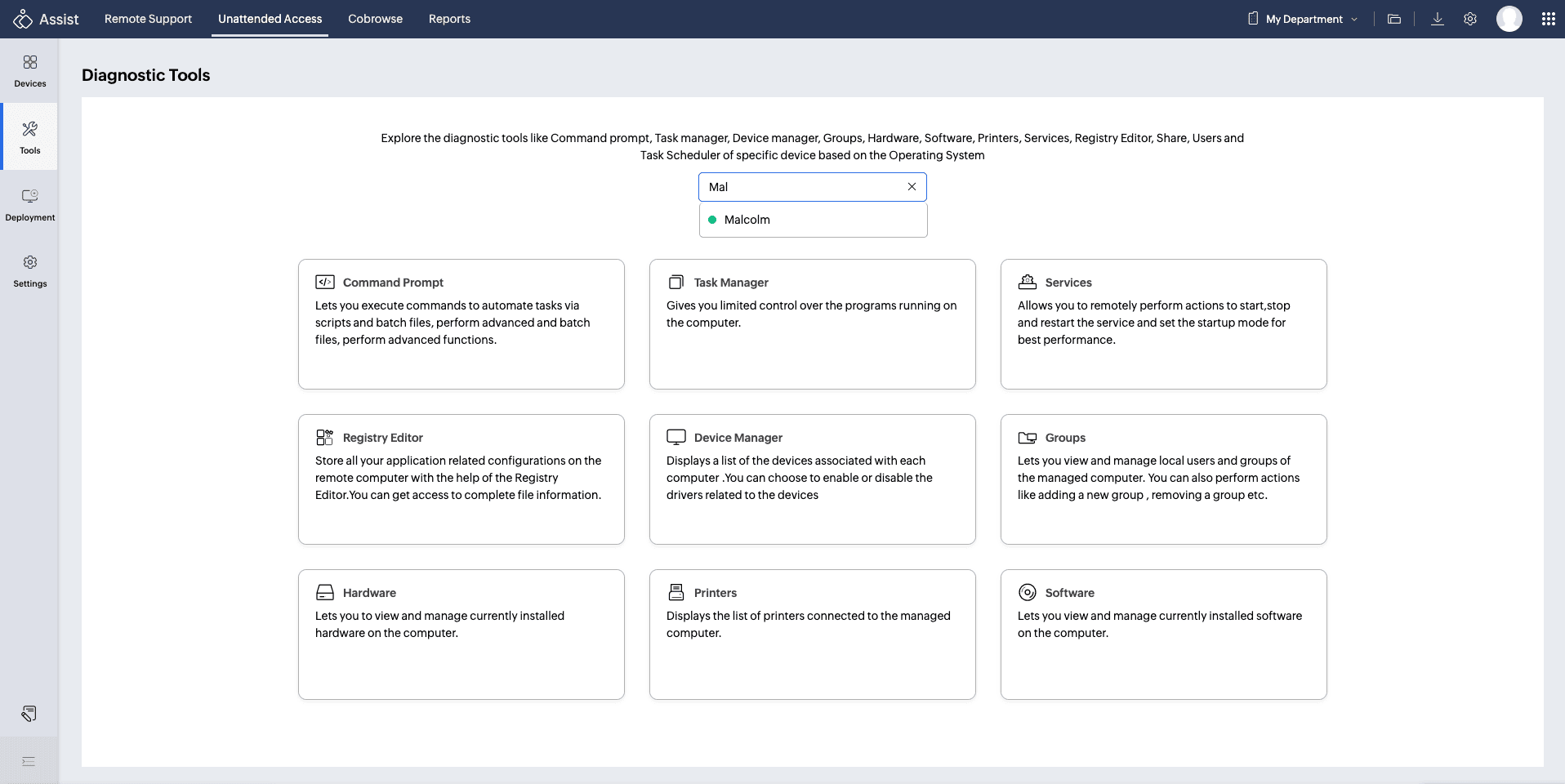
From the Tools Section - Navigate to Unattended Access > Tools. Search for and select the required device. Click File Manager from the left sidebar.
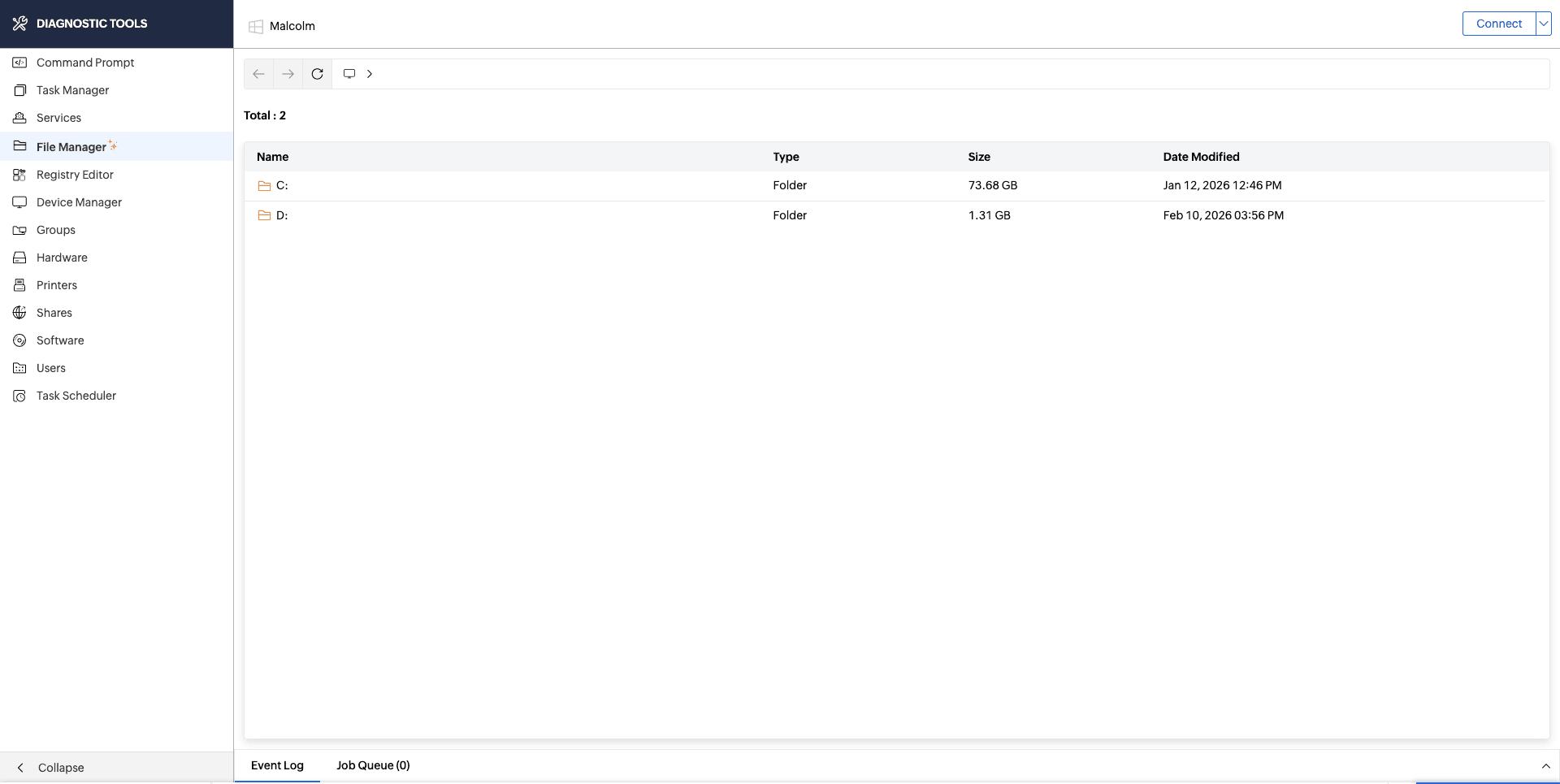
Using File Manager, technicians can perform common file operations on both technician and remote devices.
File Actions
Download – Download files from the remote device to the technician’s local device.
Rename – Modify the file name.
Cut / Copy / Copy as Path – Available from the three-dot menu within the remote device.
Delete – Remove the selected file.
Properties – View file details.
Upload – Upload a file from the technician's device to the remote device.
Paste – Move copied or cut files to the selected location within the remote device.
Folder Actions
Rename – Modify the folder name.
Cut / Copy / Copy as Path – Available from the three-dot menu.
Delete – Remove the selected folder.
Properties – View folder details.
Paste – Paste the copied or cut folder into the selected location.
Create New Folder – Create folders directly within the remote device.
Bulk Actions
You can select multiple files to perform bulk Cut, Copy, Delete, or Download operations.

Note: The Download action is supported only for files.
Event Log
All actions performed in the File Manager are displayed in the Event Log.
Job Queue
The Job Queue displays details of all file uploads and downloads, including transfers that are in progress and those that have been completed.
Note:
On macOS, access to user-level folders such as Desktop, Documents, and Downloads may be restricted due to OS privacy protections.
On Windows, the File Manager does not list certain protected system folders and files to help prevent accidental changes/modifications that could affect system stability.
As a result, some files or folders may not be visible or accessible on certain computers depending on the operating system's security and protection settings.