Privacy Settings
You can configure your privacy settings to manage the data that is collected and stored in Zoho Assist. Privacy settings let you consent to data gathered and processed from third-party services, limit usage through role-based access for users, receive breach alerts, and delete information pertaining to specific users in your organization.
Consent
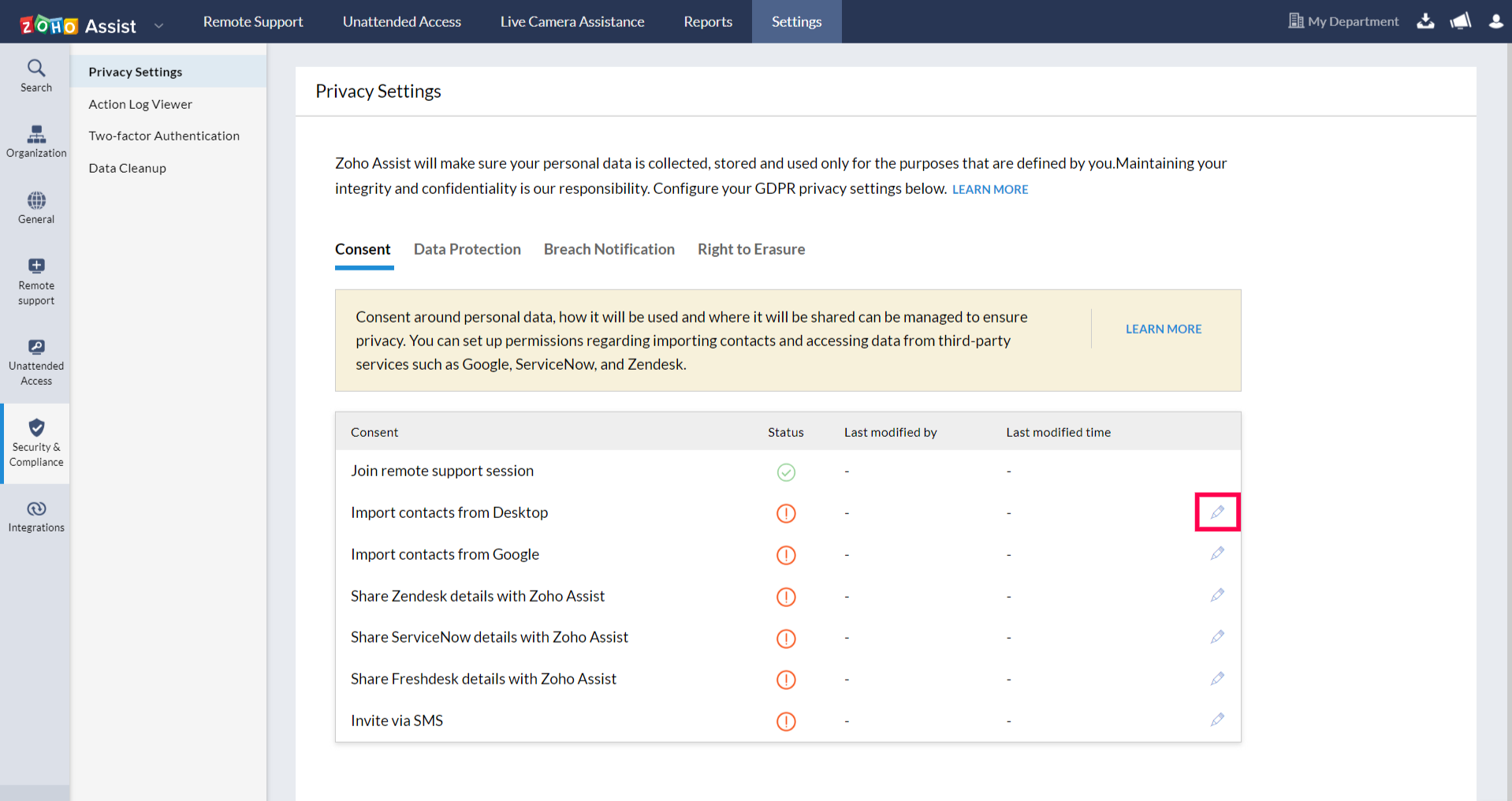
As an Admin, you can decide when, how, and why data should be gathered and processed in Zoho Assist. You can set up permissions for whether your data can be accessed from third-party services such as Zendesk, ServiceNow, and Google for integration with those services. You can revoke given permissions at any time.
Steps
- Go to Settings > Security & Compliance > Privacy Settings.
- Click the edit icon to modify the given consent.
Data Protection
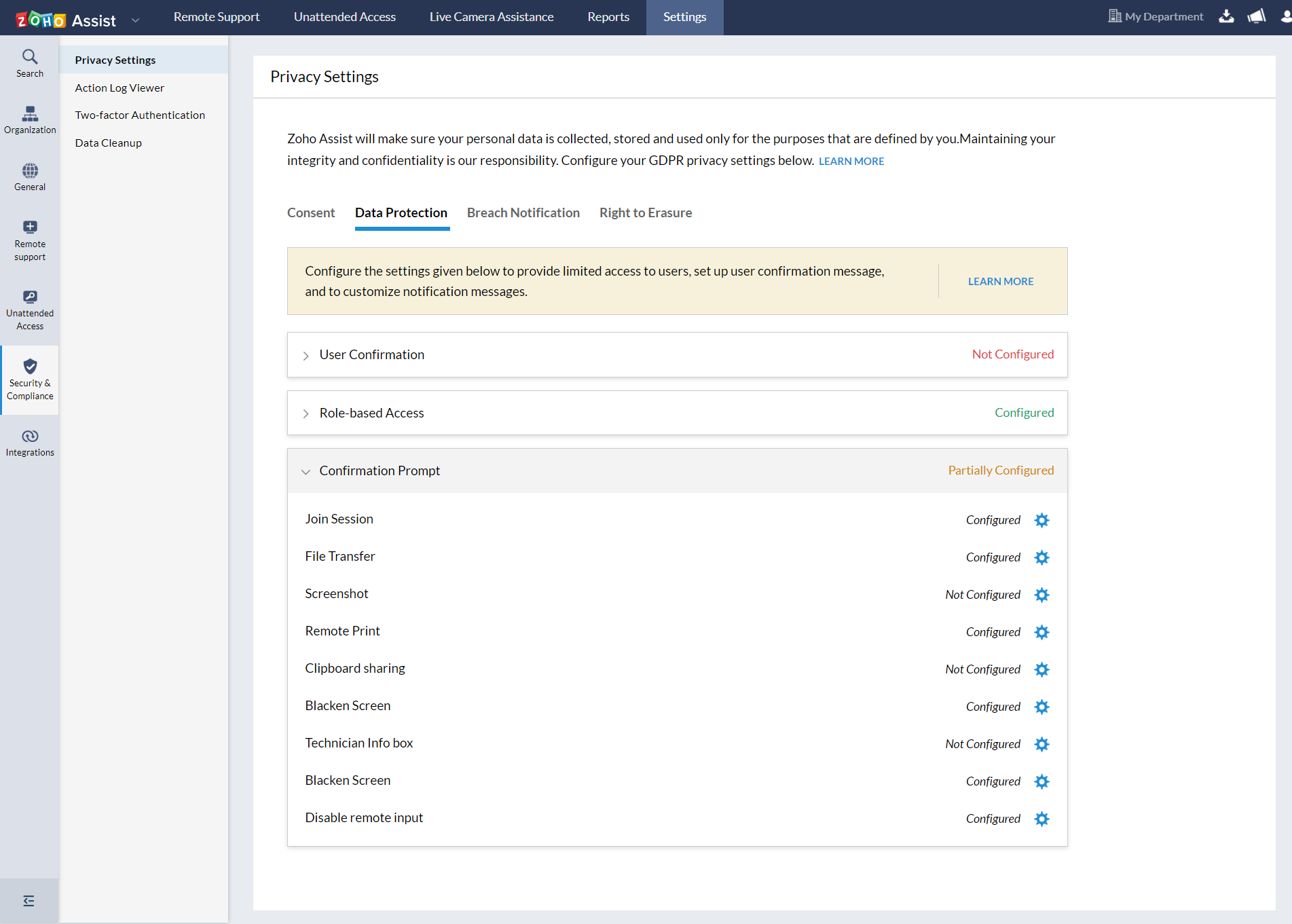
Manage your data privacy and security using the Data Protection settings. You can set up user confirmation before initiating an unattended access session, provide limited access to data by assigning roles to users in your organization, and customize notification messages for your customers.
Steps
- Go to Settings > Security & Compliance > Privacy Settings.
- Choose the Data Protection tab.
- Click the settings icon under User Confirmation to enable confirmation at the remote end.
- Click the settings icon under Role-based Access to modify user roles, grant session privileges, and manage computer groups.
- Click Settings under Confirmation Prompt to enable/disable or customize the confirmation message shown to customers before initiating any action.
Breach Notification
Configure your settings to receive breach alerts if critical information is compromised in a breach. By default, the Super Admin will be notified within 72 hours through email. Breach alerts can also be emailed to additional users of your choice.
Steps
- Go to Settings > Security & Compliance > Privacy Settings.
- Choose the Breach Notification tab.
- Click Add Email Address to include users who should receive the breach alert.

Right to Erasure
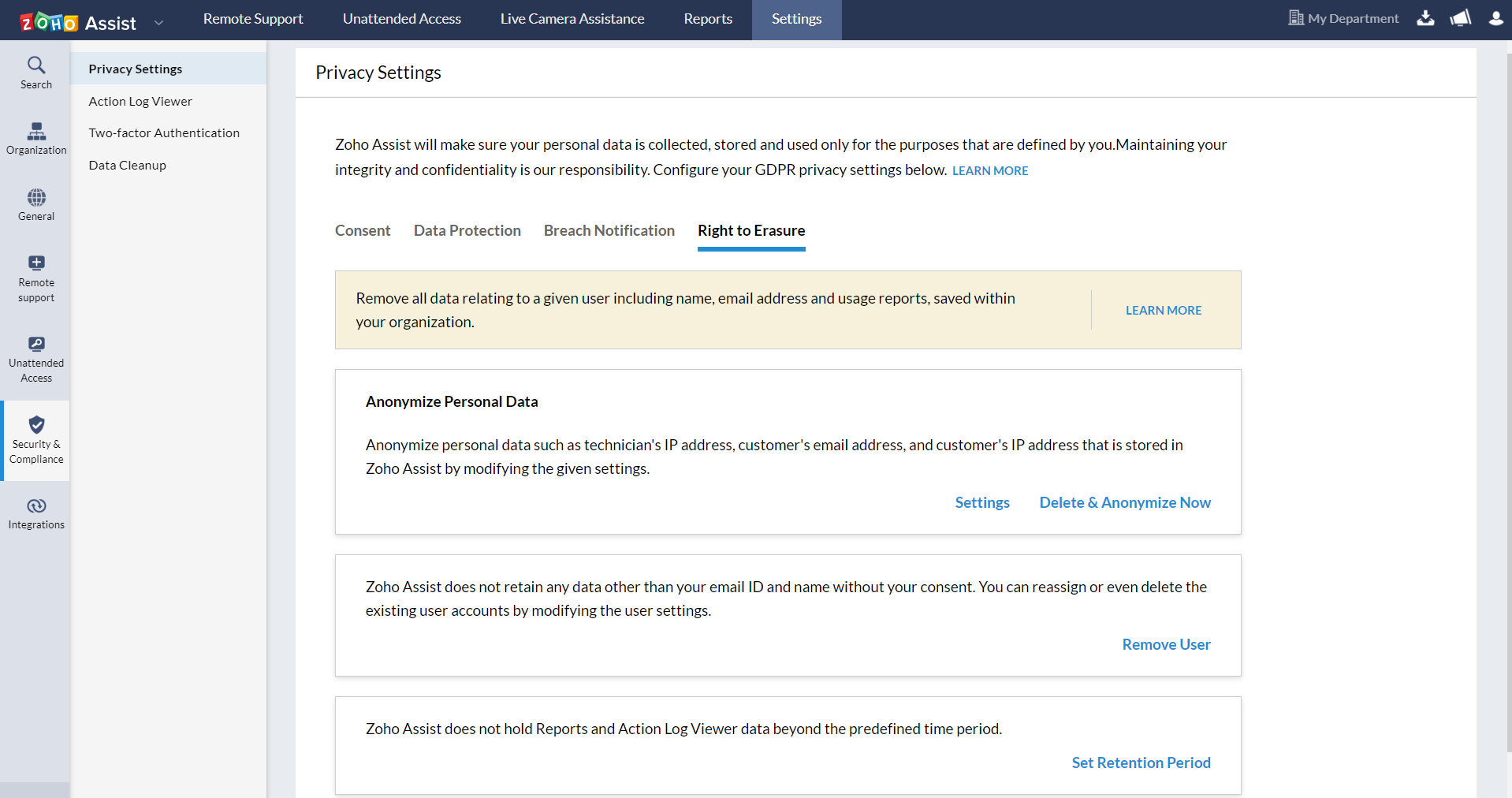
You can remove all data related to a given user—including their name, email address, action logs, and usage reports—saved within your organization using these settings.
Steps
- Go to Settings > Security & Compliance > Privacy Settings.
- Choose the Right to Erasure tab.
- Click Remove User, then click the delete icon to remove the user from your organization.
- Click Settings under Anonymize Personal Data to anonymize data older than a specified number of days. Enable the Repeat daily checkbox to perform the process automatically each day.
- Click Delete and Anonymize Now to anonymize all personal data stored within Zoho Assist immediately.