Session Highlight
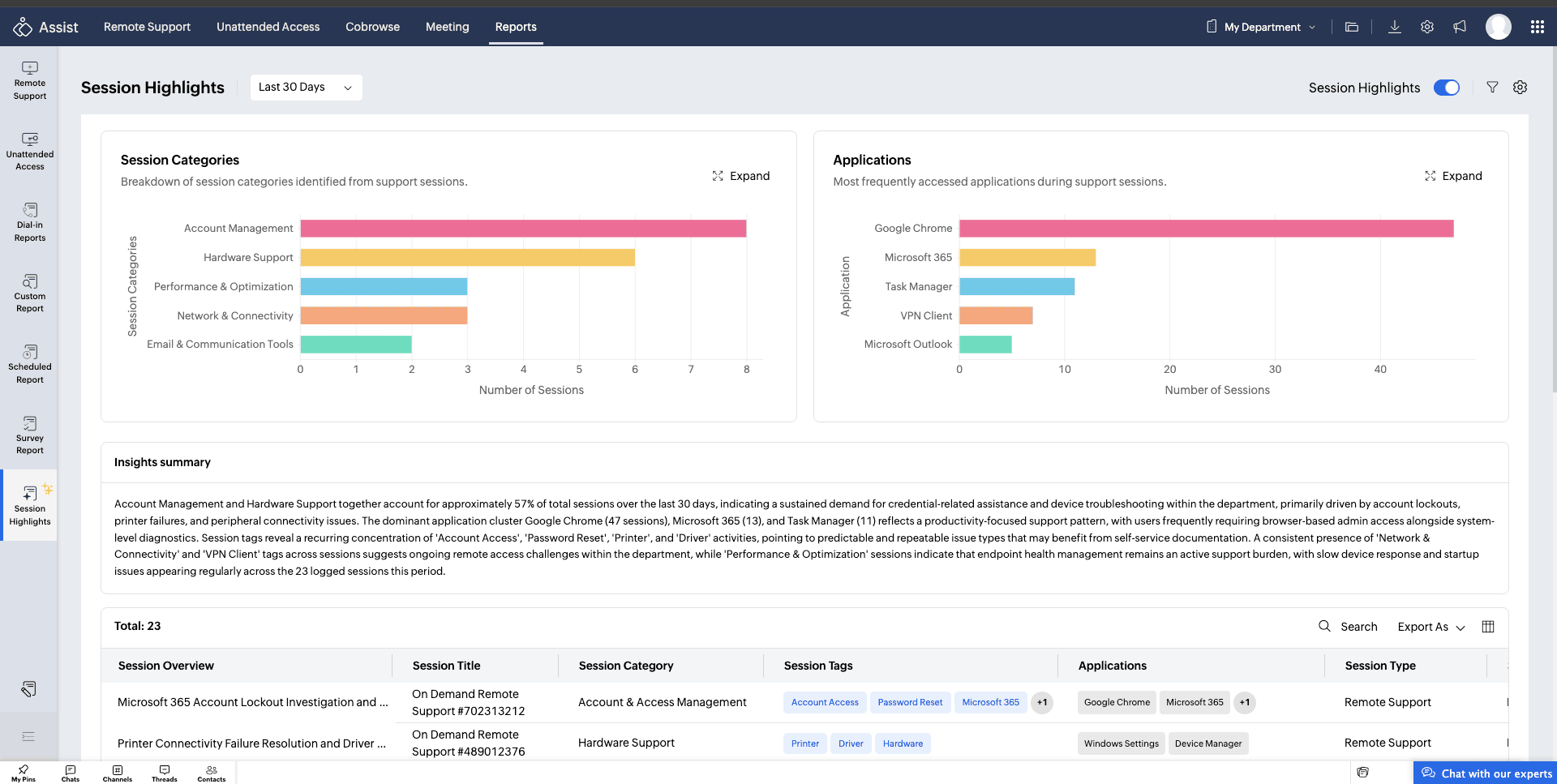
Session Highlights gives you a concise overview of your remote support sessions. Each completed session is analyzed to identify key actions, categorize issues, track applications used, and generate a session summary.
Enabling Session Highlights
Note: Only admins can configure Session Highlights for the organization. Once enabled, highlights will be available for all concluded sessions.
To enable Session Highlights:
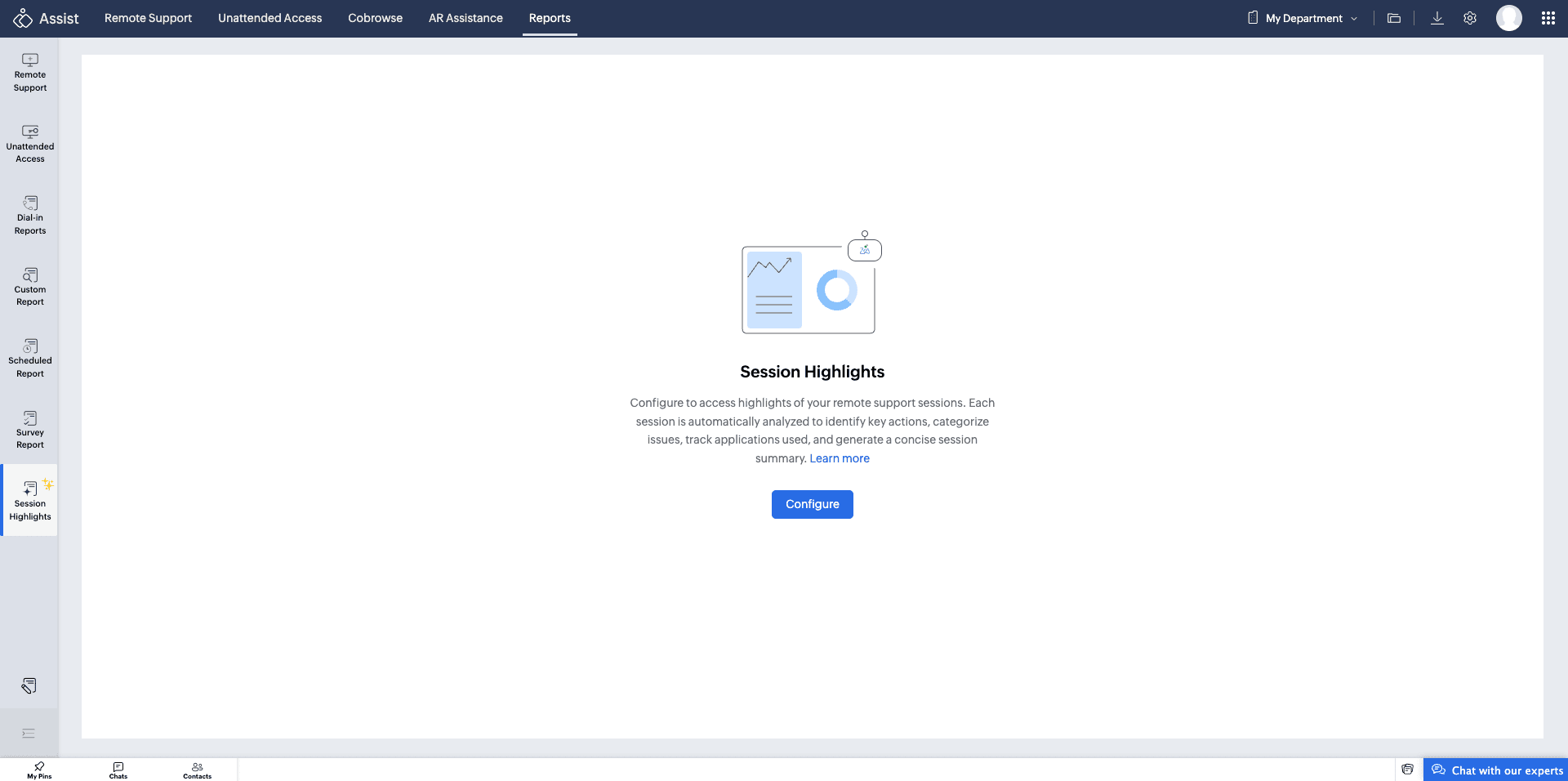
- Navigate to Reports > Session Highlights.
- Click Configure.
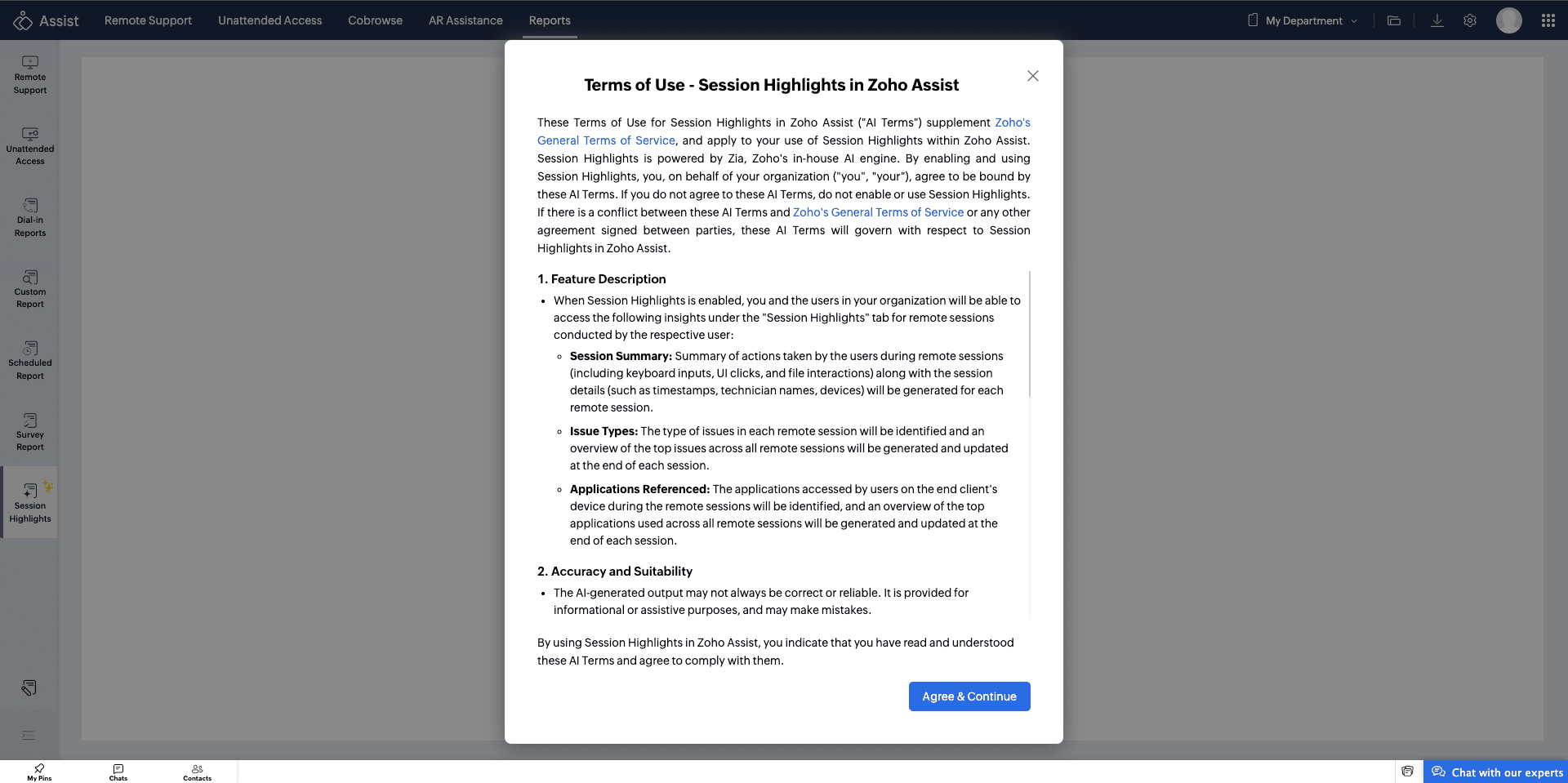
- Review the legal notice and click Agree & Continue to confirm.
Using Session Highlights
Once Session Highlights is configured, the dashboard provides the following:
Session Category - An overview of the top session categories identified across support sessions. Click Expand to view a detailed breakdown or click Export to download the data.
Applications - A list of the most frequently accessed applications during support sessions. Click Expand for a complete view. Use Export to download the data.
Session Highlights Table - A detailed list of session insights with the following columns:
- Session Overview - The title generated for the session highlight.
- Session Title - The name of the associated support session.
- Session Type - The type of session conducted.
- Session Tags - Tags associated with the issues identified during the session.
- Session Category - The category under which the session is classified.
- Applications - The applications accessed during the session.
- Start Time - The date and time the session started.
- End Time - The date and time the session ended.
- Duration - The total duration of the session.
- Customer Email - The email address of the customer involved in the session.
- Department Name - The department associated with the session.
- Technician Name - The name of the technician who conducted the session.
You can search across session highlights or export the data by clicking Export As and selecting CSV or PDF based on your requirement.
Filtering Session Highlights
Use the date range filter at the top of the dashboard to narrow down highlights by time period.
Additional filters can be applied using the filter icon to refine the data further based on:
- Session Type
- Technician
- Applications
- Session Category
- Session Tags

Generating a Session Summary
You can get a concise overview of your support sessions by generating a summary. Filters can be customized to generate a summary that fits your needs.
To generate a session summary:
- Go to the Session Highlights dashboard.
- Use the available filters to narrow down the sessions you want to summarize.
Click Generate Summary. 

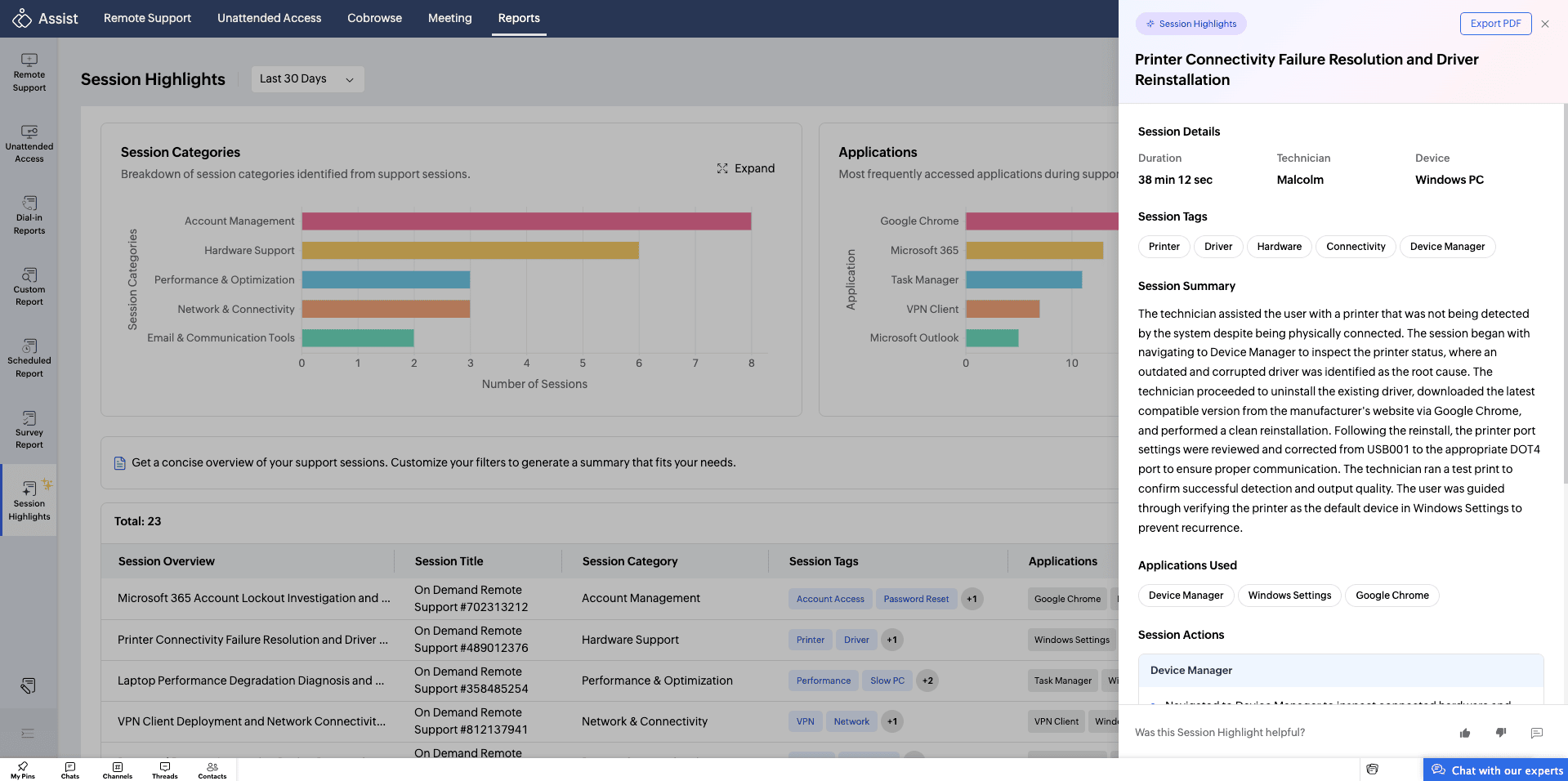
To view details of a specific session, click its session overview column and view a brief summary with the following details:
- Session Details
- Session Tags
- Overall Session Summary
- Applications Used
- Session Actions
Disabling Session Highlights
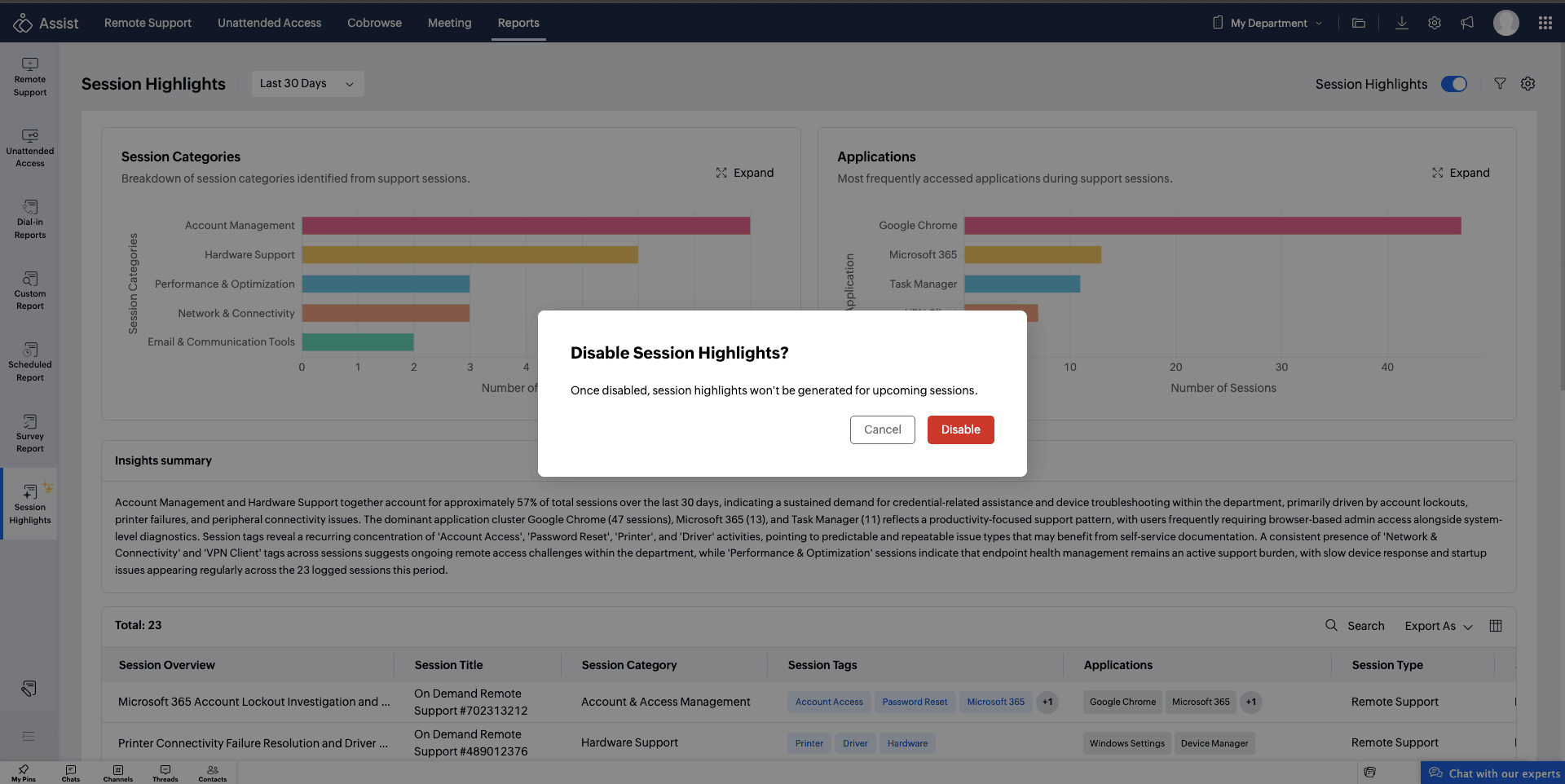
Session Highlights can be disabled at any time. Once disabled, highlights will no longer be generated for upcoming sessions. Existing highlights will remain accessible.
To disable Session Highlights:
- Navigate to the Session Highlights.
- Click the Session Highlights toggle to turn it off.
- Confirm by clicking Disable in the dialog that appears.