Field Library
The Field Library allows you to create and manage reusable fields for your web forms. Fields created here can be used across multiple forms.
Business Use Cases: The Field Library is useful for organizations that manage multiple web forms and need consistent data collection across all of them. Support teams can create standardized fields once and reuse them across forms, ensuring uniform information is captured regardless of which form a customer submits.
Dropdown fields help teams enforce structured inputs, such as issue categories or product types, while text fields accommodate open-ended details like error descriptions or account information. This is especially valuable for growing support operations where maintaining field consistency across departments reduces setup effort and minimizes data discrepancies
To access the Field Library:
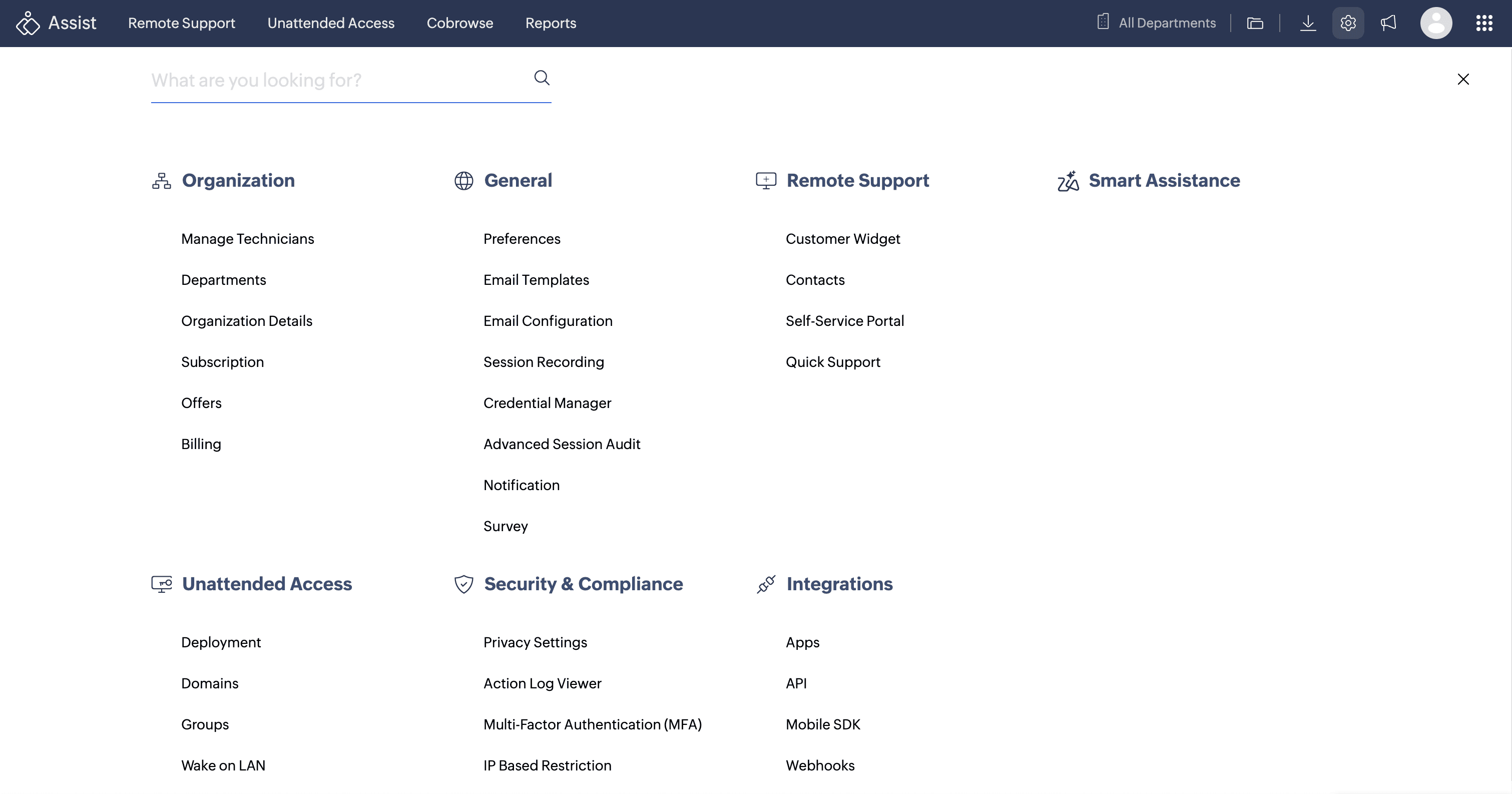
Navigate to Settings > Remote Support > Self Service Portal.
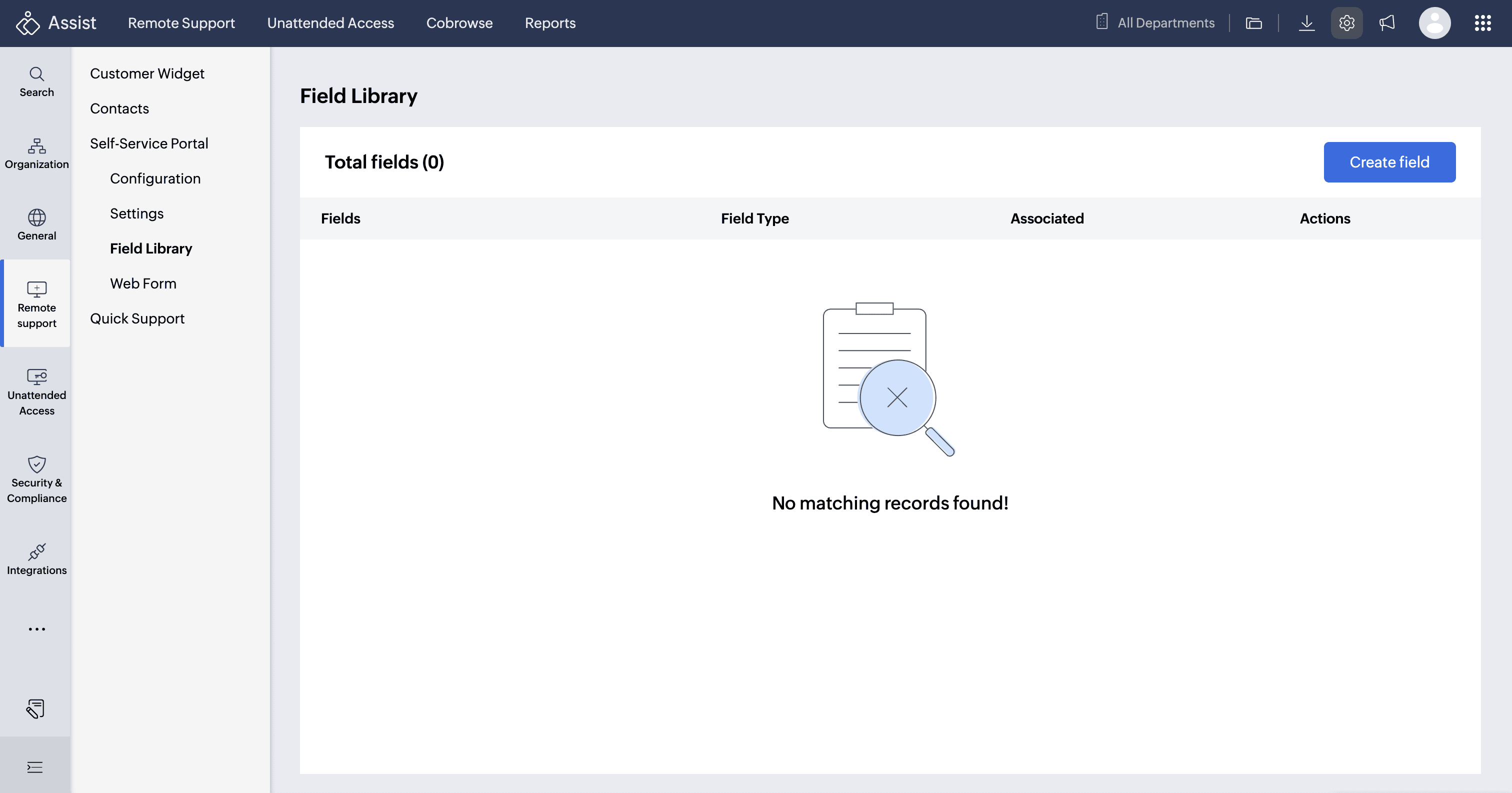
Choose Field Library from the left side bar. You can view details such as:
Field Name
Field Type
List of webforms that particular fields associated with
Available Actions
Click Create Field.
Field Types
Dropdown fields
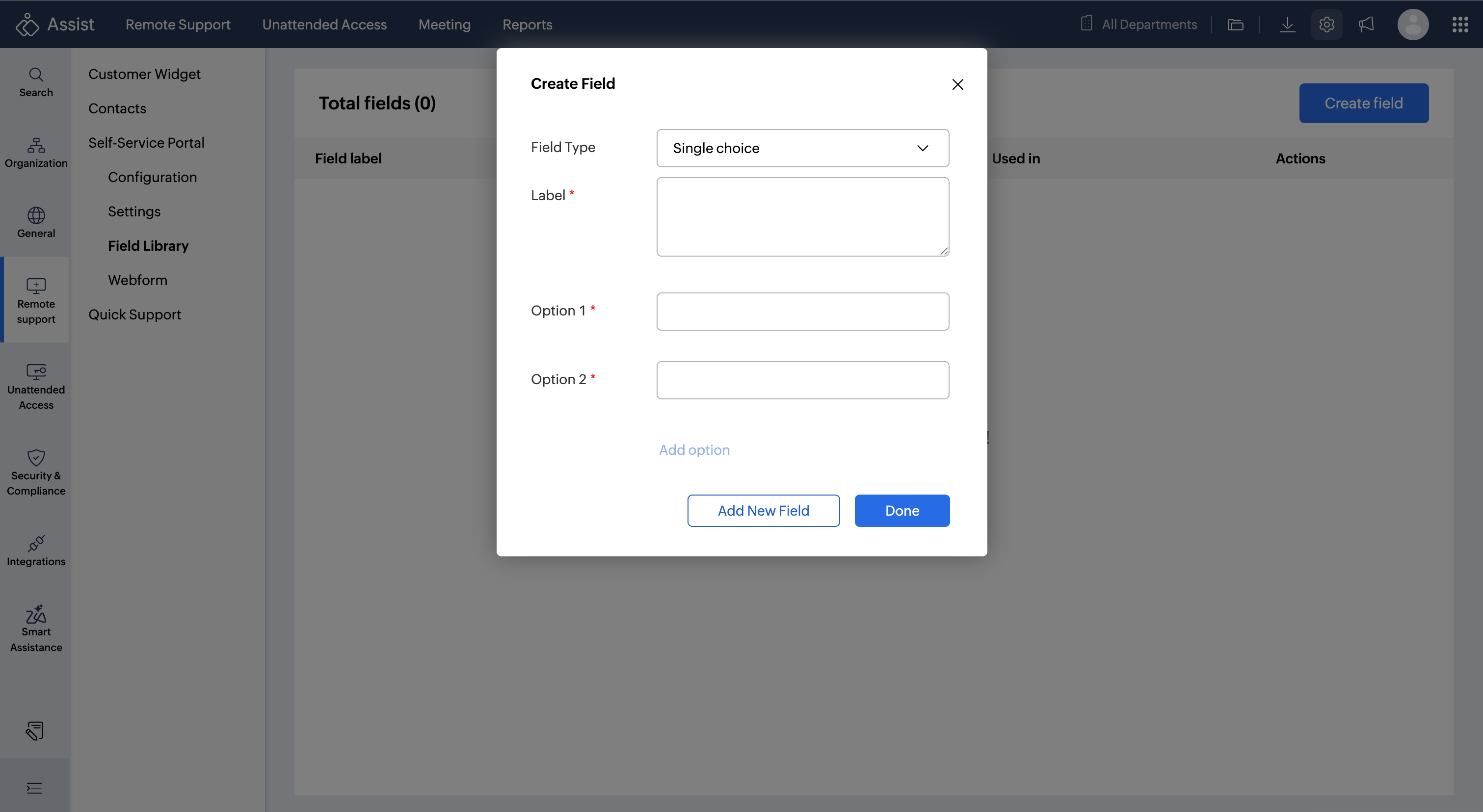
Dropdown fields let users choose from predefined options. To create a dropdown field:
Click Create Field, then select Dropdown.
Select either Single Choice or Multi Choice as the selection type.
Enter the field label.
Enter the list of options. To add more options, click Add Option.
Click Add New Field.
Text fields
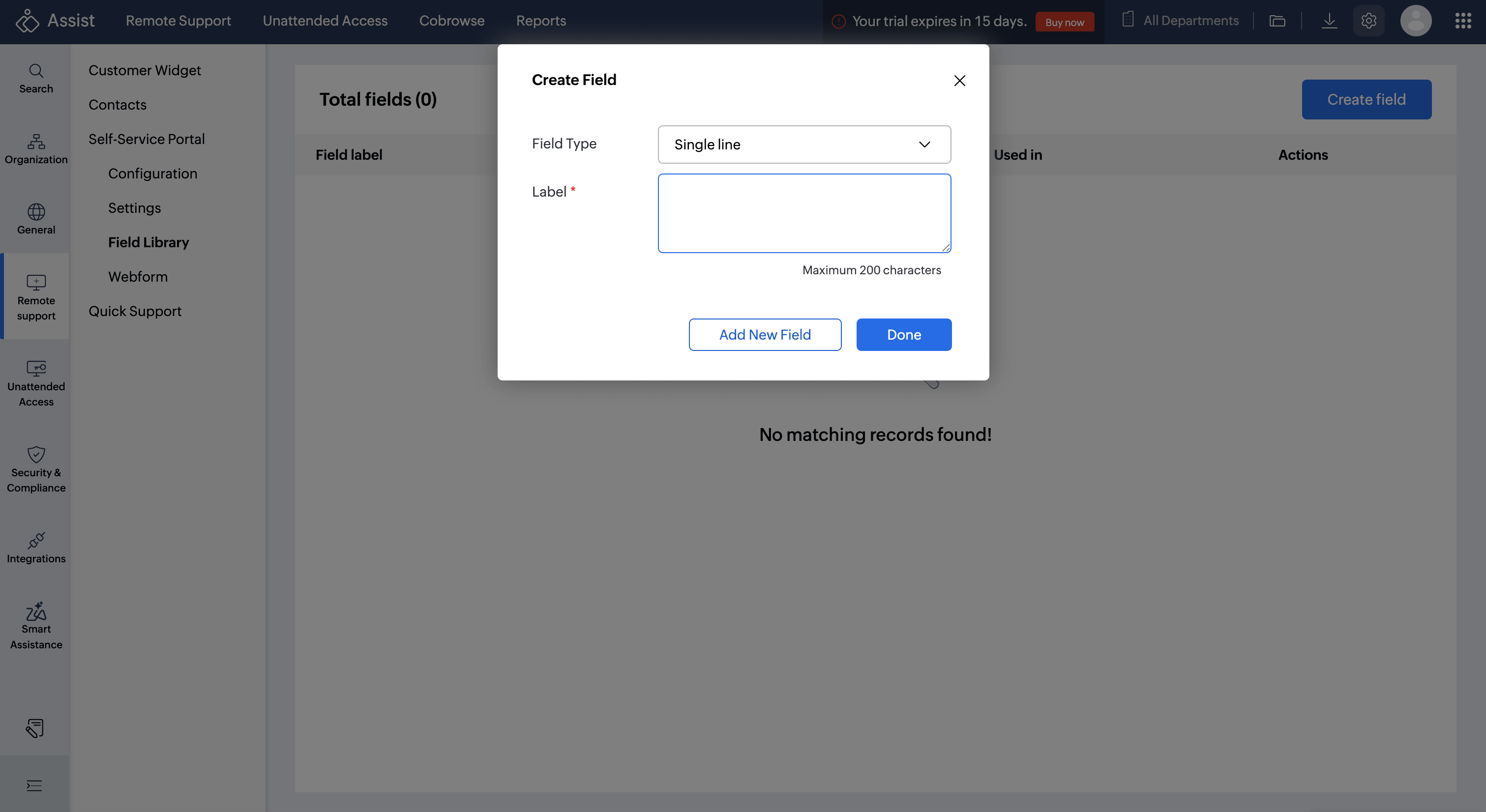
Click Create New Field, then select Text Input.
Choose the required type:
Single-line - Useful for short entries such as name, email address, or phone number.
Multi-line - Useful for longer responses such as issue descriptions, comments, or troubleshooting details.
Enter the field label.
Click Add New Field.
Edit or Delete Fields
To edit a field, open Field Library, select the field, under Actions click the edit icon to modify the required settings, and click Update.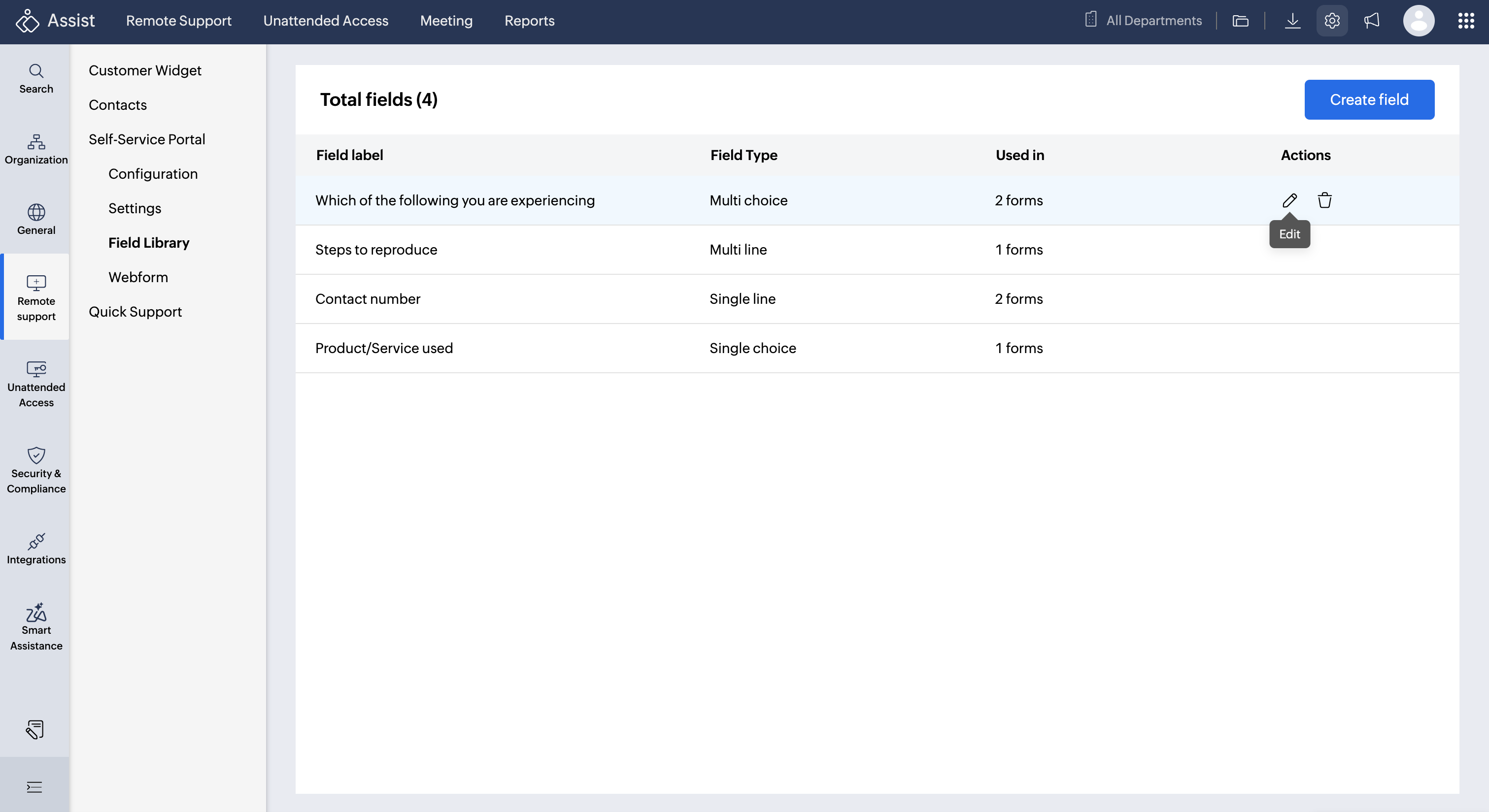
To delete a field, open Field Library, select the field, under actions click the delete icon and confirm the action.
Note: Deleting a field removes it from the Field Library and from all Web Forms it is currently associated with.