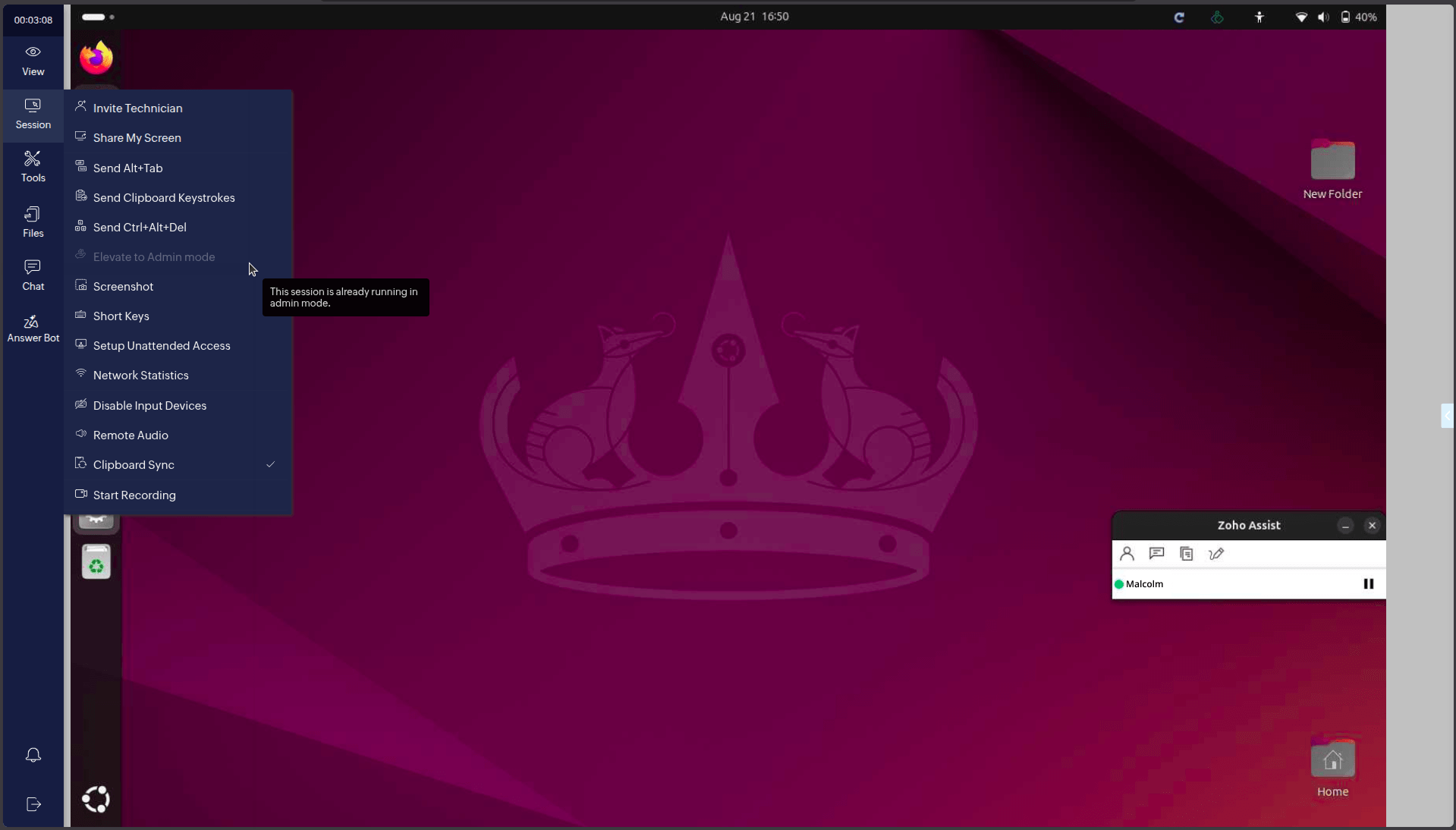
Elevate to Admin Mode on Linux
Zoho Assist can run as either a user level or admin level application on a Linux remote device. When providing remote support to a Linux device using Zoho Assist, you may find that certain tasks or system changes require admin level access. The Elevate to Admin Mode feature provides you with additional privileges so you can perform more actions on the remote device.
Benefits of Running as a Service
Running Zoho Assist as a service provides you with the following benefits:
- Reboot and reconnect a Linux device during a session.
- Switch user profiles without locking yourself out of the device.
How to Elevate to Admin Mode
To elevate to Admin Mode on Linux during a remote support session:
- Once the Technician Console opens, go to Session > Elevate to Admin Mode.
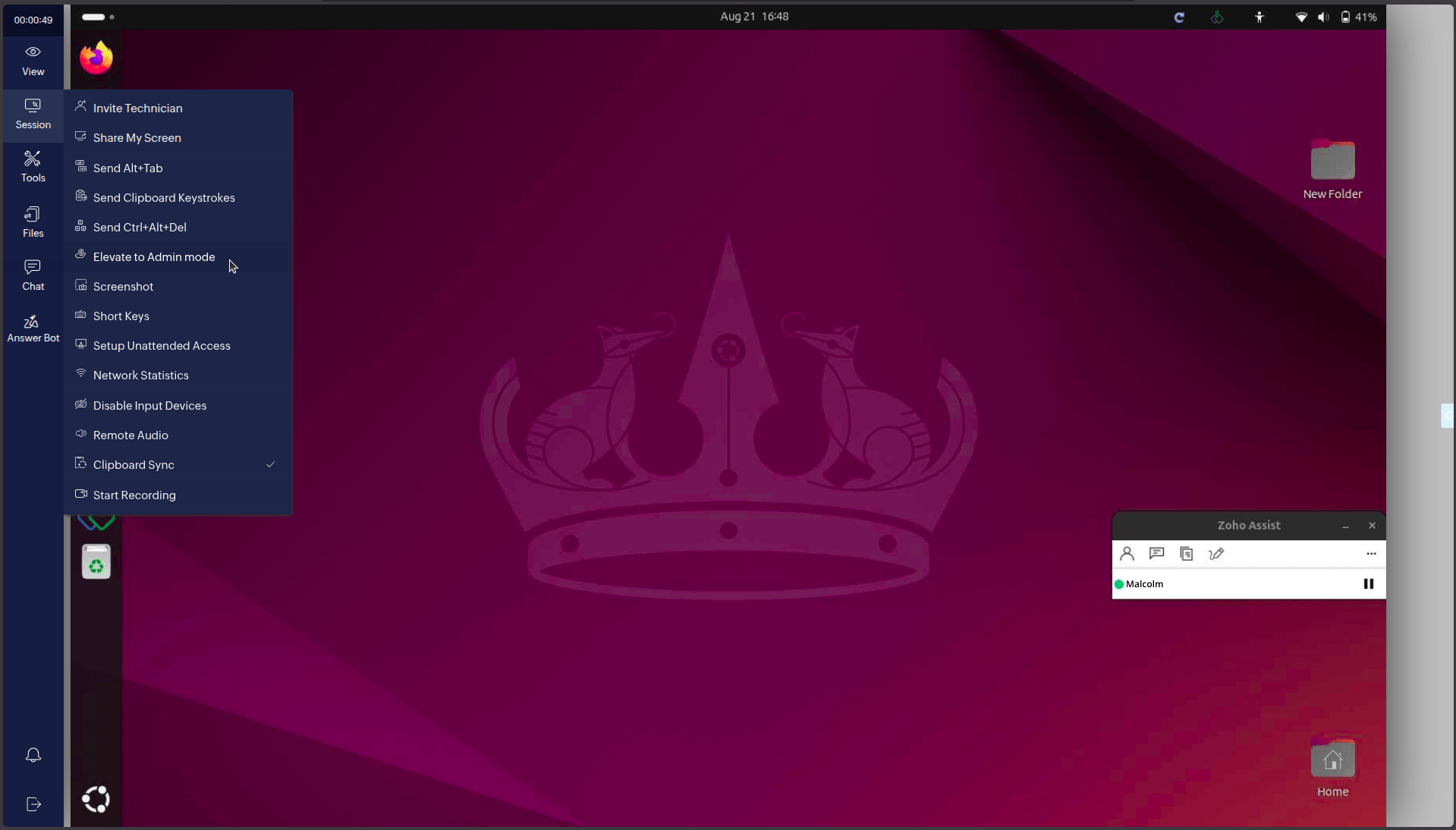
- An authentication prompt will open on the remote device. The customer can accept or reject the request.
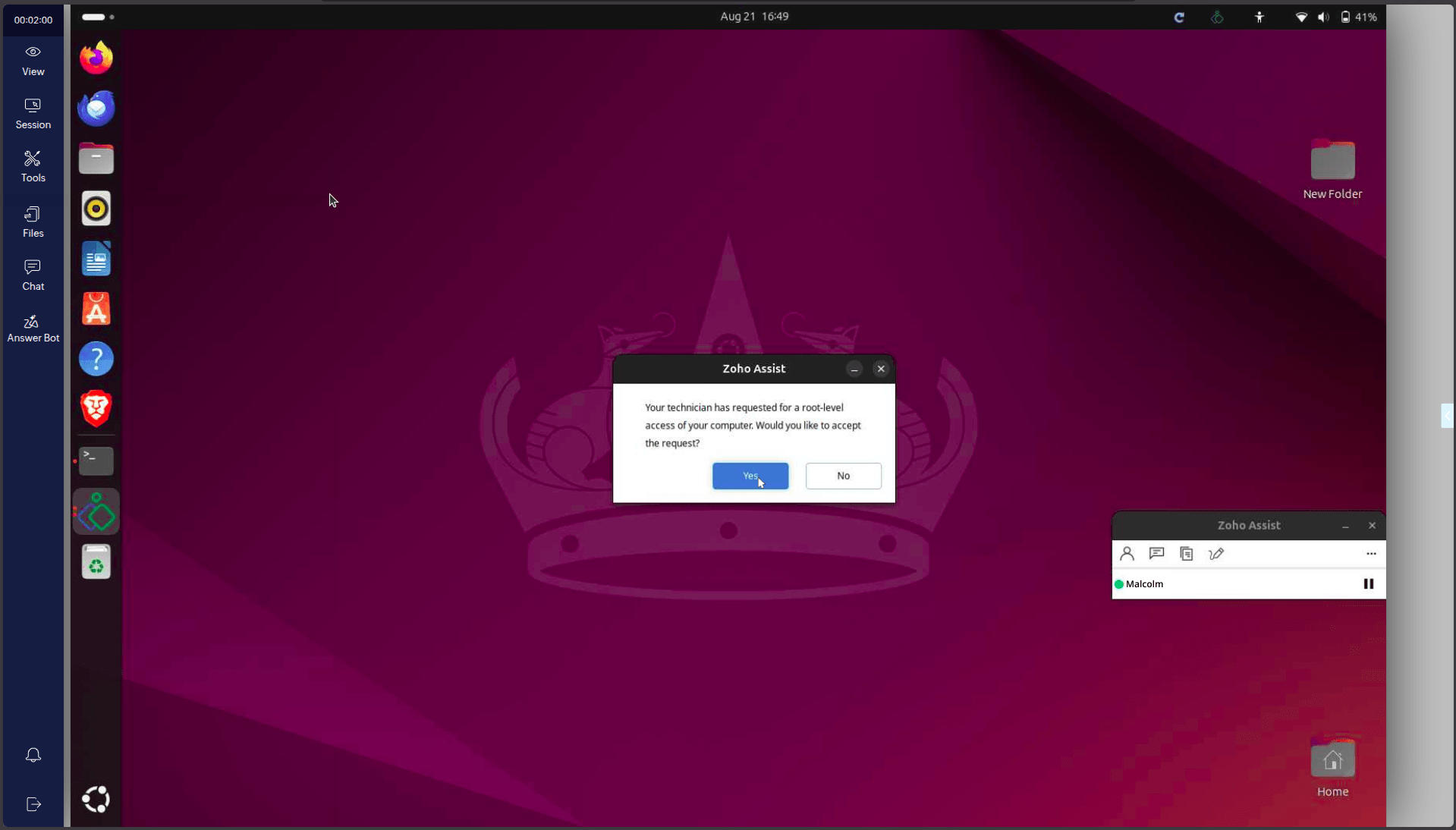
- After clicking Yes, the customer or technician can enter the remote computer's admin credentials, such as the password, and click Authenticate to proceed.
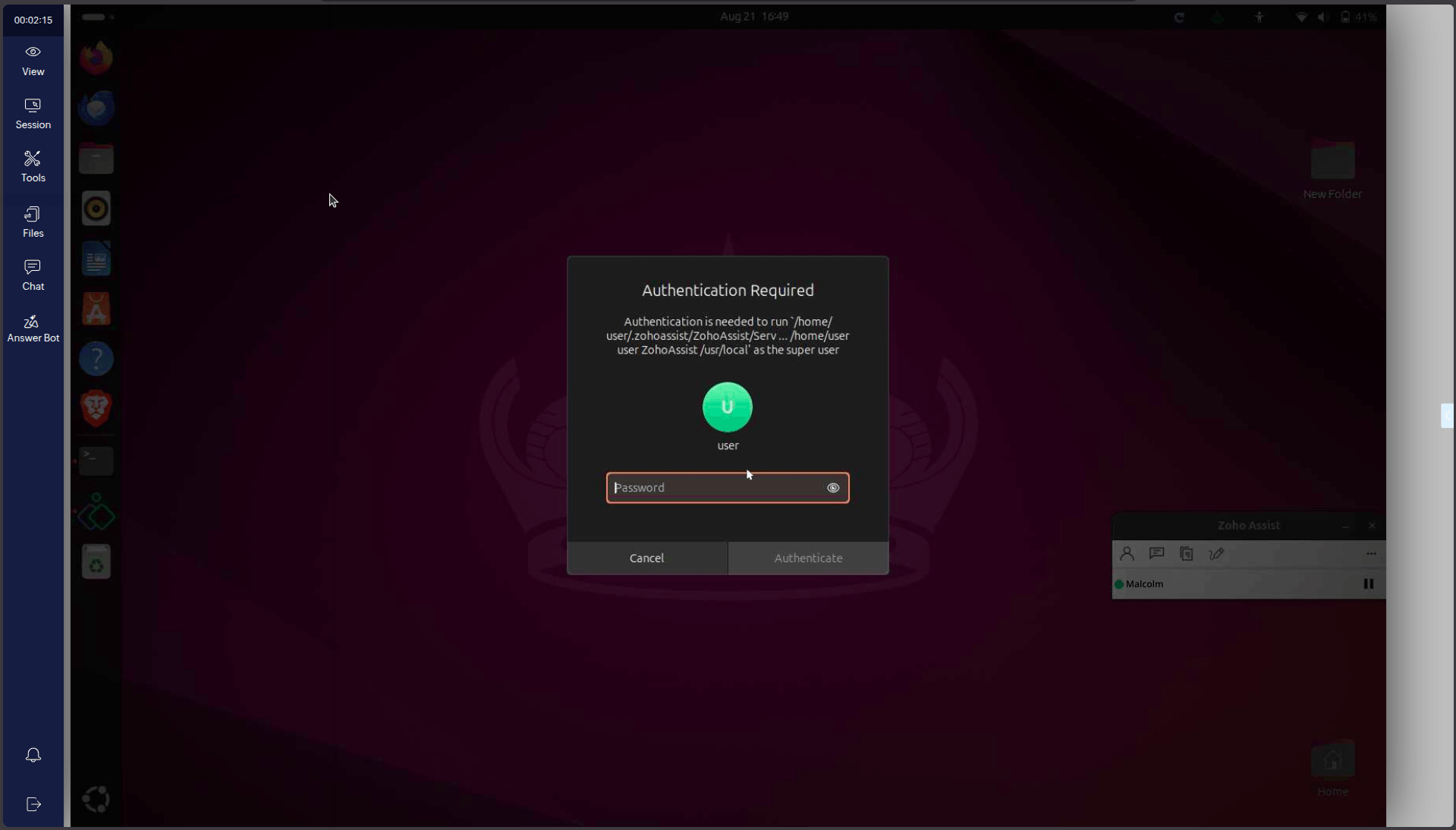
- Once the admin credentials are verified, your session will reconnect in Admin Mode. This allows you to perform various administrative tasks on the remote Linux device during the support session.