Manage Technicians
The manage technicians section allows you (Super Admin/Admin) to grant privileges to technicians to conduct remote support and/or unattended access sessions. All technicians added in your organization can access unattended computers by default. However, granting remote support privilege depends on the number of remote support technician licenses you've purchased. You can choose to change the privileges while sending an invite or even after the technician has joined the organization. Invites can be sent one by one or even to a group of technicians. You can also grant permissions for technicians belonging to specific groups under unattended access.
Steps
- To Invite Technician(s).
- Manage Technicians - Custom Role
- To assign roles or add a new custom role
- To start monitoring a remote session
To invite technician(s)
- Go to Settings in the top Menu bar.
- Under Organization, select Manage Technicians.
- Click on INVITE TECHNICIAN.

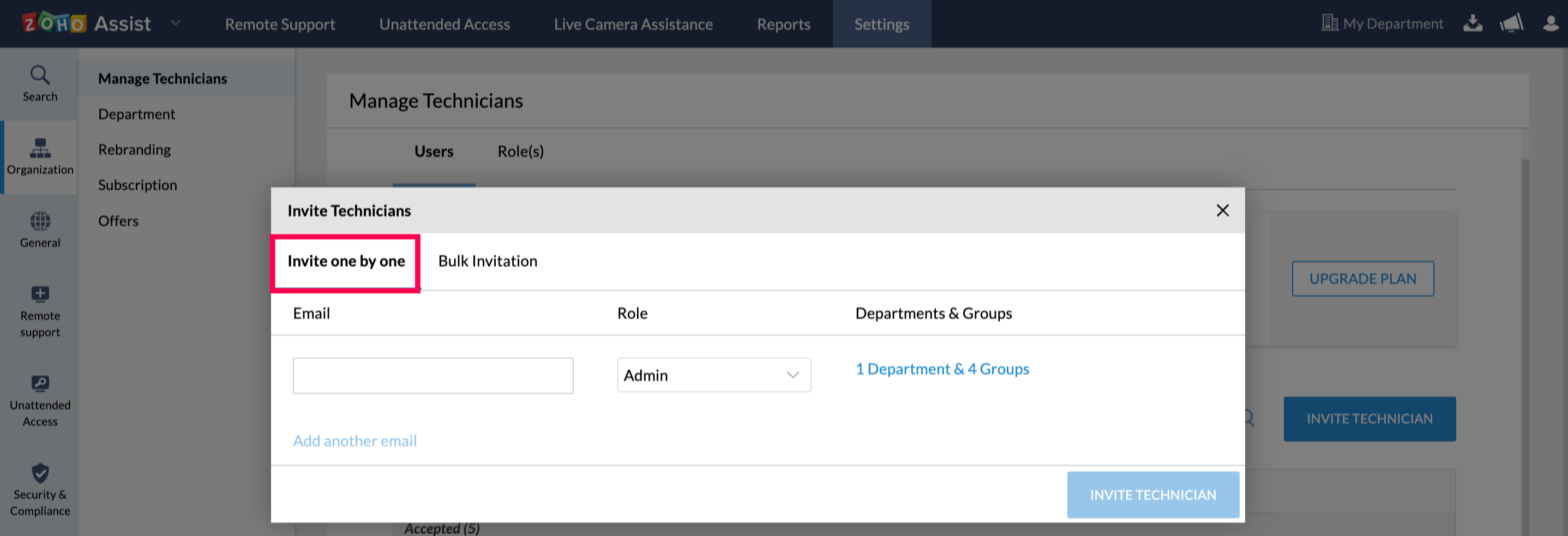
- Choose the tab Invite one by one to send invites specifically to technicians.
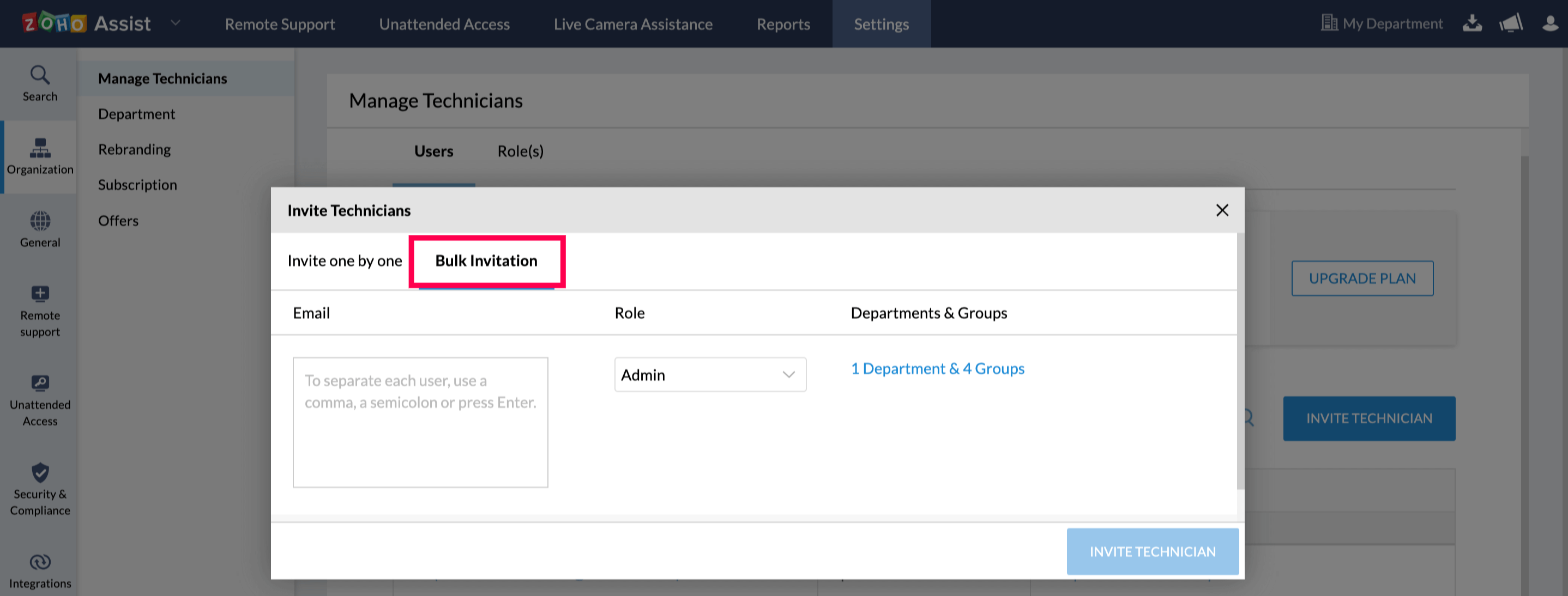
- Choose the tab Bulk Invitation to invite a group of technicians.
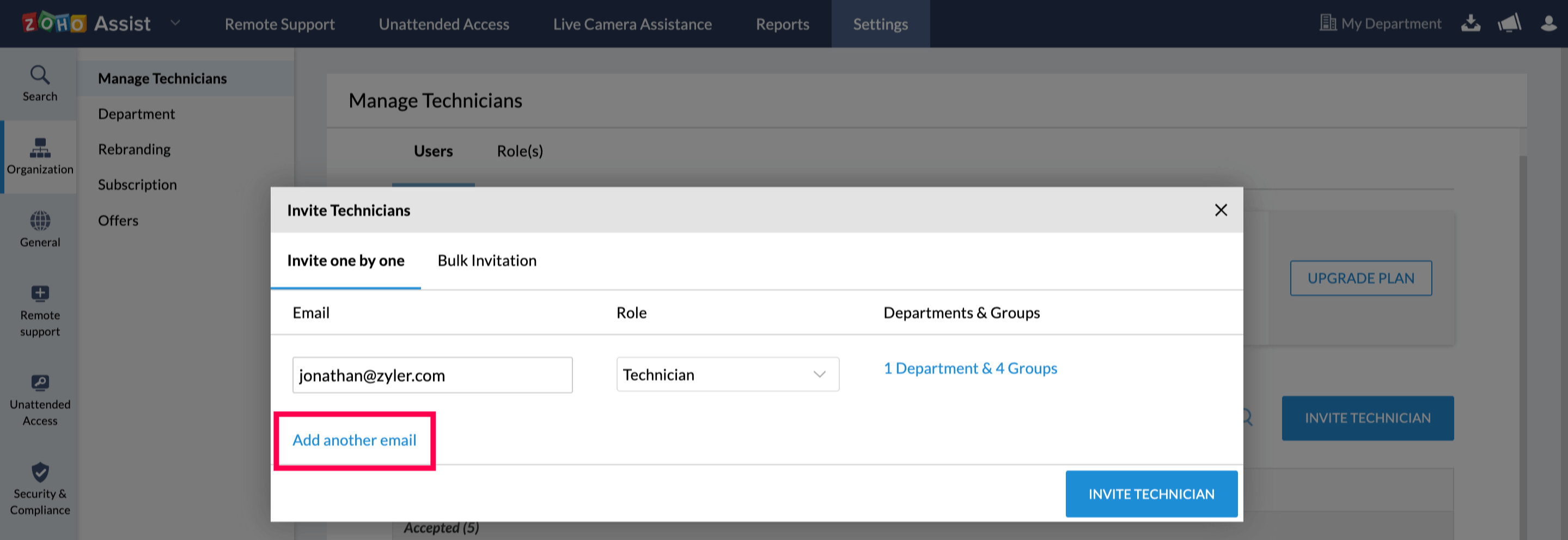
- Enter the email address of the technician.
- Choose Add another email given below, to add another email address.
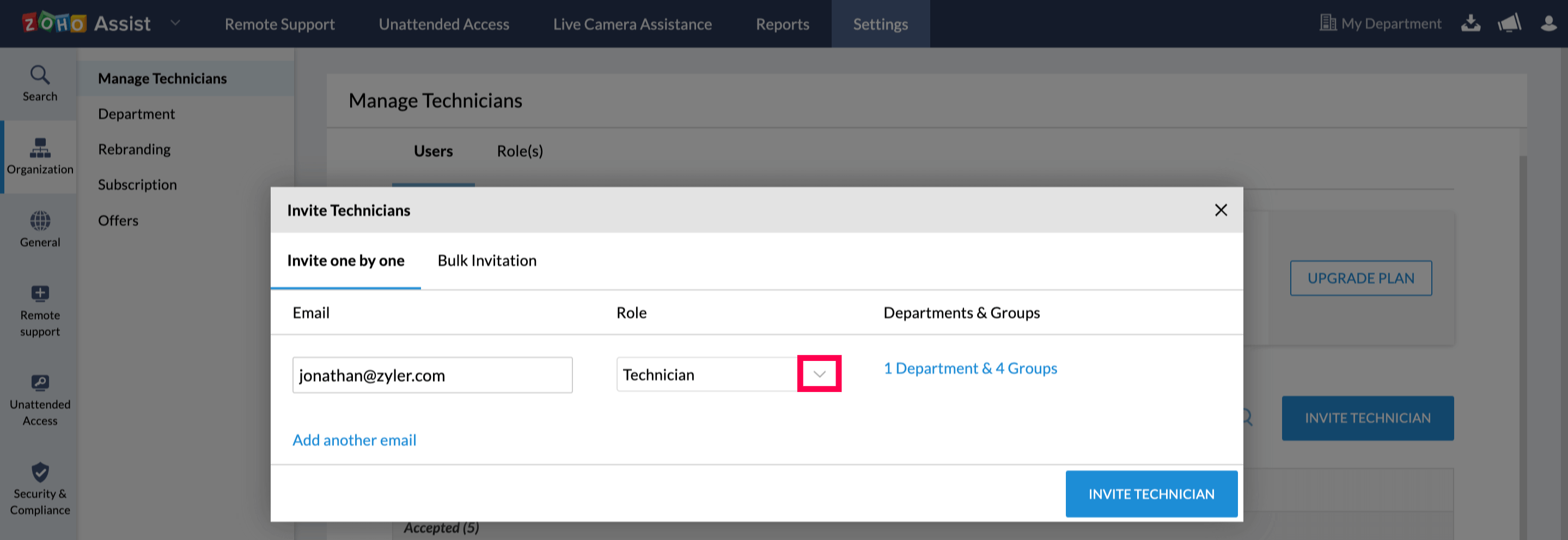
- You can grant access to a custom role by clicking on the Role drop-down box.
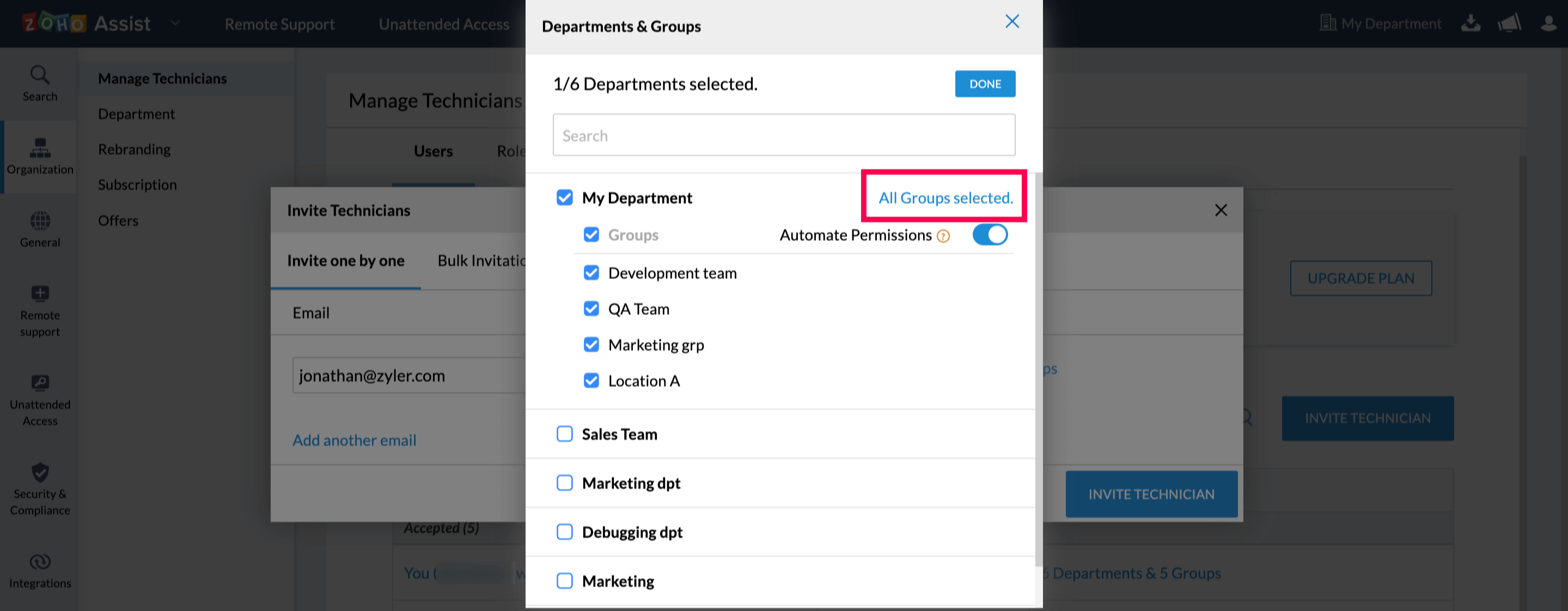
- To grant access to all the groups, click All Groups selected under Departments & Groups.
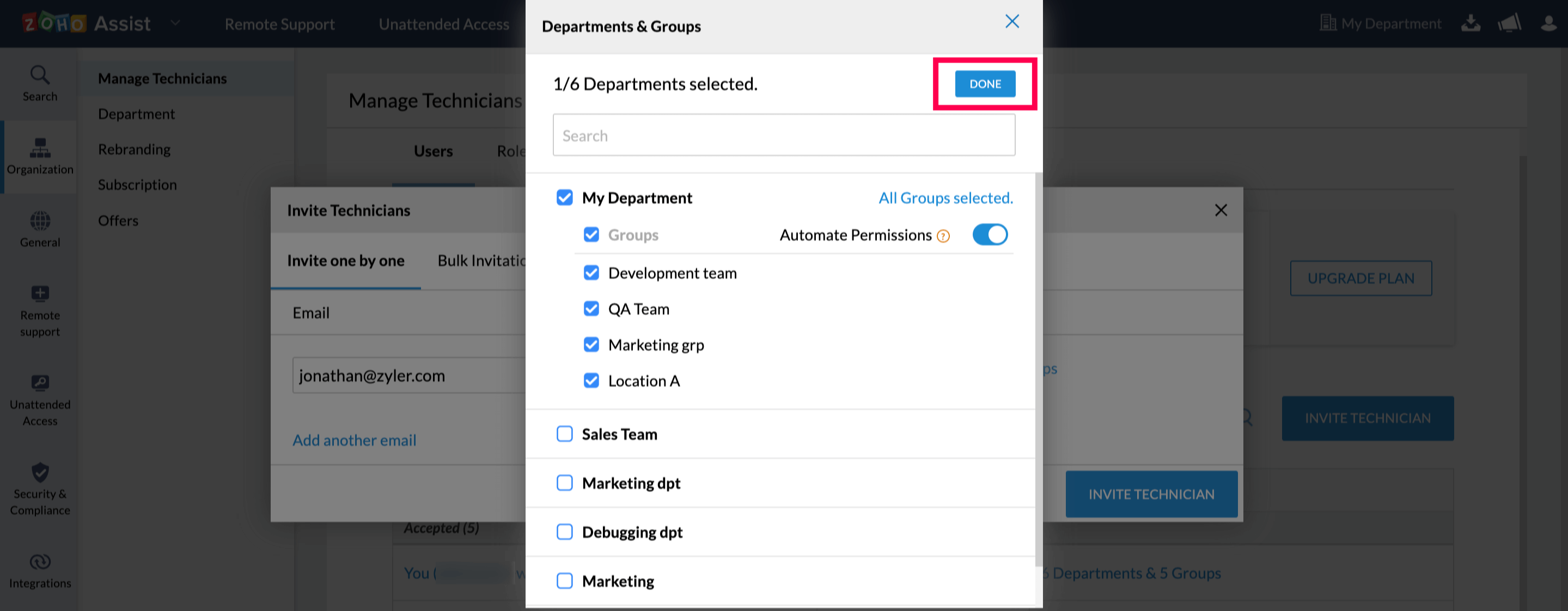
- Or you can select the necessary groups and click DONE.
- Now click INVITE TECHNICIAN to send the email invite.
- If the invited technician already has an account with Zoho, they can click on ACCEPT to be a part of the organization.
- If not, the technician would be redirected to our homepage where they would have to signup with Zoho Assist to be a part of the organization

Note : The email invitation sent to the technician will expire within 7 days of time.
Manage Technicians - Custom Role
The "Role" option under the manage technician section allows you to assign a designated role to your technicians based on your organizational preferences. You can assign roles such as Super Admin, Admin, and Technician to the members of your organization.
Super Admin - An administrator with access to all privileges.
Admin - An administrator with access to all privileges except that of Rebranding, Two-factor authentication, and Subscription.
Technician - A user with access to conduct Remote Support, Unattended Access, and Screen Sharing sessions.
| Privileges | Super Admin | Admin | Technician |
|---|---|---|---|
| Billing | ✔ | ✗ | ✗ |
| Enable Remote Support/Unattended access | ✔ | ✔ | ✗ |
| Assign roles | ✔ | ✔ | ✗ |
| Group Permissions (Unattended access groups) | ✔ | ✔ | ✗ |
| Preferences | ✔ | ✔ | Limited |
| Rebranding | ✔ | ✔ | ✗ |
| Email Templates | ✔ | ✔ | ✗ |
| Integrations | ✔ | ✔ | ✗ |
| Customer Widget | ✔ | ✔ | ✗ |
| Contacts | ✔ | ✔ | ✗ |
| Deployment | ✔ | ✔ | ✔ |
| Session Confirmation | ✔ | ✔ | ✗ |
| Wake on LAN | ✔ | ✔ | ✔ |
| Reports | ✔ | ✔ | Self -conducted sessions only |
To assign roles or add a new custom role
You can assign roles such as Super Admin, Admin and Technician to the members of your organization. The difference between the Super Admin and the Admin is that, only the Super Admin will have access to the rebranding, subscription and billing details of the account.
Go to Settings in the top Menu bar.
- Under Organization, select Manage Technicians.
- Select Role.
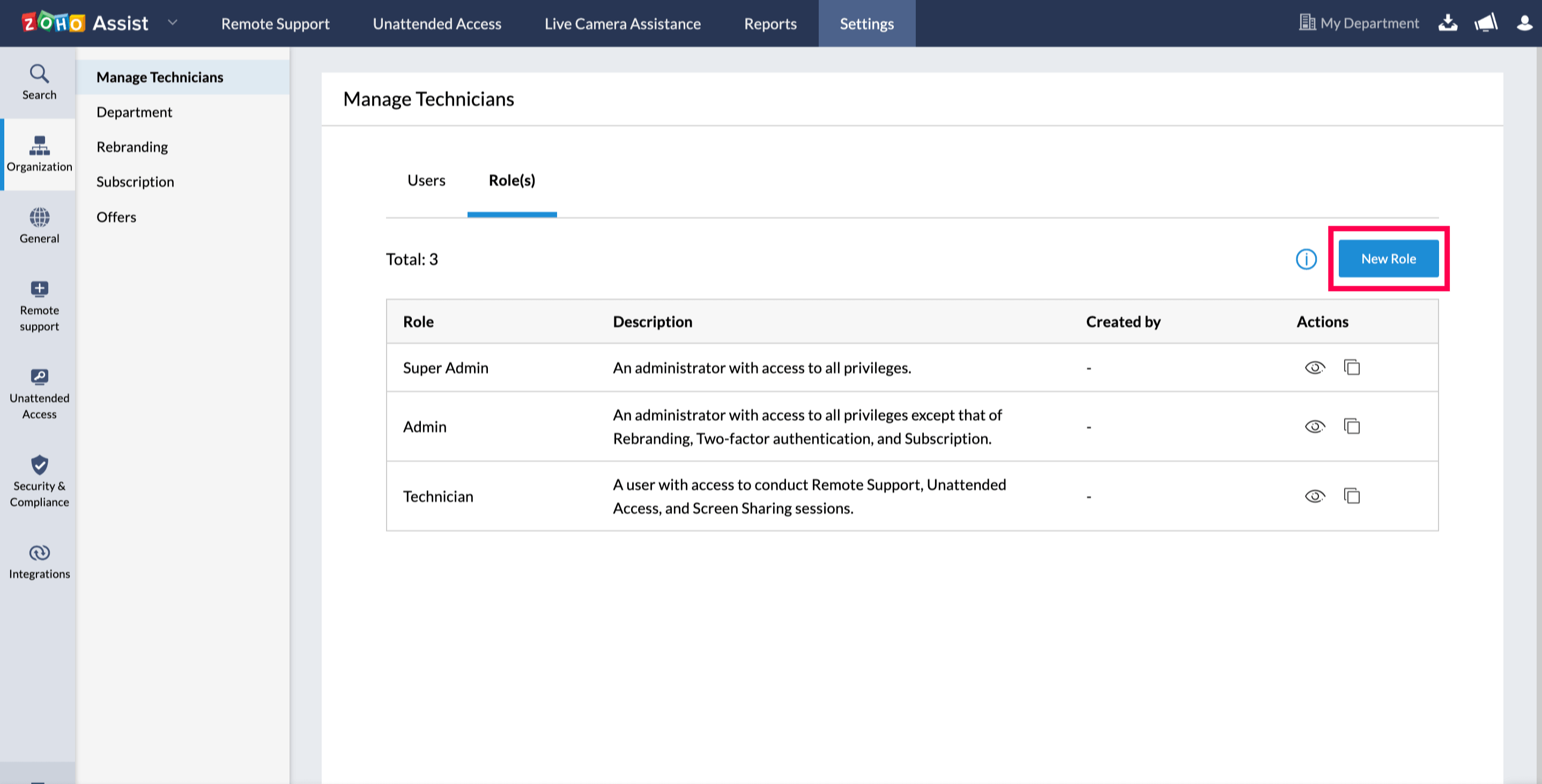
- Click on New Role.
- In the new page that appears, fill in the required details such as the custom role name, description and select the permission(s) to be granted.
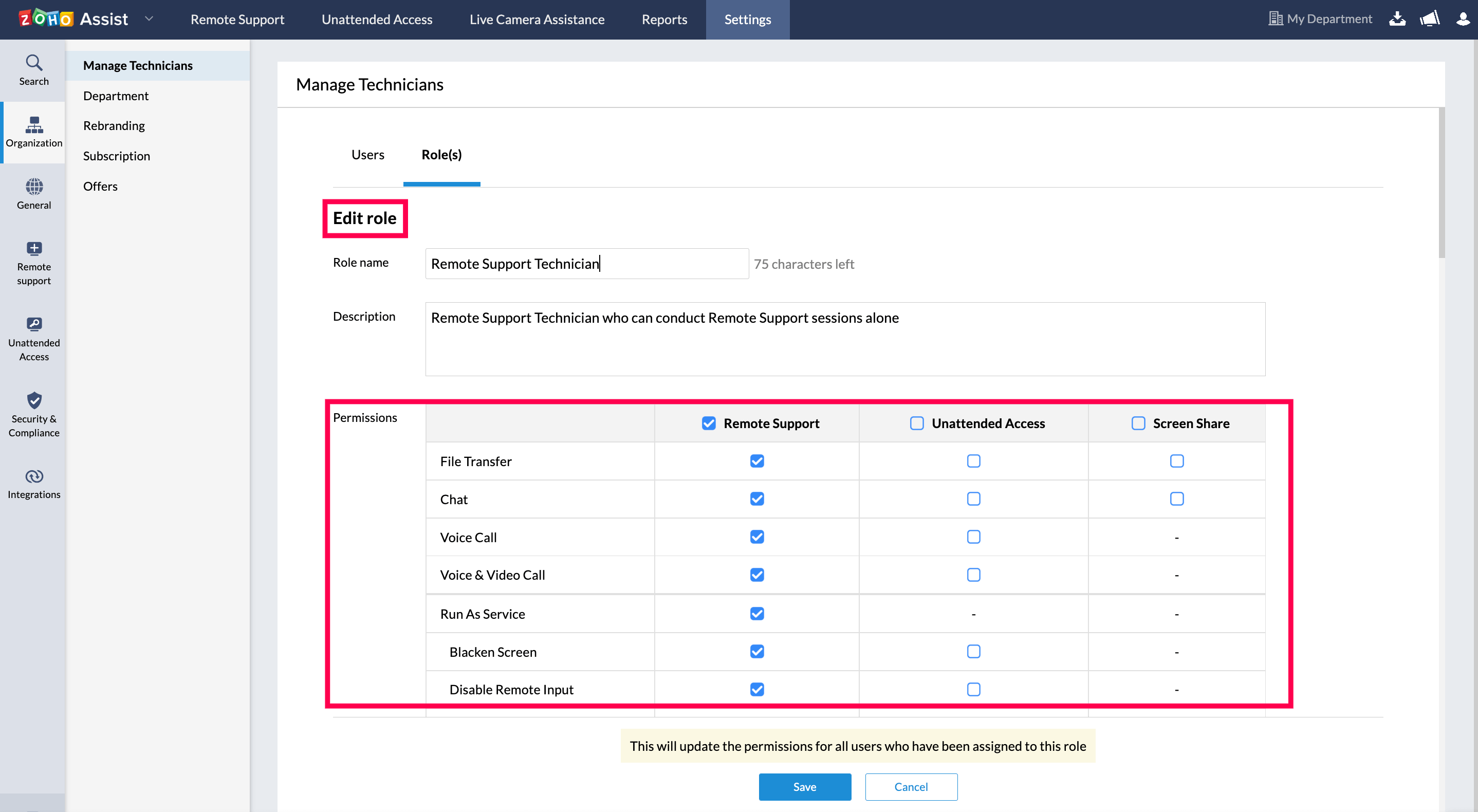
- Click on Save to save your new custom role.


To grant permission to conduct remote support and/or unattended access
- Go to Settings in the top Menu bar.
- Under Organization, select Manage Technicians.
- Select Role.
- Click on the edit option to edit/grant permission to conduct remote support and/or unattended access to a custom role.
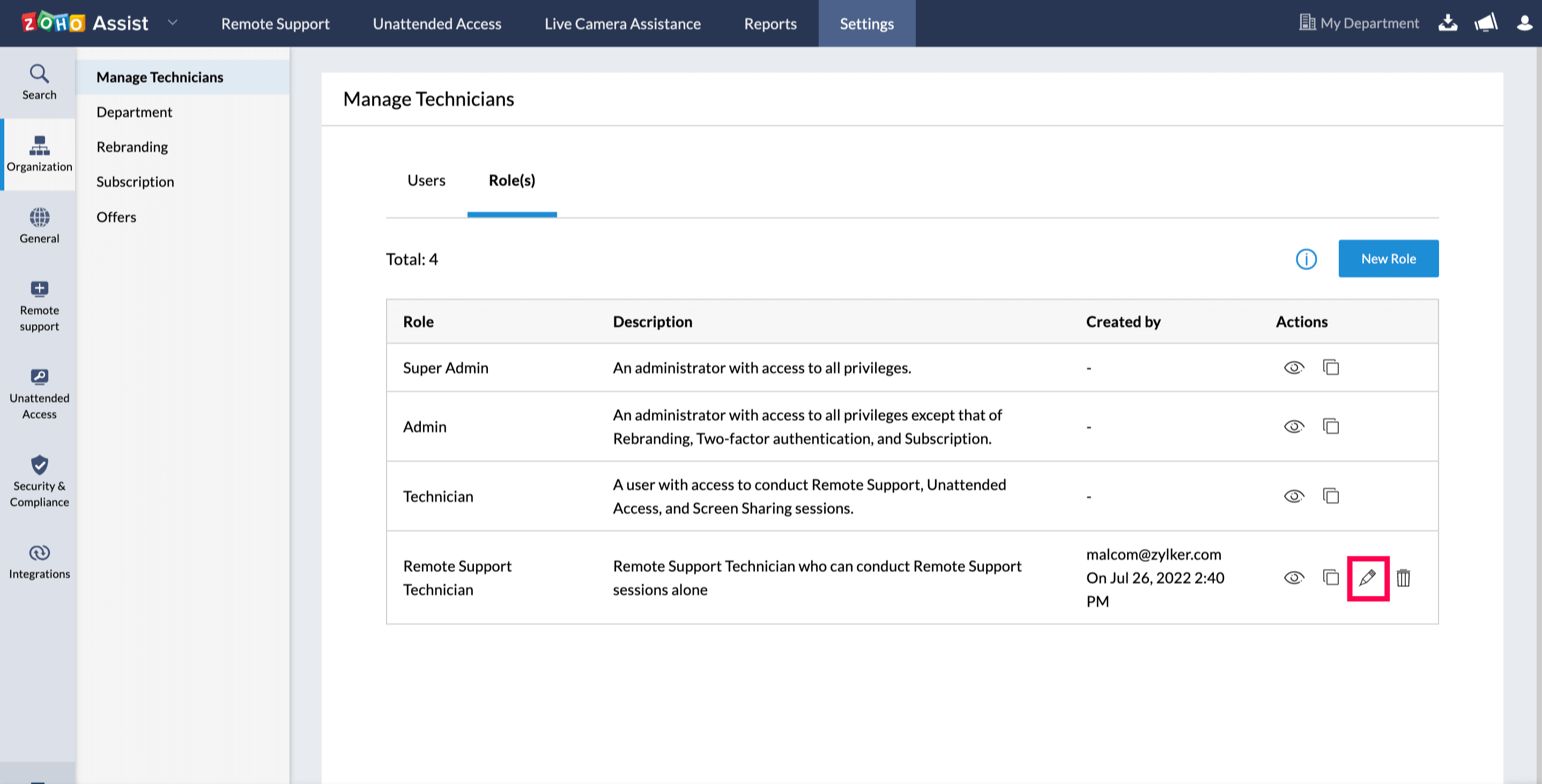
- Click on Save to save your changes.
To define unattended group permissions to technicians
- Go to Settings in the top Menu bar.
- Under Organization , select Manage Technicians.
- Under Departments & Groups, click All ( By default, all groups will be selected ).
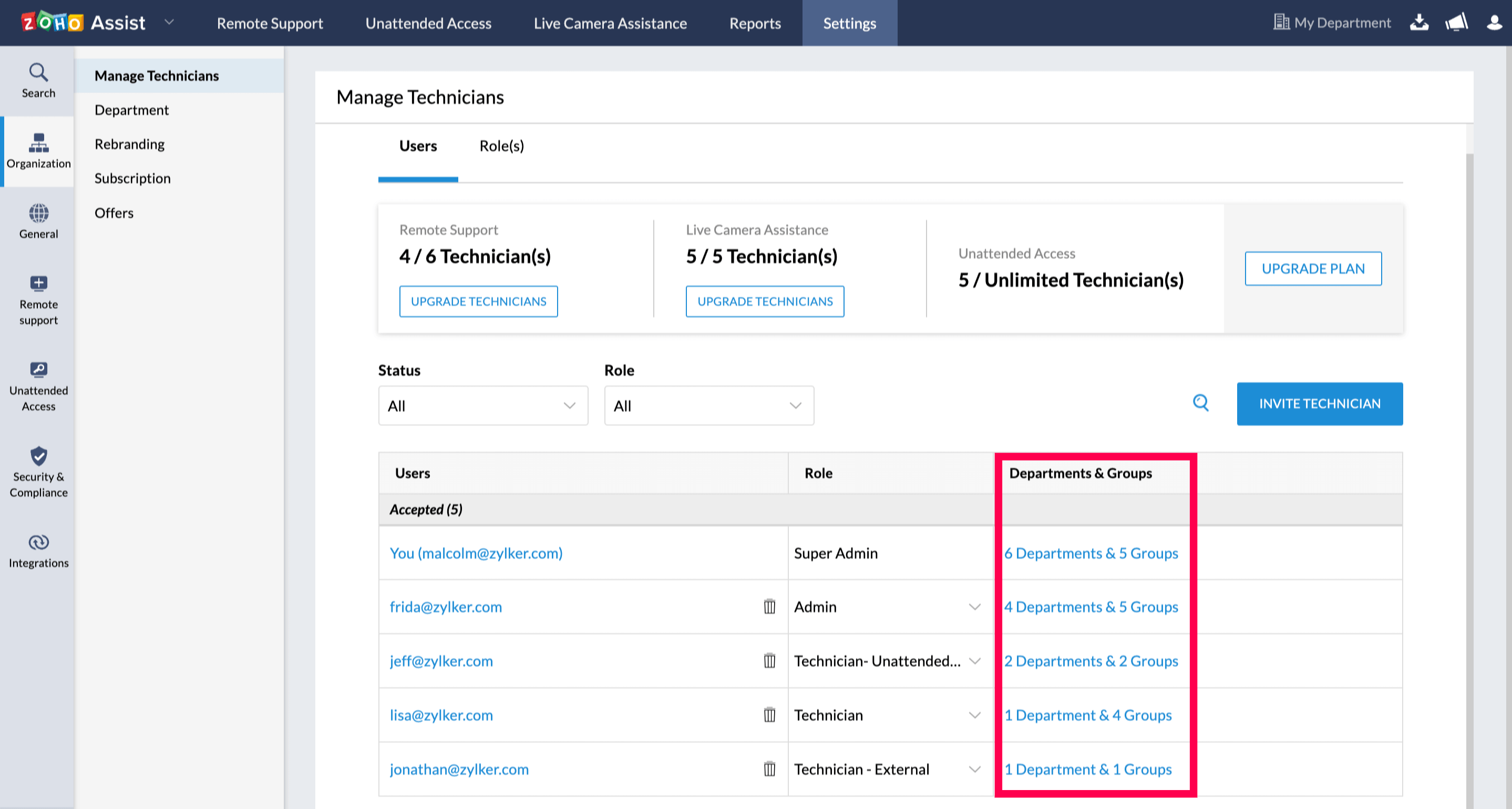
- Select the necessary groups and click DONE.


To assign session supervision access to a role
With Session Supervision in Assist, sessions can be monitored if the technician has access to the feature. The technician can monitor the scheduled or ongoing session in view-only mode.
- Select Role(s) and click New Role to add a new role.

- Enter the role name and description and select Session Supervision in the Permission field to assign supervision access to the role. Then, click Save.
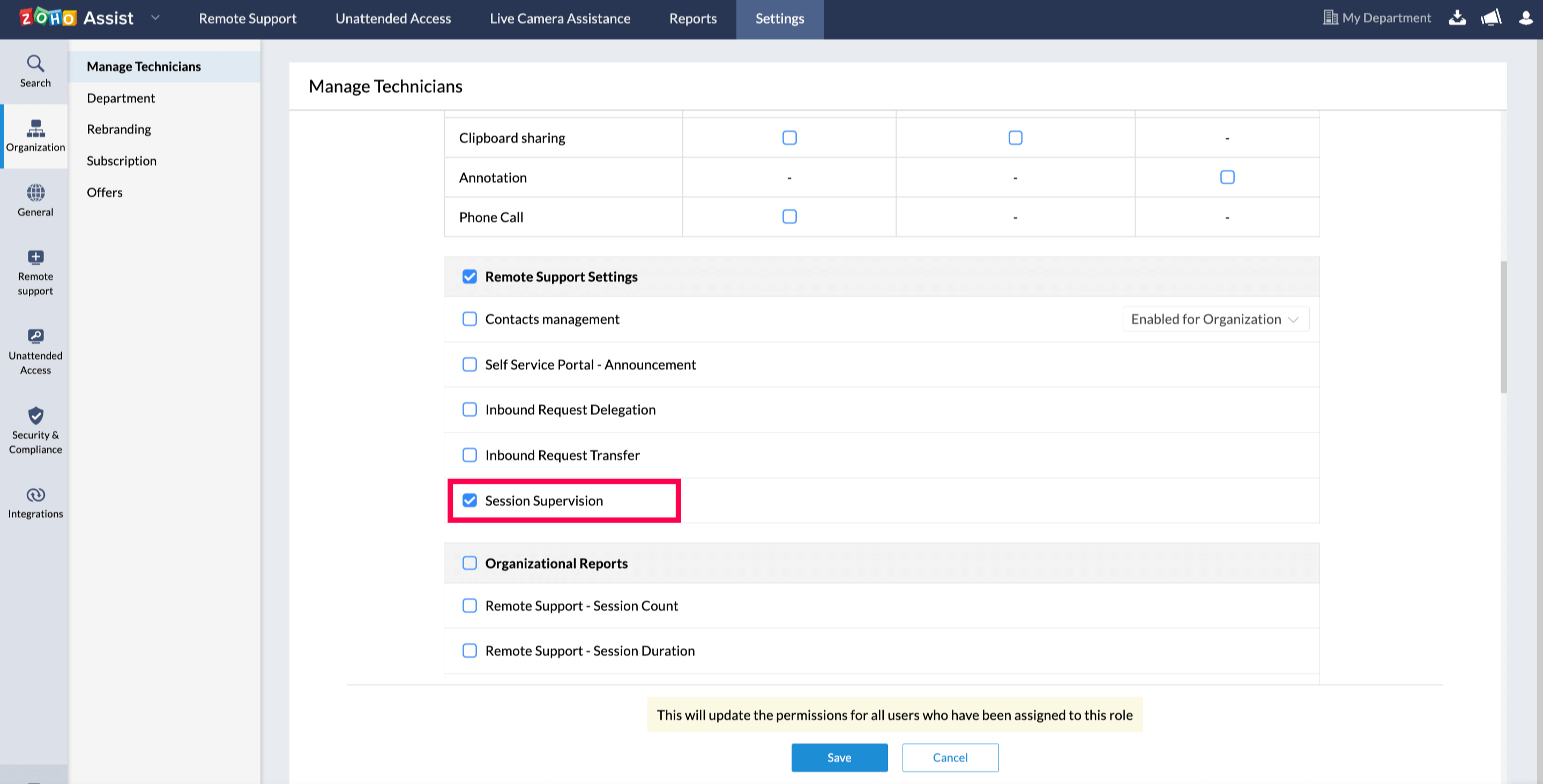

To start monitoring a remote session
- Log in to your Zoho Assist account and go to Remote Support.
- Select Monitor to start supervising a remote session in view - only mode.
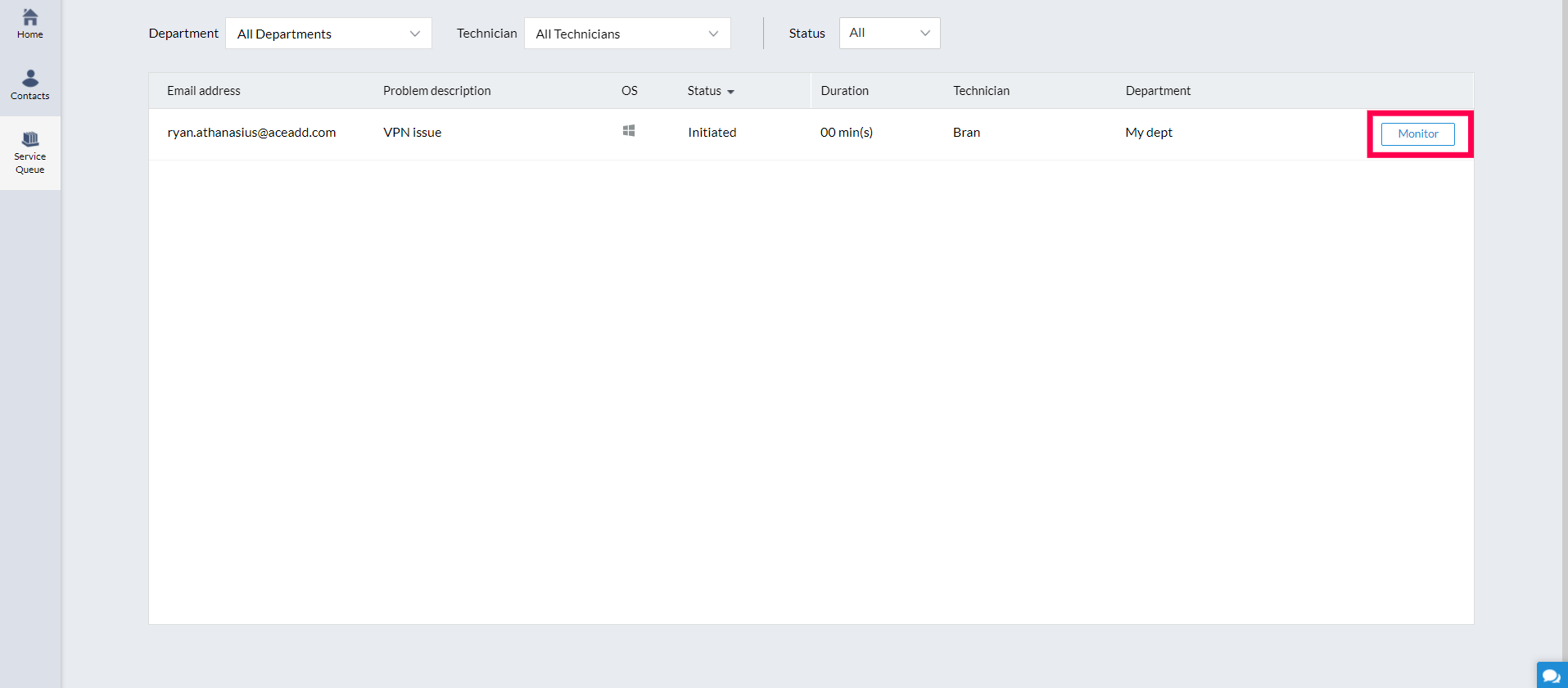
Note: You cannot create or select unattended computer groups in Free Plan. The Super Admin can choose to receive notifications through email on changes made by the Admin by enabling Notify me on technician management alerts under Settings > Preferences.