How to Add the Zoho Assist App in Zoho One
The steps to add Zoho Assist differ based on the Zoho One interface you use. Select your UI version from the tabs below and follow the corresponding instructions.
- Unified UI
- Spaces UI
- Sign in to Zoho One, then click Directory in the left menu.
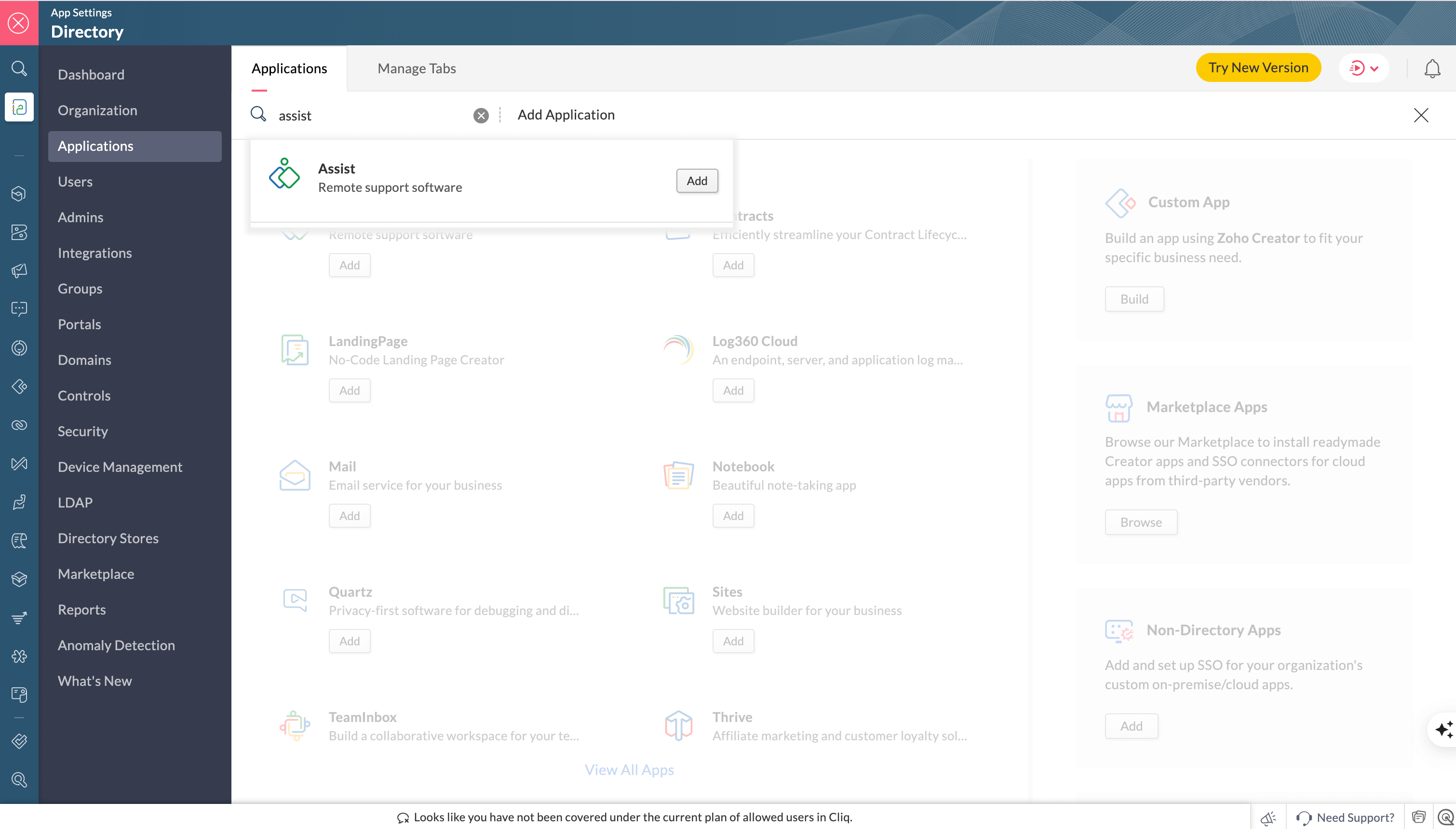
- Go to Applications, then click Add Application.
- Search for Assist using the search bar, then click Add.
- If the Assist app already has one or more accounts, you'll be prompted to do one of the following:
- Choose an existing account
- Create a new account
Note: This selection is irreversible. You cannot change the account linked to Zoho One without contacting support@zohoone.com. Removing an added account may impact existing configurations or integrations across the organization. Therefore, accounts can only be unlinked by support for valid reasons.
- Click Add Users to assign the app. Select the users, choose a role, and click Assign.
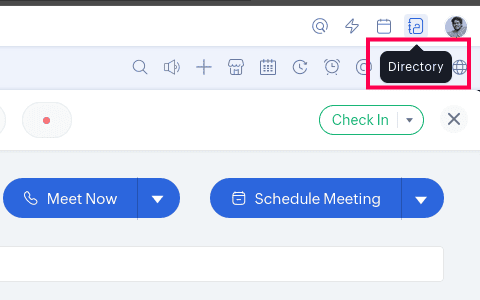
- Sign in to Zoho One, then click the Directory icon in the top-right corner.
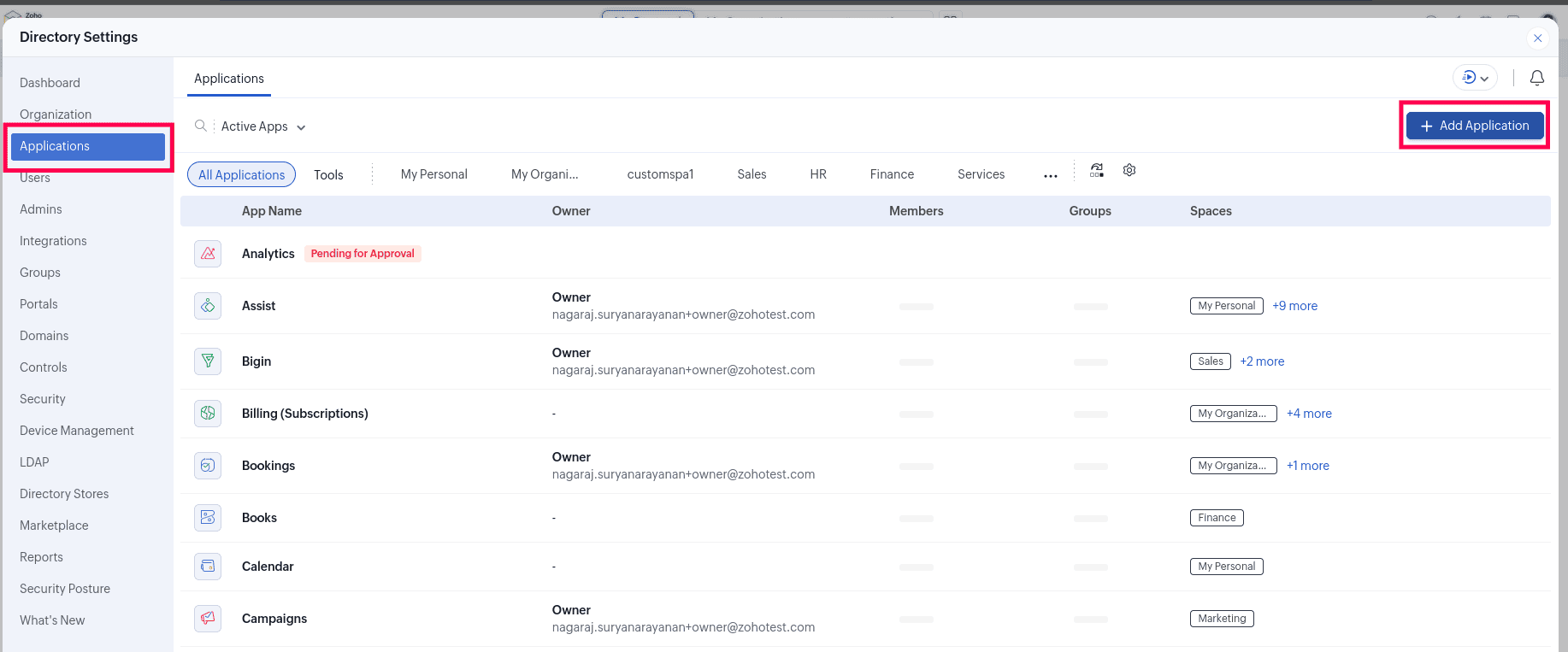
- Click Applications, then select + Add Application.
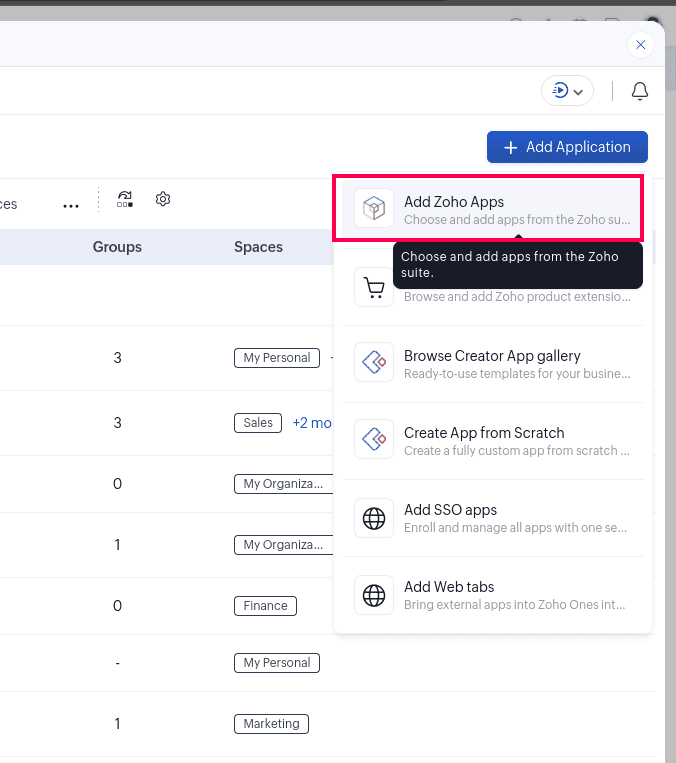
- Click Add Zoho Apps.
- In the Available to Add section, click Add next to Assist.
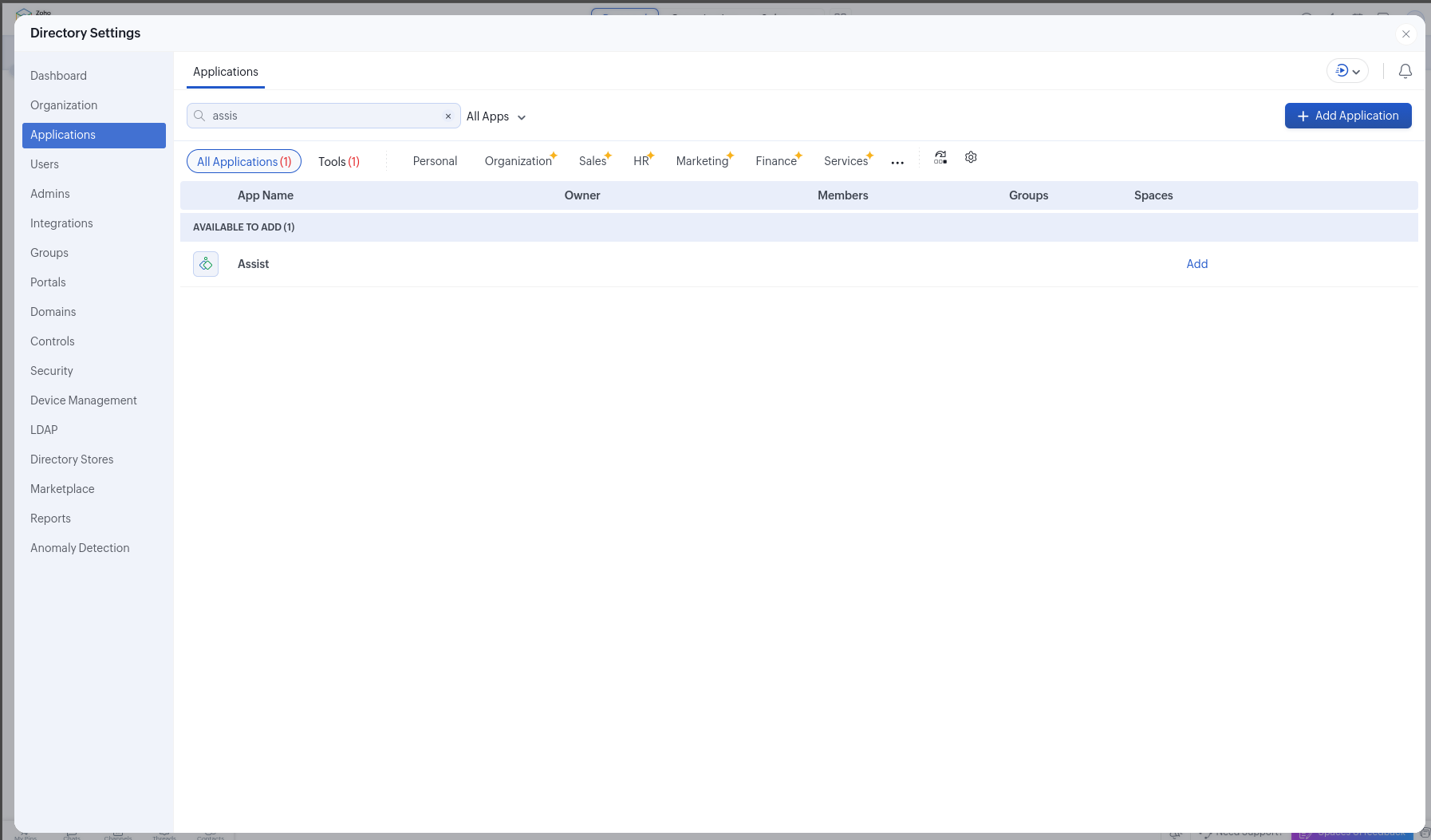
- If existing accounts are detected, choose the one or create a new account. This selection is permanent and cannot be changed without contacting support@zohoone.com.
- Click Add Users, choose the users, assign a role, and click Assign.
