Zoho CRM
With the Assist-CRM integration, you can now initiate a remote support or screen sharing session right from Zoho CRM.
How to enable Zoho Assist for CRM?
- Log in to your Zoho CRM account.
- Select the Settings option from the top-left corner of the screen.
- Navigate to the Marketplace category and choose Zoho.
- Under the list of extensions available below Zoho, find Zoho Assist and click the Setup Now button.

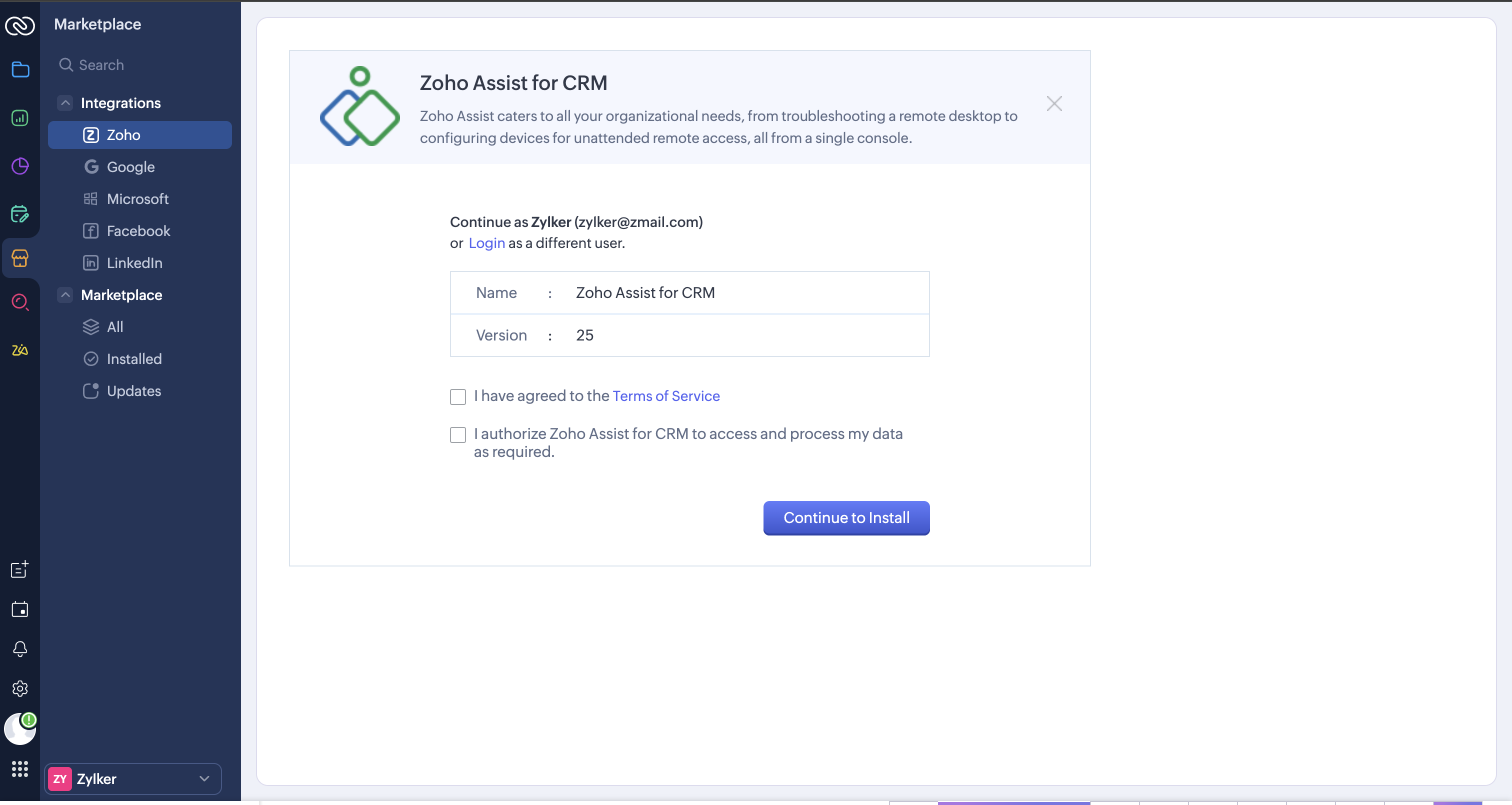
- Agree to all the terms and conditions by enabling the checkbox next to the I have agreed to the Terms of Service option.
- Also, authorize extension to get access to your data by checking the box available near the I authorize Zoho Assist for CRM to access and process my data as required option.
- Click the Continue to Install button.
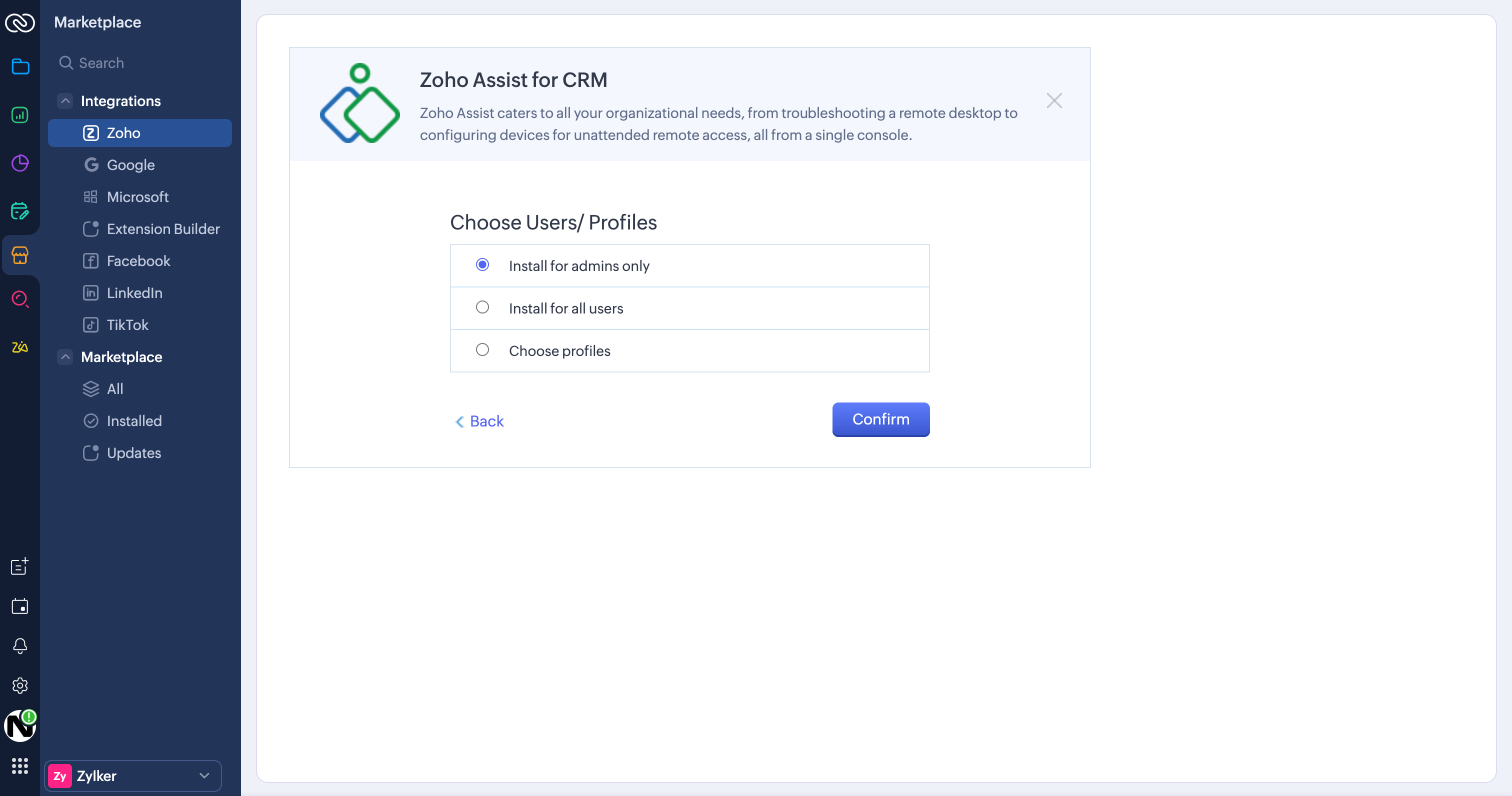
- In the next step, choose the Users/Profiles for which you want to enable the extension for and click Confirm.
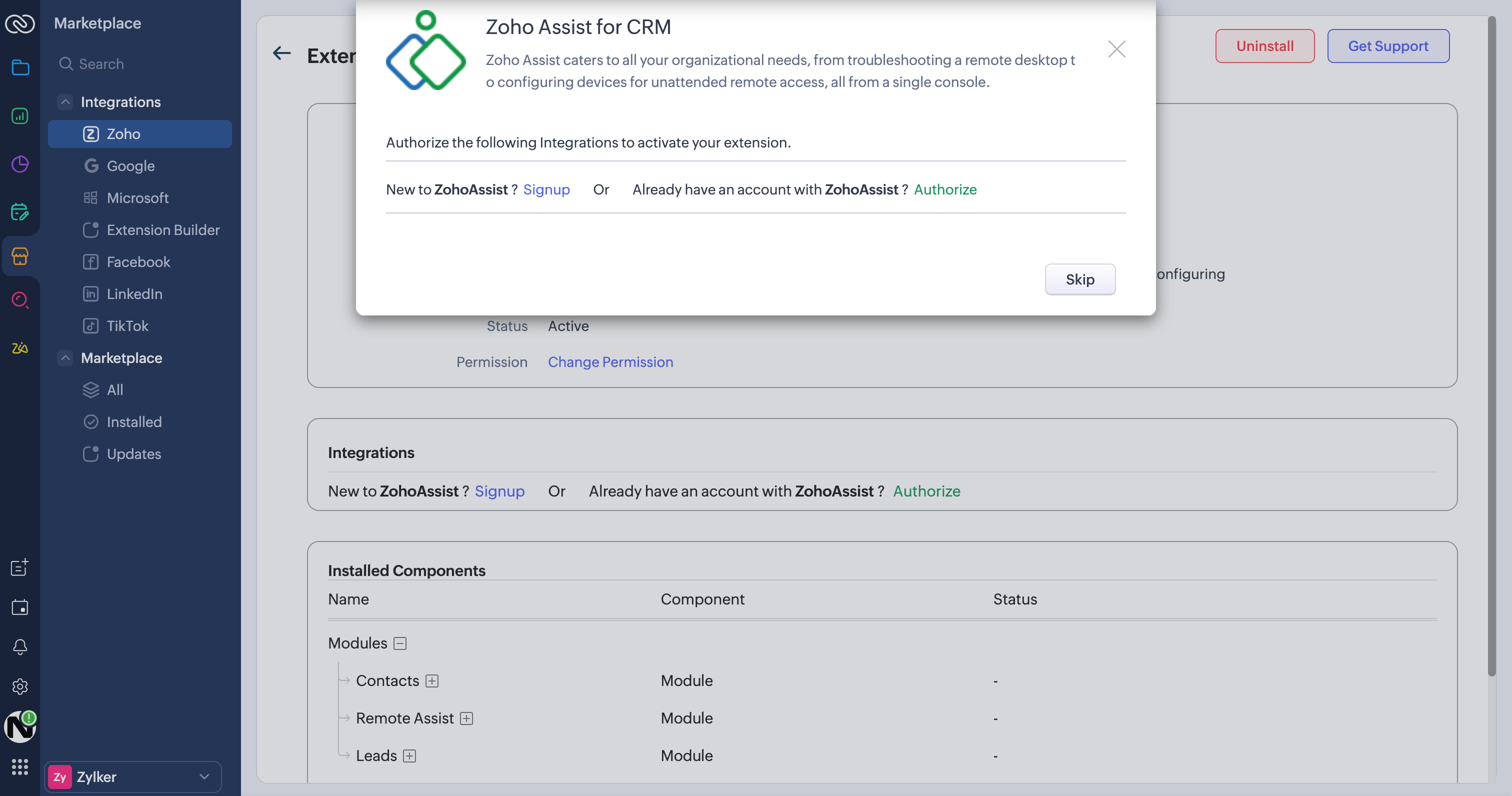
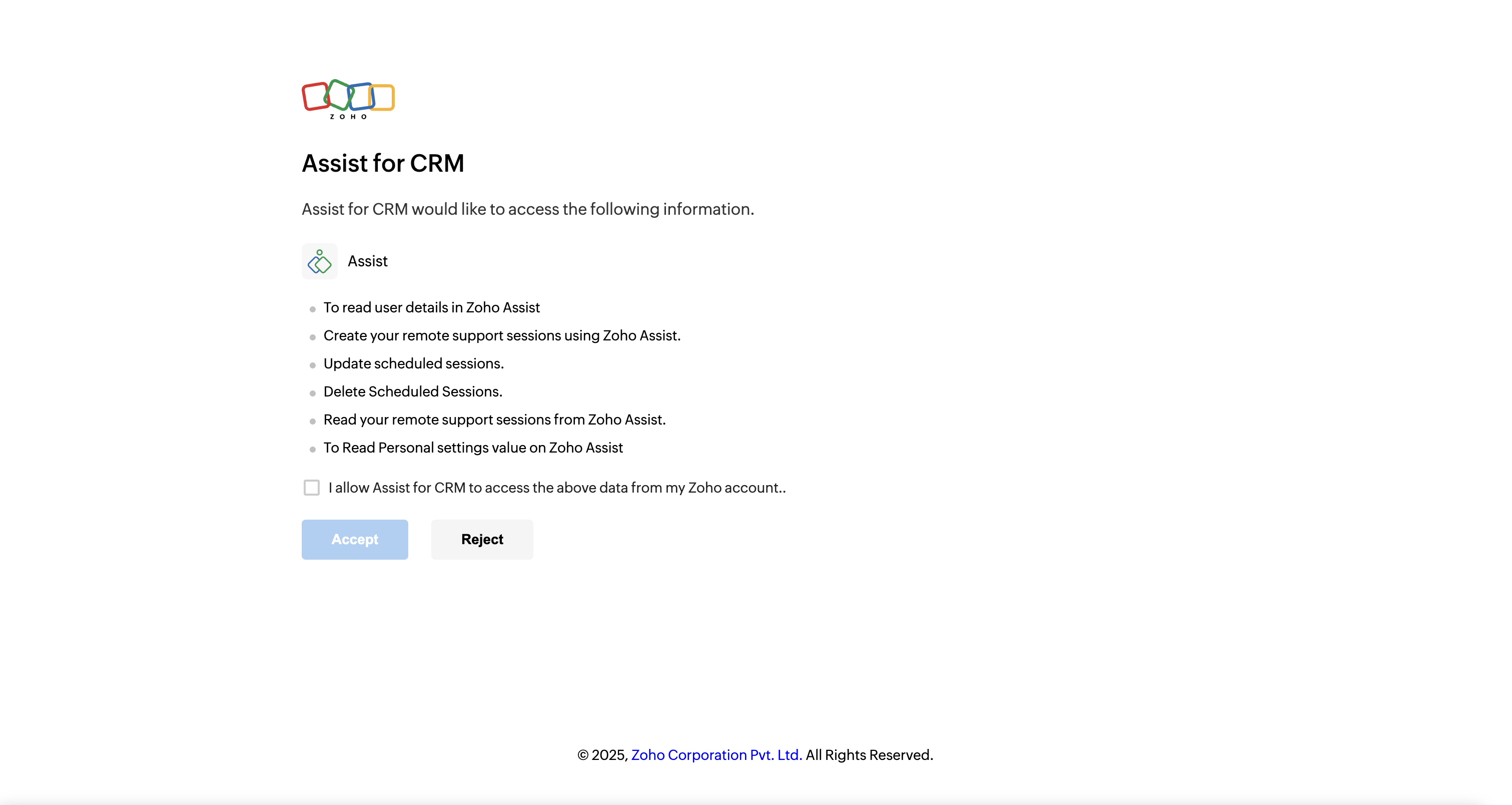
- Click the Authorize button if you have an existing Assist account.
- Click the Accept button to allow Assist for CRM to access all data related to your Zoho Assist account.
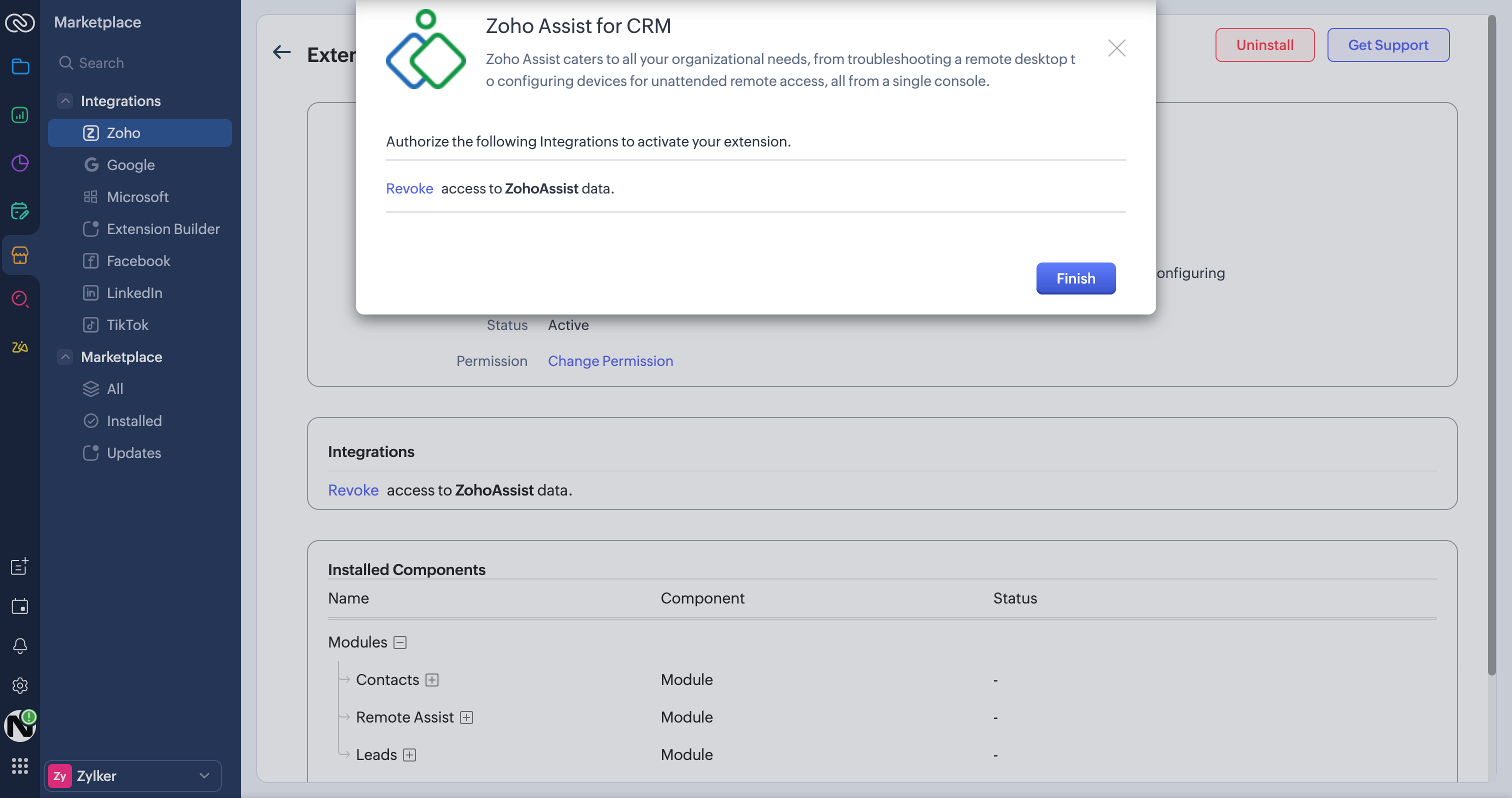
- Click Finish. The Zoho Assist for CRM extension has now been installed successfully.

How to start a session from CRM?
- Go to Zoho CRM.
- Log in to CRM using your credentials.
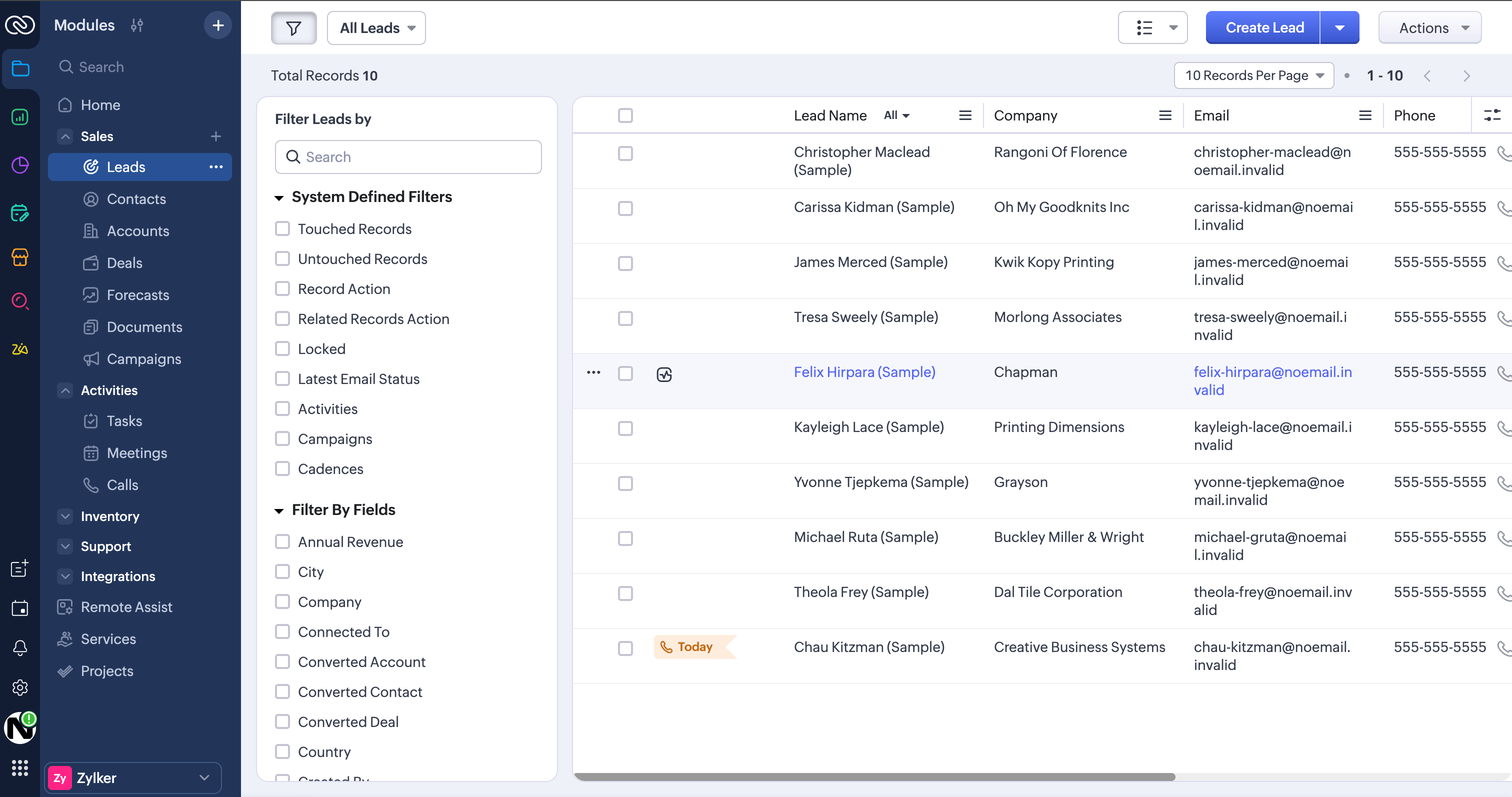
- To start a session for any lead or contact, navigate to the Leads or Contacts module.
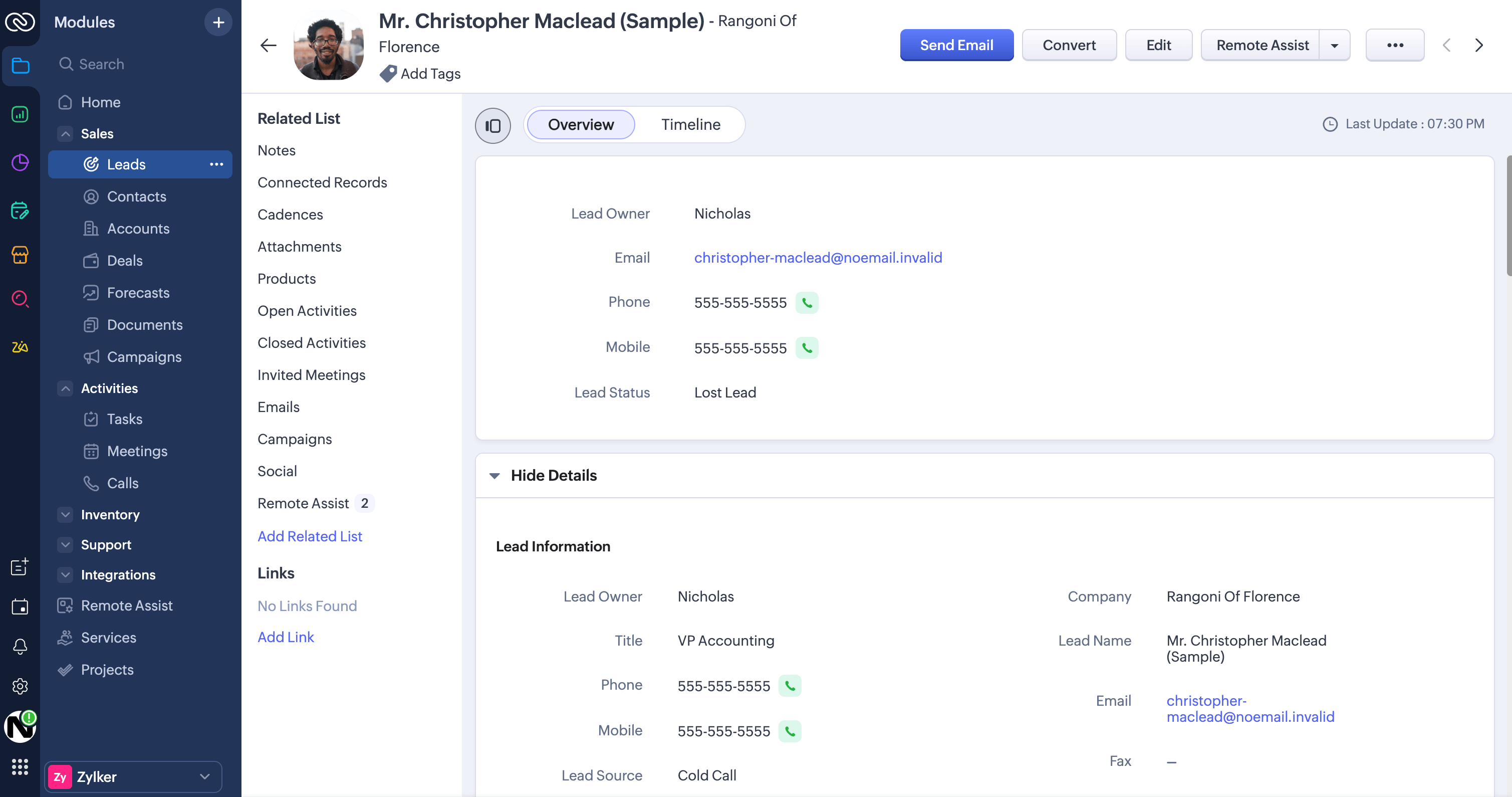
- Select a lead or contact, then click the Remote Assist option in the top-right corner.
- Choose the Access Remote Screen or Share My Screen option in the proceeding window.
- Click the Start Now button to initiate a session instantly.
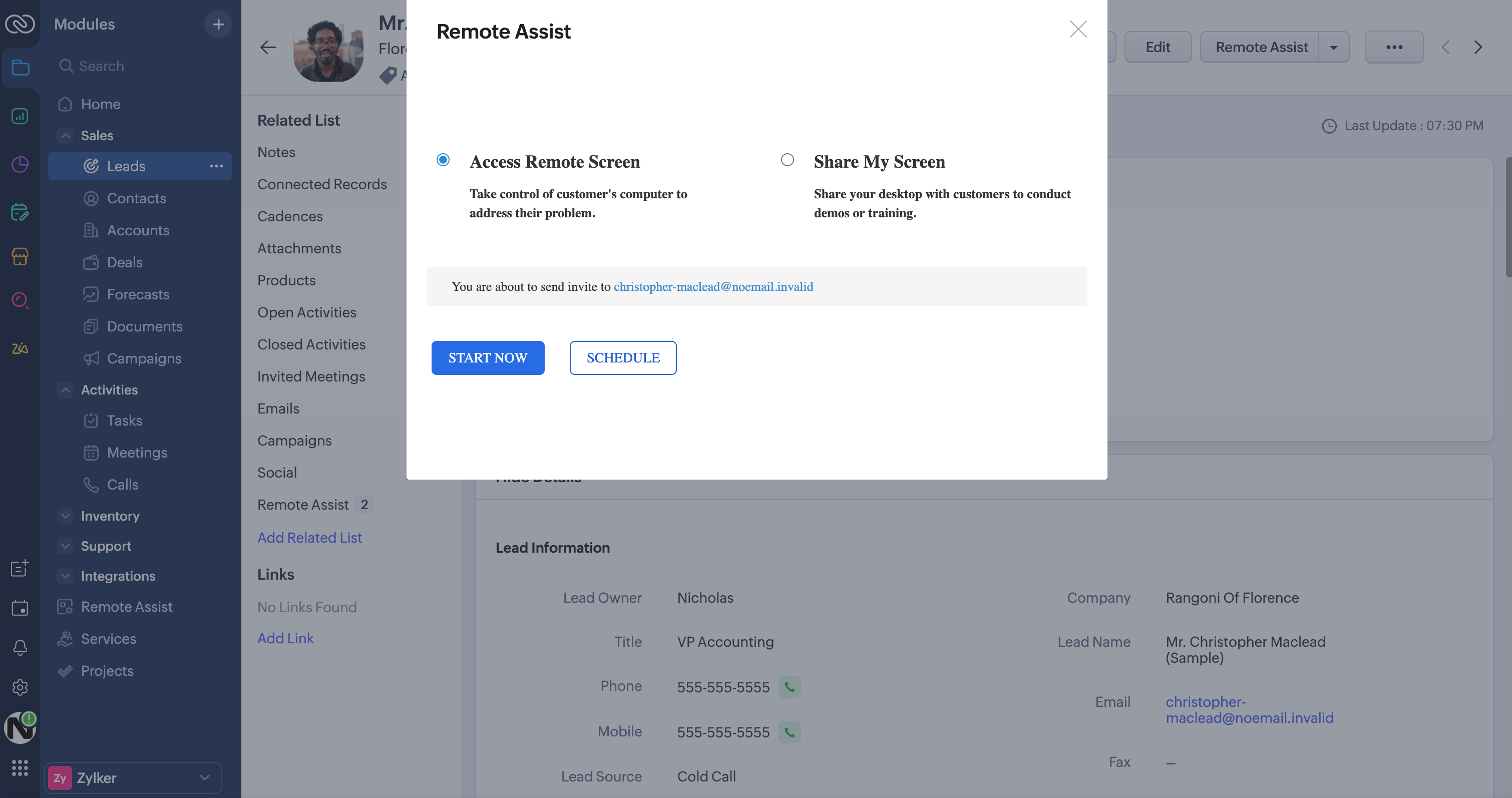
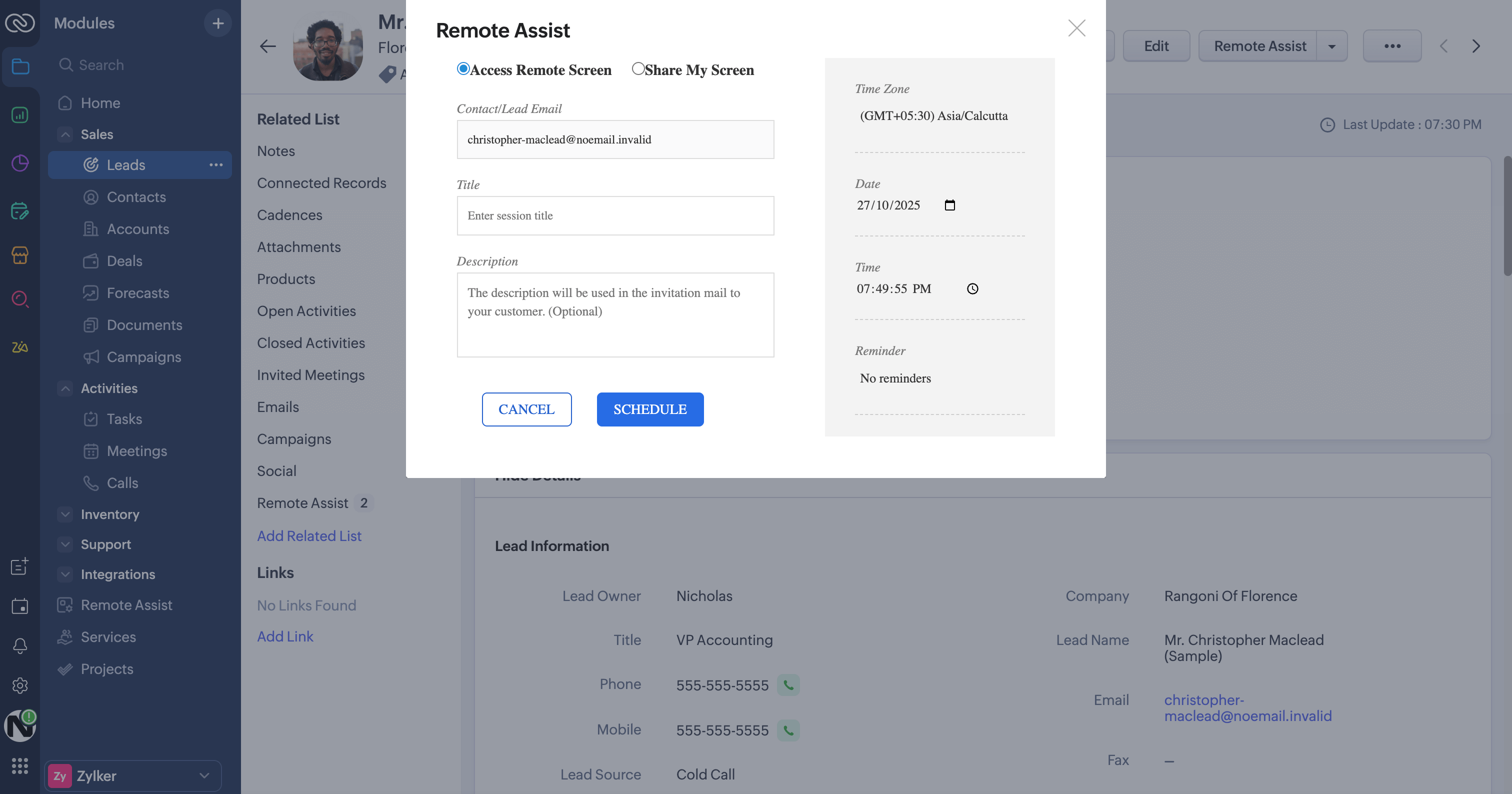
- To schedule a session, select the Schedule option and specify the necessary information.
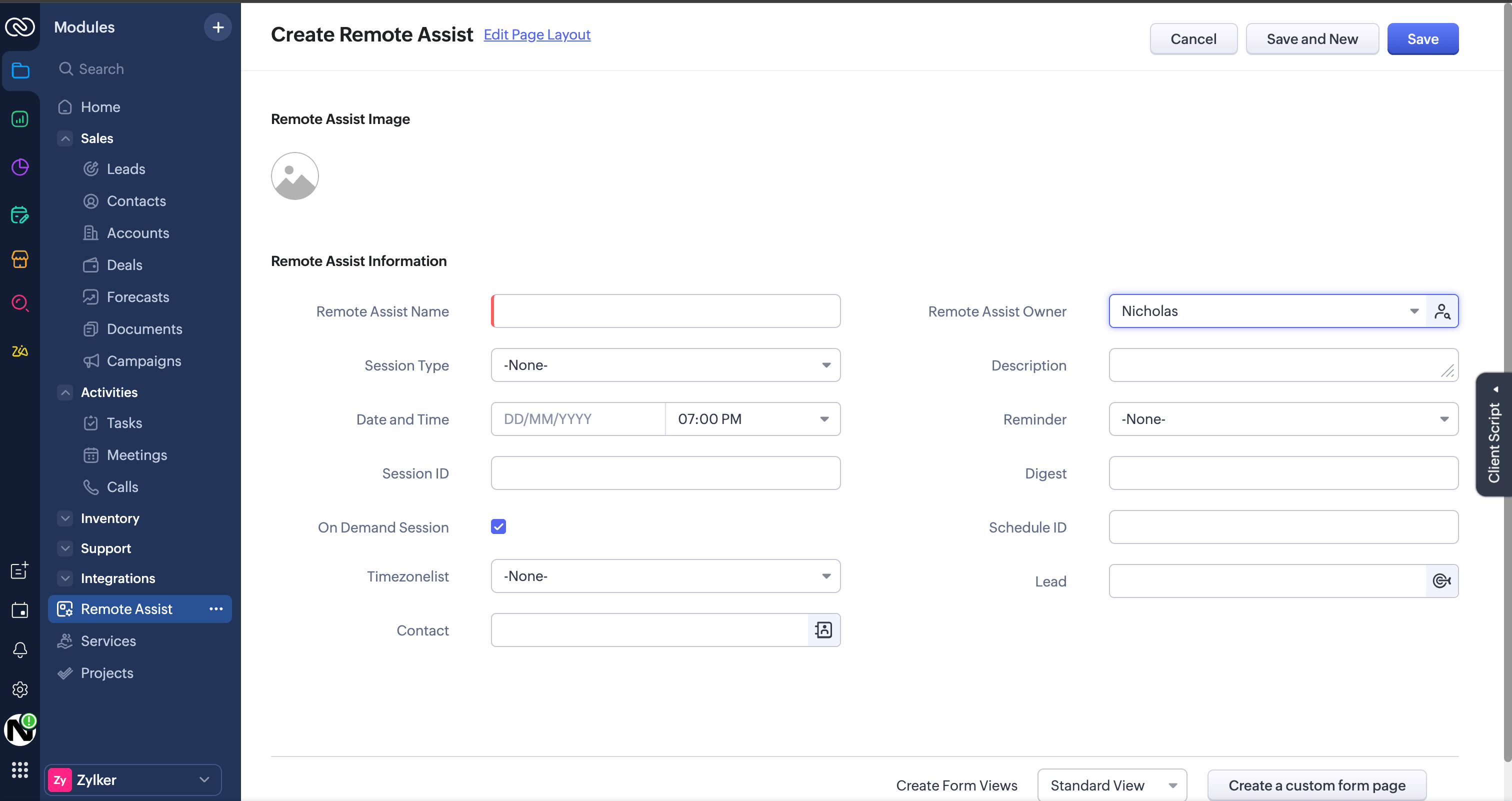
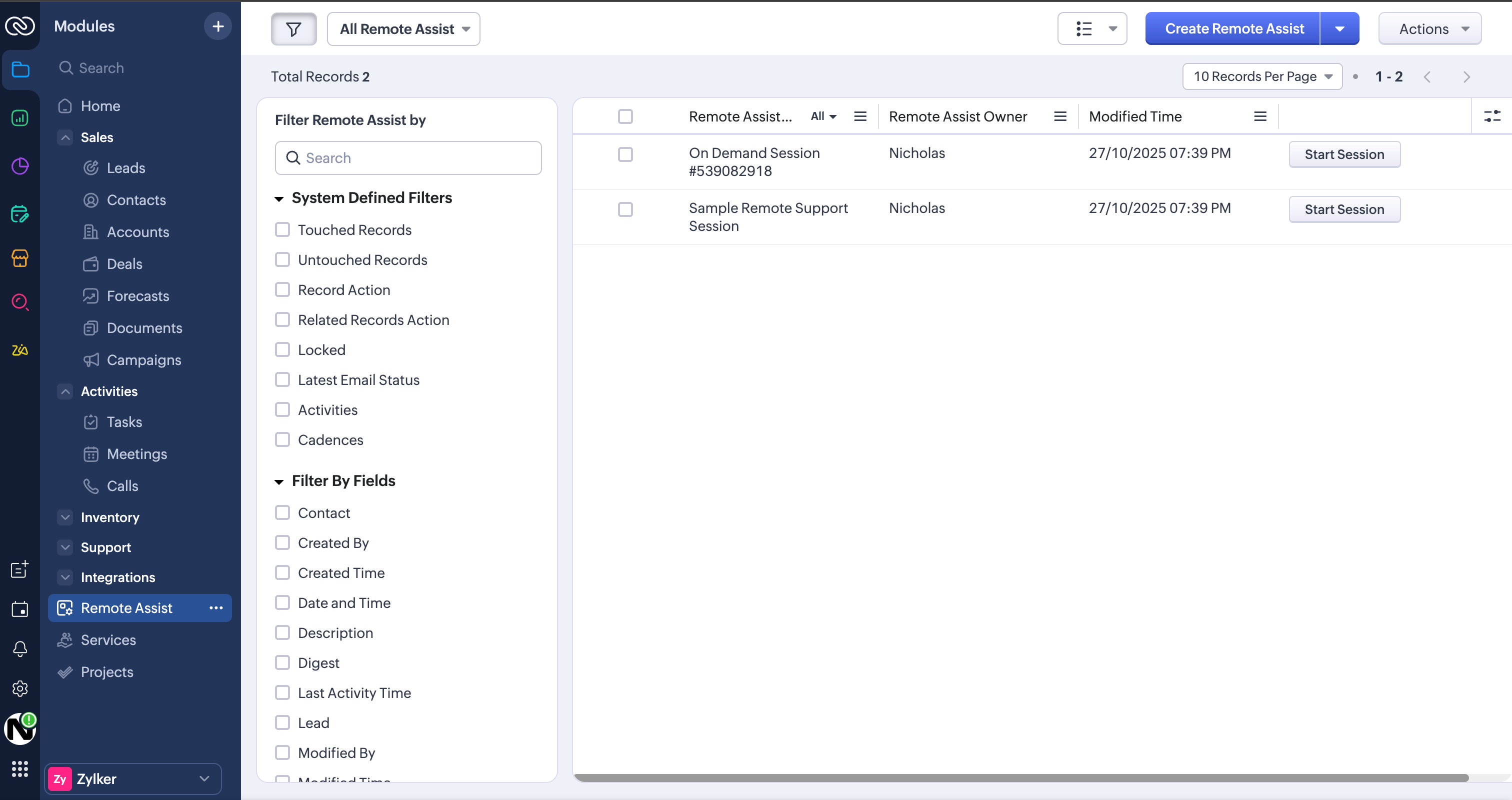
- You can also create a session by navigating to the Remote Assist tab. Select the Create Remote Assist option in the top-right corner, key in the required details.
- To add a contact or lead after a session is scheduled, go to the Contact or Lead module. Choose a contact or lead of your choice.
- Click the Assign option under the Remote Assist section to add that contact or lead successfully.

- You can also select the New option in the Remote Assist section, then fill in the required details to create a session for any lead or contact when required.