Zia
By integrating with generative AI, organizations can easily access the power of artificial intelligence without having to invest in expensive hardware or software. With this integration of Zoho Assist and Zia, technicians can harness and utilize the power of generative AI during their remote sessions to provide support to their customers effectively.
How to Integrate Zia with Zoho Assist
- Go to https://assist.zoho.com and sign in.
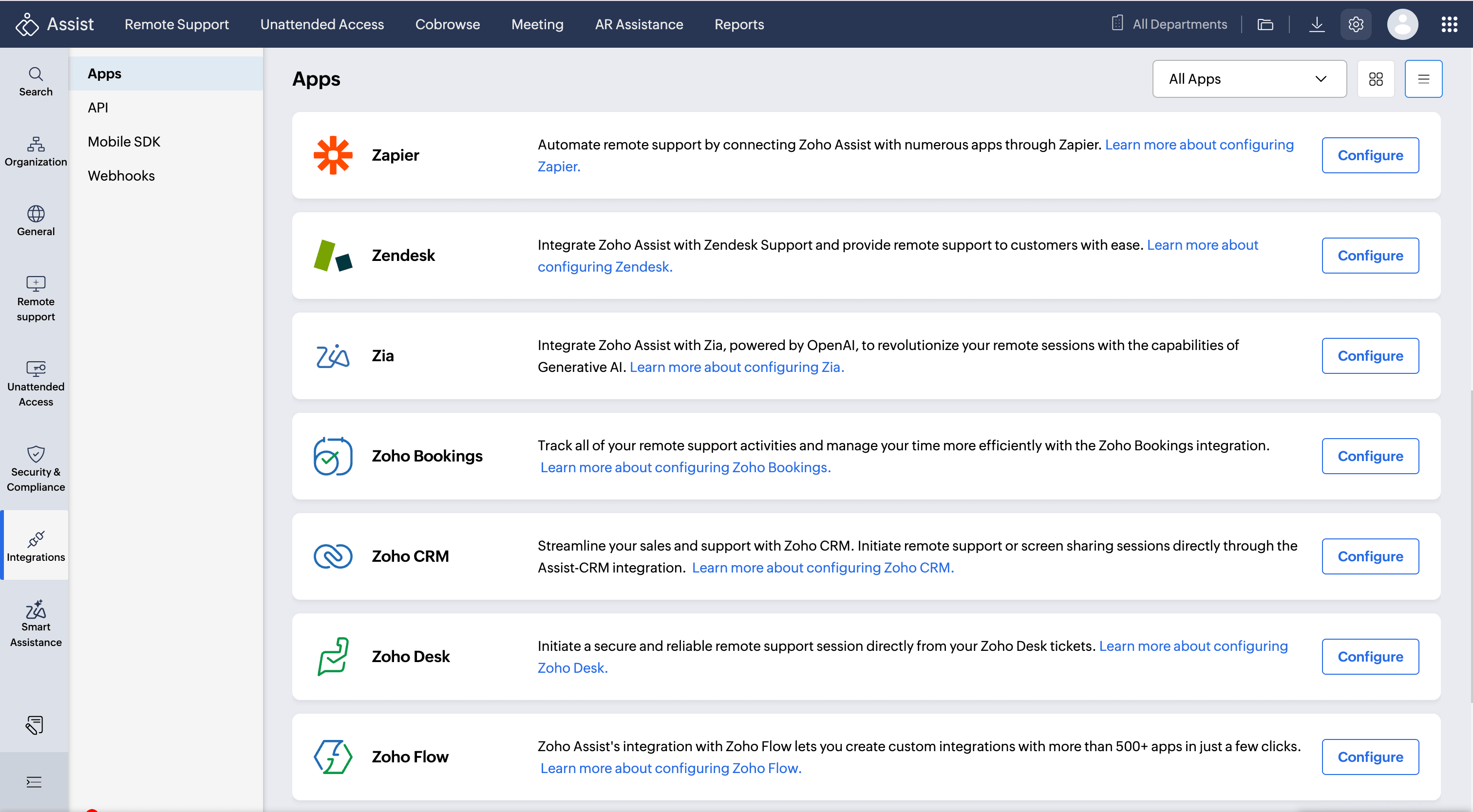
- Navigate to Settings > Integrations > Apps > Zia.
- Click Configure.
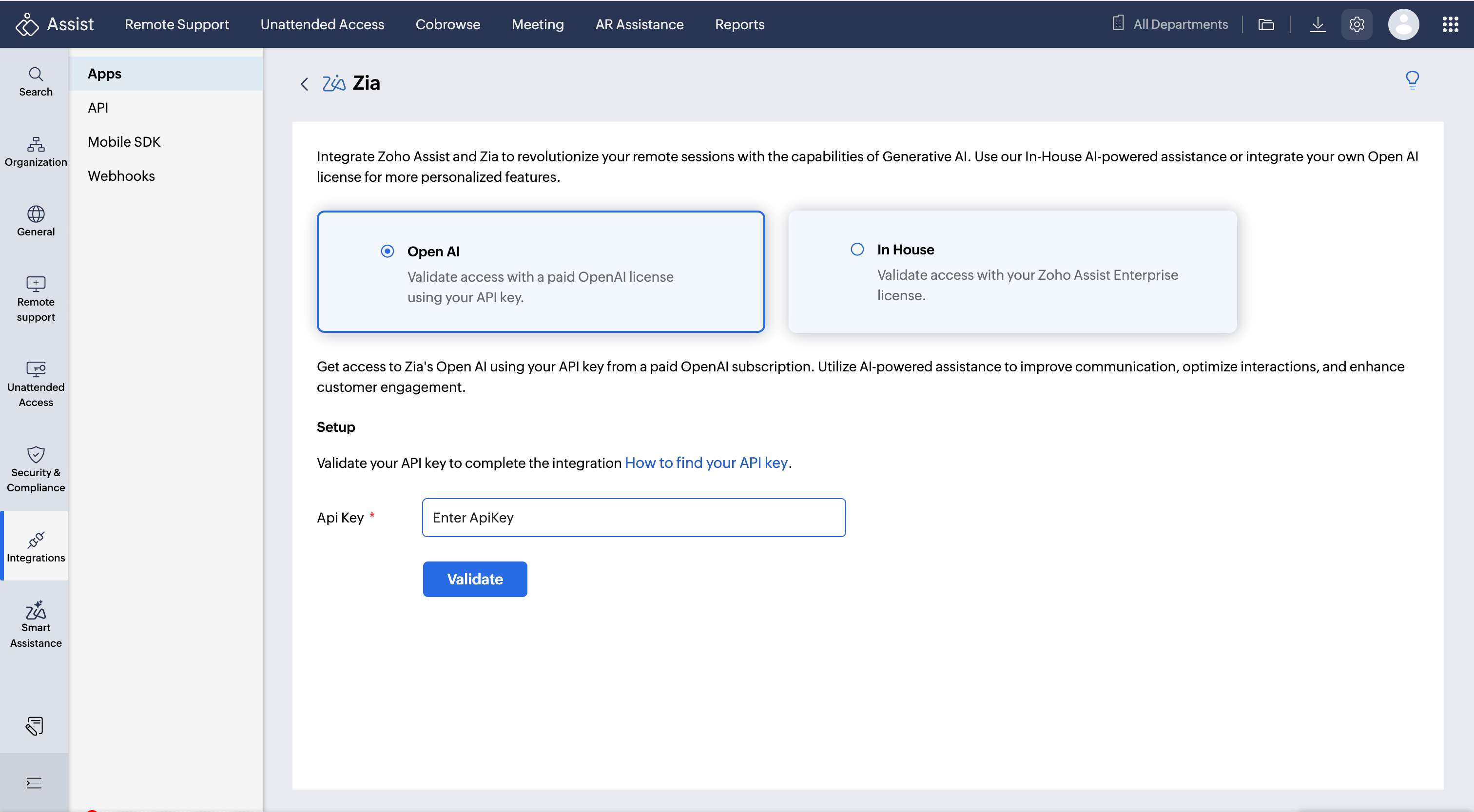
- Choose your preferred model: You can select either OpenAI (using your own OpenAI license and API key) or In House (available to Enterprise customers).
Open AI
- Select the Open AI option.
- Enter your OpenAI API key into the API Key field.
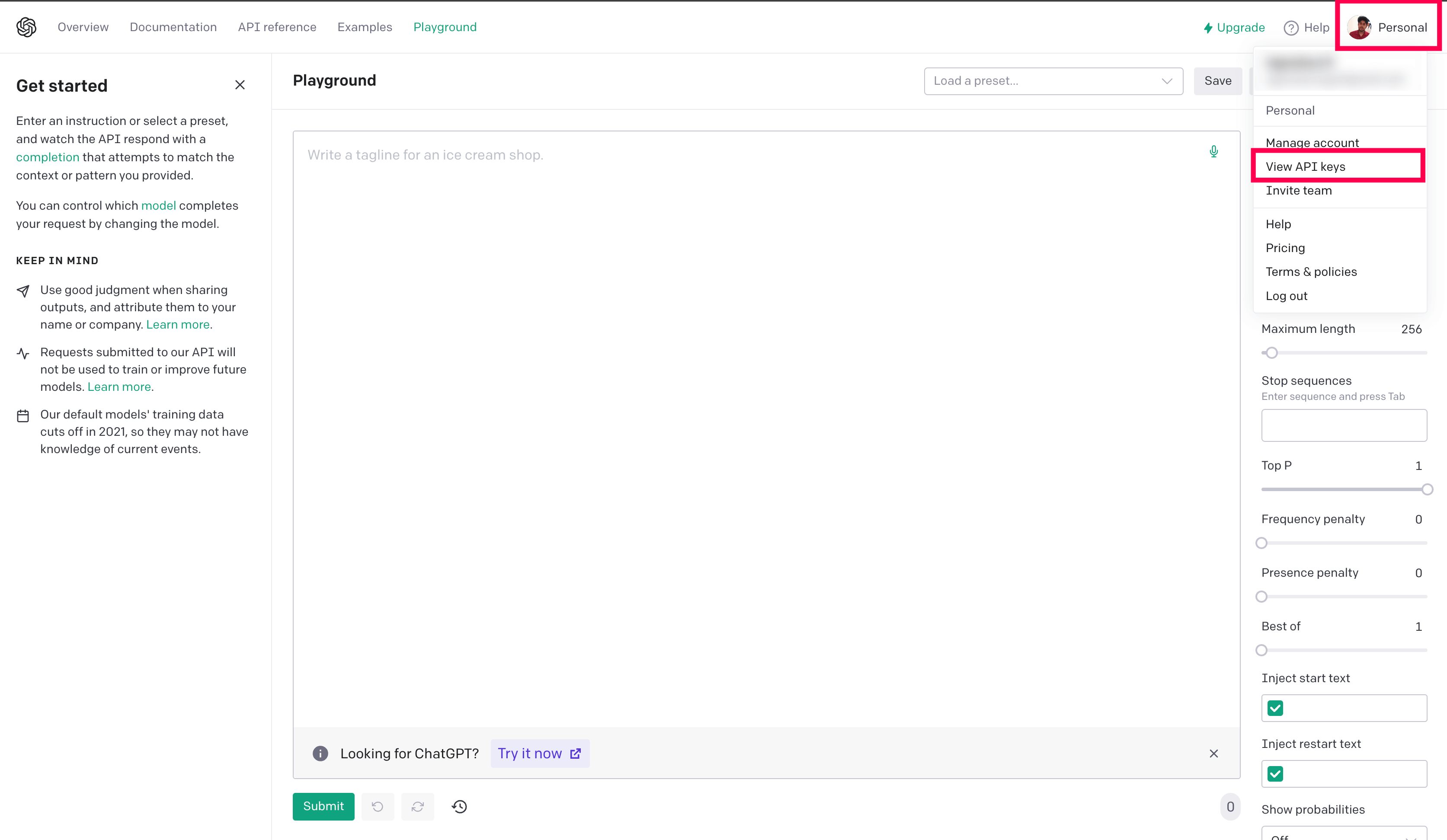
- To generate an API key, Go to the OpenAI Platform and log in to your account, click your profile picture and select View API Keys.
Click + Create new secret key.
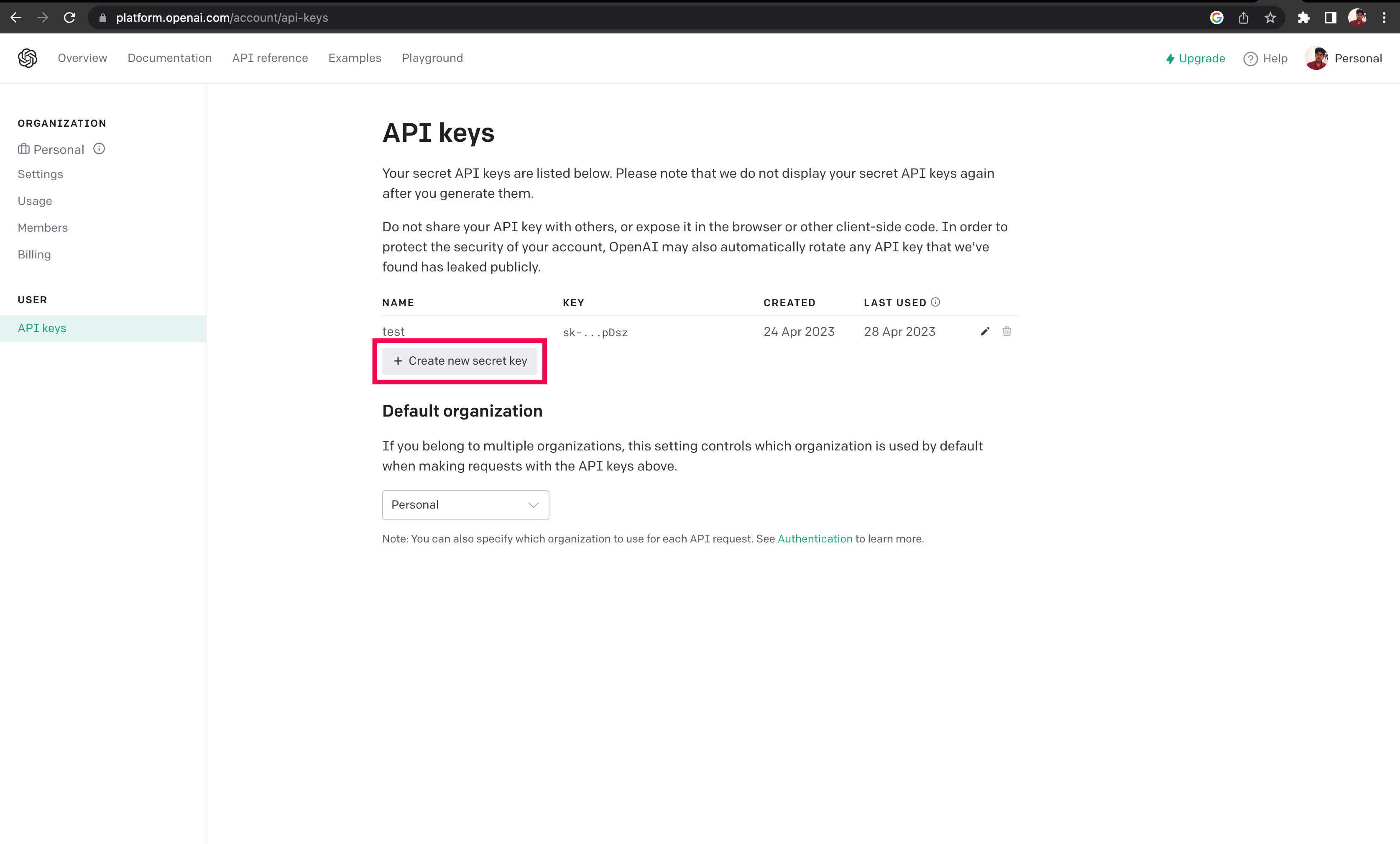
Note: You cannot view the secret key again later. Store it securely for future reference.
- To generate an API key, Go to the OpenAI Platform and log in to your account, click your profile picture and select View API Keys.
- Click Validate to confirm the key.
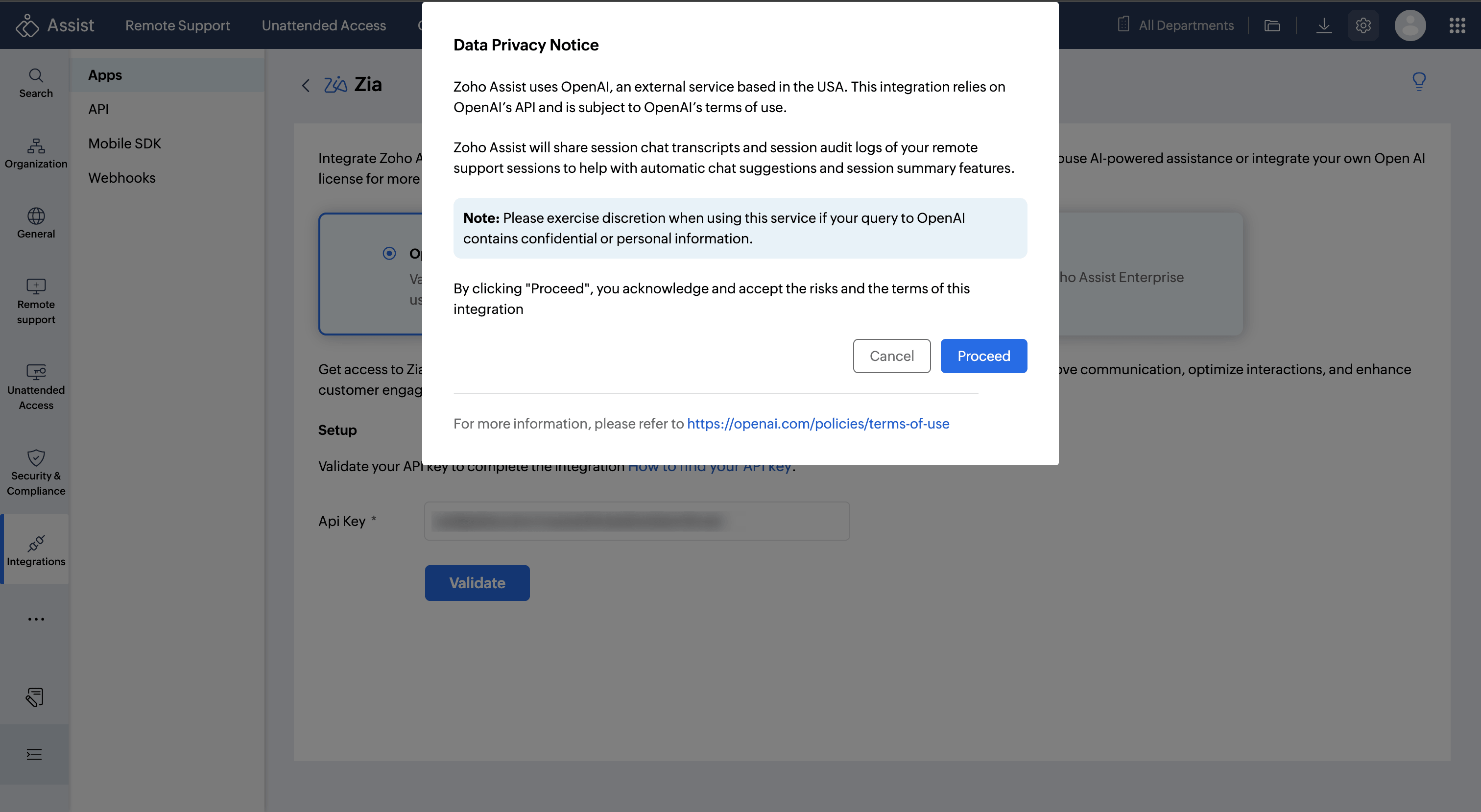
Review the Data Privacy Notice displayed and click Proceed to continue. Once validated, your OpenAI account will be successfully integrated with Zoho Assist.
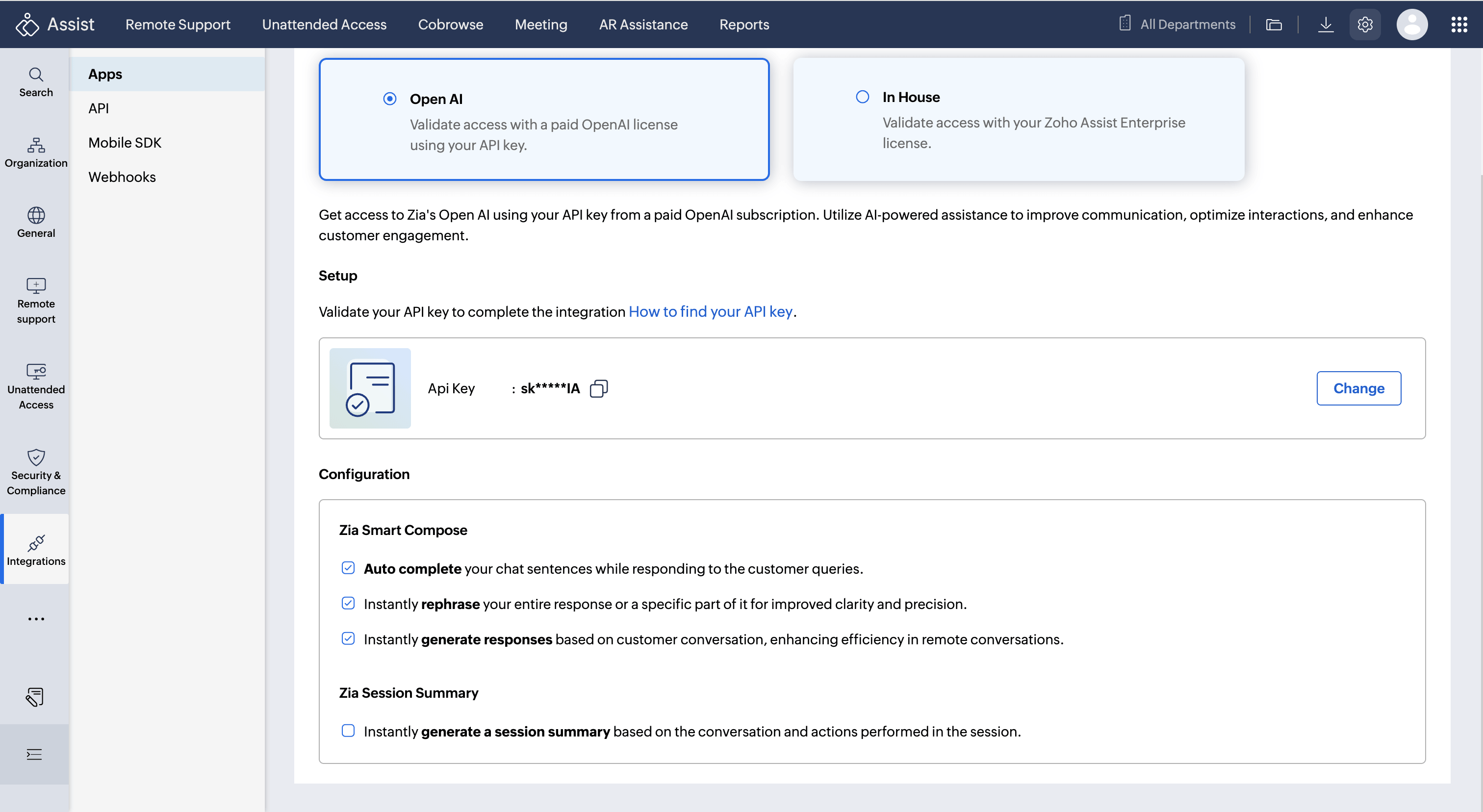
- Under Configuration, enable the Zia features you want to use:
- Zia Smart Compose
- Auto complete: Automatically completes your chat sentences while responding to customer queries.
- Rephrase: Instantly rephrases your entire response or a specific part of it for improved clarity and precision.
- Generate responses: Instantly generates responses based on the customer conversation, enhancing efficiency in remote conversations.
- Zia Session Summary
- Generate a session summary: Instantly generates a summary based on the conversation and actions performed during the session.
- Zia Smart Compose
Note: Do not share or publicly display your API key. It grants access to your account and must remain private.
In House
Enterprise licensed customers can use Zia's In House AI without requiring an OpenAI subscription.
- Select the In House option.
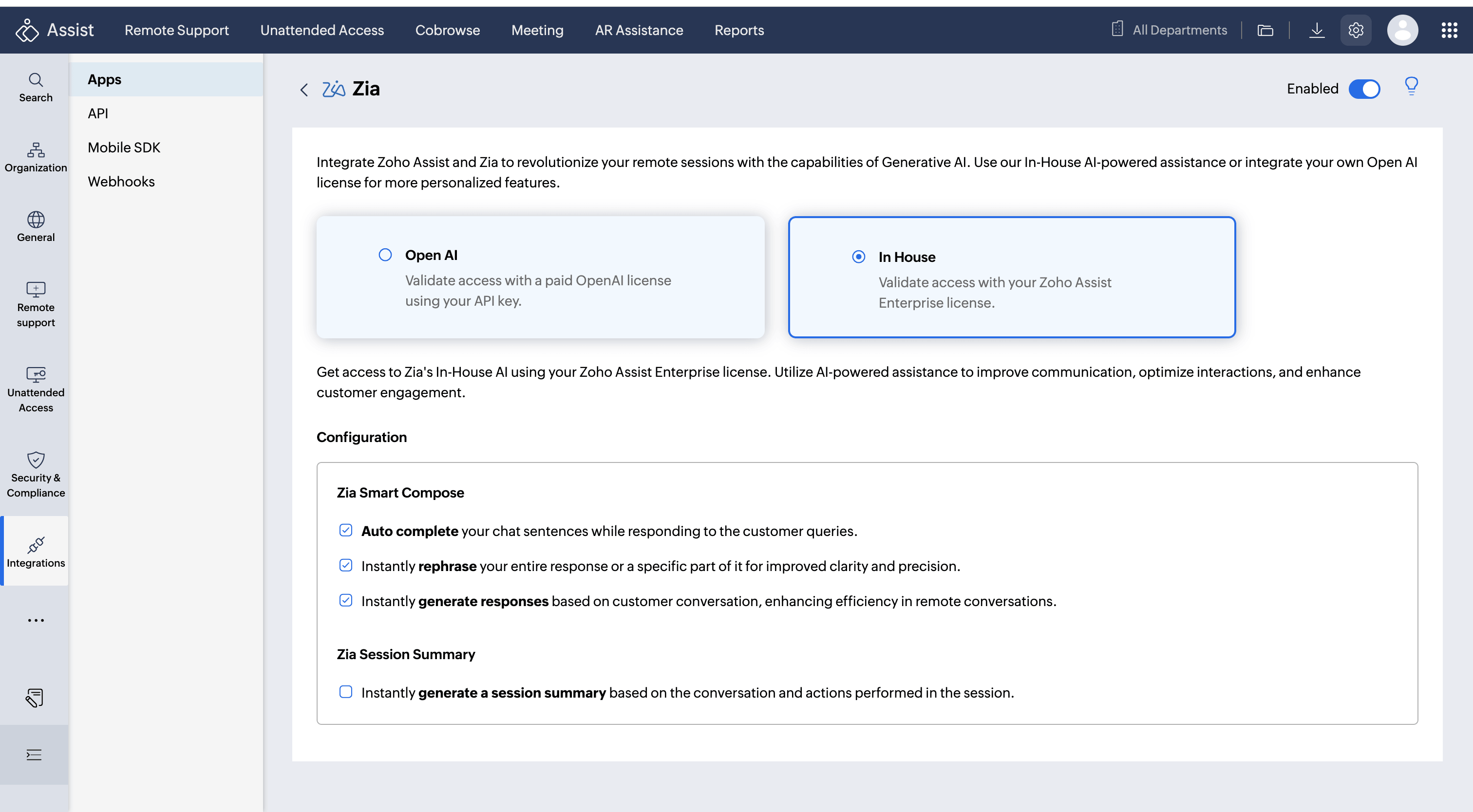
- Under Configuration, enable the Zia features you want to use: Zia Smart Compose
- Auto complete: Automatically completes your chat sentences while responding to customer queries.
- Rephrase: Instantly rephrases your entire response or a specific part of it for improved clarity and precision.
- Generate responses: Instantly generates responses based on the customer conversation, enhancing efficiency in remote conversations.
- Zia Session Summary
- Generate a session summary: Instantly generates a summary based on the conversation and actions performed during the session.
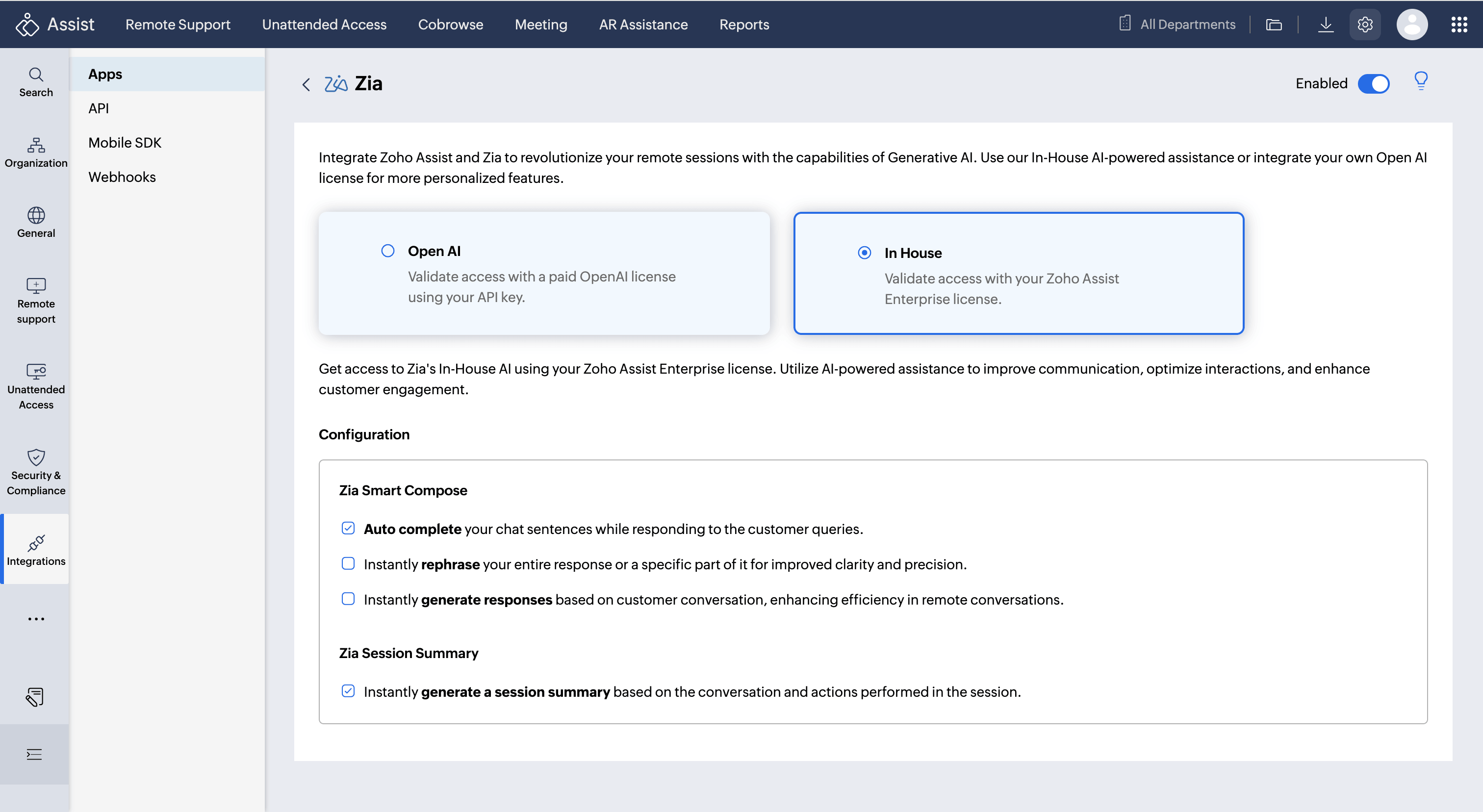
- Generate a session summary: Instantly generates a summary based on the conversation and actions performed during the session.
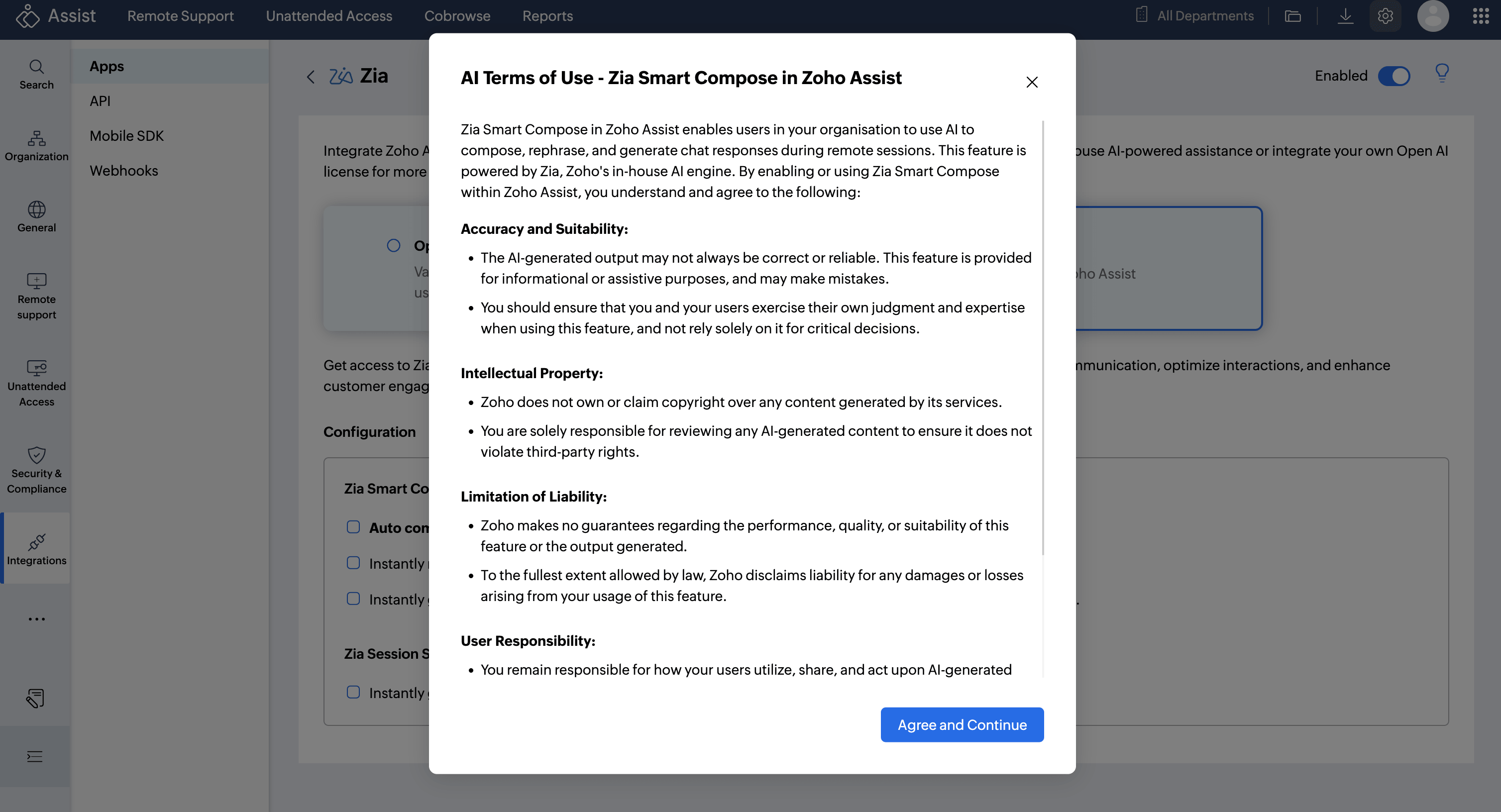
- When enabling Zia Smart Compose features for the first time, an AI Terms of Use dialog will appear. Review the terms and click Agree and Continue to proceed.
- When enabling Zia Session Summary for the first time, a separate AI Terms of Use dialog will appear. Review the terms and click Agree and Continue to proceed.
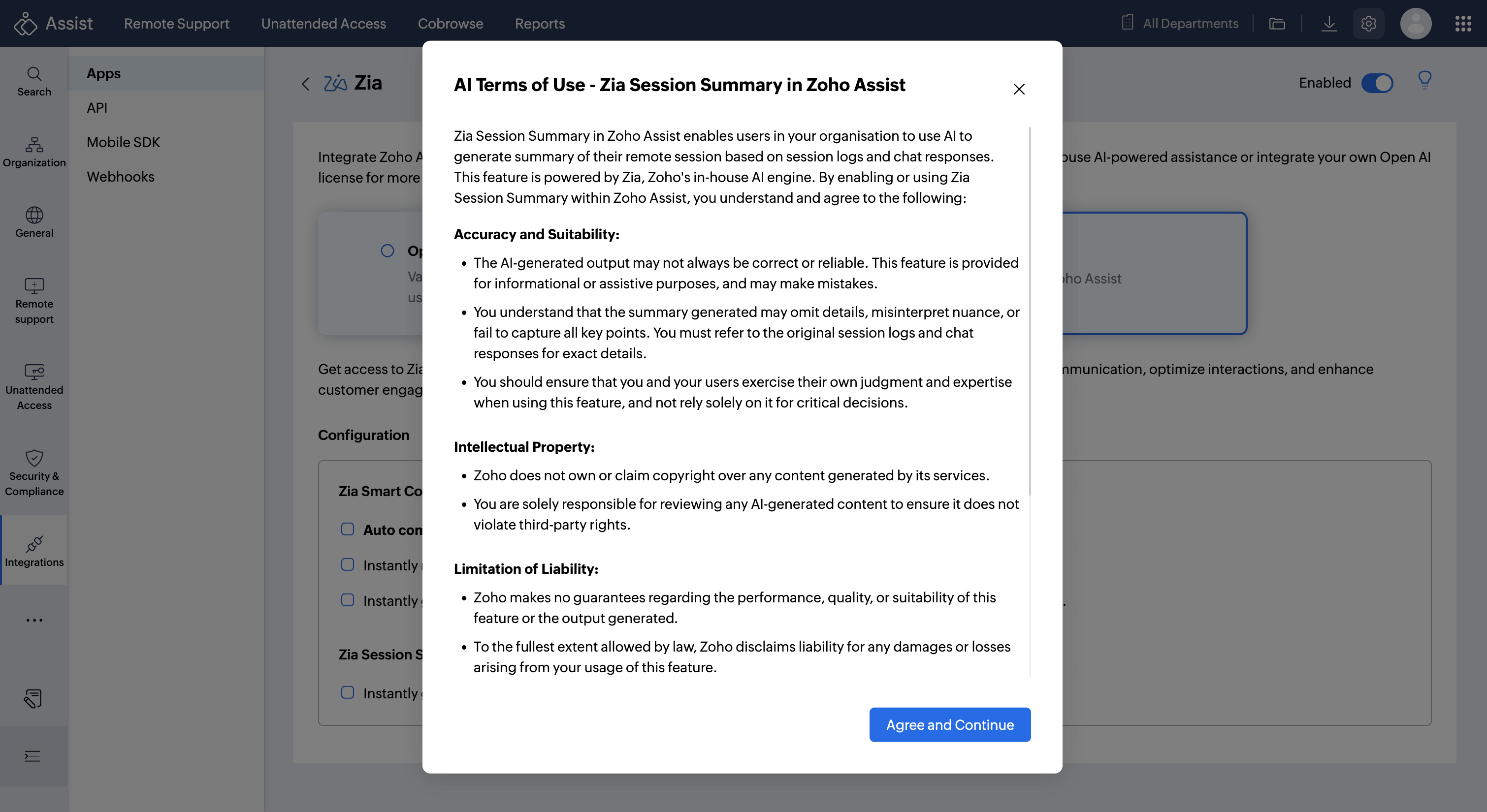
Note: Accessing Zia via In House AI requires an active Zoho Assist Enterprise subscription.
Switching Between AI Models
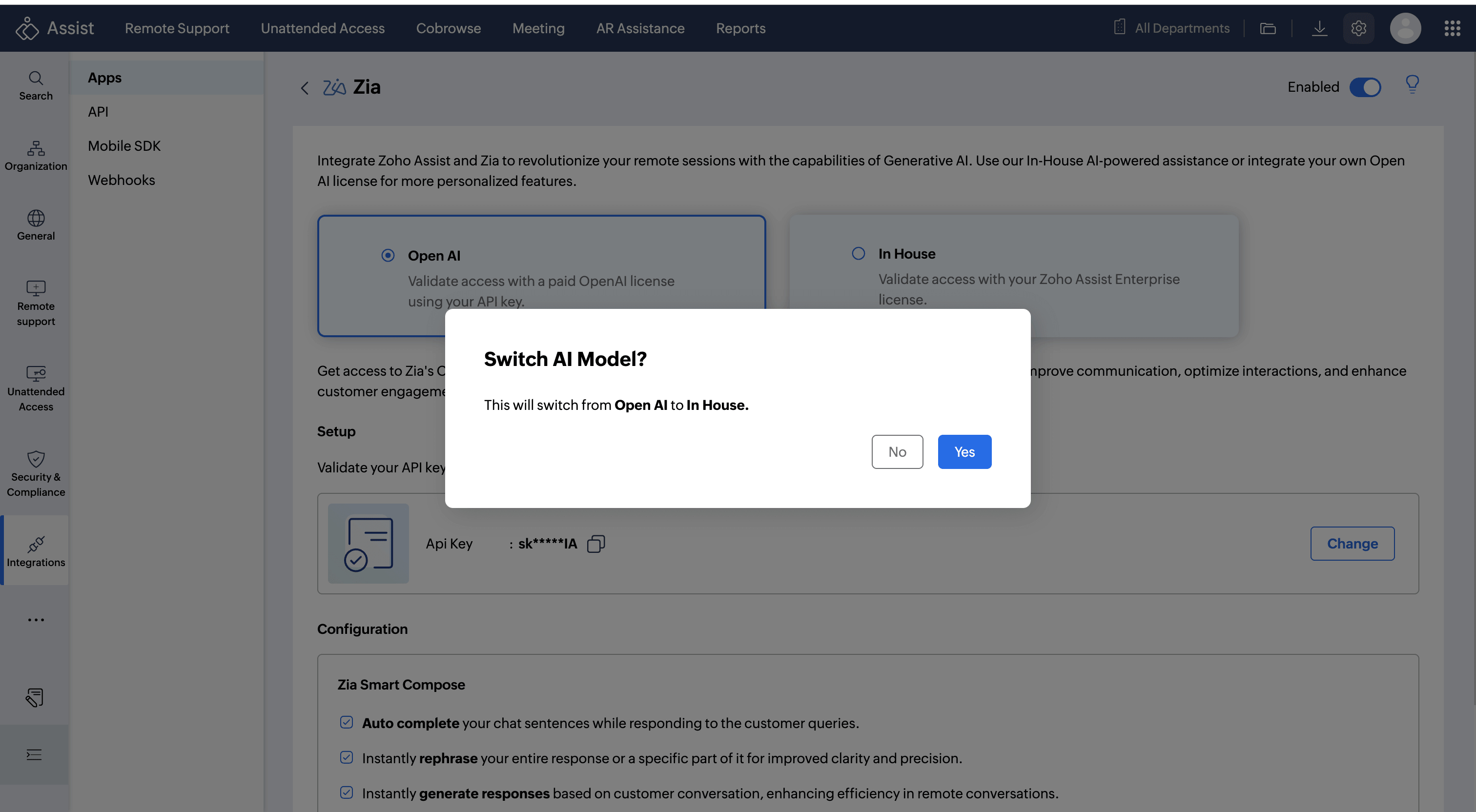
You can switch between OpenAI and In House at any time from the Zia configuration page.
- Navigate to Settings > Integrations > Apps > Zia.
- Select the desired AI model (Open AI or In House).
- A confirmation dialog will appear, click Yes to confirm the switch.
How to Disable Zia
- Navigate to Settings > Integrations > Apps > Zia.
- Toggle the Enabled switch in the top right corner to the off position.
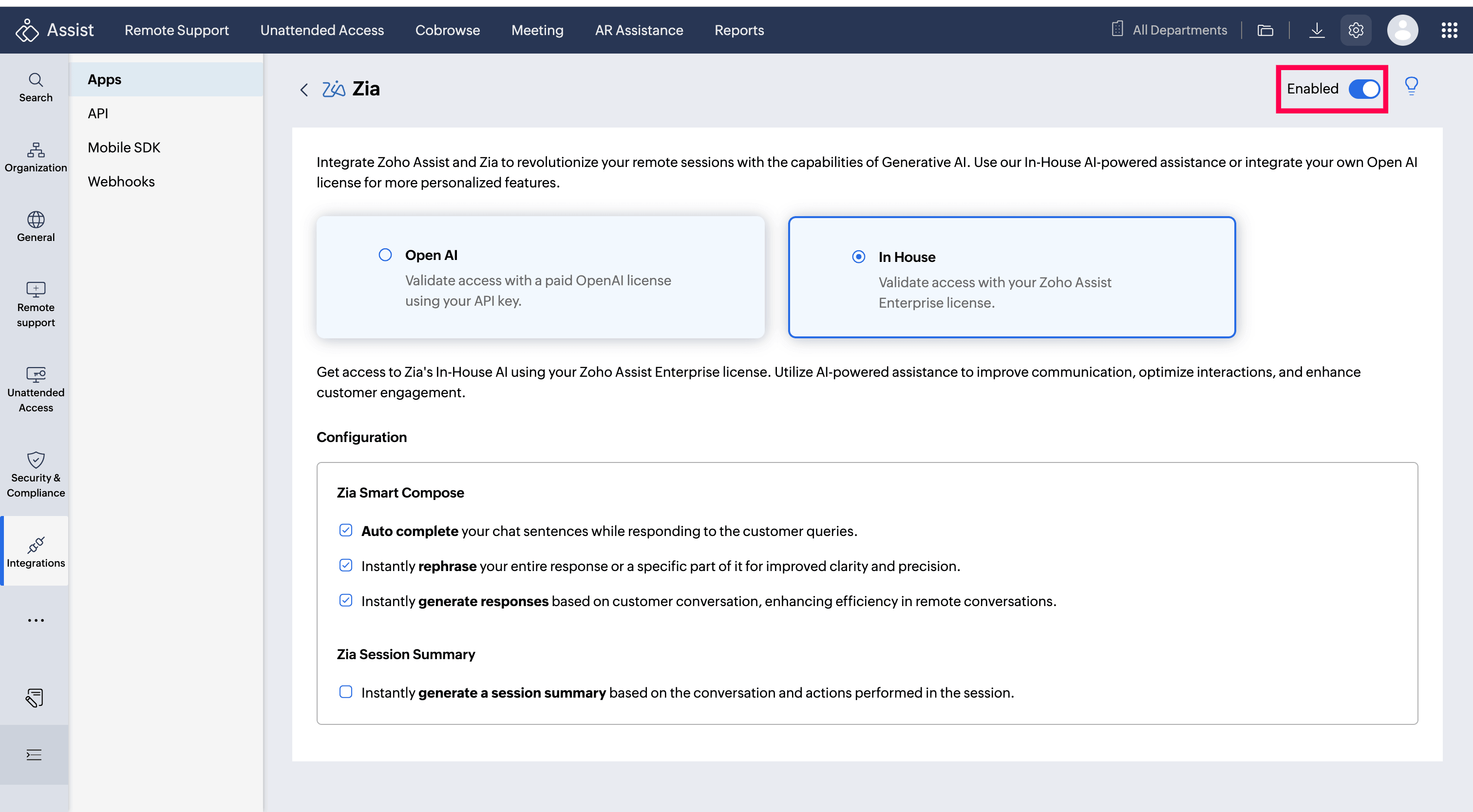
The toggle will display Disabled and all Zia features will be deactivated for your organization.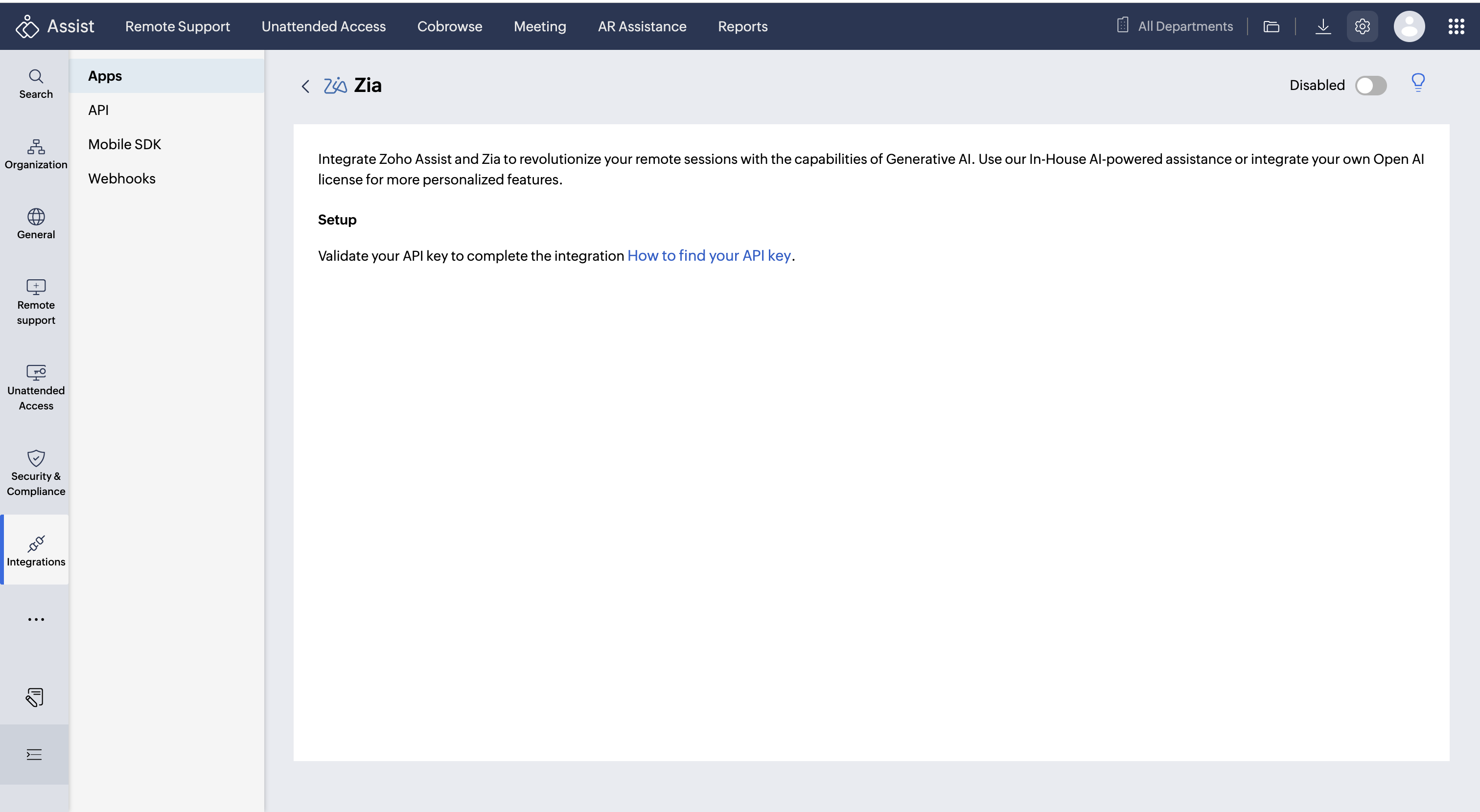
How to use Zia Smart Compose for Generating Response
After integrating Zoho Assist with Zia, you will be able to automatically generate chat suggestions that you can use for analyzing and responding to customers during the remote session.
- Start a remote support session by clicking Start now in the Remote Support module of Zoho Assist.
- Once the customer has joined the remote session, you can initiate a chat with them.
- To help Zia Smart Compose analyze the requirement and generate automatic responses, initiate a conversation with the customer via the Chat option.
- When Zia Smart Compose learns about the session purposes and chat responses, it will be available to generate responses to be sent to the customers.
- Click the Generate Response option. Zia Smart Compose will automatically generate responses to be shared in the chat.
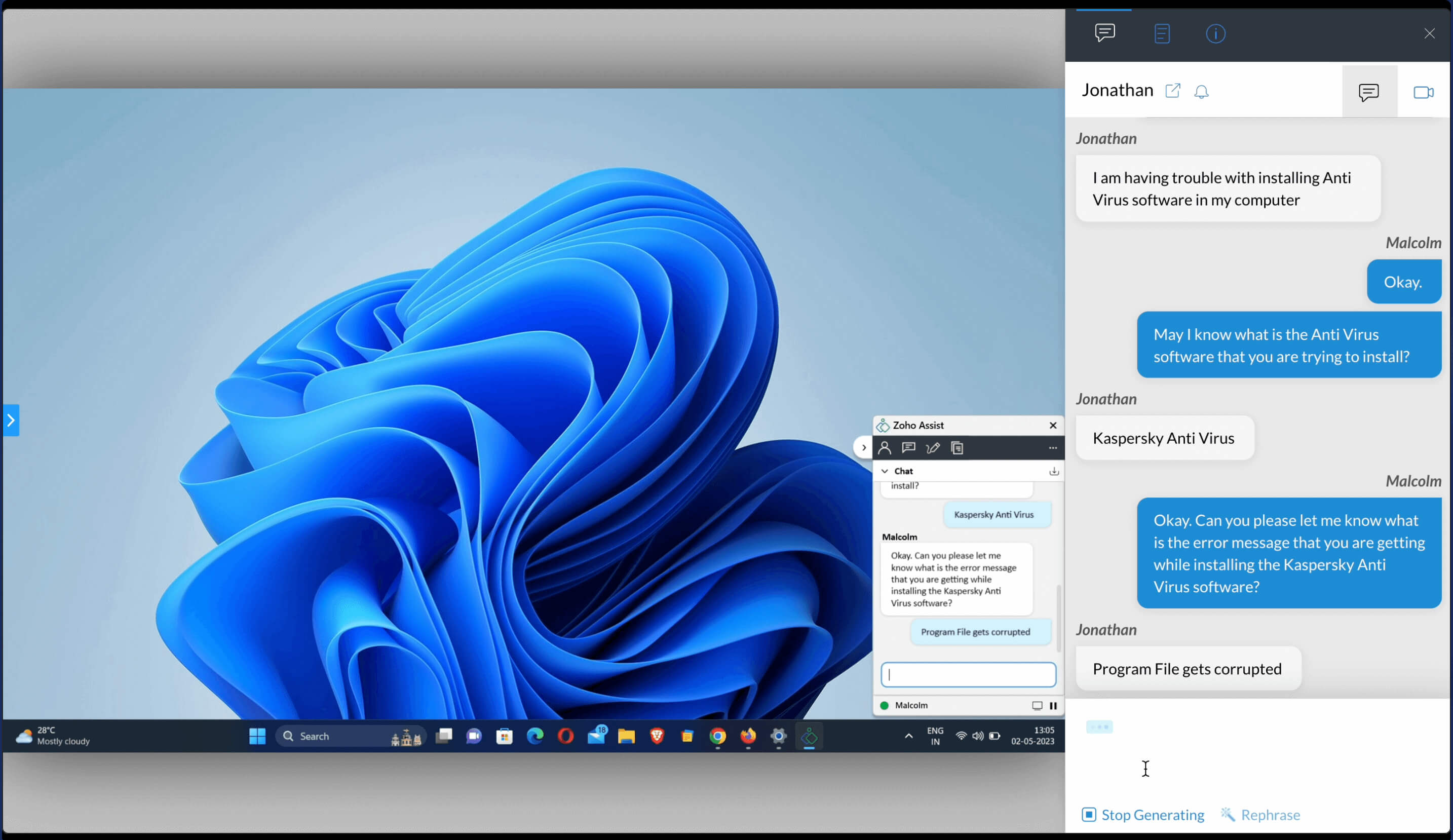
- Click Enter to send the response that was generated by Zia Smart Compose.
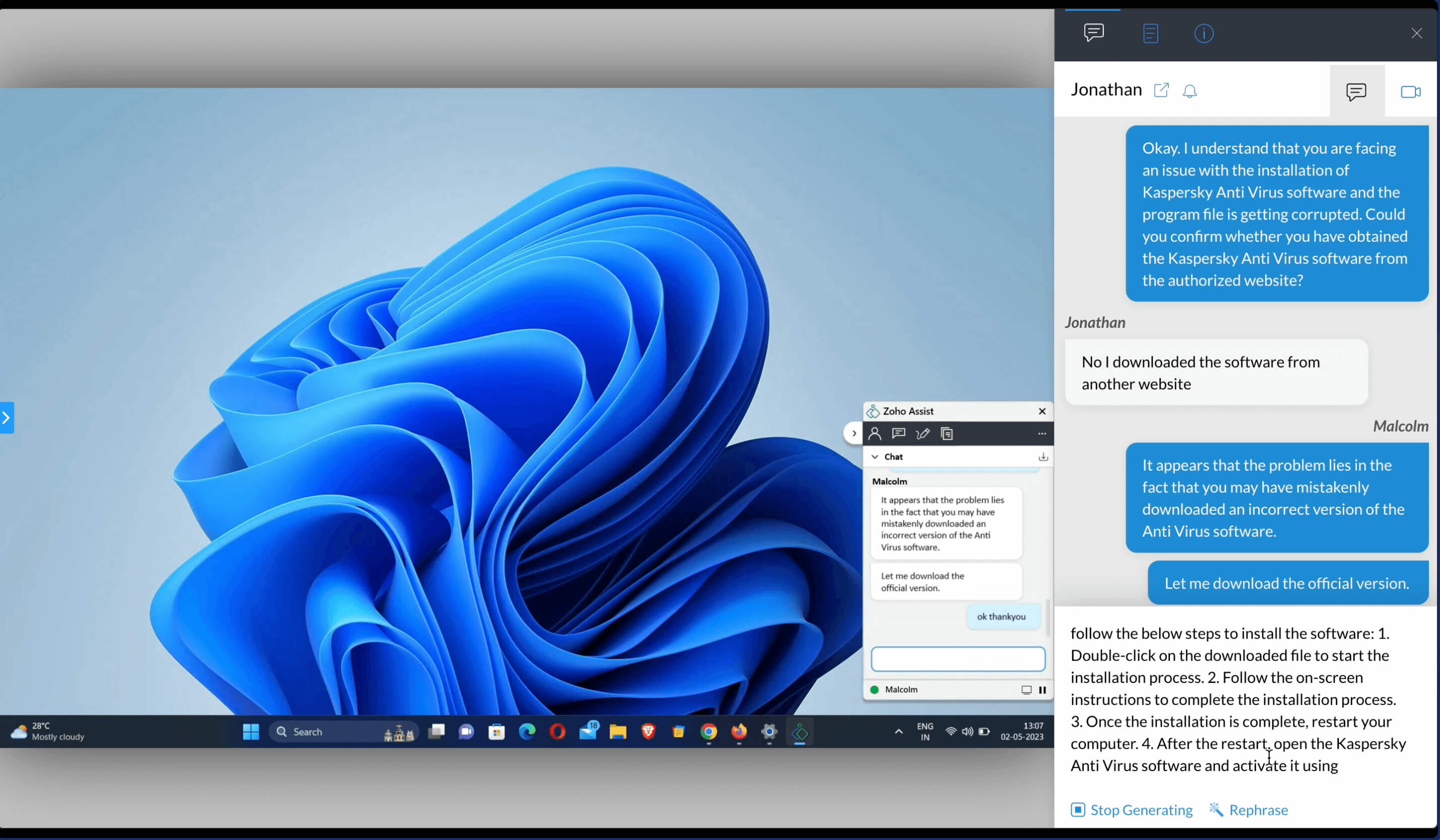
How to rephrase the chat suggestions from Zia Smart Compose
After Zia Smart Compose generates a chat response you can either choose to rephrase the entire response or a specific part of the response.
- To rephrase the entire chat suggestion, click the Rephrase option from the bottom of the chat.
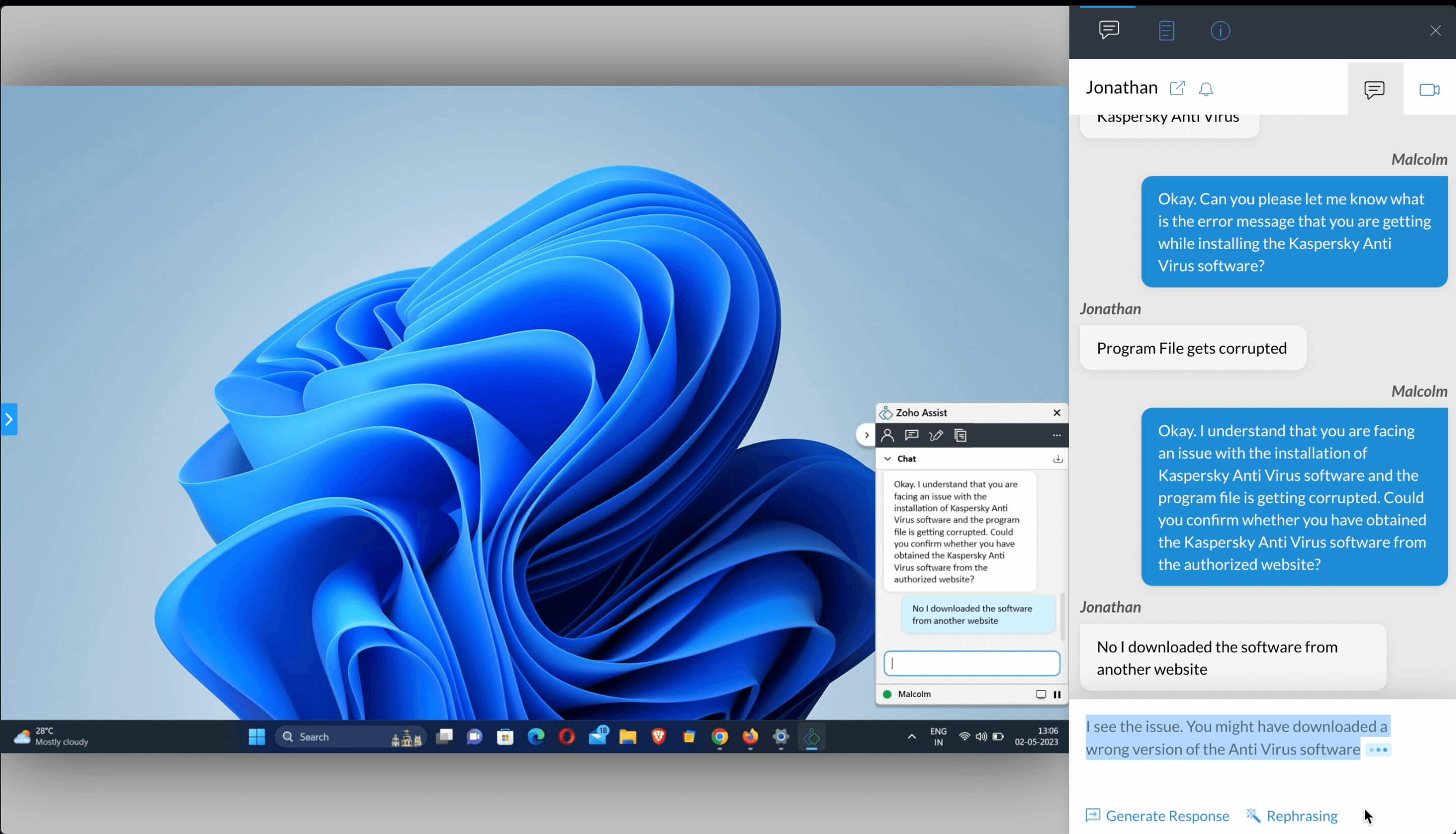
- To rephrase a specific part of the response, drag and choose the part that you want to rephrase, then click on Rephrase.
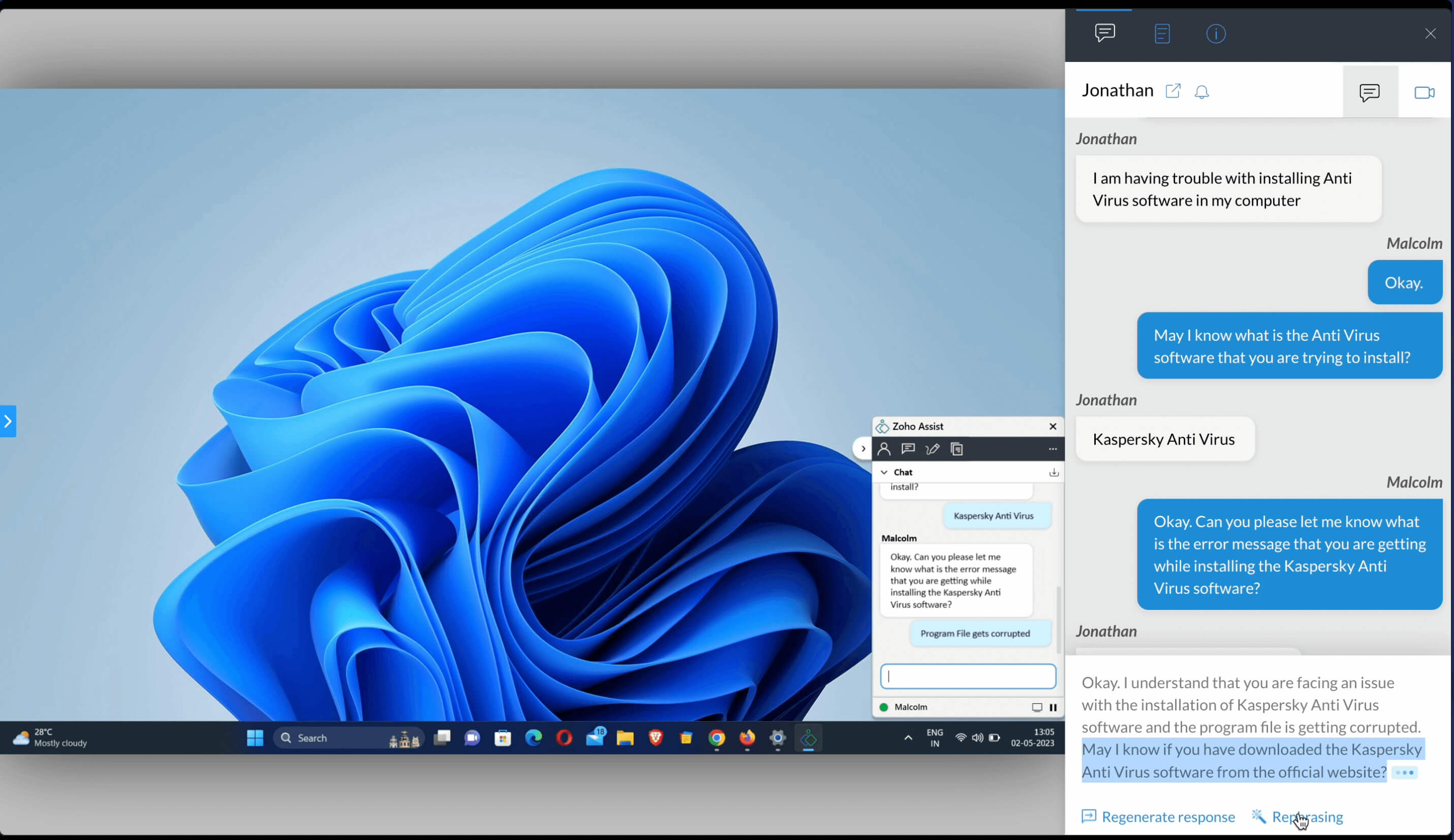
This will rephrase the chat suggestion based on your requirement.
How to use Zia Smart Compose for Auto Completion
You can also use Zia Smart Compose to auto complete your sentences. To complete sentences, type in your initial response to the customer. Halfway into the sentence, you can click Generate response, which will auto complete the sentence that you created. You will also be able to rephrase the content for these responses.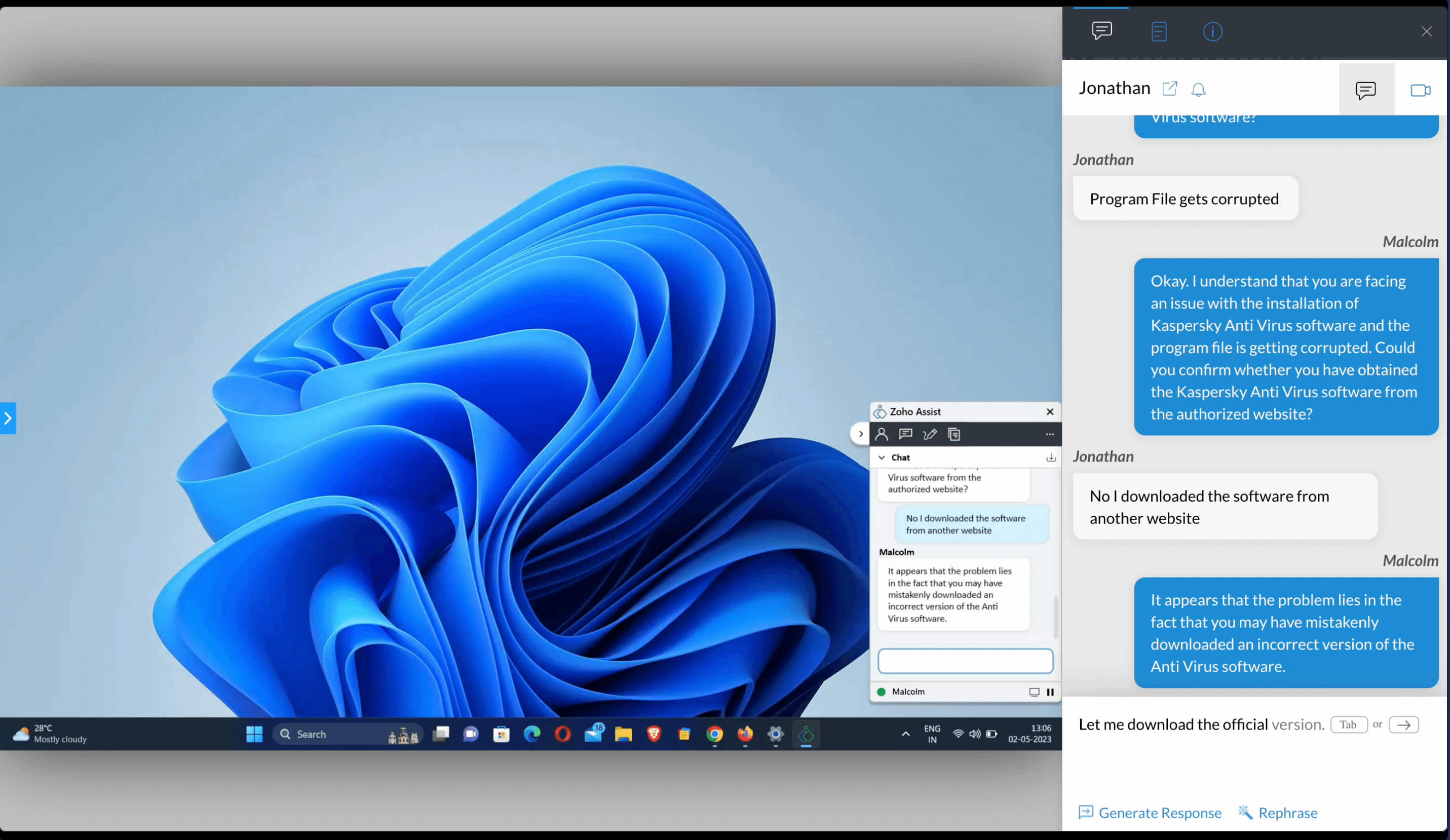
How to generate Zia Session Summary
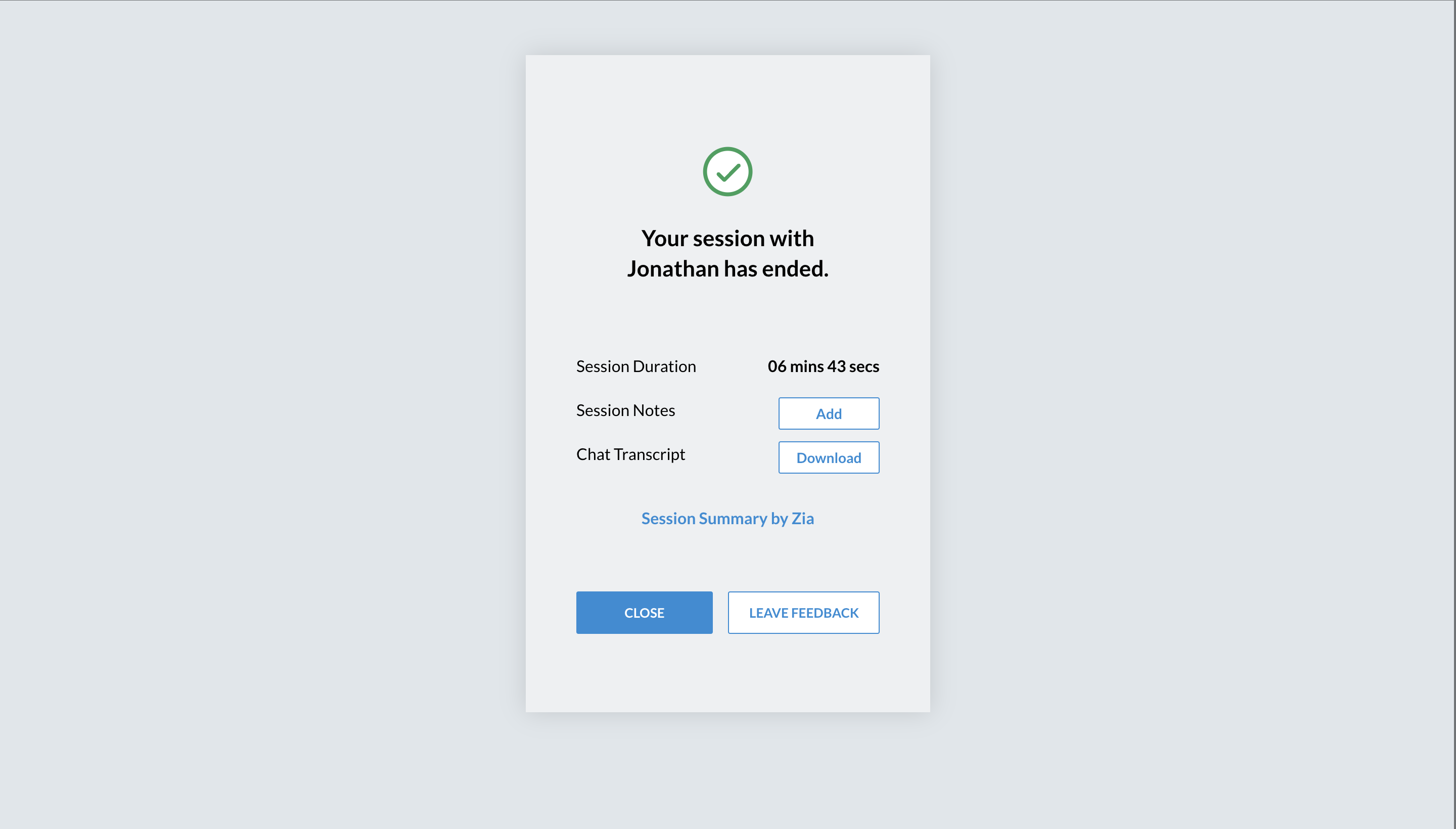
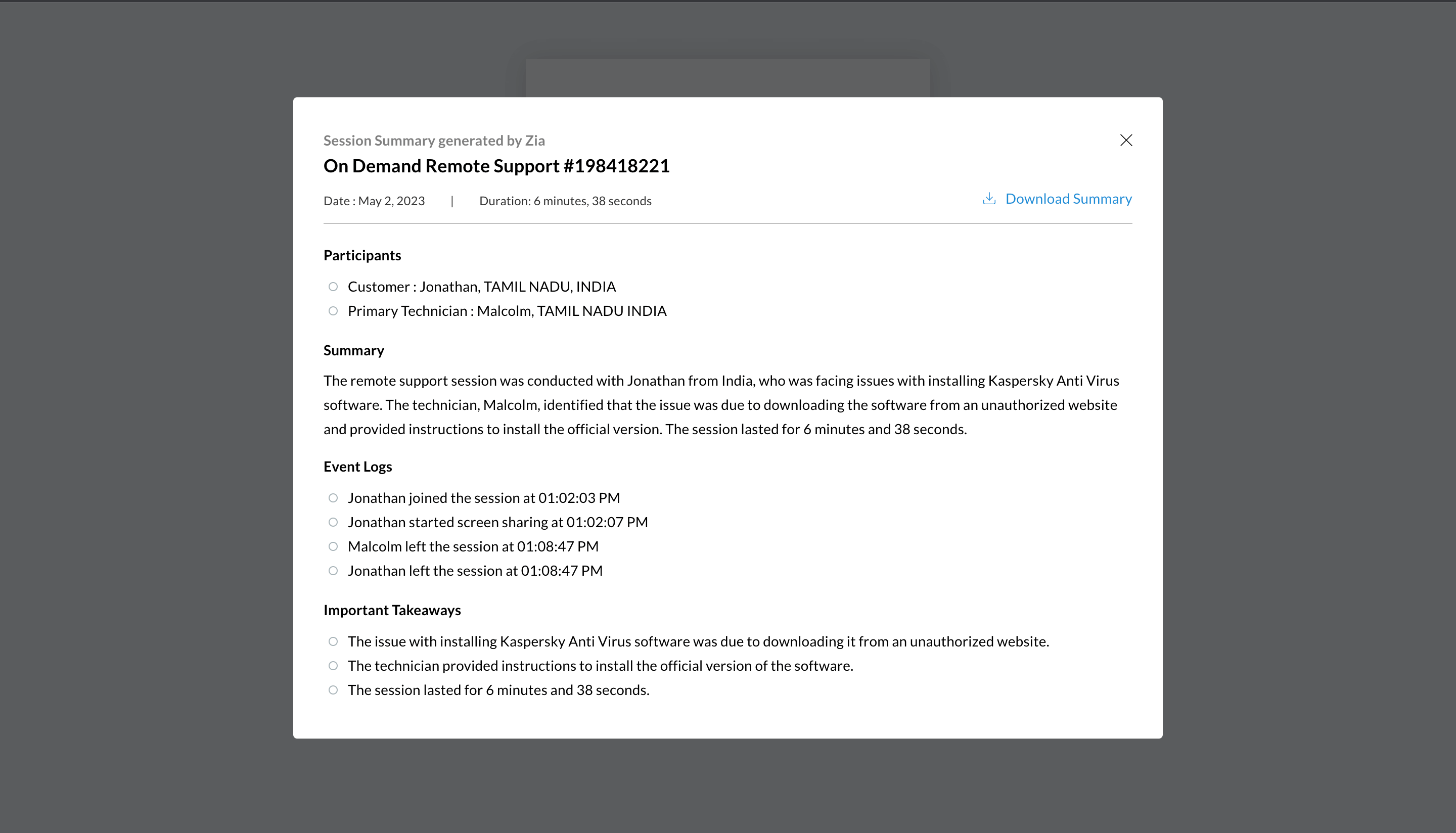
Zia can help you with generating a session summary for your sessions based on the session audit logs and chat responses available during the remote session. At the end of your remote session, you can click the Session Summary by Zia option, which will automatically generate the Zia Session summary for you. The session summary will include the purpose of the session, a timeline of the actions performed during the remote session, and the resolution provided to the customer.