AR Session within a Active Remote Session
Zoho Assist's integration with Zoho Lens enables technicians to provide real-time AR-guided support for hardware and physical device issues. Unlike software problems that can be resolved through remote screen sharing, physical issues require visual access to the customer's real-world environment.
Within an active remote session, the technician can initiate an AR assistance session to view the customer's live camera feed, use AR annotations, and communicate via text or voice chat to walk the customer through resolving the issue. The customer can join from their mobile device by scanning a QR code or using the invite link, with or without the Zoho Lens app installed.
How to Start an AR Assistance Session within an Active Remote Session
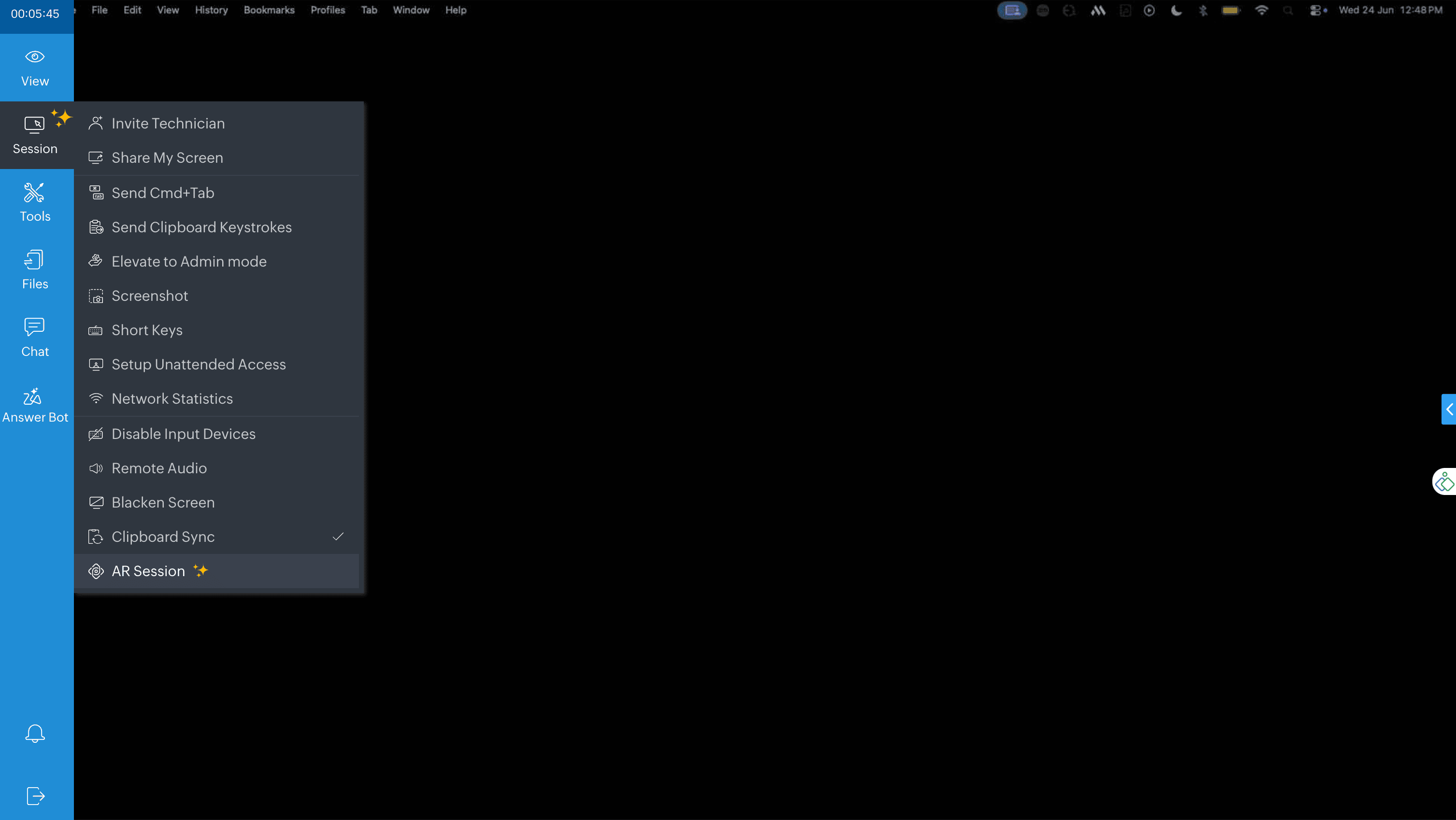
During an active session, click the Session tab in the left sidebar and select AR Session.
A confirmation dialog will appear. Click Initiate to start the AR session.
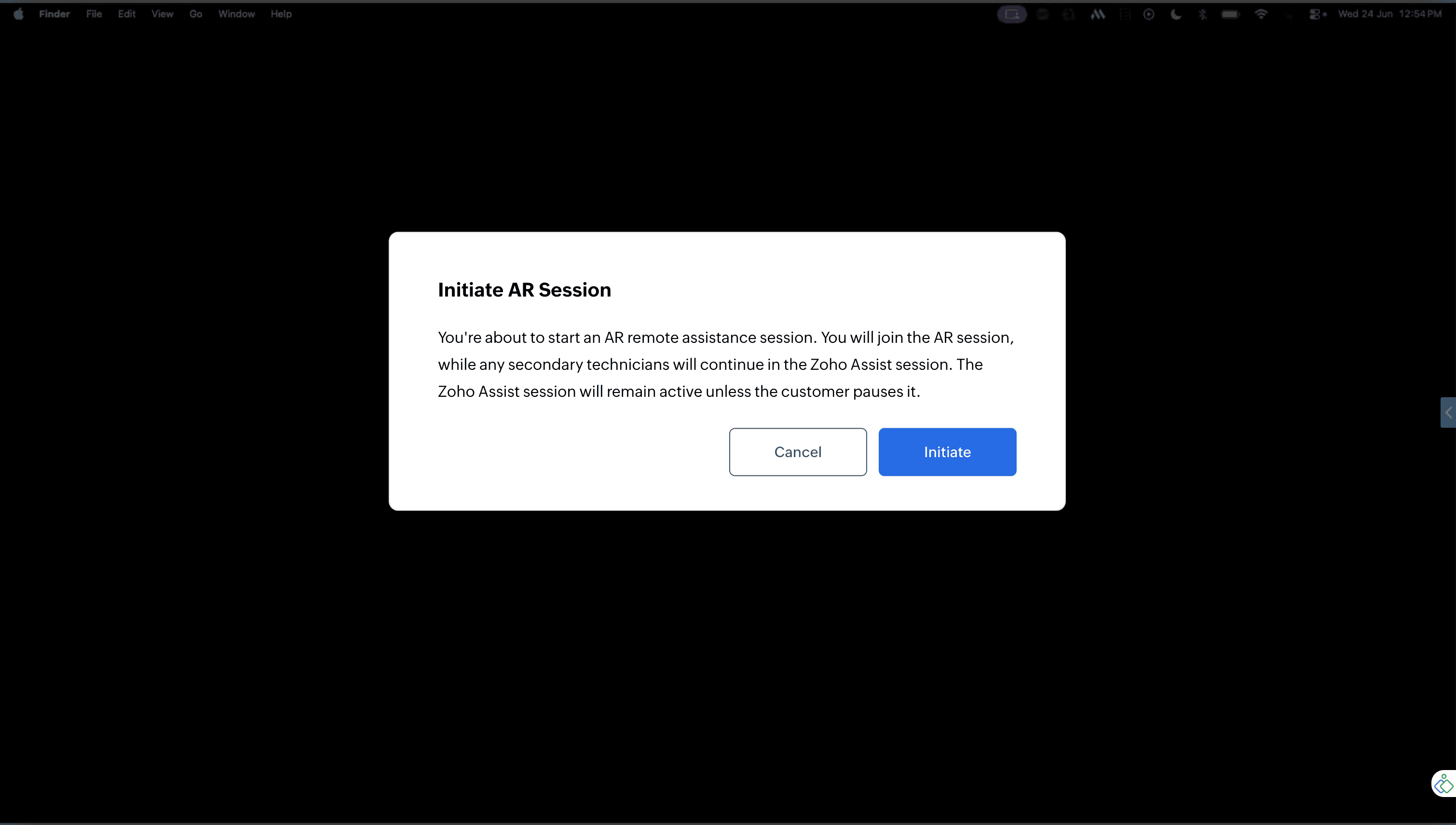
Note: Only the primary technician will join the AR session. Secondary technicians will remain in the Assist session. The Zoho Assist session will remain active unless paused by the customer.
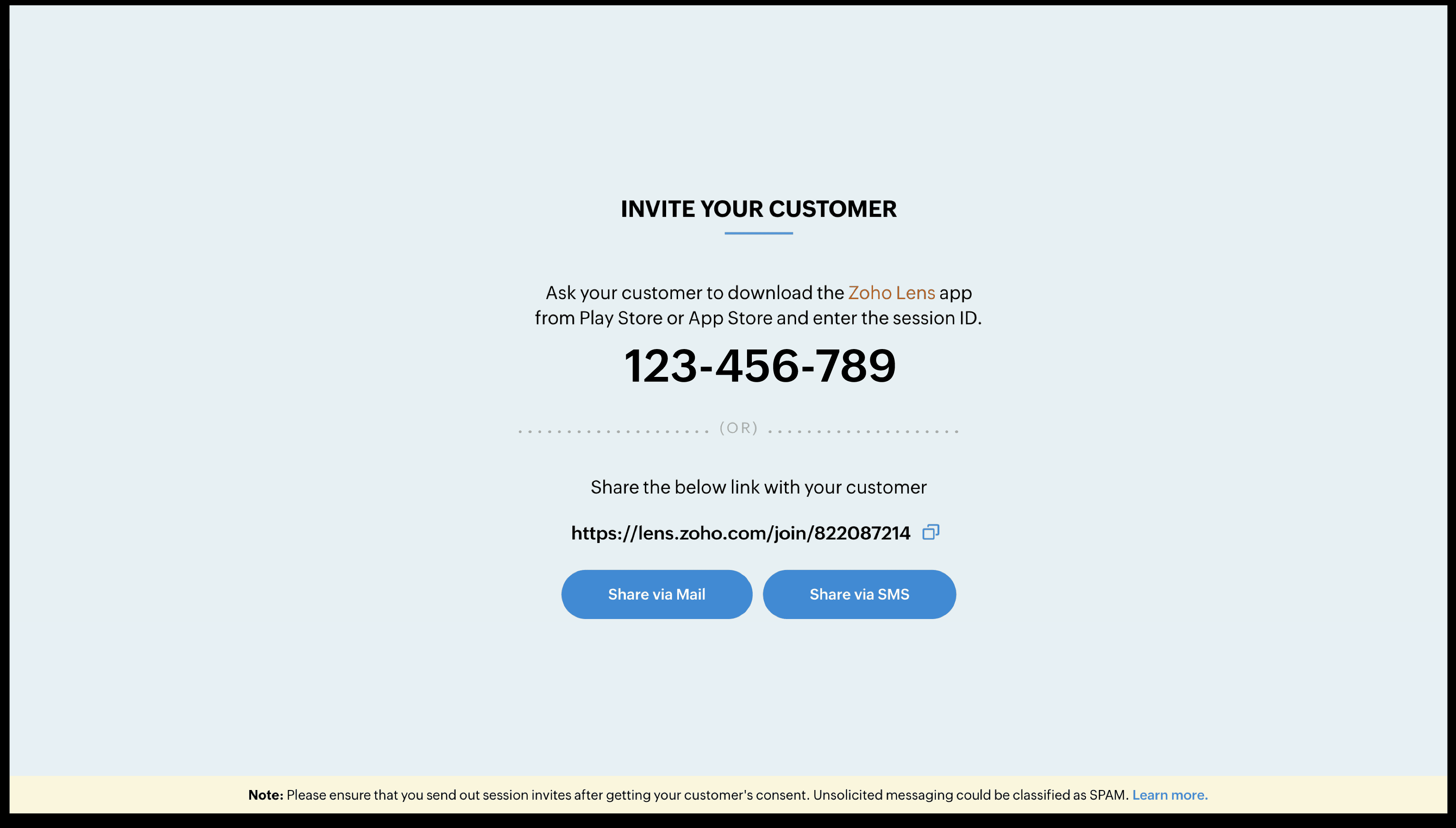
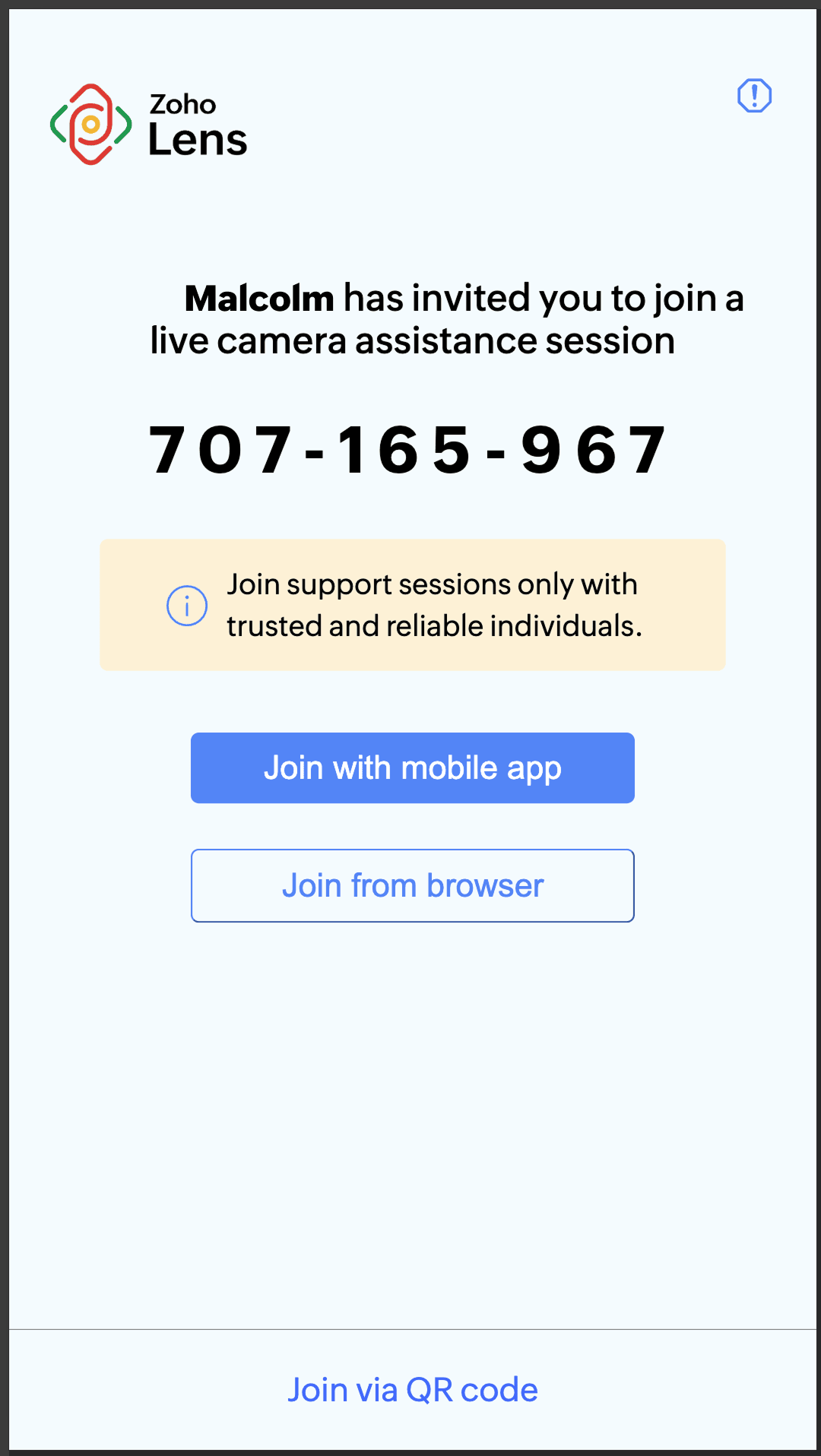
The AR session opens in a new browser tab. Share the session details with the customer/remote user by providing the session ID or copying the session link and sharing it via email or SMS.
- Session ID: Ask the customer to open the Zoho Lens app and enter the session ID.
- Session link: Copy the link and share it via Mail or SMS.
How Remote Users Can Join an AR Assistance Session
Once you initiate an AR session, the remote user will receive a notification with an in-session chat link. When they click the "Join now" link in their chat window, a popup will display a QR code. They can scan this QR code using their mobile device or smart glasses to join the session.
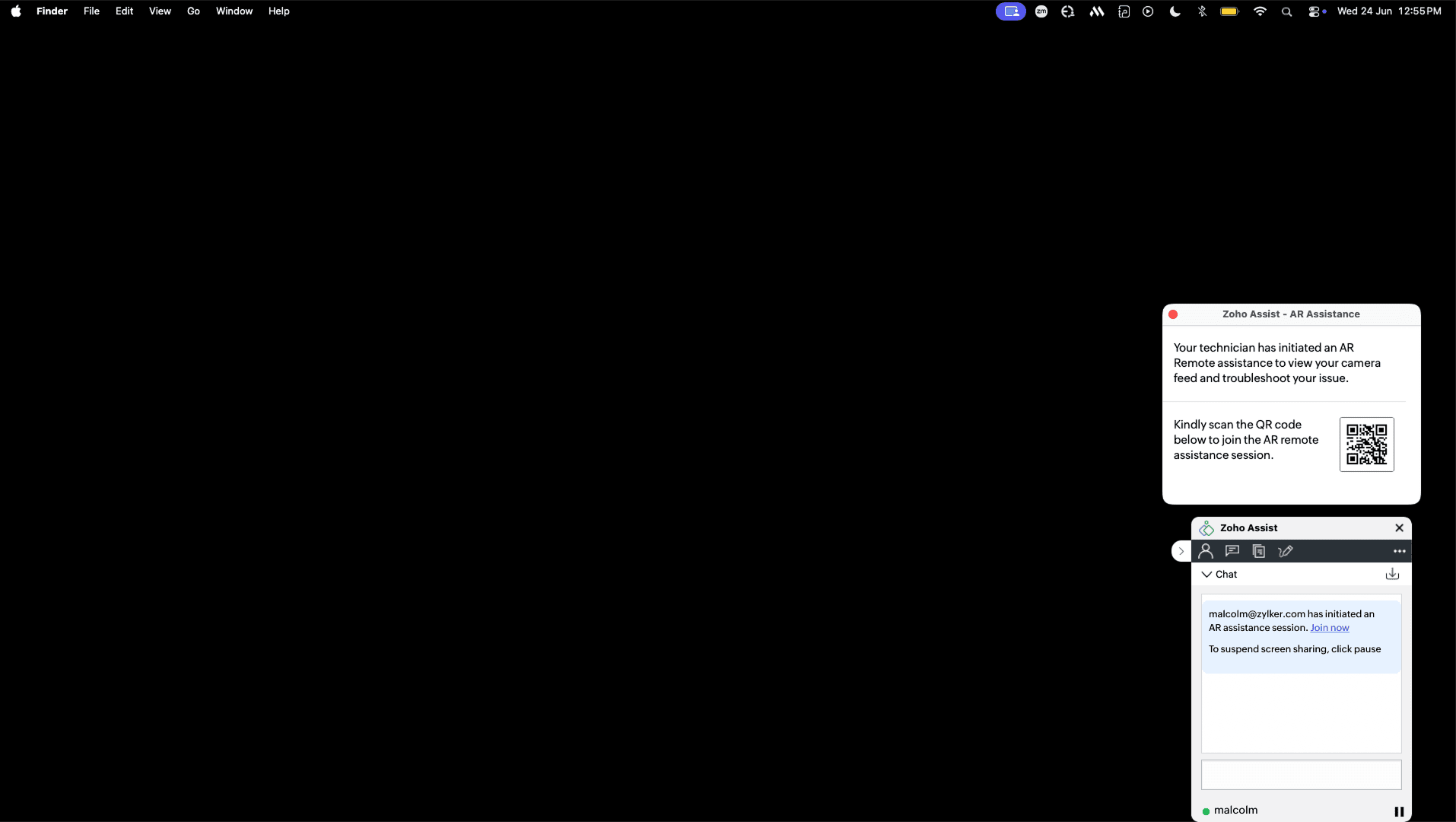
Alternatively, they can open the Zoho Lens app and enter the session ID, or click the session link shared via email or SMS.
Note
When a new Zoho Assist organization is created, a corresponding Zoho Lens organization is created automatically, enabling AR assistance without additional setup.
For existing organization in Zoho Assist contact Zoho Assist Support team at support@zohoassist.com to enable the corresponding Zoho Lens organization.