Proxy Settings
In various organizations, direct internet access is restricted and all outbound connections are required to route through a proxy server. To install the Unattended Access agent in such environments, you can use the Proxy setting in Zoho Assist to comply with your organization's network policy.
When this setting is enabled and proxy details are configured, Zoho Assist routes all Unattended Access installation connections through the configured proxy server.
When the Proxy setting is disabled, Zoho Assist falls back to the default proxy configuration already present on the device to establish the connection.
To configure Proxy,
Log in to your Zoho Assist account.
Navigate to Unattended Access > Settings and select Proxy.
Select the Proxy checkbox. This activates the Host IP and Port fields.
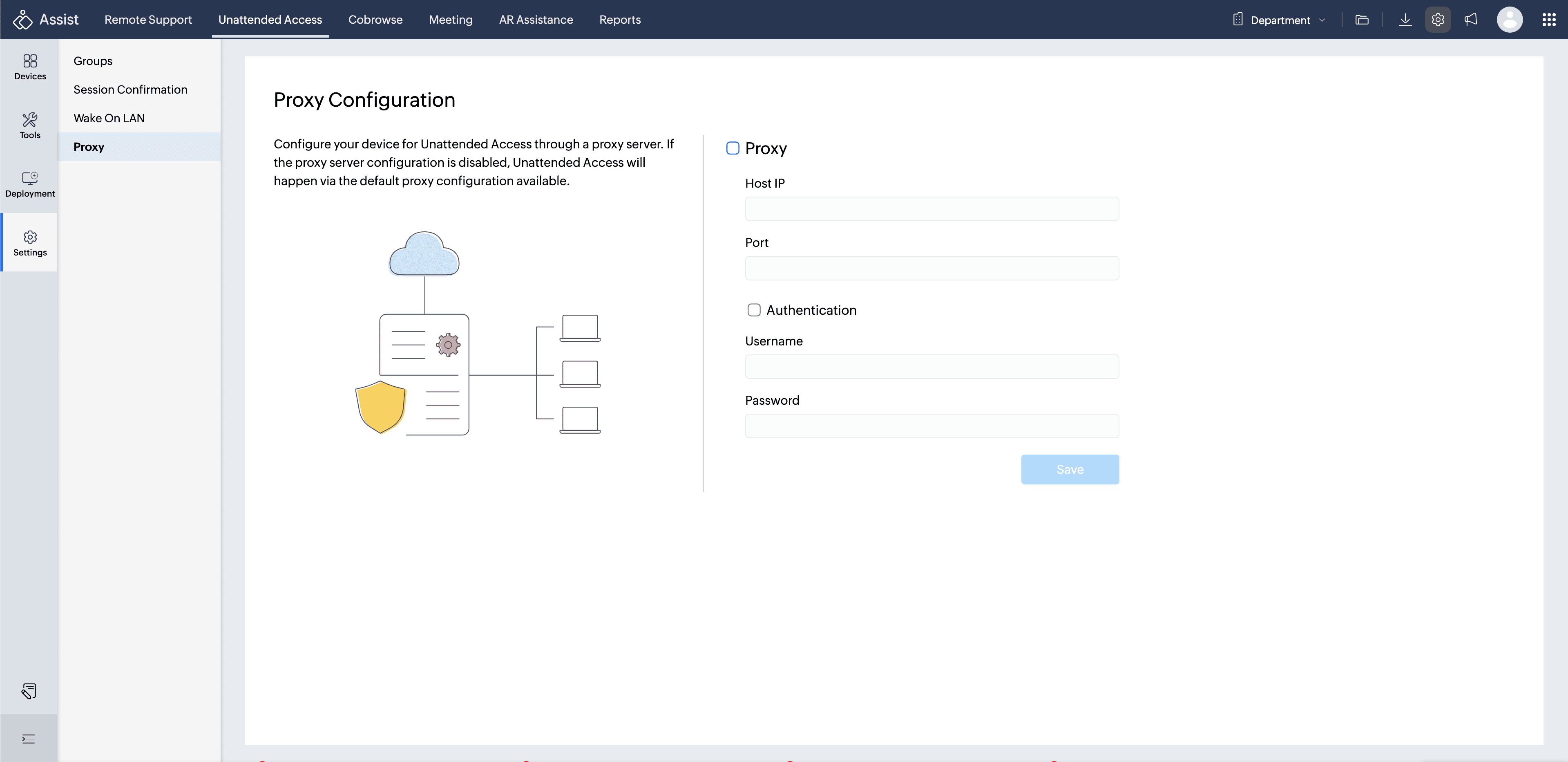
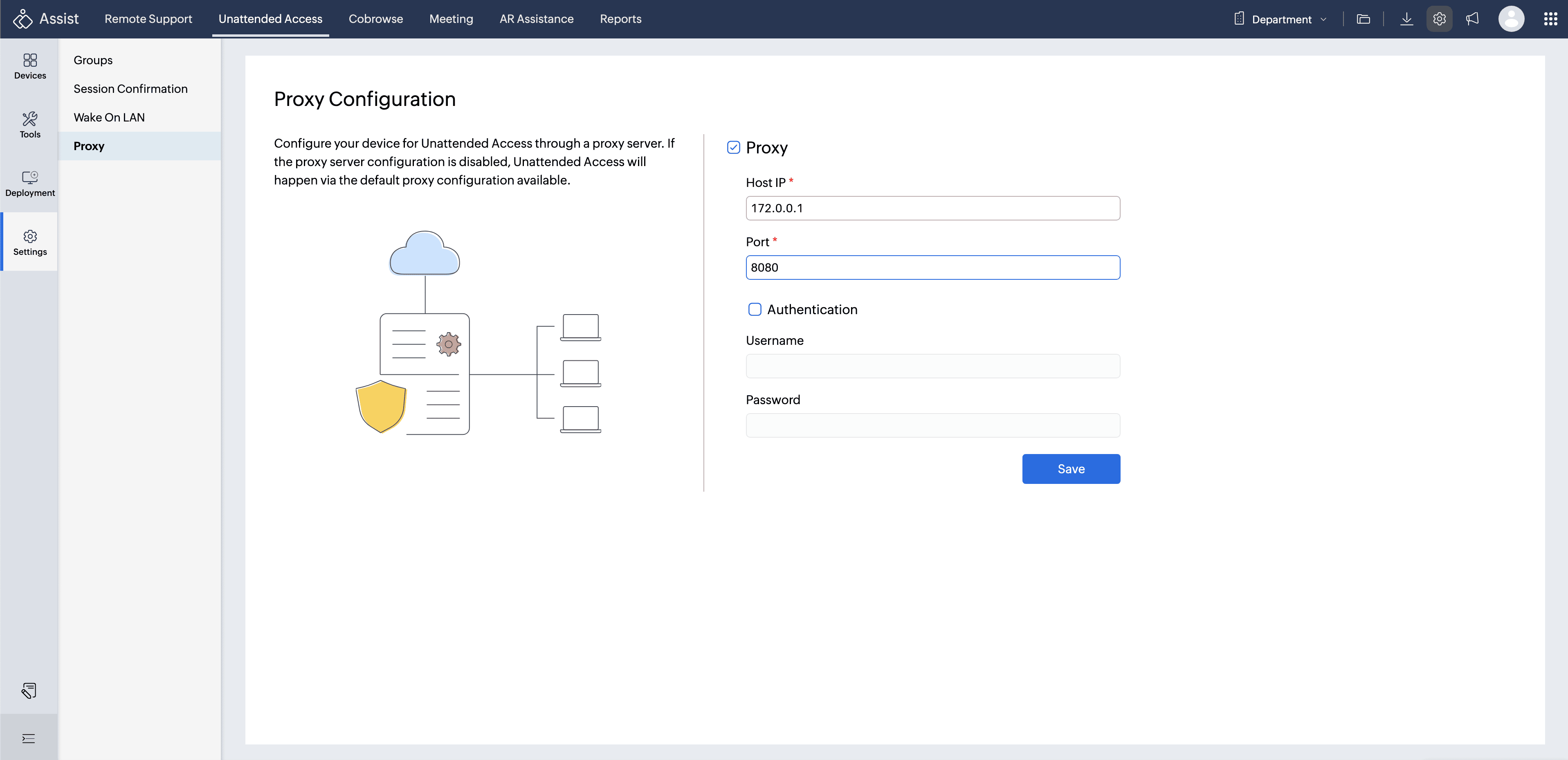
Enter the proxy server details in the following fields:
Host IP – Enter the host IP of the proxy server.
Port – Enter the port number used by the proxy server (for example, 8080 or 3128).
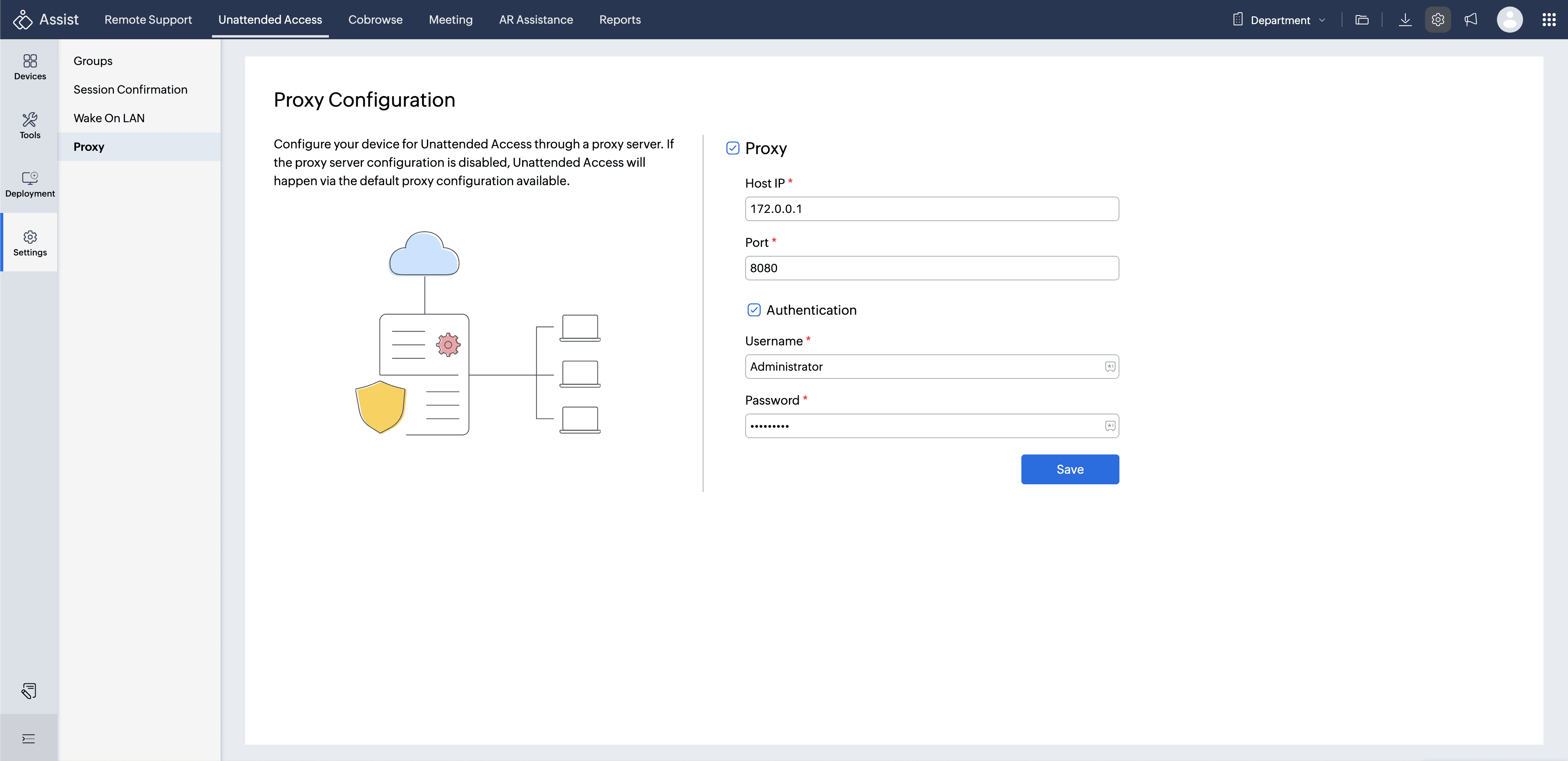
If your proxy server requires authentication, select the Authentication checkbox and enter the Username and Password.
Click Save to apply the configuration. Zoho Assist will then route Unattended Access installations through the specified proxy server.
Note:
Proxy settings apply only to agents downloaded after the proxy configuration is saved.
Agents downloaded before enabling the proxy will not automatically inherit these settings.