Power Options
Power Option in Zoho Assist allows you to perform power actions such as Shutdown, Restart, Log Off, Lock Screen, Hibernate, and Standby on a remote computer. You can access these power options from within an active remote session (both remote support and unattended access) and from the Zoho Assist console for unattended devices. These options are available for any computer in your Unattended Access list, as long as it is online.
Business Use Case: IT teams and MSPs can use Power Options to manage remote computers across offices and client sites without initiating a full session. Technicians can restart machines after patch deployments, lock unattended workstations to meet security compliance, reboot systems into Safe Mode to diagnose driver or startup failures, and shut down entire branches at end of day all from the Zoho Assist console. This eliminates the need for on-site visits or phone-guided instructions, reducing response time and improving operational efficiency.
Supported Power Options by Platform
Windows
Power Option | Description |
Lock Screen | Locks the remote screen instantly. Allows switching users without ending the session. |
Log Off | Logs off the currently active user on the remote computer. |
Reboot | Restarts the remote computer. |
Reboot in Safe Mode | Restarts the computer in Windows Safe Mode. The Unattended Access agent reconnects automatically once the system is back online. (Available only during an active session.) |
Shutdown | Powers off the remote computer completely. |
Sleep | Puts the remote computer into sleep mode. (Only from the Unattended Access tab) |
Mac
Power Option | Description |
Lock Screen | Locks the remote screen instantly. |
Reboot | Restarts the remote computer. |
Shutdown | Powers off the remote computer completely. |
Sleep | Puts the remote computer into sleep mode. (Only from the Unattended Access tab) |
Performing a Power Action from the Console
- Go to the Unattended Access tab.
- Click the tool icon to the left of Connect for the required computer.
- Select Power Options from the dropdown menu.
- Choose the required power action from the list.
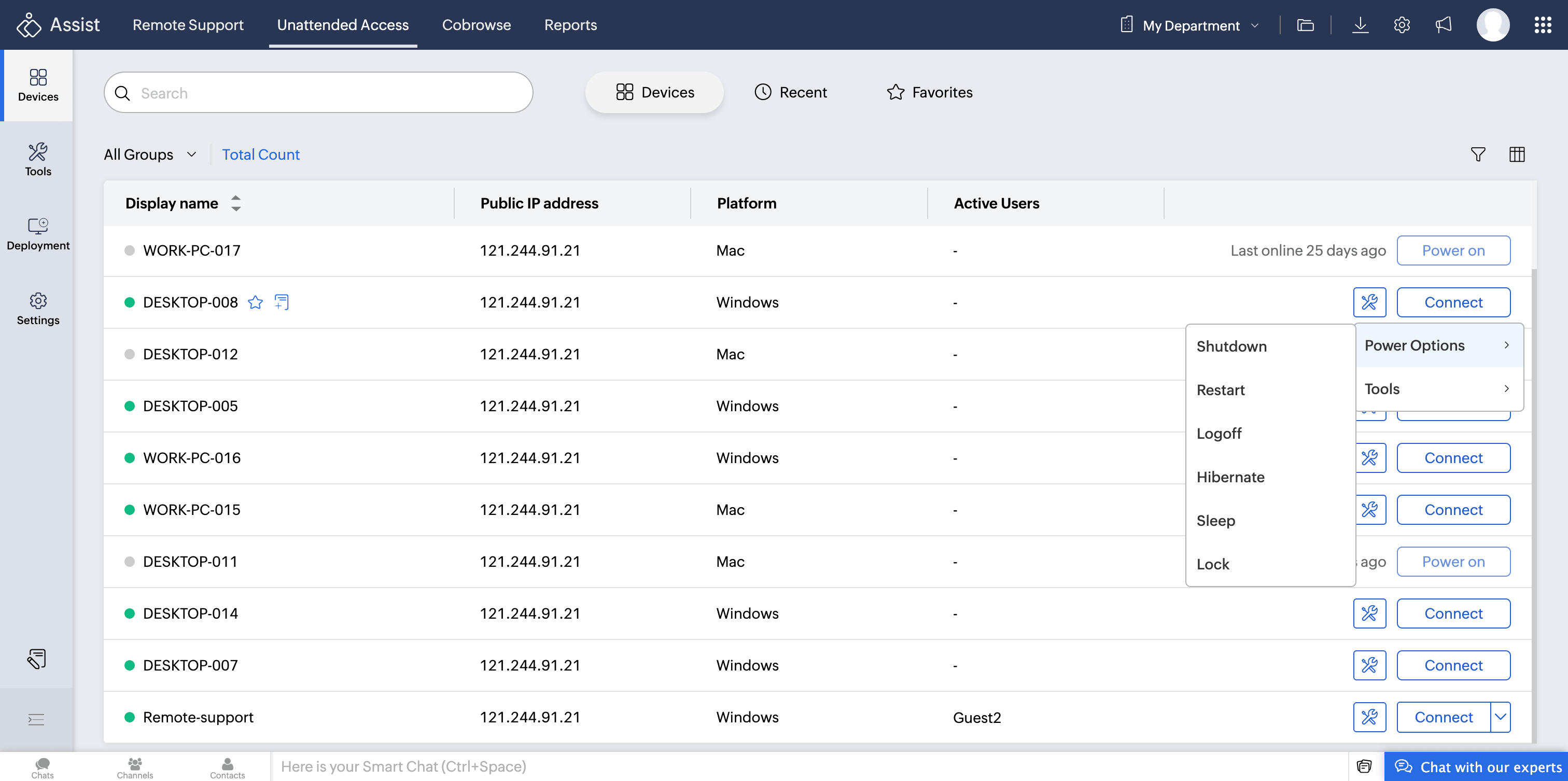
- Click Yes in the confirmation prompt to proceed.
Using Power Options During an Active Session
Power options are also accessible from within an active remote session:
- In the session toolbar, click Tools on the left panel.
- Select Power Options from the menu.
- Choose the required action such as Lock Screen, Log Off, Reboot, Reboot in Safe Mode or Shutdown.
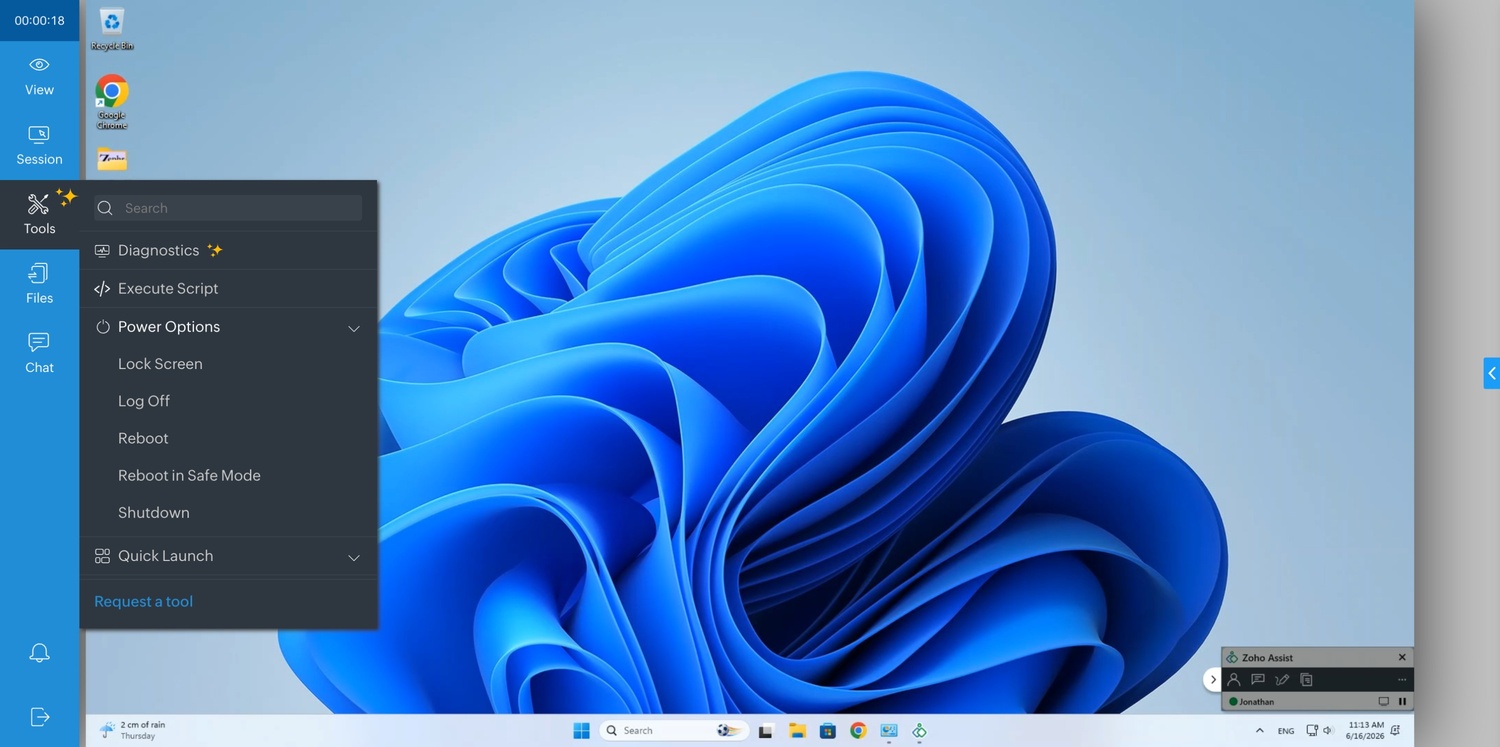
- Click Yes in the confirmation prompt to proceed.
